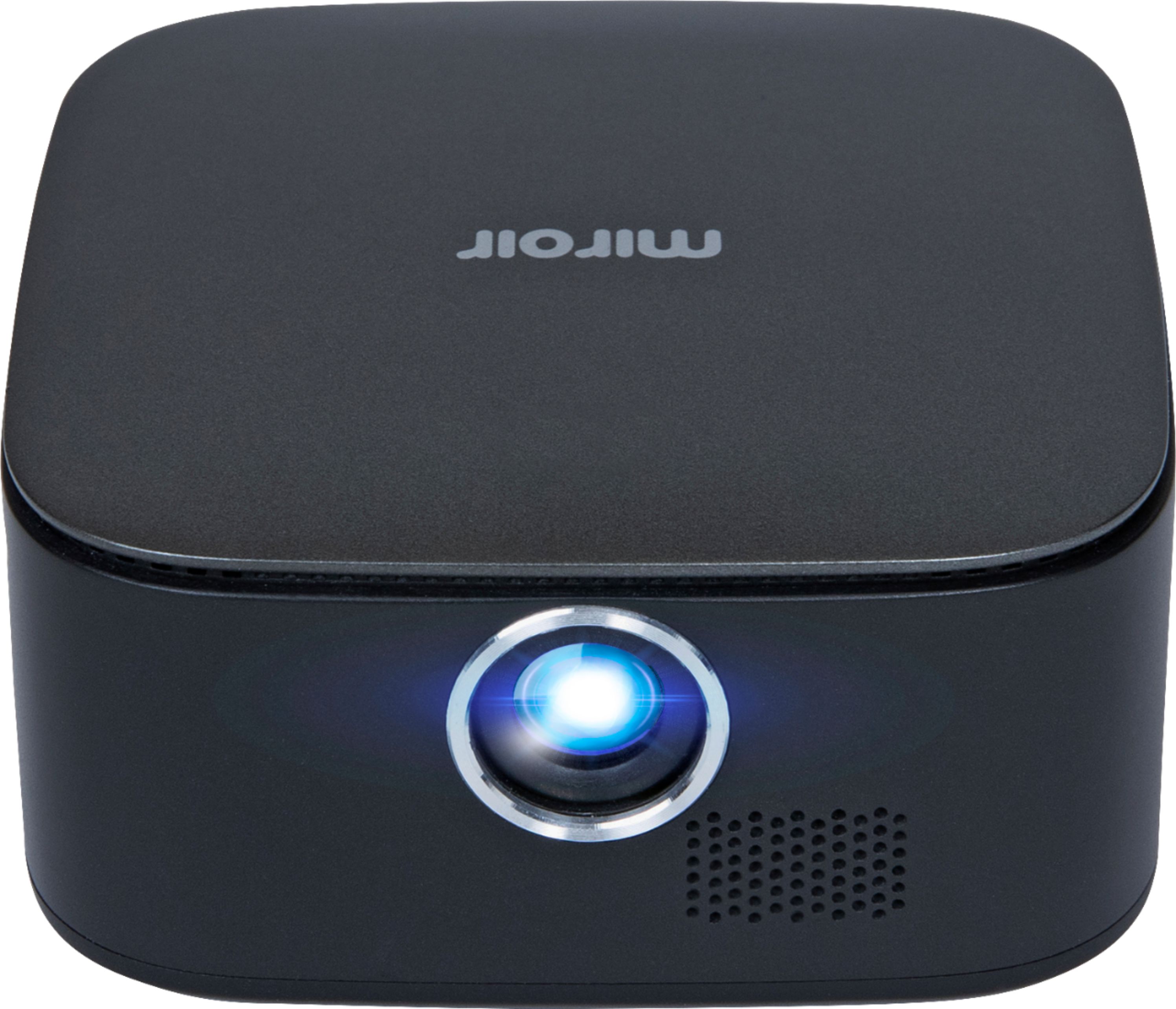
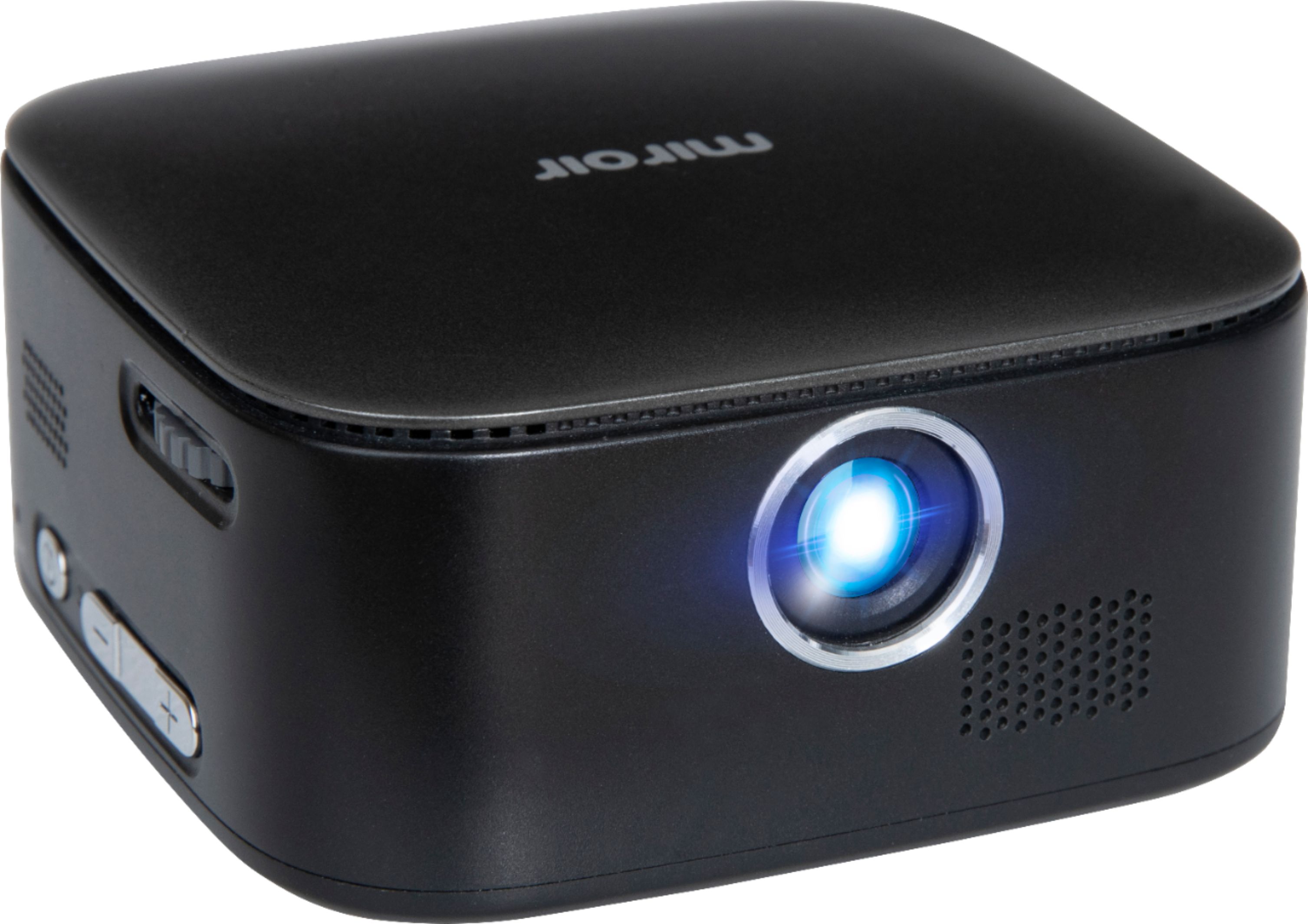
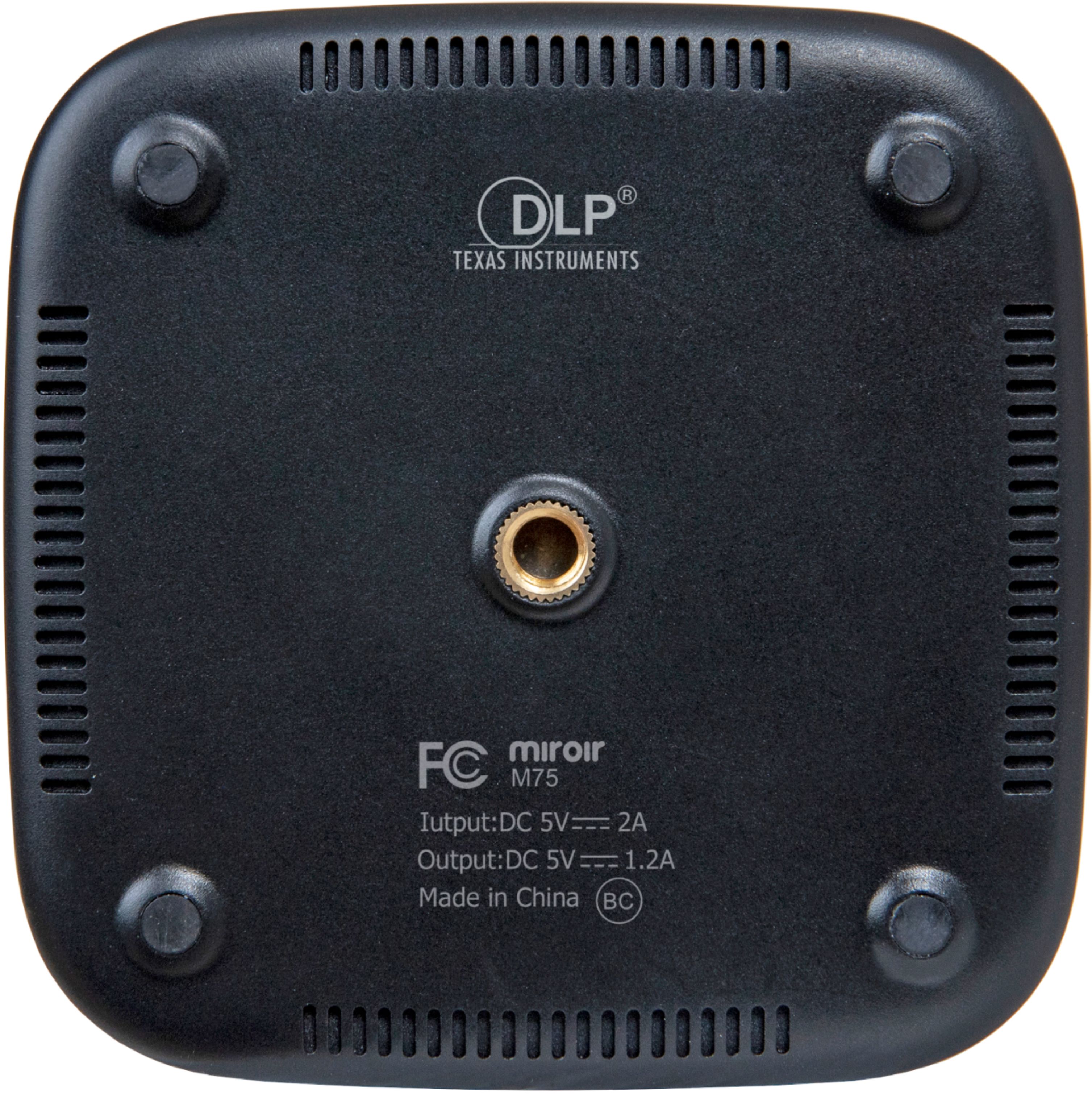
A:AnswerHello! The M75 uses a standard USB charging cable, so it will work with most regional USB blocks. If you have any additional questions, please feel free reach out to our support team on our website.
A:AnswerI haven't had this problem but when I connect to an external speaker I connect via bluetooth. I would have to turn up the volume from my computer because that's what I'm using to play a video and the bluetooth speaker for audio. Also if the volume is still low then check the volume on the speaker you're connecting too.
A:AnswerYes, the projector will function like a second monitor with your laptop. You can set your laptop to either mirror it's screen to the projector or treat the projector as an extended desktop.
A:AnswerMany people use our projectors for various art projects from decorating cookies to painting to sewing. You may find that the M75 is not bright enough depending on the light level in your work room.
A:AnswerHi,
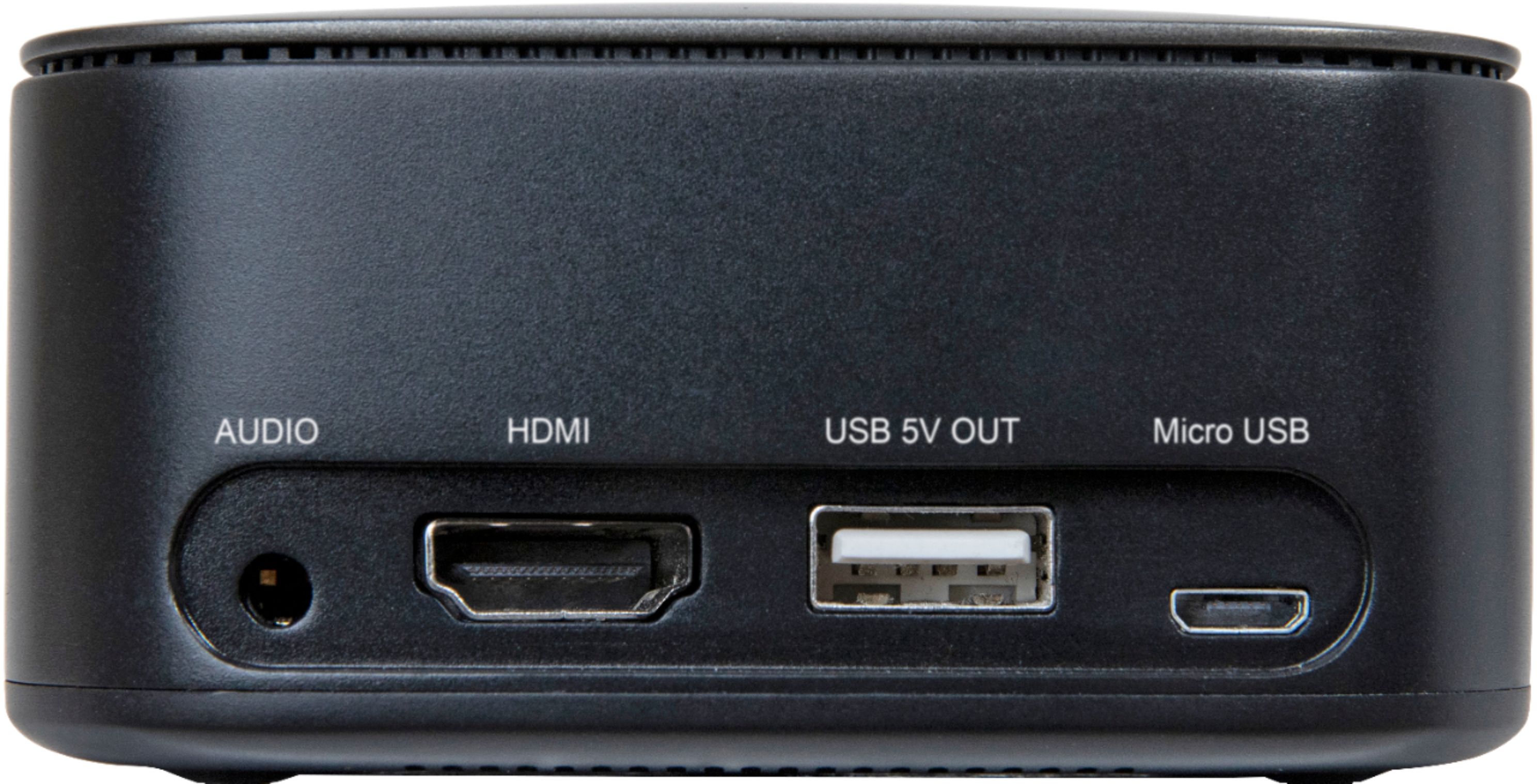
If your Android phone has USB Type C support for Video, you will need a USB C to HDMI video cable. Your phone may require another HDMI adapter or cable if it supports a different type of connector. Please visit Miroir support (www.miroirusa.com)for more assistance.
Thank you.
Miroir Team
A:AnswerHi,
The M75 does not have an input for antenna. Chromecast or other streaming sticks will plug into the HDMI port and provide access to content, depending on your streaming plan.
Thank you.
Miroir Team
A:AnswerHi,
The MotoGPlay does not offer video out through USB C connector. You would have to plug a Chromecast into the M75 HDMI port and wirelessly project from your MotoGPlay to the M75.
Thank you.
Miroir Team