A:AnswerAs I recall you can upgrade firmware yourself if you actually own the modem (not leased from a cable company). Pretty straightforward, and the Netgear website will have instructions on how to upgrade.
A:AnswerHello Christopher, Thank you for your question. We would recommend contacting Mediacom Cable support to see if our products are compatible and would work with their service.
Regards,
NETGEAR Team
A:AnswerAnswering "Is this all that I need?"
A modem connects you to the internet...but it...
(a) does not create wifi in your home,
(b)has only one port and lets you connect only one computer (and only by an ethernet/Cat5/Cat6 cable), and most importantly...
(c) DOES NOT PROVIDE INTERNET SECURITY AGAINST HACKERS.
Your computer software comes with a firewall for some protection, but...
You'll need a router and/or a VPN to add security to your online excursions, so that hackers can't get into your computer (as easily).
A router also lets you split your signal, so you can connect multiple computers or devices in your home.
There are regular routers (allowing you to plug multiple cables into the back, to connect multiple devices) and wireless routers (which obviously send out a wifi signal for your devices to receive).
You'll want to get familiar with how to set up your router. They come with instructions. When you plug it in, be ready to immediately change the admin username and password. Hackers know the default passwords to common routers and can get past the router pretty fast if you don't change the password!
The admin username and password are not the same as your wifi password. The admin password is for you to be able to go into the router's "dashboard" and change settings on it (from your computer screen). You can even set up a "Guest" account, so that visitors can surf the internet on a separate wifi signal, without knowing your family's password!
The wifi password is what you'll use (or give to your family) to connect to the internet without using a cable.
Be careful:
~Not to click on ads or websites you don't know are safe--and be careful of fake ads that look real..
~Not to open or click on anything in emails that could be suspicious ("phishing" attempts, such as counterfeit emails from you bank or credit card).
~Not to connect USB devices/flash drives to a computer if you don't completely trust the company they came from!
(It's worth the money to pay a little more and get a flash drive or device from a reputable company in the USA. Many low-priced devices made in other countries come with pre-installed malware or spyware and give outsiders access to you PC. Ask me how I found this out....)
A:AnswerI want to say your ability to stream well depends on your internet speed from your provider and the number of devices that will be connected. 50 mbps and above should work well, also get a good router. You will enjoy the modem, it delivers.
A:AnswerNot sure about the pods part of the question, I use 3 Google routers with my cable modem. Downstream and upstream refer to the speed that data is coming in or going out.
A:AnswerNo. This device does not, itself, provide internet service. It must be connected by a cable to an internet service. Next, it must be connected by a cable to a router. You may then connect a computer or other device to the router either by cable or wirelessly. I suggest that for your router, you go with a mesh device, such as a Google Wifi puck, so that you can extend your wireless wifi coverage as far as you may need.
A:AnswerI can't seem to find a list of approved 3rd party modems, and can only find forums indicating that ATT will only lease to you and won't activate 3rd party modems. However, you should call them to find out for sure if that's the case. If 3rd party modems are allowed you should ask them to provide a list of any that are compatible with their activation.
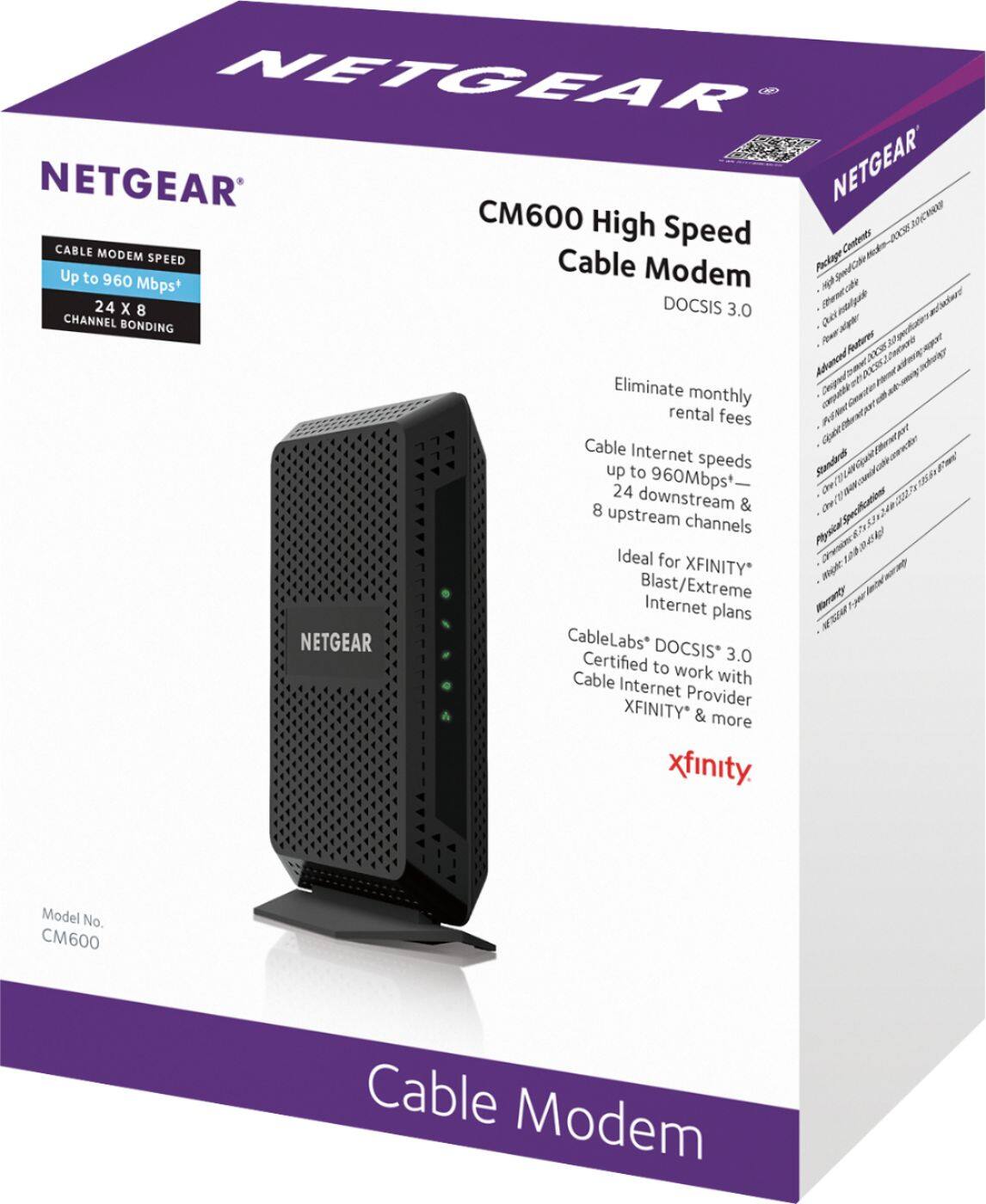
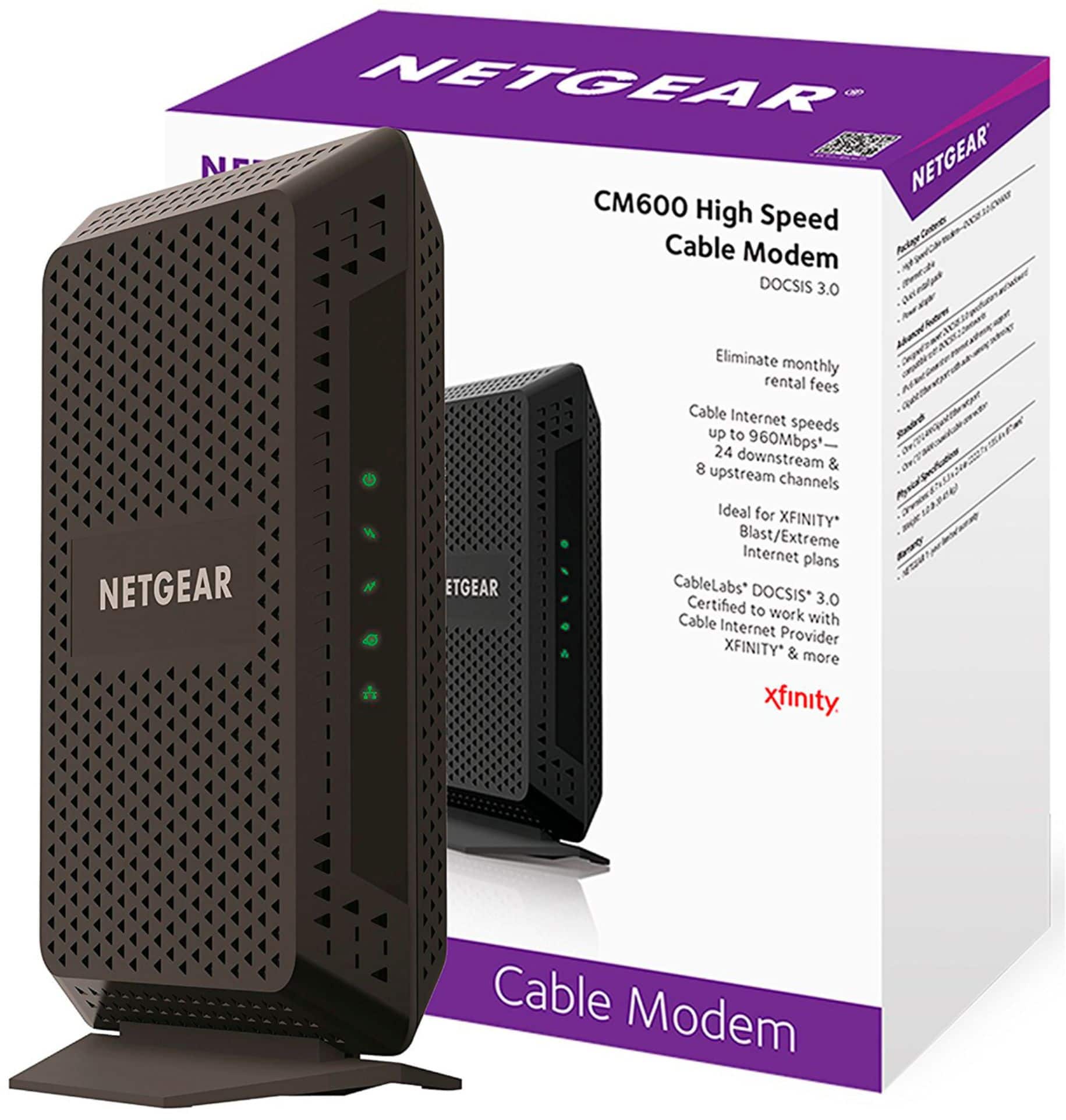
A:AnswerI am not a tech person but I just bought the Netgear CM600 high speed and it lists xfinity on the box so it is certified to work with your cable.