A:AnswerHello! If you have an Explorer 100 or an Explorer 505, press and hold the Volume up and down buttons together until you hear “welcome." Follow the voice-guided prompts to select the headset language. For further information on how this unit works: https://www.plantronics.com/content/dam/plantronics/documents-and-guides/en/user-guides/explorer-500-ug.pdf. If you have any further questions, feel free to contact our Customer Care Team at: 855-765-7878
A:AnswerI use it with my Samsung Galaxy Note 8 phone every day with no issues whatsoever. It re-connects immediately upon being turned on. It's the 3rd different earpiece I've used and it is the only one I will continue to use. I have no plans to replace it with anything else.
A:AnswerTo call the last dialed number you simply need to double press the headset's call control button. For additional information and features you can find our Explorer 500 series user guide on the following link: www.plantronics.com/content/dam/plantronics/documents-and-guides/en/user-guides/explorer-500-ug.pdf
Please don't hesitate to contact our customer care group at www.plantronics.com/support if you have other questions!
A:AnswerThe over the ear earloop for our Explorer series headsets is part of the included eartip kit. You can find this eartip with 3 different sizes of eartips (Small, Medium or Large) with the following part numbers 201955-01, 201955-02, 201955-03 (respectively).
Please don't hesitate to contact our customer care group at www.plantronics.com/support if you have other questions!
A:AnswerHello- You will need to put the headset into pairing mode. To do this, start with the headset turned on, press and hold the call control button until you see the headset indicator light flash an alternating red and blue. Then, activate Bluetooth® on your phone, set it to search for new devices and select “PLT_E500". If necessary, enter four zeros (0000) for the passcode or accept the connection. Once successfully paired you'll hear “pairing successful.” Hope this helps.
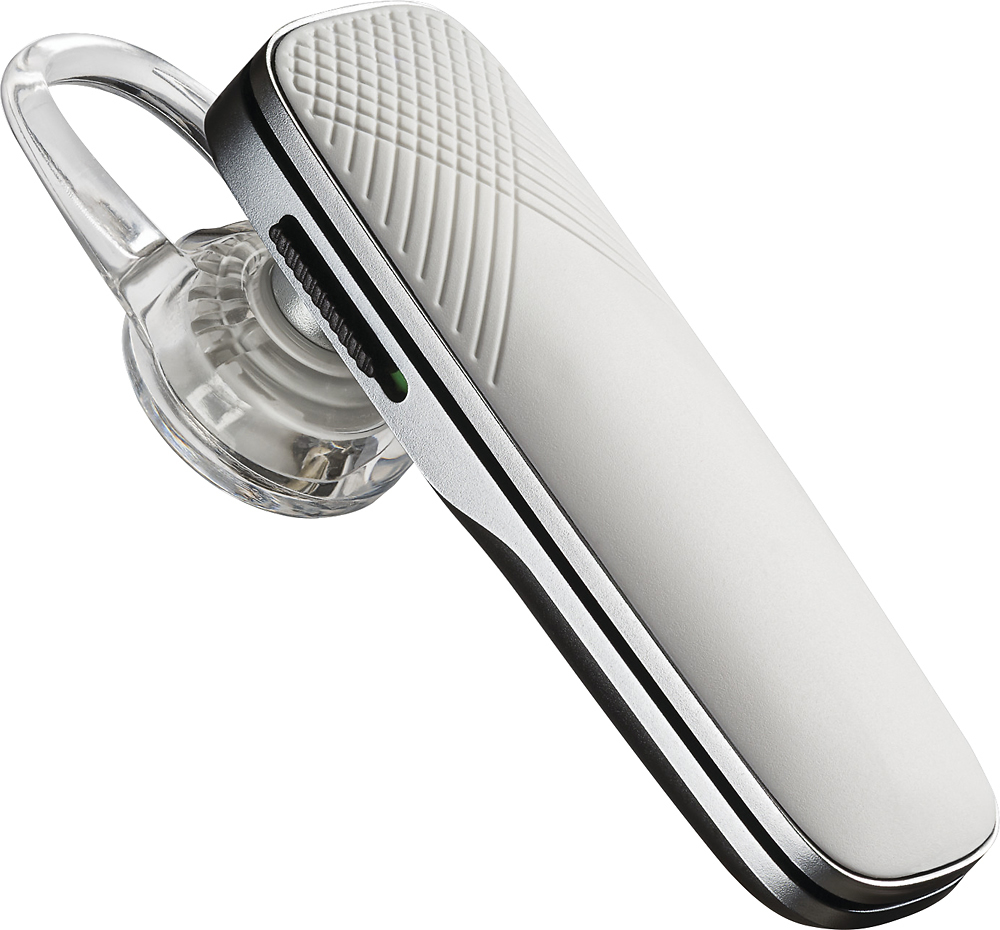
A:AnswerHi Zitella! To make your headset detectable, simply set it in pair mode. To do so: power the earpiece on, then press and hold the call button for 6-8 seconds until LED flashes red and blue repeatedly. This means the earpiece is in pair mode. Then go to Bluetooth settings on your phone and you should see the E505 listed as available. Select to pair and test it.
A:AnswerHi! No, this model is recommended for cell phones and tablets. We are unable to guarantee compatibility with desk phones. We recommend you to check out our Office products. https://www.poly.com/us/en/products/headsets/call-center
A:AnswerHi Jack! No, the battery is not replaceable. We're sorry to hear you're having charging issues. Please try using a different micro-USB cable to isolate the cause of the issue. Also, please make sure you're using a 5-volt wall charger for optimal performance. We also have some tips to extend the battery life of our products: https://bit.ly/35IMed5. In case you still get the same issues, please note this model counts with a one-year limited warranty. If you require further assistance, please contact our Customer Care Team at: 1-855-765-7878
A:AnswerHi! We recommend verifying this information directly with the seller. If you require technical assistance or have any questions, please don't hesitate to contact our Customer Care Team at 1-888-363-0726.
A:AnswerHi Patches, the earpiece itself counts with Multipoint technology, which allows you to keep the earpiece connected to two different phones https://bit.ly/3suKcHR. You can also pair it to other devices but to make the earpiece detectable, you need to set it in pairing mode manually. To do so, temporarily disable Bluetooth on the devices you've paired the earpiece. Then press and hold the call button for 6-8 seconds until the LED flashes red and blue repeatedly. This means the earpiece is in pairing mode and you should see it as an available device. If you have any further questions, feel free to contact our Customer Care Team at: 1-888-363-0726
A:AnswerHello! This headset model can be used by any device that supports Bluetooth headsets and audio streaming. Since Bluetooth technology works through several Bluetooth Profiles. The Bluetooth enabled device needs to support the following Bluetooth profiles to at least allow a connection to the headset: A2DP (Advanced Audio Distribution Profile), HFP (Hands-Free Profile), HSP (Headset Profile). We hope you will find this information useful, if you require further assistance, please don't hesitate to contact our Customer Care Team at 1-888-363-0726.
A:AnswerIt picks up everything and amplifies it. A bird that you can barely notice in your background can be heard be the person on the phone load and clear.