A:AnswerMake sure to check for mic inputs and levels. In windows, right click the speaker icon, select open sound settings and select the correct microphone. At this point some troubleshooting is required, make sure that the mic button on your headset is set to on and then lightly tap on the mic until you see feedback on the screen. Remember that you may have to change the input device from the list until the desired device is working.
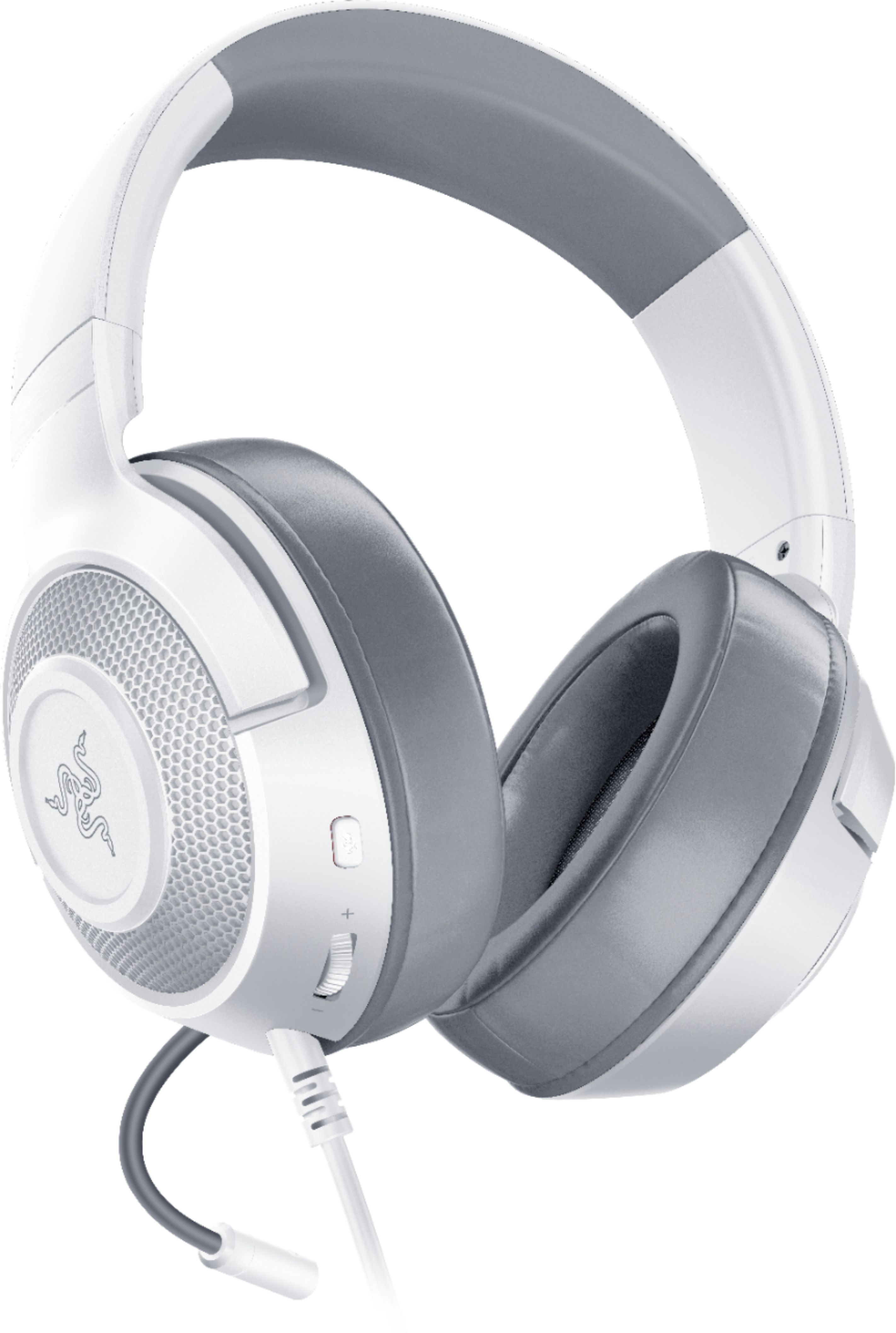
A:AnswerYea u can it just depends on what generation of I pad u have if it is an older one u can just fine but if it is a newer one u might need a dongle to plug It in
A:AnswerNo. It doesn't have that feature; but we appreciate you sharing this feedback so we can combine this idea with our R&D for future improvements.
A:AnswerMake sure the button on the side is pressed to the right setting, as it has a built in on/off switch for the mic. The instruction manual probably a layout of the design/buttons. Also check that your system is not muting you. I know the PS5 can possibly mute you by a default setting, etc. Otherwise, return it or use the warranty it came with on Razer’s website.