A:AnswerThere's definitely a difference. I wanna say almost 3D like. Its not different for sports thou I'm sure those are still running 1080HD. Had no issues "adjusting" and movies do look better then HD. If you ever saw the movie Beawolf (newer one) that has basically 5k before 4k lol
A:AnswerHi Laurielg, the Peacock app can be screen mirrored from your phone to your TV through AirPlay 2 or the SmartThings app. It is not currently available for direct download on Samsung TV’s, however. Thanks, ^Scott
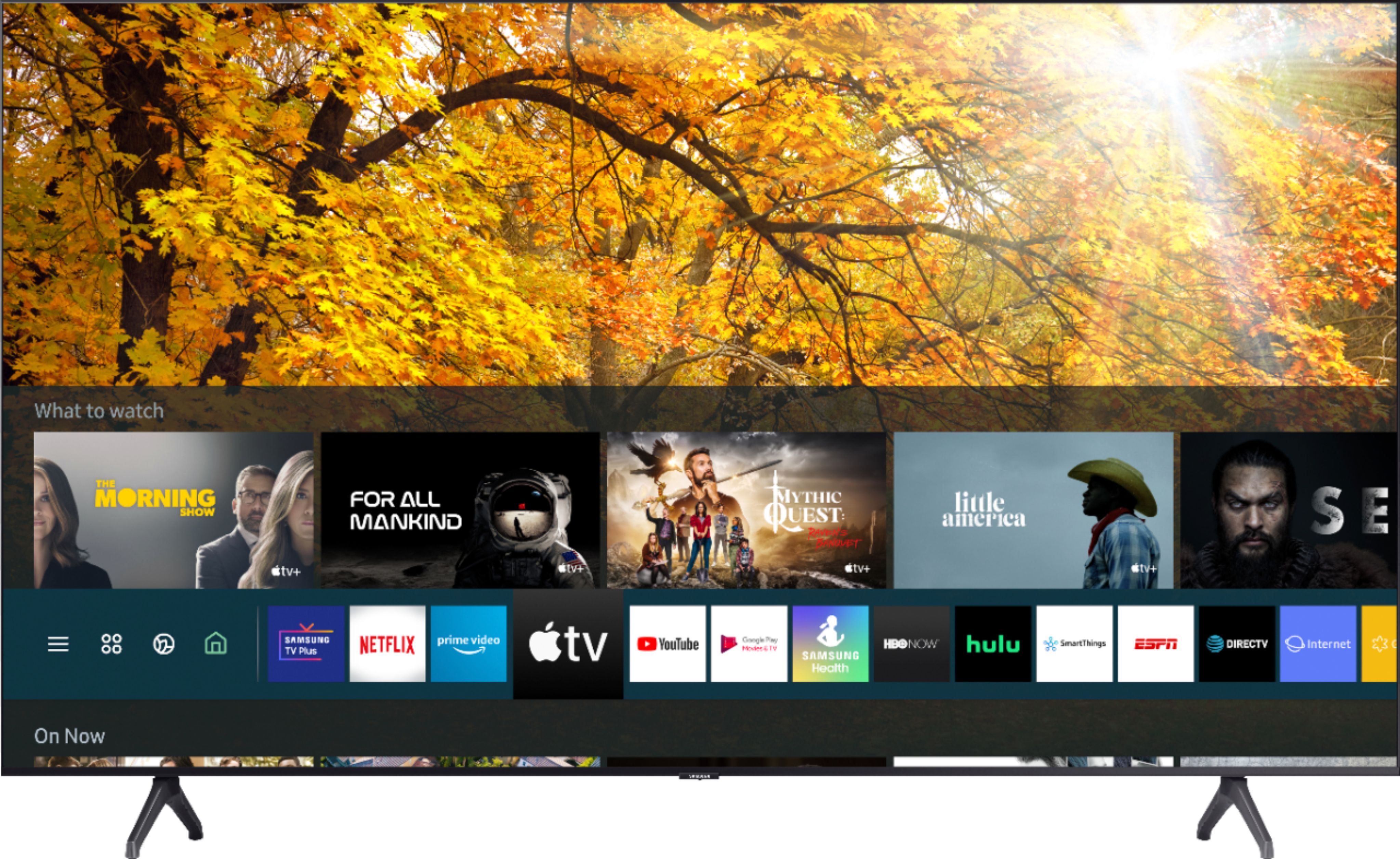
A:AnswerHi Krystal! Yes, the Xfinity application is available on the TU7000. To access this application, along with a wide range of other apps and streaming services, utilize the search feature through the built in app store. Check out the following link from Samsung for additional information on installing and managing applications: https://www.samsung.com/us/support/answer/ANS00062169/ ^Tim
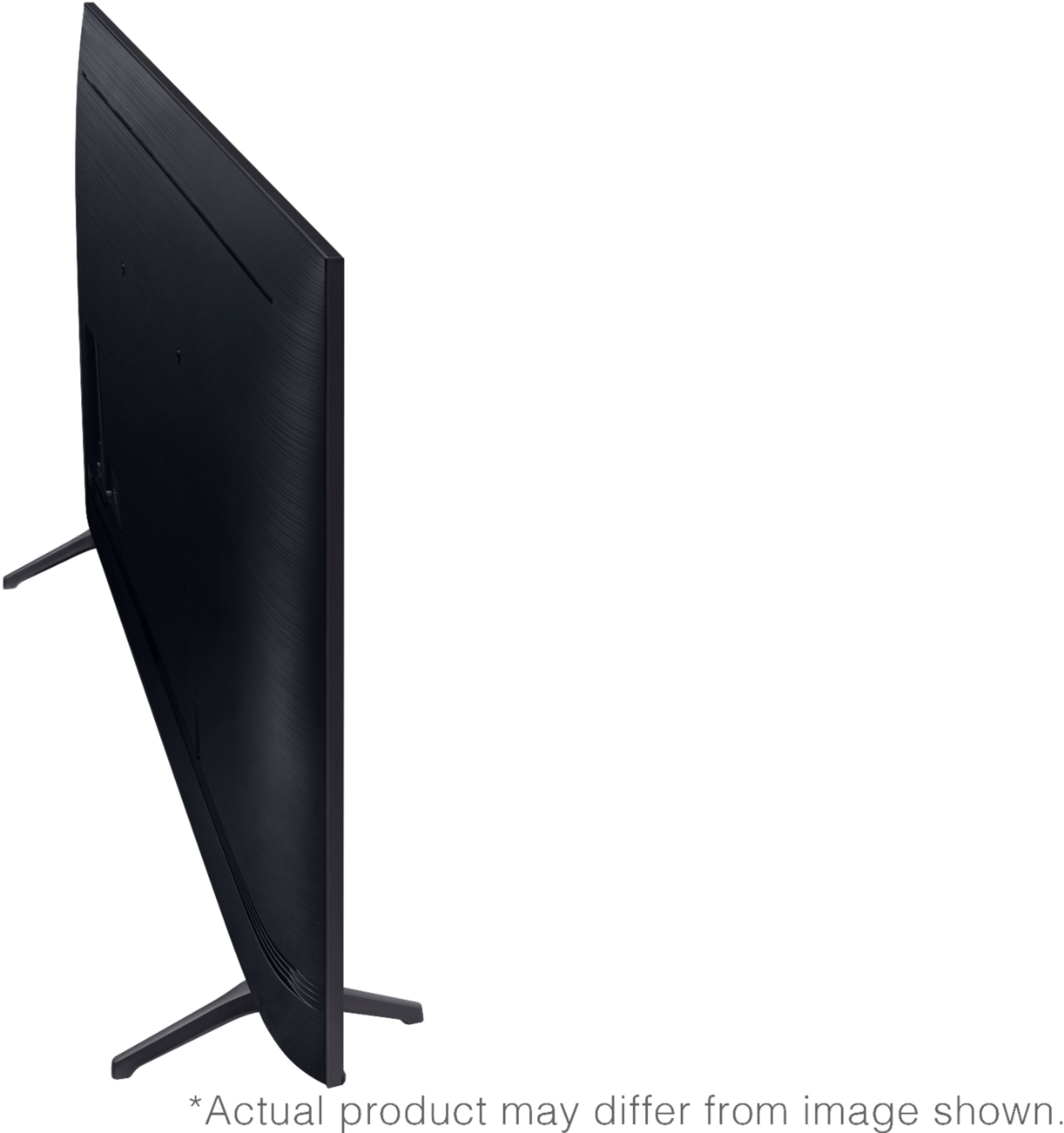
A:AnswerHi Blue! Some fixed position wall mounts sit extremely flush to the wall which can make it difficult to plug in additional devices. The inputs on the 43TU7000 are located on the back, right side of the TV, pointing to the side for easier access when wall mounted. For easier access to ports on the back of the TV, I recommend a tilting or full motion wall mount providing more space between the back of the TV and the wall. ^Tim
A:AnswerHi Treysoto! Yes, Samsung smart TVs feature two settings geared towards streaming: "Autorun Smart Hub" and "Autorun Last App". With both of these settings enabled, your TU7000 will turn on and automatically start the last application you were using such as Netflix or Disney+. To access these settings use the TV remote and navigate to Settings > General > Smart Features, then enable Autorun Smart Hub and Autorun Last App.
^Tim

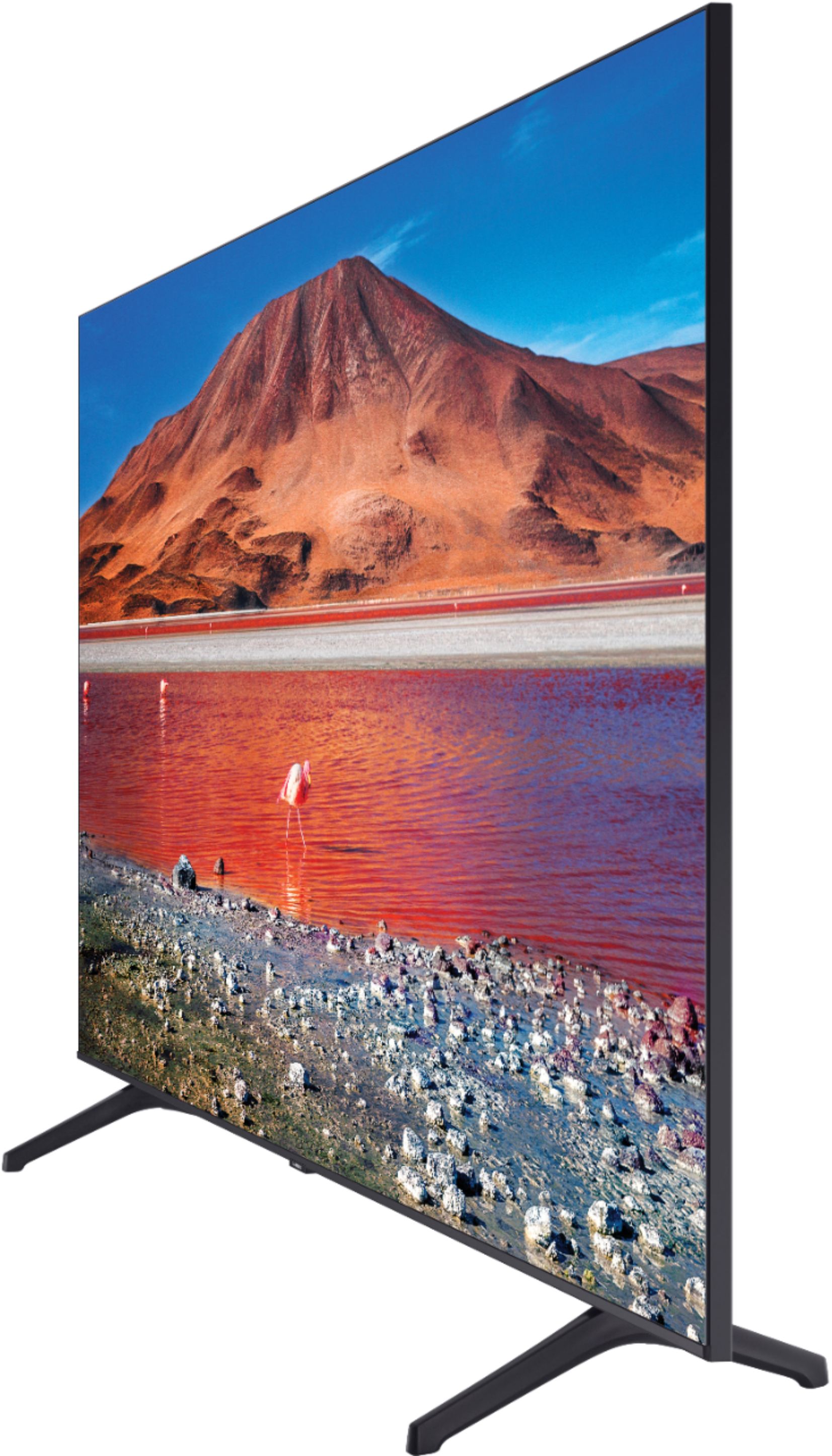
A:AnswerHi John! The legs for the 43" TU7000 are not adjustable. If you would like a center pedestal solution, check out the Premium Swivel TV Base from Sanus, compatible with the 43" TU7000, at the following link from Best Buy: https://www.bestbuy.com/site/sanus-premium-swivel-tv-base-for-most-32-60-tvs-black/5463304.p?skuId=5463304
^Tim

A:Answercan't answer that one. . . all I know is that the picture is flawless with respect to it's clarity, detail and colors displayed. If this is your first experience with a flat screen t.v., you will (should) be very impressed with what your eyes will tell you. I'd highly recommend this unit. . . a good value in this price range.
A:AnswerHi Lefty50! The TU7000 is compatible with full 4K resolution when connected to a source that supports it. Contact Verizon to determine the picture quality available through your plan. A strong Wi-Fi connection will help provide improved picture quality from streaming services that support it. 75 mbps will be enough to receive full 4K resolution from streaming services, but will not have any effect on picture quality through HDMI. ^Tim

A:AnswerHi! The TU7000 is not designed for use outdoors, placing the TV in an environment it is not designed for may cause damage. Here are the TVs required operating conditions:
Operating Temperature: 50°F to 104°F (10°C to 40°C)
Operating Humidity: 10% to 80%, non-condensing
Storage Temperature: -4°F to 113°F (-20°C to 45°C)
Storage Humidity: 5% to 95%, non-condensing
^Tim
A:AnswerHi! Yes, the TU7000 supports HDMI and Coaxial connections for Direct TV hardware support, and features the AT&T TV application to access your content without the need for a physical box. ^Tim
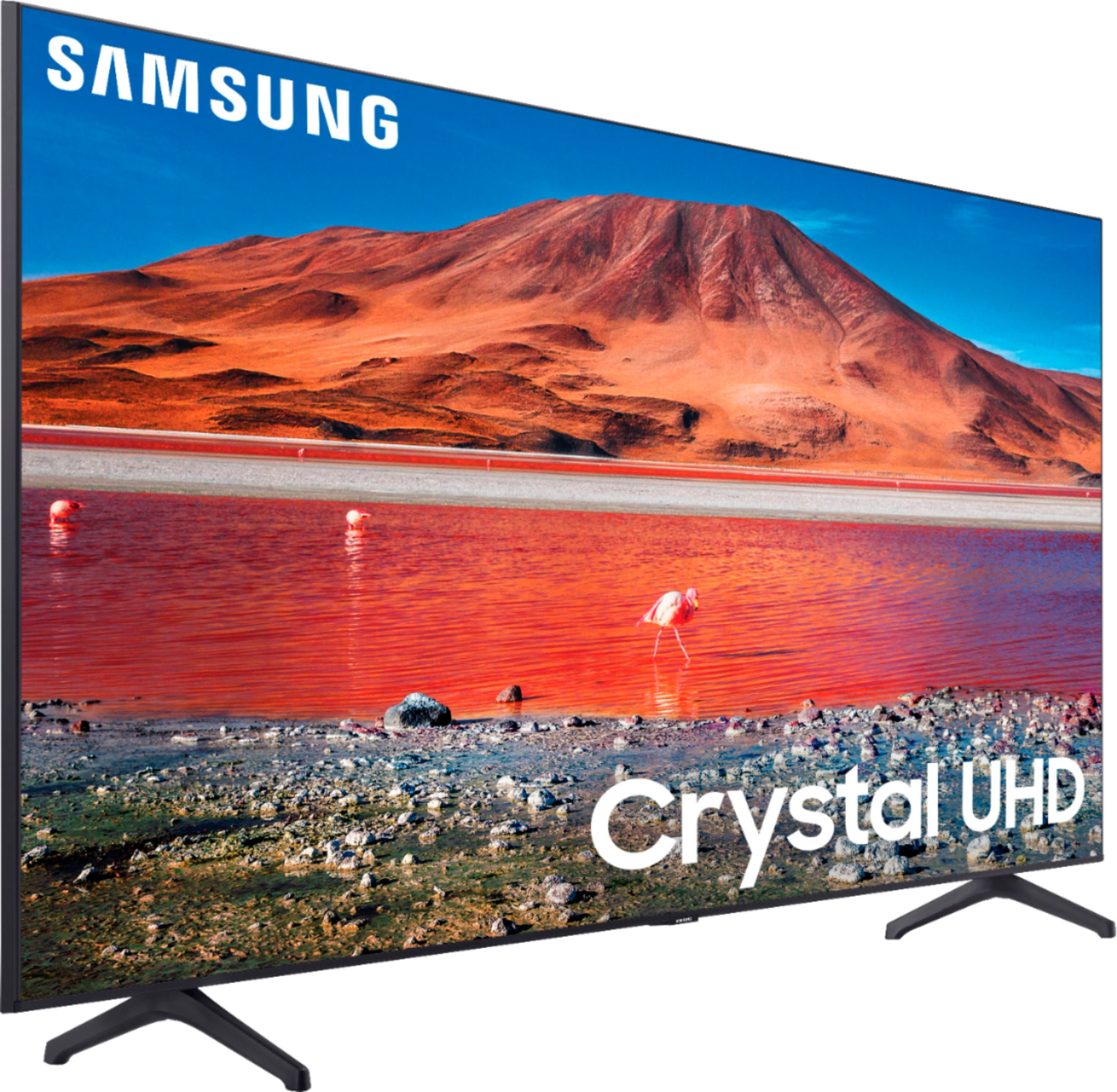
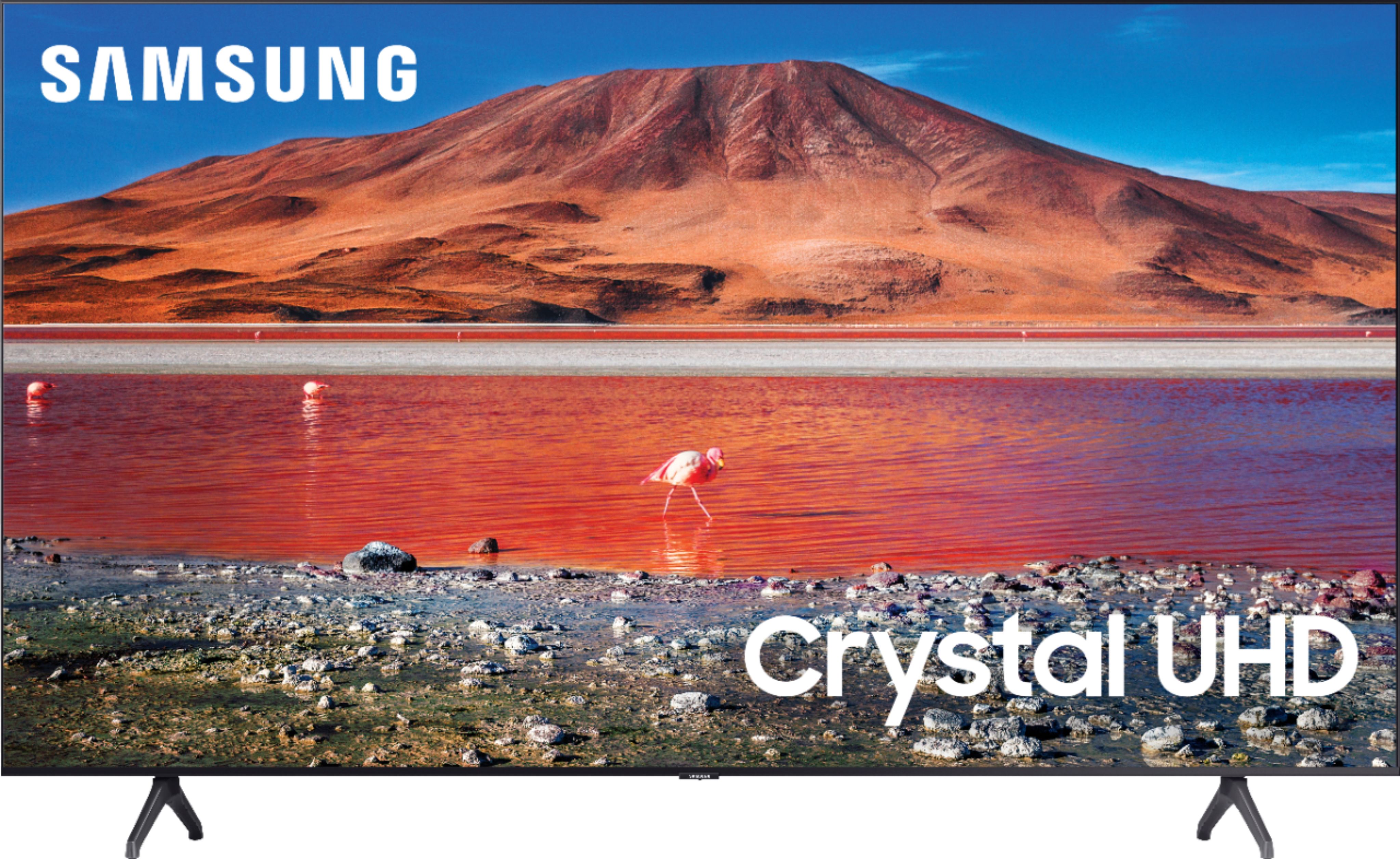
A:AnswerSam, The TU7000 introduces our Crystal Display which gives you crystal-clear colors that are fine-tuned to deliver a naturally crisp and vivid picture, and our Crystal UHD Processor, which brings stunning clarity to everything you already watch and powerfully upscales 4K to ensure that you always get life-like 4K resolution no matter the source. ^Celina
A:AnswerHi RiverWanderer! The TU7000 does not feature a video conference application built in and the USB is not designed for camera support. To take advantage of video conferencing on the TU7000 you can utilize the built in remote access feature to wirelessly connect to a PC on the same network, or connect a laptop via HDMI cable. ^Tim