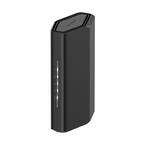
A:AnswerYou don’t create a new account. To activate Starlink Mini on an existing Starlink account, sign in to your account (or open the Starlink app) and go to Add / Activate Starlink. During activation, you’ll be prompted to enter the Kit ID or scan the QR code that comes with the Mini hardware. Once added, you can either assign it to an existing service plan or select a new plan if needed. After activation, power it on and complete setup through the app like normal.
If you plan to keep both your original Starlink and the Mini active, make sure your account has separate service plans assigned to each device.
A:AnswerIf you want to see the prices the BestBuy offers, see their website. To Starlink prices in your area, go to Starlink.com, enter your address, and click "Order Now" to preview the price breakdown in your area for the Starlink Kit cost and the monthly service price.
A:AnswerIf the 349 is by ordering through Starlink directly, then there is an offer available. But there would be a delivery time, where buying through BestBuy would allow for same day activation.
To check prices in your area, go to Starlink.com, enter your address, and click "Order Now" to preview the price breakdown in your area for the Starlink Kit cost and the monthly service price. For more information on monthly billing, please click here: https://support.starlink.com/topic?category=134
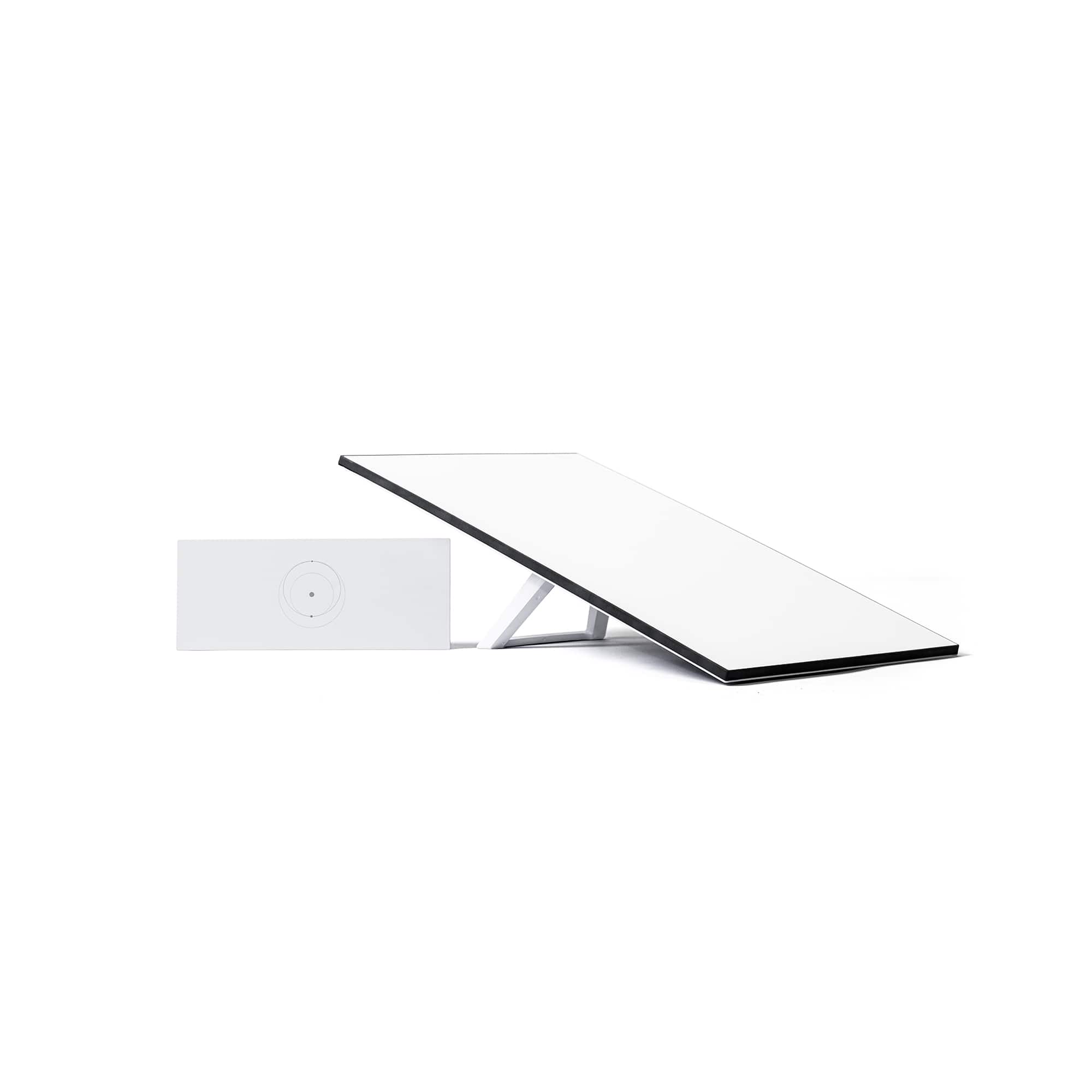
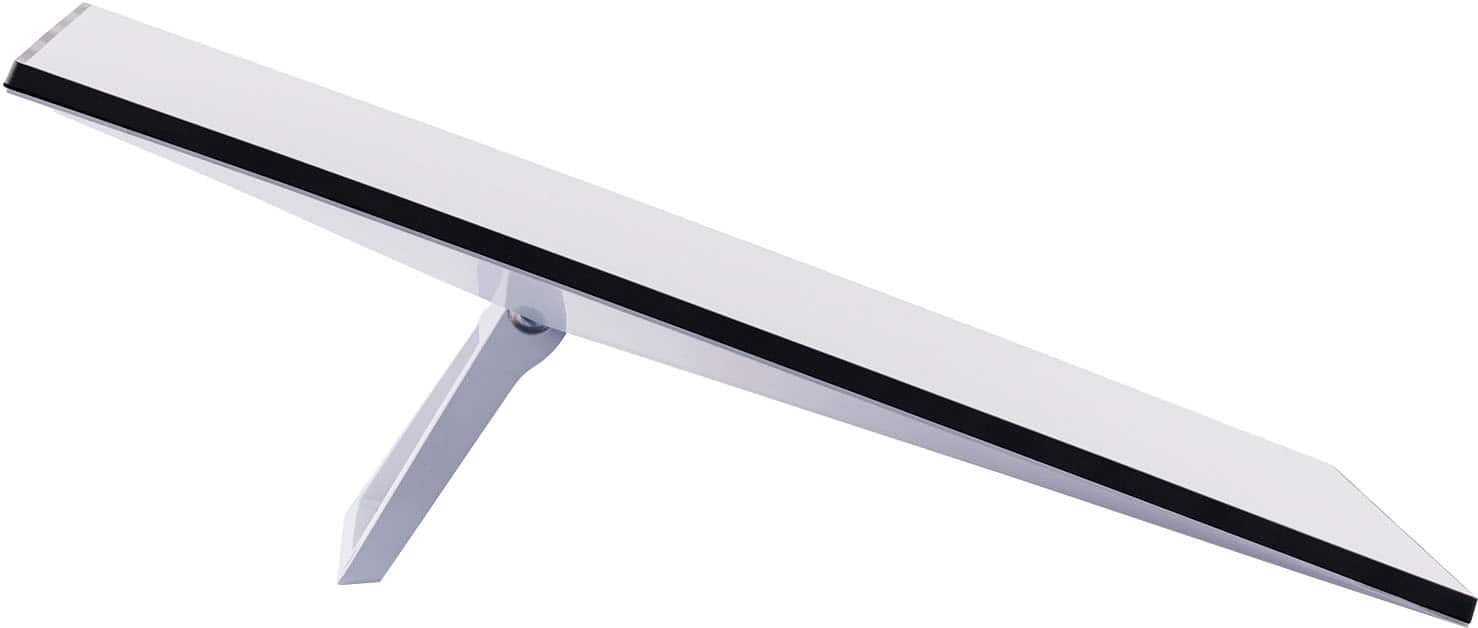
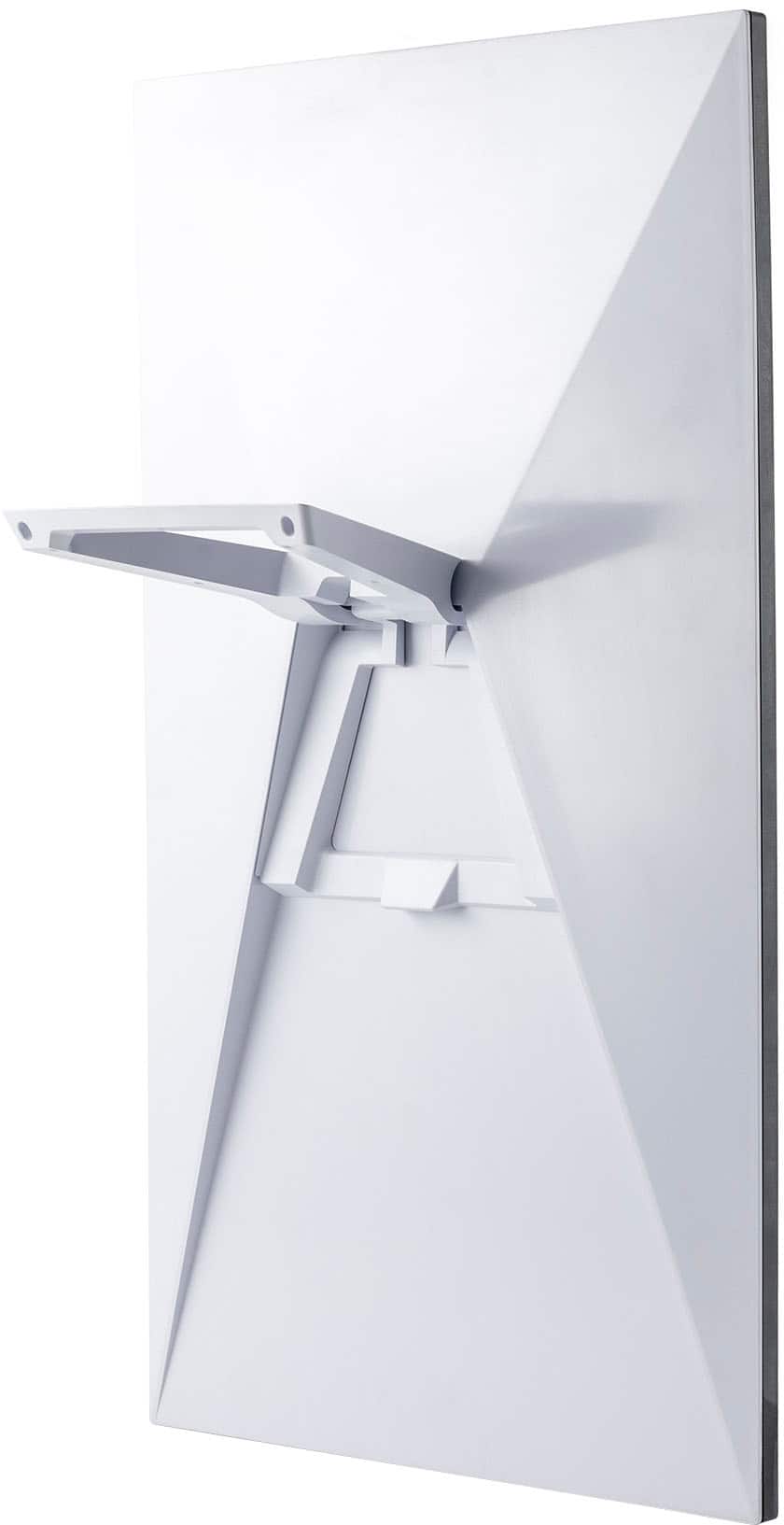
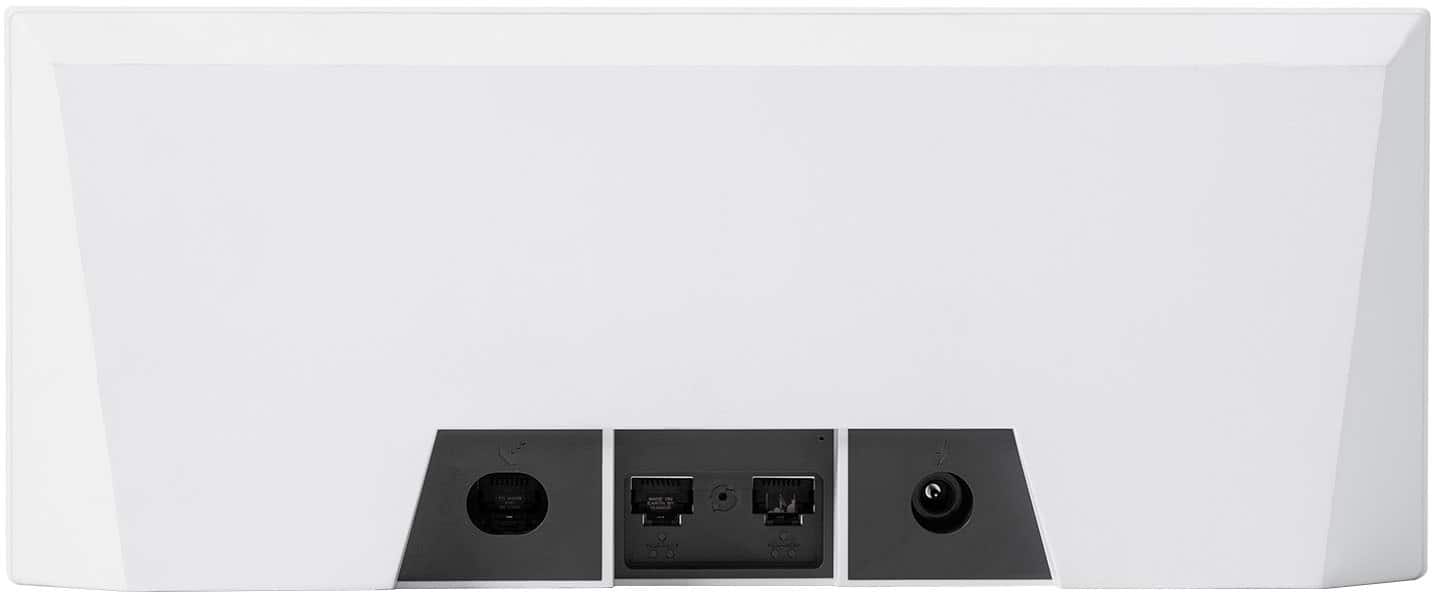
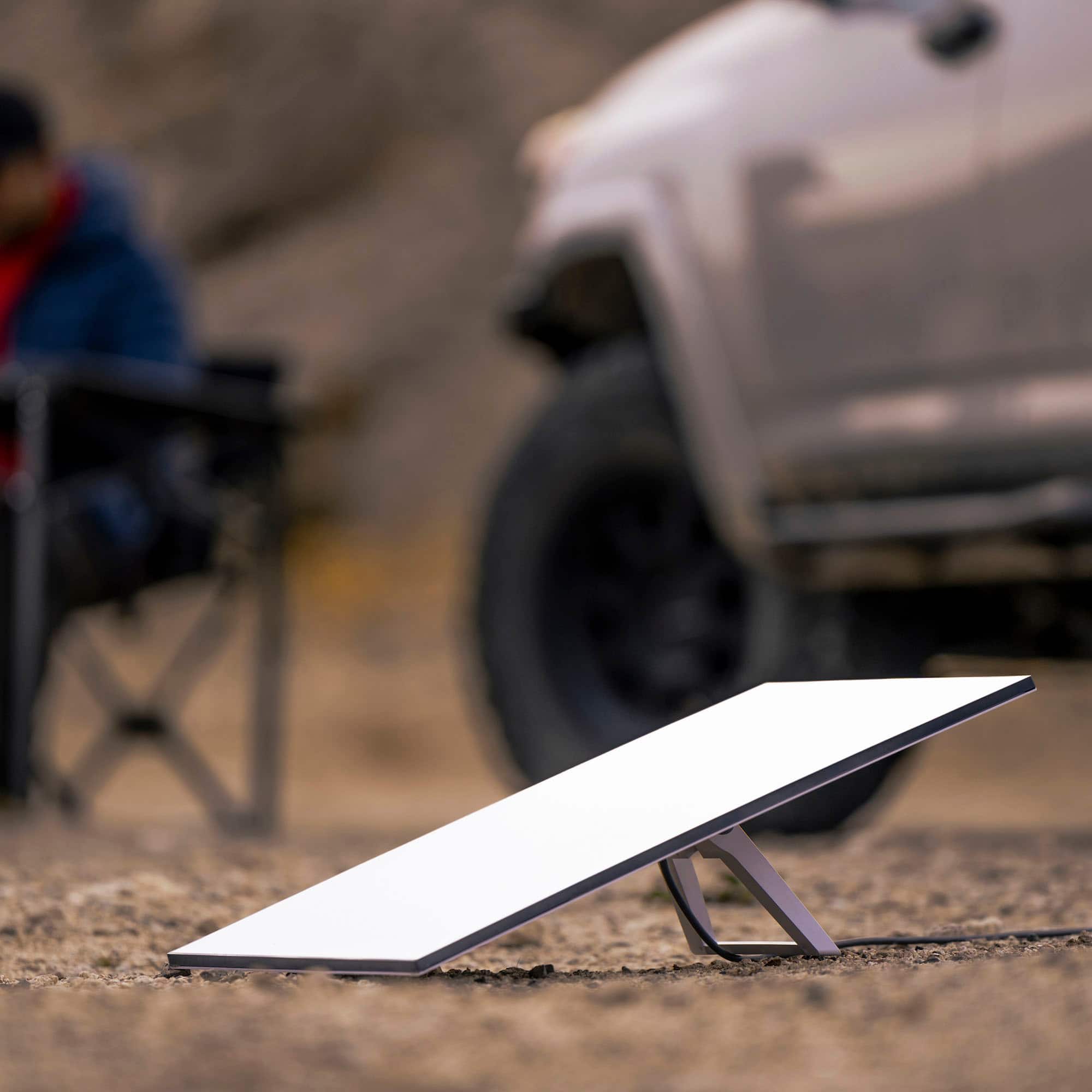
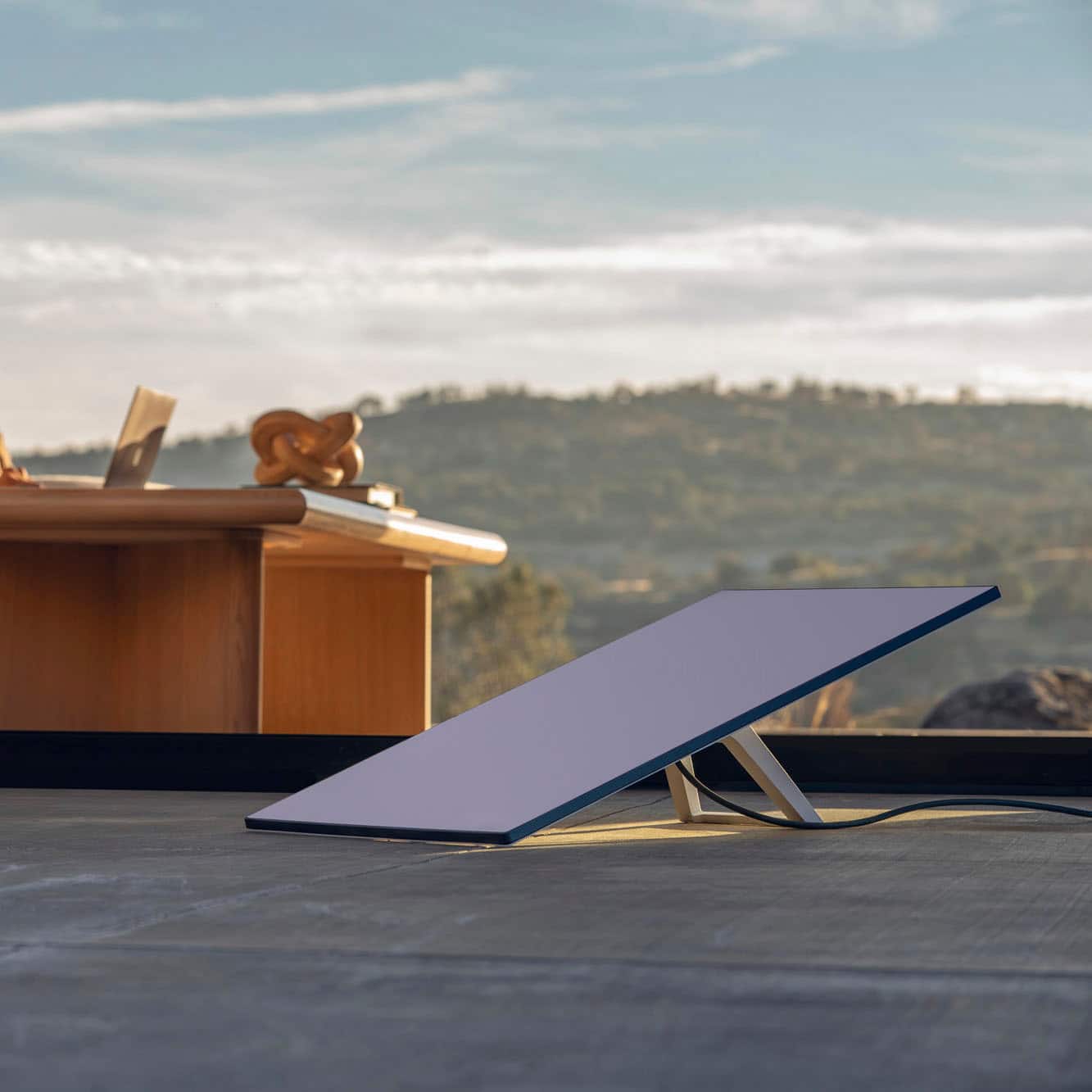
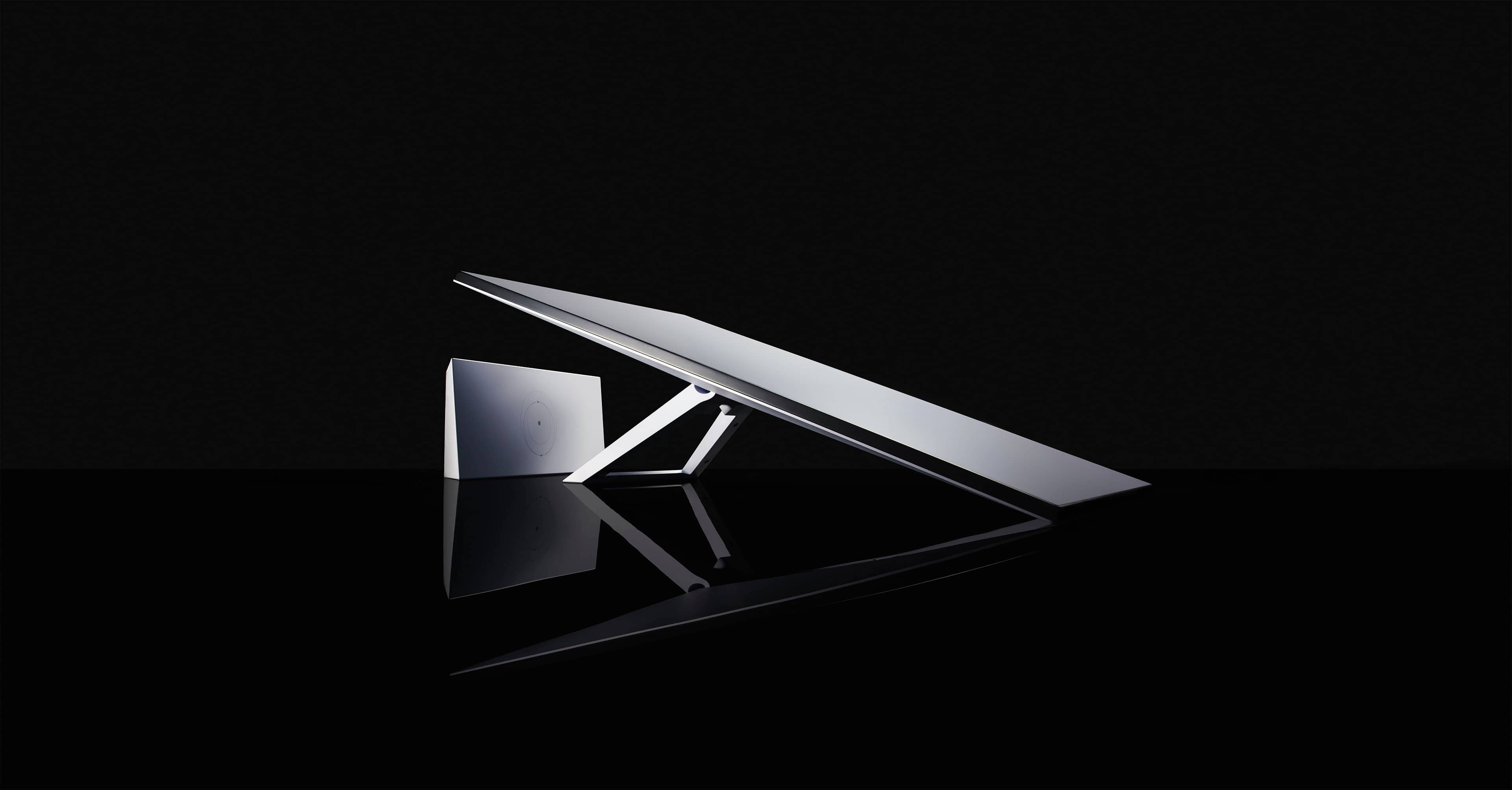
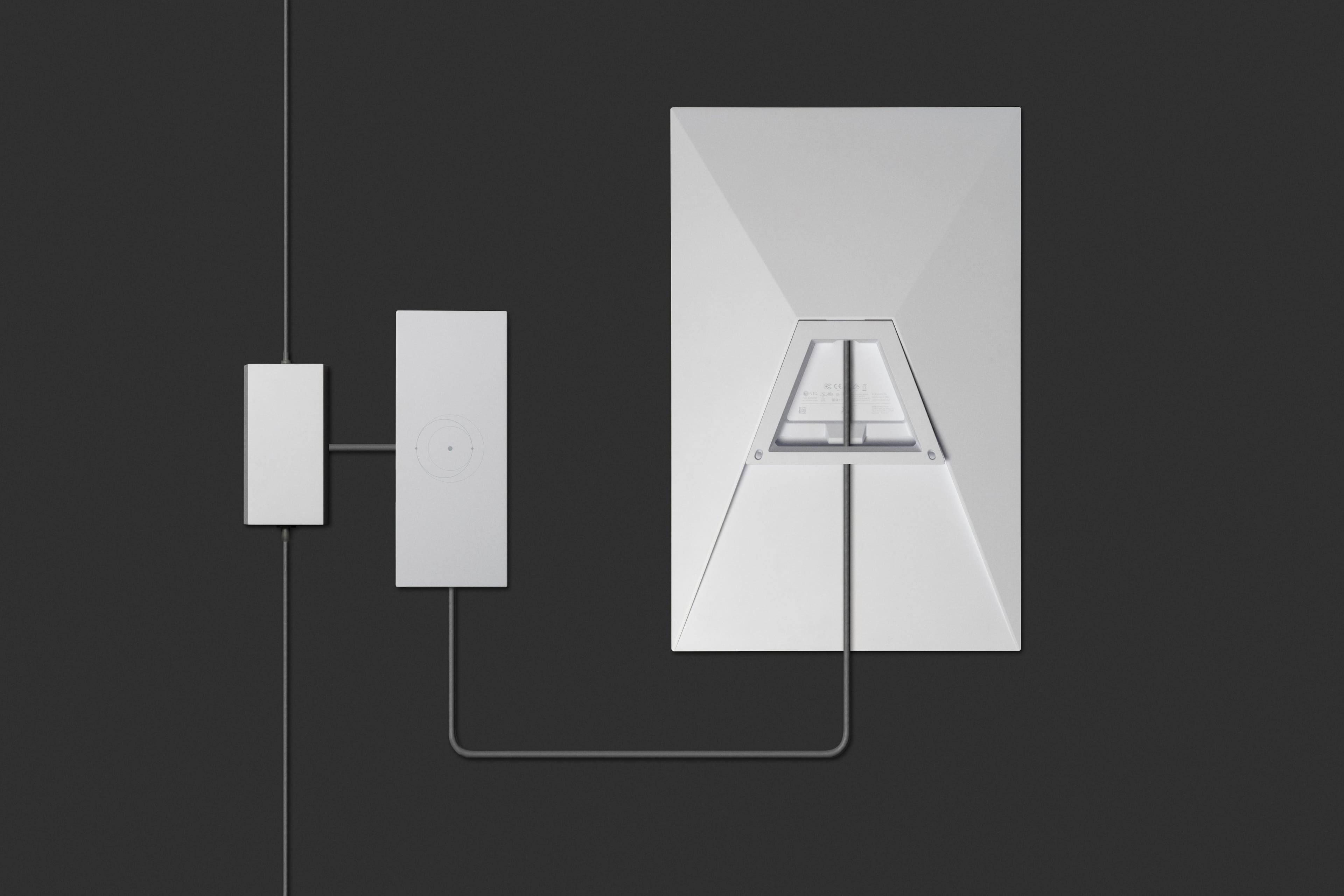
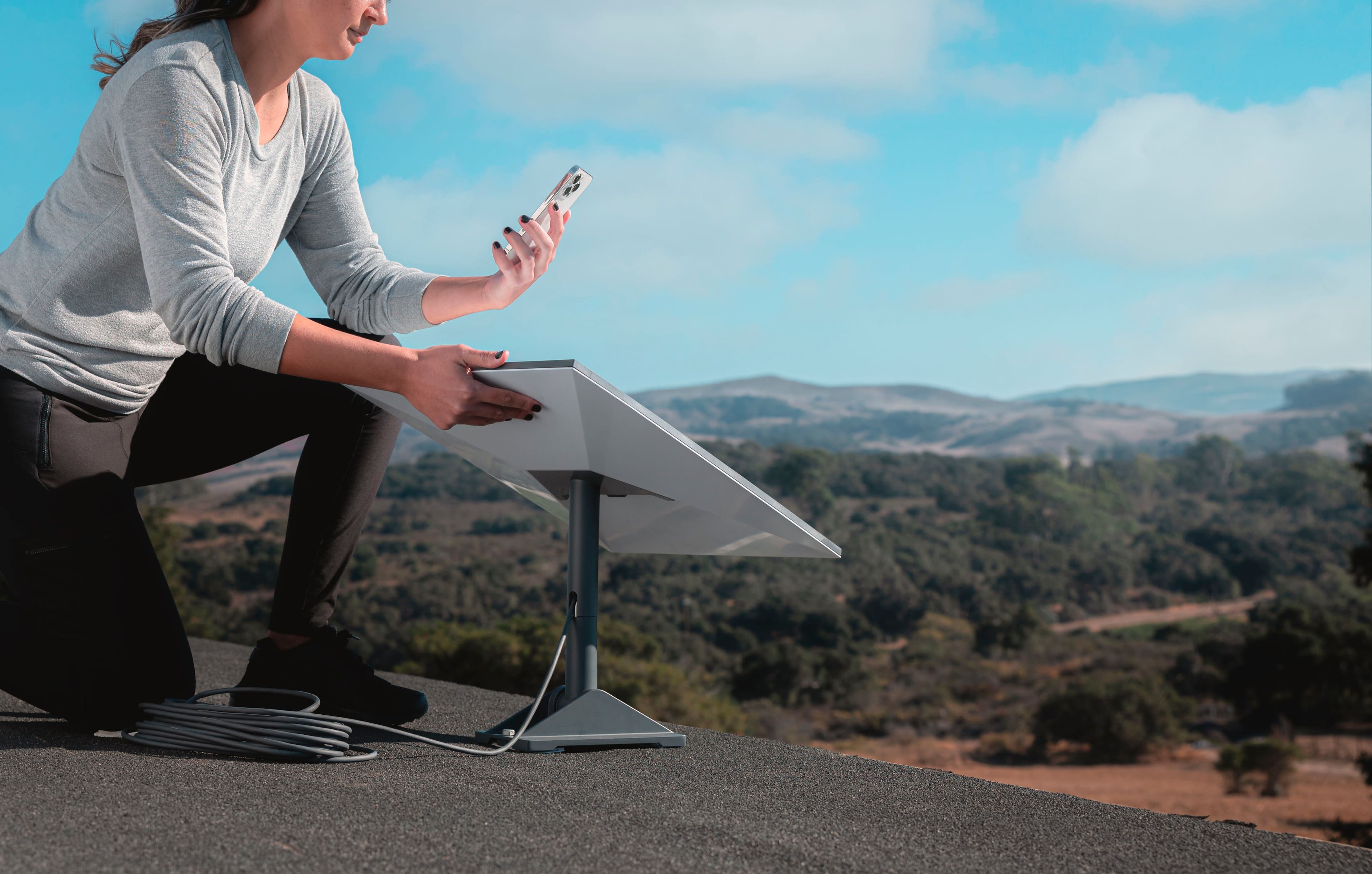
A:AnswerYour Starlink Kit includes everything you need to connect to the internet including your Starlink, WiFi router/power supply, cables, and base. Based on your specific installation needs, additional mounts and accessories are available for purchase on the Starlink Shop once your Starlink Kit is ready to ship.