A:AnswerThis TCL Roku TV has the ability to connect to the Internet via WiFi. This TV does not currently feature a web browser. However, there are thousands of streaming channels and over 500,000 different movies and TV episodes available through the Roku streaming system. Additionally, you can screen mirror compatible Android and Windows phones to the TV. This way you can search on your phone, but view on the TV. Hope this helps! Thank you, TCL Customer Support
A:AnswerYou can connect this TV to your already existing Roku account. You would simply enter your account information and then activate the TV (free). Hope this helps! Thank you, TCL Customer Support
A:AnswerIn order to use the smart features of this TCL Roku TV, you would need to complete the guided setup. This includes connecting to the Internet via WiFi, creating a Roku account (completely free), and activating the TV (completely free). However, if you just want to use this TV as a traditional TV by connecting external devices through the various inputs and not use the smart features, you can elect to not connect this TV to the Internet at startup. You will still have access to all of the inputs and features of a traditional TV. Hope this helps! Thank you, TCL Customer Support
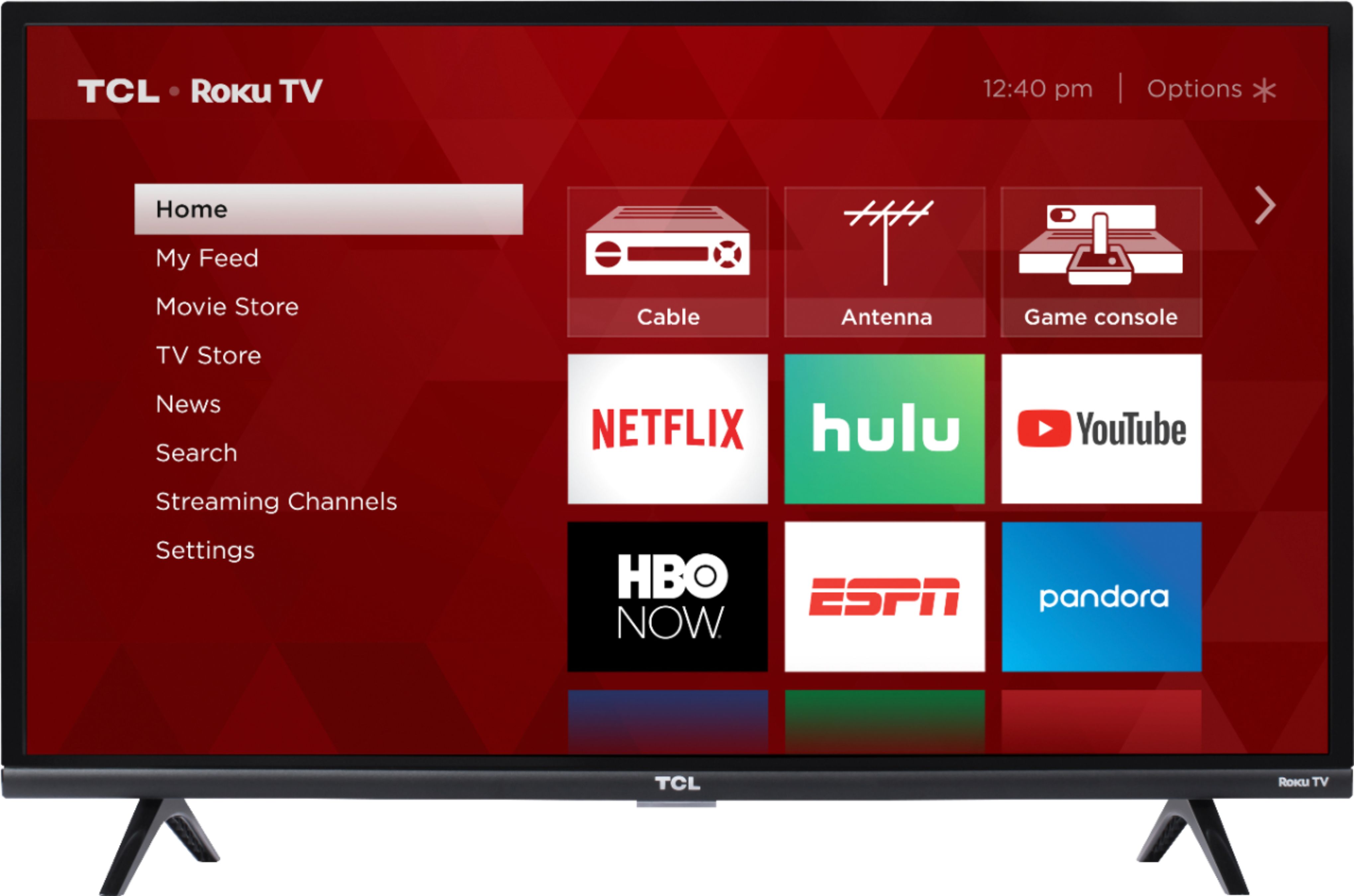
A:AnswerI don’t know but as a hard of hearing person this tv is VERY loud. I never need to put it up to its full volume unlike the small er Visio where I had to connect other speakers.
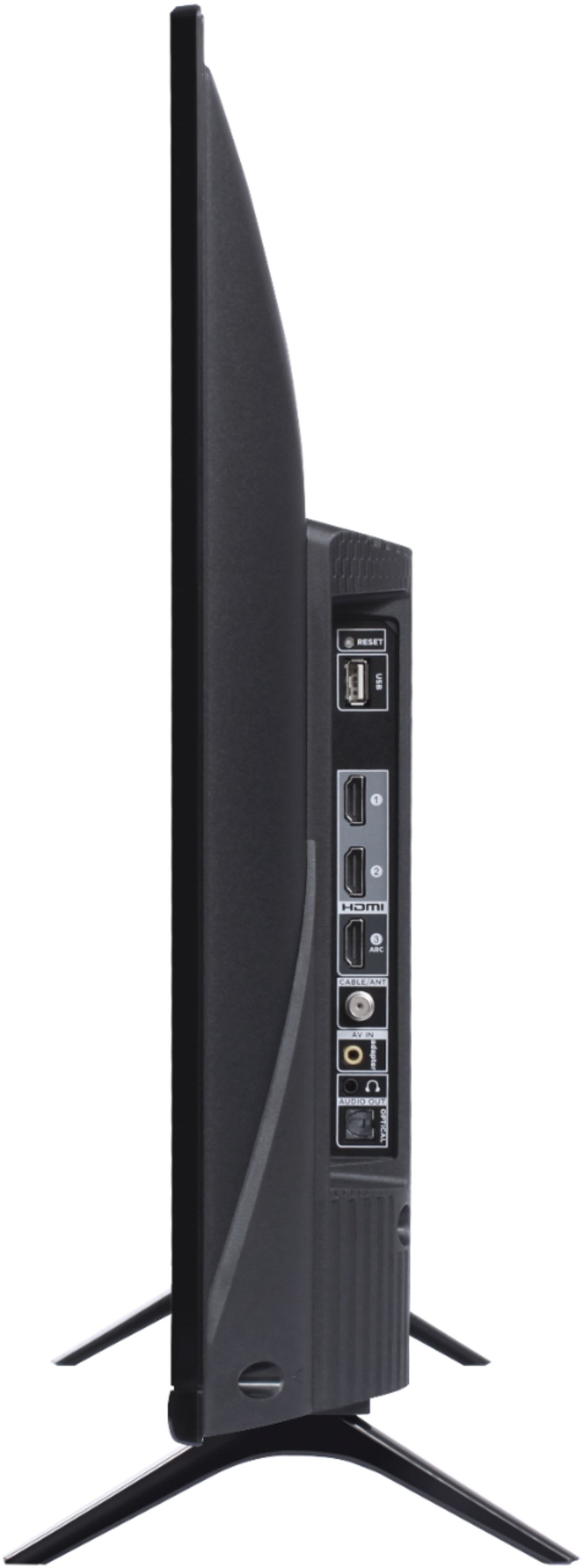
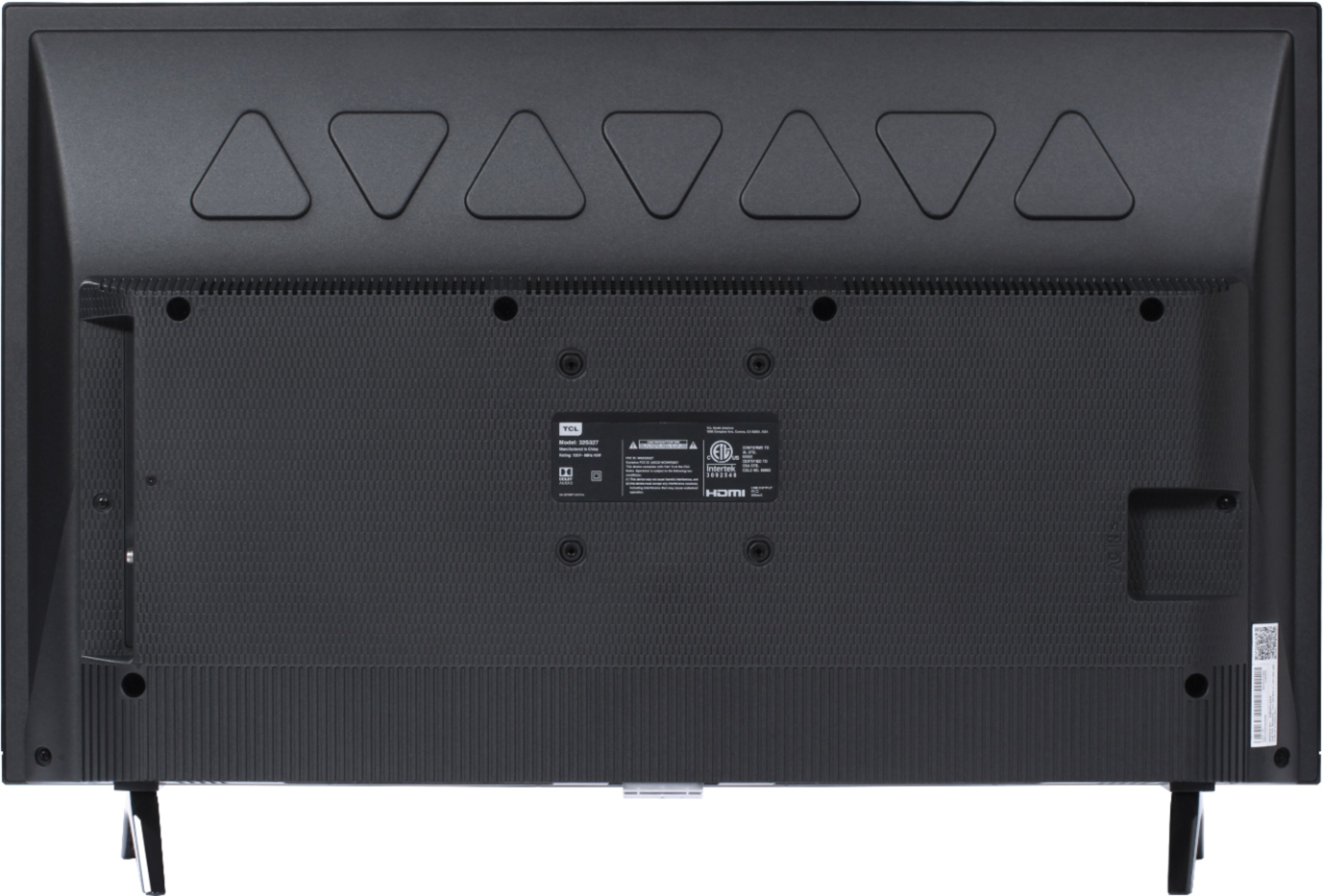
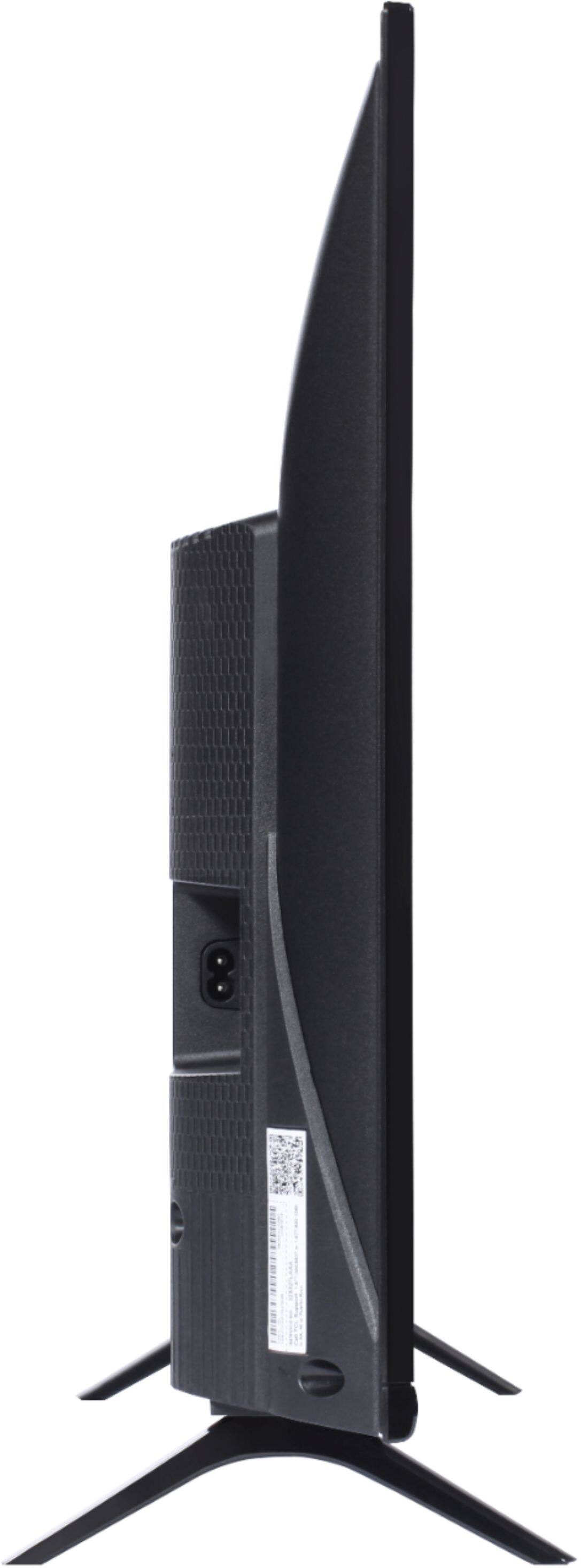
A:AnswerFor this 32 inch TCL Roku TV, the feet spacing to fit on a stand is 24.1 inches wide and 7.1 inches deep. Hope this helps! Thank you, TCL Customer Support
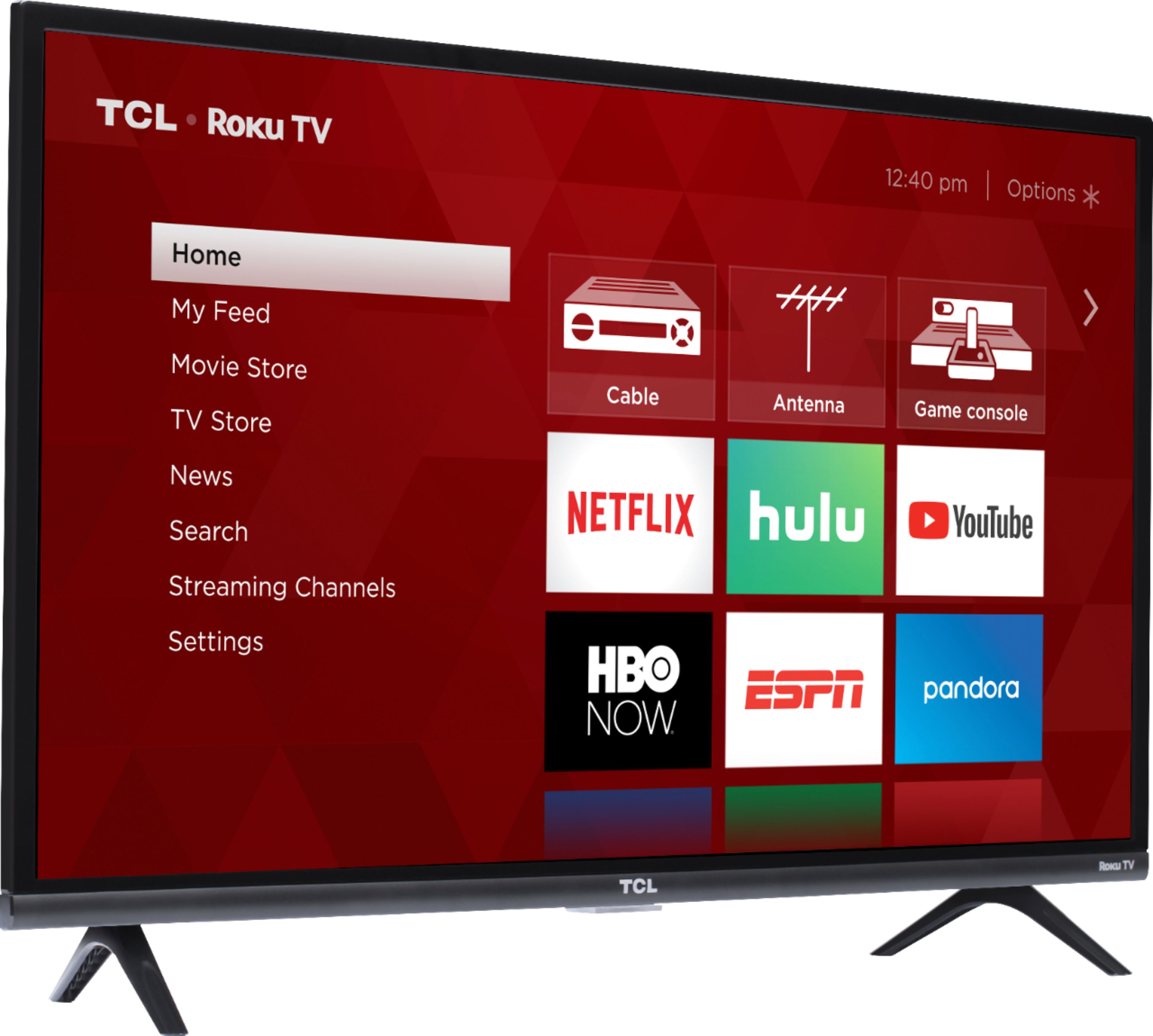
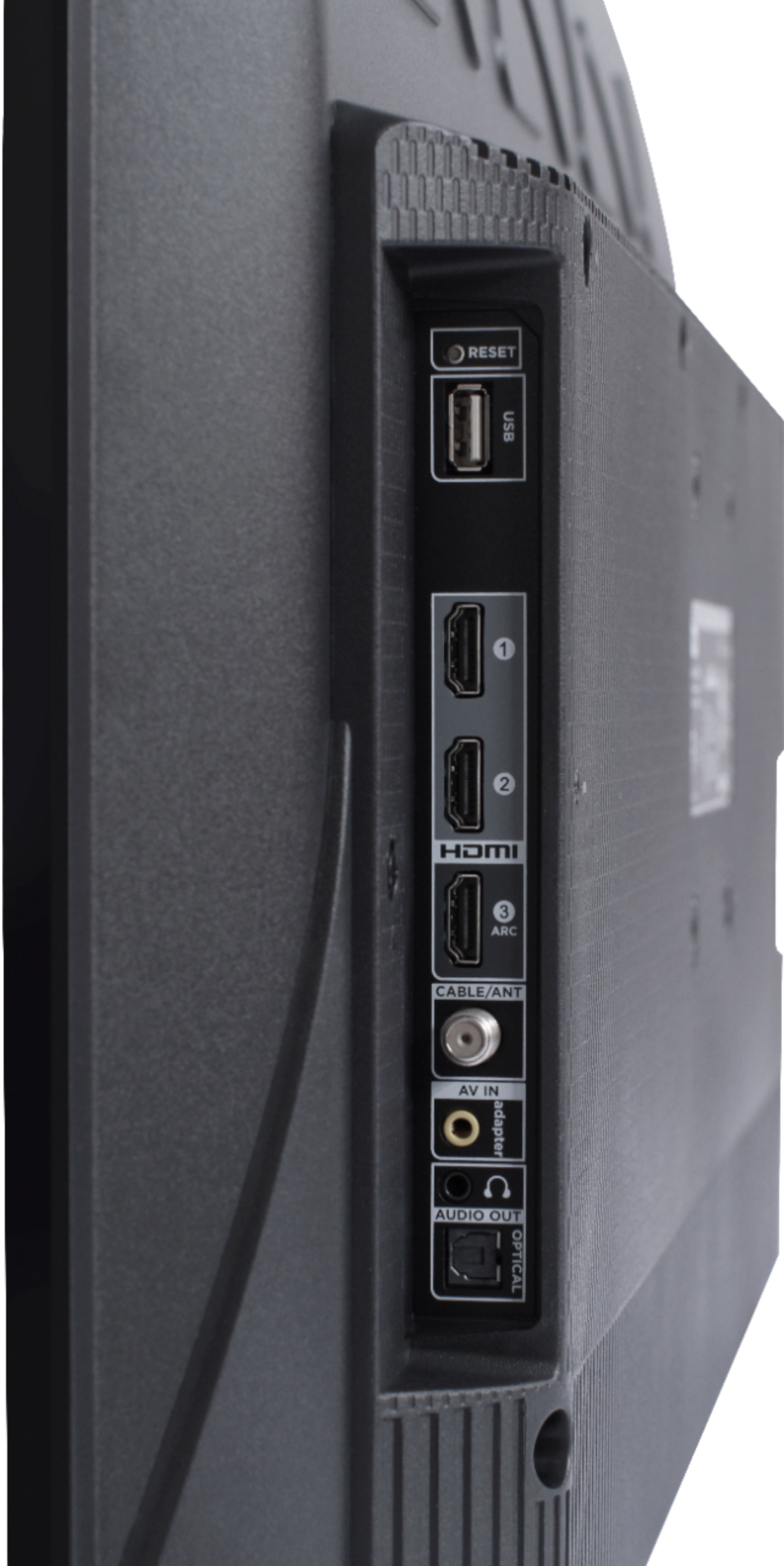
A:AnswerIt does not have an audio output with RCA contacts that my wireless headphones transmitter needs. It does have an optical audio output which I connected to my receiver. I then plugged my wireless headphone transmitter into the headphone jack of the receiver to allow it to work.
A:AnswerAbsolutely! The Xfinity streaming channel is one of the thousands of streaming channels offered through the Roku Channel Store. In fact of the top 25 streaming channels, TCL Roku TVs offer all 25! You can also visit www.roku.com/whats-on to see other streaming channels Roku offers. Hope this helps! Thank you, TCL Customer Support
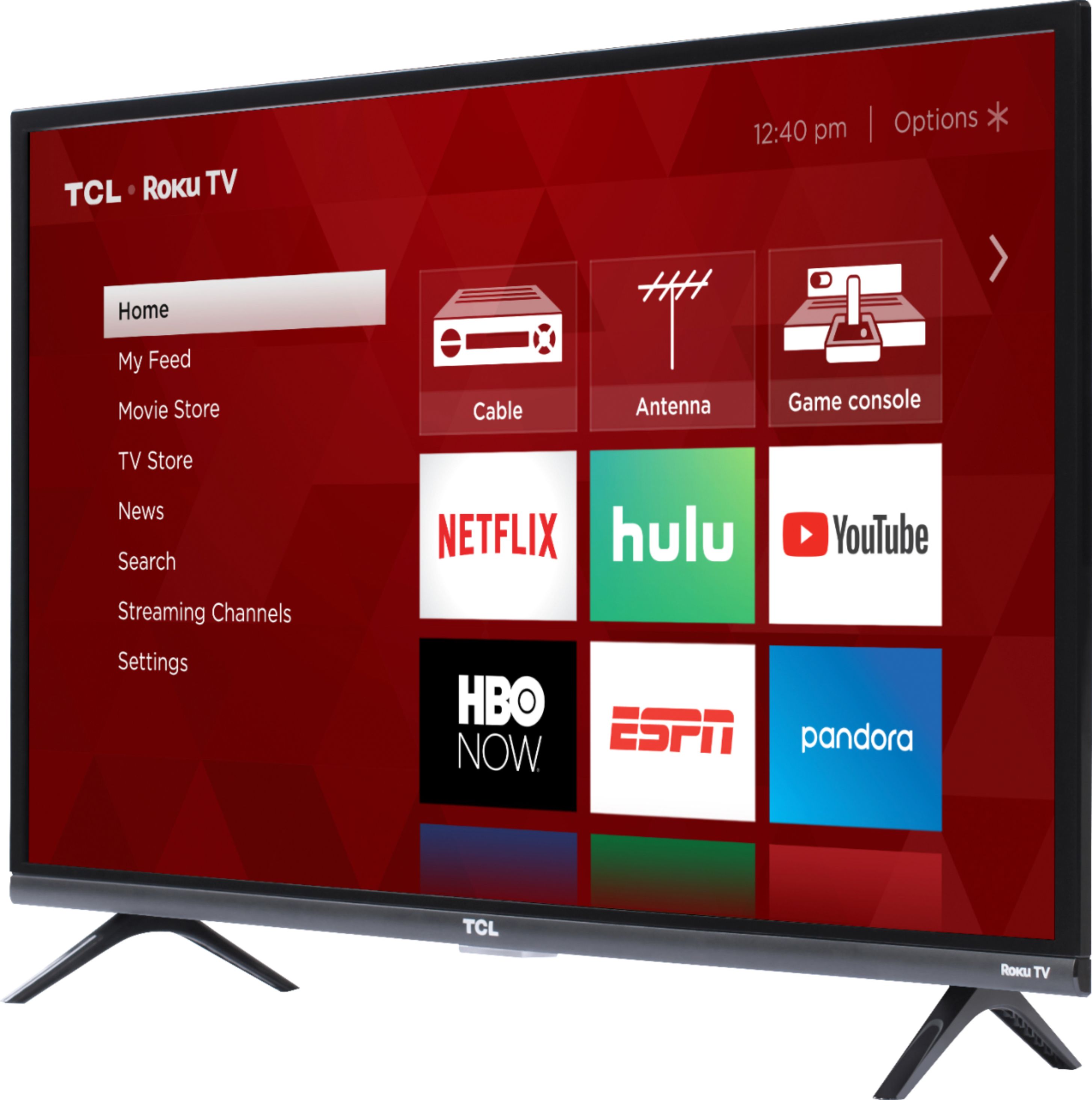
A:AnswerAll TCL Roku TVs support screen mirroring with any compatible windows or android device. Here is a great article with more details how: (https://support.roku.com/en-ca/article/208754928-how-to-use-screen-mirroring-with-your-android-or-windows-device). Additionally, You can go to www.Roku.com/whats-on to see what streaming channels and apps are offered through the Roku Channel Store. To search for a specific channel you would simply want to enter that information into the search section. Hope this helps! Thank you, TCL Customer Support
A:AnswerThere is a "direct" screen size mode that displays the entire picture no matter what, so while you may not have any fine-tuning options to avoid overscan, it shouldn't be a problem.
A:AnswerOur TCL Roku TVs need to be connected to the Internet in order to gain access to the smart features like mirroring or streaming. You could use your phone as a hotspot and stream directly on the TV. However, kindly remember that using a hotspot may cause high use of data depending on your phone plan and limitations. Thank you, TCL Customer Support
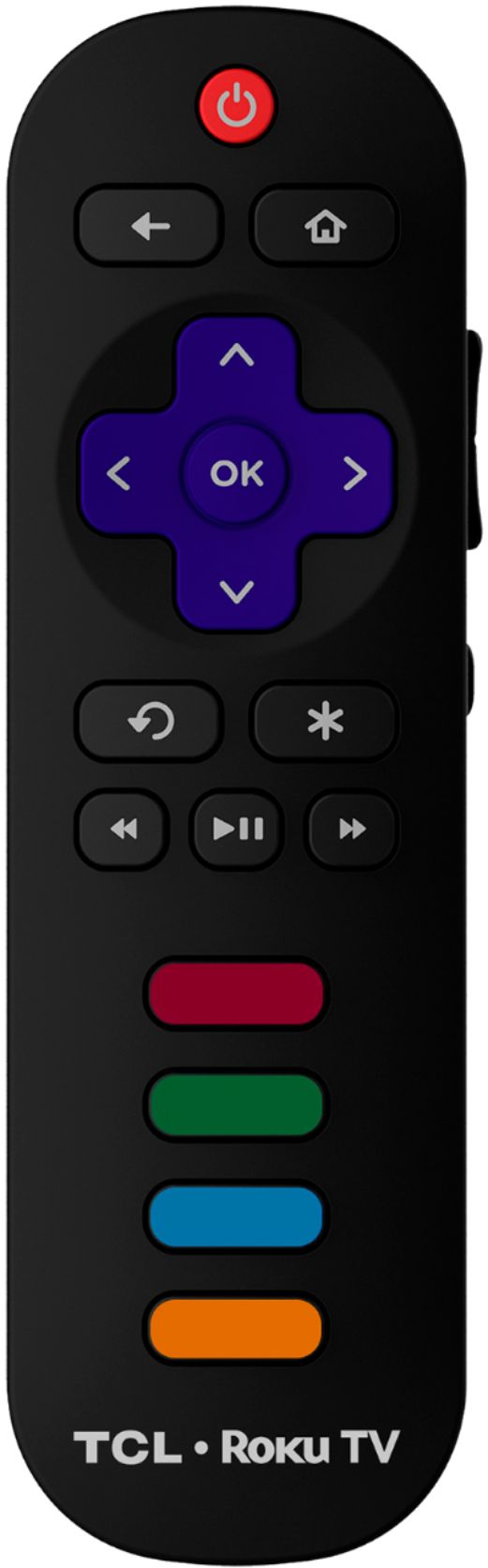
A:AnswerOur TVs are compatible with most Universal and cable remotes. Many Universal and cable box remotes can be programmed to control select functions on the TV. You can visit https://support.tcl.com/us-remote-codes for more information. If you do not see your specific remote, you would need to contact the remote's manufacturer to obtain the remote code from them. Hope this helps! Thank you, TCL Customer Support