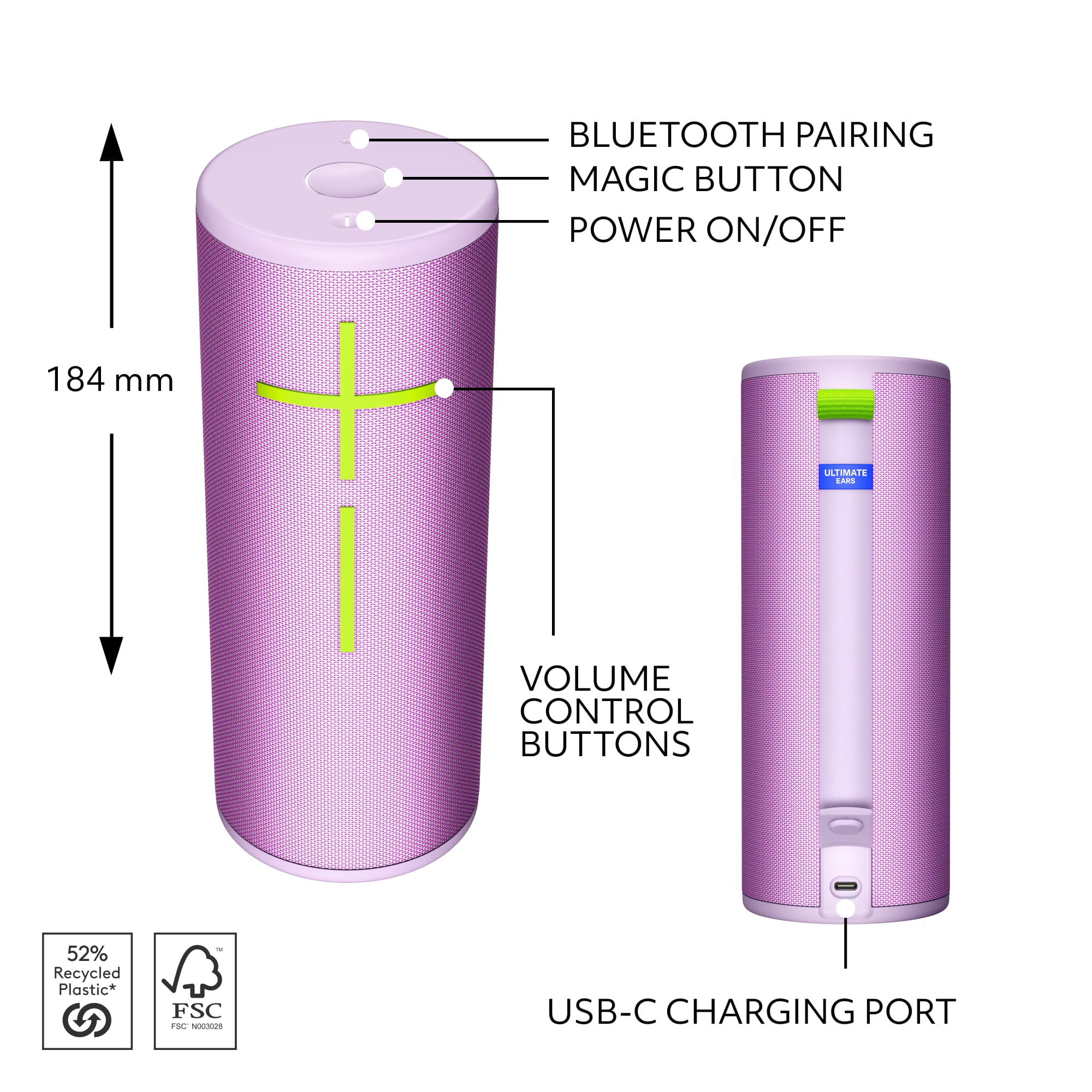
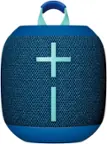
A:AnswerTo connect your Ultimate Ears BOOM 4 speaker to your smartphone via Bluetooth, follow these steps: Turn on your BOOM 4 speaker > Enter Pairing Mode > Open Bluetooth Settings on your Smartphone > Scan for Devices > Select BOOM 4 > Once the connection is successful, you will hear an audible confirmation from your BOOM 4 speaker, and the Bluetooth light will likely turn solid. Your smartphone should also indicate that it is connected to the BOOM 4.
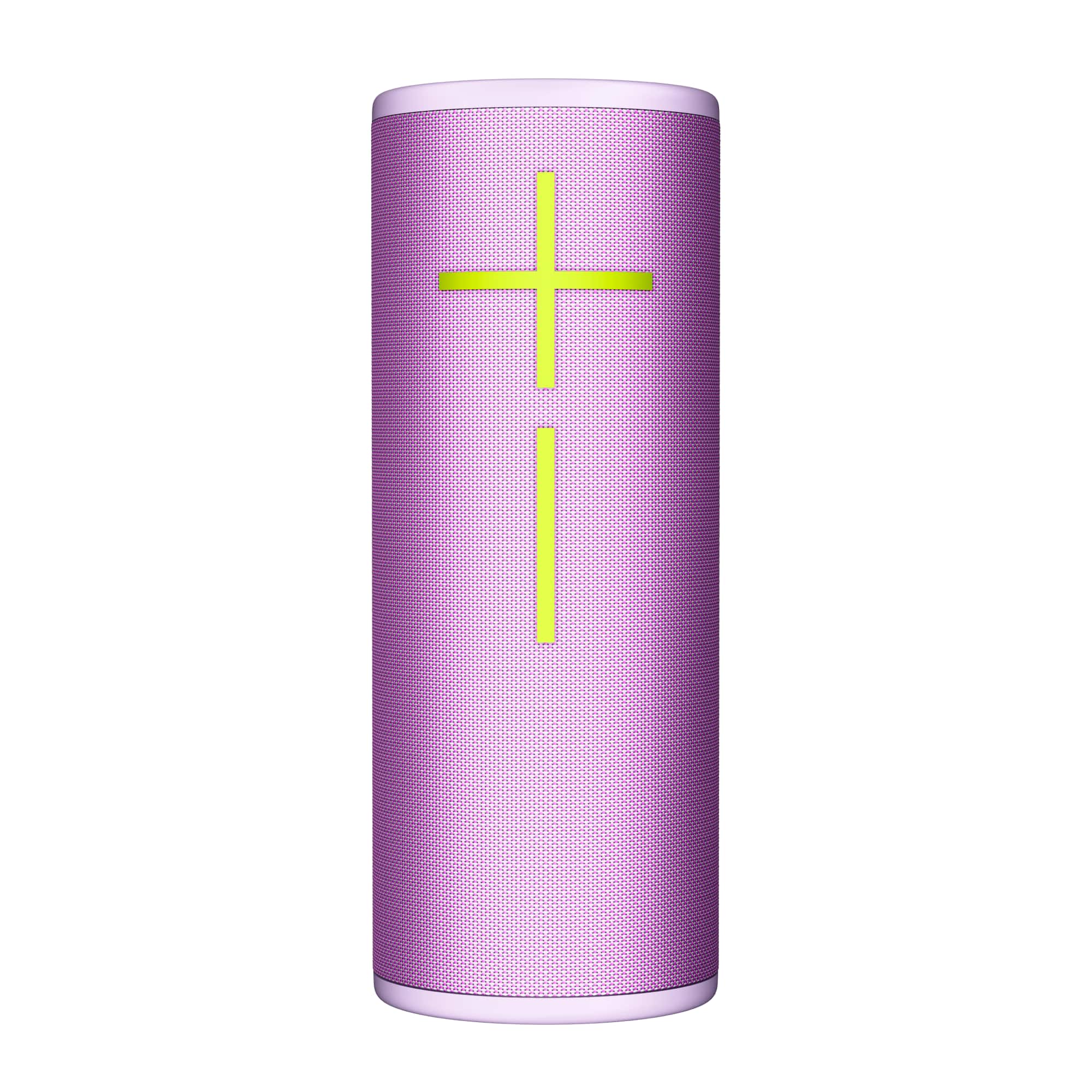
A:AnswerThe Ultimate Ears BOOM 4 is primarily designed for use with smartphones, tablets, and other Bluetooth-enabled devices. It can be connected to a Samsung TV if the TV has Bluetooth capabilities.
A:AnswerThat's unexpected! In order to help you effectively, please provide your information to our support team via email at [email protected] with your
- Name:
- Email Address:
- Country:
- Product Name:
- Brief description of issue:
A:AnswerYou can use the Magic Button on the Ultimate Ears BOOM 4 to control your music—just short press to play or pause, and double press to skip tracks. However, specific playlist access may vary depending on the streaming service and device compatibility.
A:AnswerYou're right to ask! The Ultimate Ears BOOM 4 actually only has one port on the bottom, and that's solely for charging. There isn't a 3.5mm port on this particular speaker.
A:AnswerUltimate Ears - BOOM 4 Portable Wireless Bluetooth Speaker are compatible with smartphones, tablets and other devices that support Bluetooth [Advanced Audio Distribution Profile (A2DP)]