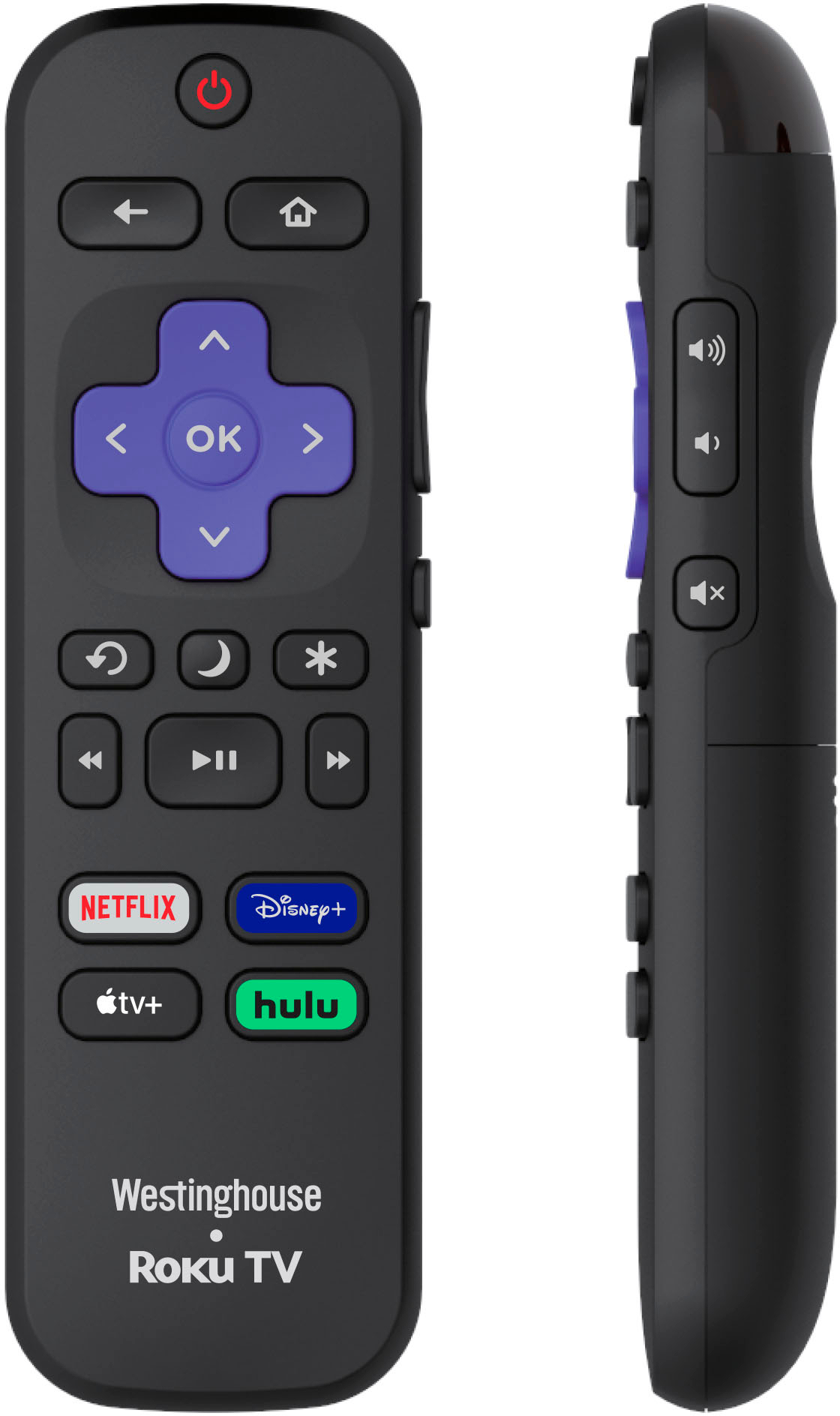
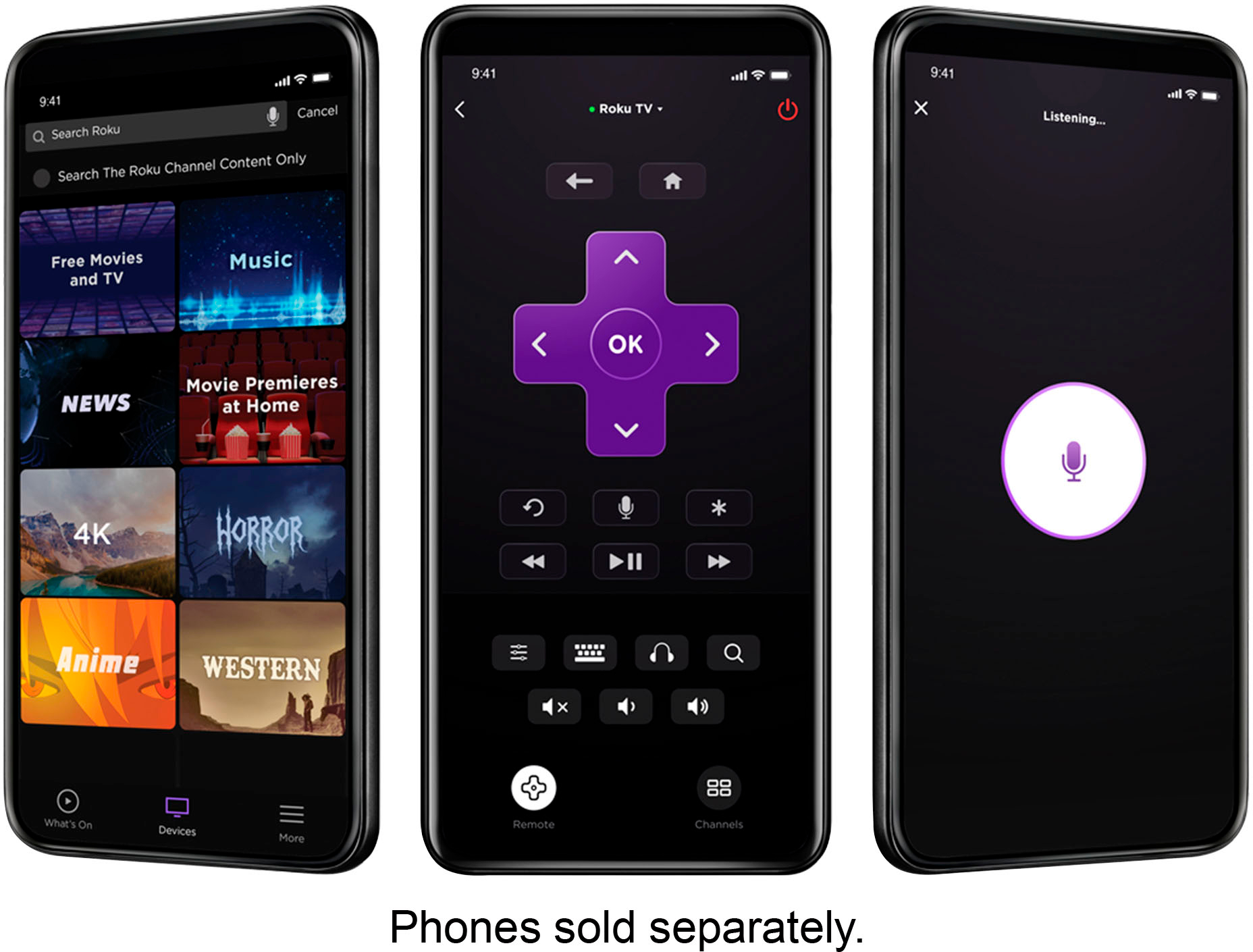
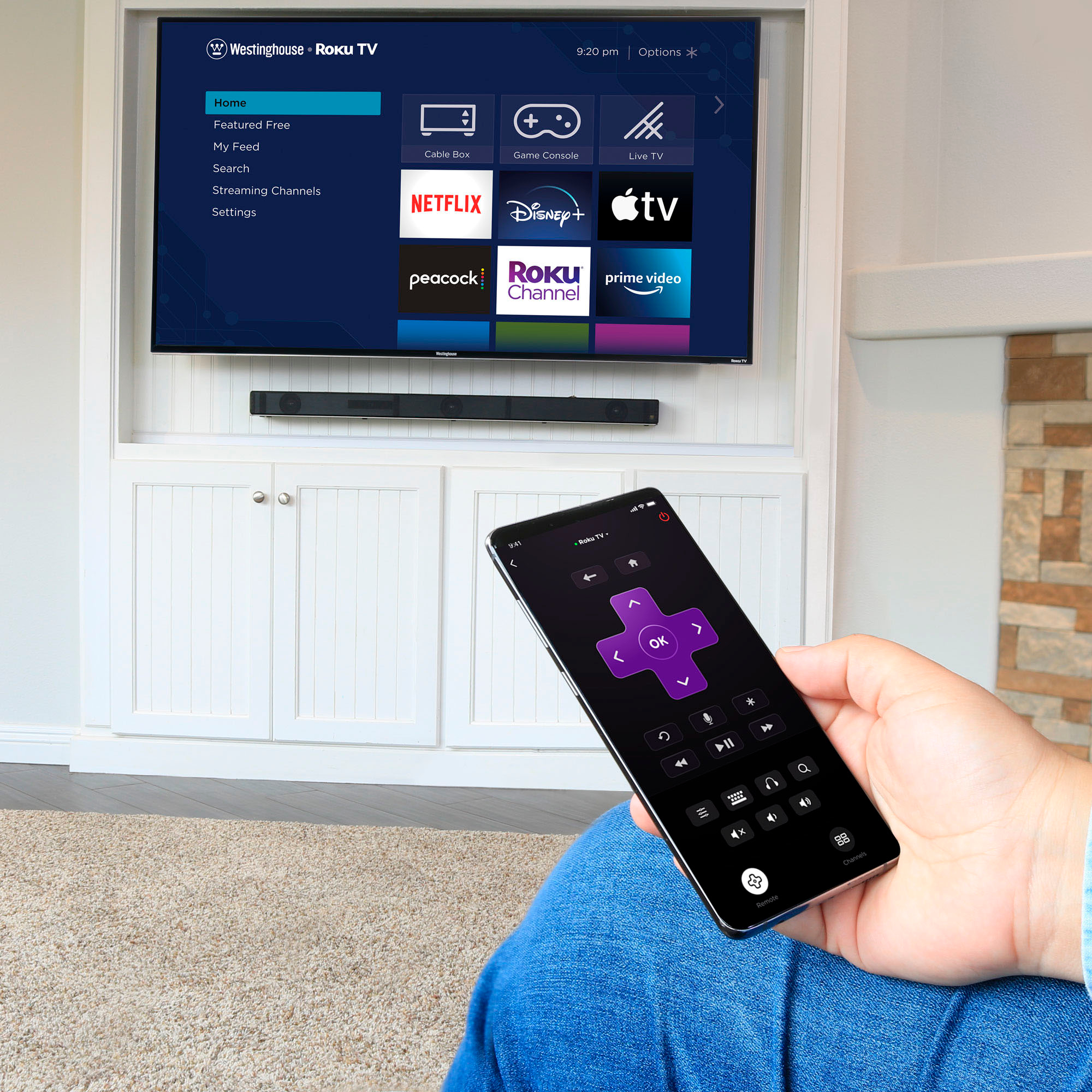
A:AnswerTo set the video to loop continuously, start by selecting the video. Then, click "OK" followed by the asterisk option button. This will reveal a menu where you can choose the video settings, including the option to enable looping. Simply select the "Repeat Loop" option, and your video will play in a continuous loop.
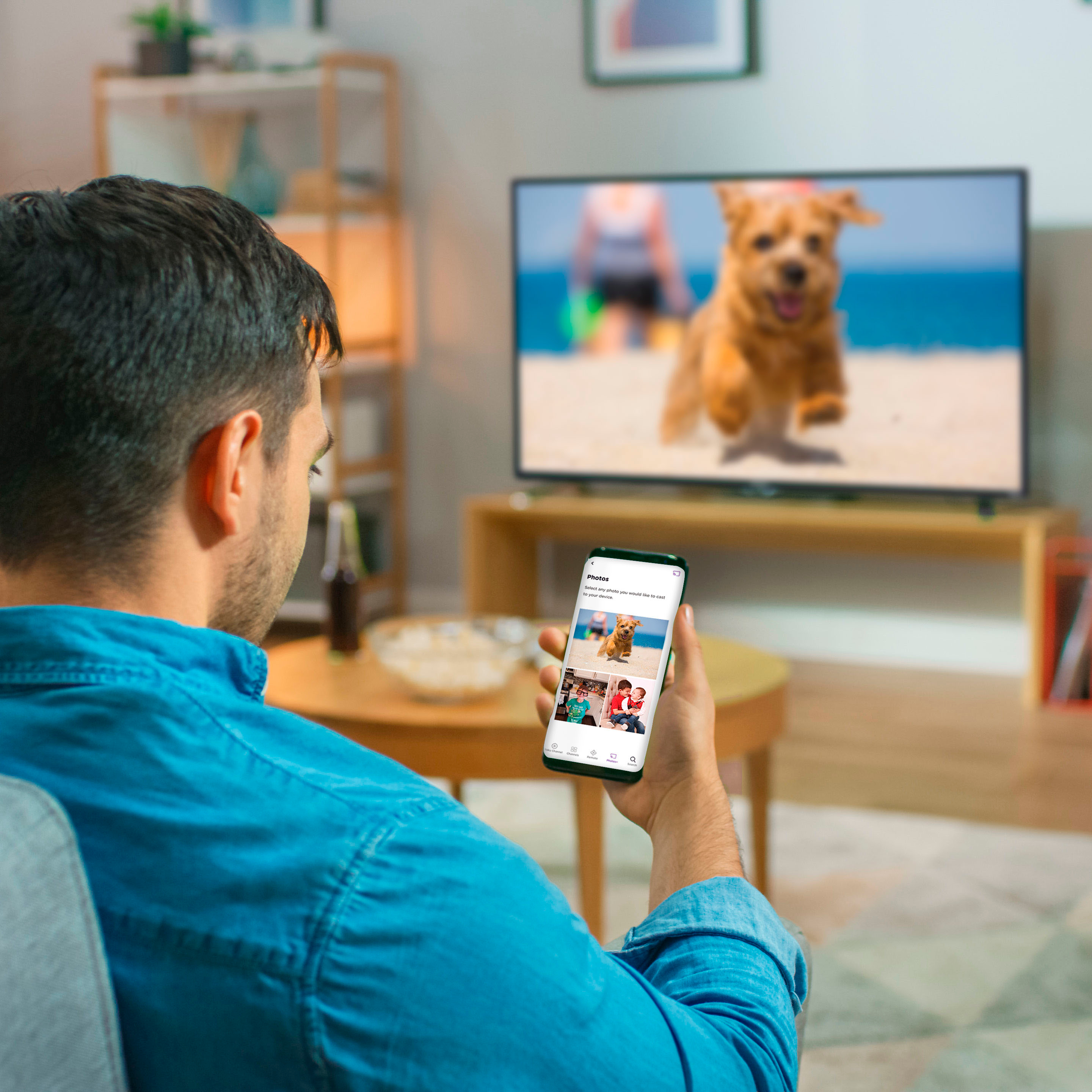
A:AnswerYes, swipe down and the shortcut menu appears; there is an icon that shows 2 boxes overlaid on each other, that is the cast or mirror option. Look for your specific TV and select; it's that easy.