Customer Ratings & Reviews
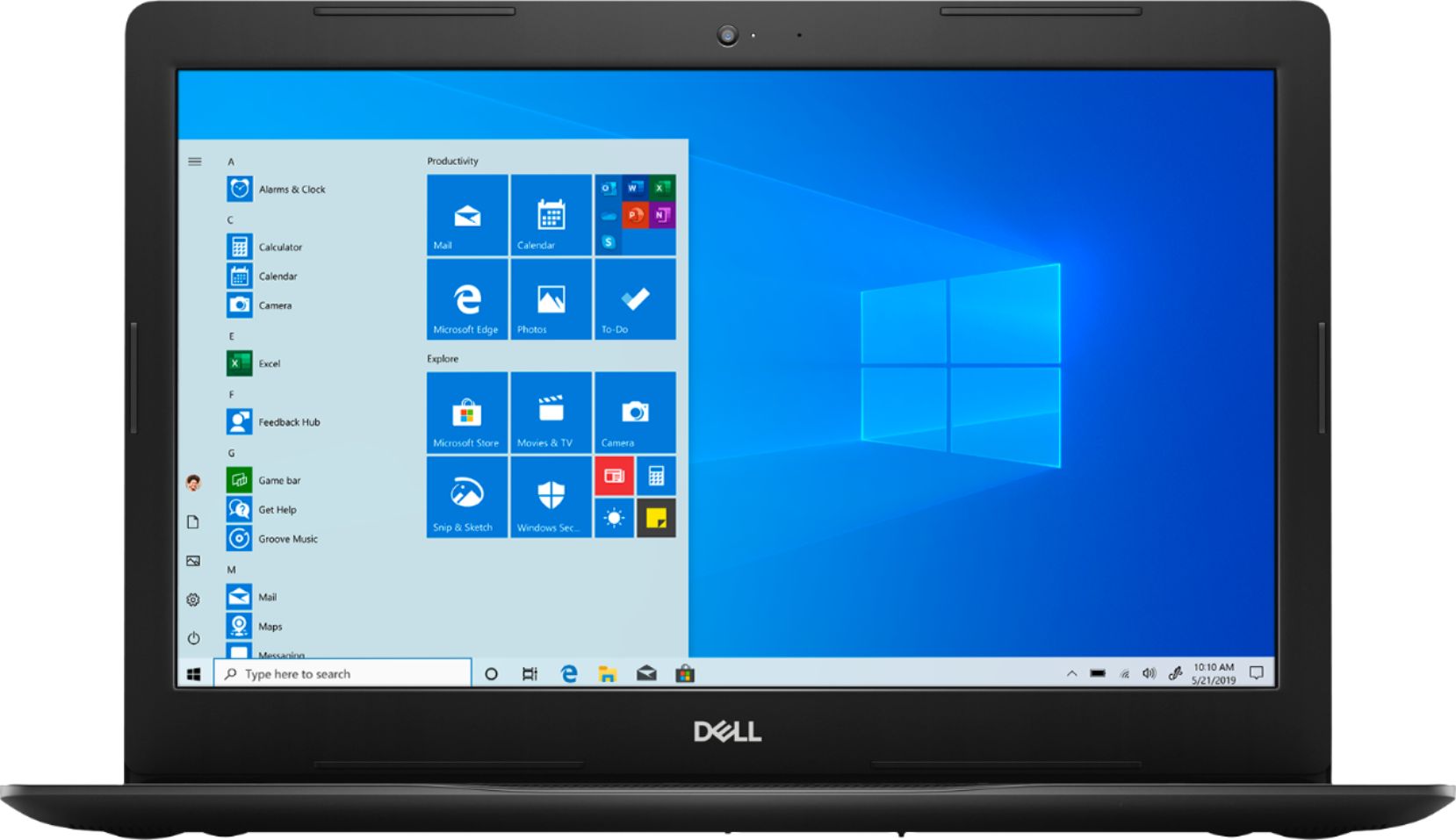
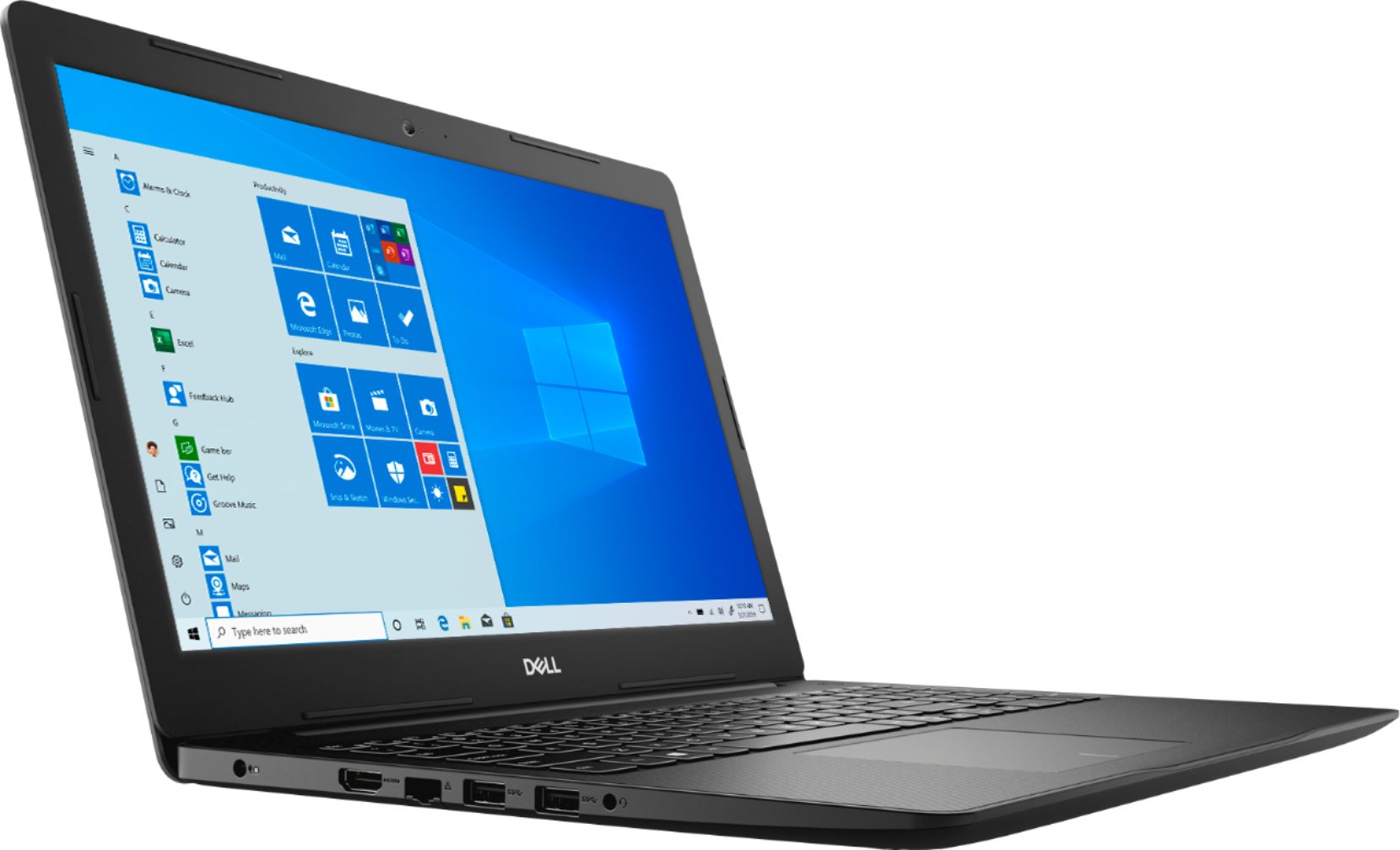


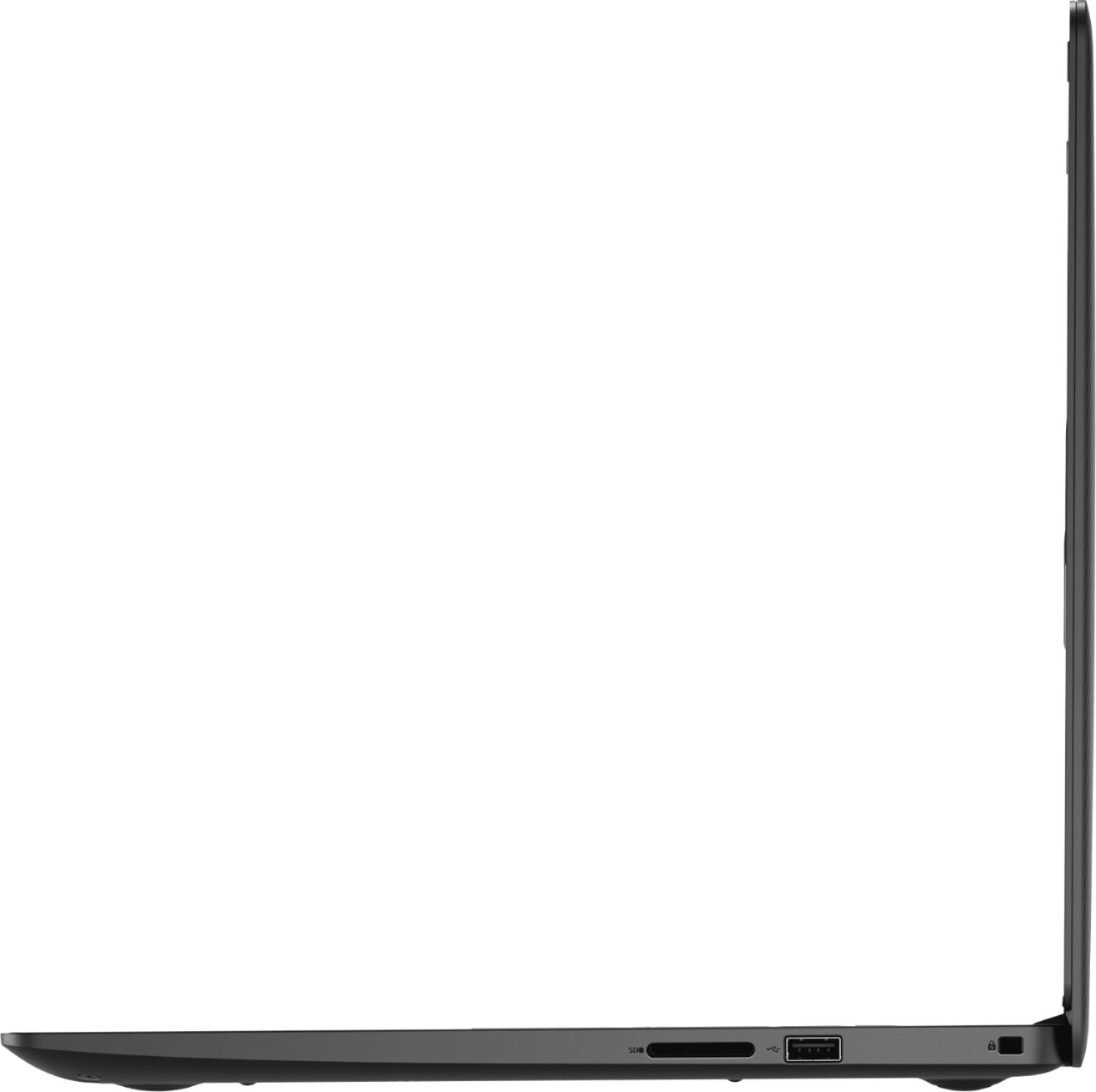
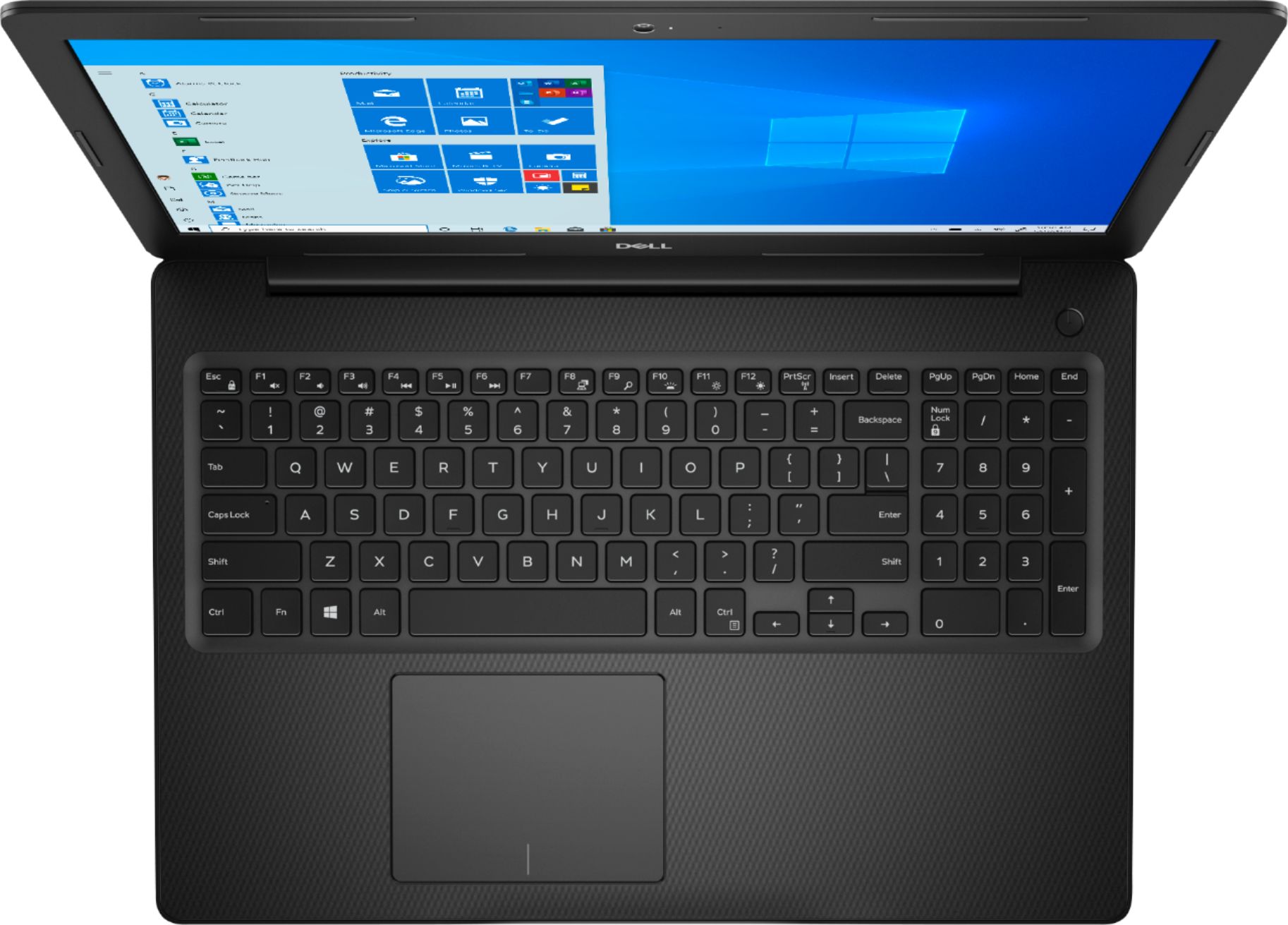
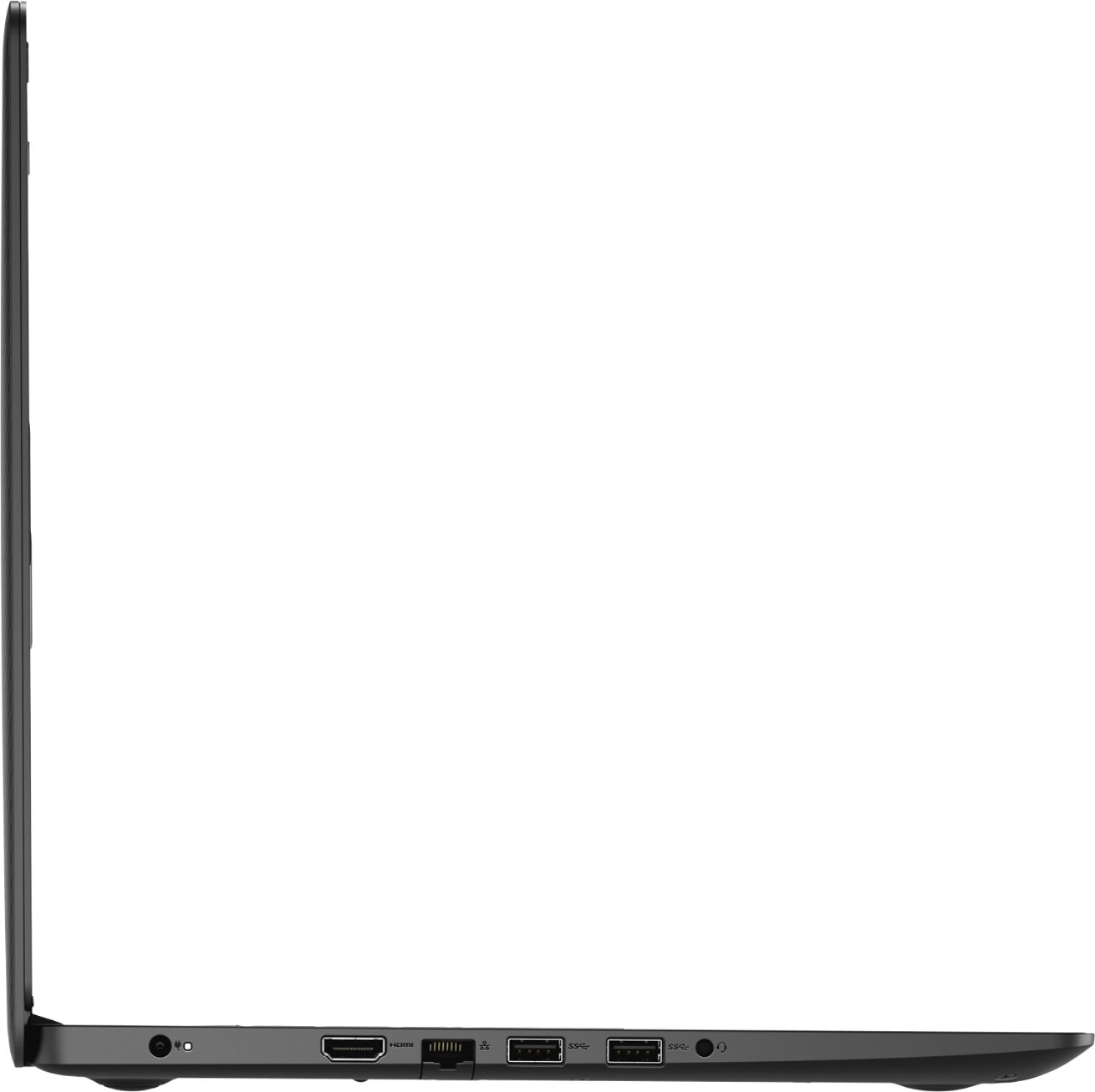
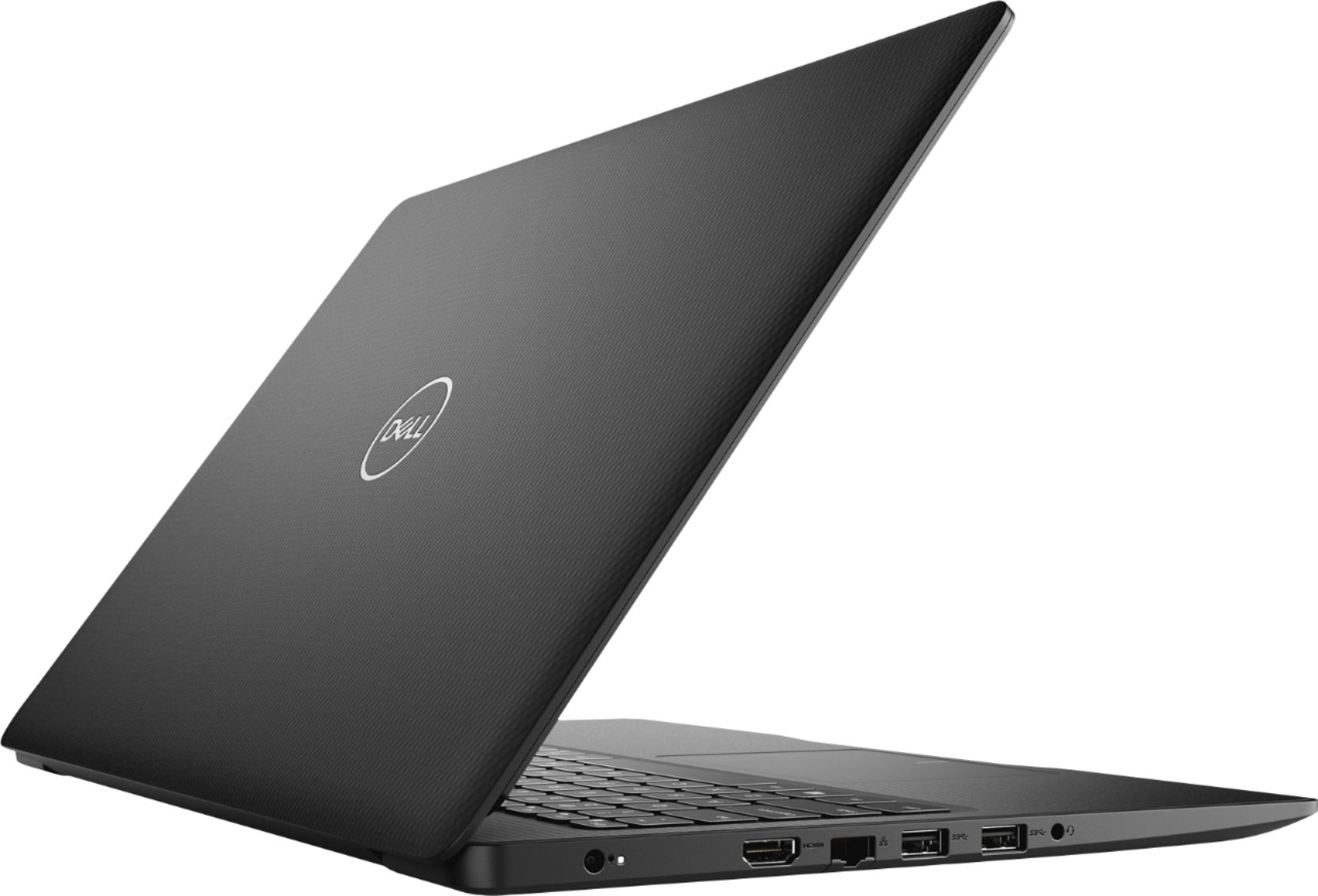
- Model:
- I3585-A831BLK-PUS
- SKU:
- 6391785
Rating by feature
- Battery Life
Rating 4.2 out of 5 stars
- Speed
Rating 4.2 out of 5 stars
- Display
Rating 4.4 out of 5 stars
Customers are saying
Customers appreciate the Inspiron 15.6" Touch-Screen Laptop for its reasonable price, user-friendly interface, and responsive touch screen. Many customers mentioned that it is a great laptop for basic tasks, working from home, and even gaming. However, some users have concerns about its battery life, limited storage capacity, and tendency to overheat.
This summary was generated by AI based on customer reviews.
Nice laptop
||Posted . Owned for 1 month when reviewed.This reviewer received promo considerations or sweepstakes entry for writing a review.Device has nice graphics, and adequate sound. Response times are slower than I anticipated. Overall, a good machine for the money.
I would recommend this to a friendOnly one issue
||Posted . Owned for 1 month when reviewed.This reviewer received promo considerations or sweepstakes entry for writing a review.Computer and camera both work well. Would have given five stars, but there is an issue with the microphone distorting my voice.
I would recommend this to a friend- Cons mentioned:Overheating
good price for entry level laptop
||Posted . Owned for 3 weeks when reviewed.This reviewer received promo considerations or sweepstakes entry for writing a review.Gets hot very easy although it has a fan. The screen blacks out sometimes I don't get that.
I would recommend this to a friendBrand response from YourDellTeam
Posted .dondon,
We're sorry that your computer is overheating while you're using it. Here are some tips to keep your computer running at a cooler temperature:
Tips for Proper Usage:
1. Dell does not recommend placing portable systems directly on your lap. Due to reductions in the thickness of modern portable systems, heat transfer can be an issue.
2. Using a portable system (Laptop) on a hard, flat, non-cloth surface will increase airflow and reduce heat from underneath and inside the system.
Using the portable system on a blanket, pillow, or other types of cloth will cover up the fan cause the computer to overheat and can cause permanent damage.
3. It is recommended to use the portable system in a Room temperature of 0°C to 35°C (32°F to 95°F) with a Humidity level no greater than 90%.
4. Use compressed air to clean the vents on a regular basis.
5. Using a cooling pad can decrease heat and increase performance.
6. If you want to know the temperature limitations for your system, go to the Dell Support Website, look up your system model then open the user guide under the manuals link.
You can read the full article here - http://dell.to/2uJ8AdG.
If you are having screen flickering issues here's a Driver update that may be able to help you: Dell has released the following driver to address screen flashing and flickering. Please visit this link in order to install the Intel UHD Graphics Driver (version 26.20.100.7463, A02): https://dell.to/36FfIYn.
Best,
Bryan
1-800-624-9896
- Cons mentioned:Battery life
The battery is the worse part of this pc
||Posted . Owned for 1 month when reviewed.This reviewer received promo considerations or sweepstakes entry for writing a review.not happy it ll with this laptop the battery get really warm and goes only for 8 hrs or less
No, I would not recommend this to a friendBrand response from YourDellTeam
Posted .Juanka07,
We're sorry to hear that your computer is getting warmer while you're using it. Here are some tips to help keep your computer operating at a cooler temperature:
Tips for Proper Usage:
1. Dell does not recommend placing portable systems directly on your lap. Due to reductions in the thickness of modern portable systems, heat transfer can be an issue.
2. Using a portable system (Laptop) on a hard, flat, non-cloth surface will increase airflow and reduce heat from underneath and inside the system.
Using the portable system on a blanket, pillow, or other types of cloth will cover up the fan cause the computer to overheat and can cause permanent damage.
3. It is recommended to use the portable system in a Room temperature of 0°C to 35°C (32°F to 95°F) with a Humidity level no greater than 90%.
4. Use compressed air to clean the vents on a regular basis.
5. Using a cooling pad can decrease heat and increase performance.
6. If you want to know the temperature limitations for your system, go to the Dell Support Website, look up your system model then open the user guide under the manuals link.
You can read the full article here - http://dell.to/2uJ8AdG.
If you'd like some tips about you to extend the life of your computer's battery you can try these tips:
Change the Power Plan:
1. On the notification area of the taskbar, right-click the Battery icon.
2. On the options list, click Power Options.
3. Select a power plan on the battery meter, such as Power Saver or Balanced. Windows 10 has a built in 'Battery Saver' mode that can be activated to extend your system's battery life. The Battery Saver mode will monitor and limit background activity and other features such as push notifications. You do have the option to enable or disable this mode within settings or within advanced Battery Saver settings, you can customize the mode to best suit your needs.
a) Click on the Action Center icon in the taskbar and select the tile for Battery Saver.
b) If running Cortana then type Battery Saver into the search box and select from the results.
Within the Battery Saver settings page, you will be able to turn on and off the feature and customize the feature to best meet your needs.
c) Turn Battery Saver On or Off.
d) Additional settings available via the Battery use and Battery saver settings links.
e) Battery use shows further info on apps and their power usage.
f) Battery Saver Settings screen allows you to customize further Battery Saver feature.
You can read the full article here - http://dell.to/2vfXWf4.
Best,
Bryan
1-800-624-9896
Very nice
||Posted . Owned for 1.5 years when reviewed.This reviewer received promo considerations or sweepstakes entry for writing a review.Very nice graphics and stores a lot if you’re a student or just want to keep photos on it. Huge screen
I would recommend this to a friend- Cons mentioned:Overheating
Poor cooling, would have been 5 stars
||Posted . Owned for 4 months when reviewed.This reviewer received promo considerations or sweepstakes entry for writing a review.The specs on this laptop are great except for one huge issue. The cooling for the laptop is not sufficient to keep to keep the CPU from overheating and throttling under moderate use. Ryzens mobile CPUs are known to have enough graphical horsepower to enable some light gaming but this laptop immediately overheats and drops the clock speeds within less than a minute of running any kind of game. I know this is not a gaming laptop and I did not buy it for that purpose, but it would be nice if I could do a little gaming while on the road if I wanted to. If the laptop had better cooling I would have given it 5 stars. I really wish I would have known this before I made the purchase so I could have bought a different model.
No, I would not recommend this to a friendBrand response from YourDellTeam
Posted .Hello Eddie,
Thank you for the feedback on this unit. We really value our customers input. I am sorry to hear about the overheating concerns you have with this laptop. I can understand how upsetting this can be. Here are some tips that can help prevent overheating from happening.
Tips for Proper Usage:
1. Dell does not recommend placing portable systems directly on your lap. Due to reductions in the thickness of modern portable systems, heat transfer can be an issue.
2. Using a portable system (Laptop) on a hard, flat, non-cloth surface will increase airflow and reduce heat from underneath and inside the system.
Using the portable system on a blanket, pillow, or other types of cloth will cover up the fan cause the computer to overheat and can cause permanent damage.
3. It is recommended to use the portable system in a Room temperature of 0°C to 35°C (32°F to 95°F) with a Humidity level no greater than 90%.
4. Use compressed air to clean the vents on a regular basis.
5. Using a cooling pad can decrease heat and increase performance.
6. If you want to know the temperature limitations for your system, go to the Dell Support Website, look up your system model then open the user guide under the manuals link.
You can read the full article here - http://dell.to/2uJ8AdG.
Best,
Meridith 1-800-624-9896
Wonderful upgrade
||Posted . Owned for 3 months when reviewed.This reviewer received promo considerations or sweepstakes entry for writing a review.Feels so good to have a laptop that works so well with my school work. It is equipped with everything I need. Hdmi, bluetooth, windows 10.
I would recommend this to a friendBought a Dell laptop.. love it
||Posted . Owned for 3 weeks when reviewed.This reviewer received promo considerations or sweepstakes entry for writing a review.BUt the case I bought is too small... how do I return to the Cranberry Twp. store... are there hours of operation? Or Are you closed for now?
I would recommend this to a friendBest for a non chrome book price
||Posted . Owned for more than 2 years when reviewed.This reviewer received promo considerations or sweepstakes entry for writing a review.Purchased for a parent who wanted true cheapest laptop that wasn’t a chrome laptop.
I would recommend this to a friendGreat product.
||Posted . Owned for 3 weeks when reviewed.This reviewer received promo considerations or sweepstakes entry for writing a review.The laptop is user friendly, no matter what the age group. Great graphics and great battery life.
I would recommend this to a friendMzelegantz
||Posted . Owned for more than 2 years when reviewed.This reviewer received promo considerations or sweepstakes entry for writing a review.I really love my Dell very sleek reliable. It always displayed a good picture screen
I would recommend this to a friendGreat Computer for my Business
||Posted . Owned for 1 month when reviewed.This reviewer received promo considerations or sweepstakes entry for writing a review.It does what I need for my business, so it helps me make money, that's it, that's what I bought it for. For that it gets a 5-star from me.
I would recommend this to a friendMust have
||Posted . Owned for 1.5 years when reviewed.This reviewer received promo considerations or sweepstakes entry for writing a review.Great product I purchased it for a friend who needed it before they could start their job...Thanks best buy
I would recommend this to a friendGreat laptop.
||Posted . Owned for 1 month when reviewed.This reviewer received promo considerations or sweepstakes entry for writing a review.Easy to set up and use. Like the touch screen. Easy to navigate and boots up quickly. Programs load quickly. Would definitely recommend.
I would recommend this to a friendNice Computer for the money!!
||Posted . Owned for 1 month when reviewed.This reviewer received promo considerations or sweepstakes entry for writing a review.I am sharing this computer and it seems great. I wish I had found this deal before buying the Lenovo as it is a better computer.
I would recommend this to a friendBudget friendly laptop
||Posted . Owned for 1 month when reviewed.This reviewer received promo considerations or sweepstakes entry for writing a review.Laptop is great for every day use. Having the SSD hard drive gives it better than average performance running windows 10. Recommended!
I would recommend this to a friendNice sleek cell phone
||Posted . Owned for 1 month when reviewed.This reviewer received promo considerations or sweepstakes entry for writing a review.Great phone for the sale price. The Smart Switch worked great so it was easy to set up even for a baby boomer like me.
I would recommend this to a friendperfect addition to our office
||Posted . Owned for 1 month when reviewed.This reviewer received promo considerations or sweepstakes entry for writing a review.We needed a good reliable Windows based computer to run our photo booth software, this computer has been great so far.
I would recommend this to a friendHome school
||Posted . Owned for 8 months when reviewed.This reviewer received promo considerations or sweepstakes entry for writing a review.Great laptop for your student. My daughter needed a laptop for online classes and this was perfect.
I would recommend this to a friendGood Computer for senior citizens.
||Posted . Owned for 3 weeks when reviewed.This reviewer received promo considerations or sweepstakes entry for writing a review.Easy to operate and remote is really neat, has your most often channels, i.e. UTube, Your Bank, Your E-mail, etc.c Nice computer.
I would recommend this to a friend