Customer Ratings & Reviews
- Model:
- I3593-3992BLK-PUS
- SKU:
- 6403450
Rating by feature
- Battery Life
Rating 4.3 out of 5 stars
- Speed
Rating 4.5 out of 5 stars
- Display
Rating 4.6 out of 5 stars
Customers are saying
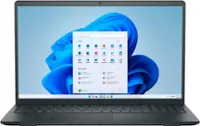
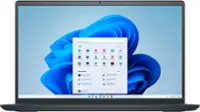
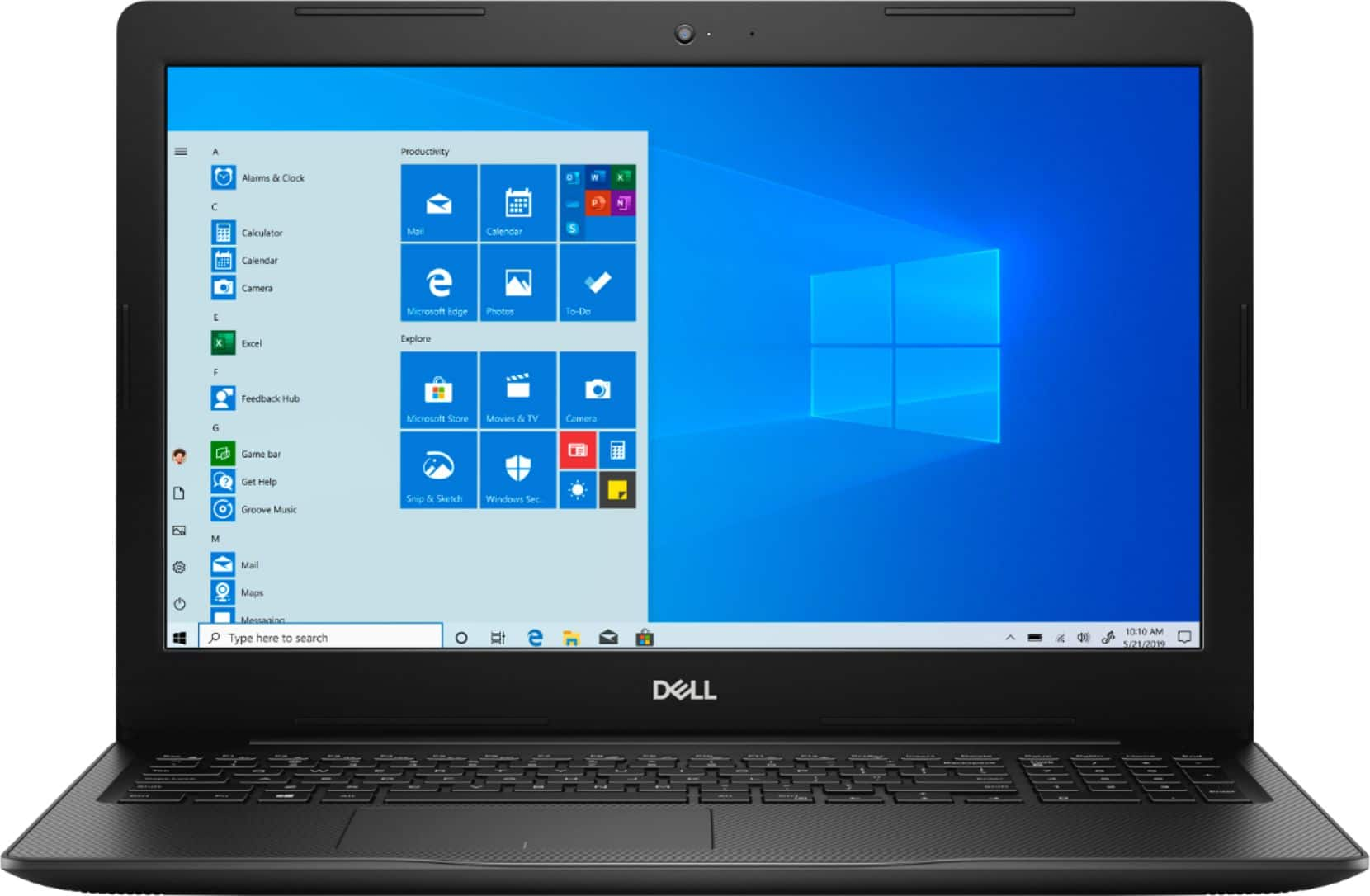
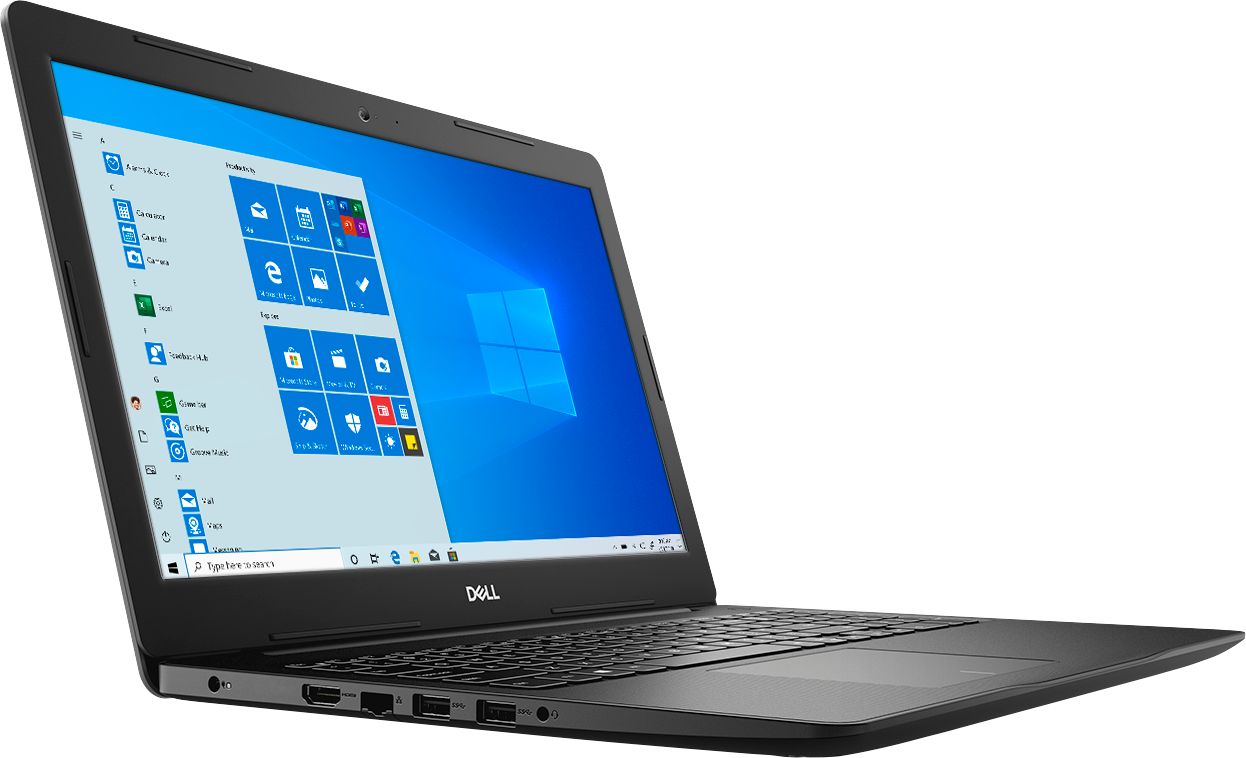
Customers commend the Inspiron 15.6" Touch-Screen Laptop for its reasonable price, user-friendly interface, and ample storage. Many users appreciate the convenience of the touchscreen feature, while others find the laptop lightweight and easy to carry. However, some customers have concerns about the short battery life and the limitations of Windows 10 S mode.
This summary was generated by AI based on customer reviews.
The WiFi range sucks!!!
||Posted . Owned for 1 week when reviewed.This reviewer received promo considerations or sweepstakes entry for writing a review.This computer is more or less fine- apart from the atrocious WiFi range! I was 1 room apart from our router and had zero signal. It worked ok when I was sitting right next to it, but come on! I had read a review from another person that had bought this and they suggested buying a USB WiFi adapter and it helps some, but it still only works in the next room about 75% of the time. I do not recommend unless you are just using it for the bare minimum.
No, I would not recommend this to a friendBrand response from YourDellTeam
Posted .AmyC,
Thanks for your review and we're sorry to hear about the WIFI range on your new laptop. Here are some connectivity tips that you can try:
1. Download and install the latest Wireless Card driver. (https://dell.to/2th3Tpe) After updating the driver, re-establish the connection with the Wireless Access Point and check the wireless performance.
2. If the issue persists, proceed to step 3.
3. Power-cycle the local network. Shut down the Dell system, the Wireless Access Point/Router and the Modem. Wait a minimum of 60 seconds before powering up the components in the following order:
4. Power ON the Modem, and wait for it to boot fully.
5. Power ON the Wireless Access Point/Router, and wait for it to boot fully.
6. Power ON the Dell system.
7. Open Network and Sharing Center
8. In the left side navigation pane, click on Change Adapter Settings
9. Right click on the wireless connection icon and select Properties followed by the Configure button
10. Under Wireless Options, select the Wireless N mode
11. For Windows 8 or later systems click the Advanced tab and look for 802.11n Mode on the right you will be given the option to Enable or Disable. If the mode is not visible you may need to update your drivers and firmware.
12. From the drop-down menu, choose Disable followed by Ok
13. This should restore the wireless download and upload speed. Internet speed can be tested at http://speedtest.net.
Best,
Bryan
1-800-624-9896
Love it
||Posted . Owned for 3 weeks when reviewed.This reviewer received promo considerations or sweepstakes entry for writing a review.After my last PC stopped working (most likely from an update) I wasn't able to get a PC for a long time and finally decided to get this one.
I would recommend this to a friendGreat home laptop.
||Posted . Owned for 3 weeks when reviewed.This reviewer received promo considerations or sweepstakes entry for writing a review.This computer is great for emails, documents, pictures, and as a web browser. Great for students, retirees, and to use for a home office.
I would recommend this to a friendVery good, delivered on time
||Posted . Owned for 3 weeks when reviewed.This reviewer received promo considerations or sweepstakes entry for writing a review.The laptop is very good. Had it delivered it was on time. Didn’t go to store how convenient this is. I highly recommend buying this way.
I would recommend this to a friendsimple to operate, fits my minimal computer needs
||Posted . Owned for 3 weeks when reviewed.This reviewer received promo considerations or sweepstakes entry for writing a review.This laptop is simple to operate, fits my minimal computer needs. Only drawback is no built-in DVD player. As of right now, no issues.
I would recommend this to a friendExcellent laptop for my kid
||Posted . Owned for 7 months when reviewed.This reviewer received promo considerations or sweepstakes entry for writing a review.Excellent for my jid who’s in 5th grade and I k ow will be for much longer, because is a great quality and good processor....
I would recommend this to a friendGreat PC for Home Office!
||Posted . Owned for 3 weeks when reviewed.This reviewer received promo considerations or sweepstakes entry for writing a review.I love every aspect of this PC that I purchased for home use. It has a sleek, great looking body and is very speedy when surfing the net.
I would recommend this to a friendFirst laptop
||Posted . Owned for 2 weeks when reviewed.This reviewer received promo considerations or sweepstakes entry for writing a review.This Dell is my first big purchase alone. I was very thankful for the bestbuy ppl. I don't this i could have picked another get computer.
I would recommend this to a friendNot the best dell computer I've owned
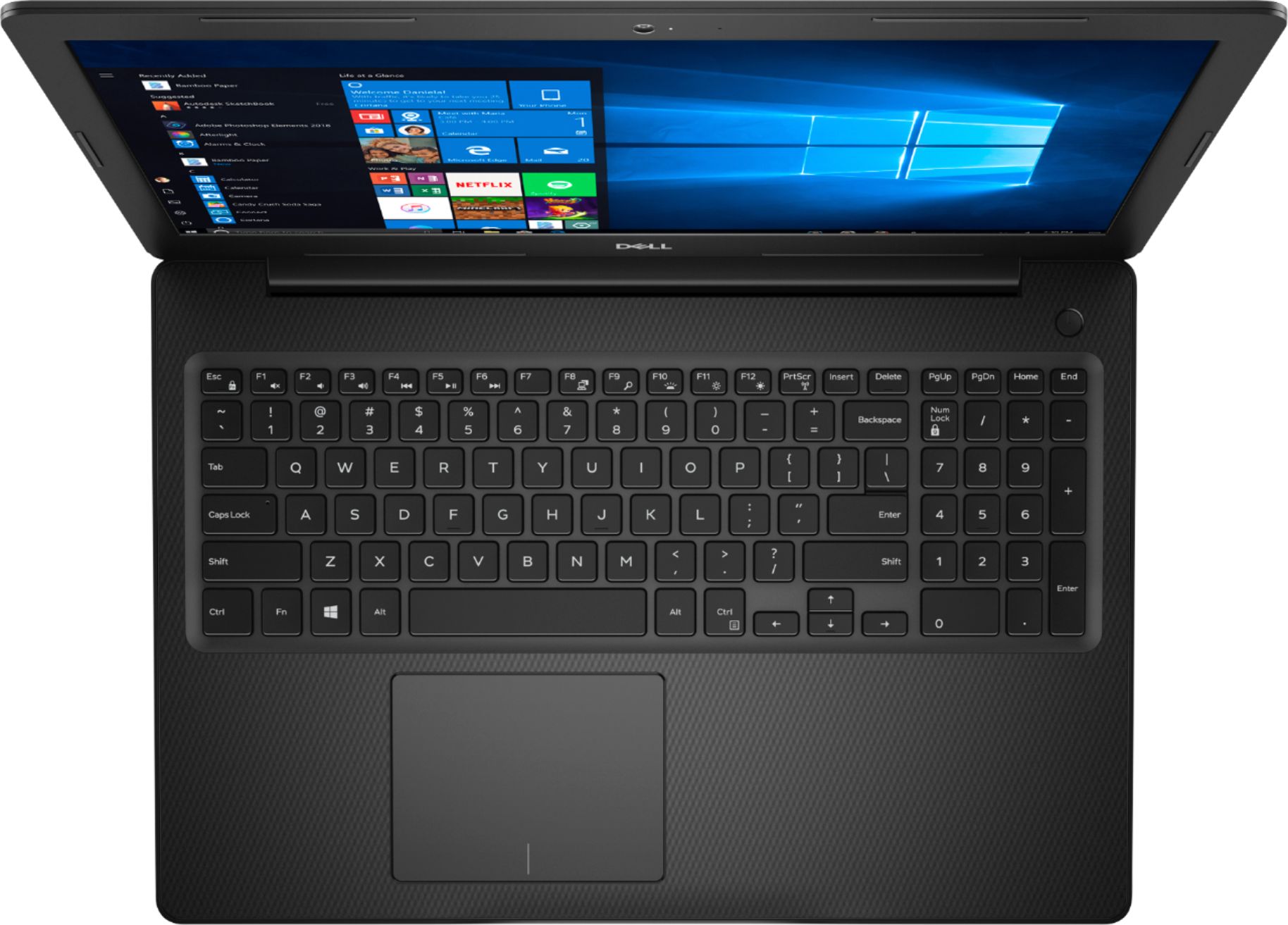
||Posted . Owned for 1 month when reviewed.This reviewer received promo considerations or sweepstakes entry for writing a review.I've owned Dell laptops for the last 20 years. I'm not too thrilled with this purchase. The mousepad is not accurate with taps/clicks involving the right/left mouse buttons. The keyboard does not seem to respond appropriately and have to press keys several times e.g. "enter" key and power.
No, I would not recommend this to a friendBrand response from YourDellTeam
Posted .mcomd,
Thanks for your review and we're sorry about the issues that you've been having so far. We'd recommend re-calibrating your touchpad to see if this helps the issues that you're having: Some Notebooks and Tablets with Keyboards have added gesture features to the touchpad hardware and drivers. A few of these features are two or three finger scrolling, pinch zoom, circle zoom, rotate and swiping. These new features may be the reason for the erratic cursor movement since most are turned on by default. You can disable or modify the way the features work in the touchpad driver properties. Here are some tips to modify these settings:
1. In the Search box, type main.cpl.
2. Touch or click main.cpl in the list of programs.
3. Touch or click the Dell Touchpad tab.
4. Touch or click on the picture of the touchpad.
5. Touch or click Gestures (depending on your computer there may not be a Gestures option).
6. Change the options as preferred.
7. Touch or click Save.
8. Touch or click the X in the upper-right corner to close the Dell Touchpad Utility.
9. Touch or click OK on the Mouse Properties window.
10. If the touchpad still does not work after following the preceding steps, refer to Dell Knowledge Base article - http://dell.to/2iaiujA.
You can read the full article here - http://dell.to/2tqmS02.
If you'd like to see if there are any driver updates for your keyboard, you can check here: https://dell.to/34QvdLl.
Best,
Bryan
1-800-624-9896
Great computer
||Posted . Owned for 3 weeks when reviewed.This reviewer received promo considerations or sweepstakes entry for writing a review.The i3 is up there with the big boys. The performance is fast and the CPU runs very smooth. Login takes no time because it is very responsive.
I would recommend this to a friendGreat laptop!
||Posted . Owned for 1 month when reviewed.This reviewer received promo considerations or sweepstakes entry for writing a review.Great laptop! We bought this for our 6 year who will start his virtual learning next week. Very simple to use. Love the sleek design!
I would recommend this to a friendgreat laptop
||Posted . Owned for 1 month when reviewed.This reviewer received promo considerations or sweepstakes entry for writing a review.No issues at all. It’s a great laptop to use for work and play. i highly recommend this laptop
I would recommend this to a friendgood
||Posted . Owned for 8 months when reviewed.This reviewer received promo considerations or sweepstakes entry for writing a review.Works as it should, could use a little faster proccessor but then you get what you pay for. very satisfied.
I would recommend this to a friendI really like the easy navigation.
||Posted . Owned for 1 month when reviewed.This reviewer received promo considerations or sweepstakes entry for writing a review.The laptop is for my personal and work use. I also allow my grandson to attach it to a microscope for better viewing of the slides.
I would recommend this to a friendGood Laptop
||Posted . Owned for 3 months when reviewed.This reviewer received promo considerations or sweepstakes entry for writing a review.Got this for my wife. She loved it as her old computer was getting old. For a basic computer, it does the trick. Great for students.
I would recommend this to a friendGreat computer for my wife
||Posted . Owned for 1 month when reviewed.This reviewer received promo considerations or sweepstakes entry for writing a review.Provides all of the functions needed for my wife’s projects. Great for communications with family and friends, and its ease of use helps too.
I would recommend this to a friendGood laptop!
||Posted . Owned for 1 week when reviewed.This reviewer received promo considerations or sweepstakes entry for writing a review.I like it so much! I used Dell laptop about 10 years ago, then I try the HP but I didn't like that one, now turn back with Dell, so happy!
I would recommend this to a friendNice product!!
||Posted . Owned for 2 weeks when reviewed.This reviewer received promo considerations or sweepstakes entry for writing a review.From the touchscreen to the CPU speed, everything is working great, loading fast, great laptop overall..,amazing hinge, hard to break.
I would recommend this to a friendMixed feeling bugs about this computer
||Posted . Owned for 1 week when reviewed.This reviewer received promo considerations or sweepstakes entry for writing a review.I purchased two exact computers but opted out from getting insurance on them One works marvelous the other one keeps giving me a blue screen
I would recommend this to a friendGood laptop for the money
||Posted . Owned for 1 month when reviewed.This reviewer received promo considerations or sweepstakes entry for writing a review.Been using this since the pandemic started. Use it everyday for teaching. It is a solid laptop. Good speed and memory. Worth the price.
I would recommend this to a friend