Customer Ratings & Reviews
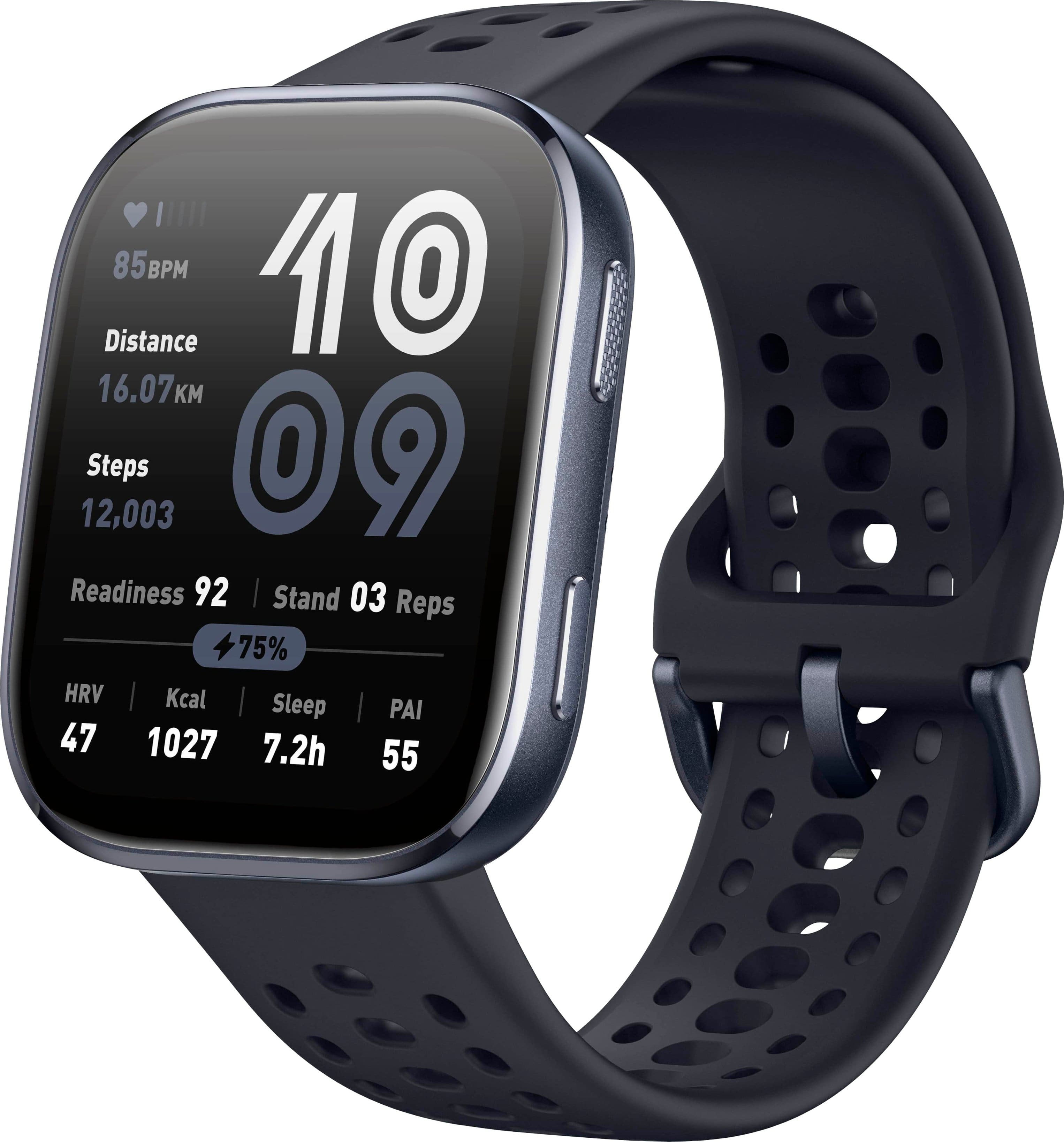
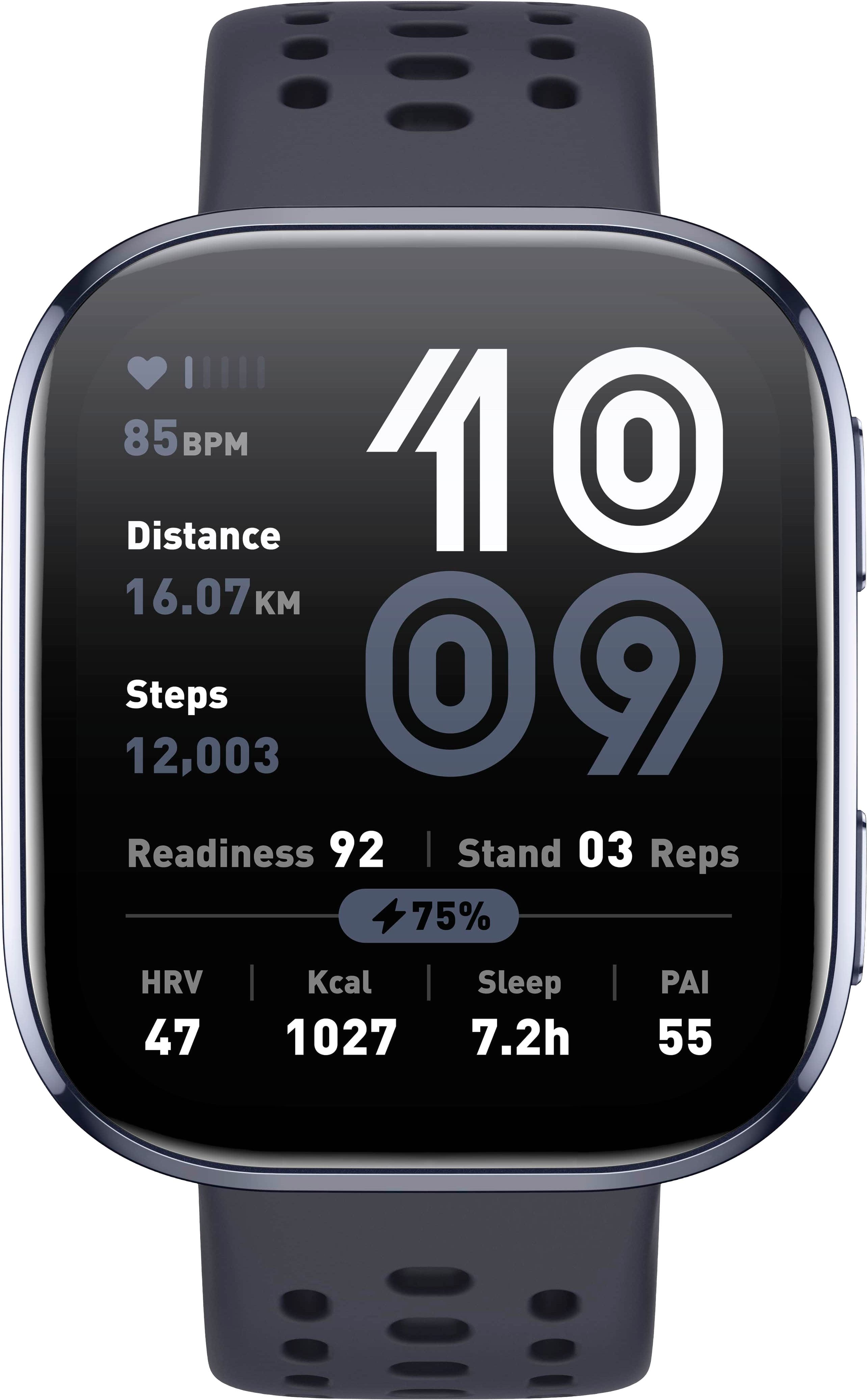
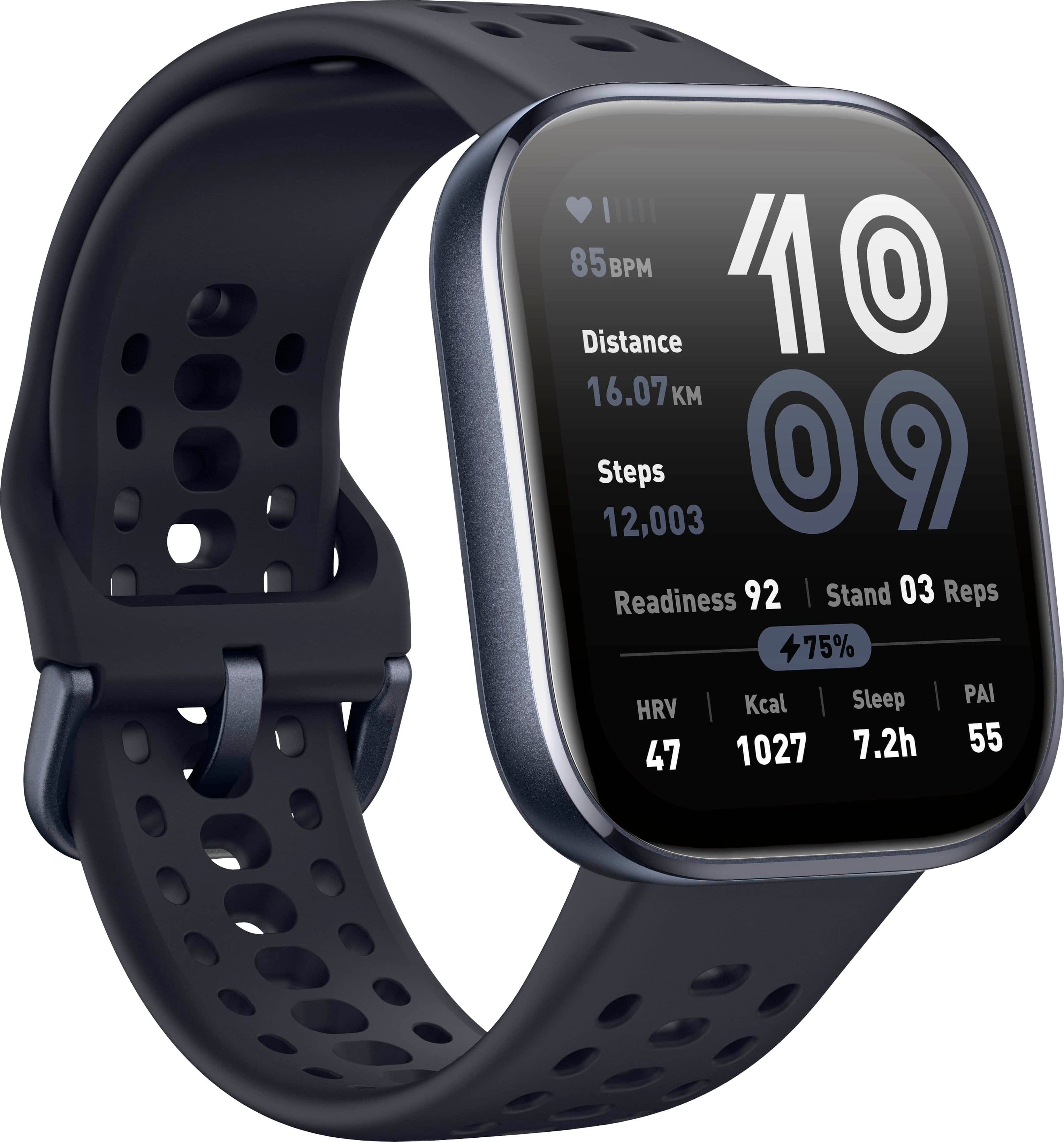
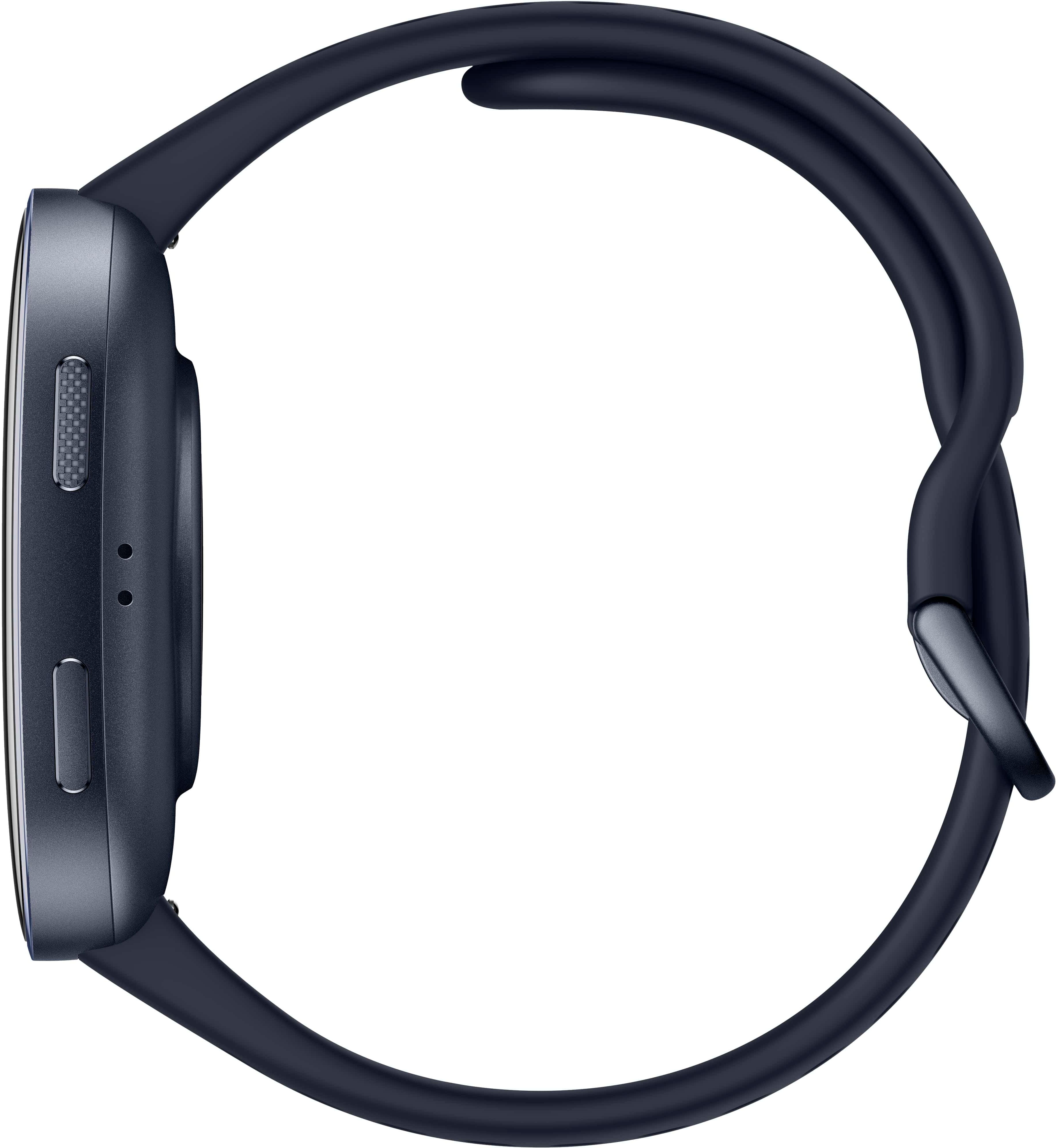




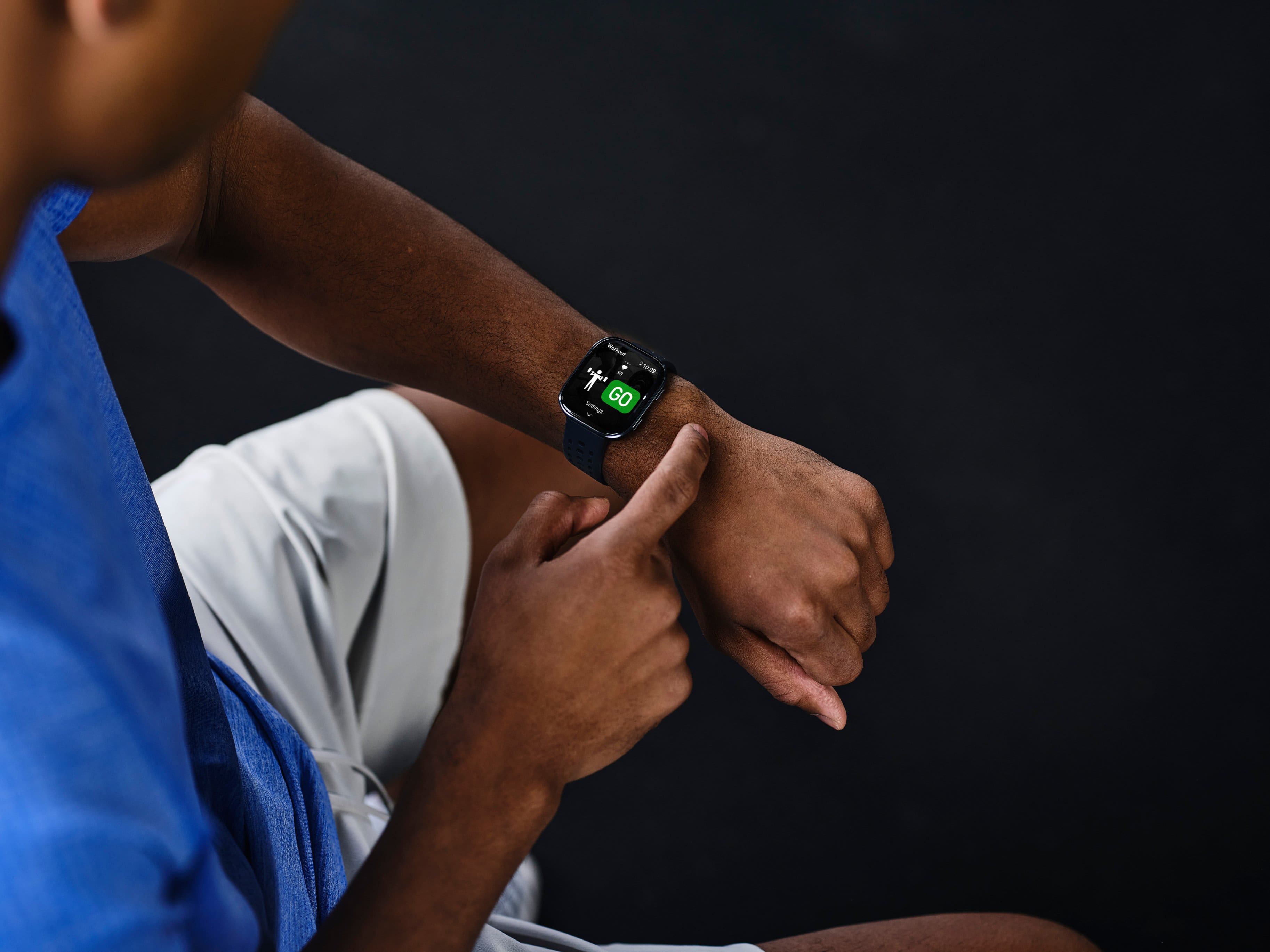
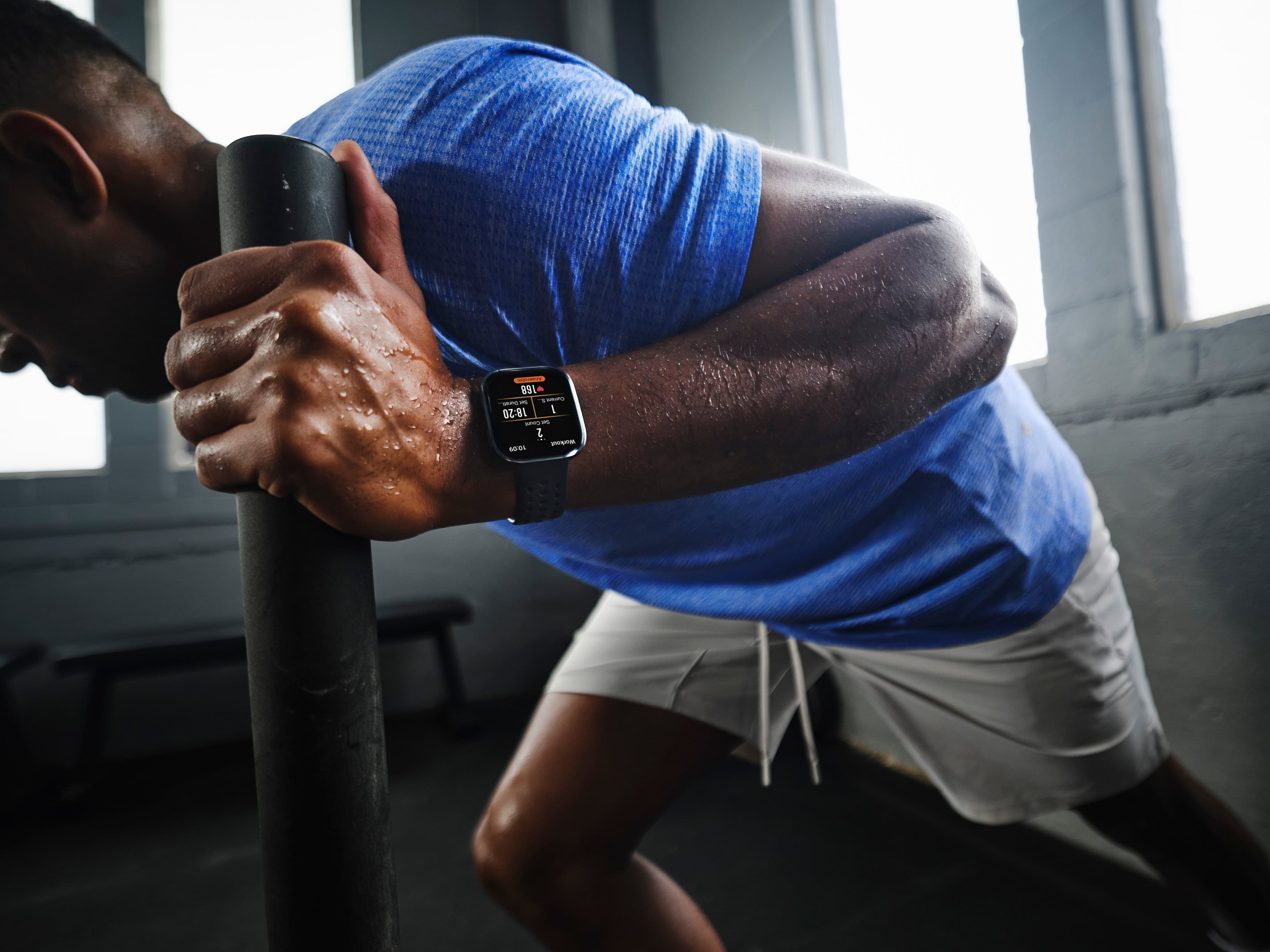
- Model:
- W2435US7N
- SKU:
- 10748212
Rating by feature
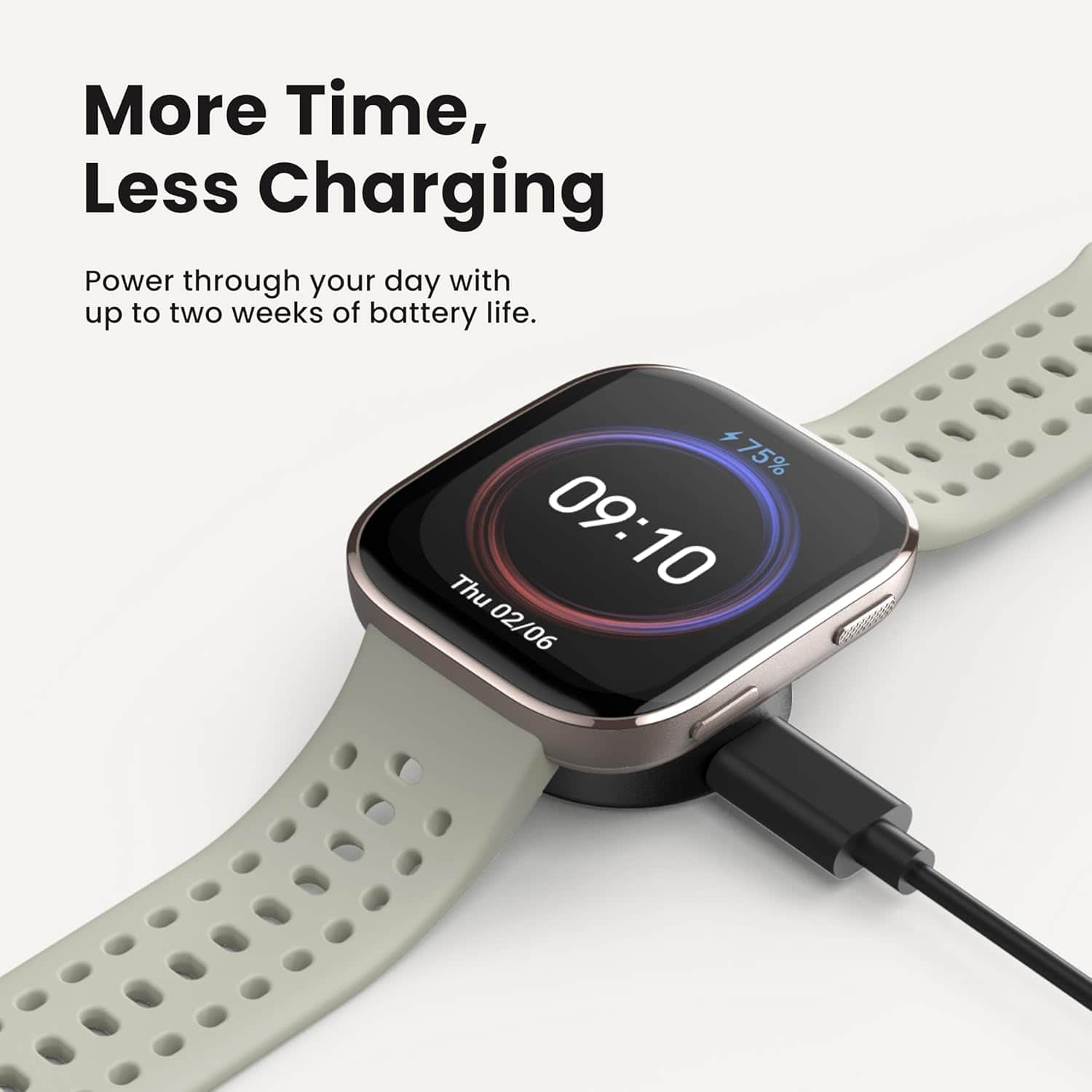
- Battery Life
Rating 4.9 out of 5 stars
- Durability
Rating 4.8 out of 5 stars
- Comfort
Rating 4.8 out of 5 stars
Ok watch
||Posted . Owned for 3 weeks when reviewed.This reviewer received promo considerations or sweepstakes entry for writing a review.Had a reaction to the band had to buy a new one. There is not enough apps available but ok for the price
I would recommend this to a friendBest watch with best value
||Posted .This reviewer received promo considerations or sweepstakes entry for writing a review.The best purchase for the best value with all options on the watch, i recommend it to everyone
I would recommend this to a friendFitness tracker
||Posted .This reviewer received promo considerations or sweepstakes entry for writing a review.Simple setup, good fitness tracking watch with mobile app for updates and data sync
I would recommend this to a friendDaughter happy with her watch
||Posted . Owned for 3 weeks when reviewed.This reviewer received promo considerations or sweepstakes entry for writing a review.My daughter is enjoying it and we are happy because we are connected with the device for check her location on time
I would recommend this to a friendGreat!!
||Posted . Owned for 2 weeks when reviewed.This reviewer received promo considerations or sweepstakes entry for writing a review.Very good performance. All tracking looks close to accurate.
I would recommend this to a friendGreat watch
||Posted . Owned for 1 month when reviewed.This reviewer received promo considerations or sweepstakes entry for writing a review.The watch works really great for recording workouts
I would recommend this to a friendAmazing smart watch
||Posted .This reviewer received promo considerations or sweepstakes entry for writing a review.Love this watch. Only problem is it sometimes disconnects from phone by itself
I would recommend this to a friendMy watch
||Posted .This reviewer received promo considerations or sweepstakes entry for writing a review.The watch is great and I would tell all my friends about it. It is very easy to use. I never leave home with out it.
I would recommend this to a frienda good product. Comfortable to wear and works well
||Posted . Owned for 3 weeks when reviewed.This reviewer received promo considerations or sweepstakes entry for writing a review.tracking my steps, bpm, weather and alerting me to get up and move
I would recommend this to a friendLove it
||Posted .This reviewer received promo considerations or sweepstakes entry for writing a review.Love it , good price and good quality, i recommend it
I would recommend this to a friendGreat
||Posted . Owned for 1 month when reviewed.This reviewer received promo considerations or sweepstakes entry for writing a review.Works really well for the gym and tracking heart rate!!
I would recommend this to a friendValue for money
||Posted . Owned for 3 weeks when reviewed.This reviewer received promo considerations or sweepstakes entry for writing a review.Having the same specs for a lesser cost than branded ones
I would recommend this to a friendGot it for my son
||Posted .This reviewer received promo considerations or sweepstakes entry for writing a review.Very good unit, affordable and reliable. Price matched the capabilities.
I would recommend this to a friendAffordable watch!
||Posted . Owned for 1 week when reviewed.This reviewer received promo considerations or sweepstakes entry for writing a review.Very responsive. Does cover the main basis of the product.
I would recommend this to a friendMy new gadget
||Posted .This reviewer received promo considerations or sweepstakes entry for writing a review.The watch is awesome for its brand. Thanks to Best Buy.
I would recommend this to a friendMy new smart watch
||Posted .This reviewer received promo considerations or sweepstakes entry for writing a review.The watch is awesome for its brand. Thanks to Best Buy.
I would recommend this to a friendSport watch for men
||Posted . Owned for 1 month when reviewed.This reviewer received promo considerations or sweepstakes entry for writing a review.Great! Nicely designed Long battery life Very good value for money
I would recommend this to a friendSport watch
||Posted .This reviewer received promo considerations or sweepstakes entry for writing a review.It should be emphasized that this model is more towards women
I would recommend this to a friendRIP OFF - Stopped working after 16 days. NO RETURN
||Posted .This reviewer received promo considerations or sweepstakes entry for writing a review.I absolutely loved the watch while it worked. I had it 16 days and it stopped working and bestbuy says two days past return period and manufacturer wants me to send back through insured delivery. RIP OFF
No, I would not recommend this to a friendBrand response from Amazfit
Posted .Hi Chemaster, we are very sorry to hear this and we would be happy to exchange it out with a new one for you. Please email us your proof of purchase to [email protected] and we would be happy to further assist you on this. Michael | Amazfit Support

SPEAKER BROCKEN
||Posted . Owned for 1 week when reviewed.This reviewer received promo considerations or sweepstakes entry for writing a review.Hi I purchased ones of this days before to leave America, and whem call or whatsapp messaje I note speaker is broken, it sounds really bad, and there's no solution outside of the warranty.
No, I would not recommend this to a friendBrand response from Amazfit
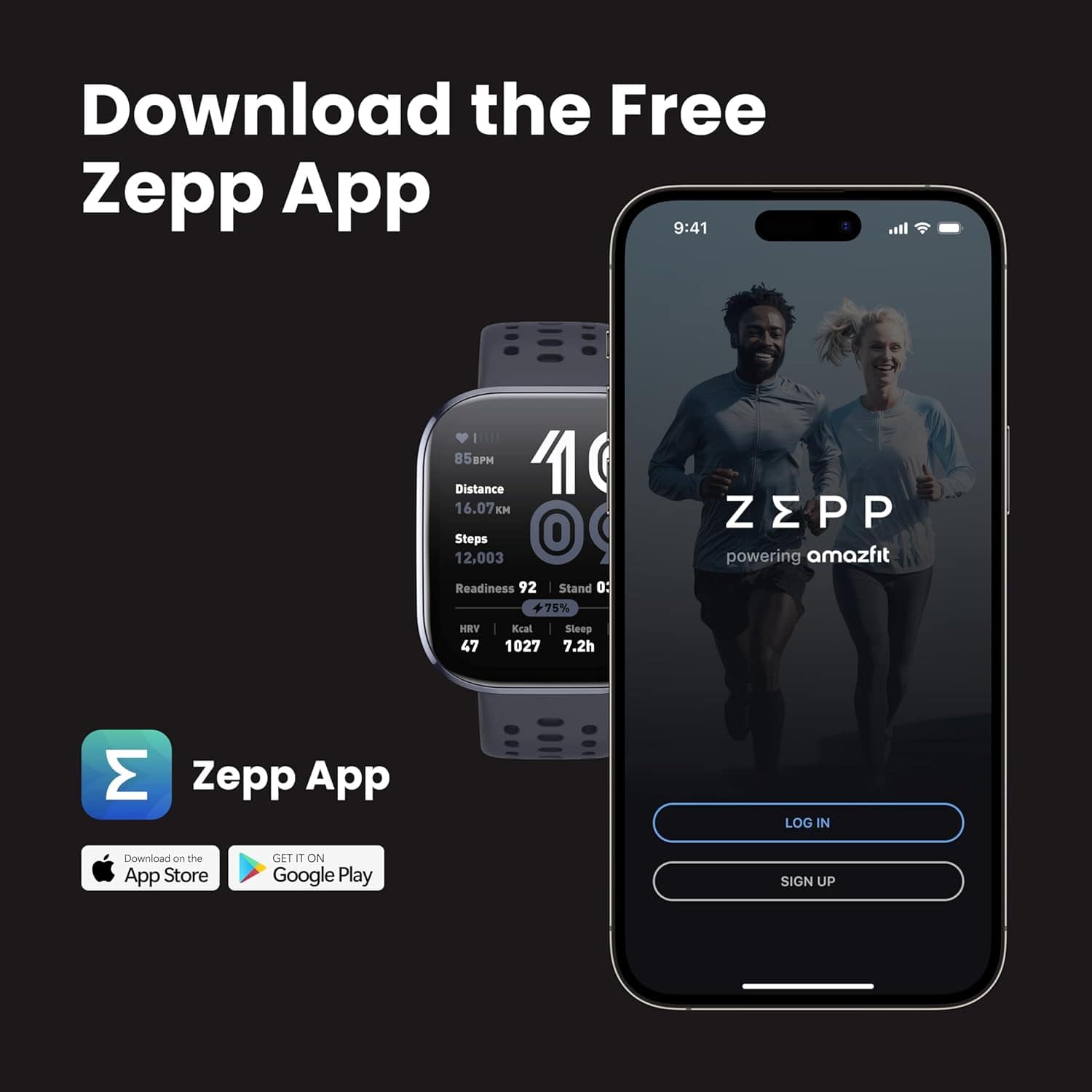
Posted .Hi EmanuelP, we are sorry to hear this. Please try to factory reset the watch to see if that will resolve the issue. The reset option is found under the watch's Settings -> System. Please note you will need to unpair all previous connections before you are able to pair it back up. Please make sure the watch is unpaired from your phone's Bluetooth settings. Next make sure you unpair it on the Zepp app by going to Device -> Amazfit Bip 6 -> Unpair.
After that is done then you can go through the pairing process in the Zepp app. Open the Zepp app and go to Device -> +Add -> Add Device -> Watch, to scan the QR code to pair back the watch.
Michael | Amazfit Support