Customer Ratings & Reviews
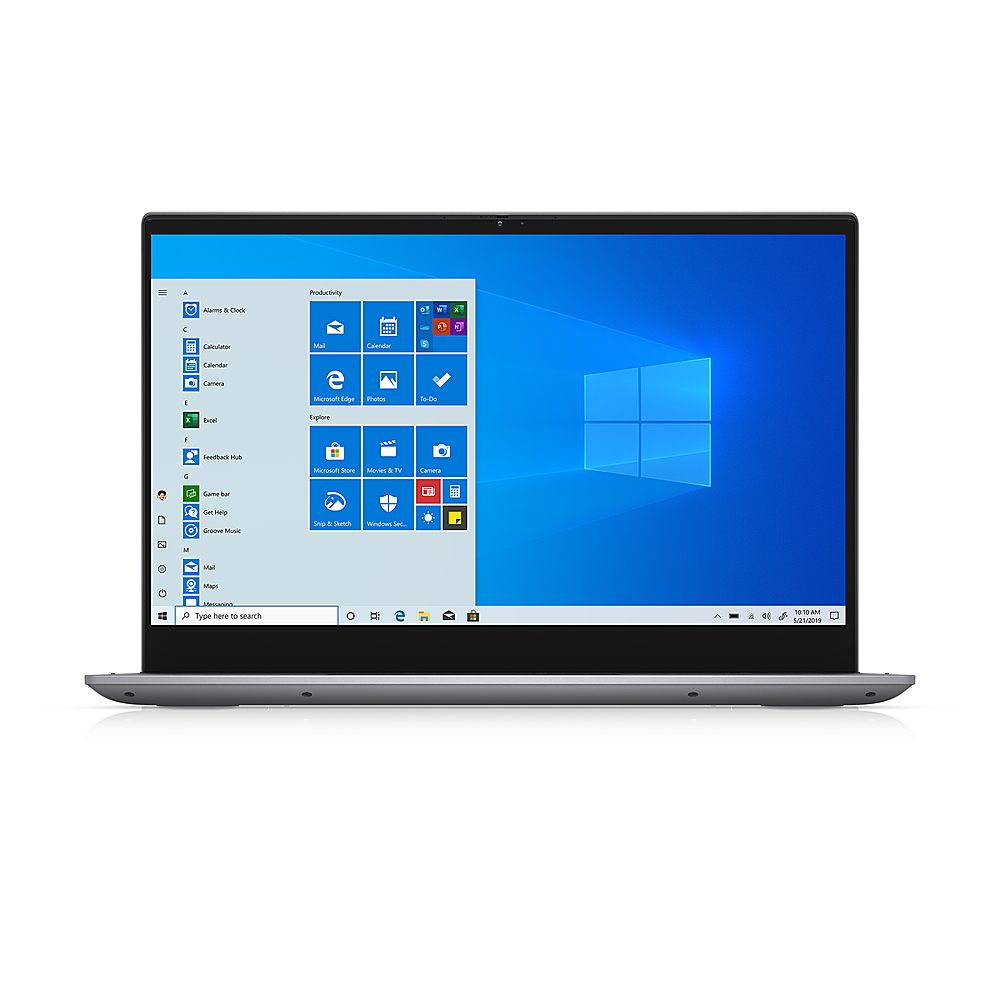
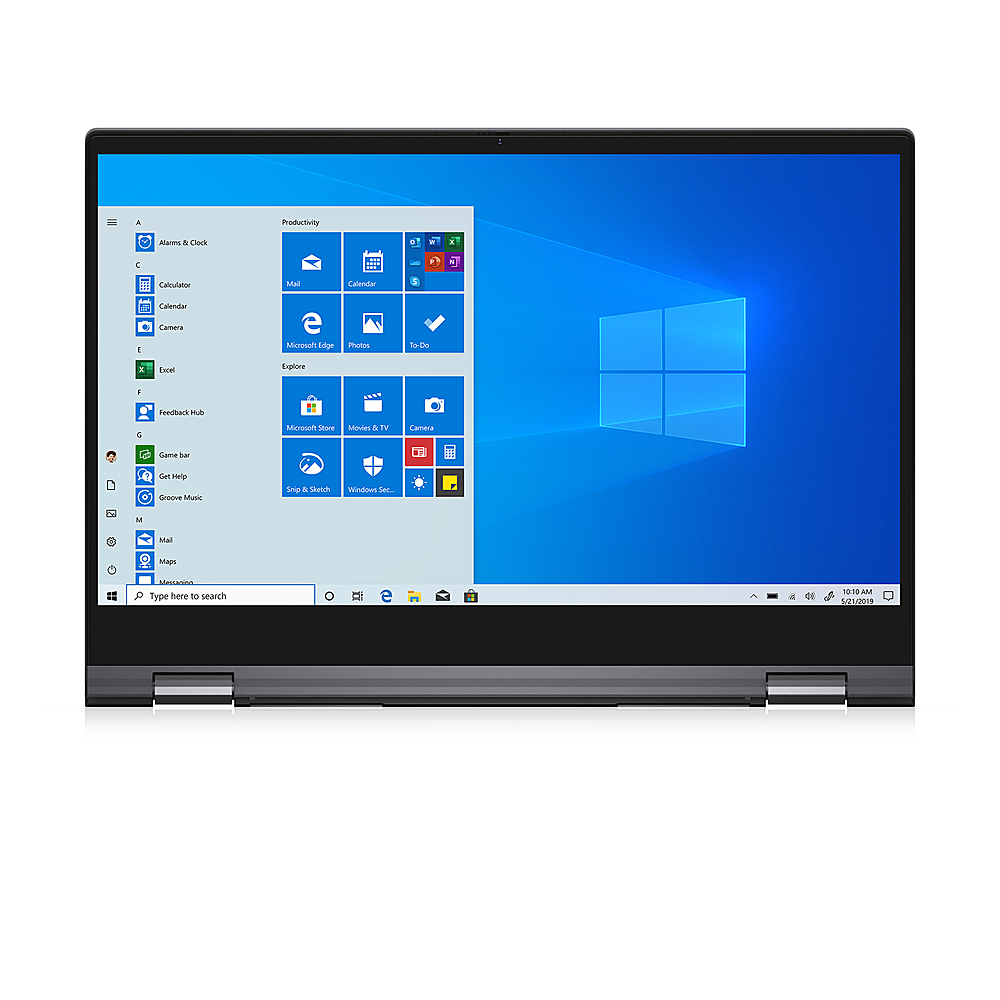
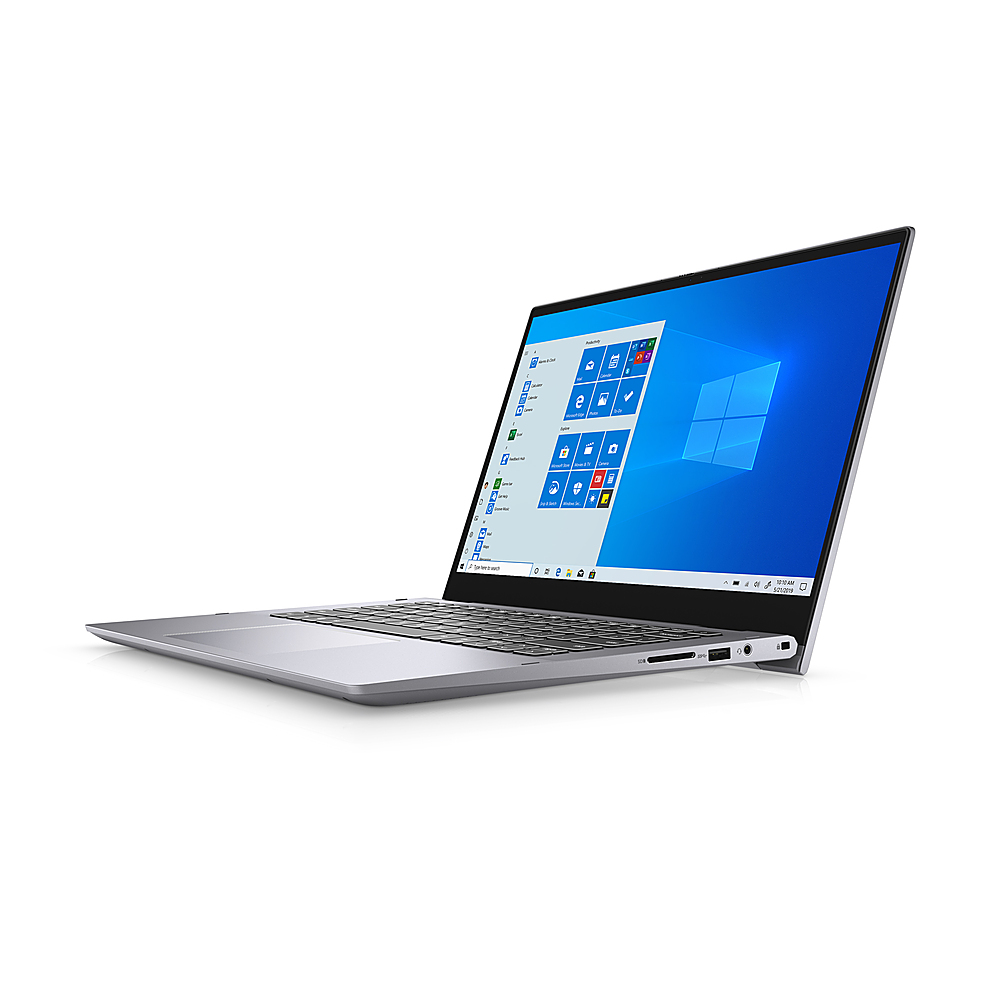
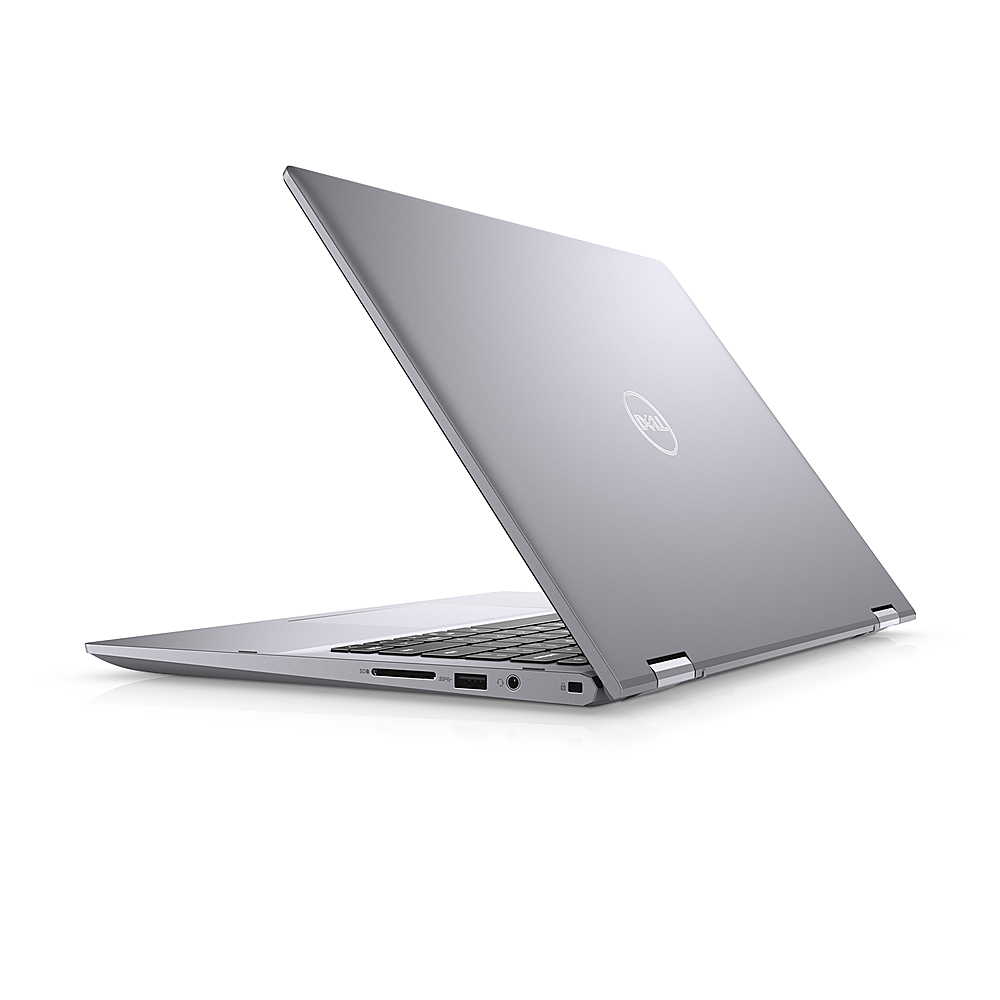
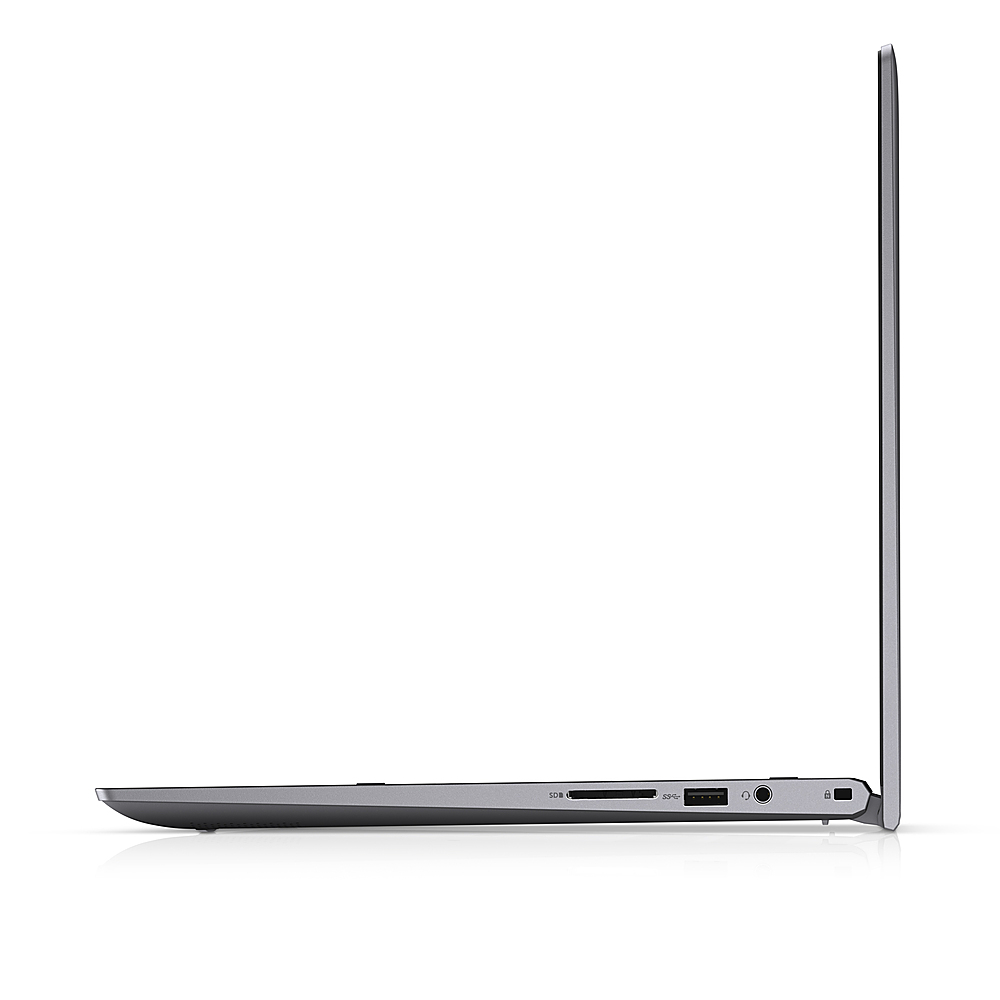
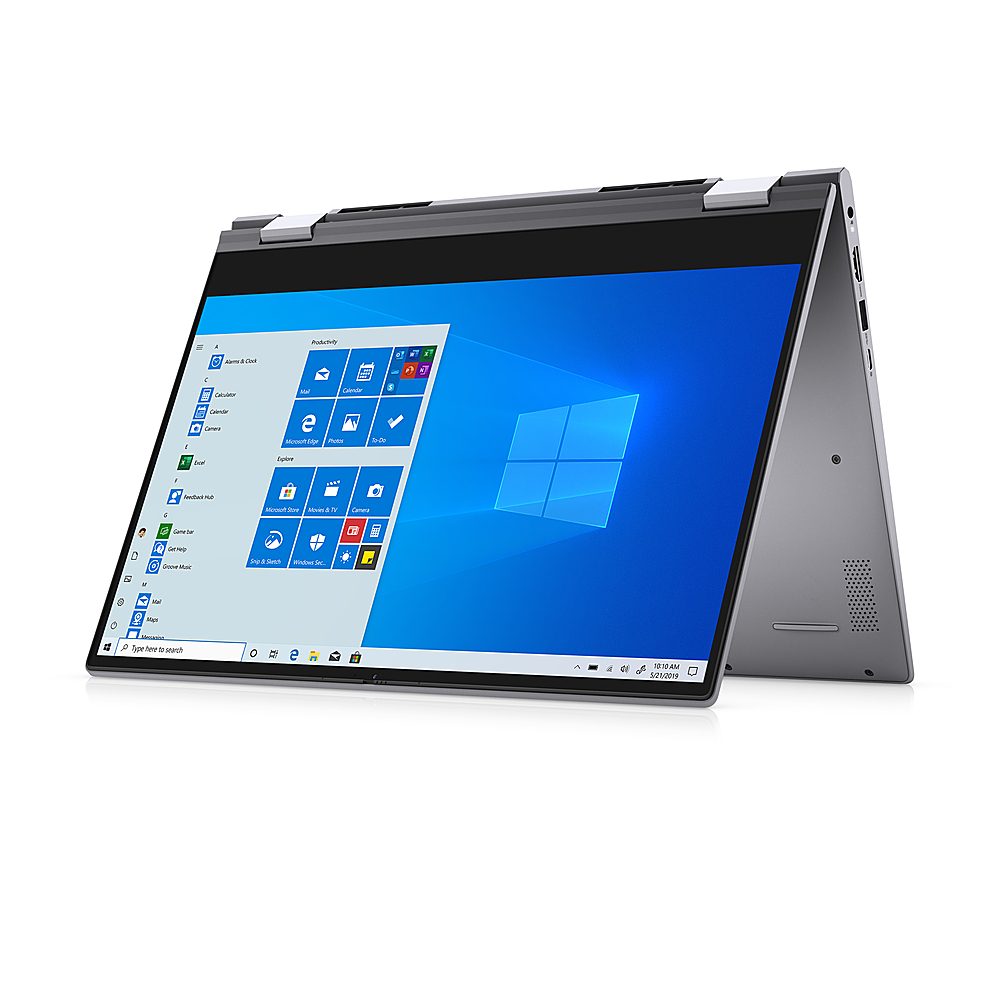
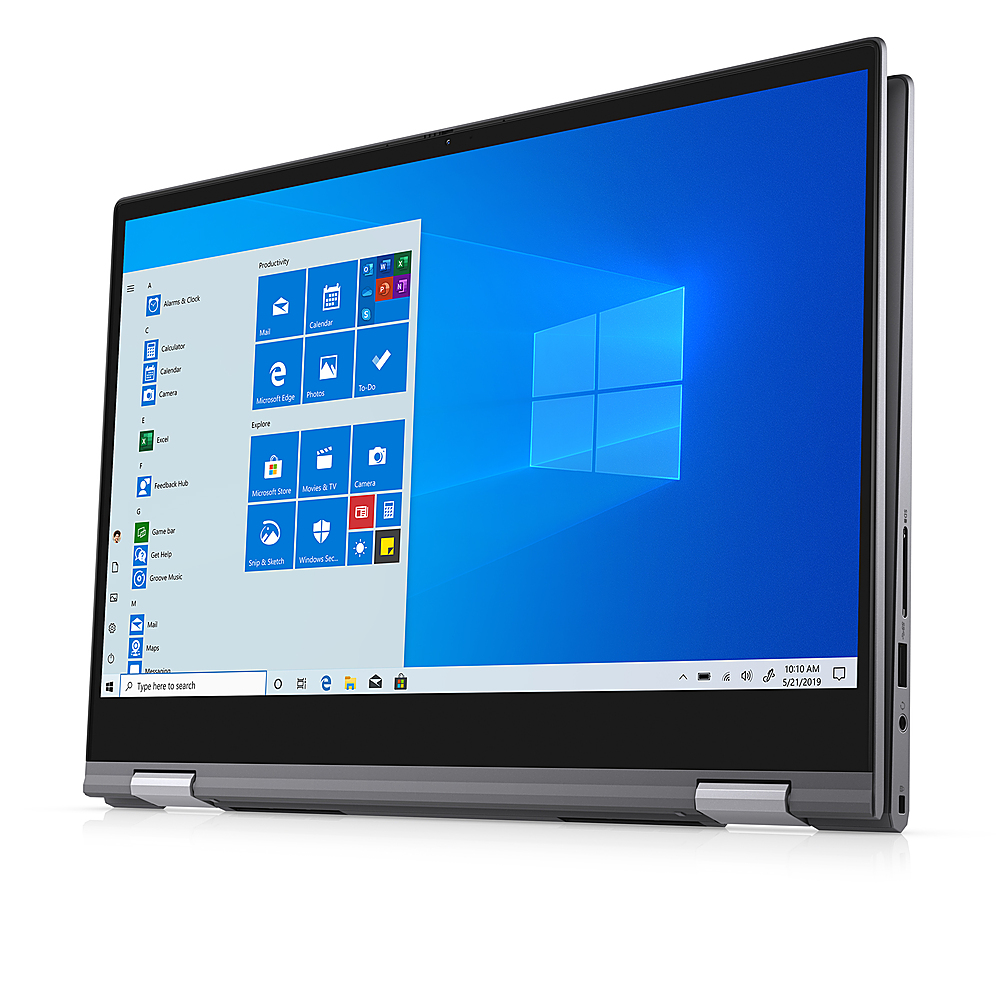
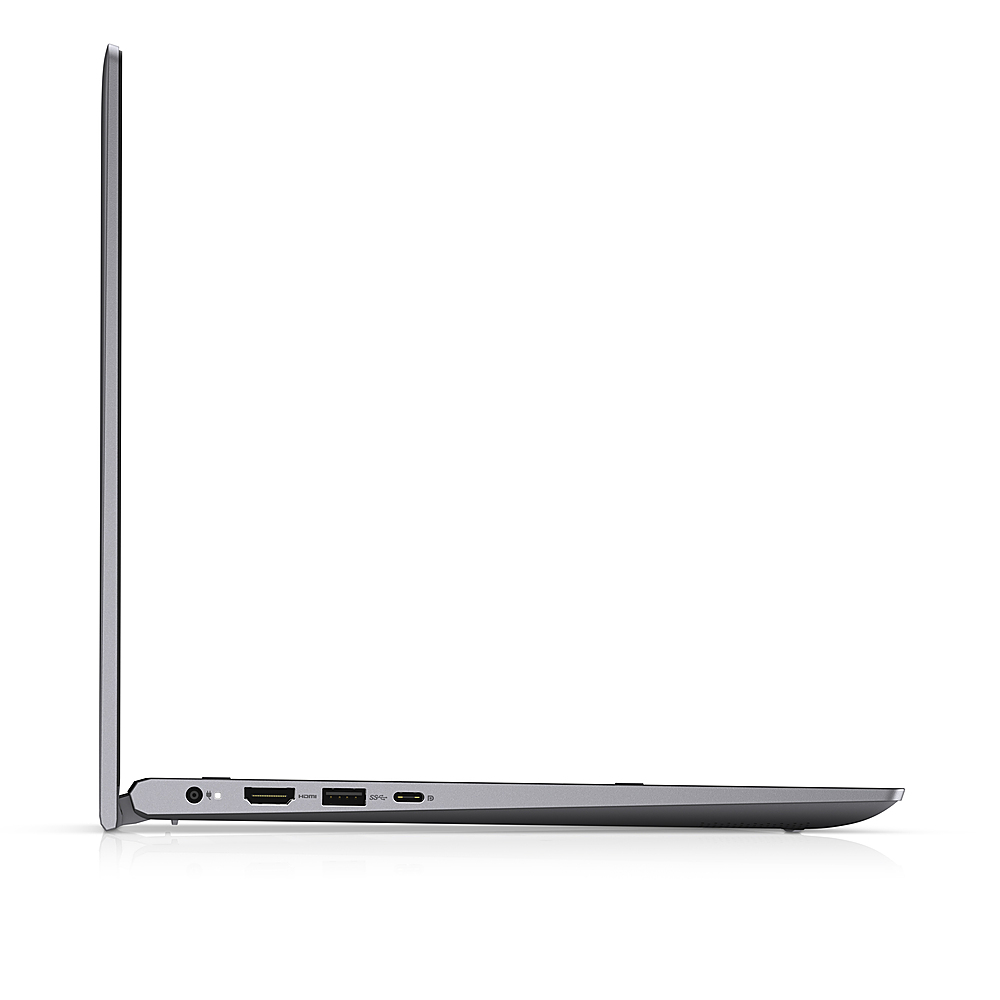
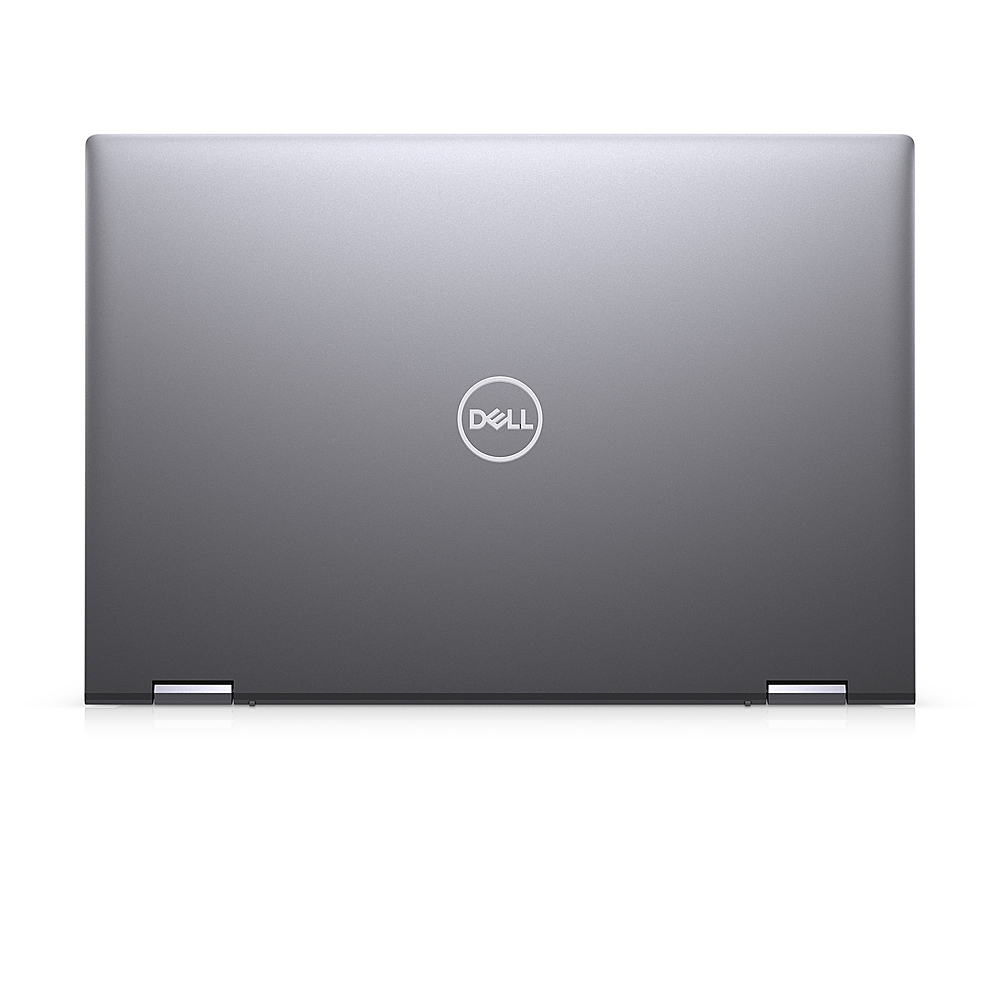
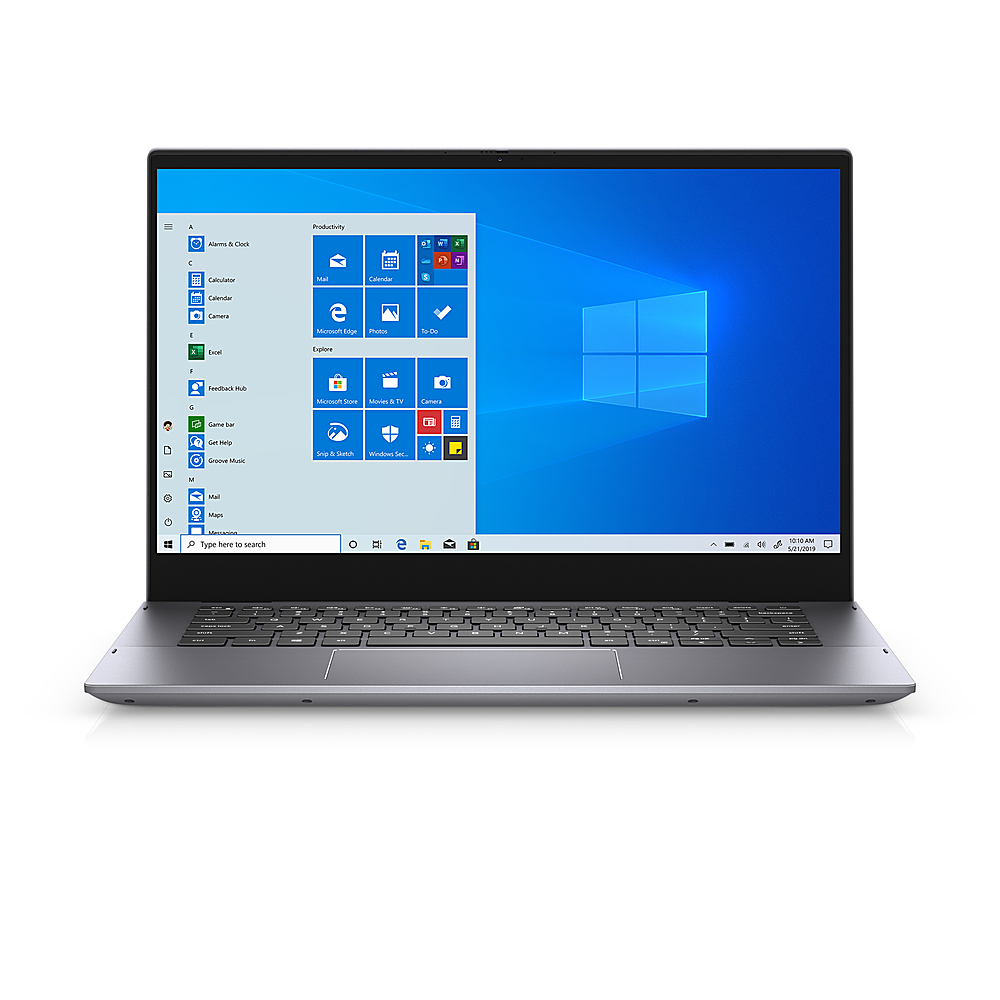
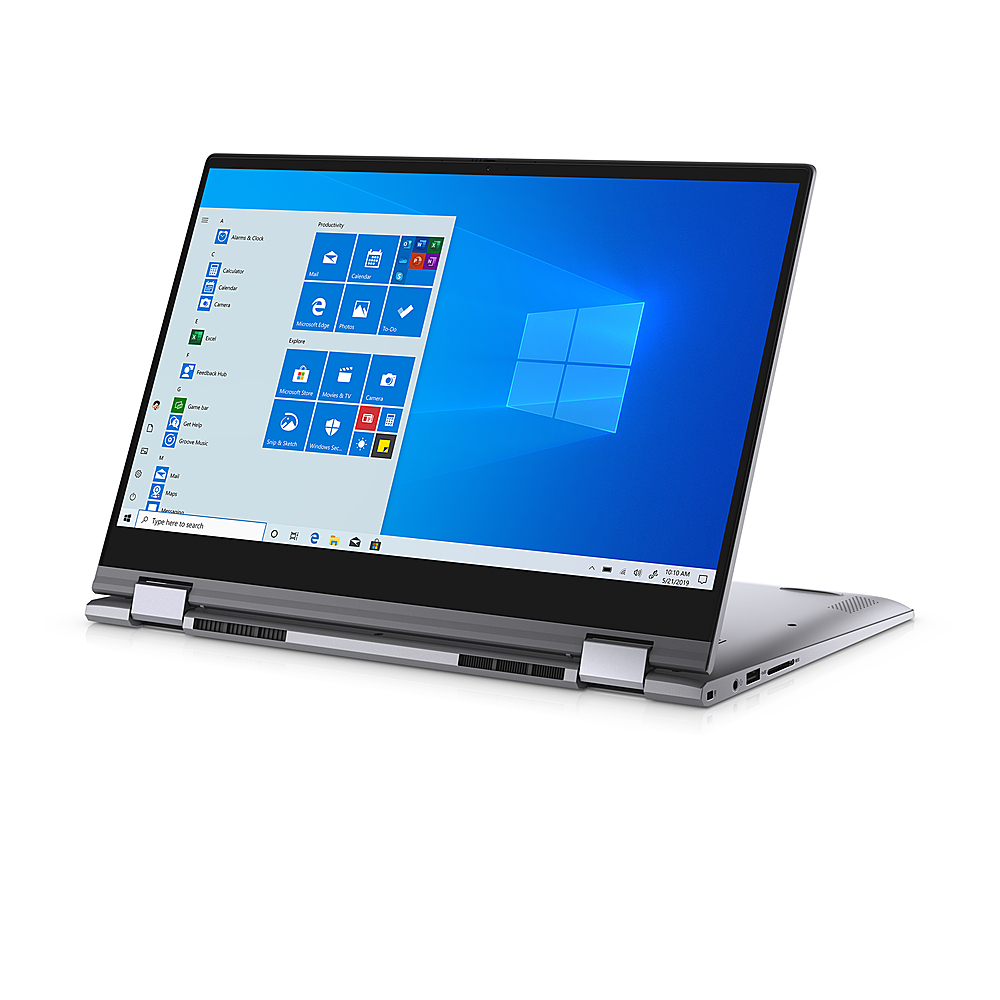
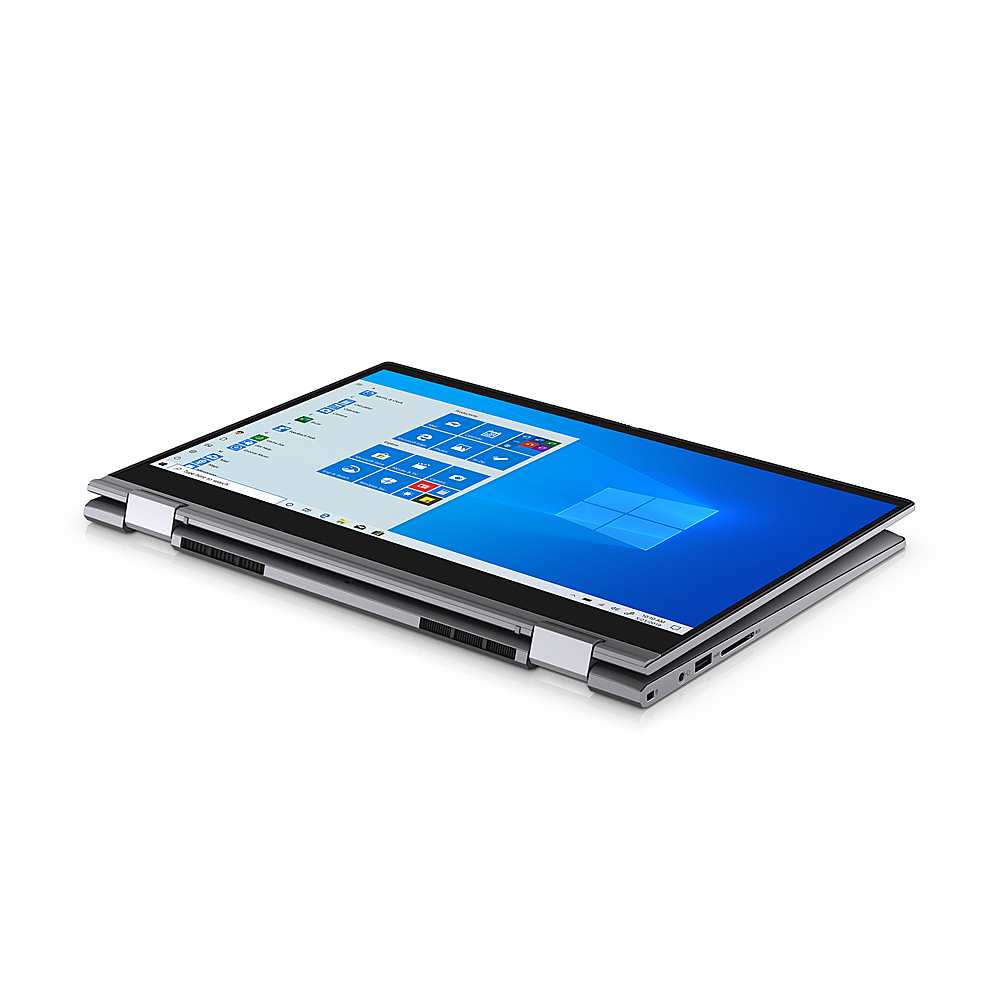
- Model:
- i5406-7153GRY-PUS
- SKU:
- 6439285
Rating by feature
- Value
Rating 4.7 out of 5 stars
- Quality
Rating 4.7 out of 5 stars
- Ease of Use
Rating 4.4 out of 5 stars
Customers are saying
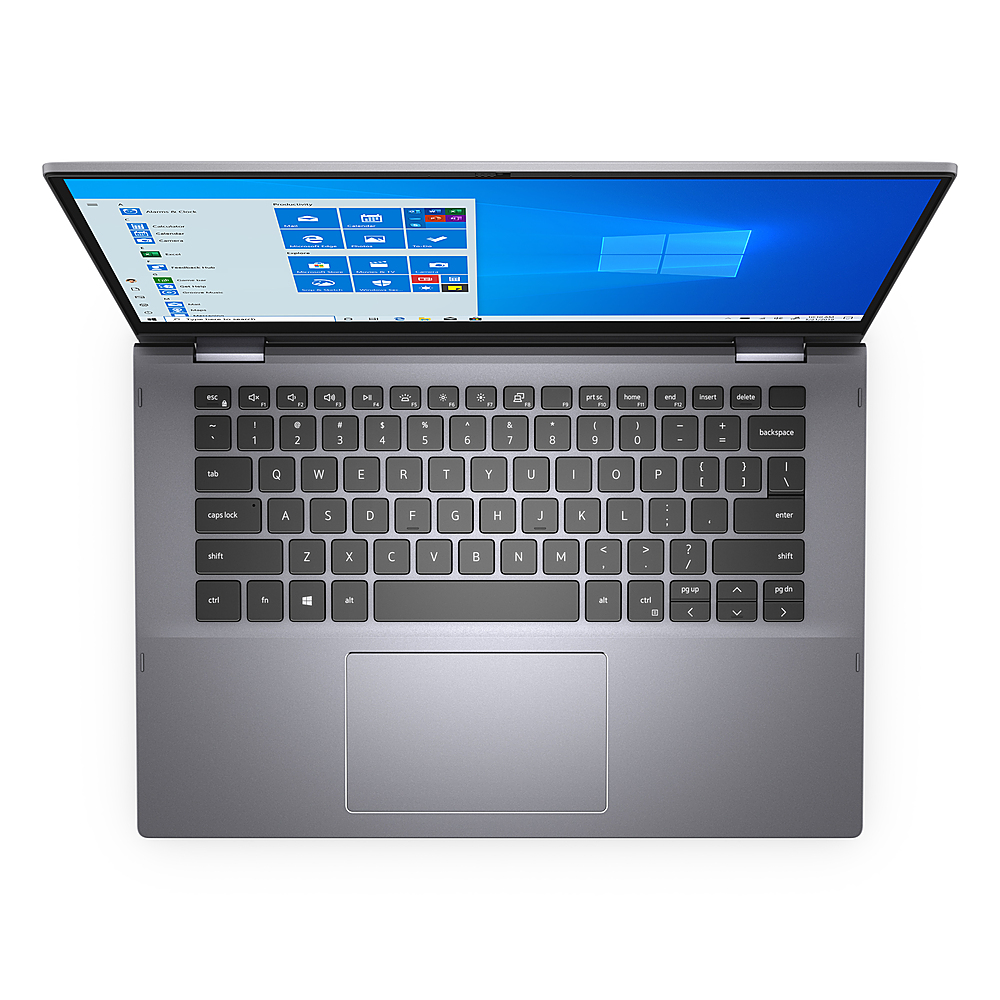
Customers find value in the fast performance of the Inspiron 14.0" 2in1 Laptop. However, some customers have expressed concerns with the reliability of the touchpad.
This summary was generated by AI based on customer reviews.
Great Buy
||Posted . Owned for 3 weeks when reviewed.This reviewer received promo considerations or sweepstakes entry for writing a review.Amazing laptop and works very well. Dell has done a great job putting this fine piece of hardware together.
I would recommend this to a friendPerfect 2-1 laptop
||Posted . Owned for 9 months when reviewed.This reviewer received promo considerations or sweepstakes entry for writing a review.Very cool laptop. 2-1 makes for a great all around device.
I would recommend this to a friendAwesome Laptop
||Posted . Owned for 11 months when reviewed.This reviewer received promo considerations or sweepstakes entry for writing a review.Awesome laptop for my son getting his Masters in Business
I would recommend this to a friend- Cons mentioned:Touchpad
The worst. Never buy this.
||Posted .This reviewer received promo considerations or sweepstakes entry for writing a review.This is the absolute worst computer I have ever worked with. It is completely useless. Doesn't connect to the internet. SLOW. The touch pad doesn't work half the time. It can't go between tabs on a browser without reloading the page again. It makes me unable to do my job. Thanks for the 15 day return policy, I "am too late to return it" by 3 days. Worst I have ever seen.
No, I would not recommend this to a friendBrand response from YourDellTeam
Posted .Hi EvaB,
We're sorry that your computer has not been connecting the way that you hoped it would. We'd recommend the following steps to help keep your computer connected:
1. Download and install the latest Wireless Card driver. (https://dell.to/2th3Tpe) After updating the driver, re-establish the connection with the Wireless Access Point and check the wireless performance.
2. If the issue persists, proceed to step 3.
3. Power-cycle the local network. Shut down the Dell system, the Wireless Access Point/Router and the Modem. Wait a minimum of 60 seconds before powering up the components in the following order:
4. Power ON the Modem, and wait for it to boot fully.
5. Power ON the Wireless Access Point/Router, and wait for it to boot fully.
6. Power ON the Dell system.
7. Open Network and Sharing Center
8. In the left side navigation pane, click on Change Adapter Settings
9. Right click on the wireless connection icon and select Properties followed by the Configure button
10. Under Wireless Options, select the Wireless N mode
11. For Windows 8 or later systems click the Advanced tab and look for 802.11n Mode on the right you will be given the option to Enable or Disable. If the mode is not visible you may need to update your drivers and firmware.
12. From the drop-down menu, choose Disable followed by Ok
13. This should restore the wireless download and upload speed. Internet speed can be tested at http://speedtest.net.
We'd also recommend checking to see if you can update the responsiveness of your touchpad by following these steps:
Some Notebooks and Tablets with Keyboards have added gesture features to the touchpad hardware and drivers. A few of these features are two or three finger scrolling, pinch zoom, circle zoom, rotate and swiping. These new features may be the reason for the erratic cursor movement since most are turned on by default. You can disable or modify the way the features work in the touchpad driver properties. Here are some tips to modify these settings:
1. In the Search box, type main.cpl.
2. Touch or click main.cpl in the list of programs.
3. Touch or click the Dell Touchpad tab.
4. Touch or click on the picture of the touchpad.
5. Touch or click Gestures (depending on your computer there may not be a Gestures option).
6. Change the options as preferred.
7. Touch or click Save.
8. Touch or click the X in the upper-right corner to close the Dell Touchpad Utility.
9. Touch or click OK on the Mouse Properties window.
10. If the touchpad still does not work after following the preceding steps, refer to Dell Knowledge Base article - http://dell.to/2iaiujA.
You can read the full article here - http://dell.to/2tqmS02.
Best,
Bryan@Dell
If you require further assistance, you can contact Dell directly with the information below
Chat or Call:
https://bit.ly/DellSupportTeam
Phone number to Dell: 1-800-624-9896