Customer Ratings & Reviews
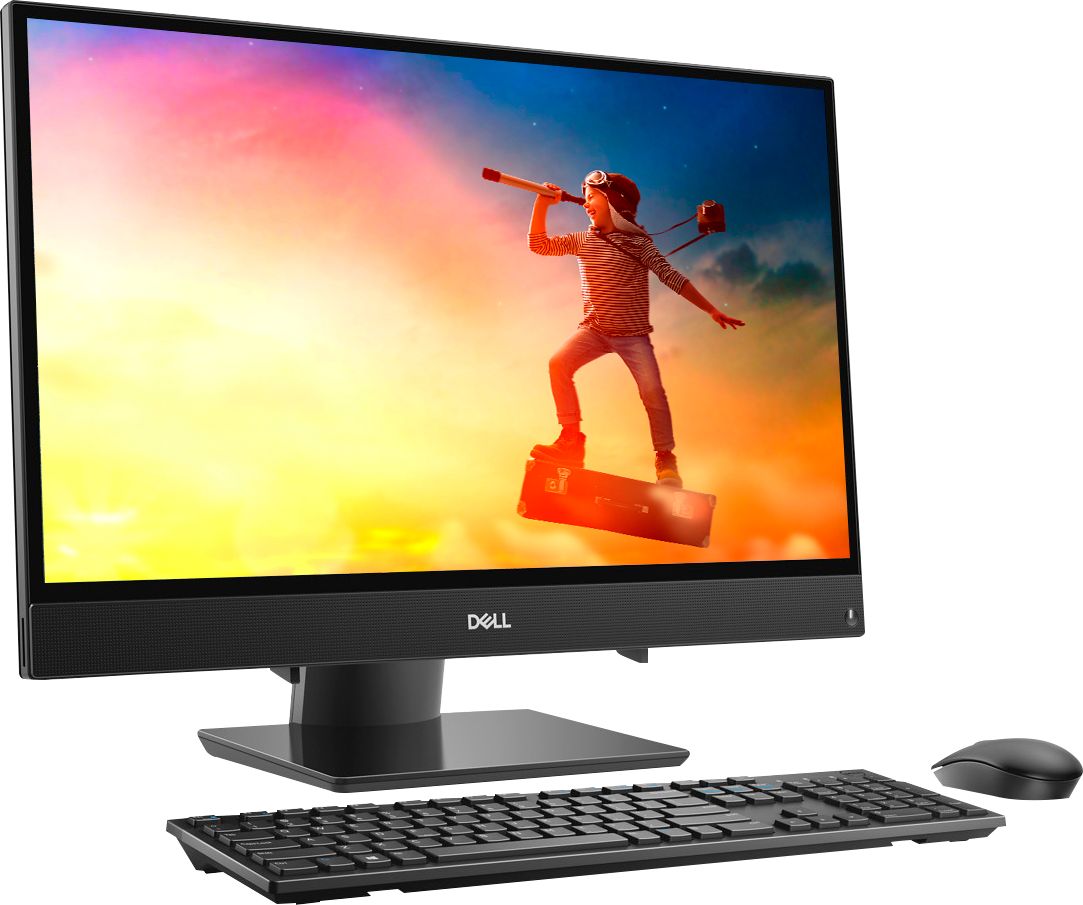
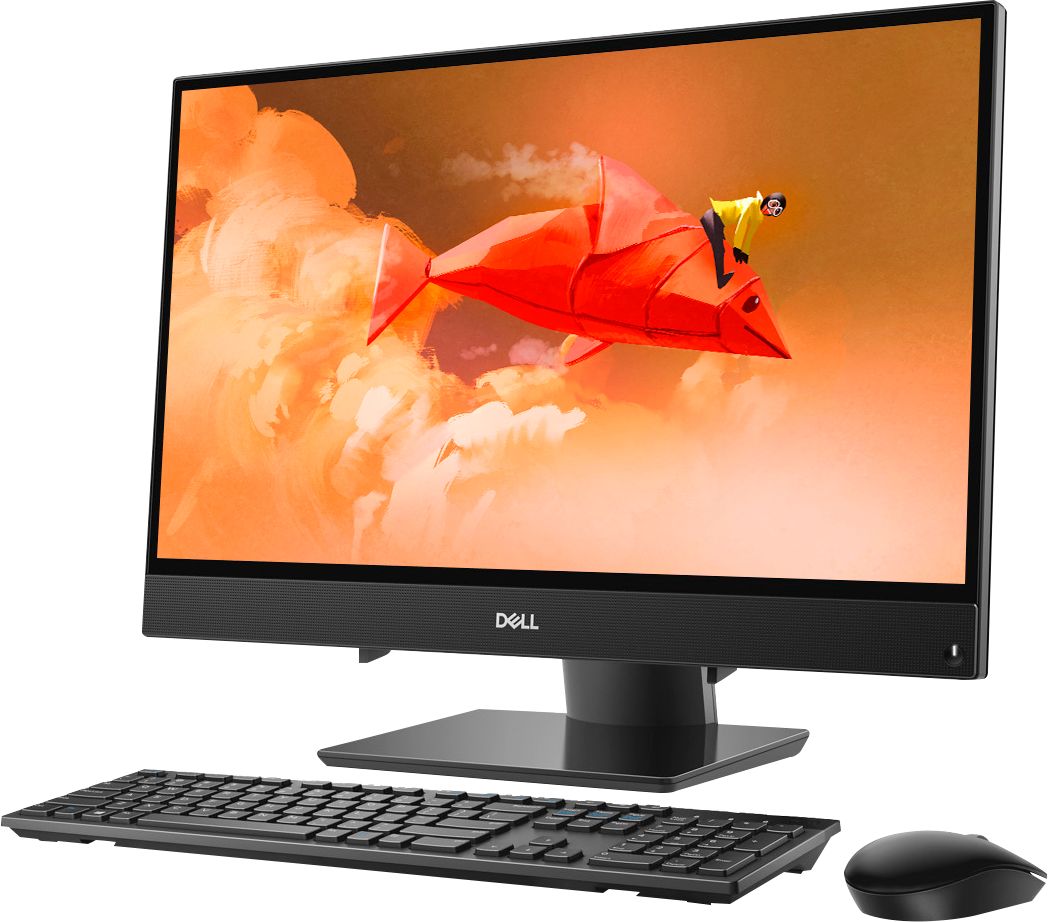
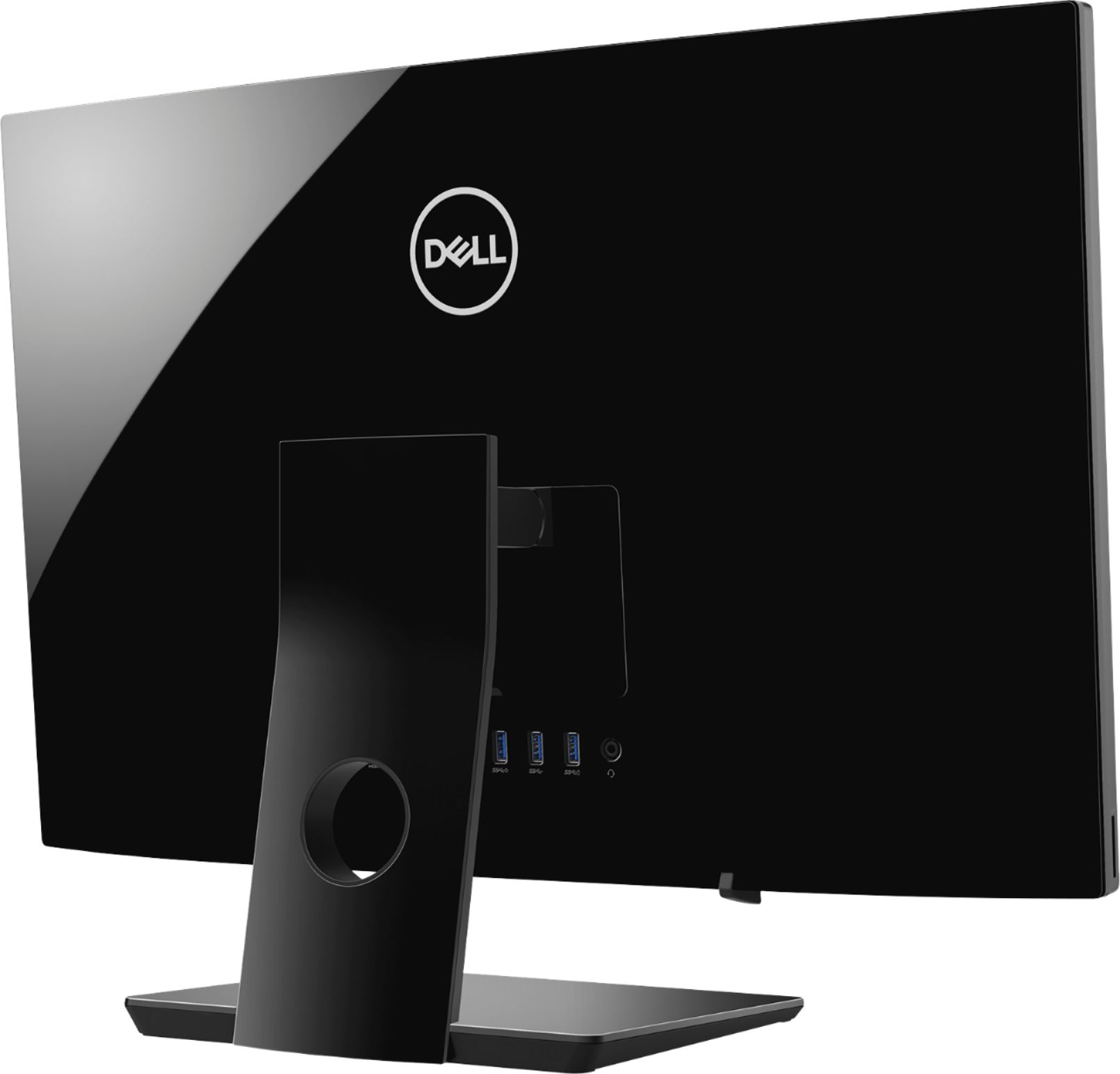
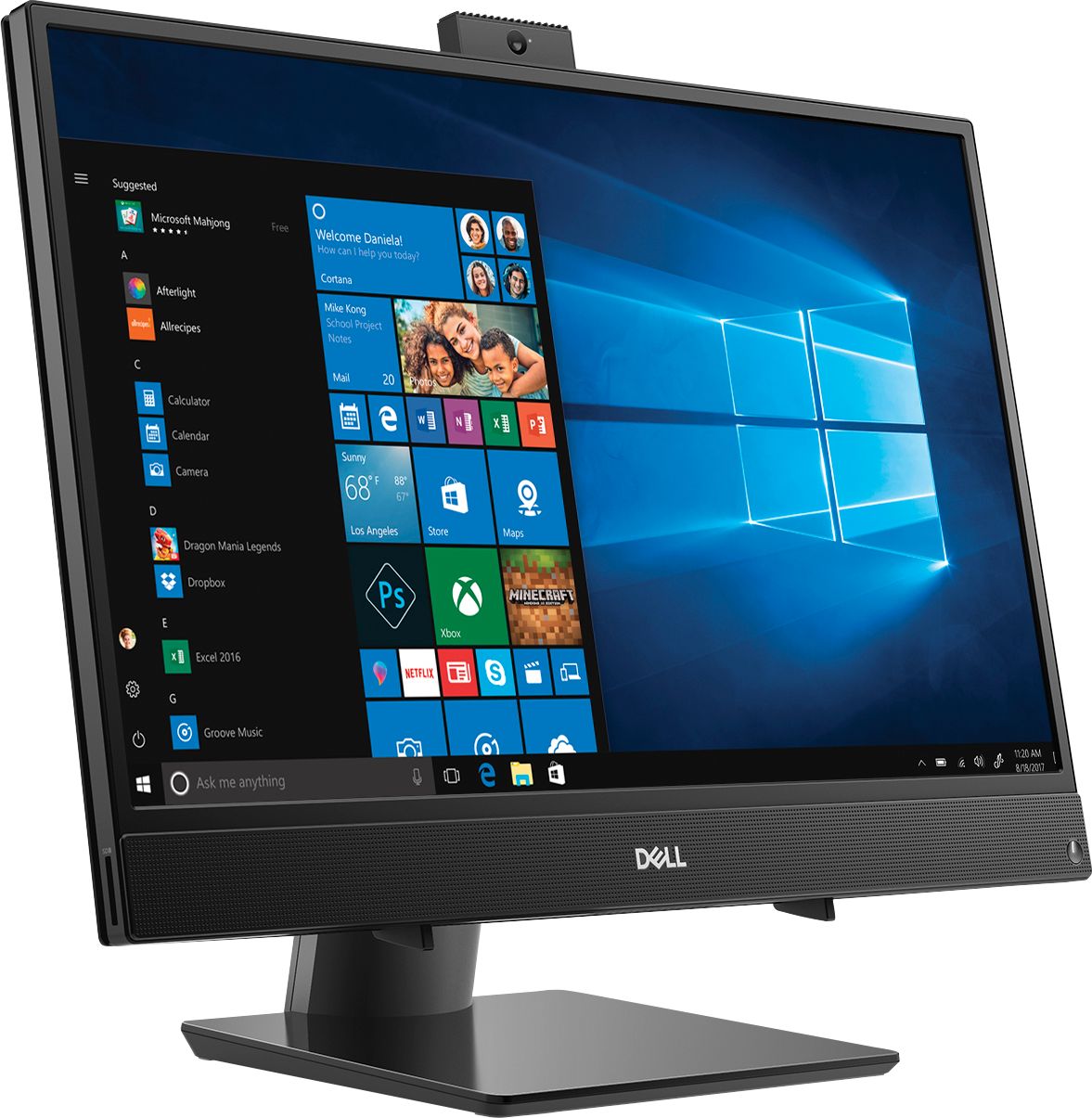
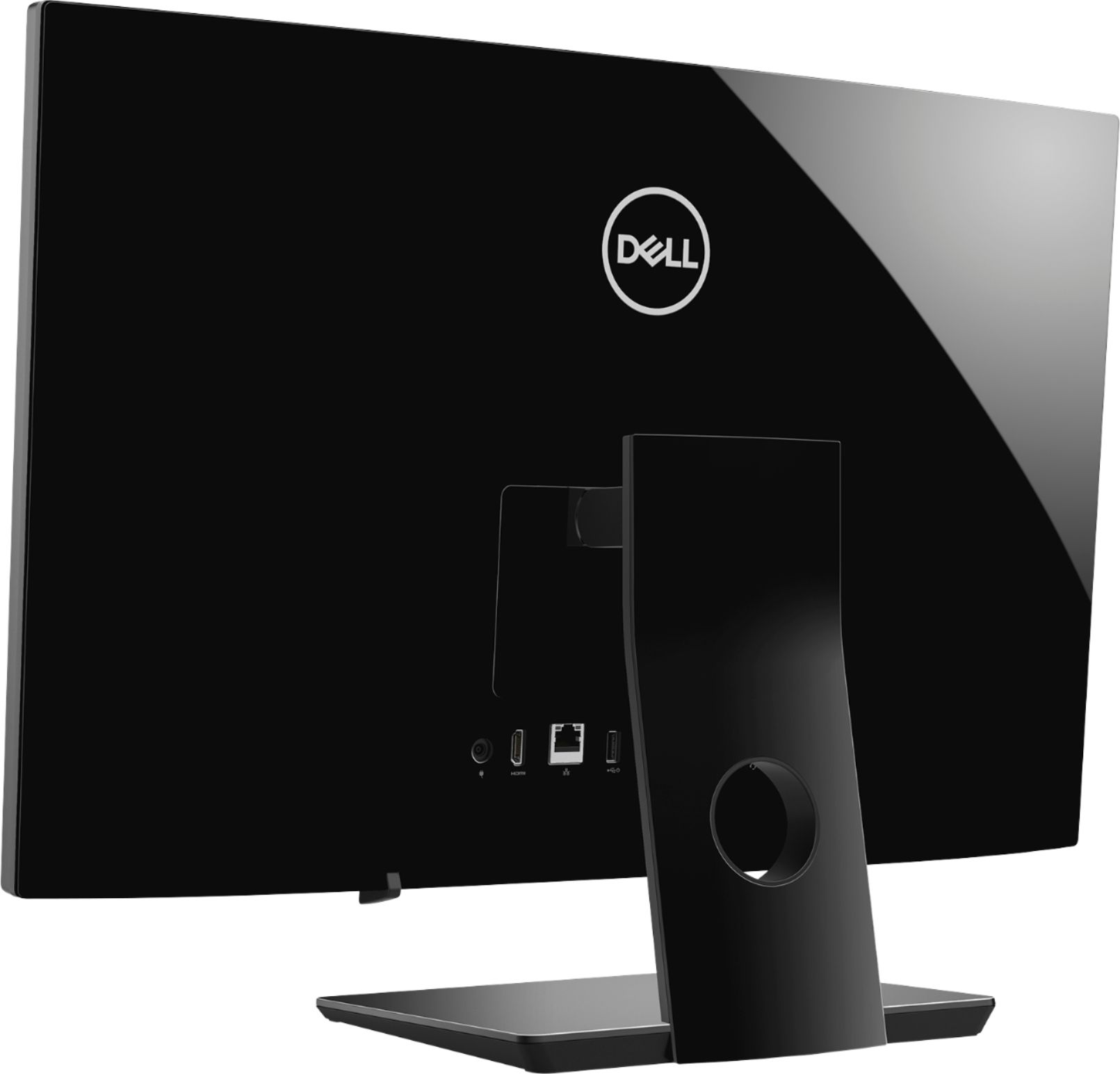

- Model:
- I3475-A509BLK-PUS
- SKU:
- 6334300
Rating by feature
- Value
Rating 4.3 out of 5 stars
- Quality
Rating 4.3 out of 5 stars
- Ease of Use
Rating 4.4 out of 5 stars
Customers are saying
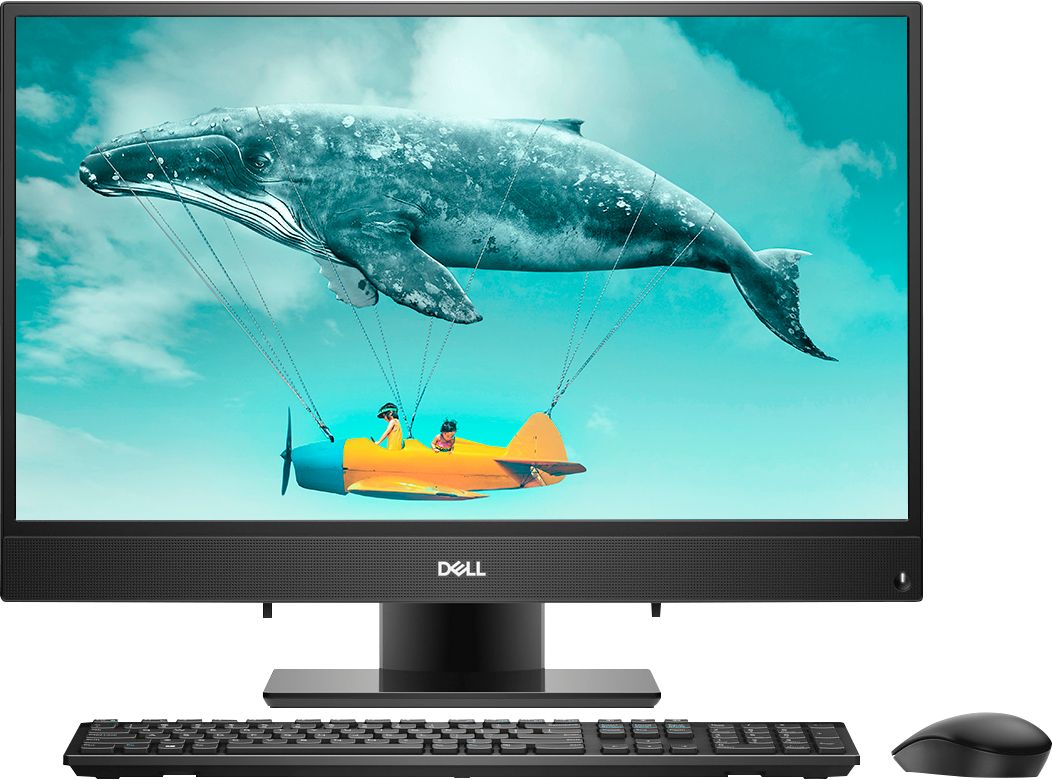
Customers are positive about the Inspiron 24" All-in-One's large screen size, ease of use, and performance. Many appreciate its affordability and the convenience of the touchscreen and built-in camera. However, some customers expressed dissatisfaction with the limited number of USB ports and occasional issues with the included mouse. The lack of a CD drive was also noted as a drawback by a few users.
This summary was generated by AI based on customer reviews.
Terrible service.
||Posted . Owned for 2 weeks when reviewed.This reviewer received promo considerations or sweepstakes entry for writing a review.I purchased this for our firm, we returned it unopened and were given store credit. With store credit they did not allow us to pick up an order so now we are stuck with a gift card which seems impossible to use. We will not be purchasing anything from Best Buy from here on out!
No, I would not recommend this to a frienddisappointed in this computer
||Posted . Owned for 10 months when reviewed.This reviewer received promo considerations or sweepstakes entry for writing a review.I was told this was the equal to my previous Dell. But this was not true. It has less gigabits than my other Dell. It has fewer ports and it doesn't have a place to run disks. I was lied to by the salesperson.
No, I would not recommend this to a friendBrand response from YourDellTeam
Posted .Sallie,
We're sorry that you're not happy with your All-In-One purchase. You can always consider purchasing an External Drive that you can use for CDs and DVDs: http://bit.ly/2N8c7bq.
If you'd like to expand the number of ports on your computer we'd recommend looking into a USB port extender. If you have technical questions about your computer you can check our Product Support Page here: https://dell.to/2u5AS0I.
Best,
Bryan
1-800-624-9896
- Cons mentioned:Speed
Slow, freezes up
||Posted . Owned for 1 week when reviewed.This reviewer received promo considerations or sweepstakes entry for writing a review.Worse computer I ever owned slow, freezes up, seems to have something running in the background all the time. Don't waste your money on this. David
No, I would not recommend this to a friendBrand response from YourDellTeam
Posted .Hi David,
We're sorry to hear about the issues that you've been having with your new Dell All-In-One. If you're still experiencing issues with your computer freezing, we'd recommend the following:
1. Run a Computer Diagnostic. To determine if your computer is experiencing a hardware problem, run the Dell Preboot System Assessment (PSA) Diagnostics. For information on how to run Diagnostics, and to determine the issue, refer to Dell Knowledge Base Article: http://dell.to/2iaiujA.
2. Check Safe Mode for Symptoms. To boot into safe mode, please follow the instructions below:
a) Start the computer.
b) Tap 'F8' on the keyboard immediately and every one second until the Dell logo screen disappears. From there you will see the Windows Advanced Options Menu on the screen. (If the Windows Advanced Options Menu does not appear, restart the system and try again.)
c) Select Safe mode with Networking and press Enter.
d) Log on as the administrator or as a user with administrative access.
e) Open applications and test the computer in safe mode. If the symptoms exist in safe mode, please continue the troubleshooting steps in this article. If the symptoms do not exist in safe mode, the issue is likely related to a driver or software and you may wish to complete step 3 to see if you are able to resolve the lockups or freezing.
3. Check for Malware. Malware (Virus, Spyware, etc.) can definitely cause a Windows system to lock up or appear to hang. To check for malware on your system and to ensure that your computer is up to date on security software, visit Dell Knowledge Base Article: http://dell.to/2wWP1zI.
You can read the full article here - http://dell.to/2tW5m33.
If you'd like to see if your computer can run faster for you, please try the Windows Performance Troubleshooter: 1. Close all open windows.
2. Press the Windows logo key + X key on the keyboard.
3. Click Control Panel.
4. Click System and Security.
5. Under Security and Maintenance, select Troubleshoot common problems.
6. Under System and Security, click Run maintenance tasks.
7. Follow the on-screen instructions and prompts to complete the process.
8. Restart the PC.
You can read the full article here - http://dell.to/2tSulGV.
Best,
Bryan
1-800-624-9896
Slowest machine EVER!
||Posted . Owned for 6 months when reviewed.This reviewer received promo considerations or sweepstakes entry for writing a review.Don’t bother wasting your money. Pay for something better. I can barely use even with everything saved on an external HD. Guess the saying is true - you get what you pay for.
No, I would not recommend this to a friendBrand response from YourDellTeam
Posted .Hi Motorcity1221,
We appreciate your feedback. I am sorry to hear that this computer has not met your expectations. Here are some tips to help improve the performance of your system,
Delete temporary files and directories
1. Click Start, then in the search bar type "disk". Disk Cleanup should appear on the menu above the search box.
2. Run disk cleanup and eliminate unneeded temporary files (Search results, Internet Cache and other windows temp files you may no longer need)
3. Select files you want to delete then click OK to start the cleanup process. Uninstall applications you no longer use 1. Open the Programs and Features application in Control Panel. 2. Scan the list of applications installed for ones that you no longer use. 3. Highlight any application you no longer use and then click the uninstall button at the top of the list. Follow the prompts to uninstall.
4. Repeat for each application you want to uninstall.
5. Move large files and/or seldom used files to backup media (Photos, Music you seldom listen to, application downloads after the application has been installed etc.).
6. Empty the Recycle Bin.
Best,
Meridith 1-800-624-9896
Dell "Ne Touche Pas" All in one
||Posted . Owned for 1 year when reviewed.This reviewer received promo considerations or sweepstakes entry for writing a review.Several program and system (BSOD) crashes out of the box. Returned to Dell, who simply reloaded Win 10. Crashes continued. Slow response times. Very disappointed.
No, I would not recommend this to a friendBrand response from YourDellTeam
Posted .LoupGarou,
Thanks for your review and we're sorry to hear about the performance of your new All-In-One. We'd recommend checking to make sure that all of the drivers and software are up to date on your computer: https://dell.to/2L2lF6Z.
There are a number of ways to help improve the performance of your computer if it is running slower than you expected it to. We'd recommend the following steps to help improve your computer's overall performance and speed:
1. Restart your computer regularly.
2. Run the automated tools provided in the SupportAssist Tool.
3. Run a complete hardware diagnostic test.
4. Scan your computer for malware.
5. Restore your Dell computer using Windows System Restore.
6. Reinstall Microsoft Windows.
You can read the full steps associated with each of these recommendations here: https://dell.to/3n29QjE.
Best,
Bryan
1-800-624-9896
The AMD A9 processor is too slow
||Posted . Owned for 1 month when reviewed.This reviewer received promo considerations or sweepstakes entry for writing a review.When you have to wait for a computer to do the most basic functions, you have bought a slug. I have purchase another model with an Intel i3 processor and it works very well
No, I would not recommend this to a friendNot happy with Best Buy.
||Posted . Owned for 2 weeks when reviewed.This reviewer received promo considerations or sweepstakes entry for writing a review.You sold me Microsoft Office that had a bad key code and I worked on it for three days trying to install MS Office until I was told the key code was incorrect.
No, I would not recommend this to a friendBrand response from YourDellTeam
Posted .Nothankyou,
Thanks for your review. We're sorry that the activation code that you have is not working the way that it should. Here are some tips for activation from Microsoft's site: http://bit.ly/2JQpuxs.
Best,
Bryan
1-800-624-9896
- Cons mentioned:Speed
Very Slow
||Posted . Owned for 1 month when reviewed.This reviewer received promo considerations or sweepstakes entry for writing a review.Very slow!!! It takes so long to don load the bank website logs off for no activity. Test have been run on service
No, I would not recommend this to a friendBrand response from YourDellTeam
Posted .GREG,
Thanks for your review. We're sorry to hear that the performance of your new All In One is not what you were hoping for. We'd recommend running the Windows Performance Troubleshooter to see if there are ways for your computer to perform faster:
1. Close all open windows.
2. Press the Windows logo key + X key on the keyboard.
3. Click Control Panel.
4. Click System and Security.
5. Under Security and Maintenance, select Troubleshoot common problems.
6. Under System and Security, click Run maintenance tasks.
7. Follow the on-screen instructions and prompts to complete the process.
8. Restart the PC.
You can read the full article here - http://dell.to/2tSulGV.
If you have additional questions about your computer you can check our Product Support Page here: https://dell.to/2u5AS0I.
Best,
Bryan
1-800-624-9896
Piece of junk
||Posted . Owned for 3 months when reviewed.This reviewer received promo considerations or sweepstakes entry for writing a review.This computer doesn't shut down at times even when shut down is touched. Sometimes you have to do this 2-3 times. A couple of times I've watched the power light go out for it to turn right back on again. Freezes up while your working and have to wait on it to start working again. The included games are full of ads. I have only had this computer for 3 months. This computer is junk don't waste your money on it.
No, I would not recommend this to a friendBrand response from YourDellTeam
Posted .Jr1961,
We're sorry that the performance of your new computer is not what you were hoping it would be. If you are still experiencing freezing issues we'd recommend that you follow these steps:
1. Run a Computer Diagnostic. To determine if your computer is experiencing a hardware problem, run the Dell Preboot System Assessment (PSA) Diagnostics. For information on how to run Diagnostics, and to determine the issue, refer to Dell Knowledge Base Article: http://dell.to/2iaiujA.
2. Check Safe Mode for Symptoms. To boot into safe mode, please follow the instructions below:
a) Start the computer.
b) Tap 'F8' on the keyboard immediately and every one second until the Dell logo screen disappears. From there you will see the Windows Advanced Options Menu on the screen. (If the Windows Advanced Options Menu does not appear, restart the system and try again.)
c) Select Safe mode with Networking and press Enter.
d) Log on as the administrator or as a user with administrative access.
e) Open applications and test the computer in safe mode. If the symptoms exist in safe mode, please continue the troubleshooting steps in this article. If the symptoms do not exist in safe mode, the issue is likely related to a driver or software and you may wish to complete step 3 to see if you are able to resolve the lockups or freezing.
3. Check for Malware. Malware (Virus, Spyware, etc.) can definitely cause a Windows system to lock up or appear to hang. To check for malware on your system and to ensure that your computer is up to date on security software, visit Dell Knowledge Base Article: http://dell.to/2wWP1zI.
You can read the full article here - http://dell.to/2tW5m33.
Please reach out directly to Dell's Support Team for assistance shutting down your computer: http://dell.to/2sH7Qlm.
Best,
Bryan
1-800-624-9896
Not my style
||Posted .This reviewer received promo considerations or sweepstakes entry for writing a review.After purchasing this type of PC, I wouldn't recommend purchasing a all-in-one style PC.
No, I would not recommend this to a friendBrand response from YourDellTeam
Posted .Hi Valued Customer,
We appreciate you taking the time to leave us your valued feedback. We are sorry to hear you are not completely satisfied with your Inspiron All In One. This is certainly not what we like to hear from our valued customers. We would like to help with any issues you may be facing with your system. The best way for us to help would be to reach out to our support team at your earliest convenience.
You can contact Dell directly with the information below.
Chat or call: https://bit.ly/DellSupportTeam
Phone number to Dell 1-800-624-9896
Best,
Ashley@Dell
RETURNED - ERROR message
||Posted . Owned for 6 months when reviewed.This reviewer received promo considerations or sweepstakes entry for writing a review.I was excited about this PC and after all connect it had errors and confirmed my BB. Will not buy again.
No, I would not recommend this to a friend- Cons mentioned:Speed
Disappointment
||Posted . Owned for 3 weeks when reviewed.This reviewer received promo considerations or sweepstakes entry for writing a review.Runs very slow. Takes as long to process as my old 2012 computer.
No, I would not recommend this to a friendBrand response from YourDellTeam
Posted .Paul,
Thanks for your review. We're sorry to hear that your computer is running slower than you hoped it would. We'd recommend running the Windows Performance Troubleshooter to see if it helps your computer run faster:
1. Close all open windows.
2. Press the Windows logo key + X key on the keyboard.
3. Click Control Panel.
4. Click System and Security.
5. Under Security and Maintenance, select Troubleshoot common problems.
6. Under System and Security, click Run maintenance tasks.
7. Follow the on-screen instructions and prompts to complete the process.
8. Restart the PC.
You can read the full article here - http://dell.to/2tSulGV.
Best,
Bryan
1-800-624-9896
terrible computer
||Posted . Owned for 3 weeks when reviewed.This reviewer received promo considerations or sweepstakes entry for writing a review.The Processor on this computer is not working properly. My son, who is an IT engineer ran a scan on this computer and determined it has a defective Processor. The problem is I am beyond the 15 day time limit to exchange the computer.
No, I would not recommend this to a friendBrand response from YourDellTeam
Posted .Bill,
Thanks for your review. We're sorry to hear that the processor is not working the way that it should. We'd recommend that you try to run the Windows Performance Troubleshooter to see if this helps resolve anything:
1. Close all open windows.
2. Press the Windows logo key + X key on the keyboard.
3. Click Control Panel.
4. Click System and Security.
5. Under Security and Maintenance, select Troubleshoot common problems.
6. Under System and Security, click Run maintenance tasks.
7. Follow the on-screen instructions and prompts to complete the process.
8. Restart the PC.
You can read the full article here - http://dell.to/2tSulGV.
Dell offers a One Year Limited Warranty on our products that you can read more about here: http://dell.to/2tNsVOs.
Best,
Bryan
1-800-624-9896
Dell computer
||Posted . Owned for 1.5 years when reviewed.This reviewer received promo considerations or sweepstakes entry for writing a review.Internet browser not working for school applications.
No, I would not recommend this to a friendBrand response from YourDellTeam
Posted .PARTYBOX,
Thanks for your review and we're sorry that your internet browser is not working for school applications. You should check to make sure that your permissions are all up to date to allow you to visit certain pages that may be protected. This page has the steps to unblock a website from Google Chrome: http://bit.ly/3iXZ6lL.
Best,
Bryan
1-800-624-9896
Senior Citizens beware
||Posted . Owned for 3 weeks when reviewed.This reviewer received promo considerations or sweepstakes entry for writing a review.Would recommend that Dell include a User Manual with system.
No, I would not recommend this to a friendBrand response from YourDellTeam
Posted .Koenig,
We appreciate your feedback and we're sorry that there was not a user manual with your new All-In-One. Here's a link to where you can find a manual for your system: https://dell.to/2KL6vmk.
Best,
Bryan
1-800-624-9896
Not for online meetings
||Posted . Owned for 1 month when reviewed.This reviewer received promo considerations or sweepstakes entry for writing a review.Purchased this computer because of the price and pop up camera. During my first and every subsequent Zoom, TEAMS or Goto Meeting the computer froze. Even tried hard wiring it to my Router/Modem and that did not help. Disappointed
No, I would not recommend this to a friendBrand response from YourDellTeam
Posted .AMWinston,
We're sorry to hear about the system freezes that you're experiencing. We'd recommend the following steps to help with your system:
1. Turn off your Chromebook, then turn it back on.
2. Close all your apps and browser windows.
3. If a specific tab in your browser causes your Chromebook to crash or freeze, hard refresh the page: Ctrl + Shift + r.
4. If you've installed any new apps or extensions recently, uninstall them.
5. Reset your Chromebook.
6. Recover your Chromebook.
You can read the full article here: http://bit.ly/2XkwjwG.
Best,
Bryan
1-800-624-9896
unboxed and broken
||Posted . Owned for 10 months when reviewed.This reviewer received promo considerations or sweepstakes entry for writing a review.Dell Inspiron 3475 aio was defective from the day I purchased. Drivers absolutely grind loudly with no solution to resolve noise.
No, I would not recommend this to a friendBrand response from YourDellTeam
Posted .Hello RLEWIS,
Thank you for your feedback and review. We apologize for the issues you have with fan noise. Below are steps to run a pre-boot diagnostic test that can help.
1. Restart your Dell PC.
2. When the Dell logo appears, press F12 key to enter One-time Boot Menu.
3. Use the arrow keys to select Diagnostics and press Enter key on the keyboard.
4. Follow the on-screen prompts and respond appropriately to complete the diagnostics.
5. If the test fails, ensure to write down the error code and validation code.
If your issue with fan noise continues this article can be used to further assist: http://dell.to/38XbfCV.
Best regards,
Wendy C.
https://bit.ly/DellSupportTeam.
Phone number to Dell: 1-800-264-9896.
Don’t spend your money on this system
||Posted . Owned for 5 months when reviewed.This reviewer received promo considerations or sweepstakes entry for writing a review.I’ve had it for several months and the touchscreen isn’t working anymore. I’ve had to replace the wireless mouse already. I also bought an HP all in one 3 weeks ago and it’s been amazing.
No, I would not recommend this to a friendBrand response from YourDellTeam
Posted .Sullengrl60,
Thanks for your review. We're sorry to hear about the touchscreen issues that you're having. We'd recommend re-calibrating your touchscreen with these steps:
1. Restart the Computer and the Monitor
2. Go to Control Panel and select Tablet PC Settings.
3. Under Display tab, select Calibrate.
4. Choose Pen or Touch input.
5. Perform the point calibration that appears on the screen to correct the linearity problems.
6. Save the calibrated data.
You can read the full article here - http://dell.to/2uLztub.
Best,
Bryan
1-800-624-9896
Its a no
||Posted . Owned for 1 year when reviewed.This reviewer received promo considerations or sweepstakes entry for writing a review.Definitely not good for using graphic design programs. Make sure to do your research and get a better computer if graphic design is something you will be doing
No, I would not recommend this to a friendBrand response from YourDellTeam
Posted .Hello Naynay,
Thank you for sharing your experience. It is sincerely appreciated and will surely be taken into consideration when designing future products. If you have any other questions, feel free to visit the support page for your Inspiron.
Best Regards,
Anthony P.
Horrible product
||Posted . Owned for 1 month when reviewed.This reviewer received promo considerations or sweepstakes entry for writing a review.Bought for my son he used it a few times and within 3weeks it stopped working. With everything going on now I can’t get through to Best Buy to find out how to remedy this.
No, I would not recommend this to a friendBrand response from YourDellTeam
Posted .Jorge,
We're sorry that your son's computer is no longer working the way that it should. If you need help getting it started again you can follow these steps:
1. If the computer is displaying the Dell logo and does not move past that point, it has probably failed POST.
2. If the power indicator lights up and it is amber or orange, this is usually an indicator that it has failed POST.
3. If you see text on a black screen, the computer is currently performing the POST. If the computer stays in that condition and does not move past it, it has probably failed POST.
4. If the video screen displayed anything at all during the startup process but is now black, this probably indicates that the computer failed POST.
5. If the computer is beeping or if Caps/Num/Scroll Locks are flashing, note if there is a particular pattern in which it beeps or flashes.
6. If the computer is not beeping and caps/num/scroll locks are not flashing, unplug all connections and remove all media communication devices (e.g. external monitors); reconnect one at a time and check if the computer functions.
7. For a notebook, press and hold the Fn key and then press the power button. This starts the pre-boot testing and will launch ePSA. In case you have a Desktop at the Dell logo screen tap the F12 key to enter One Time Boot Menu and use the arrow keys to highlight Diagnostics and press enter.
You can read the full article here - http://dell.to/2uj1Sby.
If you'd like to reach out to Dell's Technical Support Team you can reach them here: http://dell.to/2sH7Qlm.
Best,
Bryan
1-800-624-9896