Customer Ratings & Reviews
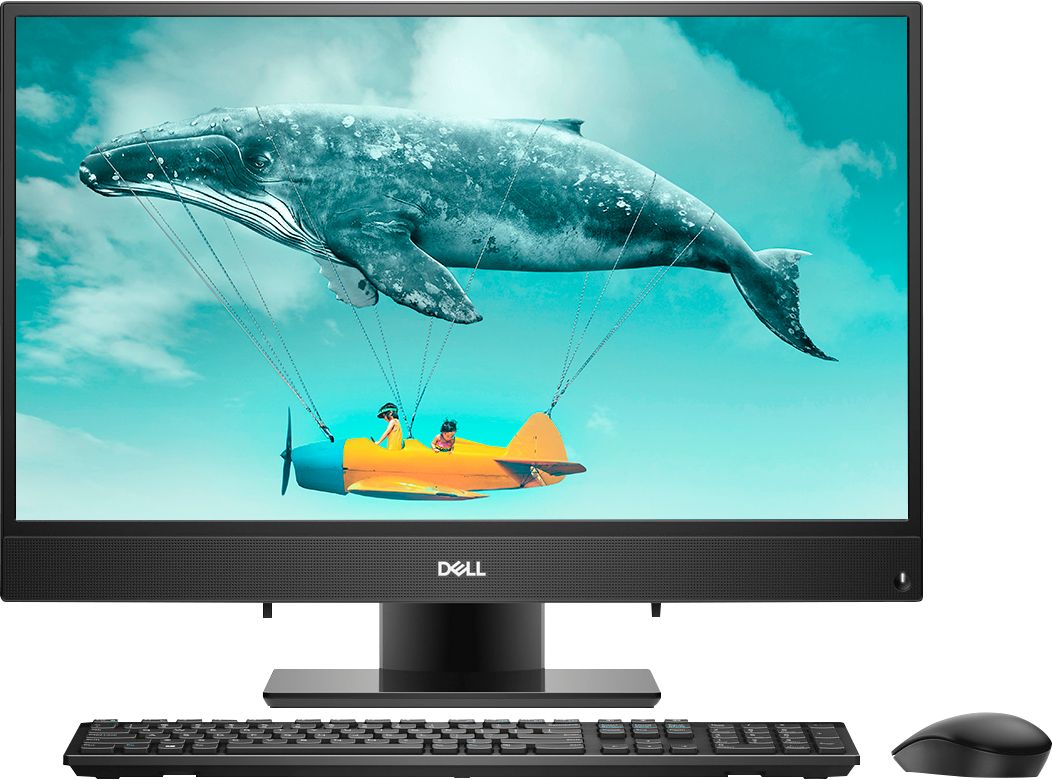
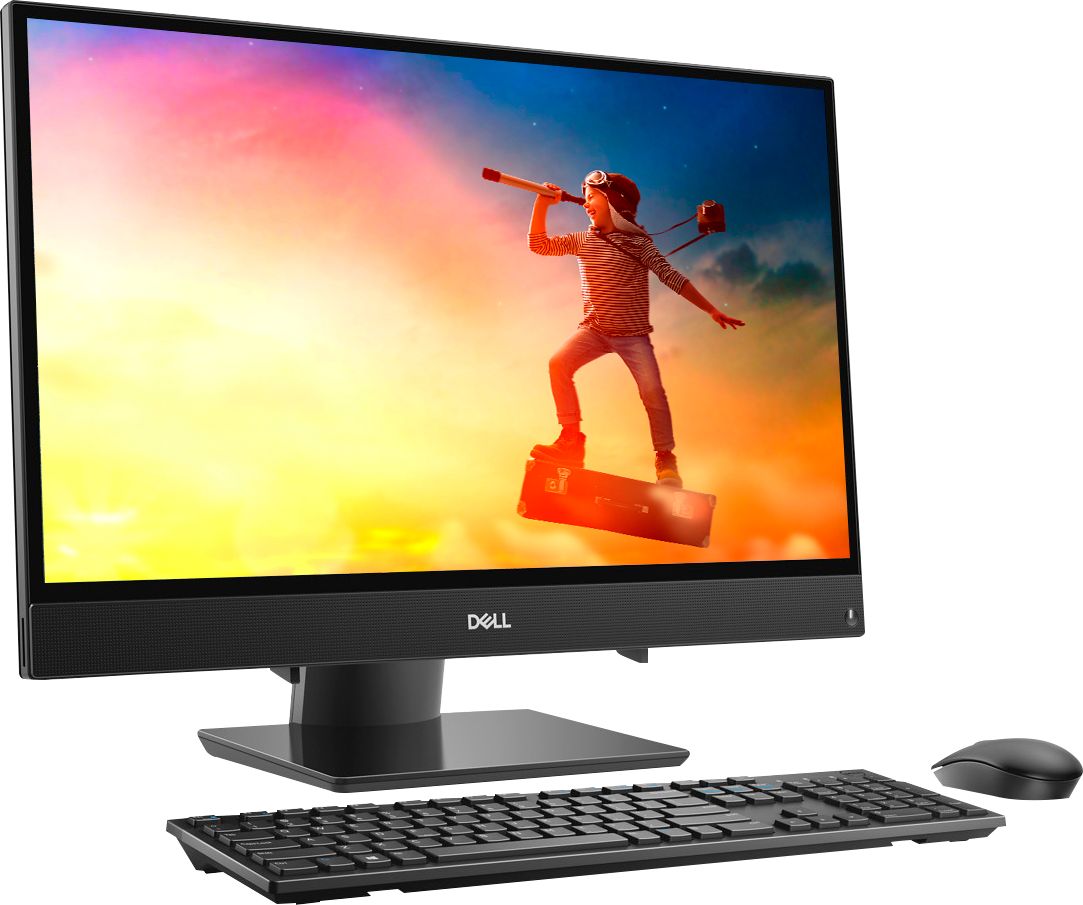
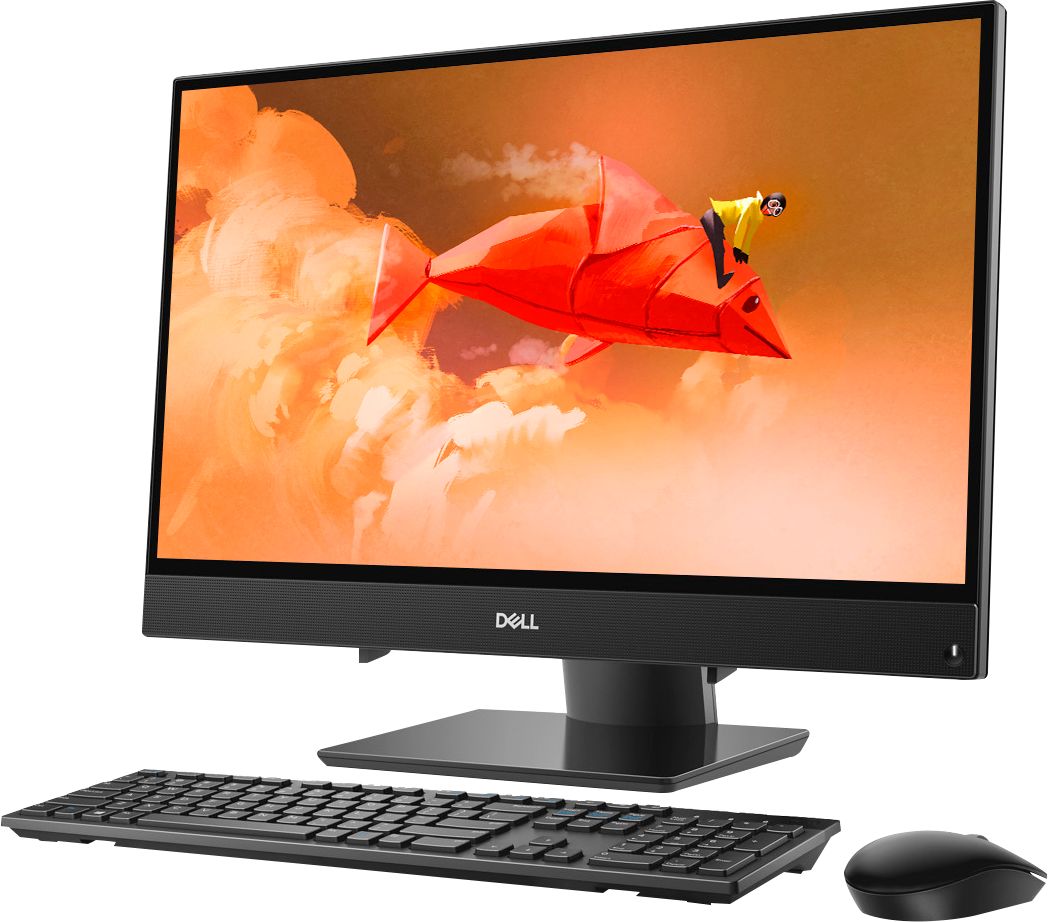
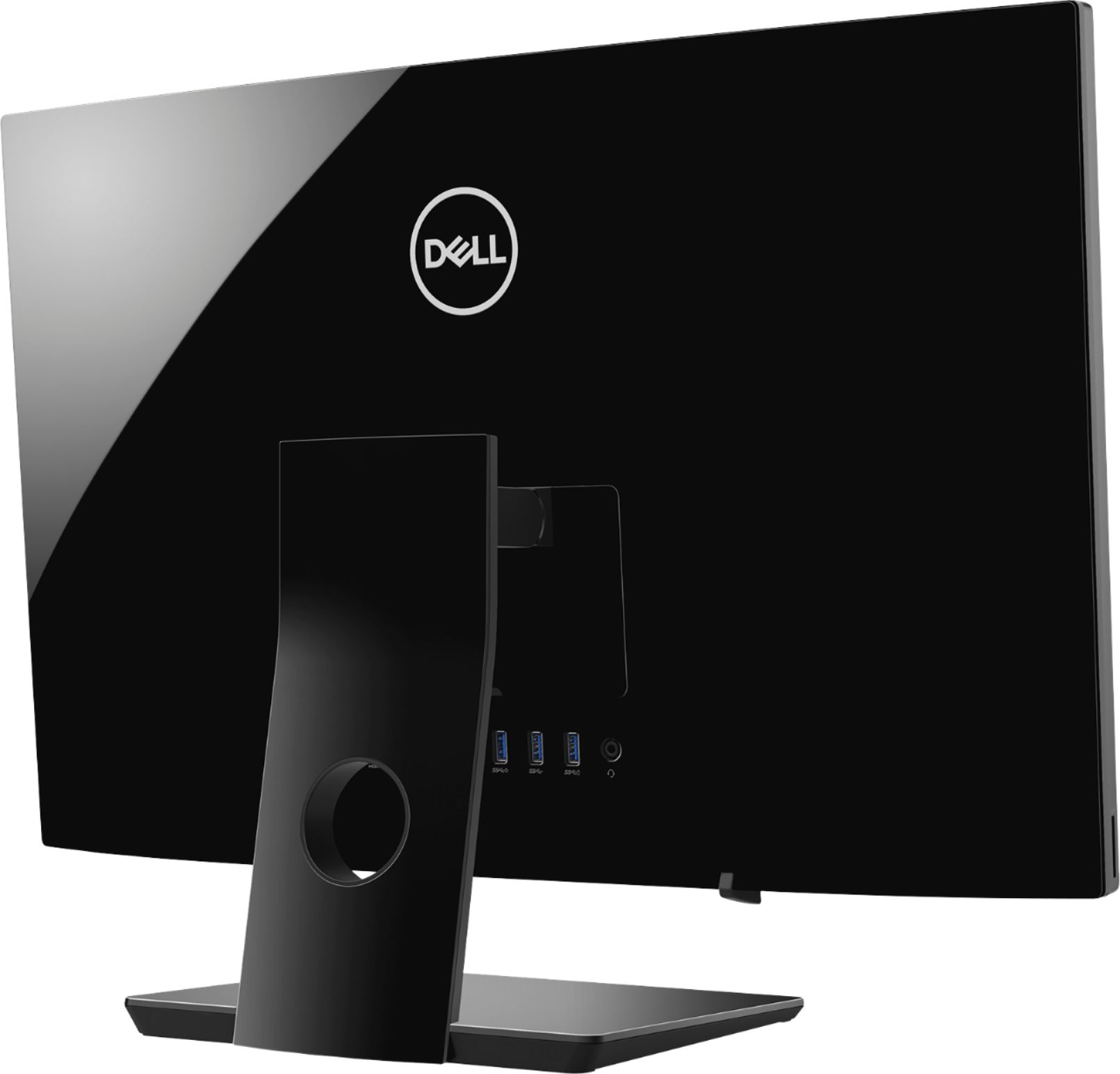
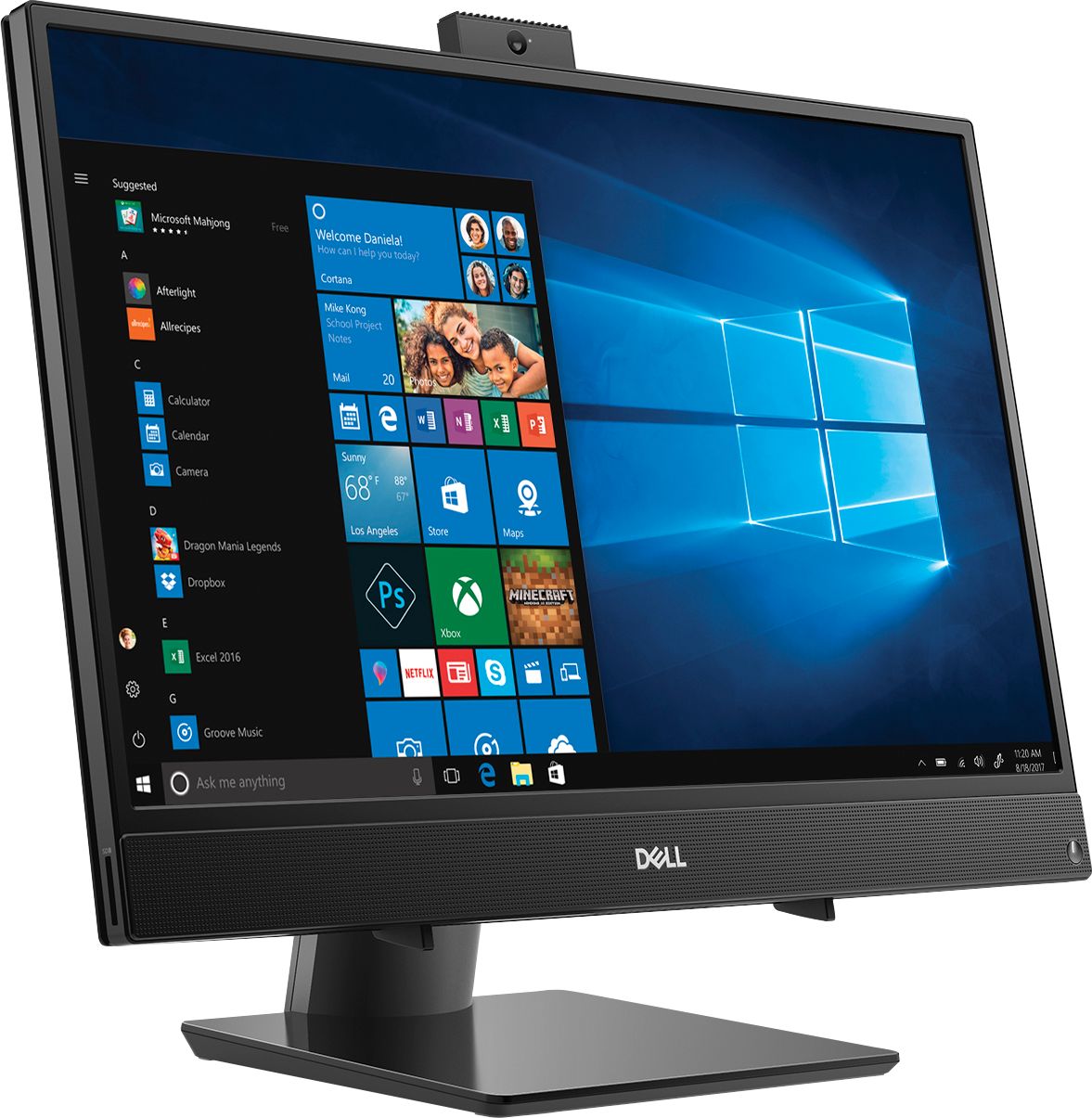

- Model:
- I3475-A509BLK-PUS
- SKU:
- 6334300
Rating by feature
- Value
Rating 4.3 out of 5 stars
- Quality
Rating 4.3 out of 5 stars
- Ease of Use
Rating 4.4 out of 5 stars
Customers are saying
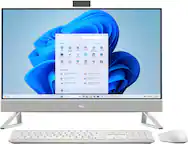
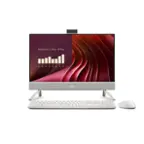
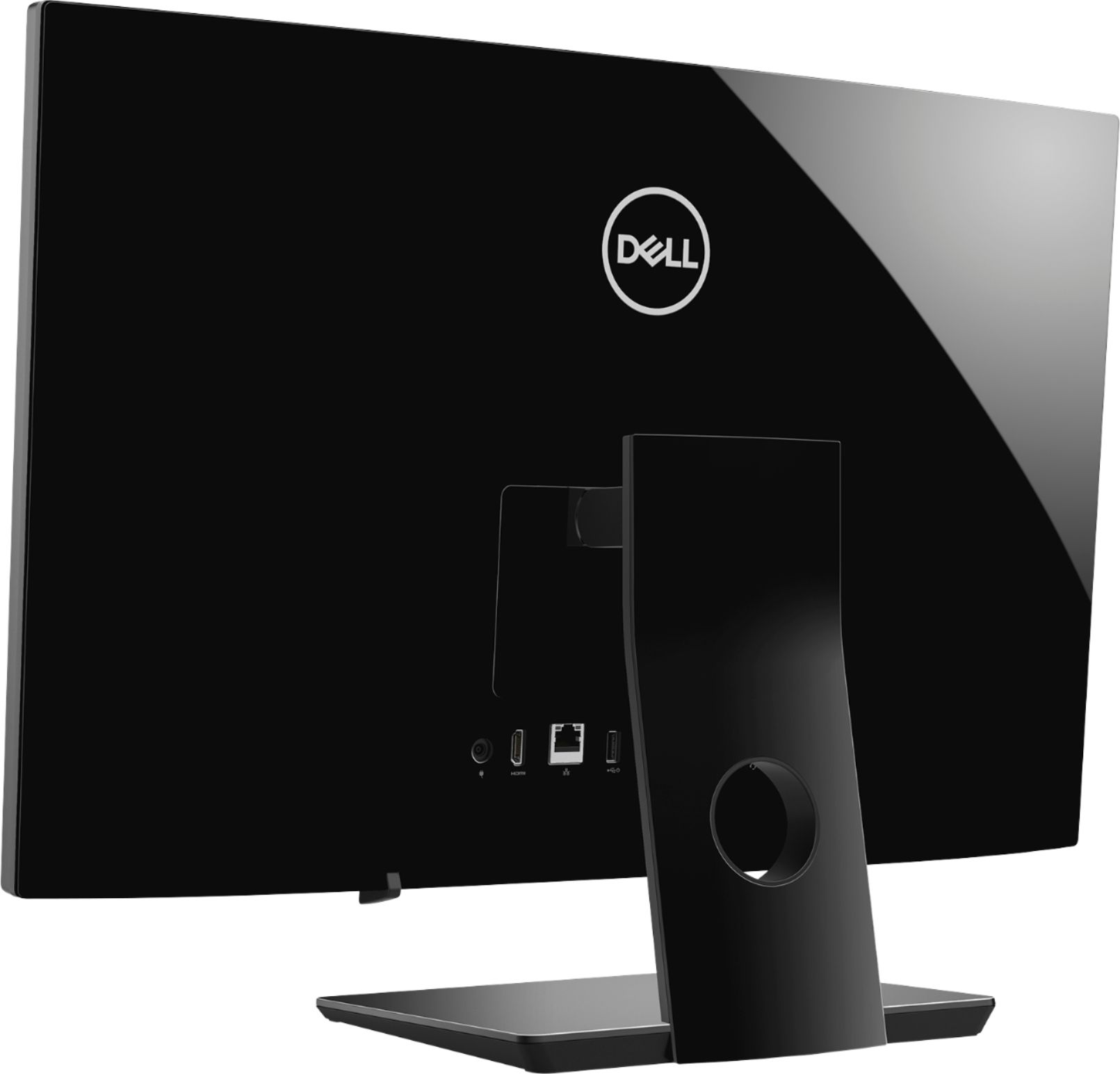
Customers are positive about the Inspiron 24" All-in-One's large screen size, ease of use, and performance. Many appreciate its affordability and the convenience of the touchscreen and built-in camera. However, some customers expressed dissatisfaction with the limited number of USB ports and occasional issues with the included mouse. The lack of a CD drive was also noted as a drawback by a few users.
This summary was generated by AI based on customer reviews.
Sucks
Posted .This reviewer received promo considerations or sweepstakes entry for writing a review.Don't buy Dell. 1 year and 1 day and my computer won't turn on. Problems happened before but I tried fixing the online and claimed I had no warranty.
No, I would not recommend this to a friendBrand response from YourDellTeam
Posted .Hello Valued Customer,
Thanks for your review. We're sorry to hear that your computer is not turning on for you. Here are some steps you can try:
1. If the computer is displaying the Dell logo and does not move past that point, it has probably failed POST.
2. If the power indicator lights up and it is amber or orange, this is usually an indicator that it has failed POST.
3. If you see text on a black screen, the computer is currently performing the POST. If the computer stays in that condition and does not move past it, it has probably failed POST.
4. If the video screen displayed anything at all during the startup process but is now black, this probably indicates that the computer failed POST.
5. If the computer is beeping or if Caps/Num/Scroll Locks are flashing, note if there is a particular pattern in which it beeps or flashes.
6. If the computer is not beeping and caps/num/scroll locks are not flashing, unplug all connections and remove all media communication devices (e.g. external monitors); reconnect one at a time and check if the computer functions.
7. For a notebook, press and hold the Fn key and then press the power button. This starts the pre-boot testing and will launch ePSA. In case you have a Desktop at the Dell logo screen tap the F12 key to enter One Time Boot Menu and use the arrow keys to highlight Diagnostics and press enter.
You can read the full article here - http://dell.to/2uj1Sby.
We hope this helps your computer turn on soon.
Best,
Bryan
1-800-624-9896