Customer Ratings & Reviews




- Model:
- XPS9365-7926BLK-PUS
- SKU:
- 5901846
to a friend
Customers are saying
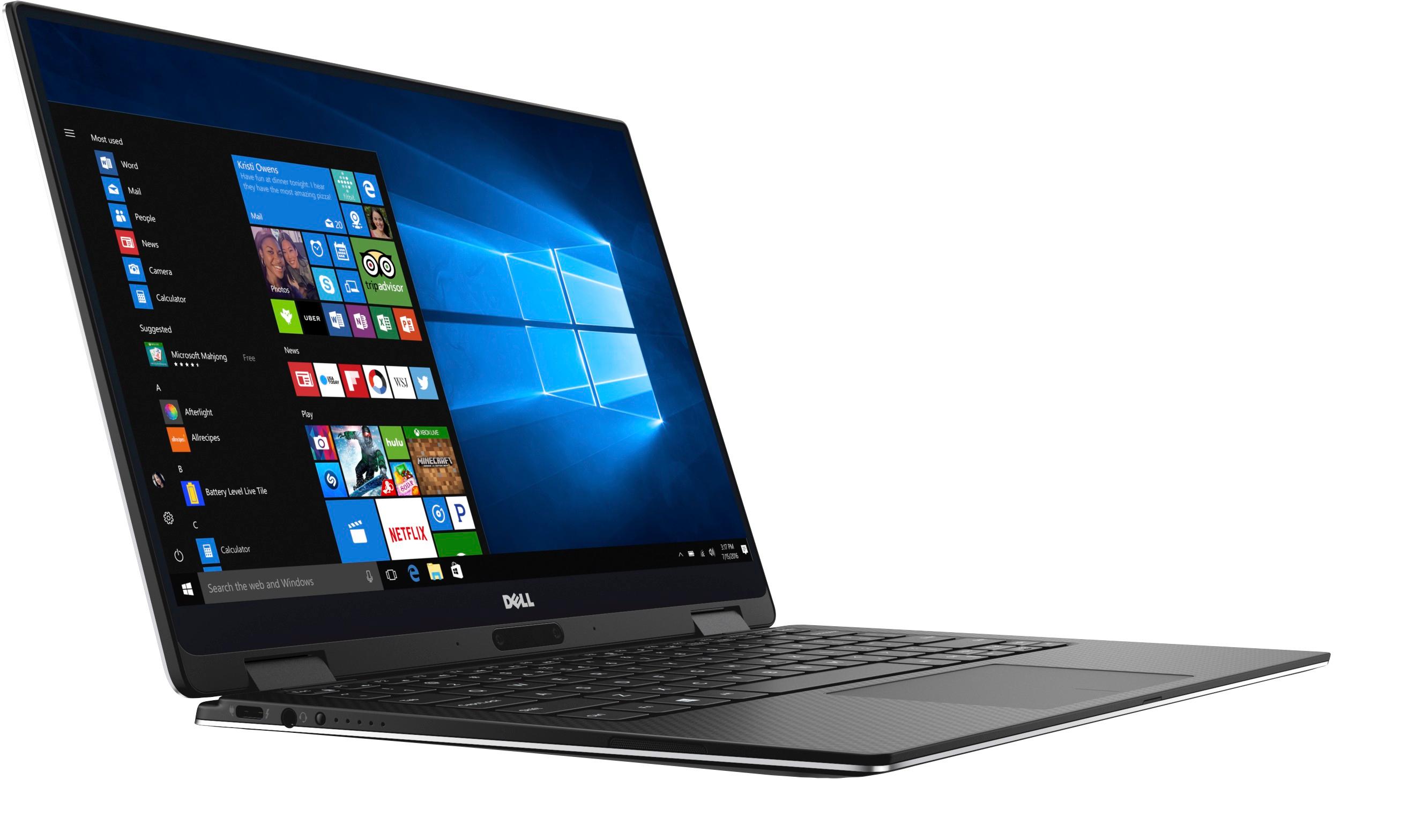
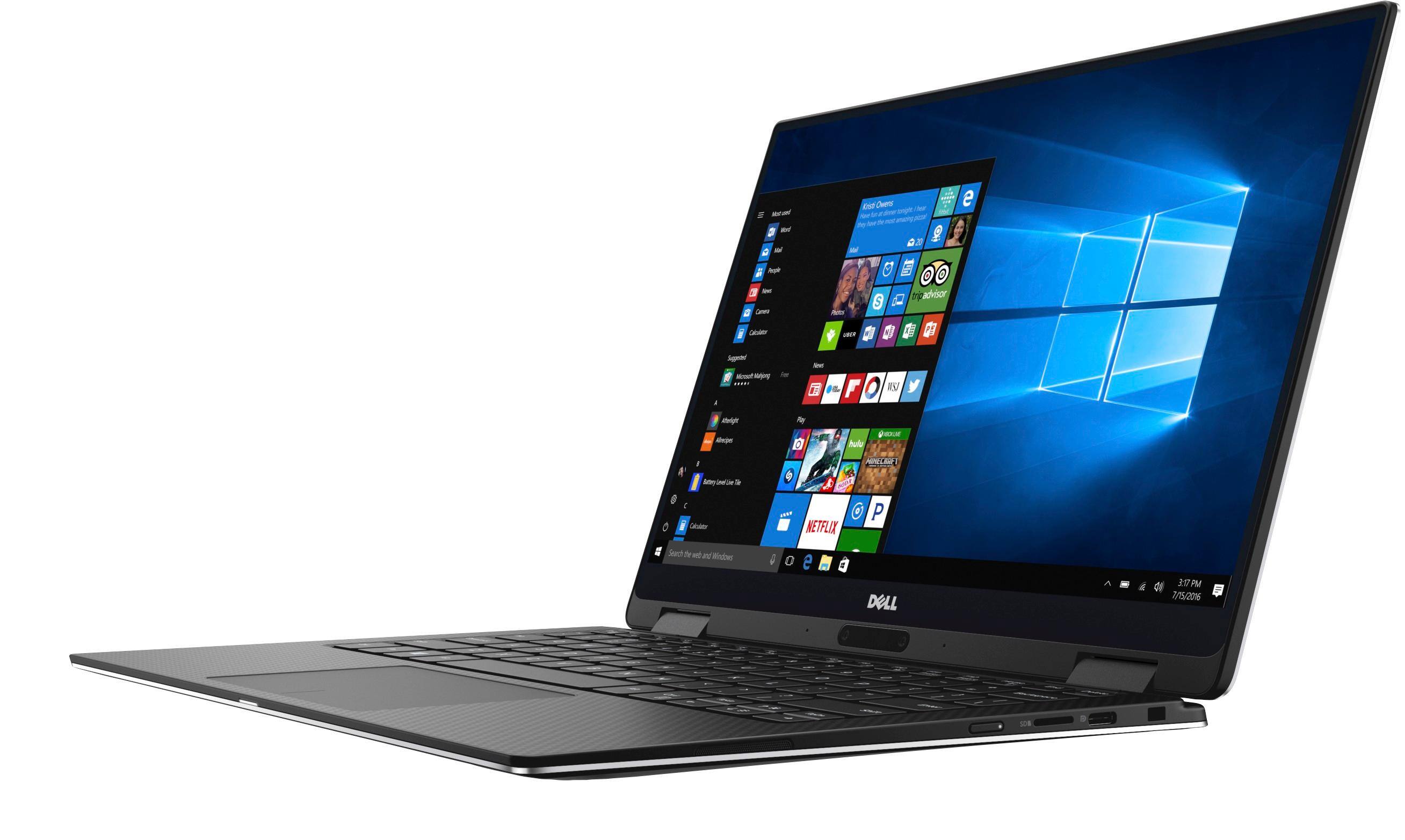
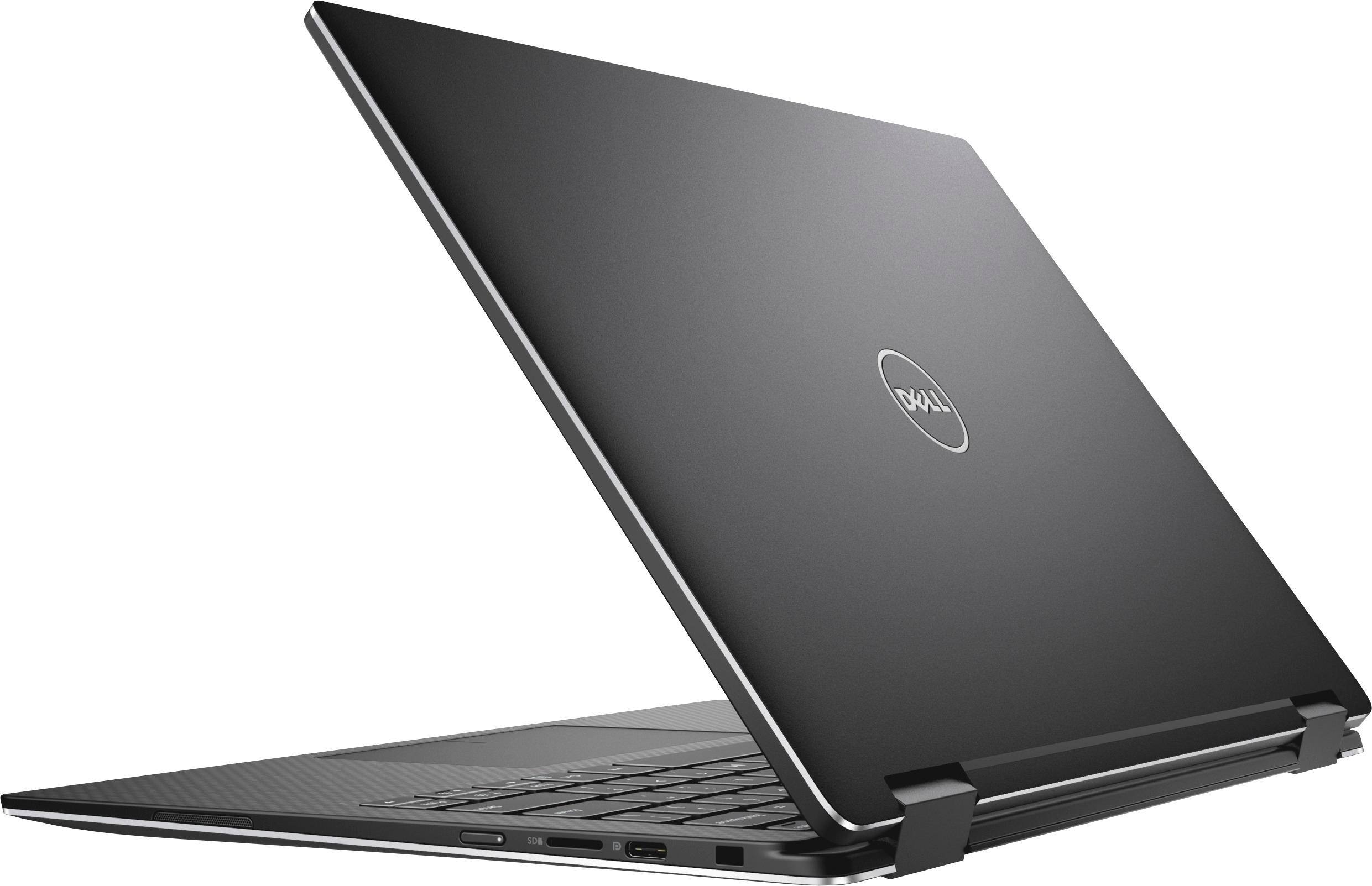
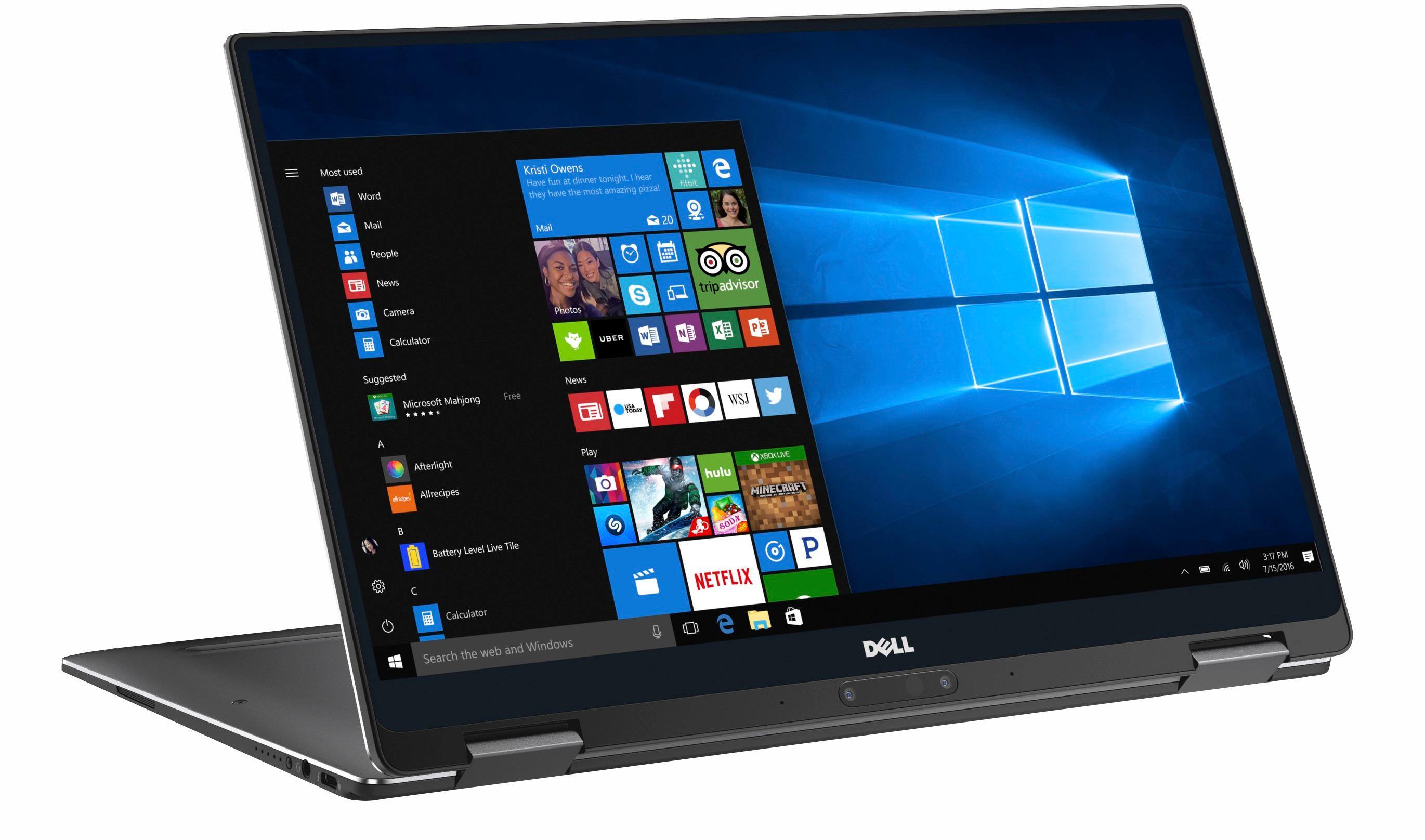
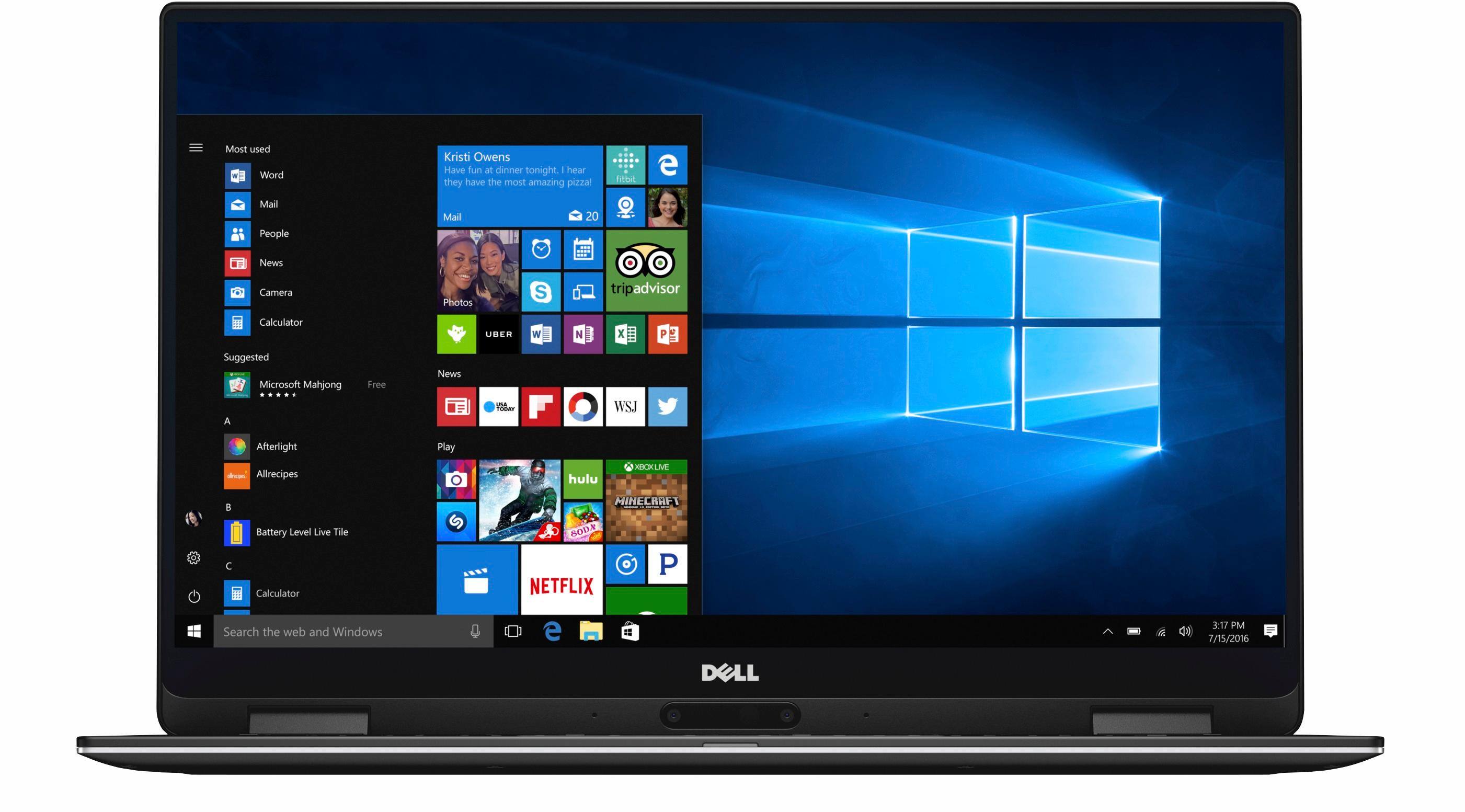
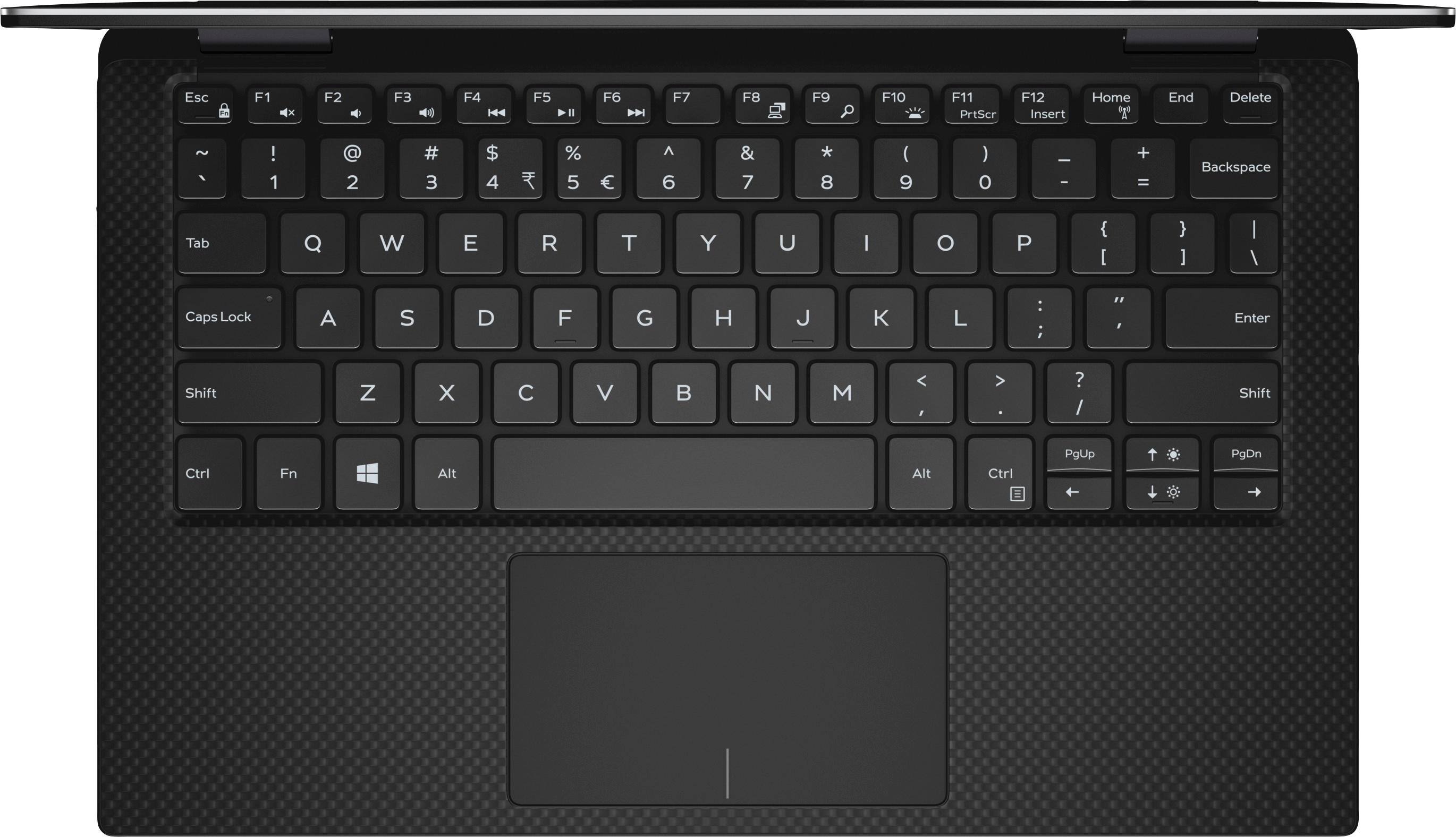
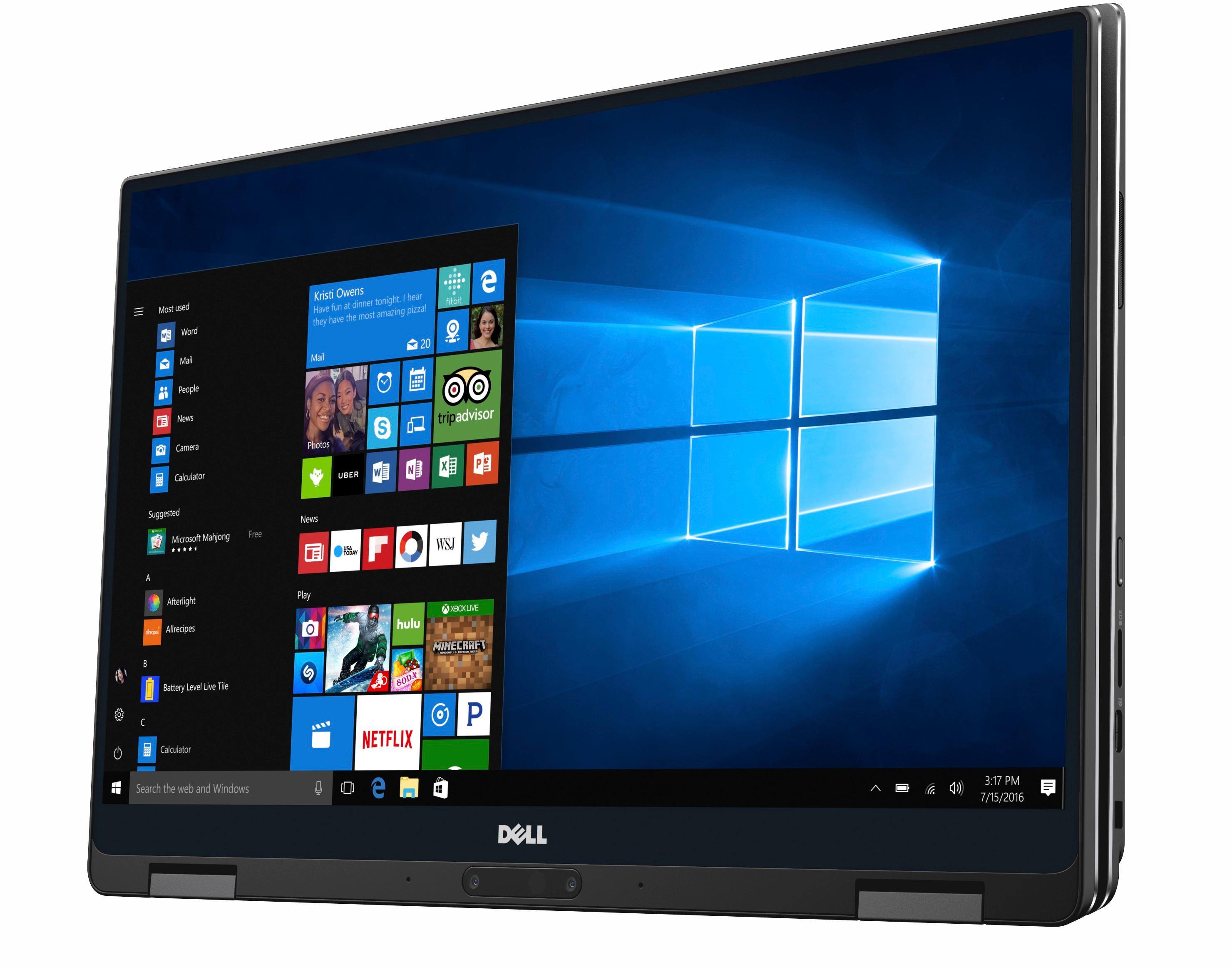
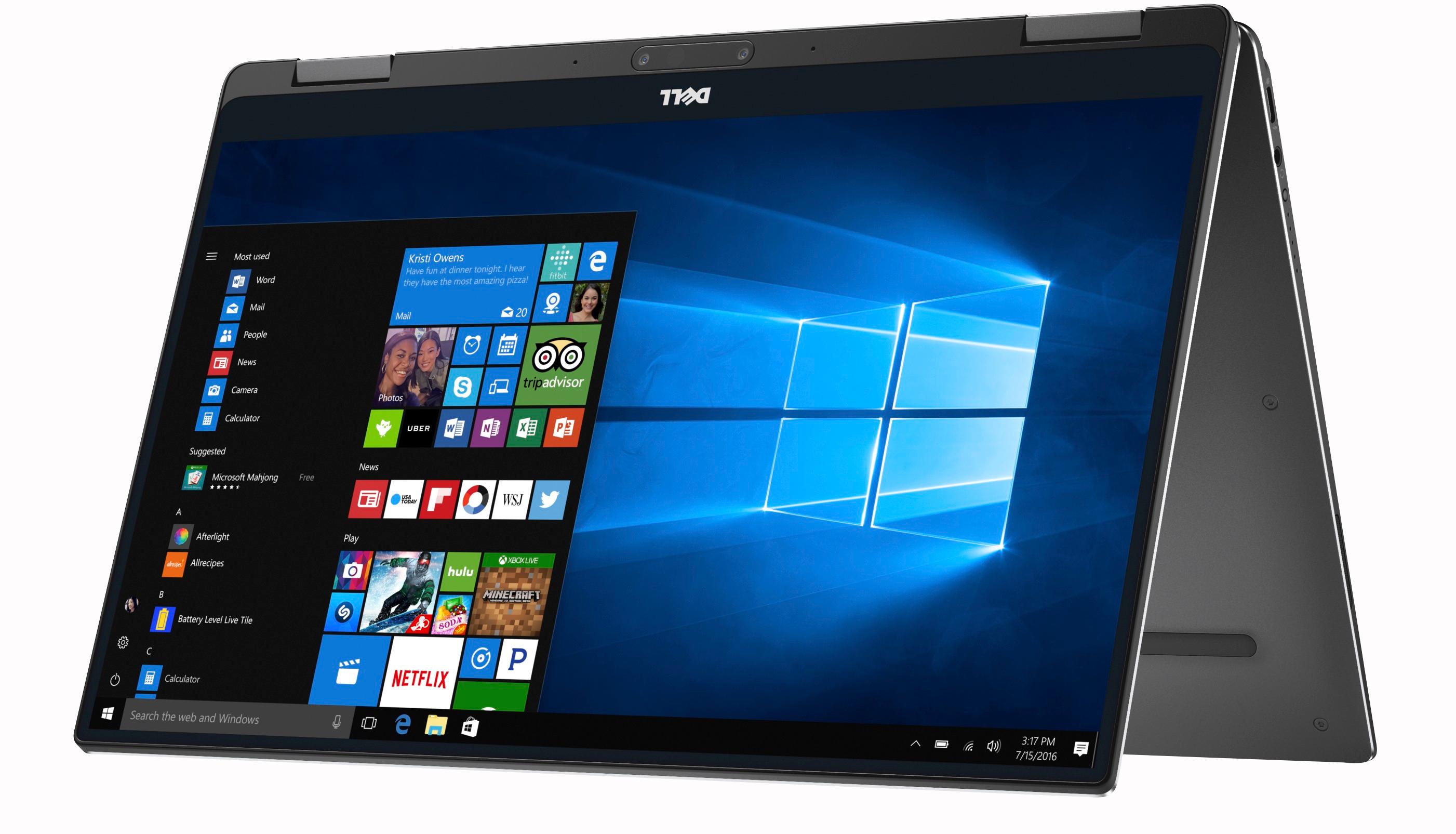
Customers are impressed with the XPS 13's fast performance, gorgeous Infinity Edge display, and lightweight design. They appreciate the long battery life, comfortable keyboard, and responsive fingerprint scanner. Some users have mentioned that the laptop can overheat, but overall, customers are very happy with this product.
This summary was generated by AI based on customer reviews.
Performance issues - stay away!
Posted .This reviewer received promo considerations or sweepstakes entry for writing a review.Cursor freezing up ever so often (mitigated by disabling smart screen). Citrix Receiver makes working remotely almost impossible on this CPU, very slow. For the Windows password edit box to appear, it takes 15 seconds after login screen is painted. I am going to stay away from the Intel Y series processors. Not recommended.
No, I would not recommend this to a friendBrand response from YourDellTeam
Posted .thecurryeffect - If you are still experiencing issues with your computer freezing we'd recommend that you try the following:
1. Run a Computer Diagnostic. To determine if your computer is experiencing a hardware problem, run the Dell Preboot System Assessment (PSA) Diagnostics. For information on how to run Diagnostics, and to determine the issue, refer to Dell Knowledge Base Article: http://dell.to/2iaiujA.
2. Check Safe Mode for Symptoms. To boot into safe mode, please follow the instructions below: 1) Start the computer. 2) Tap 'F8' on the keyboard immediately and every one second until the Dell logo screen disappears. From there you will see the Windows Advanced Options Menu on the screen. (If the Windows Advanced Options Menu does not appear, restart the system and try again.) 3) Select Safe mode with Networking and press Enter. 4) Log on as the administrator or as a user with administrative access. 5) Open applications and test the computer in safe mode. If the symptoms exist in safe mode, please continue the troubleshooting steps in this article. If the symptoms do not exist in safe mode, the issue is likely related to a driver or software and you may wish to complete steps 6 and 7 to see if you are able to resolve the lock ups or freezing.
3. Check for Malware. Malware (Virus, Spyware, etc.) can definitely cause a Windows system to lock up or appear to hang. To check for malware on your system and to ensure that your computer is up to date on security software, visit Dell Knowledge Base Article: http://dell.to/2wWP1zI.
You can view the full article here - http://dell.to/2tW5m33. - Bryan
- Cons mentioned:Overheating
Too much Heat !!!!!
Posted .This reviewer received promo considerations or sweepstakes entry for writing a review.I brought this laptop and observed too much heat @ the bottom of the laptop and very high heat in the charger. I have returned as i am not satisfied. Its a brand new laptop and only application i have opened is web browser . Poor manufacture by DELL as it doesnt have any cooling fan or outlet at the bottom of the laptop to get out the hot air. Apart from this heat issue rest is Excellent .
No, I would not recommend this to a friendBrand response from YourDellTeam
Posted .rajanrob - We're sorry to hear that you experienced issues with the cooling functions on your new laptop. Here are some tips that you can use to cool your laptop in the future if you experience similar issues with a new device:
Tips for Proper Usage:
1. Dell does not recommend placing portable systems directly on your lap. Due to reductions in the thickness of modern portable systems, heat transfer can be an issue.
2. Using a portable system (Laptop) on a hard, flat, non-cloth surface will increase airflow and reduce heat from underneath and inside the system.
Using the portable system on blanket, pillow, or other type of cloth will cover up the fan cause the computer to overheat and can cause permanent damage.
3. It is recommended to use the portable system in a Room temperature of 0°C to 35°C (32°F to 95°F) with a Humidity level no greater than 90%.
4. Use compressed air to clean the vents on a regular basis.
5. Using a cooling pad can decrease heat and increase performance.
6. If you want to know the temperature limitations for your system, go to the Dell Support Website, look up your system model then open the user guide under the manuals link.
For additional tips please view the full article here - http://dell.to/2uJ8AdG.
- Cons mentioned:Overheating
Bad news
Posted .This reviewer received promo considerations or sweepstakes entry for writing a review.CPU and Motherboard failed just before warranty was to expire. Sent to Dell for fix free of charge. 6 months later failed again, sent to Geek Squad and they gave an price of 600.00 dollars plus to repaid. Computer ran hot from day 1 and heat is not good for laptops, stay away from this product.
No, I would not recommend this to a friendBrand response from YourDellTeam
Posted .Larry - We're sorry to hear that you experienced problems with your Dell laptop. If you continue to experience issues with your computer being too hot we'd recommend the following:
Tips for Proper Usage:
1. Dell does not recommend placing portable systems directly on your lap. Due to reductions in the thickness of modern portable systems, heat transfer can be an issue.
2. Using a portable system (Laptop) on a hard, flat, non-cloth surface will increase airflow and reduce heat from underneath and inside the system.
Using the portable system on blanket, pillow, or other type of cloth will cover up the fan cause the computer to overheat and can cause permanent damage.
3. It is recommended to use the portable system in a Room temperature of 0°C to 35°C (32°F to 95°F) with a Humidity level no greater than 90%.
4. Use compressed air to clean the vents on a regular basis.
5. Using a cooling pad can decrease heat and increase performance.
6. If you want to know the temperature limitations for your system, go to the Dell Support Website, look up your system model then open the user guide under the manuals link.
For additional tips please visit - http://dell.to/2uJ8AdG.