Customer Ratings & Reviews
- Model:
- GWAVR4K
- SKU:
- 6474768
Rating by feature
- Value
Rating 3.8 out of 5 stars
- Quality
Rating 3.7 out of 5 stars
- Ease of Use
Rating 3.8 out of 5 stars
Customers are saying
Customers love the Mini Wireless 4K Screen Sharing for its easy setup, wireless connection, and portability. They appreciate how it can act as a Google Cast, MiraCast, or Apple AirPlay device, making it versatile for different devices. The screen sharing solution is praised for working incredibly well. However, some customers have concerns about the video quality, finding it not ideal for video content.
This summary was generated by AI based on customer reviews.
- Pros mentioned:Ease of use
Sad card
||Posted . Owned for less than 1 week when reviewed.This reviewer received promo considerations or sweepstakes entry for writing a review.Easy to use very straight to the point plug and play
I would recommend this to a friend - Pros mentioned:Latency, Setup

Not sure if needed for newer smart TVs.
|Posted .This reviewer received promo considerations or sweepstakes entry for writing a review.When I received the item, I thought that I would see a marked improvement when casting to my Samsung Smart TV but it performs about the same as the TV’s built-in casting ability. It does what it is supposed to do, but I found myself wondering if I needed one after all. But let me start at the beginning… Last year I streamed the Superbowl to my TV from my desktop PC, and noticed there was a bit of lag when viewing both screens at once, so I set my TV as the main viewing screen in the settings and it appeared to work just fine since I wasn’t comparing what I was seeing in my PC screen and what was cast to my TV. Fast forward to this year. The packaging is entirely recyclable, thanks for NOT using Styrofoam, ioGear! The contents consist of the streaming stick, quick start guide, warranty card and the proprietary cable that connects to the device as well as power. An AC adapter is not included but I had an empty USB port in my TV that provides the power needed to operate the “stick”. Setup was a breeze, insert the stick into an open HDMI port, connect the cable to power and you’ll see it glow blue. Then by following the instructions, connect the device to your network. Voila. On your PC or mobile device you need to use Airplay or screen mirroring, select the device from the list and start casting. If viewing both screens at once, you might see exactly what I feared: that there is noticeable “lag” from the original source. I checked my network and it was operating at top speed without other devices hogging bandwidth, so it must be an inherent issue that exists when using a wireless casting device. The reason I wanted to try wireless video transmission was because I didn’t want to use an HDMI cable because of the location, but that’s exactly what I ended up doing, lifting the edge of the carpet to run the cable underneath, beneath the carpet from the PC to the TV. I was disappointed with the performance, but someone with an older TV, might benefit from the added wireless capabilities. Just don’t expect quality in neither video nor sound…
No, I would not recommend this to a friend - Pros mentioned:Setup
Works great, but niche product
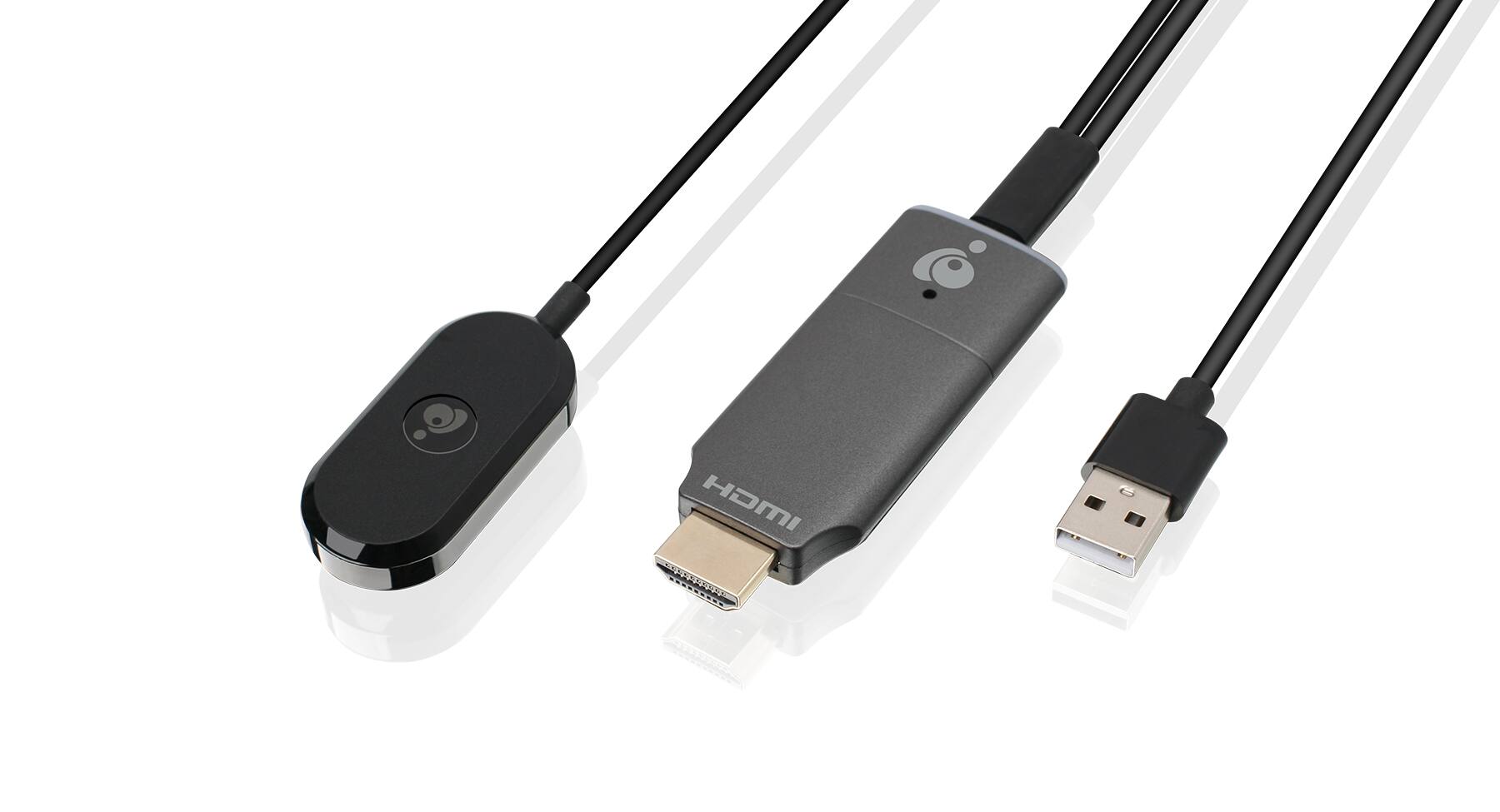
|Posted .This reviewer received promo considerations or sweepstakes entry for writing a review.This is a screen sharing solution that works incredibly well, but it’s a niche product for limited purposes. From my perspective, it’s main use is for sharing content from your phone to an older “dumb” HDTV and cutting the wire when using a projector. I think it’s best suited for use when traveling and giving presentations with a projector. For other things, like turning an older TV into a smart TV, I don’t know why you would pick this device over Roku, Fire Stick or Google TV. Having said that, for my purposes, it works fantastic and I recommend it for that limited use. IN THE BOX You get the iogear device itself, which is similar to a Fire Stick, but thinner, a micro-USB cable that splits into two cables. One end of the cable is the USB type A port (traditional rectangle port you’re used to seeing) and the other end of the cable is what appears to be the wireless transmitter, with some extra length so you have the ability to get the best reception depending on your setup. Other than that, you get a helpful start guide and that’s it. No USB wall power adapter, but surely you have an extra one around the house in 2022, should you need it. SETUP It’s pretty darn simple. You plug the iogear device into an open HDMI port of your TV, projector, or monitor. Then you plug in the power. If your TV, computer, projector has a USB slot for power you can plug it in there. Otherwise, you’ll have to get a wall adapter and power it through a plug in the wall. When you change the input on your device that’s displaying the image, a “home screen” gives you all the information you need to complete setup. There’s even a QR code for you to scan to take you to the device’s homepage on your phone (which is nice). But basically, you connect to the Wi-FI network, from your phone or computer, and then from you there you go to a browser and enter in the IP address which takes you to a page to connect your iogear to the internet. Based on my testing, the purpose of connecting your iogear to your internet is to permit you to access the internet while you’re connected to the iogear (so you can stream things). It also allows any device to connect to it from the internet itself, without having to connect to the iogear network. Once that’s done, you’re good to go. You simply need to case your screen to your output device. STREAMING QUALITY AND USE Iogear claims it can support 4K up to 30 FPS and up to 30 feet away. I didn’t really test the distance by measuring, but I could stand across the room and it worked just fine. As a quick aside, I use a Samsung phone and a Windows computer. So I can’t speak to the actual screen mirroring on iOS devices, but I’m certain it’s as simple a process with Android phones and Windows computer. For me, I swipe down on my phone and go to the “Smart View” button which brings up a list of devices to share my phone’s screen with. Luckily, the iogear device’s name is easy to find (assuming your phone brings up multiple options). Clicking on that and some permissions immediately had my phone’s screen on the display. From my Windows computing perspective, (I’m using Windows 11, which I’m new to…) I found the option to share my screen under settings, display, connect to a wireless display. Then a screen popped up and showed me the iogear and it connected immediately without issues. The bigger issue, and this applies to most if not all, wireless mirroring devices/programs is scaling. So my phone immediately showed a small truncated screen. And the phone’s display was adjusted for scaling as well. However, when you rotate your screen horizontally, the screen fills up. From my Windows computer, the screen was stretched out and looked funky. But a few adjustments on my computer itself, I got the aspect ratio where things weren’t stretched out. But all this depends on your monitor/projector/TV (I was testing on a wide screen computer monitor). So it’s not always plug and play (at least speaking re using a Windows computer), but it’s a few minor resolution adjustments and you’re good to go. Not a big deal, but just know the screen may not fit perfectly, or might need some adjustments. Which is easy to do. From a quality standpoint, I was impressed. I’ve mirrored my phone on a Google TV before and there was significant lag. This iogear device had some lag, the animations of screen swiping wasn’t perfect, but it was much better. Watching movies, streaming from my phone, was a pleasure. The picture quality was really solid. From my computer, same compliment. I ran a presentation through it, and it was as if my computer was plugged into the projector. WHO’S THIS FOR? The one main thing to consider about this device, is who is it for? You might already have an Amazon Fire Stick, Apple TV or Google TV. And if you do, you are able to mirror your devices to those (for Google TV, I can stream my computer through Chrome). SO this device seems duplicative. However, for me, and this is just my opinion, this is best suited for business users who travel and give presentations. For me, it works perfect. I can walk into a new building, bring my projector and connect my screens wirelessly without concern of a dropped signal. Having the ability to mirror my phone is just a plus. If I’m in the hotel, it’s nice carrying this tiny dongle and being able to watch whatever I want without the limitations of hotel cable. CONCLUSION The iogear delivers. Is easy to setup, easy to use, the image quality is phenomenal. But it’s a bit duplicative for most people. Unless you simply rely on your phone for your entertainment (or computer) you are probably better served with another streaming device. But for those who travel frequently and/or give presentations, this device can be extremely useful.
I would recommend this to a friend - Pros mentioned:Setup
4K DONGLE BEST FOR OFFICE NOT GAMING (lag)
|Posted .This reviewer received promo considerations or sweepstakes entry for writing a review.IOGEAR - MINI WIRELESS 4K SCREEN SHARING - BLACK MODEL:GWAVR4K Best Buy Tech Insider Network 4K DONGLE BEST FOR OFFICE NOT GAMING (lag) OVERALL The IOGEAR - MINI WIRELESS 4K was east to setup and use. Connect it to the HDMI port on your TV or Monitor and follow the on-screen instructions. There is a unique power cord “Y” power cord that connects the antenna to power and the device. There is not an included power supply as the IOGEAR - MINI WIRELESS 4K assumes you can connect to the USB port on your TV otherwise you can just grab a spare power supply from your junk drawer. (This is good, I don’t need any more power supplies) PERFORMANCE The IOGEAR - MINI WIRELESS 4K is not really up to the task of 4K casting. The 1080p performance was pretty good, but there was notable lag in 4K streaming about 1 second. This is pretty normal in most casting devices, but don’t expect to do even casual gaming through the IOGEAR - MINI WIRELESS 4K. You can see in my picture a simple packman game with the laptop and "cast" screen in the same picture. You can see that "PAC" is well behind on the monitor vs the laptop. You can also see noticeable blurriness on the monitor. Even on a static screen (like a windows background image) there was a lot of pixilation and movement, even though it was a static image. I tried 2 different modern laptops with built in 4K screens and with dedicated graphics cards. I know the laptops can drive 4K just fine, and if I use an HDMI cable they perform perfectly. I used a 120Hz 4K TV and a 60Hz 4K monitor, both less than 2 years old. QUALITY I have misgivings about the proprietary “Y” cable. The micro USB end was already a little crooked and bent out of the box. Without the proprietary cable the dongle it will not work (according to mfg website). Additionally, the power cord attached out the back of the dongle making it even longer, and more likely to get bent over time. OTHER CONCERNS Sometimes it connected to the TV / Laptop at 1080p, and sometimes at 4K. It seems to depend if the TV was fully (100%) powered on before powering on the dongle. As to size, and because the power is in the end of the dongle, you need a good 5 inches of clearance to avoid bending the already fragile cable. RECOMMENDATION I’m going to give this a pass, not because it is overly bad, but because the IOGEAR - MINI WIRELESS 4K is not up to the task of replacing a 4K cable for even casual use. The pixilation / Macro blocking on static screen images was very distracting. I have had better results from various streaming sticks.
No, I would not recommend this to a friend Screen cast
||Posted . Owned for 1 year when reviewed.This reviewer received promo considerations or sweepstakes entry for writing a review.Good product. Sometimes I lose connection though. Good value for the price.
I would recommend this to a friendA+
||Posted . Owned for 1 year when reviewed.This reviewer received promo considerations or sweepstakes entry for writing a review.Perfect for my needs. Blah blah need more characters blah.
I would recommend this to a friend- Pros mentioned:Image quality, Latency
Great Jack of all Trades Casting Solution!
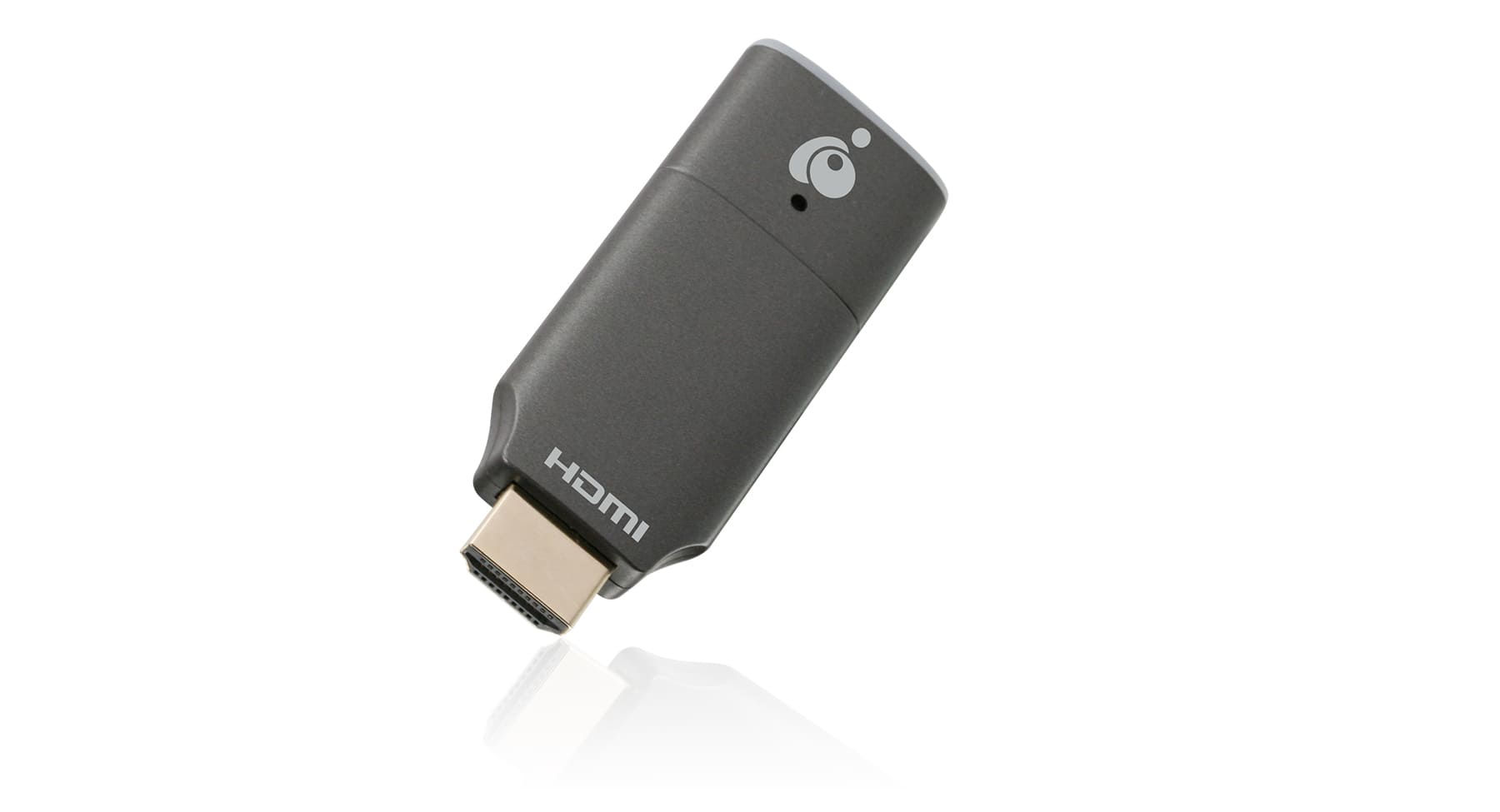
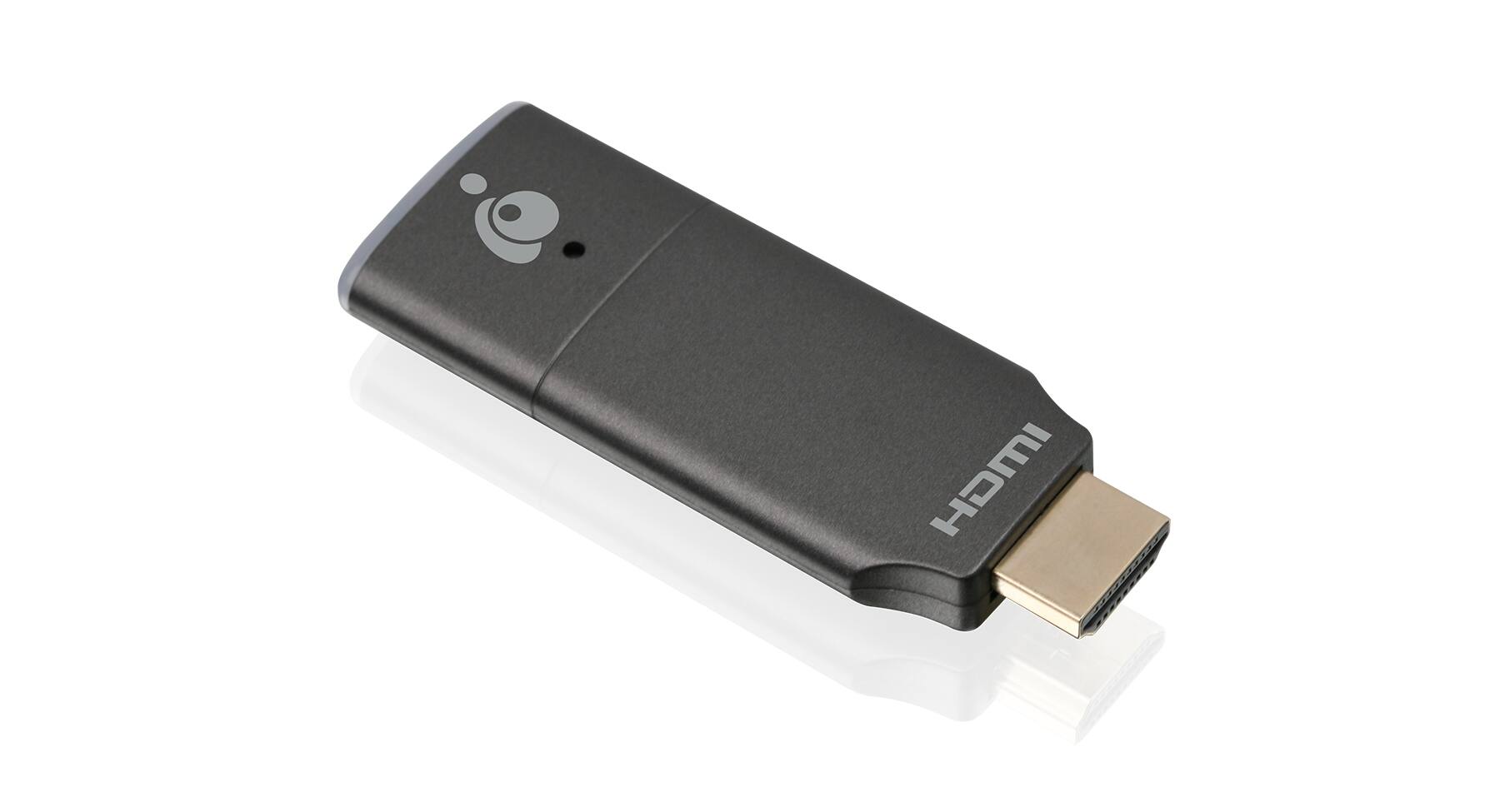
|Posted .This reviewer received promo considerations or sweepstakes entry for writing a review.The IOGear Mini Wireless 4K Screen Sharing device is a great casting solution for all kinds of devices! Design This is a small and light device the size of a larger thumb/flash drive. It plugs into an HDMI slot on a TV, projector, or other display device. There is one cord coming out that goes to a small transceiver, just to get better signal strength. There is a second cord that comes out of it for power, to be powered by USB. I plugged it into a USB port on my TV and that works great. You could plug it into a USB wall adapter - though it doesn't come with one. Features This casting device supports different resolutions, from 720p up to 2160p (4k). There are even separate RGB options if that helps for the device you're casting too. I used the default, not RGB, settings and colors were acurate and vibrant on my TV. By default it's set to 1080p at 60 frames per second. You can set it up to 2160p (4k) at 30 frames per second. It can act as a Google Cast (ChromeCast) device, MiraCast/Wireless HDMI/Wireless Direct device, or Apple AirPlay device. So between those should should be able to cast to it from anything. Ease of use Out of the box, without configuration, you can use it as a MiraCast device and connect to it as an external display from a Windows laptop or from any phone that supports MiraCast, like my Android Phone does. One thing I love about it is you don't need to install an app for it. You just connect to it directly over WiFi and then connect to it with a web browser to access it's simple menu. You will need to do that setup and connect it to your home WiFi network to use it as a Cast device, not just MiraCast, and also to install updates. Mine got an update and the update installed automatically. This is also where you can change things like the device name and resolution. I set it to 4K so I could mirror my 4k laptop display, with no display scaling on, to my 4k TV. Performance and Overall Feel It takes some hardware to cast high resolution at a good framerate so you'll want a faster laptop/phone/chromebook probably depending on what you're doing. They recommend an i5 CPU. I used it well with two i7 laptops and an AMD Ryzen 7 laptop too. Framerate of video was good and smooth! The latency was very low too. The display got a little blocky here and there but that's par for the course with display casting in my experience. This felt like it was more responsive, lower latency, than any other solution I've used to cast with. It's the first I used that supports 4k, and, at 1080p, it the quality was as good or better than any other I've used at 1080p. The 4k played video well even on my older laptop with a 4k display and a 6th Gen i7 CPU. The 4k looked better for still images and video playback. With my Windows desktop text it didn't look sharp. Again, images and video looked great. The text wasn't a problem, it was very small text at native 4k resolution that I would never use for any sort of presentation. I should also note that it sent sound to my surround sound speakers! I was glad that surround worked. The low latency and smooth video playback occurred from my Android 11 based phone as well. I had great results with screen mirroring using MiraCast from my phone for images and video playback. Text look sharp from the phone too. Summary I found this to be an excellent jack of all trades casting device. IOGear has made something that supports Cast, MiraCast, and AirPlay with simple configuration and simple use. The only negative I can think of is that casting does not work from all apps but it works from Google Photos for instance, as well as from the Chrome Browser. You can cast about anything from in the browser though and if that doesn't work you have display mirroring with MiraCast or AirPlay. Or start with the later two depending on what you're doing.
I would recommend this to a friend - Pros mentioned:Ease of use
GREAT LITTLE ITEM TO HAVE
||Posted . Owned for 6 months when reviewed.This reviewer received promo considerations or sweepstakes entry for writing a review.This actually worked better than I had hoped. Easy setup and projection from my phone to television was flawless.
I would recommend this to a friend Mirror Cast
||Posted . Owned for 1 month when reviewed.This reviewer received promo considerations or sweepstakes entry for writing a review.Works good but we had to buy an adapter in order to get it to fit behind the TV. Wish this part was shorter.
I would recommend this to a friend- Pros mentioned:4k
One of the best ones I’ve found
||Posted . Owned for less than 1 week when reviewed.This reviewer received promo considerations or sweepstakes entry for writing a review.Great device, the quality of 4K is really good and there’s no disruptions
I would recommend this to a friend - Pros mentioned:Ease of use
Mini Wireless 4K Screen sharing
||Posted . Owned for 1 month when reviewed.This reviewer received promo considerations or sweepstakes entry for writing a review.Easy to install, and worked great to project meetings from zoom to TV.
I would recommend this to a friend Trash
||Posted . Owned for 1 year when reviewed.This reviewer received promo considerations or sweepstakes entry for writing a review.Garbage have to purchases in app products to use a service that free on casting devices. Garbage
No, I would not recommend this to a friendDon't buy
||Posted . Owned for less than 1 week when reviewed.This reviewer received promo considerations or sweepstakes entry for writing a review.While casting to the Tv, you can see white specs in the picture. Didn't have that problem when I used the Screen Beam Mini.
No, I would not recommend this to a friendGood for Tech Savvy, but not for those who are not
||Posted .This reviewer received promo considerations or sweepstakes entry for writing a review.This is not really user friendly for someone that is not IT savvy. I bought this for employees to quickly use and requires to networking solving.
No, I would not recommend this to a friend- Pros mentioned:4k, Latency
Promising minus a few bugs
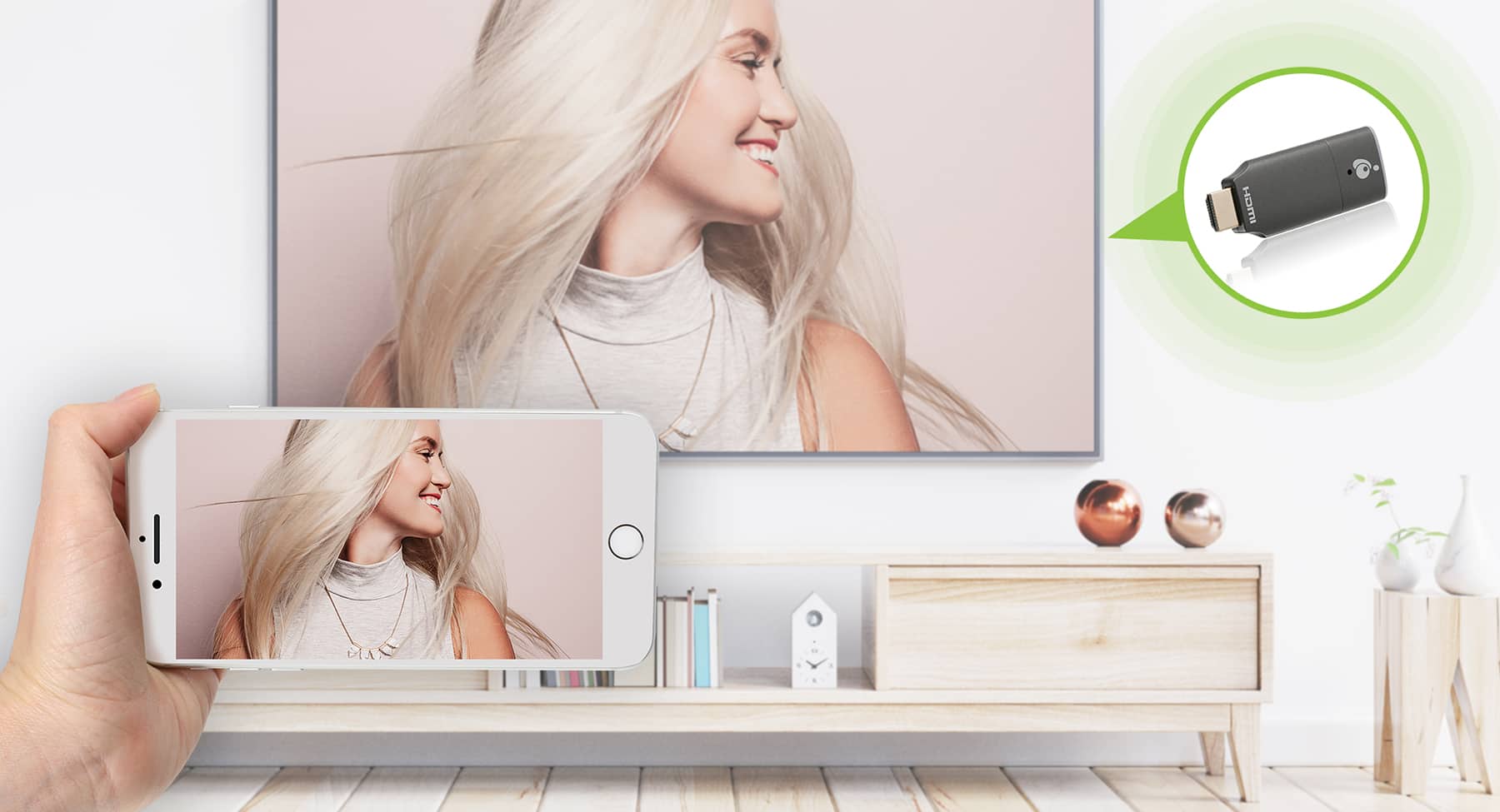
|Posted .This reviewer received promo considerations or sweepstakes entry for writing a review.If you're reading this and don't know exactly what this product does, then think of it as a way to wirelessly display content from your phone, tablet, and/or computer to your television - regardless of what operating system you are using. That's really what makes this unique, in my opinion, and as such really makes it potentially useful in an office conference room or classroom. If you've got a room full of people on all kinds of different devices and several of them are going to be doing presentations from those devices, this IOGear stick could make life way easier for everybody. I've sat in classrooms where one after another students plug and unplug different HDMI cables and dongles to do presentations on a TV, and it just seems completely random as to whether or not it's going to work. Even if they use the exact same cable/dongle and exact same computer type. In a perfect world, every university television would have one of these installed... The device looks like an Amazon or Roku stick. You plug it into an empty HDMI input on your television, plug the attached USB cable either into your television or a charging brick and empty outlet. And you're pretty much good to go. It's incredibly easy to connect the device to your internet - the instructions and everything you need are basically right there on the main splash screen once you boot up. From there, the IOGear will be visible wherever you access display mirroring on the device you're using. (Control Center on Apple devices, settings on Android, etc.) I've mainly used the IOGear to wirelessly extend my MacBook Air's display to my 55" TV. It connects quickly, looks good, and the lag is noticeably better than I've experienced trying to do the same thing with an AppleTV over AirPlay in the past. It's like having a massive 2nd monitor across the room while I sit on the couch and type. No problems connecting an iPad, iPhone and Samsung Galaxy to it, either in screen mirroring mode. Also, when not connected the IOGear shows a screensaver of nice looking images from Unsplash, which is a surprising little bonus. But there are some things that are a little quirky. For starters, sometimes the screen displays an Airplay code at the bottom and it just won't go away. I'm not connecting via AirPlay and didn't even try to, but there it is. And speaking of... using the specific AirPlay feature is a little hit or miss, ditto trying to use "Cast" from YouTube on the Samsung phone. Sometimes things hang, don't load at all, or the app crashes. I don't know why that is, but I just don't have the same issues when I mirror the screen of the device and try to display things that way. Also, the colors are definitely more saturated on the IOGear display. I thought it was perhaps my TV settings, but I'm not so sure. I would have to fiddle with it more, but feel fairly confident I could get it close to matching what I'm seeing on my computer's built in monitor. Lastly, I wish I could change the display name of the IOGear on my network, but cannot figure out how to. As is, it displays as a very long "IOGEAR" name with a bunch of letters and numbers after it. Would love to just change it to something simpler of my choice. And there's a couple things to note that are probably not the fault of the IOGear. If you're planning on primarily using this as a great way to stream video from your phone to your TV, I'd probably point you in the direction of a dedicated streaming device such as a Roku, FireTV, AppleTV, etc. I wasn't able to get Netflix to play in browser, nor movies in my iTunes library, and I think this is because of DRM reasons that has nothing to do with IOGear. You'll hear the audio, but won't be able to see anything on the screen the IOGear is connected to. YouTube works well, for the most part, but I found getting videos to play in 4k to be very temperamental. I could be playing it in 4k on my computer's screen with no problem, but the second I moved the browser to the IOGear it immediately dropped to 1080 and removed the 4k option altogether. Other times, it worked without a hiccup! I'll have to play with it more to figure out why that is. This is long, so I'll sum up by saying the price is really solid if you're again looking at this as a conference room/classroom option. I have had zero issues with lag or any error whatsoever trying to run slide decks on the IOGear. Text and images look very crisp and clear. Just wouldn't want to rely on this as my sole video streaming device at home. Hope they'll maybe push a software update and smooth out some of the little things!
I would recommend this to a friend - Pros mentioned:Image quality
Amazing Device to Use for Presentations
|Posted .This reviewer received promo considerations or sweepstakes entry for writing a review.I do presentations every month at a Macintosh computer club (now that we're back to in-person meetings). In the past, I would have to carry a much larger device to be able to connect my iPhone or iPad to the club's projector. This would sometimes be a problem when someone else wanted to connect their device to the projector when they would present. In the past, I used an older device that wasn't 4K and I had to plug it into an electrical outlet. We just need to project an app or Keynote presentation and don't need all the abilities of the older and much larger device. This IOGear Screen Sharing device is absolutely perfect for our needs. It's a very small device, the size of a USB thumb drive only it plugs into the HDMI jack on the back of the projector. There is a cable that plugs into the back of it and plugs into the USB jack on the back of the projector to supply power. When you turn on the projector, the IOGear sends a picture onto the screen with the device's SSID (WiFi name) so you can identify it on your phone or tablet's WiFi listings as well as the password for the WiFi so you can enter it when connecting. No searching for a password as it's right there in front of you along with the instructions in case you forget. The last step is to turn on Screen Mirroring (or Screen Sharing) on your device and the next thing you know, your device's screen is filling up the wall. This is a great little gadget to carry with you if you stay in a hotel and want to watch your iPhone videos on the hotel TV or if you go to a friend's house and want to show them a video you just shot. The image is perfect and everyone will appreciate watching your work on something larger than your phone.
I would recommend this to a friend Screen mirror
||Posted . Owned for 3 weeks when reviewed.This reviewer received promo considerations or sweepstakes entry for writing a review.Very happy with this product. Easy to use and no issues in it's operation.
I would recommend this to a friend- Pros mentioned:Setup
4096x2160p at 30FPS! Easy + Just Works!
|Posted .This reviewer received promo considerations or sweepstakes entry for writing a review.Before getting this, I have had nothing but problems in casting to my 4K TV with its built-in casting solution & so I had a real need for this device. I was always wanting to cast to the TV and bonding worked. Until the IOGEARCast that is! Setup was easy with the attached USB cord that is solidly with the adapter itself. Unfortunately, I wish they would have made this to where it could be separated and/or replaced if needed. USB adapters and connectors are always the items that break for me unfortunately. I hope that won’t be the case here. I started off by setting up the casting device, connecting it to WiFi & then started casting a few business items onto my 55” Insignia 4K TV above my desk. It was quick, clear, crisp & worked flawlessly! Next up I casted some YouTube videos to get a feel for how it handled those. Again, smooth, really nice. It was effortless. All tech should just work like this! I only wish it could do 60fps because that would mean I could utilize NHL, NBA, MLB, etc if it is offered in 60FPS (NHL is and it’s night and day better than 30FPS on my Note 8/throw away Android phone). My overall thoughts are that it did great for what I am using it for & I am grateful to IOGEAR for giving me the chance to finally cast to a TV (my bedroom TV) that would never let me cast to it before!
I would recommend this to a friend Excellent
||Posted . Owned for 3 weeks when reviewed.This reviewer received promo considerations or sweepstakes entry for writing a review.Excellent product works extremely well respond very quickly
I would recommend this to a friend- Pros mentioned:Image quality, Setup
Universal connectivity for classroom and meetings
|Posted .This reviewer received promo considerations or sweepstakes entry for writing a review.Universal device connectivity for classroom and meetings…. The most significant strength of this IOGEAR - Mini Wireless is the ability to connect (just about) any device to a monitor. I have used Miracast in a similar manner, but that limits the type of device that can project to the monitor and is sometimes a bit touchy when setting it up to get everything synchronized. As long as your TV/monitor has an HDMI port the IOGEAR will allow you to connect Windows, Mac, Android, iPad, Chromebook – just about any device that has wireless capability. As a teacher, this has come in handy in the classroom and allows students to display their work (graphs, charts, digital drawings, screenshots, etc.) on the classroom monitor for presentations and discussion. Set up is pretty easy – just plug in the HDMI dongle and connect USB to either monitor or a separate USB power block. The monitor displays connection instructions and the “login” to access the self-generated Wi-Fi network to connect to the dongle. Quality of the image is going to be dependent on the device that is casting the stream. The recommendations for 4K quality streaming call for a more modern computer/tablet, but for presentations and most videos the quality is OK – this allows my students with a modest laptop/tablet/android to present without any problems. For streaming a high-quality video for an extended period of time a more modern computer will minimize any lag or occasional pixelation. The IOGEAR will step down to 1080p to maintain consistency of the stream and image, and for screen-sharing presentations and video clips I have not found this to be a problem – everything on the screen has good quality and accurately reflects what is on the broadcasting device. Please note: I am using the IOGEAR strictly for presentations and short video clips – with occasional use for longer videos without the need to have 4K quality or concerns for video lag. There are other reviews that cover the use of this device for gaming and consistent 4K quality – so if you are interested in those applications please read the other reviews for feedback on those applications. Overall, the IOGEAR is well-suited for my specific needs, which are to have a “universal” device that allows just about any laptop/tablet/iPad/Android/iPhone/Chromebook to connect without a complicated setup requirement. For that use, I would recommend this product as an inexpensive solution for classroom, meetings, and other group activities. Peace from Central Georgia!
I would recommend this to a friend