Customer Ratings & Reviews
- Model:
- GWAVR4K
- SKU:
- 6474768
Rating by feature
- Value
Rating 3.8 out of 5 stars
- Quality
Rating 3.7 out of 5 stars
- Ease of Use
Rating 3.8 out of 5 stars
Customers are saying
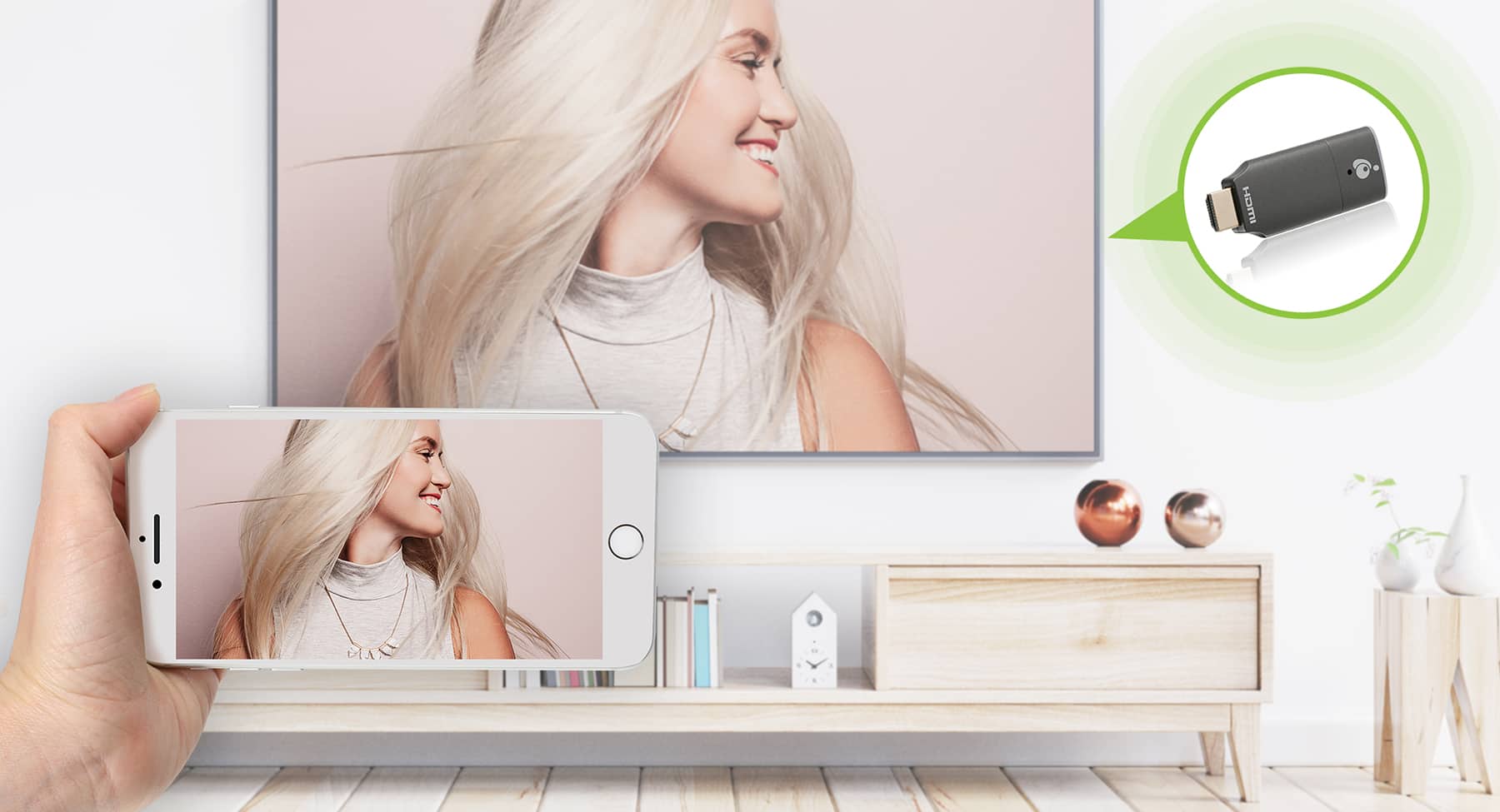
Customers love the Mini Wireless 4K Screen Sharing for its easy setup, wireless connection, and portability. They appreciate how it can act as a Google Cast, MiraCast, or Apple AirPlay device, making it versatile for different devices. The screen sharing solution is praised for working incredibly well. However, some customers have concerns about the video quality, finding it not ideal for video content.
This summary was generated by AI based on customer reviews.
- Pros mentioned:4k

IOGEAR nails it
|Posted .This reviewer received promo considerations or sweepstakes entry for writing a review.The IOGEAR - Mini Wireless 4K Screen Sharing adapter is a simple, attractively priced device that can connect to devices across the platform spectrum. In review: Setup - Very straightforward. Plug it into a HDMI port and follow the onscreen instructions. It does require an USB connection to provide power. If you do not have one on the display, you will need to connect it to power supply (not included.) The downside of this adapter is that it requires you to have an active internet connection rather a direct connection to the adapter. I’m not quite sure why it requires an active internet connection but it did work flawlessly and I could connect from multiple devices right away. Performance – IOGEAR - Mini Wireless 4K adapter did exactly as advertised, 4k streaming across Android, Windows 10 and IOS. There was no meaningful latency on video streams, even at 4K. However, there is some if you look for it. For example, if you are typing into a word document, there is a few millisecond delay. It is barely noticeable. When you have something more bandwidth intensive ( such as streaming 4k YouTube video) it is more pronounced (albeit slightly.) I realize no one is likely to be typing and streaming content at the same time but I wanted to test the limits and see if I could generate latency. Interestingly, it did not matter if I had one or two videos streaming. What did matter is I if I had a lot of tabs open in Google and had YouTube streaming. My system is more than powerful enough so there is something more going on. Keep in mind this is not a real-world application and I am very pleased with it’s performance. In conclusion, I really cannot find anything not to like nor were there any glaring flaws. Overall, it met or exceeded the claimed performance. Even the 30 foot in room range seemed to be understated ( I able to stream 20 feet away in another room that was definitely not line of site to the adapter. ) The IOGEAR - Mini Wireless 4K Screen Sharing adapter is a top-notch device at a very affordable price. 5 stars. Nice job IOGEAR.
I would recommend this to a friend Useful device for traveling with kids
|Posted .This reviewer received promo considerations or sweepstakes entry for writing a review.The IOGear mine wireless screen sharing device is a niche, almost redundant device at this point, but can be useful to fill specific needs. It's designed to share your screen on a laptop or other portable device with a TV or projector nearby, and share it at high speed and quality. Of course anyone that's used a device like this already knows that there are a lot of things that come into play for the quality to be the highest--connection quality, speed, internet speed of the device you're using to stream, etc. Set up is fairly simple--the box includes the device and connecting cables a pamphlet and a QR code for more in depth instructions. You may need a plug adapter for the USB-connector depending on the type of device you're connecting to--many devices have open, powered USB ports (many smart TV's will have open USB ports that provide enough power for this, and many computers will as well---but many other's don't, so YMMV). This is a pretty specialized device, but I found it perfect for my needs. We travel a lot with our kids, and most hotels have not switched to streaming services being available in their rooms. Several have started, and it probably won't be too much longer before it's a standard in rooms. For now this is perfect for a quick and easy hotel room set up. I always travel with my laptop, and it's super easy to connect this to the TV, then stream any of our services through the laptop and to the hotel TV. Having a nice, easy connection for streaming option is a life-saver for rainy days, or even just settling down at bedtime! Even at hotels with netflix or hulu on the TV this can still be easier since my passwords are all saved on my laptop. Obviously there are other great uses for it--easy set up for corporate presentations, or for club or group presentations, etc. I've actually used it at home to watch sports that I can only get streaming on my laptop but not through a streaming service and it does the trick...usually. The biggest drawback I've found is the streaming quality is very dependant on a number of outside factors. What device y ou're streaming from, how good the connection to that device is, any interference in the room. While my testing was mostly successful there have been a couple of odd 'drops' where it's suddenly not connected anymore, even though the signal tested fine. It's simple enough to reconnect, but still a bit of a hassle. There is, of course, a delay from device to screen. It's short, but it's there and can be a bit of a distraction. Overall it's a good product that's useful in very specific situations, though, honestly, it's likely redundant tech for most people. How long it remains useful before it's redundant for everyone but the most hardcore business traveler remainst to be seen.
- Pros mentioned:4k
Wireless casting via HDMI input on TV
|Posted .This reviewer received promo considerations or sweepstakes entry for writing a review.If you have older TVs without casting capability, this is your dongle to make the wireless connection to your computer. Other reviewers quote specs, but this review is about my experience. I travel and give presentations and find it a very valuable dongle when presenting. When showing video, the exceptionally short lag time can only be seen if you are looking for it and it is hard to detect. It is seamless to the audience. What I find more often than not is most TVs I hook up do not have USB power, so I have a spare i Phone 5-watt charger with the USB A socket, and it works fine. The longest range I have had reliable connection is a little over 75 feet as long as the "antenna" on the cable is visible to the computer with no physical barriers. 4K looks great, sound is great, and it just works! It seems to me that for the few people who have older 4K TVs without casting capability and for people like me that travel and present on a wide range of TVs, this is a great product to make the wireless connection functional instead of having a gaggle of wires, adapters, and dongles tethered to the computer. Plug it into power, plug in the HDMI port, set the input on the TV, and you are ready to go. I use my own hot spot as the network so I can be independent of whatever Wi-Fi or lack of Wi-Fi is present at the location I am presenting at. Small, easy to deploy, and it just works. You will like it even more if it is stationary at your home.
Worthless
||Posted . Owned for less than 1 week when reviewed.This reviewer received promo considerations or sweepstakes entry for writing a review.It'll show a static image nicely. Anything beyond that and you'll immediately want to return it. I know I'm about to.
No, I would not recommend this to a friendworks but design flaws, unable to get 4K
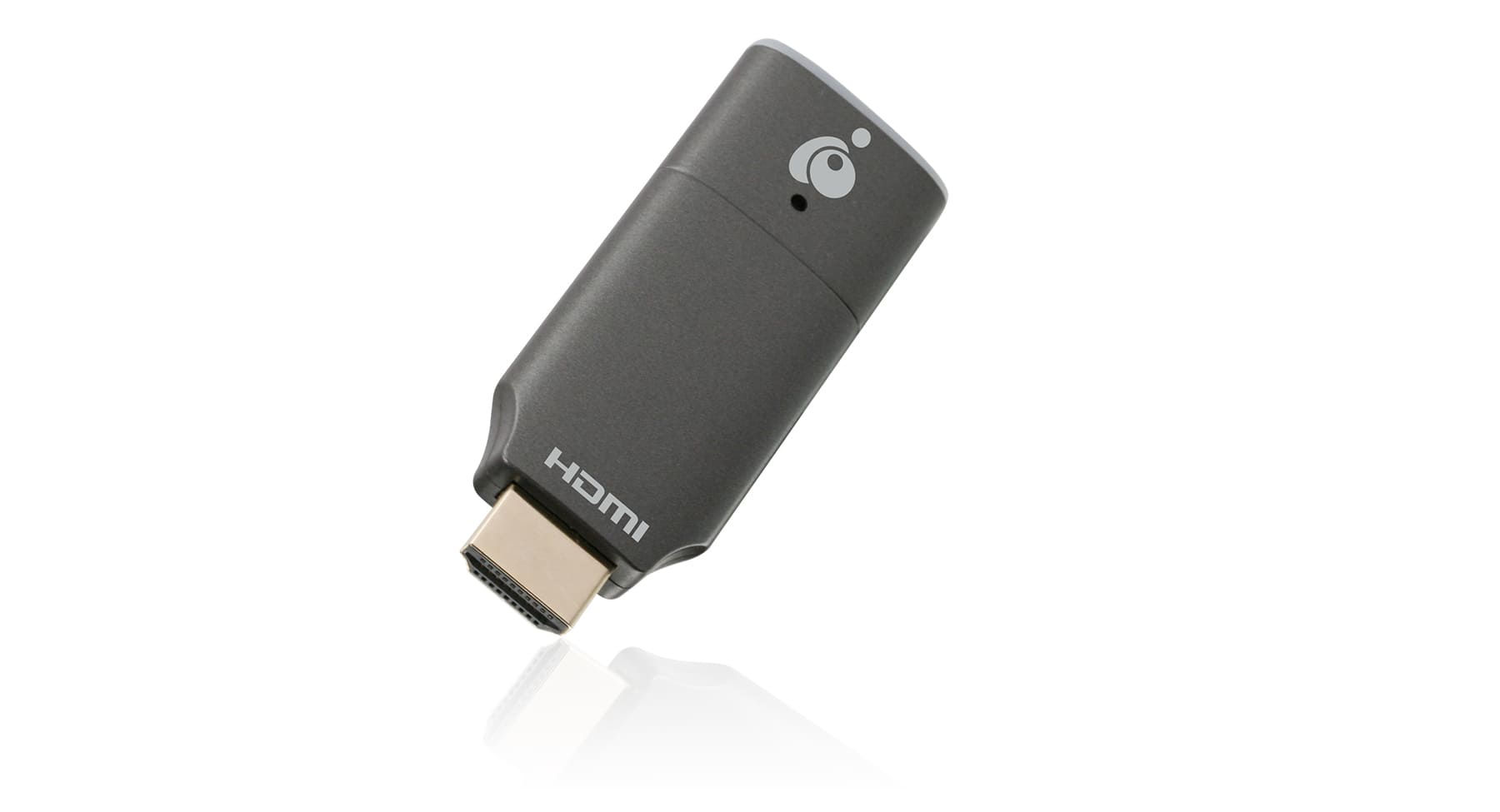
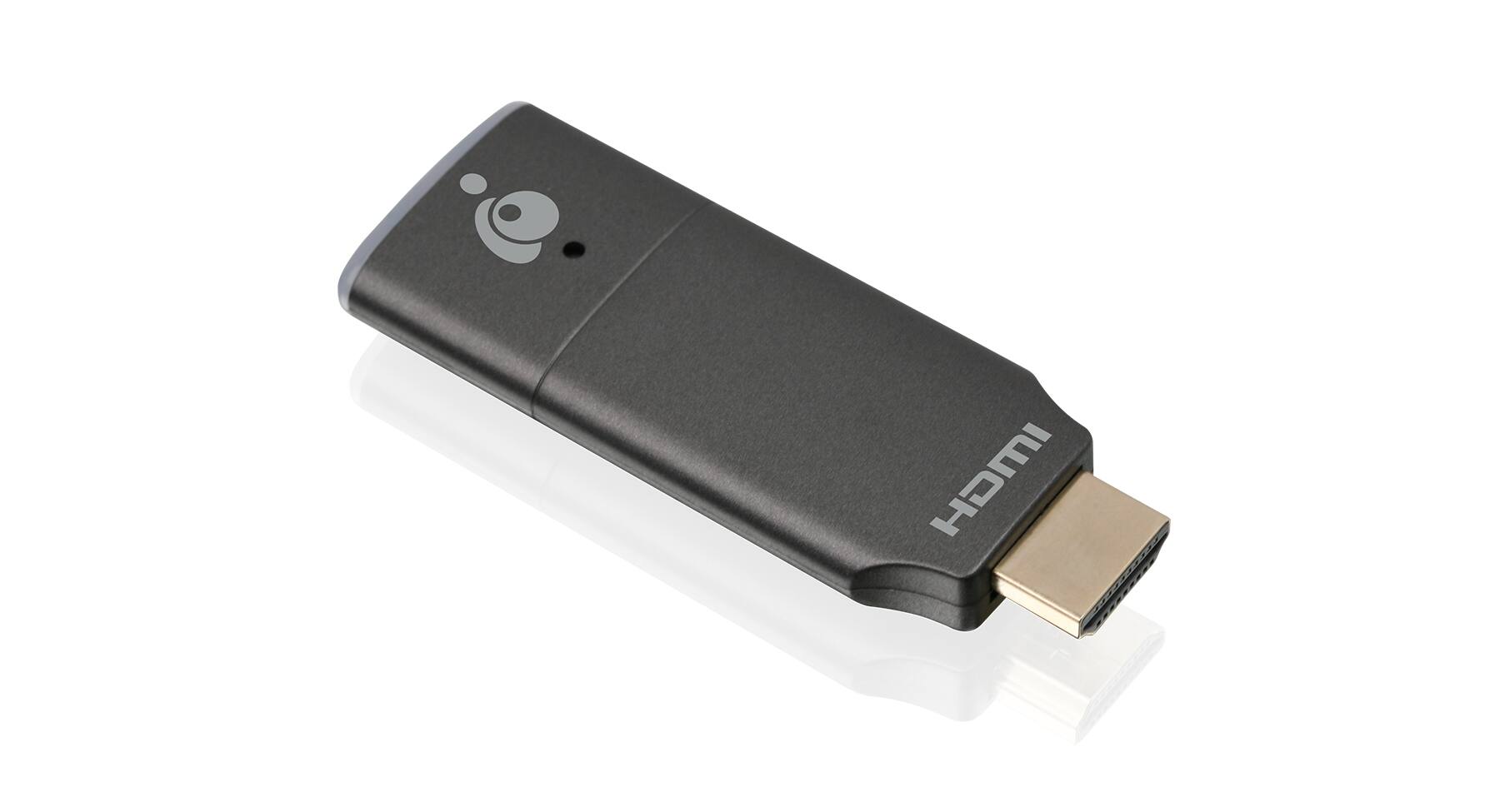
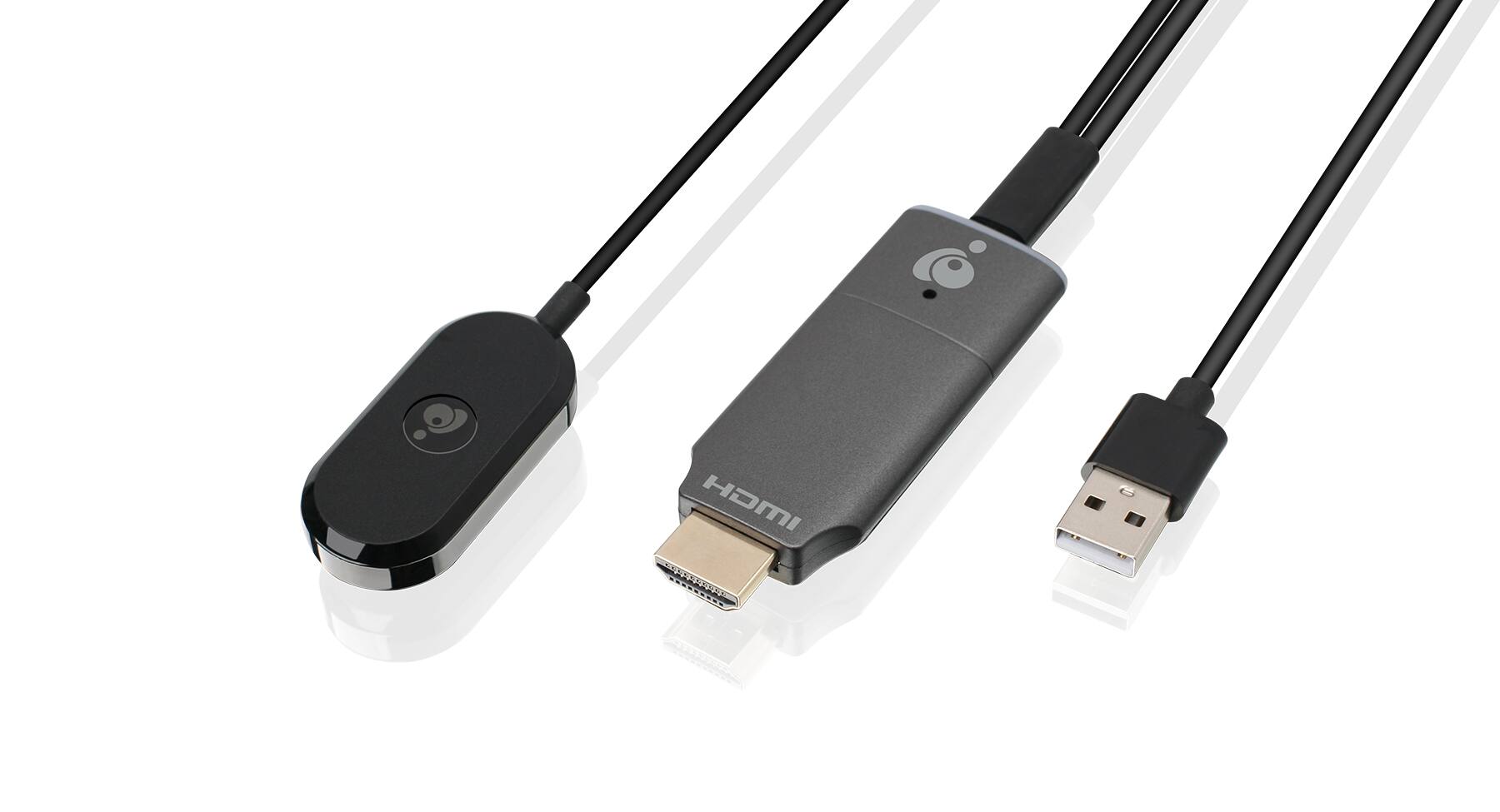
|Posted .This reviewer received promo considerations or sweepstakes entry for writing a review.This is my personal experience with the IOGEAR mini wireless 4k screen sharing device. This dongle-like device lets you wirelessly share content from your device (computer, tablet, phone) to your TV/monitor. In the box, you get the IOGear HDMI Dongle and the USB cable that powers the device (this cable is also the receiver, so don't lose it). Setup is, mostly, plug and play - you plug the HDMI dongle into your TV and make sure it's connected to USB power. The IOGear is low power consumption, so it will power from your TV but the design flaw is the HDMI dongle is wide - wider than an HDMI cable. This is a bit of a design flaw because, on my test monitor and TV, the IOGEAR was too wide to have any other HDMI cable plugged in alongside it. It's a bit disappointing, especially when the USB cable has its own receiver dongle hanging off the end of it - so it could be designed much narrower. The problem though is that if you lose the receiver dongle, which is integrated into the USB cable, you're going to be out of luck. Really think IOGEAR should have made it an integrated device rather than a detachable cable. To connect to the screen, you connect your device to the WiFi network of the IOGEAR and you can project your screen. I had no issue with Windows, iPhone, or my Chromebook. Unfortunately, I was not able to get 4K on any device even though the IOGEAR claims it is 4K. I was maxing out at 1920x1080. I checked every setting including updating the firmware of the IOGEAR (1.13169.31) but couldn't get 4K. As for the quality of the screen sharing. The IOGEAR is best for presentations, photos, and other still images. I was getting some artifacts and pixelation, regardless of range to the IOGEAR. This sometimes fixed itself if I was lingering on a screen. The IOGEAR is not ideal for any video content. Other issues I ran into include when you connect it to your WiFi network (which you can do after you connect to it directly) the "screencast" information screen it displays is hardcoded and static. This means it doesn't show the actual IP address of the device. So you need to connect to your router and find the device by the MAC address if you want to change settings should you want to use the IOGEAR in a networked environment (office or even home). Overall, hard to recommend the IOGEAR. If you need a small wireless screen sharing dongle to throw in a bag for meetings rather than having to bring an HDMI cable (or your laptop doesn't have HDMI) the IOGEAR could be useful. Just be aware of the limitations and design flaws, you may be better looking for an alternative that has a slimmer HDMI slot.
No, I would not recommend this to a friend- Pros mentioned:Ease of use
Share phone: AirPlay or Chomecast equally
|Posted .This reviewer received promo considerations or sweepstakes entry for writing a review.IO Gear Wireless Receiver I was looking to be able to share my Zoom calls on the living room TV, and this seems to be the answer. We sometimes do family calls and it’s hard for everyone to huddle around a small laptop in order to see “who’s on first”. The goal was to have a laptop which could quickly and easily connect to the big screen. I thought this would also be useful for sharing slideshows and old home movies I’d converted from 8mm to video. Setting it up for the first time was straightforward. Only two connections are needed: HDMI to the TV and USB power. The device assumes you’ll have power from your TV or that you otherwise have a nearby plug available. While I don’t have a USB outlet on my TV, I had enough old dongles around that it worked. The IOgear receiver can be set up to connect to an existing wireless network, up to WiFi 5. This allows for connecting to the IOGear network or your existing network to access the wireless display. There’s a built-in web server to configure the device. This is only accessible from the IOGear network. After it was set up, I was able to connect quickly to display my laptop’s screen. Showing Zoom and showing the home movies worked well with almost no interference apparent. However, when I tried to connect the next day, the wireless display was not very responsive. I got it working after a couple of tries, but it wasn’t something I would feel comfortable leaving for a novice to deal with. My mother-in-law, for example, needs me to program her remote for each source. I could tell her what she could use ‘Windows-K’ to get started. However, I can’t tell her what she’d need to do to make sure it worked. In one case, I re-started the device. Another time, I had to reboot my machine. Another time, I had to re-start the router. In all cases, I got it to work eventually, but I found it’s not all that reliable with Windows. Conversely, I did find that it worked nearly every time I connected my phone (Android). As my phone is a Samsung, I had to configure the IOGear in “Smarthings” first. After that, it’s worked each time I wanted to connect. While that may be OK for a slideshow of online photos, it’s not ideal for sharing the converted files I have on flash drives. Overall, I would only recommend this if your source is a phone. Using a phone, the picture quality is good, comes through clearly at 4K and passes internet bandwidth well. It was easy to use and reliable. Overall, a good value for what it does.
I would recommend this to a friend Useful, but I wish it was essential...
|Posted .This reviewer received promo considerations or sweepstakes entry for writing a review.Being in the AV world I am always on the lookout for a new and handy item to make my life easier and my customers happier. I really wanted this to be one of those items, and while it's good, it falls a bit short of my hopes. First, in terms of form factor, the main body of this device is a slightly chunky HDMI dongle that is larger than a Roku or Fire stick, but small enough that it didn't overlap the adjacent HDMI ports on the TVs I used for testing. Like other streaming sticks, this uses a USB cable to provide power, and the included cable is nice and long, which allowed me to go to a USB power block behind the TV, rather than right into the TV's USB port. This dongle has an additional cable with a bulbous end that I imagine (but did not research) is an external antenna of some sort. This cable was short enough that it did not hang below the TVs I tested it on. Setup was quick and easy, and the included "quick start" instructions were very simple to follow. The dongle creates it's own WiFi access point to connect to and go through the setup steps, in a manner very common with other "smart" devices. Once setup was complete, I tested the mirroring capability with several different devices. I tested the mirroring capability with iOS, iPadOS, Android, Windows and Chromebook devices. In all cases, the connection was extremely simple to accomplish, and I did not suffer any broken connections while testing. A few times when streaming video I did notice some lag or buffering, and that is on a very fast local WifI system with ample bandwidth. I was most impressed with the connection from the Windows and Chromebook devices. The screen mirroring was sharp and as close to instantaneous as I can image ever needing. It is perfect for a presentation. I did find that when running from the iOS and iPadOS devices via Airplay, the image was a little murky- something that I have not previously experienced when using Airplay with a smart TV and another streaming stick. Because I was really thinking of using this for "portable" presentation needs, I also tested this with a pocket travel router. I have used this type of router in the past when I have needed to create a self-contained personal network for things like streaming devices and wireless printers, that sometimes struggle with things like hotel or conference facility wifi systems. Here, I did see some lag on some items, particularly with streaming video. I was impressed with the laptop screen mirroring though, which continued to be excellent even with the limited Wifi capability of the travel router. All in all I would say that this is a simple, and handy device that falls just short of essential. The ease of the mirroring and the ability to work with such a wide array of formats is a plus. On the downside, the need to work within an existing WiFi network or one that you put up for the purpose, rather than in a direct connection manner, is a bit of a hinderance. Coupled with the slight issues I observed with the Apple devices these are enough for me to recommend it for a specific need, but still ding it a star overall.
I would recommend this to a friendVersatile 4K Wi-Fi casting stick
|Posted .This reviewer received promo considerations or sweepstakes entry for writing a review.The iogear - mini wireless 4k screen sharing dongle is the latest iteration of a true wireless casting device, now with 4K resolution capabilities and multi-platform compatibility. It is very easy to setup following the step by step instructions and can work without having to install an App. I used it with a 65” Samsung TV, make sure you select the proper HDMI input on your TV and plug in both the hanging antenna cable and the USB power cable. I got power from my TV’s USB port, but you can also plug it in to a cell phone charger/USB adapter. From there it creates its own WiFi network that you will need to connect to with a web browser to complete the setup. I was able to mirror my Lenovo laptop’s screen as well as my Android phone’s screen. I find it most useful for displaying pictures and videos from my phone and documents and presentations from my PC. Unfortunately if you are trying to display any DRM copy-protected content from popular streaming Apps, you will either get a black screen or an error message, but that’s to be expected and is noted in their specifications. 4k content from those Apps can only be displayed on a wired HDCP 2.2 compliant connection. The quality of the cast content is good, a bit of lag especially on videos, but very tolerable considering 4k requires a lot of bandwidth. This is by no means a high-fidelity, professional level AV device, but it is convenient and serves its purpose. It will be part of my travel bag from now on.
I would recommend this to a friend- Pros mentioned:Image quality
Really nice piece of equipment
|Posted .This reviewer received promo considerations or sweepstakes entry for writing a review.The setup is fast and easy, great for traveling presenters. HDMI into projector or screen and plug the other into your tablet or laptop. It mirrors what is on your screen with great clarity. Takes up very little room in your carry bag.
I would recommend this to a friend A great option to multiscreen projection
|Posted .This reviewer received promo considerations or sweepstakes entry for writing a review.It’s very common that you need to project on a big screen, like your TV, something going on on your laptop or your cellphone. To do it wirelessly until now, I’ve been using my android phone and android TV connecting both of them when are both connected to the same network. The Iogear - mini wireless 4k, extend the possibilities of screen sharing into a couple of additional scenarios. For that reason is a great option: 1. If your TV is not one of the last smart models. The only hardware required is an HDMI port on your TV. Be aware that to be fully working, the Iogear stick needs also to be connected to a power source by the cable with the antenna that is a USB power cord. In my TV with a USB, the TV was powering the Iogear but the cable is long enough and I could also use a regular power outlet. 2. If your TV is not connected to a wireless network or it’s an old model that has not that feature. The Iogear can generate its own wireless network connection to directly link your projecting device to your TV screen. Be aware also that once you do the full setup, you could also connect the Iogear to your home network and connect your devices using the home network, instead of the iogear one. 3. If you are not using google smart view or windows 10 but IOs, Iogear is the option to mirror the screen from my iPhone. Before starting, consider registering the device seems to be the first step. After that, need to plug the stick in one of your HDMI and power it with the USB. By selecting the right input, just follow the instructions on TV to establish the first connection between the device and your phone (that one is done in the Iogear wifi network). After that first connection, and connecting with the device IP in the web browser, you will be able to end the setup that also allows you to connect the Iogear directly to your home network. I tested the iogear with my windows based laptop, my Android phone’s screen, and my iphone in all the cases, the connection was great and served to display pictures or PowerPoint presentations, all with great quality, up to 4K. One final piece of info, if you are planning to display streaming apps, the iogear will not reproduce that content on the screen. I like what Iogear brings to the market and I will recommend it.
I would recommend this to a friendWill be great for Travel!
|Posted .This reviewer received promo considerations or sweepstakes entry for writing a review.-While the box doesn’t show (at least it’s not very clear) you need use the provided usb micro to usb a cable as the cable also splits and has a dongle. I’m not sure what the dongle is for perhaps for the built in wifi? However, it means you can use any old micro usb cable so don’t loose this one. -It is equipped with built in wifi! This is great because if you go to a hotel or travel a lot where you have to use public wifi, don’t have access, etc. you can use the iogear to stream from your any of your devices. Now if your streaming you will have to have an internet connection from your provider or public wifi to your phone/device. -After setup my iPhones and desktop pc (in the next room) could all easily access and stream to the iogear. -I used and tested the iogear on my projector as I currently have to use a lightening to HDMI cable. This is perfect because it is now wireless and pretty easy to use. I noticed I get better streaming quality with my desktop rather than my iPhone. This is typical for steaming from an iPhone and kind of a downer for when I travel as I only bring my iPhone. Although I’m have experienced this with other devices so it’s probably more of an apple gimmick wanting you to use their products. However this device still supports IOS so no complaints. -The directions state you can plug this into your USB port of your tv or project as long it’s not labeled for service only. Because I used my projector which has a USB port i was to plug the power cable and dongle right in. If you don’t have an extra usb power adapter laying around or don’t know if your tv/projector has a usable one make sure you order one when purchasing because it’s not included. I believe time will tell with this device. Will I loose Apple support for this device like I have had with other similar devices? I’m not sure but for now it works and I will be using it on my next few trips this year.
I would recommend this to a friendTHIS IOGEAR 4K SCREEN SHARING DEVICE ROCKS!
|Posted .This reviewer received promo considerations or sweepstakes entry for writing a review.I wasn't sure how well this would work but found out quickly it's pretty awesome, especially if you happen to own a non-smart TV, which a lot of older ones are. It has wireless 2.4/5Ghz with WPA-2 security and is compatible with Windows 10+, Mac OS 10.14+, IOS 10.10+, Android 10+ and Chromebook. Included is the HDMI GWAVR4K receiver and a USB power cable with antenna. I initially used my iPhone to screen share with Airplay, using the 4K setting at 30Hz (which is the maximum with this device) on my 85" 4K TV. The included paper Quick Start Guide is very well written and after following the step by step instructions I was watching videos and pictures off my phone. I had to choose the Screen Mirroring app on my iPhone and just went on from there. Initially you will see the IOGEAR splash screen and then place the SSID and password shown on top into the device you're mirroring from. Picture looked fantastic but I did notice a very slight bit of lag with voices not syncing and I do have high speed internet here. I haven't had that problem with any other sources. I next tried it on my 1080P older non-smart TV and once again it hooked up perfectly and I was casting images from my iPhone without any issues. I did find out, because I use IOS devices, that the TV screen mirroring was not supported by some of my online streaming providers. I could watch on my phone but the TV was not showing the content. That really is not an issue for me because I subscribe to so many and I mainly want to use this for my personal photos and videos anyway. I feel this is a wonderful item to have, especially if you own a non-smart TV or wish to carry it and screen mirror anywhere else. It's small form factor makes that a breeze to do. Works as described, the 4K resolution is a REAL plus, very easy to set up and definitely worth those 5 stars!
I would recommend this to a friendNot a Strong Enough Signal?
|Posted .This reviewer received promo considerations or sweepstakes entry for writing a review.The mini wireless 4K screen sharing stick by IOGEAR has potential and advertises all of the right features but I’m unable unable to get a consistent signal and screen to share to whether mirroring or using as a second screen. When first attempting to use my iPhone 13 Pro Max, I could get the first few steps completed without issue but it would not establish a connection that would allow for mirroring. I had the exact same result with my iPad Pro unfortunately. I then used my 2016 MacBook Pro and was able to configure it as instructed which gave me hope. I was able to choose it for screen sharing both for mirroring or as an extension. Initially, I tried mirroring and fired up a movie with Netflix. To start, it looked like everything was going to work and but then the screen went black about 2 minutes in but the sound remained. I exited full screen and was able to see my desktop, etc. but the movie box was still completely black. I closed and then reopened Netflix to restart the movie again but unfortunately had the same result. I then chose to extend the monitor to the television and tried the exact same thing with the same result. I will continue to research this but at this time, I cannot recommend this over other streaming devices that were much simpler to configure and get working.
No, I would not recommend this to a friendDoes NOT support Miracast
Posted .This reviewer received promo considerations or sweepstakes entry for writing a review.The manual said that this device supports Miracast. It does NOT support this protocol. The device works well for other protocols, but the inaccurate documentation failed. I specially purchased it for this purpose. However, Kudos to Best Buy for easy return policy.
No, I would not recommend this to a friend