Customer Ratings & Reviews
- Model:
- 81F500NSUS
- SKU:
- 6291881
Rating by feature
- Battery Life
Rating 4.5 out of 5 stars
- Speed
Rating 4.5 out of 5 stars
- Display
Rating 4.6 out of 5 stars
Customers are saying
Customers find value in the IdeaPad 330S laptop's fast performance, affordable price, and lightweight design. Many users appreciate its large storage capacity and excellent performance for the price. However, some users have concerns about its short battery life and noisy fan.
This summary was generated by AI based on customer reviews.
Lenovo laptop
||Posted .This reviewer received promo considerations or sweepstakes entry for writing a review.I liked how it could be used for Microsoft apps like word as well as the use for typing and using the laptop to take calls.
I would recommend this to a friend- Cons mentioned:Battery life
Lenovo review
||Posted . Owned for 1.5 years when reviewed.This reviewer received promo considerations or sweepstakes entry for writing a review.To slow, short battery life and if it runs out there goes everything you were browsing or working on!
No, I would not recommend this to a friend Didn't last a month
||Posted .This reviewer received promo considerations or sweepstakes entry for writing a review.Not even a month with the laptop and it couldn't be fixed but they were able to exchange it for another.
No, I would not recommend this to a friendBrand response from Lenovo Product Expert
Posted .The Lenovo IdeaPad 330s-15 laptop you purchased ships with 16GB of Intel Optane Memory, supporting the hard drive. If there are other owners of this model experiencing issues, it may be that the Intel Optane Memory needs to be turned off before repairs can be made. We recommend you call Lenovo Tech Support for specific help with your issue at: 877-453-6686.

- Cons mentioned:Hard drive
Hard Drive Crashed after 15 month
||Posted . Owned for 1 year when reviewed.This reviewer received promo considerations or sweepstakes entry for writing a review.Very disappointed the hard drive crashed after 15 months. Get the extended warranty!
No, I would not recommend this to a friend Average Laptop
||Posted .This reviewer received promo considerations or sweepstakes entry for writing a review.This is an acceptable laptop for the price, although I am not too happy with the Wifi as it doesn't connect automatically as it should.
No, I would not recommend this to a friendBrand response from Lenovo Product Expert
Posted .The Lenovo IdeaPad 330s-15 laptop ships with the latest 5G 802.11AC frequency WiFi. Be sure your router has the latest firmware updates offered at the router manufacturer's web site. Also check to be sure you have the latest versions of the communications drivers and BIOS files. You can check this by scanning the computer with the Lenovo Utility software installed on the device. This system has Lenovo utilities installed to help maintain the health of the device and keep the operating system software up to date. Type "Lenovo Vantage" in the Cortana Search window (if Lenovo Vantage is not installed on your device, you can download the APP and install it now). Select Lenovo Vantage from the list. In the window that opens, click on "Health and Support". In the expanded menu, select "Hardware Scan" In the window that opens, select "Run Quick Tests". This will scan your entire system for errors. Follow any directions that may pop up. If the problem continues after this scan, now click on "System Update". First select Windows update from the menu. Scan your system to be sure you have the latest version of Windows 10. Once that scan is complete, select "Additional Updates". This will scan your device to be sure there are no new BIOS/Driver updates needed. Follow any instructions that may pop up. If the issue still continues after these updates, we recommend you call Lenovo Tech Support at: 877-453-6686 for additional help.
Good in specs, not in reality
||Posted . Owned for 10 months when reviewed.This reviewer received promo considerations or sweepstakes entry for writing a review.Bought based on specs, but crashed within a week due to errors that have not been taken care of by lenovo. Very disappointed.
No, I would not recommend this to a friendFast but one big problem
||Posted .This reviewer received promo considerations or sweepstakes entry for writing a review.Problem is that e-mails do not automatically come thru I went to the geek squad & they said that is how it is THAT IS STUPID!!!!
No, I would not recommend this to a friendBrand response from Lenovo Product Expert
Posted .We recommend you contact your email provider. You are correct, your email should come into your mailbox automatically. You might check to see if you have the latest version of Windows 10 on this computer, then update your BIOS files and all drivers. You can easily do this by scanning the computer with the Lenovo Utility software on this computer. This system has Lenovo utilities installed to help maintain the health of the device and keep the operating system software up to date. Type "Lenovo Vantage" in the Cortana Search window (if Lenovo Vantage is not installed on your device, you can download the APP and install it now). Select Lenovo Vantage from the list. In the window that opens, click on "Health and Support". In the expanded menu, select "Hardware Scan" In the window that opens, select "Run Quick Tests". This will scan your entire system for errors. Follow any directions that may pop up. If the problem continues after this scan, now click on "System Update". First select Windows update from the menu. Scan your system to be sure you have the latest version of Windows 10. Once that scan is complete, select "Additional Updates". This will scan your device to be sure there are no new BIOS/Driver updates needed. Follow any instructions that may pop up. If the issue still continues after these updates, we recommend you call Lenovo Tech Support at: 877-453-6686 for additional help. For 2018, Lenovo retained its place for a second year as the best laptop vendor:
https://www.laptopmag.com/articles/laptop-brand-ratings
Ok laptop but bios update nearly broke it
||Posted .This reviewer received promo considerations or sweepstakes entry for writing a review.Everything on it works, but it popped up a bios update which nearly broke the cpu. Had to reformat and do a bios restore.
No, I would not recommend this to a friendBrand response from Lenovo Product Expert
Posted .We are sorry to hear you hear an issue with a BIOS update. You can find and fix may issues with software on this computer by using the Lenovo Utility software installed. This system has Lenovo utilities installed to help maintain the health of the device and keep the operating system software up to date. Type "Lenovo Vantage" in the Cortana Search window (if Lenovo Vantage is not installed on your device, you can download the APP and install it now). Select Lenovo Vantage from the list. In the window that opens, click on "Health and Support". In the expanded menu, select "Hardware Scan" In the window that opens, select "Run Quick Tests". This will scan your entire system for errors. Follow any directions that may pop up. If the problem continues after this scan, now click on "System Update". First select Windows update from the menu. Scan your system to be sure you have the latest version of Windows 10. Once that scan is complete, select "Additional Updates". This will scan your device to be sure there are no new BIOS/Driver updates needed. Follow any instructions that may pop up. If the issue still continues after these updates, we recommend you call Lenovo Tech Support at: 877-453-6686 for additional help.
An average laptop
||Posted . Owned for 1 year when reviewed.This reviewer received promo considerations or sweepstakes entry for writing a review.This laptop gets your work done. The display quality is lacking. For what it offers it is bulky. Loses wifi connectivity often. Removed the Intel Optane and replaced the HDD with a Samsung 860 and the performance went up. The laptop should by default have had an SSD. Optane in my experience is an useless thing in this kind of configuration.
No, I would not recommend this to a friend- Cons mentioned:Battery life
Great camera
||Posted .This reviewer received promo considerations or sweepstakes entry for writing a review.The betery will not last too long.becouse i have used others that tels me .
No, I would not recommend this to a friendBrand response from Lenovo Product Expert
Posted .The Lenovo IdeaPad 330s-15 laptop ships with a 2CELL 30WH, Lithium Polymer battery, with a battery life of up to 7 hours, depending on the work that the device is performing. To maximize battery life, first adjust your battery saver settings. Here is a link to instruction for doing this in Windows 10: https://www.digitalcitizen.life/how-use-configure-battery-saver-windows-10. Next, to maximize battery life, be sure there are no unwanted programs running in the background, draining the battery. Here is a link to some tips for finding out what is draining your battery:
https://www.laptopmag.com/articles/battery-saver-windows-10. Also, to maximize battery life, try changing your power management setting to a more conservative one. You can do this in the control panel, in the power management category on your system. Select a more conservative power management setting to extend battery life. Finally, if the battery life does not improve, a battery reset may help. Here is a link to instructions for resetting a non-removable battery. If you need further assistance, we recommend you call Lenovo Tech Support at: 877-453-6686. Here is the link: https://www.techwalla.com/articles/how-to-reset-a-laptop-battery
It's Ok
||Posted .This reviewer received promo considerations or sweepstakes entry for writing a review.Had some issues with it early and had to take back twice for repairs. Not the best, but not the worst.
No, I would not recommend this to a friendBrand response from Lenovo Product Expert
Posted .You can keep your Lenovo IdeaPad 330s-15 laptop running at its best by regularly scanning the computer with the Lenovo Utility software installed on the device. This system has Lenovo utilities installed to help maintain the health of the device and keep the operating system software up to date. Type "Lenovo Vantage" in the Cortana Search window (if Lenovo Vantage is not installed on your device, you can download the APP and install it now). Select Lenovo Vantage from the list. In the window that opens, click on "Health and Support". In the expanded menu, select "Hardware Scan" In the window that opens, select "Run Quick Tests". This will scan your entire system for errors. Follow any directions that may pop up. If the problem continues after this scan, now click on "System Update". First select Windows update from the menu. Scan your system to be sure you have the latest version of Windows 10. Once that scan is complete, select "Additional Updates". This will scan your device to be sure there are no new BIOS/Driver updates needed. Follow any instructions that may pop up. If the issue still continues after these updates, we recommend you call Lenovo Tech Support at: 877-453-6686 for additional help. For 2018, Lenovo retained its place for a second year as the best laptop vendor:
https://www.laptopmag.com/articles/laptop-brand-ratings
Good
||Posted .This reviewer received promo considerations or sweepstakes entry for writing a review.Good laptop , look wise, but other features like msoffice, etc has to be added separately, is a mess
No, I would not recommend this to a friendBrand response from Lenovo Product Expert
Posted .There is a 30-day trial of Microsoft Office 365 included as part of the Windows 10 operating system. In order to keep the program active after the trial period, you will need to purchase a product key. You will not need to download any additional software.
- Cons mentioned:Hard drive
Laptop lasted less than a year
||Posted . Owned for 11 months when reviewed.This reviewer received promo considerations or sweepstakes entry for writing a review.My husband purchased this laptop last May and here we are April of 2020 in the middle of a pandemic when using zoom is imperative and the laptop crashes. The hard drive is corrupted. So needless to say I am extremely over this scenario. It's the worst case.
No, I would not recommend this to a friend - Cons mentioned:Hard drive
did not work for me
||Posted .This reviewer received promo considerations or sweepstakes entry for writing a review.I bought one and it died within the first few hours of setting it up. Exchanged it for another and it died within 2 weeks. I think maybe the hard drive is susceptible to corruption or I am just unlucky. Switched to another brand and it is still working after a month.
No, I would not recommend this to a friendBrand response from Lenovo Product Expert
Posted .Be sure any software you installed is compatible with Windows 10. There is no need to install Microsoft Office software. The software is already part of the operating system, you just need to activate the software with a purchased product key. If you have installed a copy of Microsoft Office, this is conflicting with the existing copy on the system and this will slow your system down. If you have installed a 3rd party anti-virus program, be sure that Windows Defender is turned off and that the trial version of McAfee Anti-Virus software is uninstalled. There can only be one anti-virus program on the system. You may need to restore your system to original factory default settings if any of the programing errors have occurred. You can do that by typing "restore" in the Cortana search window. Just click on the magnifying glass icon at the bottom left of your Windows 10 Desktop. Click on "Reset This PC" Then click on "Get Started" and follow the on screen directions to restore to factory defaults. If the problem persists, we recommend you contact Lenovo Tech Support at: 877-453-6686.
Slow
||Posted . Owned for 11 months when reviewed.This reviewer received promo considerations or sweepstakes entry for writing a review.I kinda regret buying it tbh. I should have chose better ones
No, I would not recommend this to a friendit's alright
||Posted .This reviewer received promo considerations or sweepstakes entry for writing a review.I feel like I probably overpaid, I do really like the keyboard though.
No, I would not recommend this to a friendBrand response from Lenovo Product Expert
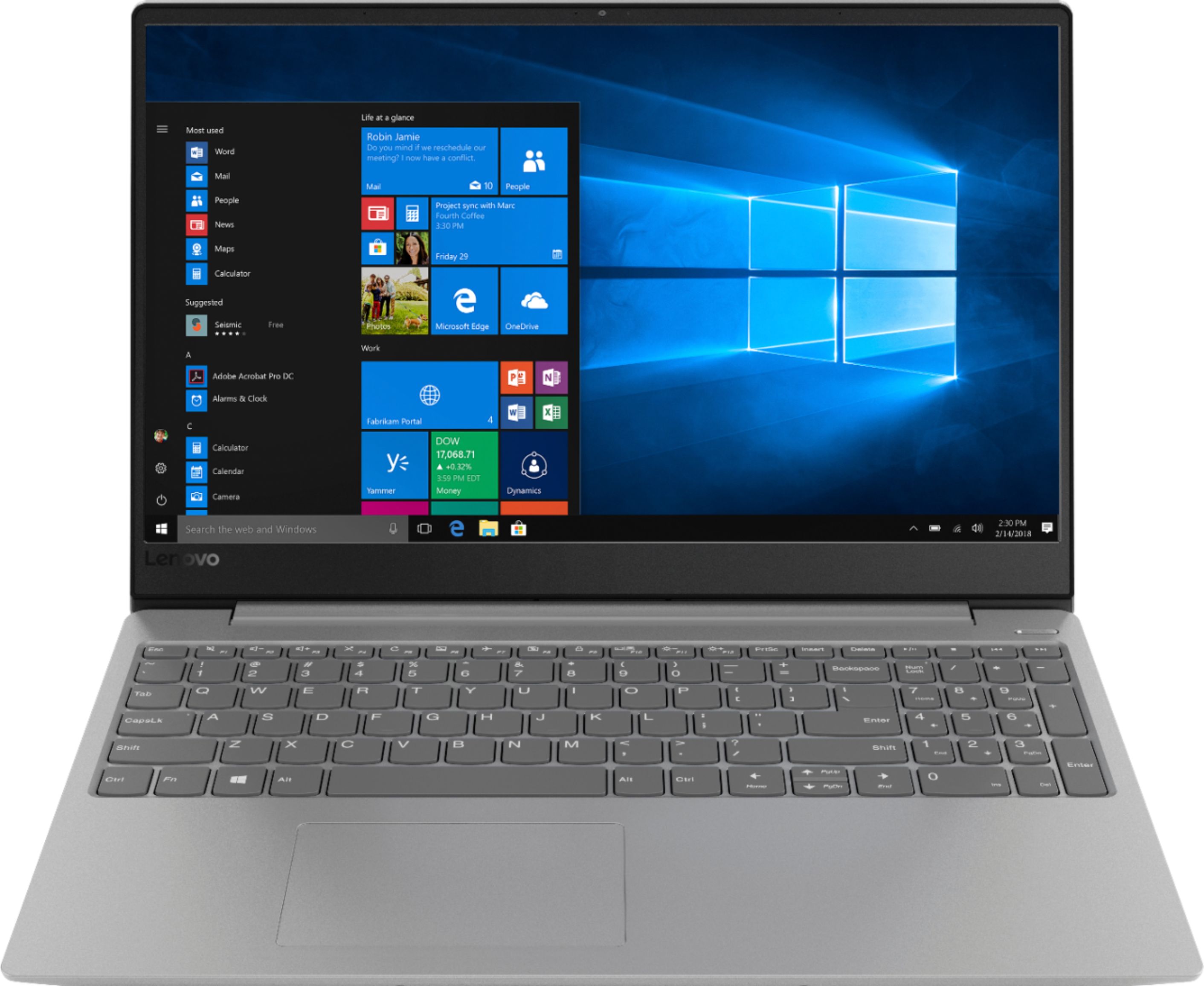
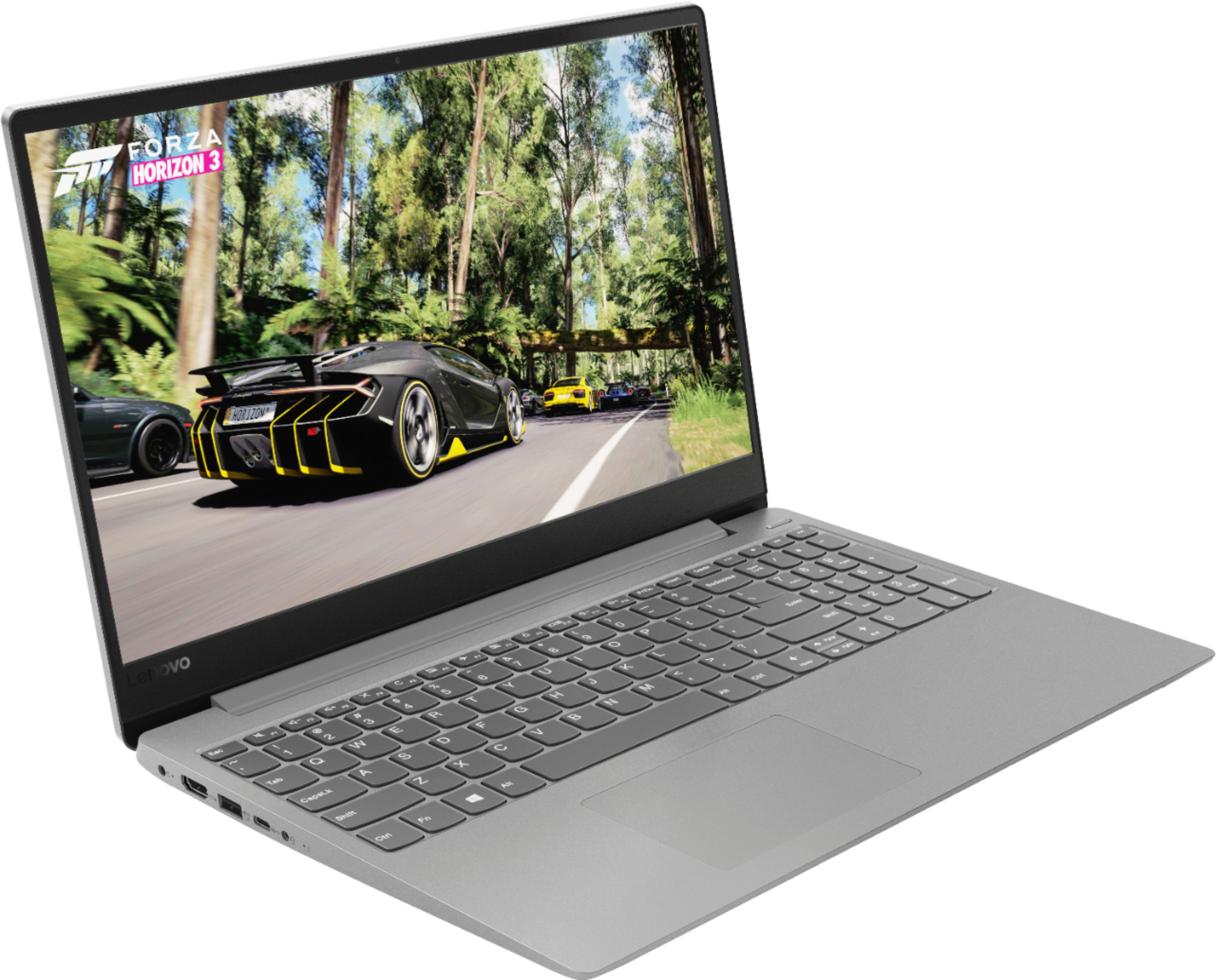
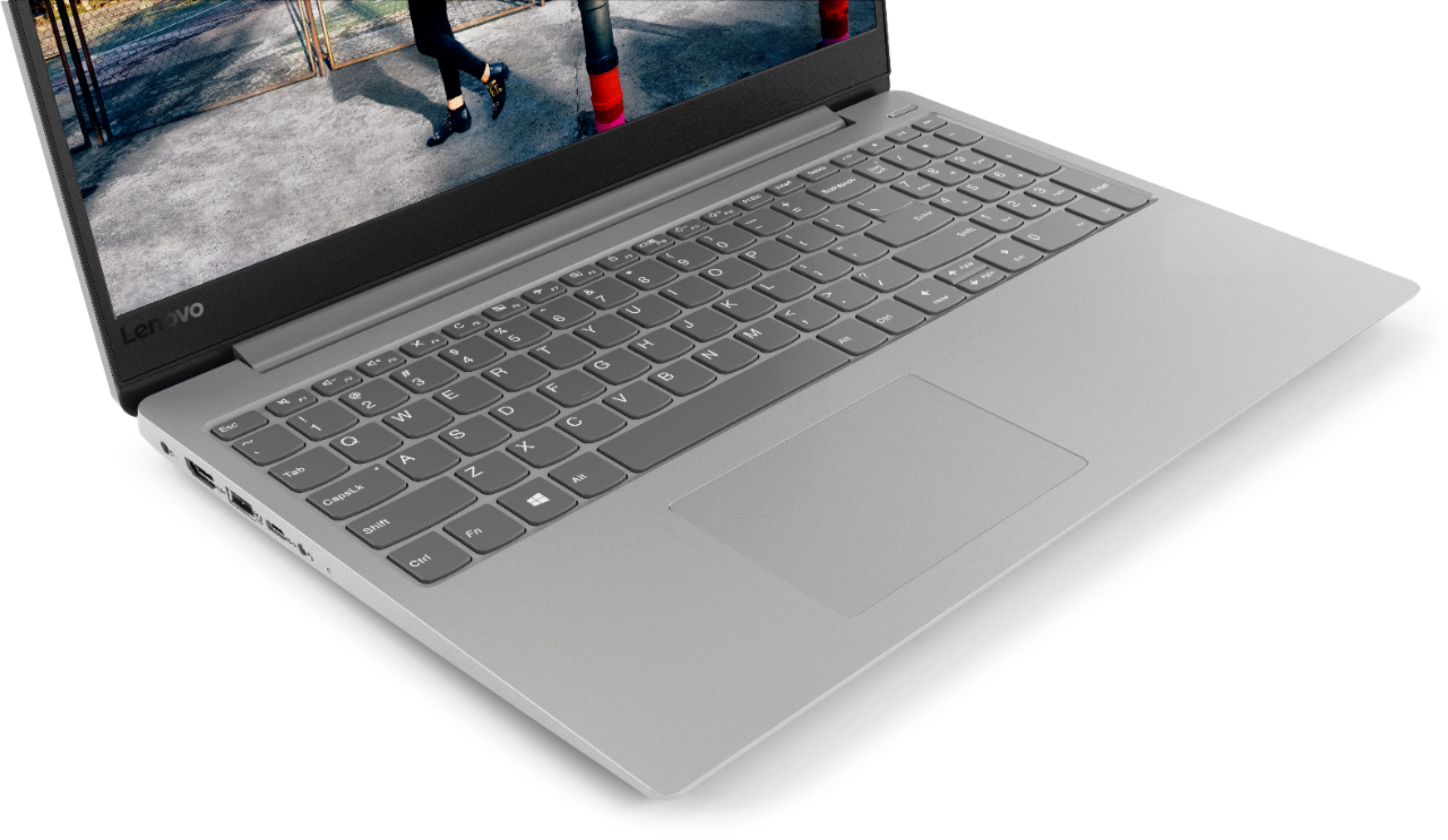
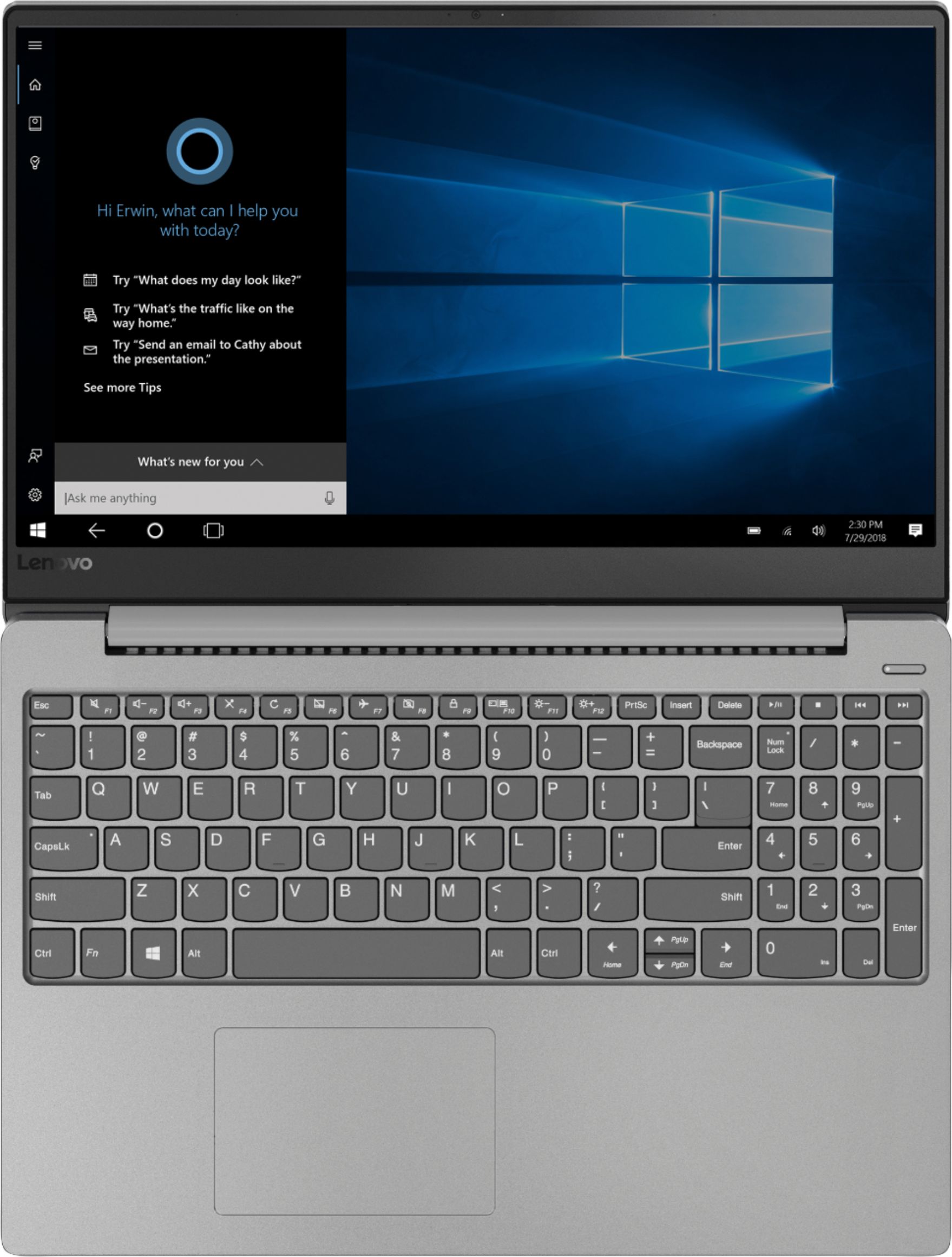
Posted .The Lenovo IdeaPad 330s-15, model number 81F500NSUS, ships with a powerful Quad-Core/Eight-Thread Intel Core i5-8250U processor, 8GB of DDR4-2400MHz RAM. This configuration has a 15.6" (measured diagonally) 1920 x 1080 (FHD) resolution screen, with a brightness level of 250 nits. The Lenovo IdeaPad 330s-15 ships with a 1TB standard hard drive, supported by 16GB of Intel Optane Memory. This configuration can handle many of today's most demanding programs and is good with multi-tasking. If this describes the kind of computing you do, the Lenovo IdeaPad 330s-15 will be a great choice for you. For 2018, Lenovo retained its place for a second year as the best laptop vendor:
https://www.laptopmag.com/articles/laptop-brand-ratings
SO disappointed!
||Posted . Owned for 6 months when reviewed.This reviewer received promo considerations or sweepstakes entry for writing a review.After years of buying HP, I decided to try something different. After a lot of research, I bought this laptop in November 2018. Loved it!! May 2019 it crashed during a Windows Update. Best Buy (was wonderful!) and sent it in for repairs which included a new hard drive. After two weeks, I received the laptop back and after another 1.5 weeks of troubleshooting, updates won't install, documents lock up, Intel Optane Memory error, etc. I've been chatting with Lenovo for 2 days and they helped with numerous updates and finally decided to it is a hardware failure. Now I have to send it in to Lenovo and it will be another 2 weeks. I run a small business and cannot afford NOT to have my laptop for almost 2 months! The laptop is great - WHEN it works! I'll be going back to HP.
No, I would not recommend this to a friendBrand response from Lenovo Product Expert
Posted .We are sorry to hear that you are having issues with Windows 10 updates on your Lenovo IdeaPad 330s-15 laptop. This configuration ships with 16GB of Intel Optane Memory supporting the hard drive. To restore system, Optane must be disabled first in the BIOS
o Power down system, power back on and press F2 to enter BIOS setup
o BIOS setup > Configuration > Storage > Intel® Rapid Storage technology > Intel Optane, 931.5GB > Disable > Are you sure you want to disable > Yes > Disable
o Wait for 3 minutes
o The Disable process should be finished and there will be (2) non-RAID physical disks
o Press F10 to Save and Exit
- The system should now be able to be Restored
- After restoring, you will need to open the Optane UI from the task bar and choose Setup > Enable > Select “Erase all data on Intel “Optane” memory module > Continue > Restart. Now you can restore the Windows 10 operating system to factory original settings by following the instructions at this link: https://www.laptopmag.com/articles/reset-windows-10-pc. Be sure to re-enable the Optane Memory after you restore the system, then restart the device, as listed above. If you continue to have an issue, we recommend you call Lenovo Tech Support at: 877-453-6686.
Nice basic laptop
||Posted .This reviewer received promo considerations or sweepstakes entry for writing a review.Needed basic laptop to use daily for basic needs, works fine.
I would recommend this to a friendBrand response from Lenovo Product Expert
Posted .The Lenovo IdeaPad 330s-15 ships with a powerful Quad-Core/Eight-Thread Intel Core i5-8250U processor, 8GB of DDR4-2400MHz RAM. This configuration has a 15.6" (measured diagonally) 1920 x 1080 (FHD) resolution screen, with a brightness level of 250 nits. The Lenovo IdeaPad 330s-15 ships with a 1TB standard hard drive, supported by 16GB of Intel Optane Memory. This configuration can handle many of today's most demanding programs and is good with multi-tasking. If this describes the kind of computing you do, the Lenovo IdeaPad 330s-15 will be a great choice for you. For 2018, Lenovo retained its place for a second year as the best laptop vendor:
https://www.laptopmag.com/articles/laptop-brand-ratings
Basic
||Posted .This reviewer received promo considerations or sweepstakes entry for writing a review.I just buy this for a printer , but all the time is updating
No, I would not recommend this to a friendBrand response from Lenovo Product Expert
Posted .The Windows 10 operating system on the Lenovo IdeaPad 330s-15 laptop will keep the version of Windows 10 up to date automatically. If you use the computer infrequently, when you do turn the computer on, Windows 10 will update. To shorten the amount of time the update take, turn the computer on regularly when you don't need to use it and let the device update. This will insure that the computer is up to date when you need it.
- Cons mentioned:Freezing
Problems Problems
||Posted . Owned for 6 months when reviewed.This reviewer received promo considerations or sweepstakes entry for writing a review.From day one I purchased this device and was not able to return it or was was not given a replacement because it was and is still inoperable. Keys stop working! Slow processing! Freezing! Lost Productivity.
No, I would not recommend this to a friendBrand response from Lenovo Product Expert
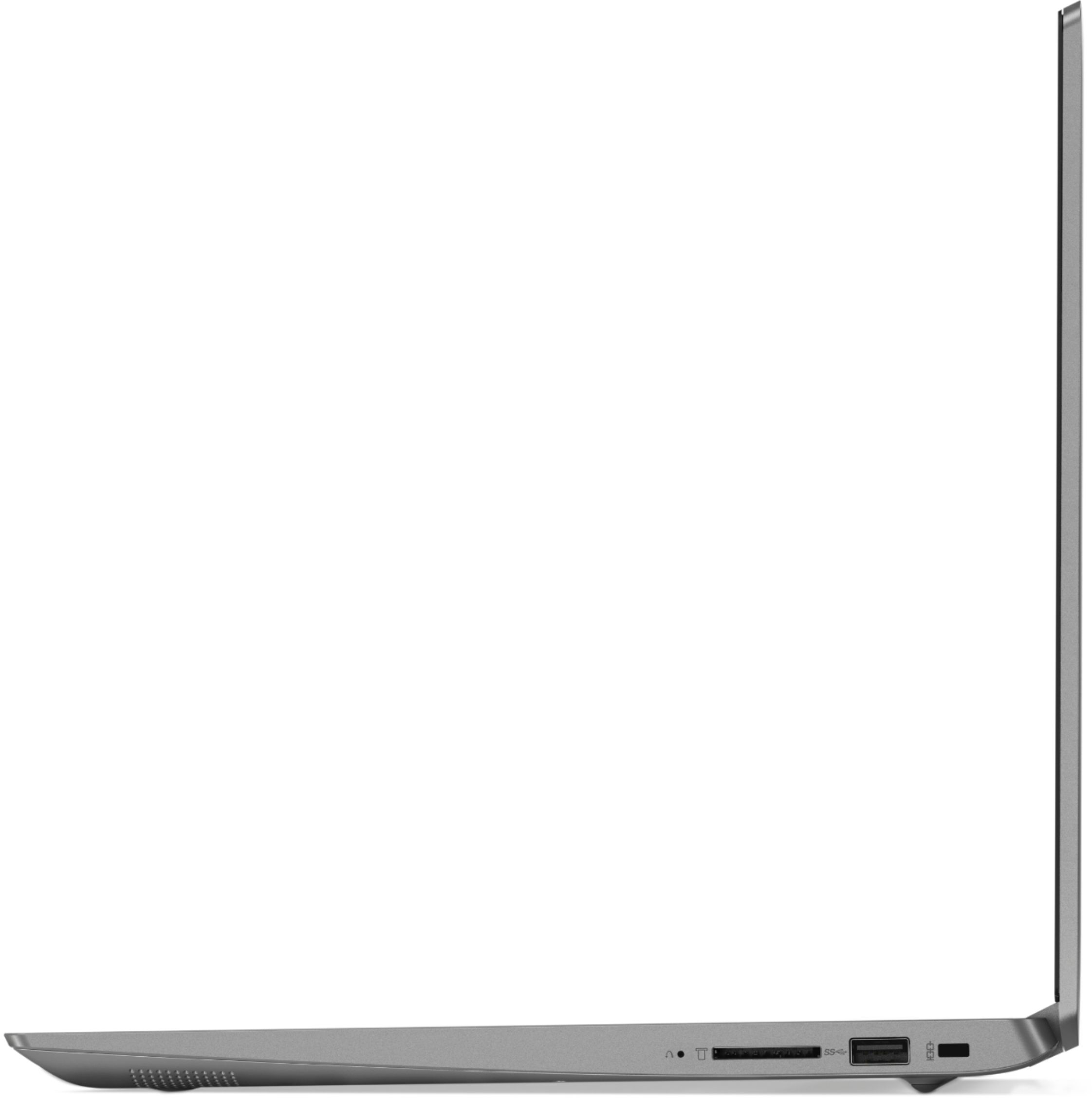
Posted .We are sorry to hear you are having issues with your Lenovo IdeaPad 330s-15 laptop. From the description you provide, it sound like there is incompatible software installed on the computer. Be sure any software you installed is compatible with Windows 10. There is no need to install Microsoft Office software. The software is already part of the operating system, you just need to activate the software with a purchased product key. If you have installed a copy of Microsoft Office, this is conflicting with the existing copy on the system and this will slow your system down. If you have installed a 3rd party anti-virus program, be sure that Windows Defender is turned off and that the trial version of McAfee Anti-Virus software is uninstalled. There can only be one anti-virus program on the system. You may need to restore your system to original factory default settings if any of the programing errors have occurred. If you can not boot the computer, this system is equipped with OneKey Recovery System. There is a very small pin hole on the right side of the device, right near the SD card slot on the device. You will need a pin to push this reset button. Plug the device in. Let the battery charge for about 15 minutes. Push the reset button. The system should boot to a choice screen where you can choose "Restore To Factory Default". Select this. It will delete everything from the hard drive except the original factory install of the operating system. You will need to reinstall all programs and files after the reset. If you don't have copies of the files, try to make one before you restore by selecting "Boot to desktop" and trying to back up your files. If the problem persists after the factory reset, we recommend you contact Lenovo Tech Support at: 877-453-6686.