Customer Ratings & Reviews
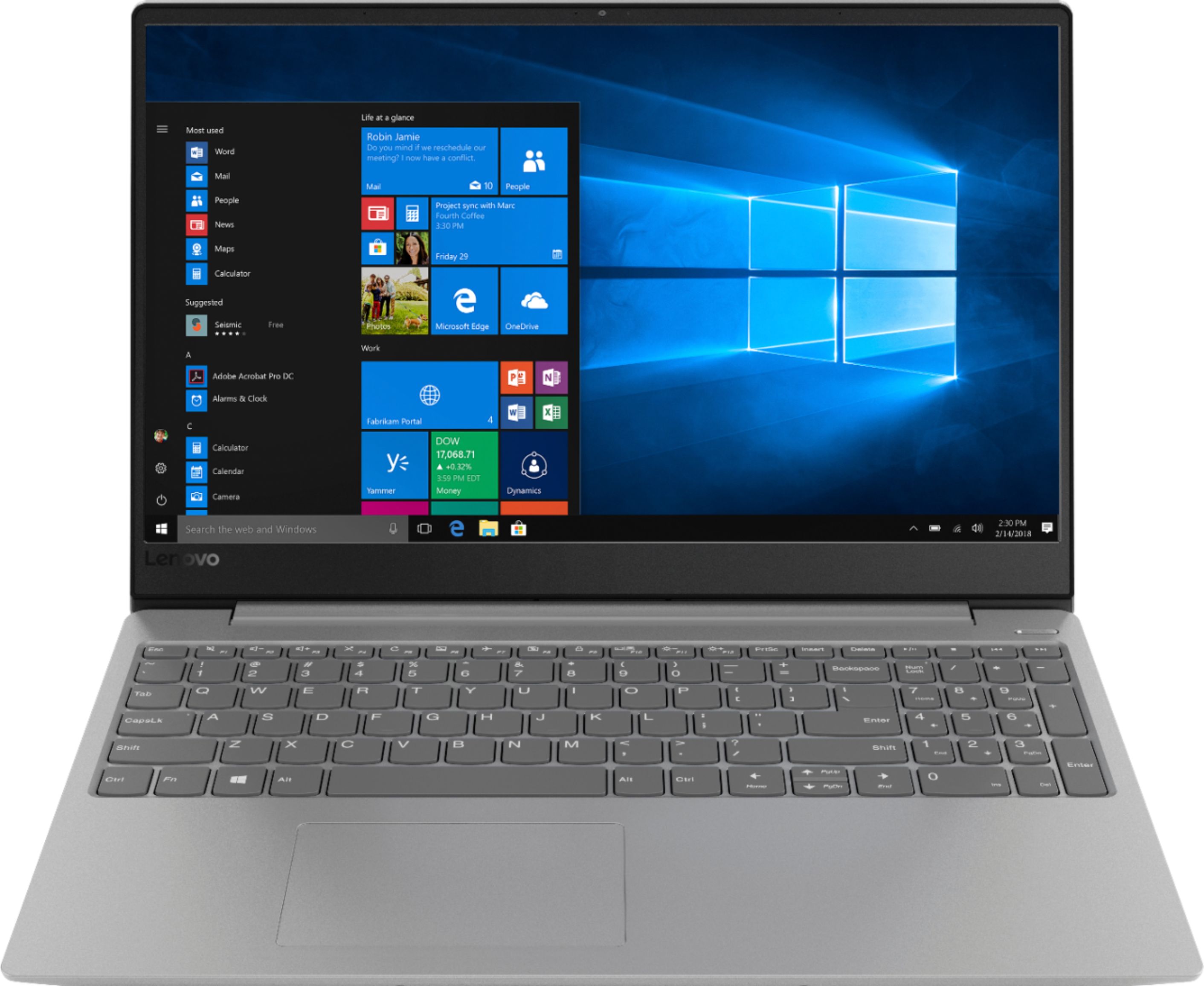
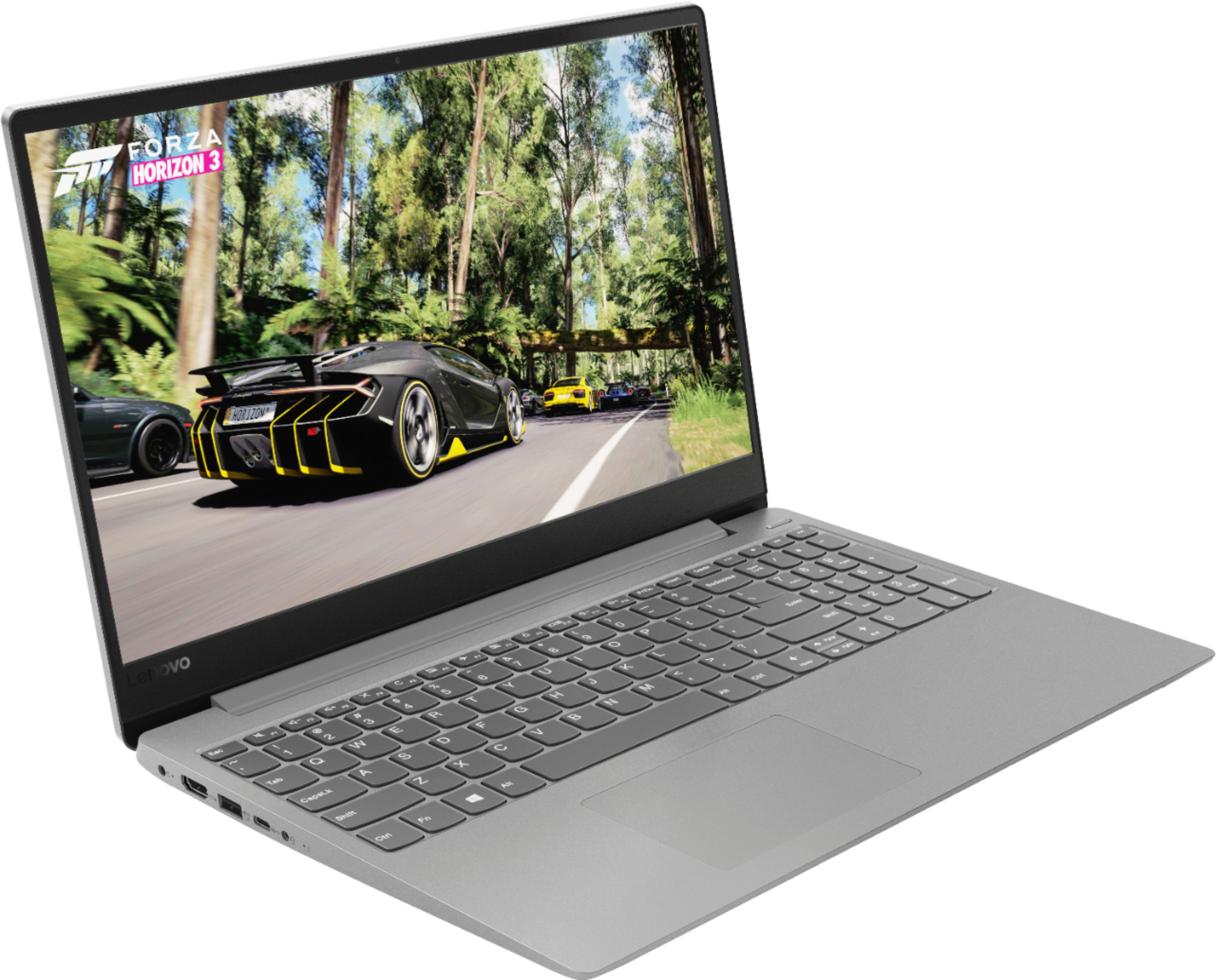
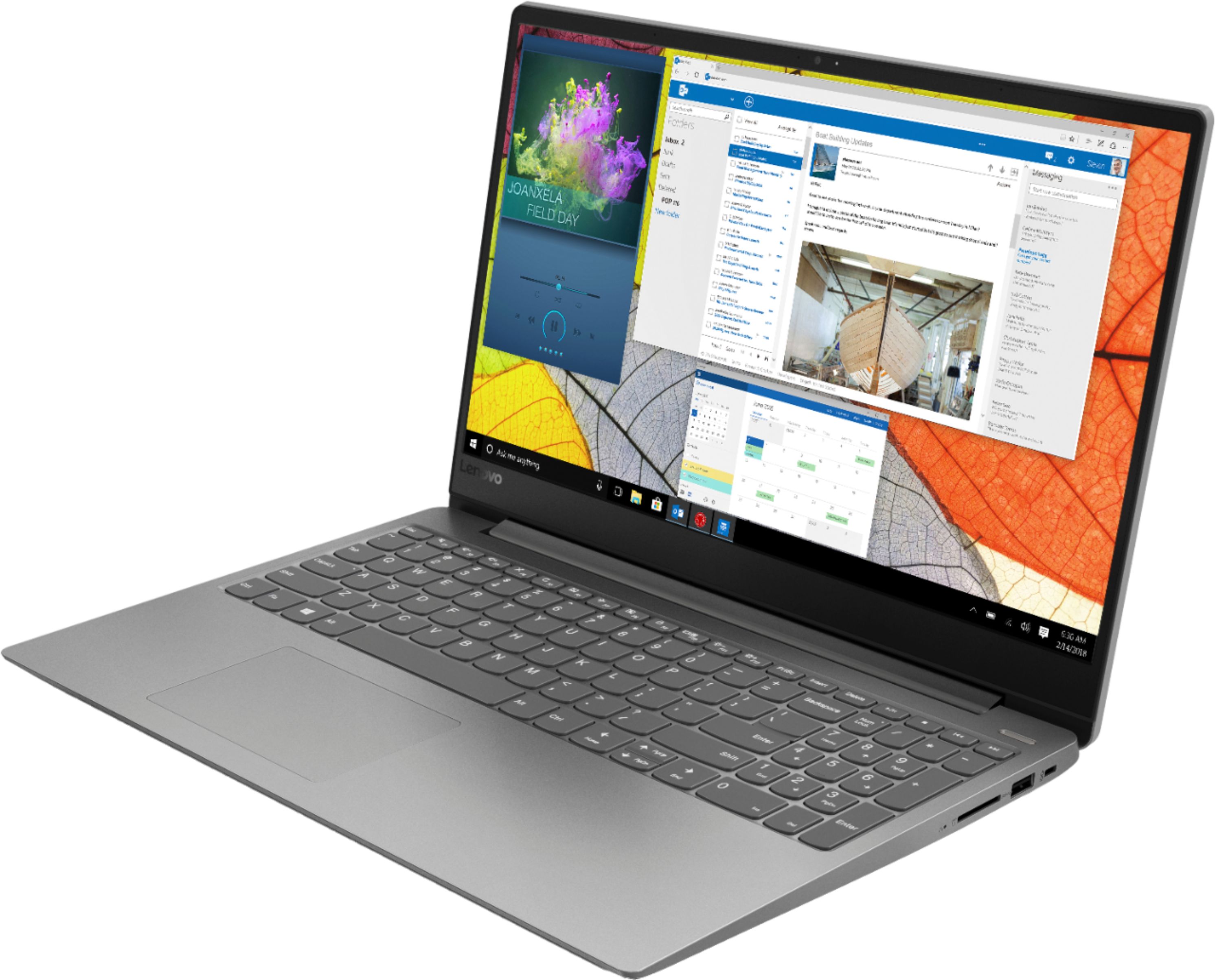
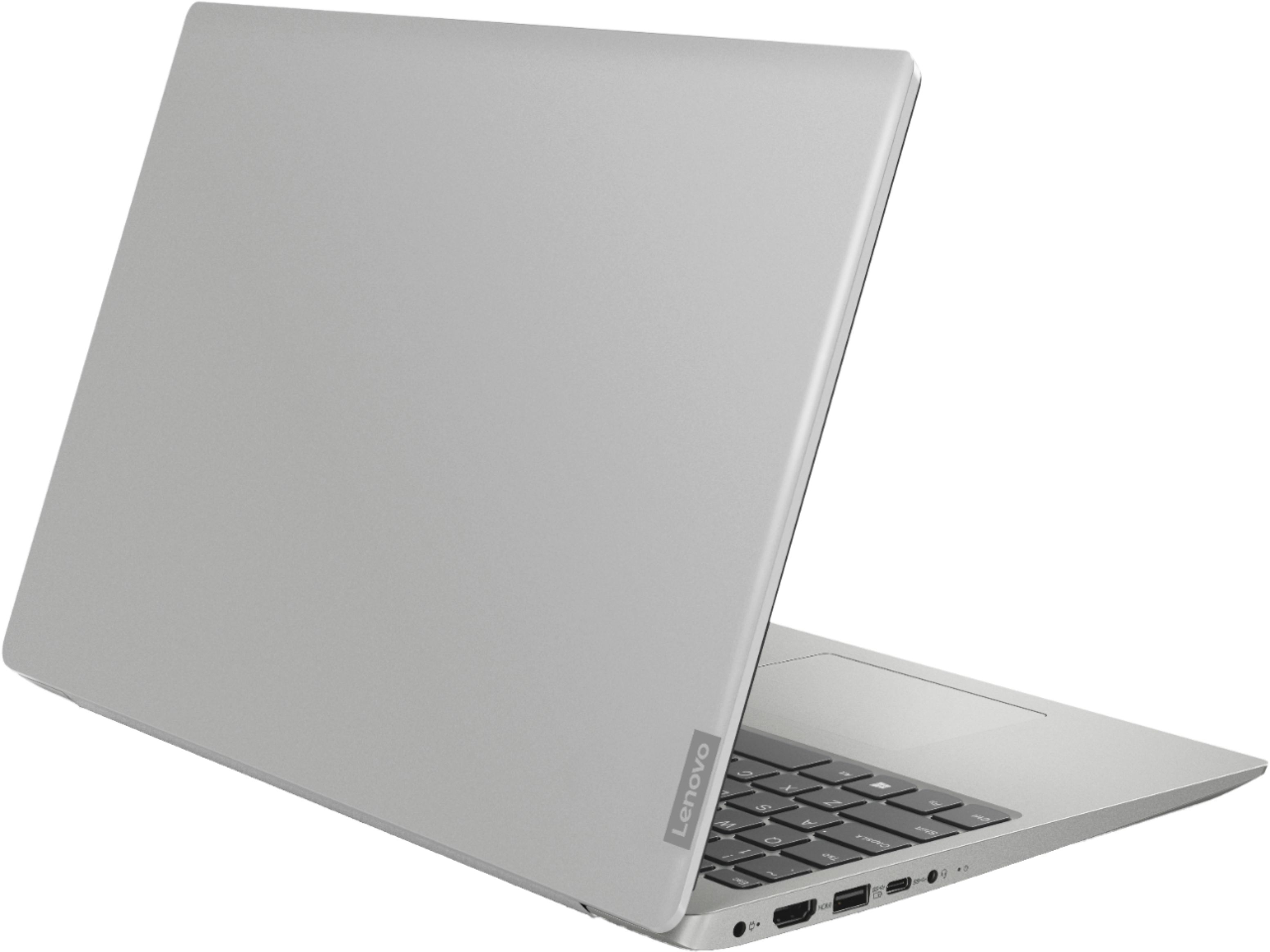
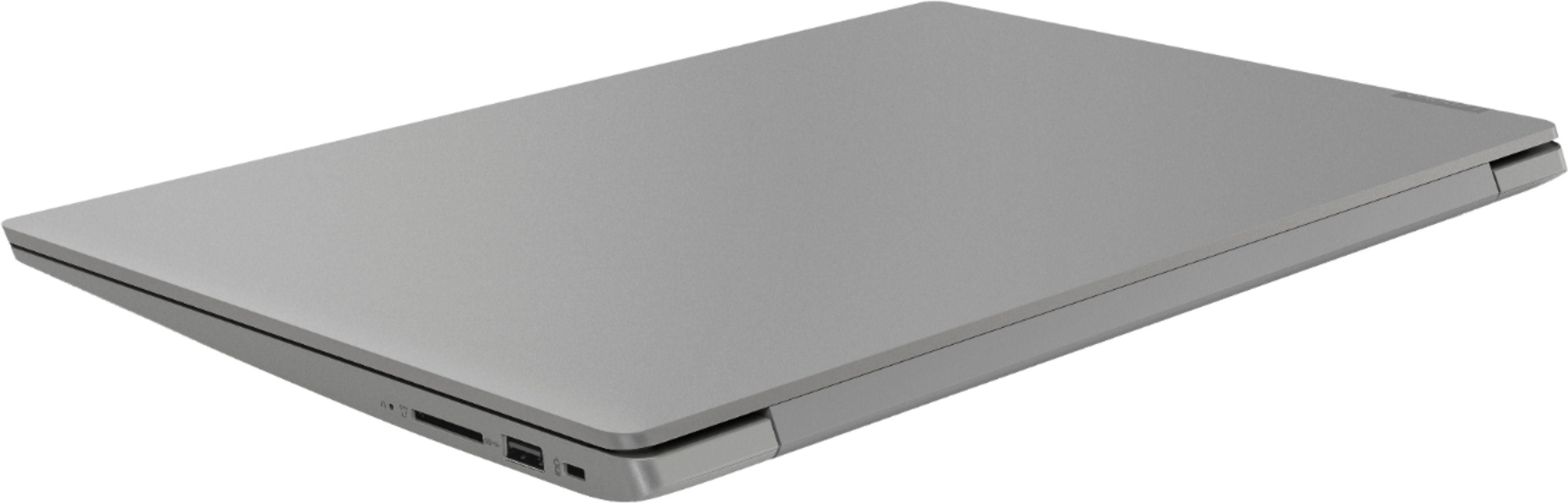
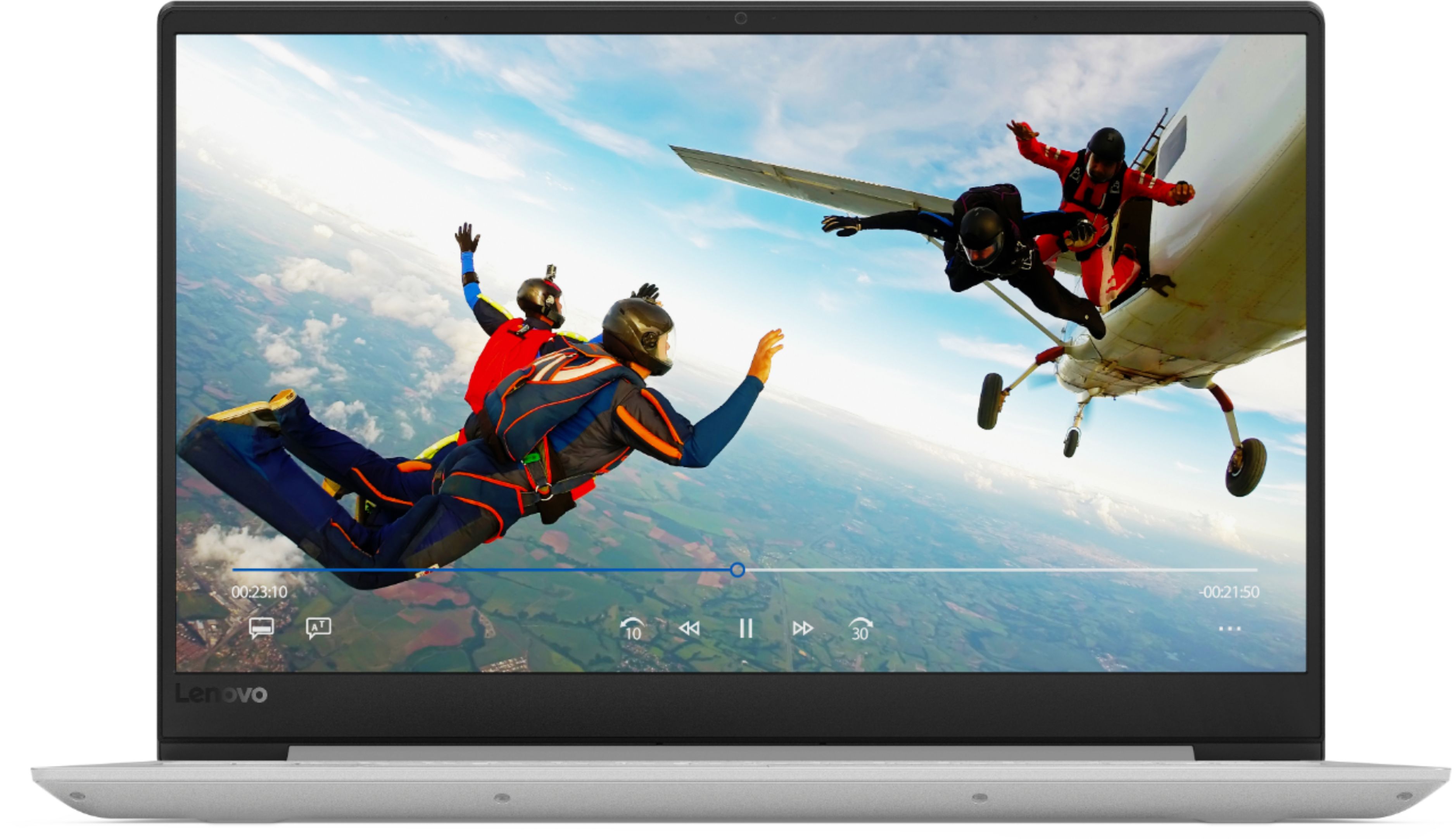
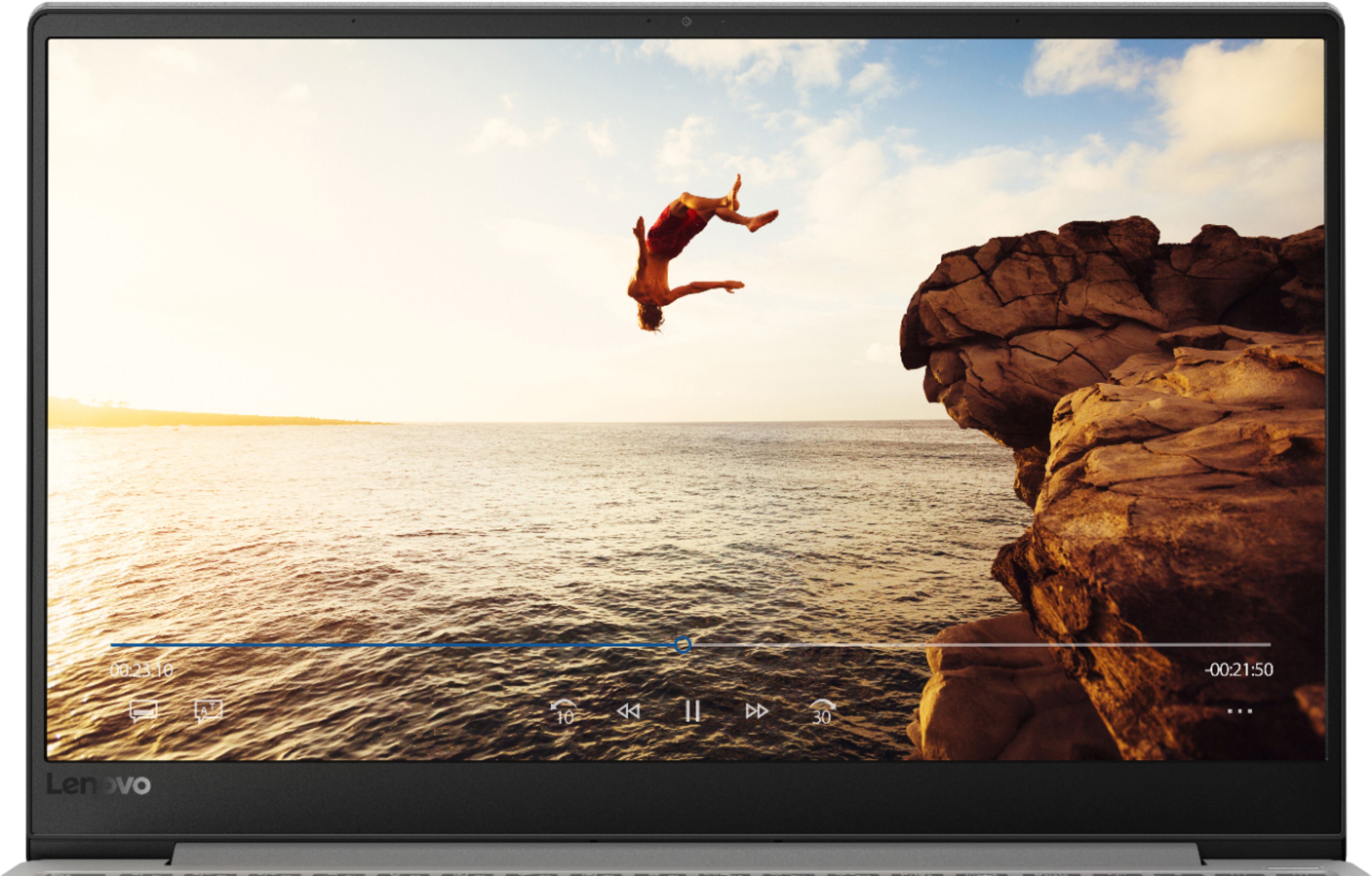
- Model:
- 81F500NSUS
- SKU:
- 6291881
Rating by feature
- Battery Life
Rating 4.5 out of 5 stars
- Speed
Rating 4.5 out of 5 stars
- Display
Rating 4.6 out of 5 stars
Customers are saying
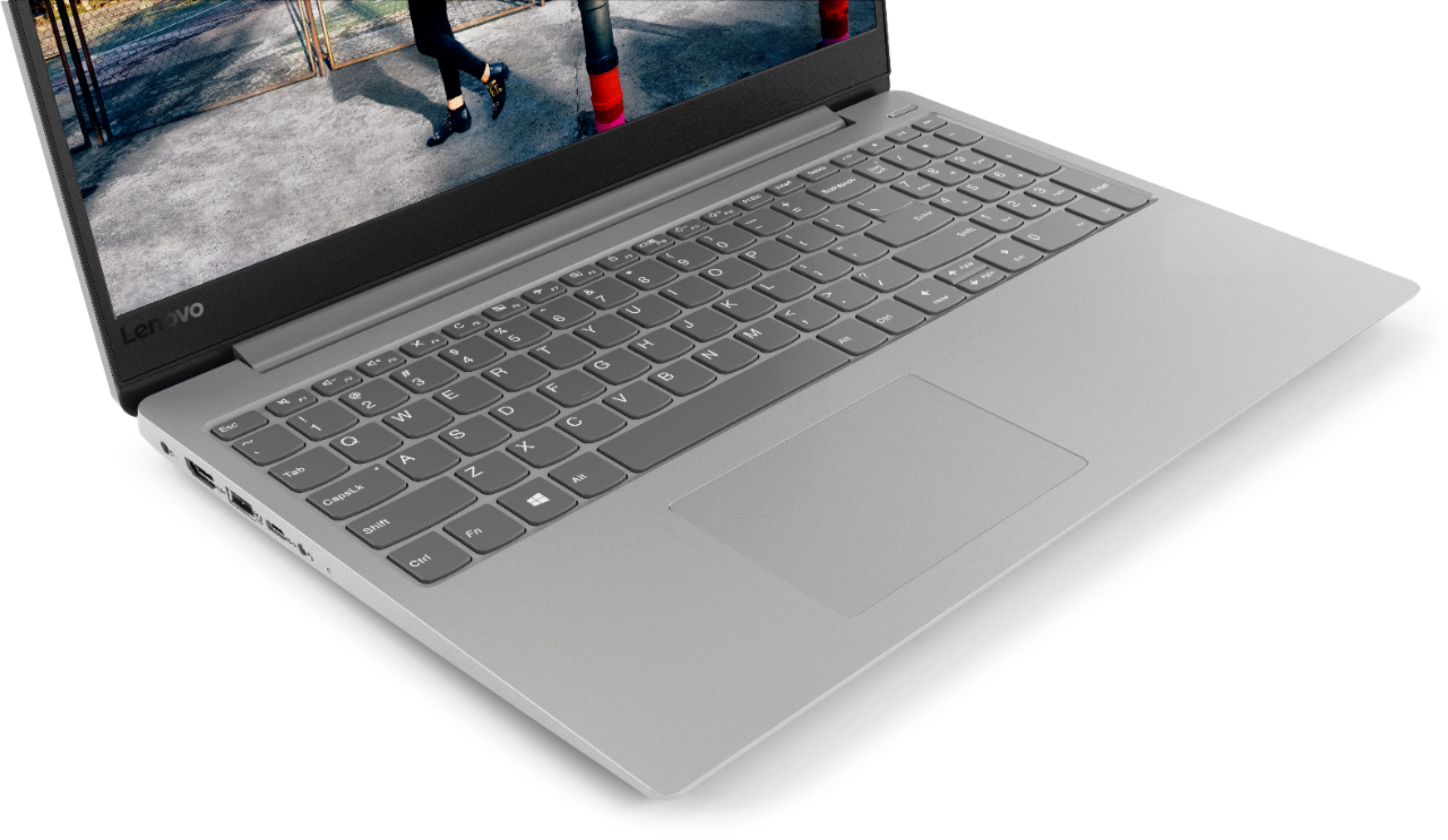
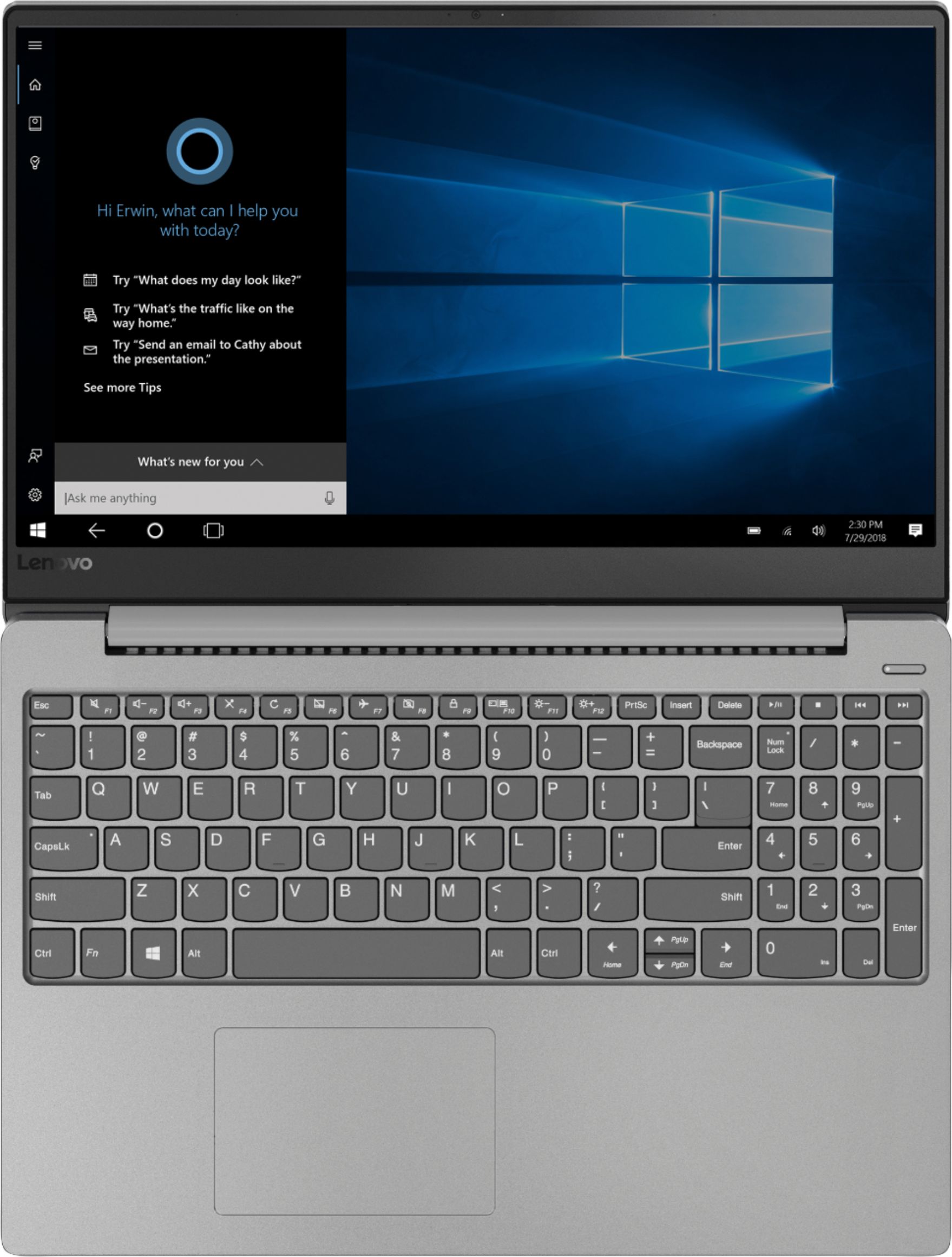
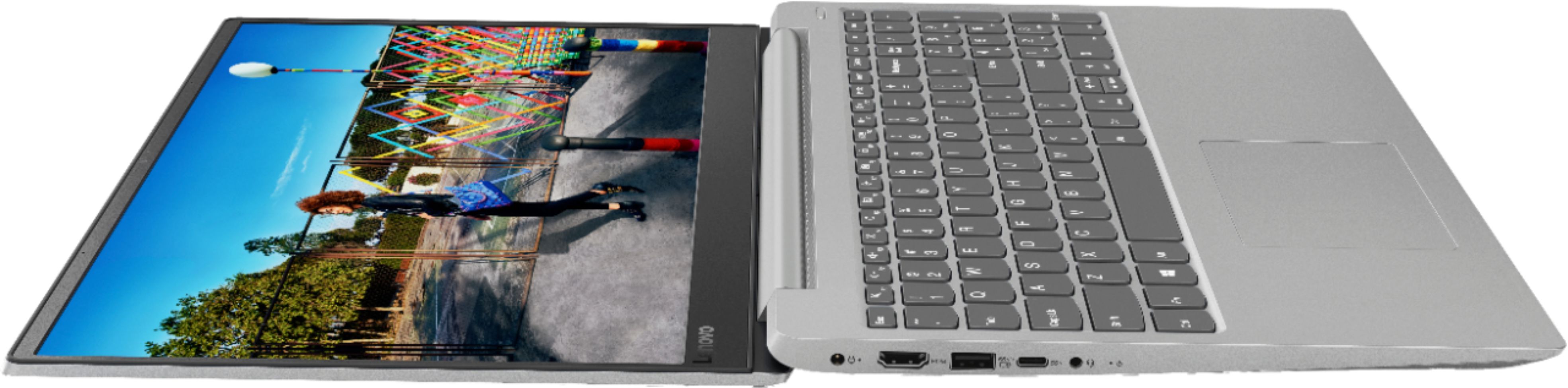
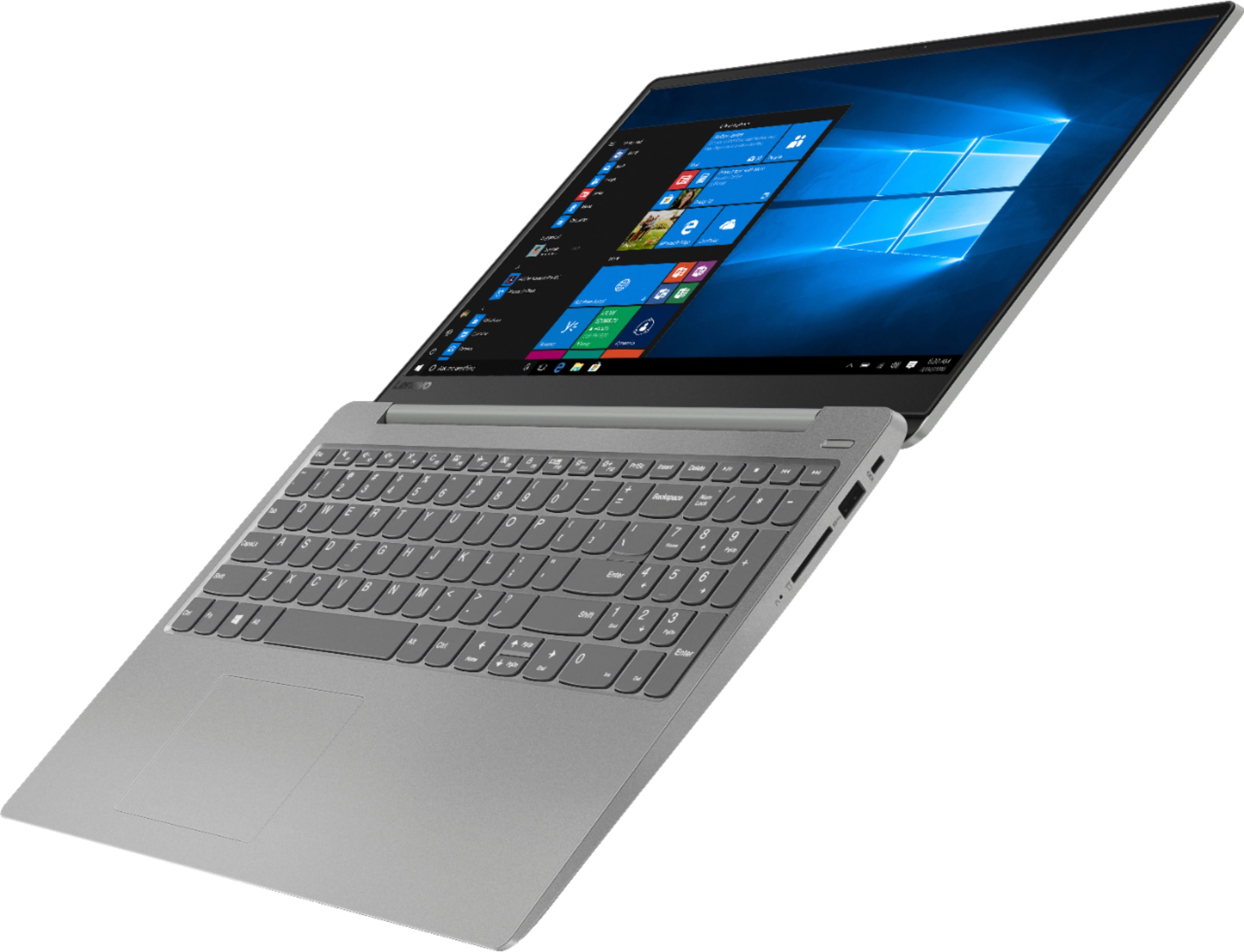
Customers find value in the IdeaPad 330S laptop's fast performance, affordable price, and lightweight design. Many users appreciate its large storage capacity and excellent performance for the price. However, some users have concerns about its short battery life and noisy fan.
This summary was generated by AI based on customer reviews.
I like lenovo
Posted .This reviewer received promo considerations or sweepstakes entry for writing a review.Bought this laptop to my wife she is still using it and still work like new We even got free windows 11 upgrade
I would recommend this to a friend- Cons mentioned:Battery life
Horrible battery life
Posted .This reviewer received promo considerations or sweepstakes entry for writing a review.Hi I bought this laptop a couples a month ago for my YouTube channel and it a pretty good laptop if you don’t use it a lot. If I’m being honestly the battery life sucks. If your trying to download something or just trying to be on it for hourly your best bet is to sit my a wall outlet so you can charge it cause if you don’t its going to drain super fast.
No, I would not recommend this to a friendBrand response from Lenovo Product Expert
Posted .The Lenovo IdeaPad 330s-15 laptop, model number 81F500NSUS ships with a 2CELL 30WH, Lithium Polymer Battery, with a battery life of up to 7 hours, depending on the work the device is performing. If you are getting lower battery life, be sure any software you installed is compatible with Windows 10. Incompatible software will cause your battery to drain quicker. There is no need to install Microsoft Office software. The software is already part of the operating system, you just need to activate the software with a purchased product key. If you have installed a copy of Microsoft Office, this is conflicting with the existing copy on the system and this will slow your system down. If you have installed a 3rd party anti-virus program, be sure that Windows Defender is turned off and that the trial version of McAfee Anti-Virus software is uninstalled. There can only be one anti-virus program on the system. You may need to restore your system to original factory default settings if any of the programing errors have occurred. You can do that by typing "restore" in the Cortana search window. Just click on the magnifying glass icon at the bottom left of your Windows 10 Desktop. Click on "Reset This PC" Then click on "Get Started" and follow the on screen directions to restore to factory defaults. If there is no incompatible software installed, to maximize battery life, first adjust your battery saver settings. Here is a link to instruction for doing this in Windows 10: https://www.digitalcitizen.life/how-use-configure-battery-saver-windows-10. Next, to maximize battery life, be sure there are no unwanted programs running in the background, draining the battery. Here is a link to some tips for finding out what is draining your battery:
https://www.laptopmag.com/articles/battery-saver-windows-10. Also, to maximize battery life, try changing your power management setting to a more conservative one. You can do this in the control panel, in the power management category on your system. Select a more conservative power management setting to extend battery life. Finally, if the battery life does not improve, a battery reset may help. Here is a link to instructions for reconditioning a non-removable battery, using the Battery Management Software installed on the computer. If you need further assistance, we recommend you call Lenovo Tech Support at: 877-453-6686. Here is the link: https://windowsreport.com/laptop-battery-not-charging-windows-10/
25
Posted .This reviewer received promo considerations or sweepstakes entry for writing a review.The computers I bought are very good. There are many brands in your company's products. It's worth buying one by one.
I would recommend this to a friendBrand response from Lenovo Product Expert
Posted .The Lenovo IdeaPad 330s-15 ships with a powerful Quad-Core/Eight-Thread Intel Core i5-8250U processor, 8GB of DDR4-2400MHz RAM. This configuration has a 15.6" (measured diagonally) 1920 x 1080 (FHD) resolution screen, with a brightness level of 250 nits. The Lenovo IdeaPad 330s-15 ships with a 1TB standard hard drive, supported by 16GB of Intel Optane Memory. This configuration can handle many of today's most demanding programs and is good with multi-tasking. If this describes the kind of computing you do, the Lenovo IdeaPad 330s-15 will be a great choice for you.
- Cons mentioned:Battery life
One of the worst laptops I've ever used
Posted .This reviewer received promo considerations or sweepstakes entry for writing a review.Terrible battery life. Lucky to get a few hours out of it at the very most. Terrible wi-fi connectivity. Much slower than any of my other devices. Terrible compatibility. Purchased this to use in conjunction with an Elgato streaming box and it makes the microphone and video quality absolutely terrible, even though this laptop supposedly meets the minimum requirements to work with an Elgato. Would not recommend this laptop to anyone, especially for the price they are charging for it. Not even close to being worth it.
No, I would not recommend this to a friendBrand response from Lenovo Product Expert
Posted .The Lenovo IdeaPad 330s-15 laptop ships with a 2CELL 30WH, Lithium Polymer battery, with a battery life of up to 7 hours, depending on the work that the device is performing. The IdeaPad 330s-15 ships with the latest 5G 802.11AC frequency WiFi - The fastest currently available. We always recommend you check the requirements and compatibility of any hardware/software you will need to use on your new computer, before you invest. Be sure your new computer will do the work you want to do, before you invest in any new computer. Check to be sure you have the latest version of Windows 10 and the supporting BIOS and driver files on the computer. You can easily do this by scanning the computer with the Lenovo Utility software installed on the device. This system has Lenovo utilities installed to help maintain the health of the device and keep the operating system software up to date. Type "Lenovo Vantage" in the Cortana Search window (if Lenovo Vantage is not installed on your device, you can download the APP and install it now). Select Lenovo Vantage from the list. In the window that opens, click on "Health and Support". In the expanded menu, select "Hardware Scan" In the window that opens, select "Run Quick Tests". This will scan your entire system for errors. Follow any directions that may pop up. If the problem continues after this scan, now click on "System Update". First select Windows update from the menu. Scan your system to be sure you have the latest version of Windows 10. Once that scan is complete, select "Additional Updates". This will scan your device to be sure there are no new BIOS/Driver updates needed. Follow any instructions that may pop up. If the issue still continues after these updates, we recommend you call Lenovo Tech Support at: 877-453-6686 for additional help. For 2018, Lenovo retained its place for a second year as the best laptop vendor:
https://www.laptopmag.com/articles/laptop-brand-ratings
Great computer
Posted .This reviewer received promo considerations or sweepstakes entry for writing a review.Been using this thing for a week and its been great with doing everyday stuff!
I would recommend this to a friendBrand response from Lenovo Product Expert
Posted .Thank you for choosing the Lenovo IdeaPad 330s-15 laptop. We are pleased to hear that the IdeaPad 330s-15 meets your computing needs so well. The Lenovo IdeaPad 330s-15 ships with a powerful Quad-Core/Eight-Thread Intel Core i5-8250U processor, 8GB of DDR4-2400MHz RAM. This configuration has a 15.6" (measured diagonally) 1920 x 1080 (FHD) resolution screen, with a brightness level of 250 nits. The Lenovo IdeaPad 330s-15 ships with a 1TB standard hard drive, supported by 16GB of Intel Optane Memory. This configuration can handle many of today's most demanding programs and is good with multi-tasking. If this describes the kind of computing you do, the Lenovo IdeaPad 330s-15 will be a great choice for you.
Great Laptop
Posted .This reviewer received promo considerations or sweepstakes entry for writing a review.Excellent product for $550. Has great specs, design, and display.
I would recommend this to a friendBrand response from Lenovo Product Expert
Posted .Thank you for choosing the Lenovo IdeaPad 330s-15 laptop. We are pleased to hear that the value, features and performance of the Ideapad 330s-15 meets your computing needs so well.
- Cons mentioned:Freezing
Warranty was not too good.
Posted .This reviewer received promo considerations or sweepstakes entry for writing a review.We were told a 6 month warranty was included in this computer but it was not applied when we purchased the item so this was a bad buy also not happy with it, the pc froze on us within a one month period now we have to pay to get it fixed.
No, I would not recommend this to a friendBrand response from Lenovo Product Expert
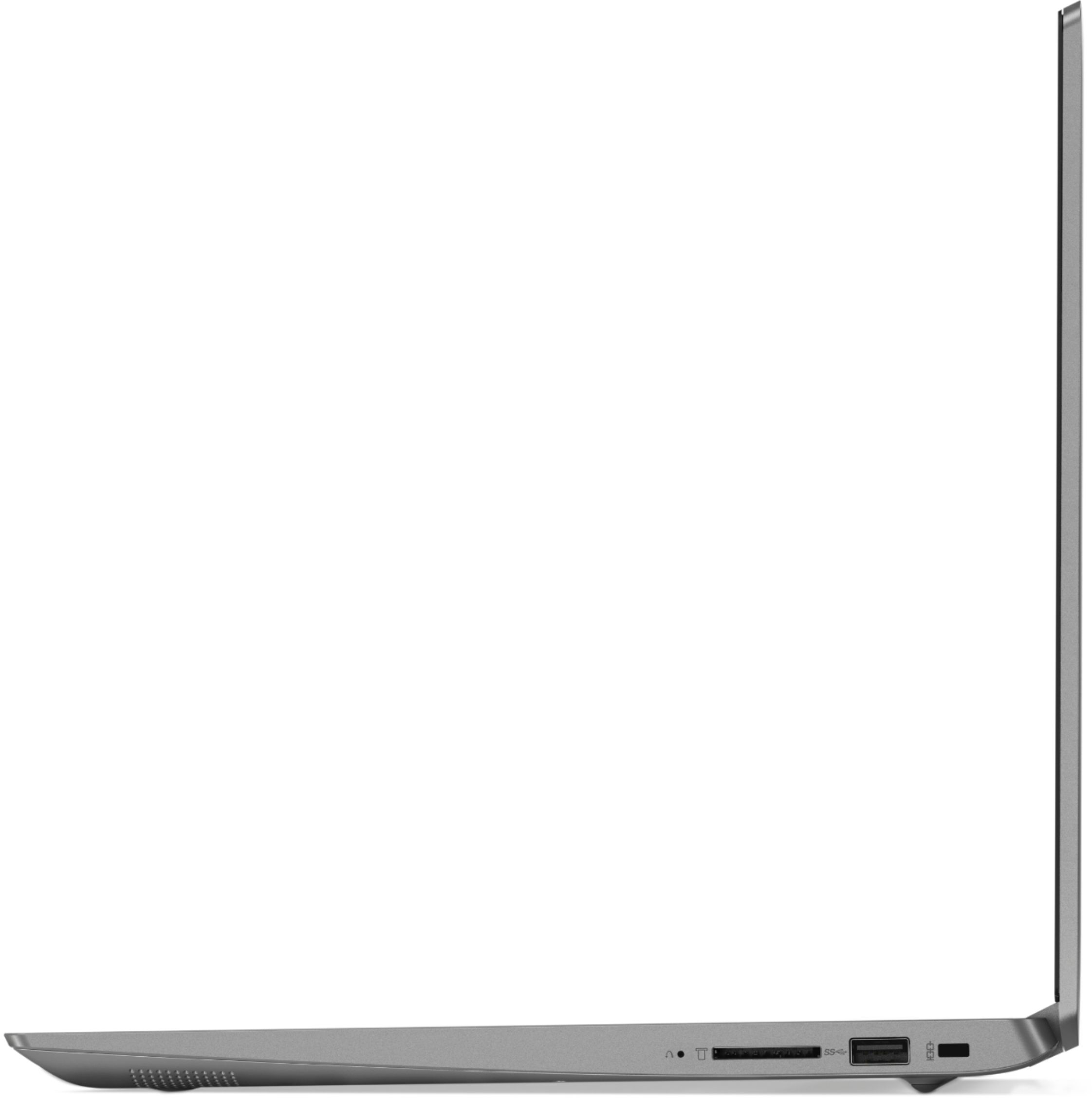
Posted .The Lenovo IdeaPad 330s-15 laptop ships with a 1-year limited manufacturer's warranty, that covers OEM issues. We are sorry to hear that you are having issues with your IdeaPad 330s-15 laptop. This system is equipped with OneKey Recovery System. There is a very small pin hole on the right side of the device, right near the SD card slot on the device. You will need a pin to push this reset button. Plug the device in. Let the battery charge for about 15 minutes. Push the reset button. The system should boot to a choice screen where you can choose "Restore To Factory Default". Select this. It will delete everything from the hard drive except the original factory install of the operating system. You will need to reinstall all programs and files after the reset. If you don't have copies of the files, try to make one before you restore by selecting "Boot to desktop" and trying to back up your files. If the problem persists after the factory reset, we recommend you contact Lenovo Tech Support at: 877-453-6686.
- Cons mentioned:Screen
Not worth the money
Posted .This reviewer received promo considerations or sweepstakes entry for writing a review.Screen stopped working, some reason the protection plan i swear i bought isnt in my account. It was a gift to my daughter, expensive gift to last only 3 years.
No, I would not recommend this to a friend Battery, sound, operation TERRIBLE
Posted .This reviewer received promo considerations or sweepstakes entry for writing a review.Returning tomorrow for refund! Got it all set up, and went to watch movie this evening and the speakers are crackling-like I'm listening to an AM radio with a weak signal! I get no more than hour from a 100% charged battery!! And there's a lot of lag between commands! Just terrible for the money! One star only because it made me select at least that!
No, I would not recommend this to a friendBrand response from Lenovo Product Expert
Posted .The Lenovo IdeaPad 330s-15 ships with stereo 2W speakers and Dolby Audio Premium sound enhancement software. For the best audio experience, using the built in speakers, be sure Dolby Audio Premium is turned on and adjusted to your personal preferences. Concerning lag, be sure any software you installed is compatible with Windows 10. There is no need to install Microsoft Office software. The software is already part of the operating system, you just need to activate the software with a purchased product key. If you have installed a copy of Microsoft Office, this is conflicting with the existing copy on the system and this will slow your system down. If you have installed a 3rd party anti-virus program, be sure that Windows Defender is turned off and that the trial version of McAfee Anti-Virus software is uninstalled. There can only be one anti-virus program on the system. You may need to restore your system to original factory default settings if any of the programing errors have occurred. You can do that by typing "restore" in the Cortana search window. Just click on the magnifying glass icon at the bottom left of your Windows 10 Desktop. Click on "Reset This PC" Then click on "Get Started" and follow the on screen directions to restore to factory defaults. If the problem persists, we recommend you contact Lenovo Tech Support at: 877-453-6686.
did not connect to wifi
Posted .This reviewer received promo considerations or sweepstakes entry for writing a review.I liked the configuration and price. However, after the purchase, could not connect to my home wifi. I tried to troubleshooting with lenovo technical customer support. But no luck. I returned the piece.
No, I would not recommend this to a friendBrand response from Lenovo Product Expert
Posted .The Lenovo IdeaPad 330s-15 ships with the latest 5G 802.11AC frequency WiFi. Be sure your router has the latest firmware updates from the router manufacturer's web site. You can keep the BIOS and drivers up to date on the computer by using the Lenovo Utility software installed on this computer: This system has Lenovo utilities installed to help maintain the health of the device and keep the operating system software up to date. Type "Lenovo Vantage" in the Cortana Search window (if Lenovo Vantage is not installed on your device, you can download the APP and install it now). Select Lenovo Vantage from the list. In the window that opens, click on "Health and Support". In the expanded menu, select "Hardware Scan" In the window that opens, select "Run Quick Tests". This will scan your entire system for errors. Follow any directions that may pop up. If the problem continues after this scan, now click on "System Update". First select Windows update from the menu. Scan your system to be sure you have the latest version of Windows 10. Once that scan is complete, select "Additional Updates". This will scan your device to be sure there are no new BIOS/Driver updates needed. Follow any instructions that may pop up. If the issue still continues after these updates, we recommend you call Lenovo Tech Support at: 877-453-6686 for additional help.