Customer Ratings & Reviews
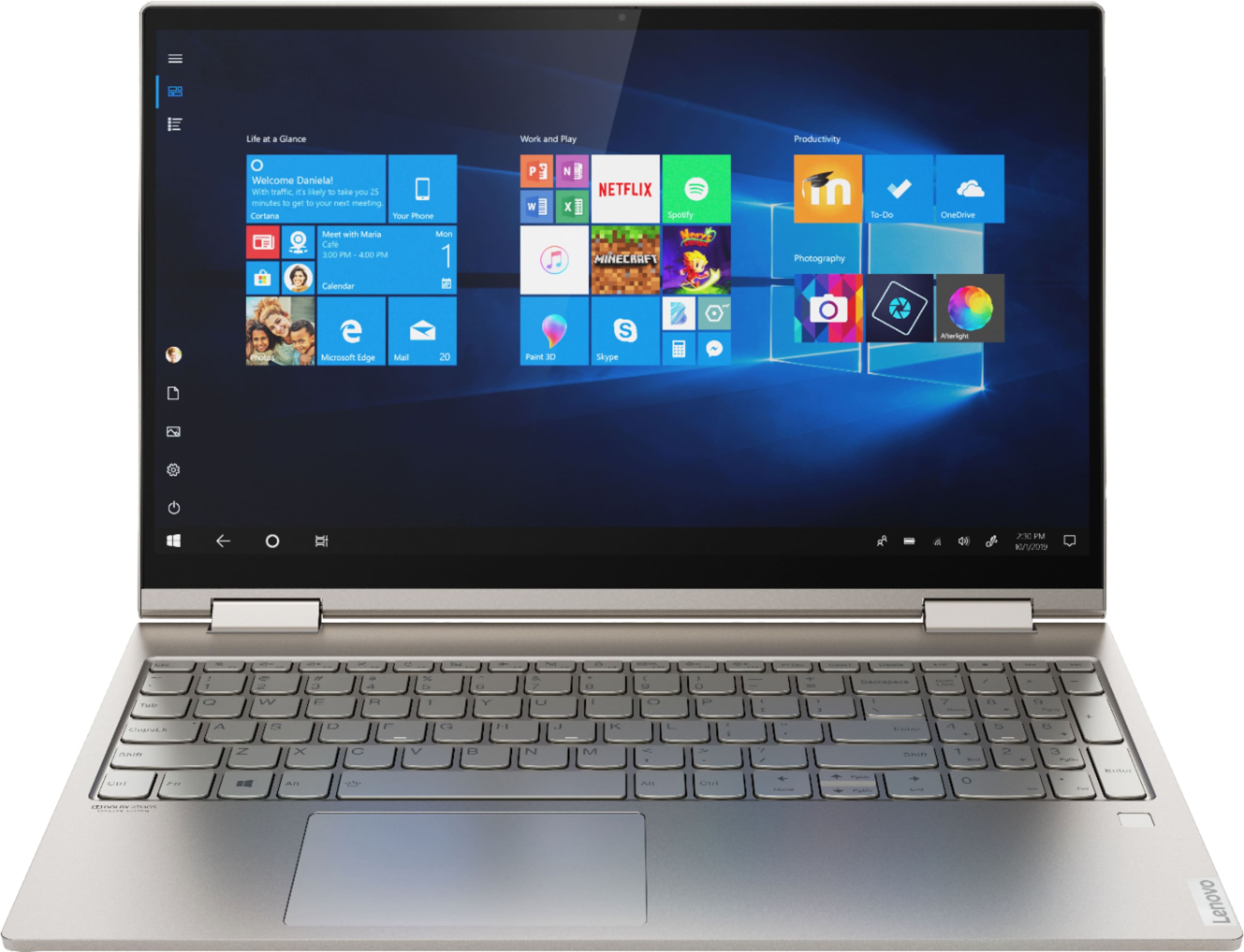
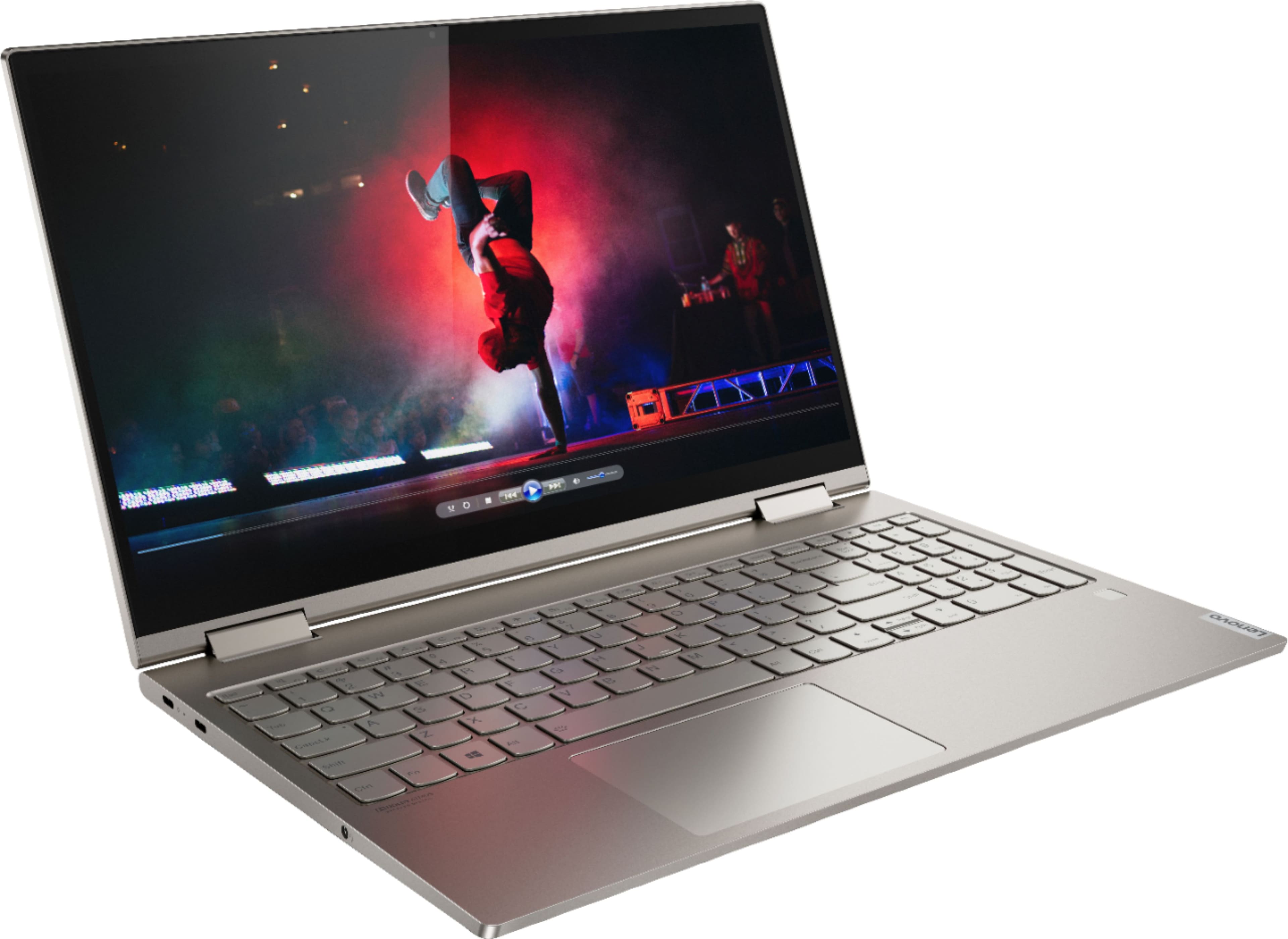
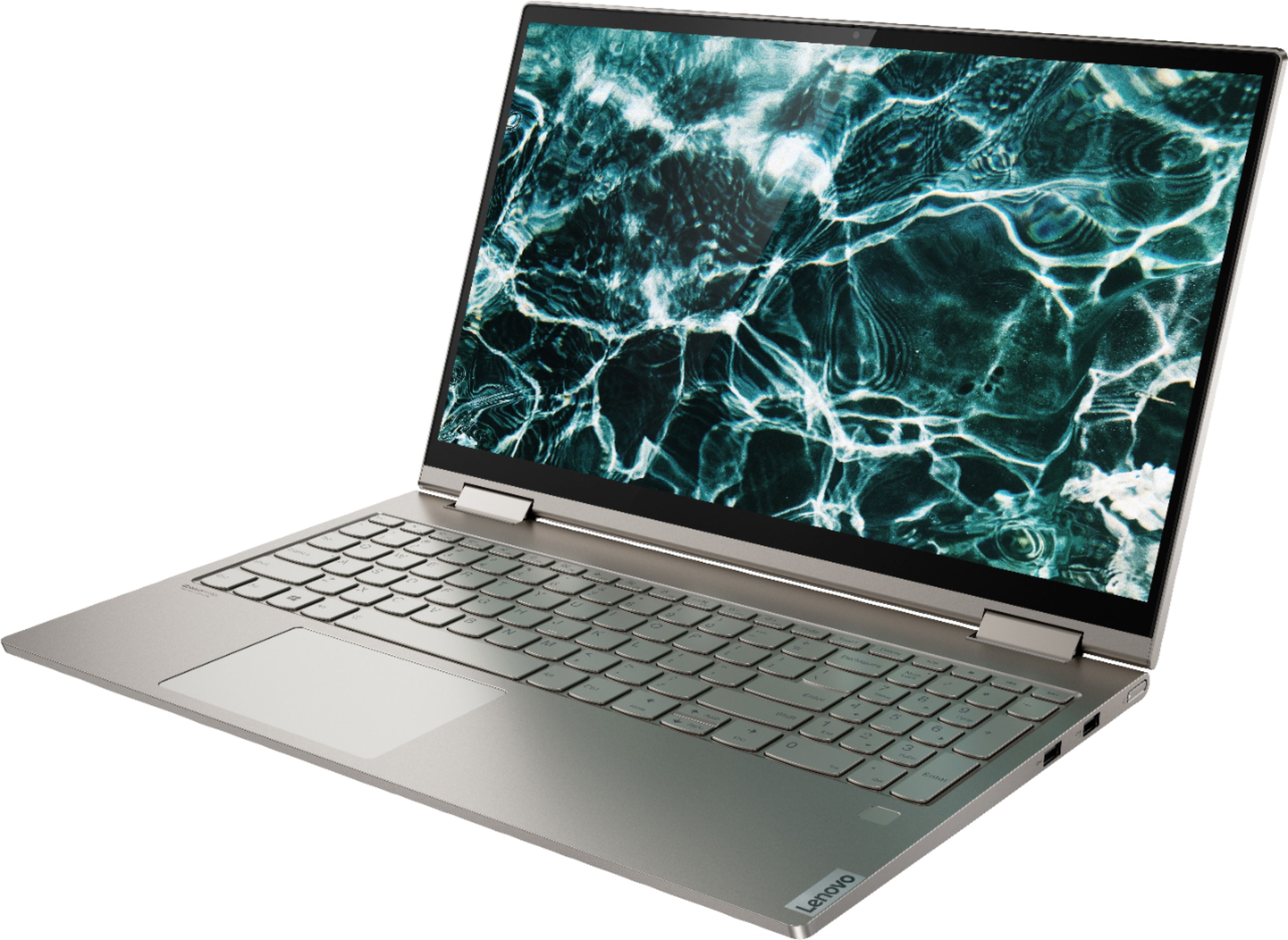
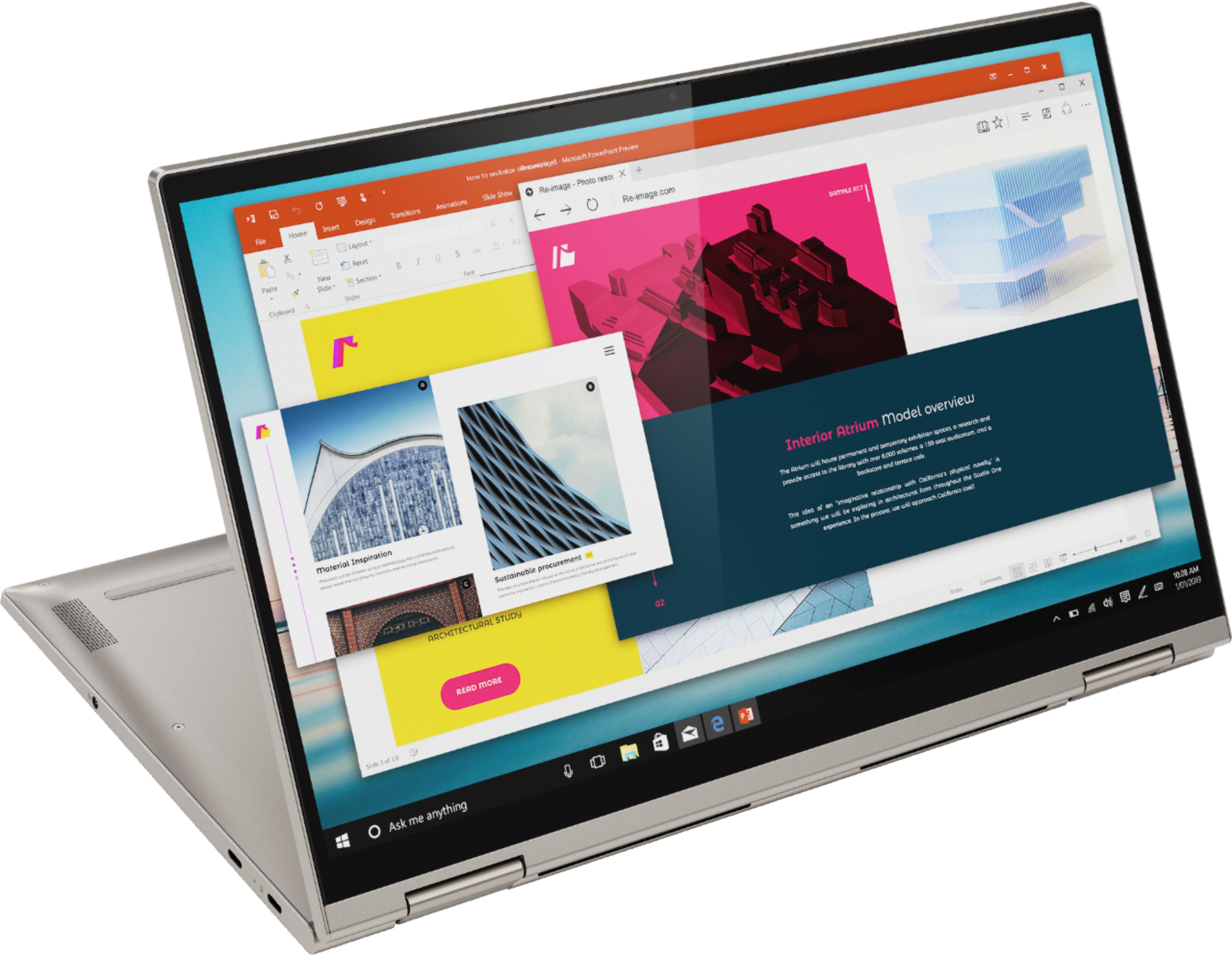

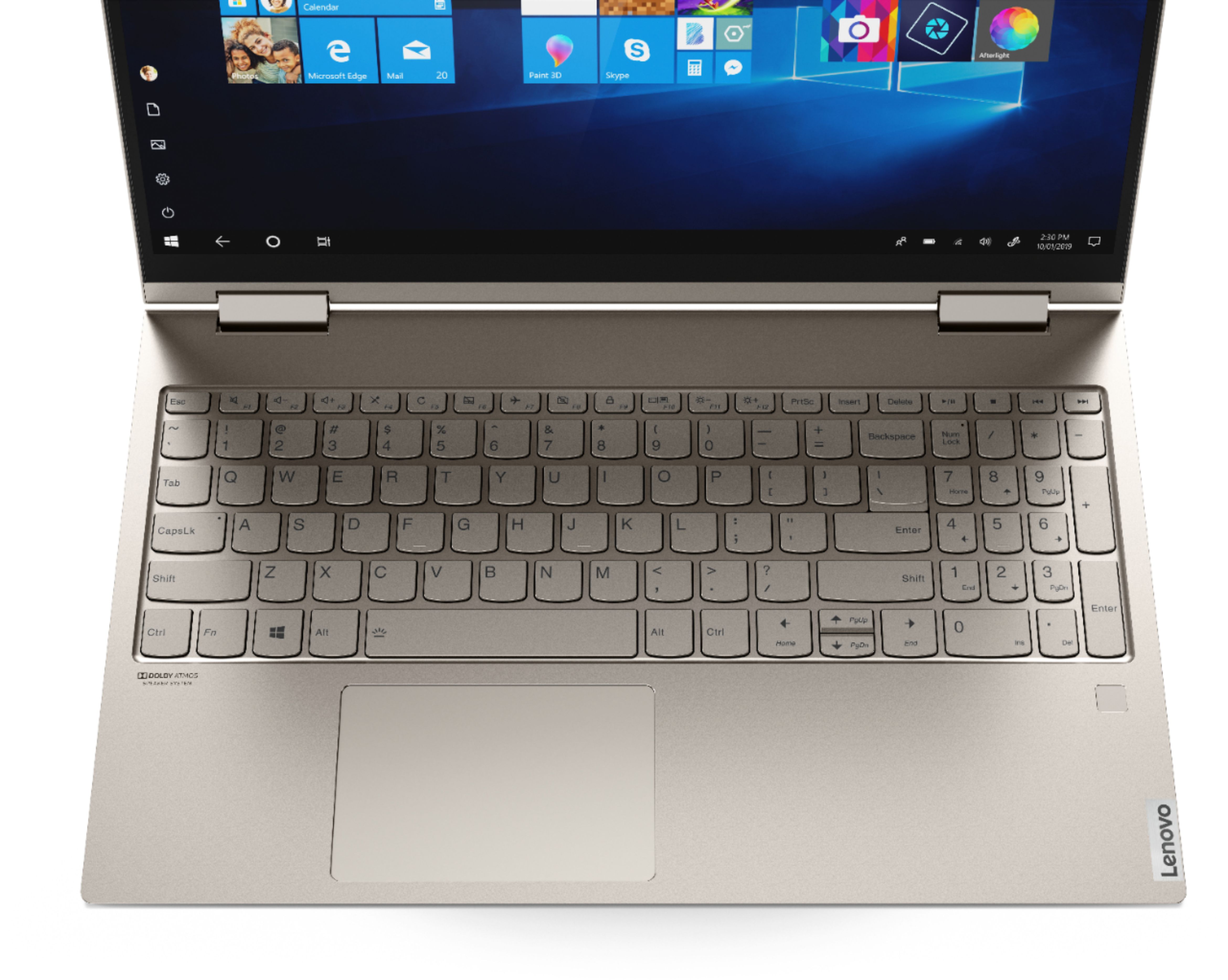


- Model:
- 81TD0077US
- SKU:
- 6455185
Rating by feature
- Battery Life
Rating 4.5 out of 5 stars
- Speed
Rating 4.4 out of 5 stars
- Display
Rating 4.2 out of 5 stars
Customers are saying
Customers have good things to say about the Lenovo Yoga C740 2-in-1 laptop. They appreciate its fast performance, which makes it suitable for work. Many users also enjoy the convenience of its touch screen. Some customers mentioned that it is very light, making it easy to carry around. However, there are a few concerns about its durability, with some users reporting issues after two years of use.
This summary was generated by AI based on customer reviews.
Good Laptop
||Posted . Owned for less than 1 week when reviewed.This reviewer received promo considerations or sweepstakes entry for writing a review.Good overall product. Overall, I am very happy with the purchase!
I would recommend this to a friendBrand response from Lenovo Product Expert
Posted .Thank you for choosing the Lenovo Yoga C740-15. We are pleased to hear that the Yoga C740-15 meets your computing needs so well.

Excellent quality for the money
||Posted . Owned for 2 months when reviewed.This reviewer received promo considerations or sweepstakes entry for writing a review.good quality and beautiful design, brilliant and nitid screen
I would recommend this to a friendBrand response from Lenovo Product Expert
Posted .Thank you for choosing the Lenovo Yoga C740 15. We are pleased to hear that the features and performance of the Yoga C740 15 meets your computing needs so well.
Another Lenovo Returned
||Posted .This reviewer received promo considerations or sweepstakes entry for writing a review.Exchanged prior Lenovo for this one……Windows crashed on this one too!!! Unbelievable. Returned this one and bought a Dell. So far no issues! Cross-fingers.
No, I would not recommend this to a friendBrand response from Lenovo Product Expert
Posted .We are sorry to hear that you had issues with your Lenovo Yoga C740 15. Be sure any software you installed is compatible with Windows 10. There is no need to install Microsoft Office software. The software is already part of the operating system, you just need to activate the software with a purchased product key. If you have installed a copy of Microsoft Office, this is conflicting with the existing copy on the system and this will slow your system down. If you have installed a 3rd party anti-virus program, be sure that Windows Defender is turned off and that the trial version of McAfee Anti-Virus software is uninstalled. There can only be one anti-virus program on the system. You may need to restore your system to original factory default settings if any of the programming errors have occurred. You can do that by typing "restore" in the Cortana search window. Just click on the magnifying glass icon at the bottom left of your Windows 10 Desktop. Click on "Reset This PC" Then click on "Get Started" and follow the on screen directions to restore to factory defaults. If the problem persists, we recommend you contact Lenovo Tech Support at: 877-453-6686.
Satisfied
||Posted . Owned for 1 month when reviewed.This reviewer received promo considerations or sweepstakes entry for writing a review.Works Great and looks amazing. So far no issues as of today
I would recommend this to a friendBrand response from Lenovo Product Expert
Posted .Thank you for choosing the Lenovo Yoga C740-15. We are pleased to hear that the features and performance of the Yoga C740-15 meets your computing needs so well.
Mr peralta
||Posted .This reviewer received promo considerations or sweepstakes entry for writing a review.Nice !! All product it ok, I m happy and come Back for more
I would recommend this to a friendYoga C740
||Posted . Owned for 6 months when reviewed.This reviewer received promo considerations or sweepstakes entry for writing a review.I am no computer geek but this laptop stalls and is slow. I have to wait for it to catch up. And I bought this brand new!
I would recommend this to a friendBrand response from Lenovo Product Expert
Posted .Thank you for choosing the Lenovo Yoga C740 2-in-1 15.6in. Laptop. We are very pleased to hear that the specifications and features of the Lenovo Yoga C740 2-in-1 15.6in. Laptop meet your computing needs so well. If you are experiencing issues with freezing, please check that all the software you have installed is compatible with your Windows operating system. There is no need to install Microsoft Office software. The software is already part of the operating system, you just need to activate the software with a purchased product key. If you have installed a copy of Microsoft Office, this is conflicting with the existing copy on the system and this will slow your system down. If you have installed a 3rd party anti-virus program, be sure that Windows Defender is turned off and that the trial version of McAfee Anti-Virus software is uninstalled. There can only be one anti-virus program on the system. You may need to restore your system to original factory default settings if any of the programming errors have occurred. You can do that by typing "Restore" in the Windows search bar. You can locate the search bar by clicking on the Windows logo at the bottom of the screen. After you type in “Restore,” click on "Reset This PC" Then click on "Get Started" and follow the on-screen directions to restore to factory defaults. If the problem persists, we recommend you contact Lenovo Tech Support at: 877-453-6686.
Good computer
||Posted . Owned for 1 month when reviewed.This reviewer received promo considerations or sweepstakes entry for writing a review.Good computer. Its a little confusing at first but once you get the hang of the tablet and computer settings, you'll like it.
No, I would not recommend this to a friendNice Product
||Posted . Owned for 3 months when reviewed.This reviewer received promo considerations or sweepstakes entry for writing a review.Nice product. Worked fine but after 10 days started to have screen fails. Maybe bad luck.
I would recommend this to a friendBrand response from Lenovo Product Expert
Posted .We are very sorry to hear that you are having issues with the Lenovo Yoga C740 2-in-1 15.6 in. Touch-Screen Laptop. We recommend that you check if there are any software applications that have been recently installed that may be incompatible with the device.
Another solution includes using the Lenovo Vantage application, which is installed on Lenovo devices to maintain the health and functionality of every device. Please type "Lenovo Vantage" in the Windows search bar at the lower left corner > Select Lenovo Vantage from the list > click on "Health and Support” > select "Hardware Scan" > select "Run Quick Tests". This will scan your entire system for errors. Please follow any prompts that pop up. If the problem continues after this scan, please select "System Update". First select Windows update from the menu. Scan your system to be sure you have the latest version of Windows 10. Once that scan is complete, select "Additional Updates". This will scan your device to see if there is a display driver that needs to be updated, which can be causing the screen fails.
If the computer does not turn on, it is possible that resetting the computer back to original factory settings may correct the issue you describe. Since you can not boot the computer, this system is equipped with OneKey Recovery System. There is a very small pin hole on the bottom of the device, right near the cooling vent on the bottom of the device. You will need a pin to push this reset button. Plug the device in. Let the battery charge for about 15 minutes. Push the reset button. The system should boot to a choice screen where you can choose "Restore To Factory Default". Select this. It will delete everything from the hard drive except the original factory install of the operating system. You will need to reinstall all programs and files after the reset. If you don't have copies of the files, try to make one before you restore by selecting "Boot to desktop" and trying to back up your files.
But if the issue still continues after these updates, we recommend you call Lenovo Tech Support at: 877-453-6686 for additional help.
- Pros mentioned:Fast
Cons outweigh the pros
||Posted .This reviewer received promo considerations or sweepstakes entry for writing a review.Pros: It's fast and lightweight. The screen bezels are thin. Cons: The bottom edge is sharp (rather than smooth) which is very uncomfortable on the wrists when typing. The touch screen feature does not work.
No, I would not recommend this to a friendBrand response from Lenovo Product Expert
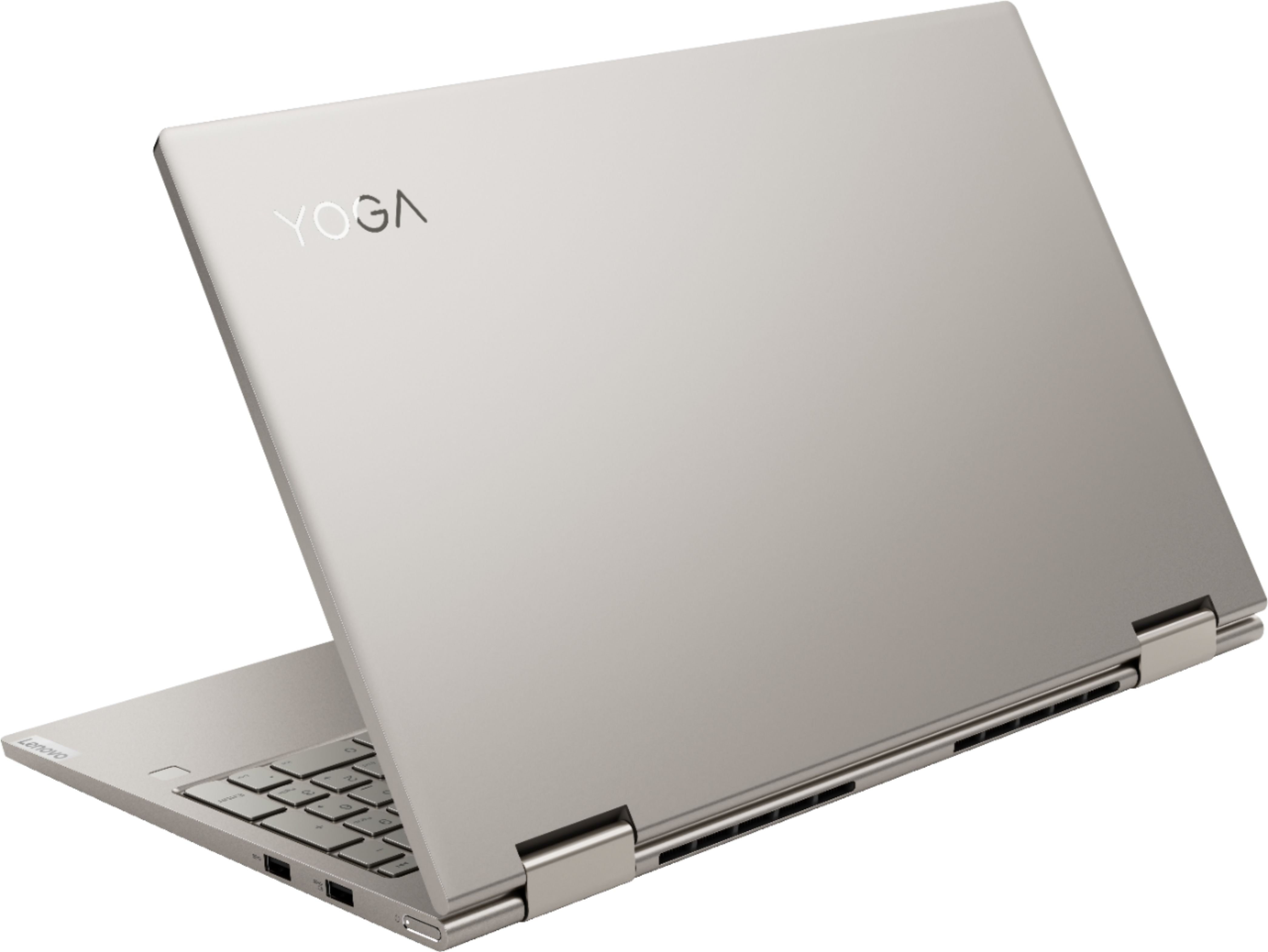
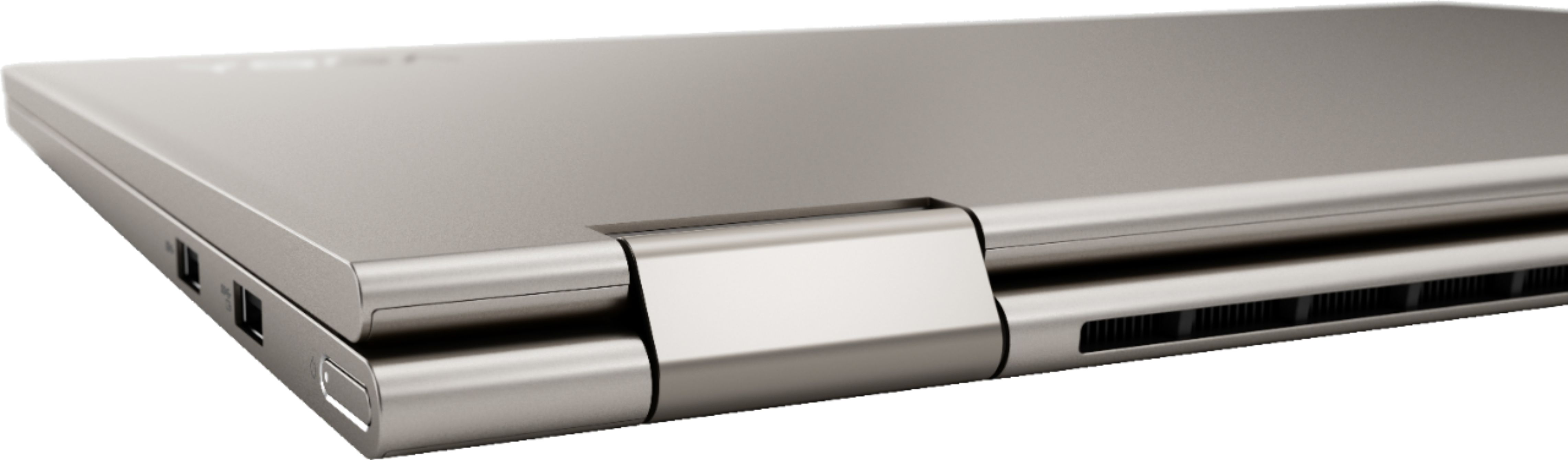
Posted .The Lenovo Yoga C740-15 ships with a aluminum case, with beveled edges for a stylish and comfortable feel.
No HDMI port.
||Posted .This reviewer received promo considerations or sweepstakes entry for writing a review.This computer has No HDMI port as advertised. I am sure it is a nice computer but I returned it because I need the HDMI port and I didn’t want to have to by extra cables to make it work. I didn’t even turn it on.
No, I would not recommend this to a friendBrand response from Lenovo Product Expert
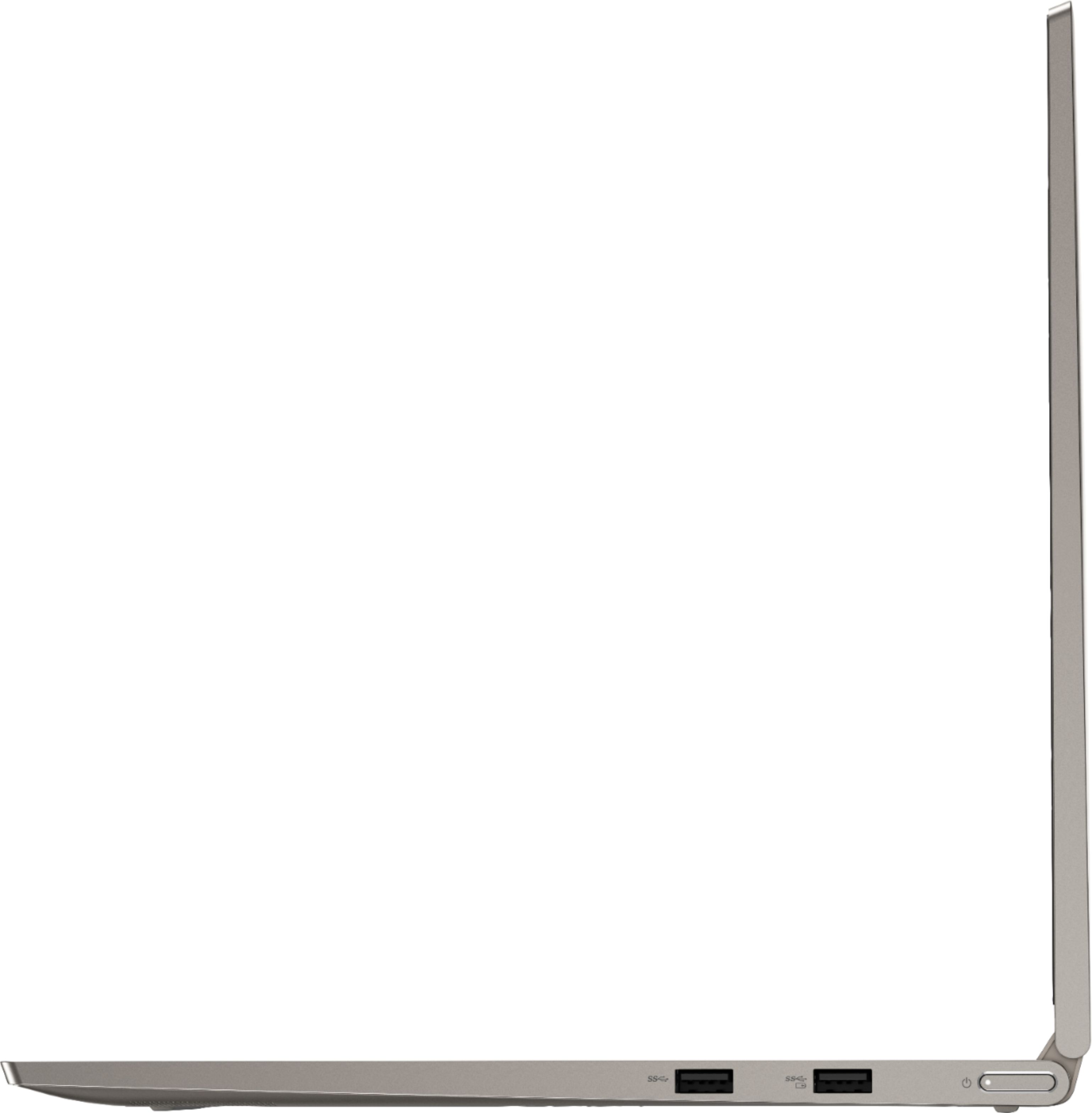
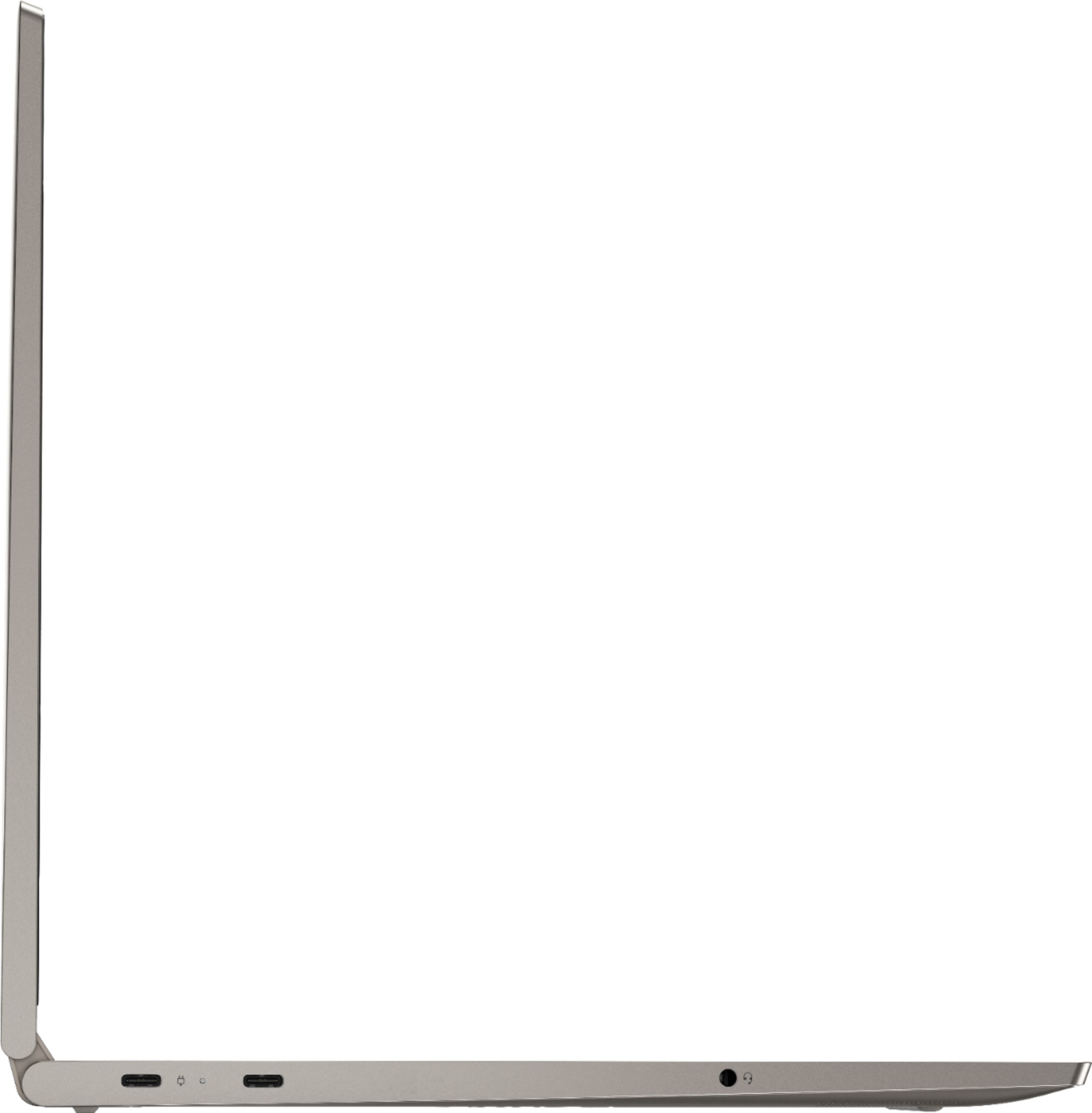
Posted .The Lenovo Yoga C740-15 model number 81TD0077US, ships with 2x USB-C 3.1 Gen 1 (support data transfer, Power Delivery and DisplayPort) with video out capability for connecting external monitors. The Yoga C740-15 supports up to 3 independent displays via native display and 2 external monitors; supports external monitors via USB-C (up to 3840x2160@60Hz). You can connect an external HDMI monitor to this laptop by using a USB-c to HDMI adapter like this one: https://www.bestbuy.com/site/insignia-usb-c-to-hdmi-adapter-white/6424886.p?skuId=6424886
Misleading Specs, no dedicated HDMI port
||Posted . Owned for 1 month when reviewed.This reviewer received promo considerations or sweepstakes entry for writing a review.I never even powered this one. This lost 3 stars from me due to the misleading specs. It states this has an HDMI output, it does not. It has the ability to use an hdmi cable via a USB adapter. One of the USB ports is for charging the computer, so right off the bat I would be down 2 usb ports for the operations that I would need this for. I returned it immediately once I realized this
No, I would not recommend this to a friendBrand response from Lenovo Product Expert
Posted .The Lenovo Yoga C740-15 model number 81TD0077US, ships with 2x USB-C 3.1 Gen 1 (support data transfer, Power Delivery and DisplayPort) ports that have video out capability for connecting external monitors to this laptop. The Yoga C740-15 supports up to 3 independent displays via native display and 2 external monitors; supports external monitors via USB-C (up to 3840x2160@60Hz). You can connect an HDMI external monitor to this laptop with a USB-c to HDMI adapter, like this one: https://www.bestbuy.com/site/insignia-usb-c-to-hdmi-adapter-white/6424886.p?skuId=6424886
flaky screen
||Posted .This reviewer received promo considerations or sweepstakes entry for writing a review.worked great for 3 months. Now screen blanks out more often than not with some kind of a broken circuit and Lenovo Support can only promise a call back in 24-48 hours.
No, I would not recommend this to a friendBrand response from Lenovo Product Expert
Posted .We are sorry to hear that you are having issues with your Lenovo Yoga C740 15. If the issue is software-based, first check to be sure you have the latest version of Windows 10 on the computer. Then update all BIOS files and drivers up to that latest version of Windows 10. You can easily accomplish this by scanning the computer with the Lenovo Utility software available on this computer. This system has Lenovo utilities installed to help maintain the health of the device and keep the operating system software up to date. Type "Lenovo Vantage" in the Cortana Search window (if Lenovo Vantage is not installed on your device, you can download the APP and install it now). Select Lenovo Vantage from the list. In the window that opens, click on "Health and Support". In the expanded menu, select "Hardware Scan" In the window that opens, select "Run Quick Tests". This will scan your entire system for errors. Follow any directions that may pop up. If the problem continues after this scan, now click on "System Update". First select Windows update from the menu. Scan your system to be sure you have the latest version of Windows 10. Once that scan is complete, select "Additional Updates". This will scan your device to be sure there are no new BIOS/Driver updates needed. Follow any instructions that may pop up. If all Operating Software is up to date but the issue continues, resetting the computer back to original factory settings may correct a software-based issue. This system is equipped with OneKey Recovery System. There is a very small pin hole on the bottom right side of the device, right near the top right corner of the cooling vent on the bottom of the device. You will need a pin to push this reset button. Plug the device in. Let the battery charge for about 15 minutes. Push the reset button. The system should boot to a choice screen where you can choose "Restore To Factory Default". Select this. It will delete everything from the hard drive except the original factory install of the operating system. You will need to reinstall all programs and files after the reset. If you don't have copies of the files, try to make one before you restore by selecting "Boot to desktop" and trying to back up your files. If the problem persists after the factory reset, we recommend you contact Lenovo Tech Support at: 877-453-6686.
Piece of crap
||Posted . Owned for 1 month when reviewed.This reviewer received promo considerations or sweepstakes entry for writing a review.Piece of crap i biught it for my daughter for college and its super slow it got stuck on the windows update screen for 2 days
No, I would not recommend this to a friendBrand response from Lenovo Product Expert
Posted .We are sorry to hear that you are having issues with a recent Windows 10 update to your daughter's Lenovo Yoga C740-15. It is possible to roll back a Windows 10 update the fails to function properly. Here is a link to instructions for doing this: https://support.microsoft.com/en-us/windows/recovery-options-in-windows-31ce2444-7de3-818c-d626-e3b5a3024da5#ID0EDD=Windows_10. If the issue continues or you are unable to properly boot the computer any longer, resetting the computer back to original factory setting my correct all issues. This system is equipped with OneKey Recovery System. There is a very small pin hole on the bottom right side of the device, right near the top right corner of the cooling vent on the bottom of the device. You will need a pin to push this reset button. Plug the device in. Let the battery charge for about 15 minutes. Push the reset button. The system should boot to a choice screen where you can choose "Restore To Factory Default". Select this. It will delete everything from the hard drive except the original factory install of the operating system. You will need to reinstall all programs and files after the reset. If you don't have copies of the files, try to make one before you restore by selecting "Boot to desktop" and trying to back up your files. If the problem persists after the factory reset, we recommend you contact Lenovo Tech Support at: 877-453-6686.
- Cons mentioned:Battery life, Overheating
Good solid laptop.
Posted .This reviewer received promo considerations or sweepstakes entry for writing a review.good all-around laptop, but when I try to run more demanding programs and games it starts to overheat. The backlighting is quite good and the feel and form factor also feels and looks great. Also the battery life is not great when I'm using it consitantly.
I would recommend this to a friendBrand response from Lenovo Product Expert
Posted .The Lenovo Yoga C740-15, model number 81TD0077US, ships with a 3CELL_60.3WH_INTERNAL, Lithium Polymer Battery, which within this configuration, has a battery life of up to 15 hours, depending on the work the device is performing. If you are getting substantially less battery life, first, set your screen brightness at less than 100-percent - try 80-percent to start with. Then, be sure Battery conservation Mode is turned off. This power management setting should only be used when the laptop is plugged in all the time. It will prolong overall battery life by only charging the battery to 60-percent of capacity. Here is a link to instructions for turning off Battery Conservation Mode: https://support.lenovo.com/us/en/solutions/ht103159. Also check what programs are running in the background on the computer. Be sure only the programs you want running in the background are. These programs will drain the battery. Here is a link to information about how to find out what programs are running in the background on your Windows 10 computer and how to manage them for better system performance: https://www.windowscentral.com/how-prevent-apps-running-background-windows-10. Then, finally, be sure any software you installed is compatible with Windows 10. Incompatible software will drain the battery at a faster rate. There is no need to install Microsoft Office software. The software is already part of the operating system, you just need to activate the software with a purchased product key. If you have installed a copy of Microsoft Office, this is conflicting with the existing copy on the system and this will slow your system down. If you have installed a 3rd party anti-virus program, be sure that Windows Defender is turned off and that the trial version of McAfee Anti-Virus software is uninstalled. There can only be one anti-virus program on the system. You may need to restore your system to original factory default settings if any of the programming errors have occurred. You can do that by typing "restore" in the Cortana search window. Just click on the magnifying glass icon at the bottom left of your Windows 10 Desktop. Click on "Reset This PC" Then click on "Get Started" and follow the on screen directions to restore to factory defaults. If the problem persists, we recommend you contact Lenovo Tech Support at: 877-453-6686.
- Cons mentioned:Durability
Not worth it
Posted .This reviewer received promo considerations or sweepstakes entry for writing a review.I bought my laptop in 2018 for college, it worked fine until a few months in the screen kept going out. I had to send it in twice for them to fix it. Fast forward to 2021 my touchscreen stopped completely, and my speakers are going out. I have never once dropped this laptop or spilled anything on it, I take great care of my laptop, considering I use it daily, and need it for school. At this point I am not getting it fixed and will switch to apple. *** also after I purchased this laptop I found out that the touchscreen on them will go out and its nearly impossible to fix (one of the best buy employees told me this). Another issue I came across with my Lenovo was how the speakers are on the bottom of the laptop, and having all online school it was hard hearing my professors teach at times.
No, I would not recommend this to a friendBrand response from Lenovo Product Expert
Posted .We are sorry to heart hat you are having issues with your Lenovo Yoga C740-15 model number 81TD0077US. Try resetting your computer back to original factory settings, this my clear the issues you are experiencing. Here is a link to instructions for resetting your Windows 10 computer: https://support.microsoft.com/en-us/windows/recovery-options-in-windows-10-31ce2444-7de3-818c-d626-e3b5a3024da5. If for some reason you can not perform these steps for a reset, the Yoga C740-15, this system is equipped with OneKey Recovery System. There is a very small pin hole on the bottom right side of the device, right near the top right corner of the cooling vent on the bottom of this device. You will need a pin to push this reset button. Plug the device in. Let the battery charge for about 15 minutes. Push the reset button. The system should boot to a choice screen where you can choose "Restore To Factory Default". Select this. It will delete everything from the hard drive except the original factory install of the operating system. You will need to reinstall all programs and files after the reset. If you don't have copies of the files, try to make one before you restore by selecting "Boot to desktop" and trying to back up your files. Once you have the computer reset, be sure any software you installed is compatible with Windows 10. There is no need to install Microsoft Office software. The software is already part of the operating system, you just need to activate the software with a purchased product key. If you have installed a copy of Microsoft Office, this is conflicting with the existing copy on the system and this will slow your system down. If you have installed a 3rd party anti-virus program, be sure that Windows Defender is turned off and that the trial version of McAfee Anti-Virus software is uninstalled. There can only be one anti-virus program on the system. You may need to restore your system to original factory default settings if any of the programming errors have occurred. You can do that by typing "restore" in the Cortana search window. Just click on the magnifying glass icon at the bottom left of your Windows 10 Desktop. Click on "Reset This PC" Then click on "Get Started" and follow the on screen directions to restore to factory defaults. If the problem persists, we recommend you contact Lenovo Tech Support at: 877-453-6686.
- Cons mentioned:Durability
Avoid - very short lifespan - unacceptable
Posted .This reviewer received promo considerations or sweepstakes entry for writing a review.I purchased this computer in June of 2020, 14 months later it was completely dead. Thus, the computer was bricked 2 months after the warranty expiration. Honestly I really enjoyed this computer before it crashed, however, I expect a new laptop to work more than 14 months. I have tried every troubleshooting tool possible. New charger, new CMOS battery, reseated SSD, I performed a reset with the Novo button. All signs point to a dead motherboard--a super expensive repair. I am extremely disappointed. Will not buy Lenovo again.
No, I would not recommend this to a friendBrand response from Lenovo Product Expert
Posted .We are sorry to hear that you are having issues with your Lenovo Yoga C740-15, model number 81TD0077US. Try resetting the computer back to original factory settings. If you have tried this by using the OneKey Recovery System on this computer and the computer did not reset, be sure you are using the correct OneKey Recovery Port. For this model, the OneKey Recovery Port is located on the bottom right side of the device, right near the top right corner of the cooling vent on the bottom of the device. You will need a pin to push this reset button. Plug the device in. Let the battery charge for about 15 minutes. Push the reset button. The system should boot to a choice screen where you can choose "Restore To Factory Default". Select this. It will delete everything from the hard drive except the original factory install of the operating system. You will need to reinstall all programs and files after the reset. If you don't have copies of the files, try to make one before you restore by selecting "Boot to desktop" and trying to back up your files.