Customer Ratings & Reviews
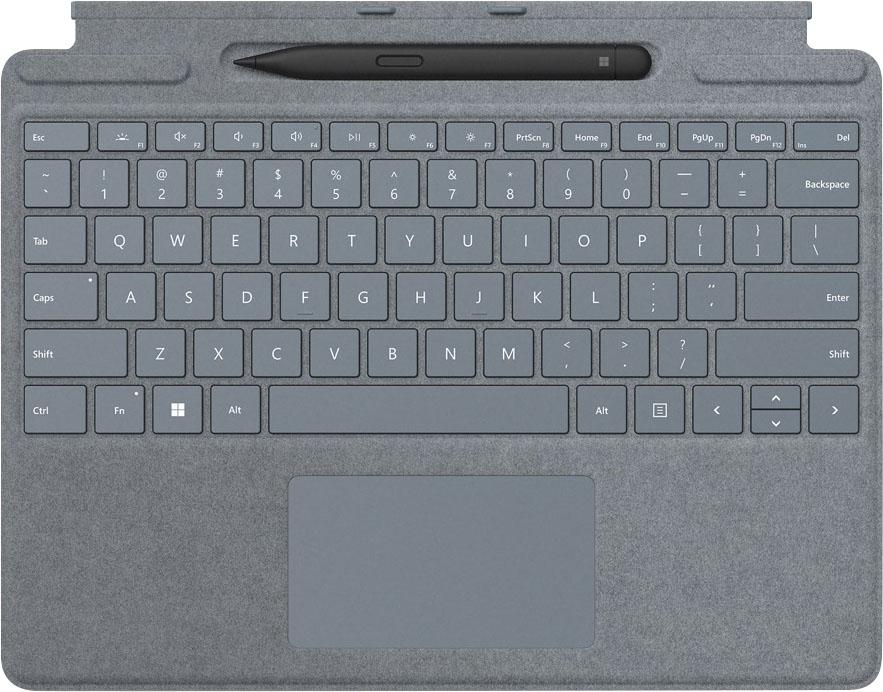
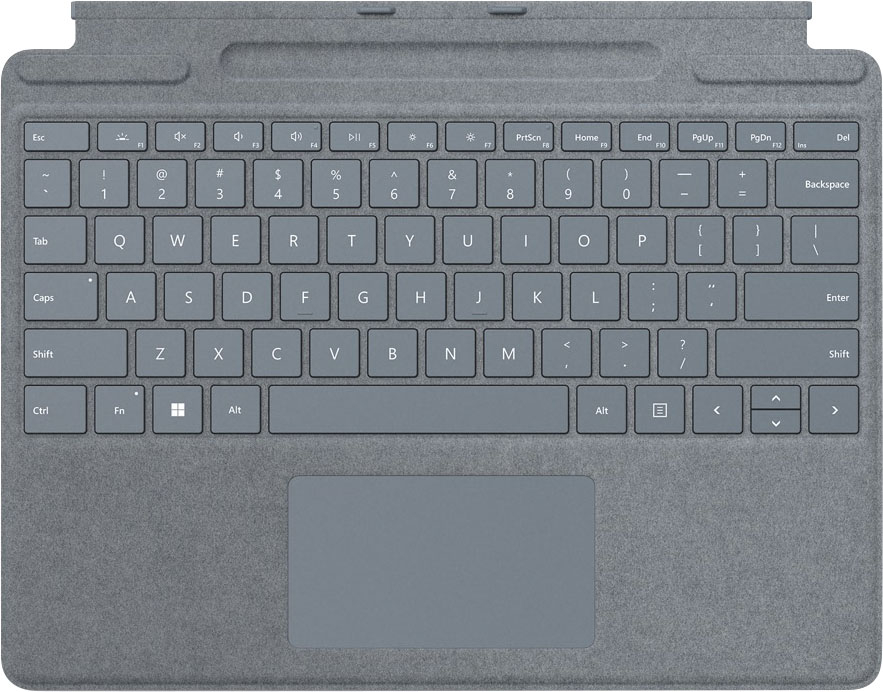

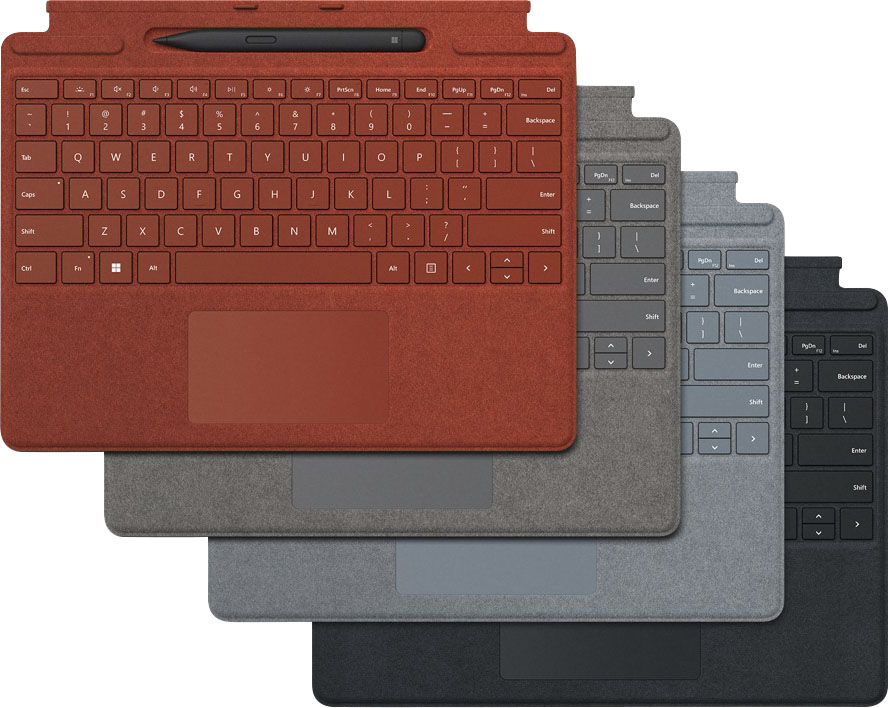
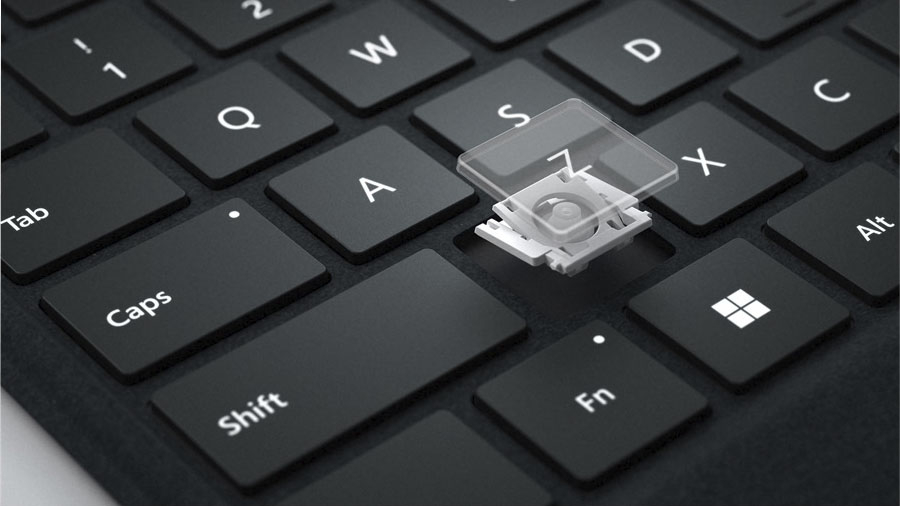
- Model:
- 8X6-00041
- SKU:
- 6478004
Rating by feature
- Value
Rating 4.4 out of 5 stars
- Quality
Rating 4.8 out of 5 stars
- Ease of Use
Rating 4.8 out of 5 stars
Customers are saying
Customers are pleased with the keyboard quality, which feels like a traditional keyboard, and the overall design and connectivity of the product. The portability of the slim style is also a plus for many users. However, some customers have noted that the size is thinner than they expected.
This summary was generated by AI based on customer reviews.
- Pros mentioned:Keyboard quality, Portability

Essential for laptop like usage
|Posted .This reviewer received promo considerations or sweepstakes entry for writing a review.If you're planning on using the Surface like a laptop, I consider this an essential purchase. Yes, it is pricey, but the keyboard makes typing so much better especially if you're slow like me with using the touch screen keyboard. There really isn't much to comment on regarding the keyboard other than that it works and the keys are responsive. If you're used to typing on a laptop's keyboard, you will acclimate very quickly. The touch pad for moving your mouse cursor is functional and doesn't have any issues either. Attaching the keyboard to the Surface is very easy, it seems to magnetize to stay attached. Now the pen though, this something that deserves a lot of praise. I have used the Apple Pencil (second gen) and the Surface Slim Pen 2 is a lot more responsive on its default settings. It also feels better in the hand in general. My handwriting feels like it translates better on the Surface more so than on the iPad. Moreover, I like that you can use the top of the pen as an eraser and also assign a function when you click it. If you like to draw or mark up PDFs, I consider this pen essential. All in all, this is a very expensive package, but I do highly recommend it to get the most out of your Surface. Whether you need both depends on your use case though.
I would recommend this to a friend - Pros mentioned:Keyboard quality
Absolute must to get full use of your Surface Pro
|Posted .This reviewer received promo considerations or sweepstakes entry for writing a review.This keyboard and pen are nice additions to the Surface Pro 9 I'm testing. The keyboard is not only stylish, but is also responsive and large enough to allow me to work without having to worry about typos from hitting the wrong key, or dragging a thumb over the keypad and moving the cursor to a different place in the document. The keyboard is also stiff enough to allow working on surfaces that aren't completely flat, like on your lap or any other soft surface. The Slim Pen is held in a recessed pocket at the top of the keyboard where it is also recharged. The pen is flattened, which is fine, but the 'mouse button', at least for me, is too hard to find by touch; I believe they should've made it more pronounced, so it would be easier to find by feel. The app that I've found most useful with the pen is MS Whiteboard; I've found myself using it much more. Overall, the keyboard and pen make the Surface Pro 9 I was testing with, much more useful. I really can't understand why they aren't included with the tablet itself, but if you want to get the most out of your Surface, this combo will do the trick.
I would recommend this to a friend - Pros mentioned:Keyboard quality
Nice upgrade
|Posted .This reviewer received promo considerations or sweepstakes entry for writing a review.I am really enjoying using this new Microsoft Surface Pro Signature keyboard. It attaches easily and securely and is instantly recognized by the Microsoft Surface Pro. The feel of the keyboard is solid - the specs say they are fully mechanical keys. The backlighting is adequate to allow use in low lighting conditions. The touchpad is a good size - not too small to be useful but not so large so as to take real estate away from other needed keys. This keyboard is a perfect fit for my Microsoft Surface Pro and will help protect the Surface Pro. The platinum alcantara material feels very sturdy and looks good. I like the option to takes notes by hand so I really like the addition of the hidden tray to hold the Microsoft Surface Slim Pen 2 that comes with it. The tray actually charges the pen. I also like I don’t have to pay extra for the pen - an expensive proposition in the past. I’ve used Microsoft keyboards in the past and they did the job but were nothing special. This version makes me more excited about using the Surface and I highly recommend it.
I would recommend this to a friend - Pros mentioned:Keyboard quality, Portability
Best keyboard touchpad attachment 4 your surface
|Posted .This reviewer received promo considerations or sweepstakes entry for writing a review.This is by far the best keyboard and touchpad assembly for your surface pro. No matter the generation. Not much has changed over the course of the years, but they're still proves to be the best when it comes to quality and functionality. There's really zero flaws that I can think of. Everything works exactly as it's supposed to the keys. Feel great. The touchpad is large enough and responsive gesture controls are a breeze and the keyboard has all of the hot keys that you would come to expect from a normal laptop keyboard such as volume control and the ability to control the backlit keyboard and the brightness of the screen for the surface. All in all, the leathery feel of the keyboard attachment is a nice bonus. I would easily recommend this to anyone that owns a surface. In fact, if you own a surface and you don't have this keyboard attachment, you're really missing out on half the fun Microsoft did a great job designing the keyboard attachment and making it thin and lightweight and easy to attach and detach!
I would recommend this to a friend - Pros mentioned:Keyboard quality
Boost Your Surface Productivity
|Posted .This reviewer received promo considerations or sweepstakes entry for writing a review.INTRO: The Surface Pro lineup of tablets aims to showcase Microsoft’s vision of portable computing, but to take your productivity to the next level, Microsoft has developed the Surface Pro Signature Keyboard as well as the Slim Pen 2. Compatible with the Surface Pro 8 as well as the Surface Pro X, these could be must-haves for anyone wanting to take their productivity on the go. UNBOXING: In a world where packaging is often incredibly thick and bulky, Microsoft has opted to make their packaging thin and simple, just like the products in the box. Inside this bundle, you’ll find both the Signature Keyboard and the Slim Pen 2, as well as a paper insert explaining how to use them. In terms of materials SETUP: As the paper insert describes, the setup is simple. Attach the keyboard via the magnetic hinge to the bottom of your Surface tablet. As you bring them close together, they simply snap together with no real effort. I’ve had no issues connecting the keyboard to the tablet. When using it, you’ll want to prop open your Surface tablet’s kickstand before or after snapping the keyboard on. And when you’re done, you can fold the surface over the keyboard like a normal laptop. Alternatively, you can also lay the tablet and keyboard completely flat on a table if you have a strange use-case for that. Meanwhile, the Slim Pen 2 can rest in the wireless charging tray located just above the keyboard deck. More interestingly, when you angle the keyboard at a slant for ergonomics, this can completely hide the Slim Pen 2 from view while you’re focused on keyboard tasks. KEYBOARD: One of the first things I was concerned about with the Signature Keyboard was the Alcantara texture. For those who weren’t aware (as I certainly wasn’t), Microsoft says Alcantara is a “unique and innovative material used in high-end luxury products to bring an unparalleled level of design and sophistication.” I don’t personally know that I care, and I’m sure that if a cheaper non-fabric option was present that delivered a functionally identical experience, I’d probably just buy that. Unfortunately, the Slim Pen 2 wireless charging tray is not available on the original Surface Pro keyboard. I advise you to research experiences from others who have used Alcantara keyboards on other Surface products for much longer than myself. From what I understand, it can get discolored over time, and cleaning it will be more difficult compared to a traditional rubber, plastic or metal keyboard deck. So while I’ve yet to experience this discoloration in my very short time, I should also mention that I don’t typically put my laptop near food or use my laptop with dirty hands. My advice is that you’ll want to baby this keyboard if you want to keep it looking good. But that may also prove to be very challenging for some. Moving on, I really like that this keyboard can be angled up slightly. It’s just a bit more comfortable, as opposed to typing on a completely flat surface. And while I wasn’t sure how quickly I’d catch on to the Signature Keyboard, I’m very pleased to say that I’ve had no learning curve issues. Most of the time, I’ve typed on mechanical keyboards and Apple’s Magic Keyboards, so this is the first time I’ve experienced a Surface keyboard. It’s definitely one of the best in the industry, in my experience. The key spacing is perfectly to my liking. The keys aren’t too far apart, nor are they too crammed. They’re very reasonably spaced, and I can reach my typical speeds of 105+ wpm with very few mistakes and consistent pacing. In terms of key travel, I also feel it’s very good for a chiclet style keyboard. The Signature Keyboard has a nice physical feedback when you bottom out the keys, so you can type with confidence. As for sound, this was clearly designed to be quiet, and it definitely does that very well. The sound is more emphatic in delivering a low-end thunk rather than a typical clicky chiclet sound. This is the kind of keyboard that won’t annoy people around you, which is great for environments where being quiet is absolutely necessary. For those of you who spend time in darker environments, you’ll be glad to know that it does have backlit keys with 3 brightness levels as well as the option to turn off the backlighting, entirely. Another feature I like is that simply tapping the Fn key will toggle the F-keys to be the primary actions over the multimedia keys. So those of you who use F-keys for hotkey functions won’t have to struggle to press Fn every single time. A small LED will light up on the Fn key when you want to use the F-keys, as well. When disabled, the multimedia keys become the default actions, so it’s nice that you have the freedom of choice without having to change a setting in software. Lastly, it should be mentioned that this keyboard operates exclusively via the Surface Connect port on the bottom of your Surface tablet, so it cannot be used while detached from the tablet. PEN: While I haven’t spent nearly as much time with the Slim Pen 2, I will say that it can certainly be useful depending on how you use it. For handwriting to text recognition, I did find that after a short period of time, the handwriting recognition was pretty good, but is prone to some mistakes as both you and the software are acclimating to each other. Drawing on the other hand is much more useful with the Slim Pen 2, whether it’s drawing diagrams using OneNote or doing a Whiteboard session, the Slim Pen 2 does a decent job at being responsive to user input. However, there were times where my screen was a bit smudgy, and that caused friction while trying to draw using the pen, so I recommend having a clean display while using the Slim Pen 2. I also like that it has a shortcut button that you can program to open apps based on a single click, double click, or press and hold. However, this button only works while Bluetooth is enabled on your Surface tablet, so bear that in mind. The Slim Pen 2’s button end also functions as an eraser like a #2 pencil for the apps that support it. Without knowing this, I made a joking attempt to use the blunt end to erase some drawings in Microsoft Whiteboard, and to my surprise, it worked! This is the first time I’ve personally seen this implemented in a digital pen. This all being said, the Slim Pen 2 still has that “plastic against glass” feeling. But there do exist some screen protectors that promise to provide a more paper-like experience for those who frequently use their tablets with a pen. Even so, I found the Slim Pen 2 comfortable to hold, and for me it was best used with the Surface tablet set flat or with the kickstand nearly maxed out. But you may have different preferences. And of course, the fact that it stays magnetically secure in the wireless charging tray within the Signature keyboard makes this combination more seamlessly integrated into your Surface experience. You don’t have to remember to charge it as long as you stow it away in the tray while the keyboard is connected to your Surface Pro tablet. CONCLUSION: I do think that if you are getting a Surface Pro 8 or Surface Pro X tablet and are looking to get both the keyboard and the pen for it, this hardware does a great job. The Signature keyboard is a joy to use, and the integration with the Slim Pen 2 makes it ready-to-use whenever you need to draw a diagram, do some photo editing or drawing, do some math, or draw out a plan for something even more grandiose.
I would recommend this to a friendBrand response from MicrosoftOutreachTeam
Posted .Hi – Thanks for sharing your experience with Surface Pro Signature Keyboard and Surface Slim Pen 2. We hope they continue to serve you well. Erica, Microsoft Outreach Team

- Pros mentioned:Keyboard quality, Portability
Pen could still improve for Artists, overall good
|Posted .This reviewer received promo considerations or sweepstakes entry for writing a review.To compare the Surface pen that I had purchased three years ago which is styled more like a Wacom stylist (the pen in the left of the photo), the Surface Slim Pen 2 (the pen in the right of the photo) glides better on the devices surface making it smoother to utilize in graphic design. The pen is very responsive and the curser syncs closely to the pen as you glide it across the screen. The only complaint that I have is that the pen lacks the scale of pressure sensitivity and tilt that a Wacom pen has. I like that the Surface Slim Pen 2 has a built-in battery and will charge when docked in the keyboard charging tray when connected to the Surface Pro 8. I'm a fan of the slim style for it portability, but I'm still getting use to holding a flatter pen. The keyboard feels a bit sturdier than the model I purchased 3 years ago. Keys are still back lit and I’m glad that the back light function button has been moved to right next to the Esc button instead of in the middle of the function keys. This will make it so much easier to not have to guess which key that it is in the dark. There is an added bonus that the keyboard now magnetically latches to the Surface Pro when closed together and the track pad is a little bigger. It also acts like a case/screen protector to the Surface Pro.
I would recommend this to a friend - Pros mentioned:Keyboard quality
2 Z or not 2 Z?
|Posted .This reviewer received promo considerations or sweepstakes entry for writing a review.The Surface Pro 8 is mostly usable even without a physical keyboard, but this is a great complement that enables it to shine as a dual purpose device; a full on work-capable PC when you need it, or fold the the keyboard back and away for a more tidy tablet experience -- movies, music, media, reading, etc. The keyboard is fantastic for as thin as it is, I loved the feel and response of the keys. They were satisfactorily tactile for accurate typing but also quiet enough for use in a classroom without broadcasting “Hey everybody, I’m typing over here!” The backlight levels on the keyboard were great for dim-room scenarios. The Pen was impressive too, especially so in Microsoft’s Whiteboard app which you can pull up in seconds simply by clicking the button on the tail end of the Pen. It’s also handy for handwriting-recognition input modes where block or cursive was interpreted very reliably.. except the number 2. Indeed, nearly every time I wrote a 2 it was interpreted as a Z. Even after several days of use I still couldn’t “write” and “get” a 2 reliably. That’s more a function I think of Windows handwriting recognition software than the pen, the pen itself wrote and felt about as natural as could be. In drawing modes the pen provided satisfactory pressure sensitivity for at least basic artistic purposes -- I’m not even especially artistic but I loved the pen and drawing experience so much that I think I drew more pictures and wrote more by hand in the first 24 hours, practicing with the pen, than I have otherwise in the last several years combined. To a real artist I think it’d be a real “love-it or leave-it” scenario. Personally, I loved it and found writing and drawing refreshingly rewarding -- that from someone who otherwise spends 12+ hours a day on a keyboard coding -- BASH, PuTTY, Visual Studio Code, Terraform, etc.
I would recommend this to a friend - Pros mentioned:Keyboard quality
Perfect companion to the Surface Pro 8
|Posted .This reviewer received promo considerations or sweepstakes entry for writing a review.This is the keyboard to get with the new Surface Pro 8. The Surface Pro Keyboard with Slim Pen 2 is comfortable to type on, although it feels somewhat delicate due to its thinness, so if you need to write an angry email, don’t take it out on this keyboard. The built-in trackpad is responsive and works well for pointing, scrolling, and tapping. The keyboard also includes a space to store the Slim Pen 2 in the section that normally faces up against the tablet, so you can be sure the pen doesn’t fall out. The Slim Pen 2 works well for doodling or marking up a PDF, and there is an adjustable tactile engine for the pen that can make it “feel” like you’re writing on paper (although, I had to adjust the tactile feedback to the max of 100 to really notice it). When not in use, this keyboard cover folds up against the screen to protect it with a light magnetic closure that helps keep it closed.
I would recommend this to a friendBrand response from MicrosoftOutreachTeam
Posted .Hi – Thanks for sharing; we hope you continue to enjoy using your it. Erica, Microsoft Outreach Team
- Pros mentioned:Keyboard quality
It goes hand in hand
|Posted .This reviewer received promo considerations or sweepstakes entry for writing a review.You can’t really pick up a surface without getting the keyboard attachment they go hand in hand much like peanut butter & jelly. I mean you could technically have either or but they just are better together. :::General Impressions::: The surface is a solid product that is well made and it has gotten better with each iteration. The surface keyboard is nothing short of amazing itself. What is so amazing about a keyboard? Well for starters this one isn’t like all the others. This is something that I believe you have to see to believe. I honestly didn’t think that a keyboard attachment would be something that I would see as necessary. While it is true you could use alternatives, I must admit there is nothing like Surface Keyboard. The Alcantara is smooth, soft and feels good on your fingertips. The keys have plenty of spacing, they also feel springy enough to be able to type relatively fast. You will find traditional functions on the F keys such as backlit keyboard toggle. I was surprised to see a backlit keyboard on this keyboard and it works really well. You can set the backlit keyboard to low, medium or high or just turn it off altogether. You have a few volume control keys and brightness control keys as well. The trackpad is large enough and has left and right click functionality which is a plus. It is responsive and not sluggish which is greatly appreciated. The keyboard also functions as a sort of screen protector while the device is closed and not in use. There is also a slot to store and charge the surface pen when not in use. The surface pen is great tool that I use for note taking while using power point, one note or whatever other application that supports stylus input. I am currently taking Biology and I found it to be most helpful while taking notes and drawing on my power point presentations. That is just a small example of how I found this to be useful and helpful :::Pros & Cons::: Pros: - Keyboard is backlit - Media keys (volume & brightness control) - Has a built-in slot to store and charge the surface pen - Keyboard cover doubles as a screen protector - Keyboard is easy to remove & attach - Surface pen is very responsive and enhances the device experience Cons: - My only complaint is that it isn’t included with the device :::Closing thoughts::: The keyboard cover with the surface pen adds to the whole experience so I can honestly see why it is sold separately. If you are able to overlook that small gripe then I think that you would come to really like this just as much as the Surface itself because they are made for one another. I would say ask yourself if you really need the stylus otherwise you can go with the other keyboard covers that are sold. And for those who would choose a more traditional keyboard and mouse then I would recommend the “Microsoft Bluetooth Ergonomic Mouse preferably the Glacier color along with their Designer Compact Keyboard it goes well with the surface Pro 9 platinum. Both items are really portable and fit easily in any bag so don’t feel limited as far as options because your options are open on how you would like to use your Surface device and this keyboard cover is just one of those options. :::TL;DR::: Microsoft made the perfect companion keyboard/cover for the surface. It does more than just type and is the simplest route to go. It may not fit every consumers budget but that is okay too because you can pair your Surface PC with other accessories that Microsoft makes it is a win/win no matter how you look at it.
I would recommend this to a friend - Pros mentioned:Keyboard quality
Awesome Keyboard and Pen for Surface Pro/Pro X
|Posted .This reviewer received promo considerations or sweepstakes entry for writing a review.The Surface Pro Signature Keyboard with Surface Slim Pen 2 is the perfect companion for either the Surface Pro 8 or Surface Pro X and the Ice Blue version is a great color choice. The keyboard can lay flat while docked to the Surface Pro 8 or Surface Pro X, allowing you to store or access the pen. It can also snap up against the device, hiding the pen while you're typing. Of course, the keyboard cover also closes against the device providing some added protection to the screen while not in use. If you have a Surface Pro 8 or Surface Pro X you'll definitely want the keyboard and the pen is really useful with the Microsoft Whiteboard app or OneNote. The pen will also be really useful for artists that want to use the pen in Adobe Photoshop, Adobe Illustrator etc.
I would recommend this to a friend - Pros mentioned:Keyboard quality
Requisite Accessory for Microsoft Surface Computin
|Posted .This reviewer received promo considerations or sweepstakes entry for writing a review.Pros: * Material Design. The keyboard (and my selected color) perfectly complement the Surface Pro X with which it is paired. I've owned previous versions of the keyboard (with older versions of the Surface) and think this material will hold up better to wear. To be clear, the material of any Surface Keyboard I've used has been exceptional; but they don't always clean well. I think this keyboard will do fine and only time will tell. * Pen. Though it is an included accessory I didn't anticipate using much, it is definitely is pretty well designed. It is even more responsive and intuitive than predecessors and tucks away nicely into the keyboard (accessory). It is magnetic and can be placed on the side of a Surface computer or kept safely in the cubby located on the Surface Keyboard. The pen's tips can be replaced as needed depending on the use. It also features buttons along the side and at the end. These buttons serve to execute short-cuts. The end, depending on the application, can be used as an "eraser" with even greater ease than a real pencil and its eraser end. I'm glad the pen is included as I really forgot about how convenient it can be to draw up sketches or jot down notes in OneNote. * Strong Magnets. The Surface Keyboard is connected to a Surface computing device along the long edge using a proprietary connector, some guidance tabs, and strong magnets. The keyboard in previous iterations could fall off with enough centrifugal force when handling the Surface. This version is significantly stronger and is almost too difficult to remove. I'm not worried about it falling off when I don't expect it to. * Comfortable. The keyboard itself has nice tactile feedback while using. Though it has been a while since I have used a mobile computing device like a Surface, I have to say that it was quite easy to get into the groove typing away. I've always been a fan of desktop ergonomic keyboards but switched to a traditional keyboard a few years ago for work reasons. I think this made the transition to the Surface Keyboard easier as the keyboard and its keys are spacious enough to feel like a full-size keyboard. * Large Touchpad. I've never been a fan of touchpads. In fact, I paired my Surface Pro X with a Microsoft Arc mouse for regular use. But before I purchased the Arc mouse, I got a lot of time in with the touchpad. I have to say that the increased surface area, the haptic feedback for button interactions, and the gesture movements work quite well. While I prefer the use of the Arc mouse for some functions (easier for me to play some games or interact with Excel cells), I think I could comfortably say that I don't need it. The touchpad is better than I expected (remember). Cons: * I really can't think of any cons for this accessory. Wish: * Though the materials used to construct this keyboard I am sure will wear well, I think it would be fun if Microsoft offered a keyboard with a metallic backside. That would be neat. Although I am sure there are weight implications, etc. Use: I use this device when I am on the go and need a full computing device. The Surface Keyboard is a necessity for use of this device as a work computer, IMO. You could pair Bluetooth keyboards or make use of a dock via the USB-C connector on the Surface computers, but a regular keyboard would be too unwieldy and not travel well. The Surface Keyboard provides svelt form and function with the added benefit of providing protection for your Surface.
I would recommend this to a friend - Pros mentioned:Keyboard quality
Great Addition to Surface Pro
|Posted .This reviewer received promo considerations or sweepstakes entry for writing a review.Microsoft has released a new Surface Pro Signature Keyboard with Slim Pen 2 to go with the new line of Surface Pro tablets/laptops. This package includes the keyboard, pen, and thin cardboard information sheet which shows some quick facts about the product. It comes with a 1-year manufacturer's warranty. PROS: --------- * Connects easily to the Surface Pro using magnets (I'm using the X with 8GB RAM). * The keyboard has a small slot to put the pen in which is held in place when the keyboard is closed. * The keyboard is quite convenient for us that use typing skills instead of typing on a screen. Add in the mouse capability and that's even better at times. * The "felt" surface of the keyboard allows for one side of the Surface to be placed on a table without it feeling like the Surface is going to get dented or scratched up. * The keyboard keys do light up if needed. * Protects screen when not in use. CONS: --------- * The keyboard is flimsy, and though responsive, does feel a bit cheap. If you don't have a flat surface while typing, it may bend a bit while doing so. A more rigid back side would be great. * Would like more protection that might wrap around the whole PC if needed, not just the keyboard/screen side. OTHER OBSERVATIONS: ------------------------------------ * I do not typically use a pen for much on my PCs, but after using, I can see how it can come in handy for drawing and designs in certain programs. I used it a few times; however with my profession, I likely won't get a lot of use out of it. They keyboard will be used more than anything. CONCLUSION: ============ If you get the Surface Pro, just get the keyboard. There are so many times where you need one, and it's simple to hook up and use. It will also protect your screen at the same time when closed. If you need a better mouse, you can always use the USB-C port (with USB-C hub/adapter) to make that happen. It's a simple product but offers a lot.
I would recommend this to a friendBrand response from MicrosoftOutreachTeam
Posted .Hi – Thanks for sharing your experience. We're glad that you're a fan of how easy it is to use. We hope you continue to enjoy using it. Erica, Microsoft Outreach Team
- Pros mentioned:Keyboard quality
Great design with pen cradle
|Posted .This reviewer received promo considerations or sweepstakes entry for writing a review.Reviewing this keyboard with a Surface Pro 9. The Alcantara surface is my favorite part of the keyboard. If setting the keyboard all the way flat, it feels very wobbly, but folded against the bottom lip as this is the intended use feels very solid. The trackpad is fine, wide enough; not the widest trackpad but it's fine. Clicking requires a bit more force than other tablets but is fine. Typing is comfortable with island keys with enough travel. They're backlit with three brightness levels. Putting the keyboard flat reveals the thin pen. The cradle for the pen also charges it. This is leaps and bounds improvements over the older pens. The pen's tip is removable, and there are sensors on the tip itself, so getting new tips won't be as simple as in older models. The tip itself feels more solid. The control button is right where one would hold the pen, and the top is an action button that is configurable for one click, two clicks and hold action, with vibration feedback from the pen. As mentioned, to recharge it just simply put it back on the cradle. No more sticking the pen to the top of the tablet. Overall it's a great keyboard. I previously used the keyboard for Surface Pro 4 and while the keyboard itself is similar, the pen design, which now comes with the keyboard, is the best.
I would recommend this to a friend - Pros mentioned:Keyboard quality
Perfect Refinement for an Already Great Keyboard
|Posted .This reviewer received promo considerations or sweepstakes entry for writing a review.I absolutely LOVE the refinement Microsoft has done to the new Surface keyboard and pen! The keyboard itself is mostly the same as previous generations. It attaches to the Surface via magnets, can lay flat, or angled via magnetic attachment. The keys have a soft feel and are very pleasant to type on. The size feels that of a full sized desktop keyboard. The alcantara fabric is always such a pleasure to wrest palms on. It does not require batteries as it gets power from the Surface it is attached to. The keyboard can illuminate in the dark too for easier typing in low light situations. The real innovation here is the changes made to the pen. The pen is now much flatter and fits into a new "cubby" at the top of the keyboard. It attaches magnetically and sits flush with the keyboard so it can be stored here when the keyboard is closed or angled up against the Surface screen. The pen charges when connects to it's cubby. Clicking on the top of the pen can be set to open Whiteboard, OneNote, or really any app of your choosing. The pen pairs to the Surface simply by being in it's cubby and they keyboard attached to the surface, I had to do no setup otherwise. The response I got when writing on the display felt very natural. The pen was easy to hold and if I sat it on the desk, it would not roll away. It was light and had a subtle grippy feel to it. Much of the response was due to the Surface itself, not the pen, but the overall experience was exceptional making this a must have accessory for the Surface X or Surface Pro 8.
I would recommend this to a friendBrand response from MicrosoftOutreachTeam
Posted .Hi – We’re glad you’re enjoying the comfortable feel of both your Surface Pro Signature Keyboard and Surface Slim Pen. We hope they continue to serve you well. Erica, Microsoft Outreach Team
- Pros mentioned:Keyboard quality
A great add on to any Surface
|Posted .This reviewer received promo considerations or sweepstakes entry for writing a review.Out of the box you get the keyboard and pen. Nice is simple. The keyboard base has a nice textured feel to it. Typing is comfortable, the keys are responsive, and have a nice tactile feel to them. A nice bonus is that the keys illuminate, so you can work in dimmer areas. Connecting the keyboard to one of the many tablets is quite simple. You place the two magnetic prongs near the base of the tablet. The trackpad is nice and responsive. There isn’t any lag when using the trackpad. You can go into settings and change a few of the gestures to your liking. The pen is actually really good. First off, the pen is housed magnetically in a cut out opening at the top of the keyboard. When you place the pen in the housing, a white light appears indicating that it’s charging. The keyboard and pen draw power from the tablet itself, so no extra power plug needed. When you click the other end of the pen, it opens the whiteboard app. You can change some of the options such as writing tool, color, thickness, etc… the best part is, there’s virtually no lag when writing on the tablet. The whiteboard app itself is quite basic in my opinion, but I’m sure they can add some features in future upgrades to edit photos to a greater capacity. When the tablet isn’t in use, fold it over the keyboard to use it as a cover. All in all, a great little keyboard, and a great pen. Great for work and play.
I would recommend this to a friendBrand response from MicrosoftOutreachTeam
Posted .Hi Ethan – We're glad that you're a fan of Surface Pro Signature Keyboard’s functionality. We hope it continues to serve you well. Erica, Microsoft Outreach Team
- Pros mentioned:Keyboard quality
The best computer
||Posted . Owned for 1 month when reviewed.This reviewer received promo considerations or sweepstakes entry for writing a review.I love this keyboard. I love that I can write with the pen and use my computer as a journal I use it for everything. It is light weight and easy to use
I would recommend this to a friend - Pros mentioned:Keyboard quality
A Necessity
||Posted . Owned for 3 weeks when reviewed.This reviewer received promo considerations or sweepstakes entry for writing a review.I brought this product as an open-box excellent item. Once connected, it was recognized by the Surface Pro 8 with no issues. The keyboard is not wireless, but this is not an issue. I like the look and feel it adds to the Pro 8. With that said, the keyboard should come with the device. It is almost a mush have with the pro. Clicking on the track pad is a bit loud. The pen is a nice touch. I like the fact that it fits in the groove and can be hidden. It will not be something that I will use often so I cannot comment on the effectiveness of its usage. I figured it would be good to have and besides, who wants a keyboard with an empty slot? The combo is a bit pricey, but it is like a must have. Overall, I am happy with the purchase. I would recommend this for those buying the Pro 8. The open-box purchased saved some funds and is working properly.
I would recommend this to a friend - Pros mentioned:Keyboard quality
Animation College Student
||Posted . Owned for 1 year when reviewed.This reviewer received promo considerations or sweepstakes entry for writing a review.As an animation college student, having the right tools is crucial for my projects. The Microsoft Surface Slim Pen 2 and Pro Signature Keyboard for my Surface Pro 9 have been game-changers in my workflow. Performance: The Surface Slim Pen 2 is incredibly responsive and precise. Whether I’m sketching characters or fine-tuning animations, the pen’s real-time writing and pinpoint accuracy make the process seamless. The haptic feedback simulates the feel of drawing on paper, which is a fantastic touch. Design: The Pro Signature Keyboard is sleek and professional. The Alcantara material feels luxurious and comfortable during long study sessions. The keyboard itself is compact yet provides a full mechanical keyset, making typing notes and commands a breeze. Integration: The Slim Pen 2 stores and charges directly in the keyboard, ensuring it’s always ready to go. This integration is perfect for switching between typing and drawing without missing a beat. Portability: The combination of the Surface Pro and these accessories transforms my device into a full-fledged laptop, perfect for both classroom and on-the-go work. The lightweight design means I can carry it around campus without any hassle. Battery Life: The battery life is impressive, lasting through my longest study sessions and animation projects without needing frequent recharges. Overall, the Surface Slim Pen 2 and Pro Signature Keyboard are essential tools for any animation student. They enhance productivity, creativity, and provide a professional edge to my work.
I would recommend this to a friend - Pros mentioned:Keyboard quality
Awesome! I love it
||Posted . Owned for more than 2 years when reviewed.This reviewer received promo considerations or sweepstakes entry for writing a review.I recently purchased this electronic keyboard, and I couldn’t be more thrilled with my choice! The sound quality is outstanding, with rich tones that rival much more expensive models. The touch-sensitive keys feel incredibly natural, and the range of features makes it perfect for beginners and experienced players alike. The keyboard is lightweight yet sturdy, making it easy to move around without compromising on durability. The included stand and sustain pedal are great additions, and the LED screen is intuitive and easy to navigate. Overall, this keyboard is an exceptional value for the price. It’s a fantastic choice for anyone looking to create, learn, or just enjoy playing music. Highly recommended!
I would recommend this to a friend Can't have a Surface Pro without it!
|Posted .This reviewer received promo considerations or sweepstakes entry for writing a review.No Surface is complete without the type cover. It’s just the best way to have both worlds of tablet PC and laptop. Normally I don’t go for red, but at the time it was my only option, black was sold out. Now?, If Black and Red ever looked so good, this cover is the right color.. The neat thing about this one is the pen is stored way more safely than previous generations. The mag pen was fun for five minutes, then knocking it off and misplacing it became the norm. The pen charges right in that little alcove and snugly against the tablet when closed, so I am here for that design choice (please give the individual behind that one a raise.) They also cleverly changed the port so that there’s only two holes in the tablet’s underside, and the port plugs into the second hole. Again, clever.
I would recommend this to a friend