Customer Ratings & Reviews
![Tablet_Keyboards:
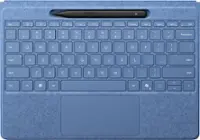
Esc n X 12 F F4 FS F6 F7 FE Home P End F10 PgUp F11 PgDn F12 ins Del - . ! 1 2 # 3 $ 4 % 5 ^ 6 & 7 * 8 ( 9 ) 0 Ce C + = Backspace Tab Q W E R T Y U I O P { [ ) ] | / Caps A S D F G H J K L : ; "A - Enter Shift Z X C V N M < I > . ? / Shift Ctrl Fn Alt Alt i](https://pisces.bbystatic.com/image2/BestBuy_US/images/products/6583/6583049_sd.jpg)

- Model:
- 8X6-00168
- SKU:
- 10187529
Rating by feature
- Value
Rating 4.3 out of 5 stars
- Quality
Rating 4.7 out of 5 stars
- Ease of Use
Rating 4.7 out of 5 stars
Customers are saying
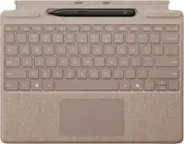
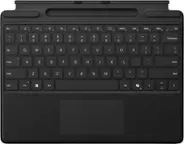
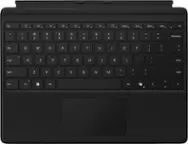
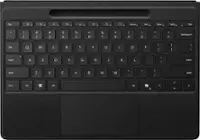
Customers appreciate the Surface Slim Pen (2nd Edition) and Pro Keyboard for Pro 13" (11th Edition), Pro 9, and Pro 8 for its excellent keyboard quality, with users finding the trackpad particularly amazing. The product's connectivity options, including Bluetooth, are also well-received. Finally, customers find the product very smooth and easy to use.
This summary was generated by AI based on customer reviews.
Great Product
||Posted . Owned for 1 week when reviewed.This reviewer received promo considerations or sweepstakes entry for writing a review.Great product and very comfortable while using, price is a little steep but I love it anyway
I would recommend this to a friendGreat item!
||Posted . Owned for 1 week when reviewed.This reviewer received promo considerations or sweepstakes entry for writing a review.I have used many products of this kind prior and this one is the best by far.
I would recommend this to a friendKeyboard
||Posted . Owned for 1 week when reviewed.This reviewer received promo considerations or sweepstakes entry for writing a review.I like it being detachable. Really easy to use and love the pencil
I would recommend this to a friendGood pen, okay keyboard
||Posted . Owned for 2 weeks when reviewed.This reviewer received promo considerations or sweepstakes entry for writing a review.The pen has nice haptic feedback. Wish the trackpad was better. Newer version is better but more expensive
No, I would not recommend this to a friendKeyboard
||Posted . Owned for 1 week when reviewed.This reviewer received promo considerations or sweepstakes entry for writing a review.Great product worth the money. Would purchase again
I would recommend this to a friendsurface pro
||Posted . Owned for 1 week when reviewed.This reviewer received promo considerations or sweepstakes entry for writing a review.Works good for my surface tablet for school/work..
I would recommend this to a friendGood but not premium like the price.
||Posted . Owned for 2 weeks when reviewed.This reviewer received promo considerations or sweepstakes entry for writing a review.Good but exspensive, it's really exspensive. Pen feels good and keyboard works.
I would recommend this to a friendCould be better
||Posted . Owned for 1 month when reviewed.This reviewer received promo considerations or sweepstakes entry for writing a review.The keyboard does its job. Pressing down on the mousepad is loud and can becoming annoying. The felt like back picks up everything and difficult to clean
No, I would not recommend this to a friendIncompatible
||Posted . Owned for 1 month when reviewed.This reviewer received promo considerations or sweepstakes entry for writing a review.This was my third Surface, but the use of another processor (not an Intel) is a failure from Microsoft, it had incompatibilities with certain software and returned it.
No, I would not recommend this to a friendGood buy
||Posted . Owned for 1 week when reviewed.This reviewer received promo considerations or sweepstakes entry for writing a review.I like that it can be removed and its convenient for the slim pen
I would recommend this to a friendDo Not Buy Surface Pro 11 or BB Warranty
||Posted . Owned for 5 months when reviewed.This reviewer received promo considerations or sweepstakes entry for writing a review.So, this device works well, however the surface pro 11 is the biggest electronic piece of junk I have ever purchased. Stay clear of the surface pro 11 until compatibility bugs are fixed. And the added warranty from BB is junk too. They held it for four weeks before sending it back to MS. Told me I should buy a cheap laptop in the meantime.
No, I would not recommend this to a friend- Pros mentioned:Connectivity

Great addition to Surface 11
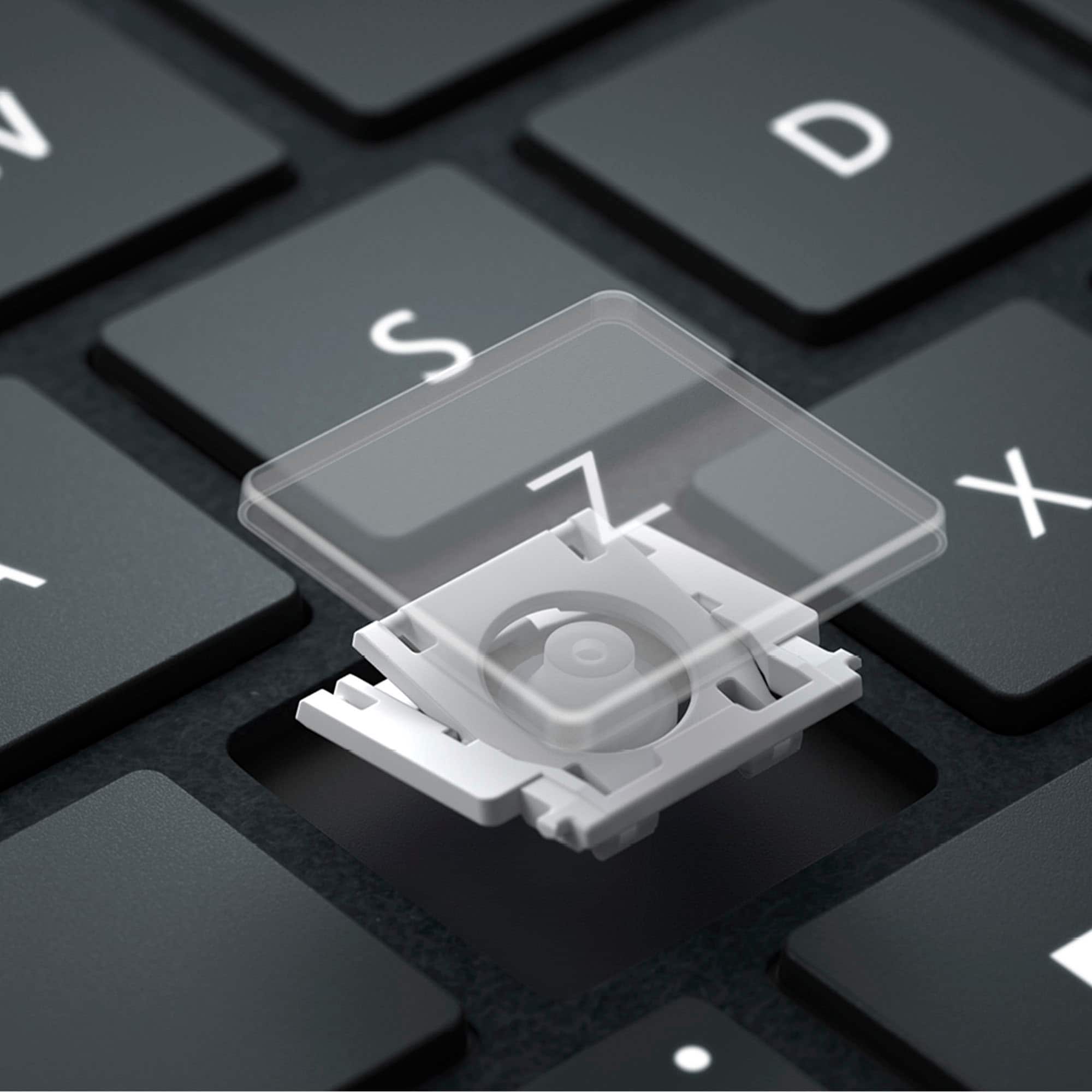
|Posted .This reviewer received promo considerations or sweepstakes entry for writing a review.If you need a lightweight keyboard to accompany you're new Surface Pro 11 tablet this is the near perfect slim companion. The Surface Pro Keyboard snaps onto the bottom of the Surface via magnets, just like previous versions. The pen holder keeps the pen very secure and takes deliberate effort to remove it so you don't have to worry about accidentally losing the pen while it's housed on the keyboard. Typing feels decent on the keyboard, but I've been spoiled by low profile mechanical keyboards. While it's good for a portable laptop, don't expect mechanical performance. The keys need more force than my main KB but not so much to wear out my fingers too much more than my mechanical does. The touchpad, while it works great, is a bit short on the hight so scrolling takes more trips up and down than I'd like but the scrolling is smoother and faster than using touch scroll in Firefox. Pinch zooming works fine also. You can customize the 3 and 4 finger gestures and taps in Windows settings. I remember when Synaptic drivers were what you needed to get to personalize your touchpads. I'm glad MS has surpassed the 3rd party vendors' drivers options. My biggest issue is that when the part that folds up to secure the table to the display engages, it partially covers the app icons. You can't see the lines to see if an app is open or not if you have pinned apps. This is because too many people like form over function and think "eww, bezels." They were there for a reason. I'll probably end up replacing this with a third party keyboard with a heavier base like I did with my other Surfaces. It's not a bad KB, I just like having one that doesn't require the use of the kickstand.
I would recommend this to a friend - Pros mentioned:Connectivity, Keyboard quality
Easy to use
|Posted .This reviewer received promo considerations or sweepstakes entry for writing a review.This keyboard and pen work very well. It was super simple to connect this keyboard to the surface tablet. The has a velvety back and texture area around the track pad. The keys have a rubber feel to them. There is a key that turns the back lights on and off. There is a key to activate the copilot + feature. There is an area that holds the pen, and charges it at the same time. The pen is a thin, lightweight plastic. I like the double tap feature to open favorite apps. The pen writes pretty good on the tablet surface. It is very responsive. The area on sides of track pad are magnetic, pen can be placed in this area and will not slide off. When using paint, pen works well drawing. It is easy to draw and paint with pen using this app. I like being able to use a find my feature to locate my pen. The tracking feature is great. I will be using this keyboard and pen with my table to write notes on meetings. Having a place to hold the pen when not in use is great. When the tablet and keyboard are on a laptop position, the pen tray is not visible. This is a cool feature that will work well for security when the keyboard is not being used. I am very happy with this keyboard and pen.
I would recommend this to a friend - Pros mentioned:Keyboard quality
Seamless Integration and a Must-Have Accessory
|Posted .This reviewer received promo considerations or sweepstakes entry for writing a review.The Microsoft Pro Keyboard might just be the best tablet keyboard in the market. It turns the Surface Pro into a productivity laptop and I love that it can be used wirelessly. The keyboard is full-sized, offering the classic Surface look and feel. It also includes a built-in storage and charging tray for Surface Slim Pen. The overall build quality is excellent and it provides a great typing experience. The Surface Slim Pen 2 Second Edition is comfortable to hold and adds excellent note-taking, doodling and drawing capabilities. The new design is appreciated and works great even with older Surface devices. The pen is ultra-responsive and precise, and the low-latency makes if feel natural to write with making it perfect for creatives and professionals alike. The ergonomic feel and seamless integration with Surface devices elevate productivity and creativity to new heights. If I have any complaints, it’s that the bundle is a bit costly, but I wouldn’t think of owning a Surface Pro without it.
I would recommend this to a friend - Pros mentioned:Keyboard quality
Perfect Pen and Keyboard combo for the Surface Pro
|Posted .This reviewer received promo considerations or sweepstakes entry for writing a review.The Microsoft Surface Pro Keyboard with Slim Pen includes a place to store and charge the pen which some other options might not offer. As I use it now in a recliner, I'm finding it comfortable to use whether I have the keyboard in the front or folded around the back with the stand open on top of it. It was even better when used on a desktop (with the Surface Pro connected to two external displays). The magnetics hold the keyboard very well and also hold the pen firmly. Like any new keyboard, it might initially take a little getting used to -- it took me about 5 minutes. The keyboard does not appear to be backlit, which I know some other model(s) offered. The caps lock and function keys do have lights which illuminate when they are active. When the keyboard cover is closed, there is a soft cover on the outside which has a cloth book-like feel. Speaking of the feel, the surface where you rest your wrists to type also is made of some kind of materially textured surface which prevents slippage. The copilot key is a great addition, and I already am a subscriber to Copilot Pro so I intend to use this button. As per the Pen, it works mostly the way you would expect (with some surprises), I had better hand-writing with it than I typically have with other pens on other devices (such as S-Pen or Pencil Pro). It features a button for right clicking, an eraser, and for example I noticed if I double clicked the eraser OneNote opened (a single eraser click in OneNote made a pop up Quick note window open). I did some doodling with MS Paint (had fun with Cocreator). Photoshop did not seem to work as well with the Slim Pen (for example, if I tried the gradient tool, it would partially make the gradient, but drag the canvas at the same time), but that's more of a Photoshop bug and I'm not reviewing that. There was a period where, after rebooting, the keyboard and trackpad were not functioning, but detaching and reattaching the keyboard corrected that (it was either loose or needed the equivalent of a 'reboot'). Pros: Place to store and charge pen on the keyboard Keyboard can be folded back when not in use Nice Cover Material/Texture when Closed, Protects screen Caps Lock and Function Key Lights Wrist pad textured, material feel, slip resistant Copilot Key Pen includes an eraser on the other end, with two clickable buttons (side and eraser) Responsive Touchpad (feels and works better than my MacBook Air) Cons: Not Backlit (that I've noticed) Pen didn't work great with Adobe Photoshop (this is a software issue, and that might get fixed)
I would recommend this to a friend - Pros mentioned:Keyboard quality
Must have for Surface Pro
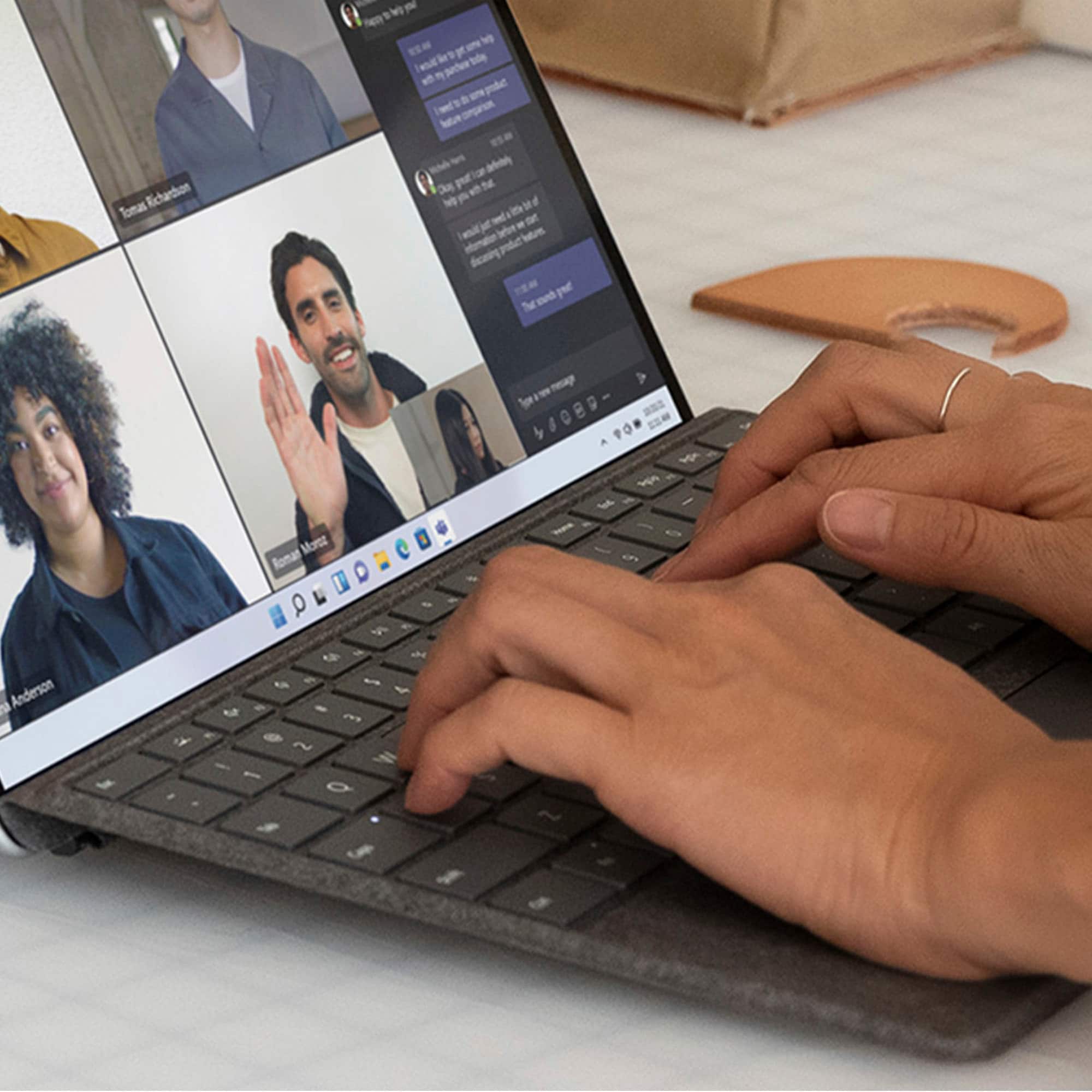
|Posted .This reviewer received promo considerations or sweepstakes entry for writing a review.This is a necessary accessory pair for the Surface Pro. I'm using it with the Surface Pro 11 and it works flawlessly. This is my first time using a Surface Pro keyboard and it was immediately clear that this is a great keyboard. Even though it is impossibly thin, it is better than most laptop keyboards. The key travel feels great for any keyboard, much less on that is this thin. The keys are separated with enough space that the targets are easy to hit. I like the trackpad too, it might be the best trackpad I've ever used on a Windows device. It is large for the space it occupies and I've had no issues with it. Scrolling and gestures are fluid and have not missed. Tap to click is perfect, and actually clicks are solid and satisfying. I love that the pen stows away in the keyboard for storage. This is essential so that you don't have to carry the pen separately, and you will always know where it is. The pen has been great to use, of course it excels in drawing and I've had a lot of fun using it in Paint along with the Copilot+ features. I like that there is a pen launch menu and that the pointer is visible as a dot on the screen when the pen gets close. I also like the erase feature with the end of the pen and that you can even change what happens with the erase end or the function button on the side of the pen. The pen is great to hold too, the shape is perfect and natural. There is a dedicated CoPilot key on the keyboard, which I wasn't crazy about at first. However, now that I've used it for a bit I am a fan. It is nice to have a button to launch an application that I've come to use quite a bit. This is the perfect accessory pair for the Surface Pro, but I also think it should be included with the device and not a separate purchase.
I would recommend this to a friend - Pros mentioned:Keyboard quality
Seamless productivity on the go!
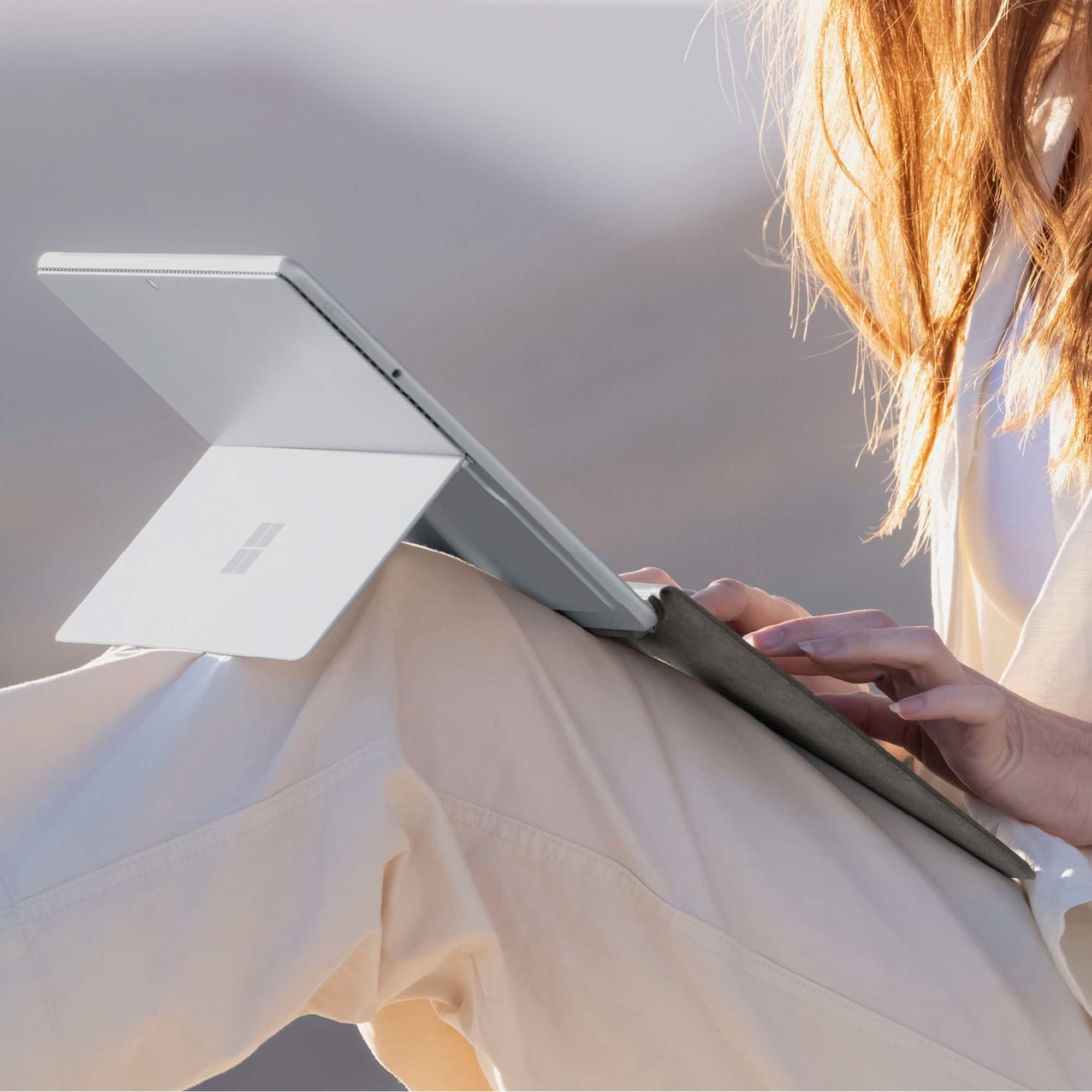
|Posted .This reviewer received promo considerations or sweepstakes entry for writing a review.I recently got the Surface Slim Pen and Pro Signature Keyboard accessory bundle to complement my new Surface Pro Copilot+ PC, and I must admit, I’m thoroughly impressed! As I type this review on the keyboard, I appreciate its quick snap-on design. It effortlessly attaches to the Surface Pro without any fuss, and the connection feels sturdy. The pen, too, seamlessly integrates with the Surface Pro. Upon picking it up from its slot, the Surface Pro immediately recognized it and provided an on-screen pop-up overview of its capabilities. Using the pen is a delight as well. There is no noticeable lag, and its sleek, slim design ensures comfortable use. While the flat form factor took a bit of adjustment for me, it still feels like writing with a real pen. The built-in touchpad is equally responsive, and the material covering exudes a luxurious feel. I like that both the keyboard and pen draw power from the Surface Pro’s battery, this eliminates the need for separate charging, meaning less chargers to carry. The keyboard also doubles up as a protection cover for the Surface Pro's screen and the slim design makes it easy to slip the device into a sleeve. The dedicated Copilot key on the keyboard is also a plus. I have been using Copilot for work so this welcome addition provides a seamless access to its features and capabilities. I am also fond of using the snipping tool so having a separate key for this tool is a stroke of genius. Truly, convenience and efficiency are what's being offered by this keyboard bundle. With this keyboard, my Surface Pro Copilot+ PC transforms into a powerful laptop, making it the perfect companion for productivity on the go. So, whether I’m typing up reports or writing notes, this bundle has me covered!
I would recommend this to a friend - Pros mentioned:Keyboard quality
Absolutely necessary!
|Posted .This reviewer received promo considerations or sweepstakes entry for writing a review.This keyboard should automatically be included when you buy any Microsoft Surface. It improves the functionality of the computer ten fold. I will always love the ease of a tablet but this keyboard takes it to another level. If you do any sort of typing, this is a must have. Set up of the keyboard is super simple as there is none! It sets itself up due to the magnetic connection. It is soo thin so it barely adds any bulk to the Surface. And even tho it's thin, it's nice and sturdy. It has 2 positions when attached depending on if you want it flat or angled. It can also be detached and used through Bluetooth. If you want the surface farther away or on a stand like a monitor, that's a nice feature. The keyboard acts as a case for the front of the tablet protecting the screen, you'll probably want to still get a case for the back. I have a folio style case and this keyboard fits in perfectly. It has backlit keys and 3 levels of brightness. The feel of typing is great with the nice, soft clicky keys. The track pad also has a great feel to it. It's very responsive. This keyboard is a premium feeling accessory and a must have!
I would recommend this to a friend - Pros mentioned:Keyboard quality
Perfect Accessory
|Posted .This reviewer received promo considerations or sweepstakes entry for writing a review.This detachable keyboard is just as good if not better than last generation. The keys and touchpad seen more clicky and responsive than the last one. The pen works great with writing notes and magnetically connect in the slot in the keyboard for charging and safe keeping. The keyboard magnetically attaches to the pro and can be used as a cover to keep the screen safe. The new keyboard I noticed has the new copilot button for easy AI access for help with search so you don't have to keep accessing the copilot app through the start menu. Although you can also use the tab from the task bar as well. The look and feel of the keyboard is sleek so it look really nice when the Pro is closed and the soft felt material is a nice feel that is not rough on your wrists when typing. Overall I'd say this accessory is definitely worth the money to be used as a cover when the pro is not in use and also when you don't want to use the onscreen virtual keyboard or just all touch. I would definitely recommend it to any consumer. Well done Microsoft on this years Surface Pros and accessories!
I would recommend this to a friend - Pros mentioned:Keyboard quality
Another Great Surface Keyboard From Microsoft
|Posted .This reviewer received promo considerations or sweepstakes entry for writing a review.I have been a surface user for many years. I have always liked the keyboard covers they developed. The keyboard cover for the Surface Pro Copilot+ may be the best one yet. First, like its predicessors its very thin and light. The black keyboard gace looks great and the felt reverse side feels and looks premium. As has been the case with precious Surface covers, this one snaps snugly and tightly to the Surface. Second, the quality and smoothness of the keyborad is fantastic. The keys do not raise much off the surface but typing stll feels very fluid. I dont experience any typing speed reduction when using this ovwr a standard keyboard. The keyboard also has the Copilot+ plus keybwhich is the new AI funtionality Microsoft has built into Windows. It makes it very easyb to.pull up the AI functionality. Finally, there is a pen holdebuilt into the case to hold the screen pen. To the best of my knowledge this is the first time Microsodt has done this and its a great addition for keeping the pen handy. This is another great Durface cover/keyboard from Microsoft.
I would recommend this to a friend