Customer Ratings & Reviews


- Model:
- B09JZ5BG26
- SKU:
- 12481235
Rating by feature
- Value
Rating 4.7 out of 5 stars
- Quality
Rating 4.7 out of 5 stars
- Ease of Use
Rating 4.7 out of 5 stars
Camera from ring
||Posted . Owned for 1 month when reviewed.This reviewer received promo considerations or sweepstakes entry for writing a review.It's ok, but just records what it wants to. Some times it records, some time not so much. Other than that it works ok
No, I would not recommend this to a friendBrand response from Ring
Posted .Hi DarcyD.
We appreciate you taking the time to share your experience with us. At Ring, we believe in keeping people close to what’s important. That is why we are driven to create products that help you protect what matters most at home and empower you to connect with your visitors from wherever you are. Together, we’ll make neighborhoods safer!
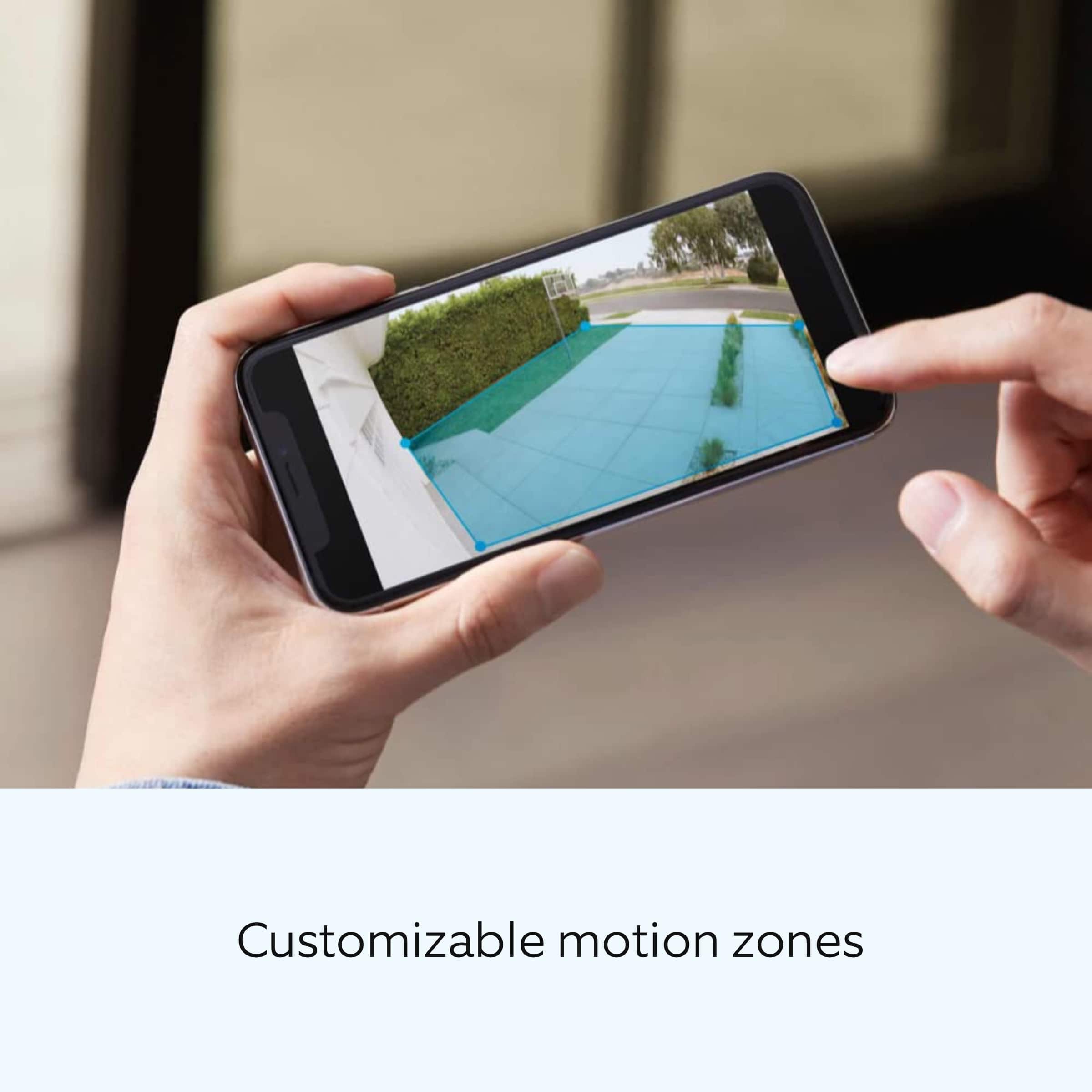
It is important to ensure that you have the proper motion settings in place for your environment. This camera uses adjustable motion detection and runs on passive infrared sensors. The system identifies visitors via a moving heat signature and sends a notification to your smart device when one is detected. You can adjust three preset motion zones and their distances under the "Motion Settings" tab on the device's page in the Ring app. Additionally, you can choose how often the camera checks for movement in those predefined zones via the "Motion Frequency" setting. If you find that your camera is missing some motions, please set the motion frequency to "Frequently."
Ring Community is our first peer-to-peer community forum, giving our customers the ability to help one another and share their feedback and experiences with Ring. We invite you to reach out at to our community if any additional information is needed regarding your Ring Spotlight Cam Plus.
Thank you,
Melissa from Ring.
Camera
||Posted . Owned for 10 months when reviewed.This reviewer received promo considerations or sweepstakes entry for writing a review.camera catcher rate is not all that good Still, I would buy it because it gives me easy mind
I would recommend this to a friendBrand response from Ring
Posted .Hi MarkMason.
Thank you for taking the time to share your experience with us. We understand how important it is to have your Ring Spotlight Cam Plus capture all the correct motion events. The Ring Spotlight Cam Plus was designed to capture motions based on your specifications to help keep your home secure. We are here to provide you with some information to resolve the missed motion issue you mentioned in your review.
It sounds like the device is not performing as expected in regards to motion detection. It is important to ensure that you have the proper motion settings in place for your environment. This camera uses adjustable motion detection and runs on passive infrared sensors. The system identifies visitors via a moving heat signature and sends a notification to your smart device when one is detected. You can adjust three preset motion zones and their distances under the "Motion Settings" tab on the device's page in the Ring app. Additionally, you can choose how often the camera checks for movement in those predefined zones via the "Motion Frequency" setting. If you find that your camera is missing some motions, please set the motion frequency to "Frequently."
Accuracy in motion detection can also be improved by enabling the "Smart Alerts" feature for people only in your Ring app. To enable "Smart Alerts," please follow these steps:
Tap the menu (≡) on the top left.
Tap "Devices."
Tap the device that you want to adjust.
Tap "Motion Settings."
Tap "Smart Alerts."
Tap "Enable Feature."
Tap "Continue."
Select the notification options that you want for "Person" and "Other Motion."
You'll see a video camera where you can select or de-select recording and a bell icon to represent alert notifications.
After you've adjusted your settings, tap "Done."
If any additional information is needed regarding your Ring Spotlight Cam Plus, please reach out to our community. Ring Community is our first peer-to-peer community forum, giving our customers the ability to help one another and share their feedback and experiences directly with Ring.
Thank you,
Melissa from Ring.
Waste of time
||Posted . Owned for 3 months when reviewed.This reviewer received promo considerations or sweepstakes entry for writing a review.Even with two fully charged batteries and the Ring Solar Panel—on clear, sunny days—this thing only lasted a couple of days before dying. That’s unacceptable for something marketed as a low-maintenance, solar-powered camera. I double-checked the setup, cleaned the panel, and adjusted motion zones, but nothing helped. I shouldn't have to babysit a security camera this much. It felt like more of a chore than peace of mind.
No, I would not recommend this to a friendBrand response from Ring
Posted .Hi shootwithkese.
Thank you for taking the time to share your experience. We understand the importance of having a solid charge on your Ring Spotlight Cam Plus so that you are able to have a longer time between charge cycles. Having longevity in a battery-powered security device is crucial when it comes to monitoring your home, especially if you are away for long periods of time. We are here to provide you with some education to resolve the battery life issue you mentioned in your review.
It sounds like the device is not performing as expected. There are some troubleshooting steps that you can take to ensure that you have your device set up for optimal battery-life performance. The more events captured by your Ring devices, the more your battery is used. Using "Live View" can also drain your battery faster. If your device is capturing an excessive number of events each day, you may need to recharge your battery sooner.
To ensure your dual powered device is on the correct power more please check the Ring app. Using as Ring Solar Panel with a Ring camera will still be set to Battery Mode. To check this setting in the Ring app follow the steps below:
1. Open the Ring app and tap the three lines in the top left corner
2. Tap devices then tap your Ring Spotlight Cam Plus
3. Tap Devices Settings then Power Management
4. Ensure the solar powered device is set to Battery Power mode
If any additional information is needed regarding your Ring Spotlight Cam Plus, please reach out to our community. Ring Community is our first peer-to-peer community forum, giving our customers the ability to help one another and share their feedback and experiences directly with Ring.
Thank you for being the best part of Ring! Have a wonderful day!
Sincerely,
Matthew from Ring.
Not bright enough
||Posted . Owned for 1 month when reviewed.This reviewer received promo considerations or sweepstakes entry for writing a review.I know it's a spotlight and a camera. The image is blurred on my phone and my tablet. when I check the visual outside at night; looking at the surroundings -it's just not bright enough. I wish there wasn't such a blur. if there was an intruder, I wouldn't be able to get a clear picture and there's no way to enhance it.
No, I would not recommend this to a friendBrand response from Ring
Posted .Hi Doglover2.
Thank you for sharing your feedback with us.
We understand how important it is to be able to clearly see who is on your property with the Ring Spotlight Camera Plus. The security features and technology provided by the Ring Spotlight Camera Plus are incredibly valuable to your peace of mind. We can definitely assist you with this today to ensure your Ring device is performing optimally.
It sounds like the video you are seeing is not as clear as you would like. One of the main causes of poor video quality is low wifi speeds. We recommend running a speed test to see if this is what is causing your poor video quality. Follow these steps to run a wifi speed test:
Turn off your mobile phone’s cellular data and connect to the same wifi network as your Ring device.
Open the Ring app.
Tap the menu (☰).
Tap "Devices."
Select your device.
Tap "Device Health."
Under Tools, tap "Test Your Wifi."
Tap "Start" to run a test that will measure your upload and download speeds.
Both upload and download speeds should be at least 1 Mbps or greater, but 2 Mbps or above is ideal.
Check the numbers on your wifi speed test. If either your upload or download speeds are below 1 Mbps, then you might consider replacing your router (especially if it's older than five years). Contact your internet service provider to learn more about getting newer equipment and faster speeds.
Ring Community was launched to help deliver the most current news and educational information to our neighbors. This online forum is divided into four categories: Product Boards, Ring Updates, Tips + Tricks, and a Moderators’ Corner. The Product Boards are where you can begin new topics with your questions or feedback; there is also a search option that helps you find topics that have already been posted by other neighbors.
All the best,
Nicole from Ring.
Inconvience
||Posted . Owned for 1 month when reviewed.This reviewer received promo considerations or sweepstakes entry for writing a review.Inconvenience, have to change battery offen and have to use ladder to get to it.
I would recommend this to a friendBrand response from Ring
Posted .Hello Tamusa,
Thank you for taking the time to share your Ring experience with us. We appreciate the value and trust you have placed in Ring for your home security needs. You can help extend the longevity of your camera and doorbell batteries by not keeping them fully charged all the time. Please review this article for a more information regarding optimizing your battery usage and charging: https://ring.com/support/articles/9iatk/Reduce-Battery-Aging-with-Optimized-Battery-Charging. Additionally, you may purchase a Ring Solar Panel to aid in reducing the frequency of battery recharges separately.
Ring Community was launched in March 2019 to help deliver the most current news and educational information to our customers. You can find tips and tricks from other Ring users at https://community.ring.com/. This peer-to-peer forum allows our neighbors to share their feedback and experiences to assist each other in resolving their concerns.
Thank you,
Alexis with Ring
Great Camera. Not so great battery.
||Posted . Owned for 2 weeks when reviewed.This reviewer received promo considerations or sweepstakes entry for writing a review.Happy with the camera performance but not so much the battery performance. Used the recommended motion settings and battery only lasted 17 days. I live on the end of a very low traffic dead end street so was surprised when low battery alert came through. Maybe plug-in option would be better if user had power at camera location.
No, I would not recommend this to a friendBrand response from Ring
Posted .Hello eddiedforktruck,
Ring products "see" the world through a network of three linked passive infrared (PIR) sensors. These are heat sensors that detect motion by monitoring heat within the detection area. When a person or object that is warmer enters the detection area, the heat measurements change. The motion sensors register this change as movement and send out an alert. The sensitivity of the sensors can be adjusted to accommodate the motion detection you would like from your device.
To prevent excessive activity, you can adjust your motion settings to a lower sensitivity, disable certain zones, or change the motion frequency. Motion Frequency is a user-accessible control that allows you to adjust your motion detection protocols to provide a balance between consistent alerts and preserving battery life. This article will detail exactly what Motion Frequency is and how you can best utilize it to optimize your Ring device's motion detection capabilities: https://support.ring.com/hc/en-us/articles/115003477106-Understanding-and-Optimizing-Motion-Detection-with-Motion-Frequency.
Here is another helpful article that explains how to prevent battery loss: https://support.ring.com/hc/en-us/articles/4405531384468-How-to-Fix-Unexpected-Battery-Drain-in-Your-Ring-Video-Doorbell-or-Security-Camera.
If any additional information is needed regarding your Ring Spotlight Cam Plus, please reach out to our dedicated team at [email protected]. You may also reach out to our Community. The Ring Community is our first peer-to-peer community forum, giving our customers the ability to help one another by sharing their feedback and experiences with each other. You can find it here: https://community.ring.com/.
Thank you,
Alexis with Ring.
Cameras malfunction
||Posted . Owned for 1.5 years when reviewed.This reviewer received promo considerations or sweepstakes entry for writing a review.bought 3 cameras, and only 1 is still working. The other 2 are completely useless. This is incredibly disappointing — I expected much better from Ring. I need to know if I can return or exchange them, because this quality is unacceptable.
No, I would not recommend this to a friendBrand response from Ring
Posted .Hi Alemac92.
Thank you for taking the time to share your experience with us. We understand how important it is for your Ring Spotlight Cam Plus to function consistently and reliably, so you are alerted to any wanted or unwanted activity in or around your home. The features and technology provided by the Ring Spotlight Cam Plus are incredibly valuable and help provide you with peace of mind about your home security. We are eager to address the issue you raised in your review and provide you with a resolution today.
It sounds like your Ring Spotlight Cam Plus is not performing as expected. We would love the opportunity to share with you some troubleshooting steps that you can try to get your Ring Spotlight Cam Plus functioning as intended. If your device is unresponsive, try pressing and holding the reset button for 20 seconds. Follow the steps in the Ring app to reconnect the camera to your network. To reconnect a Ring Spotlight Cam Plus to your wifi network: Open the Ring app. Tap the menu (≡). Tap "Devices" and select the camera you'd like to reconnect to wifi. Tap the "Device Health" tile. Under "Network," tap "Change Network" and follow the prompts in the app. Allow some time for your device to fully reconnect to the network, then check your wifi signal strength in "Device Health" to confirm it has successfully reconnected.
If the above steps do not resolve the issue, we recommend reaching out to our Ring Customer Support team. They are available 24/7 at: 1-800-656-1918. We also invite you to reach out to our community. The Ring Community is our first peer-to-peer community forum, giving our customers the ability to help one another by sharing their feedback and experiences with each other. We look forward to hearing from you if we can be of any further assistance!
Thank you,
Miyuki from Ring.
So so
||Posted . Owned for 1 month when reviewed.This reviewer received promo considerations or sweepstakes entry for writing a review.Works pretty well. Setup was a nightmare. A bit disappointed in the video quality.
I would recommend this to a friendBrand response from Ring
Posted .Hi LouRod.
Thank you for taking the time to share your experience with us. We understand how important it is for your Ring Spotlight Cam Plus to record clear and concise videos so that you can effectively monitor your home. The features and technology provided by the Ring Spotlight Cam Plus are incredibly valuable and help provide you with peace of mind about your home security. We want to ensure your device is working as intended by providing you with solutions to resolve the concern you mentioned in your review.
It sounds like the device is not performing as expected. Ring devices require high-speed internet to bring you crisp, clear video and audio. Poor network connectivity can affect the performance of your Ring device. We are happy to share some troubleshooting steps to help you diagnose and fix common video issues that you may experience with Ring doorbells and cameras.
Ring devices with 1080p video require at least 1 Mbps upload and download speeds, though 2 Mbps is recommended for optimal performance. In addition to ensuring that you have sufficient wifi speeds, you will also want to check the signal strength of your device. A poor wifi signal can cause connectivity with your Ring device to be unreliable.
Check the "Device Health" section of your Ring application to ensure the device’s RSSI is within an acceptable range. The recommended range for optimal performance is 0 to -60 for the RSSI. Turn off your mobile device's cellular data and connect to the same wifi network as your Ring device. Open the Ring app. Tap the menu (☰). Tap “Devices.” Select your device. Trigger an event on your Ring device. This could mean pressing the button on a doorbell or activating the motion sensors on a camera. Answer the event and examine the resulting video.
We have listed some possible outcomes from this test here:
1. The footage is crisp and clear.
If your video appears good when next to the router, the issue may be caused by a disruption in between your router and your Ring device’s normal location. To fix this, try moving your device closer to the router or extending your wifi signal with a wifi extender like the Ring Chime Pro.
2. The footage is heavily pixelated.
If you’re seeing heavy pixilation, even next to the router, this may be due to slow wifi speeds.
1. There are severe pauses in live video.
If your video pauses, stutters, or gets frozen and your wifi speed meets the minimum standards, try rebooting your router. Unplug your router, wait 30 seconds, and then plug it back in. It should take three to four minutes to reboot. Then, test your Ring device again and see if there's any difference.
4. There is a long delay before your video starts.
This is also caused by slow wifi speeds. Assuming you have high-speed internet, reboot your router and the mobile phone, tablet, or PC you're accessing the video feed on. Test an event when it's back online to see if there's any difference.
While there are no video settings that allow you to change exposure to sunlight, there are other ways you can fix overexposed, washed-out videos. Using a wedge kit or corner kit can change the angle of the doorbell. There are many different corner kits and wedge kits, so make sure you get one that is compatible with your particular model of doorbell.
For more information on your Ring Spotlight Cam Plus, we invite you to reach out to our community. Ring Community is our first peer-to-peer community forum, giving our customers the ability to help one another and share their personal feedback and experiences with Ring. We look forward to hearing from you. Please let us know if we can be of any further assistance!
Thank you,
Melissa from Ring.
Battery
||Posted . Owned for 3 weeks when reviewed.This reviewer received promo considerations or sweepstakes entry for writing a review.Battery stop working after being on for a few days and won’t recharge. Love ring cameras I own several.
I would recommend this to a friendBrand response from Ring
Posted .Hi LadaB.
Thank you for taking the time to share your experience with us. We understand the importance of having a solid charge on your Ring Spotlight Cam Plus so that you are able to have a longer time between charge cycles. It is critical for a home security device to have enough power to keep your device online and ready to protect you. We are here to provide you with some information to resolve the battery life issue you mentioned in your review.
It sounds like the device is not performing as expected. Spotlight Cam Plus, Battery, Wired, Solar, or Plug-In, is an outdoor security camera that can be used to capture out-of-sight areas and blind spots. It’s equipped with Color Night Vision, customizable Motion Detection, and Motion-Activated Lights. Just mount the wireless camera and adjust the viewing angle for wide coverage throughout the day or night. We recommend following these steps to charge the battery prior to use:
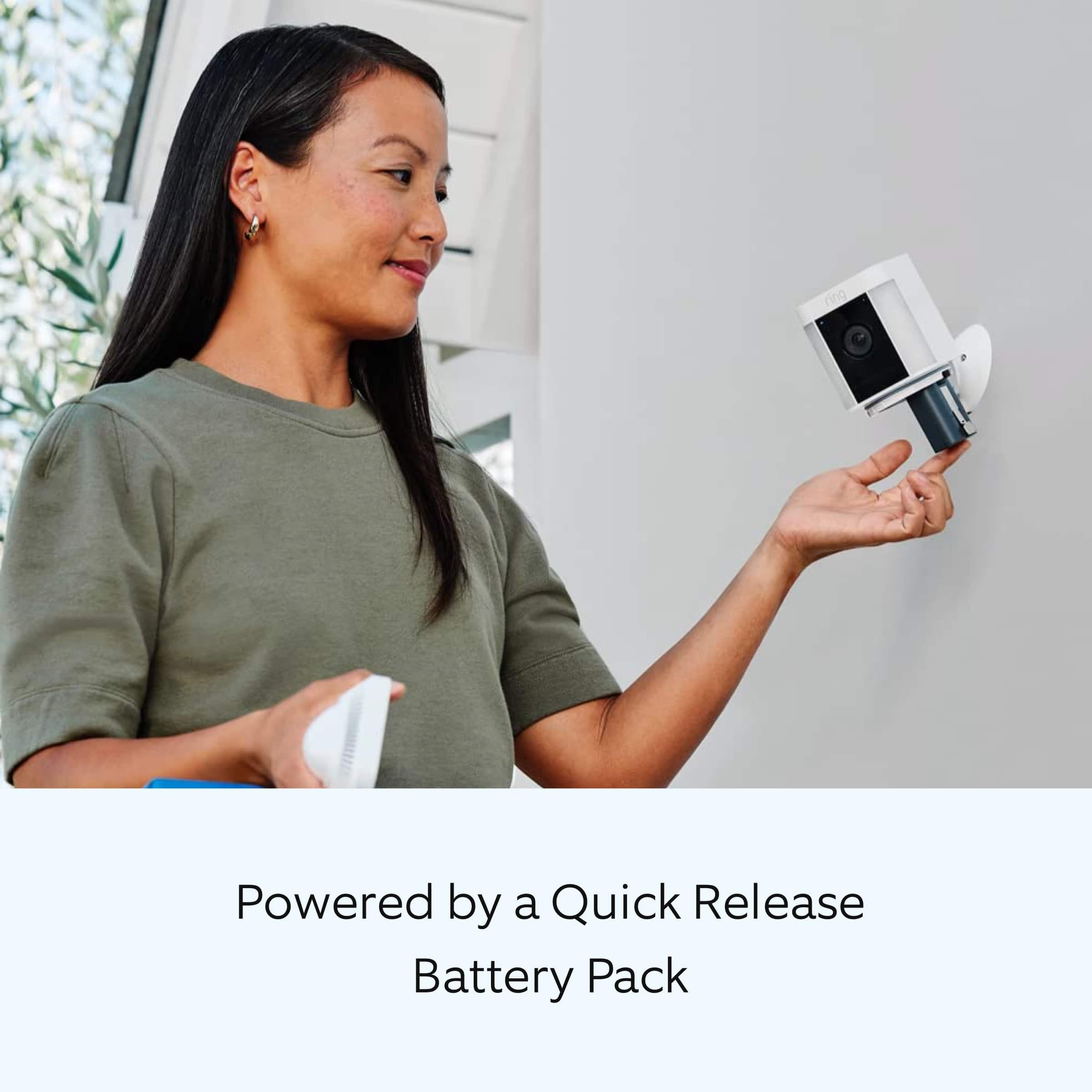
Twist the Speaker hatch counterclockwise to unlock and remove the cover.
Then, remove the battery and discard the orange battery insulator.
Charge the battery. Plug it into a power source using the provided USB cable.
Once the battery’s fully charged, only one light on top will glow green.
Re-insert the battery.
Slide the battery back into the camera until it clicks into place.
Twist the battery compartment cover clockwise to lock it and tighten the security screw.
If your battery is not charging properly, try using a different USB cable. If you still have issues with the battery, we recommend reaching out to our support team at: 1-800-656-1918. Our team of experienced agents are available 24/7 and ready to assist you.
There are some troubleshooting steps that you can take to ensure that you have your device set up for optimal battery-life performance. The more events captured by your Ring devices, the more your battery is used. Using "Live View" can also drain your battery faster. If your device is capturing an excessive number of events each day, you may need to recharge your battery sooner.
To prevent excessive activity, under "Motion Settings" for your device in the Ring app, you can:
Adjust your "Motion Sensitivity" slider to a lower sensitivity.
Redraw your "Customizable Motion Zones."
Change "Motion Frequency" to regularly or periodically.
You could also adjust the direction of your Ring device so it doesn't detect as much motion.
You can go to "Power Settings" in the Ring app to see what features may be draining your battery.
To access "Power Settings," open the Ring app:
Tap the menu (≡) on the top left of the dashboard.
Tap "Devices."
Tap the individual device (video doorbell or security camera) you want to check.
Tap "Power Settings" to check your "Battery Level" percentage and "Feature Power Usage."
Tap a feature to adjust "Snapshot Capture," "Motion Frequency," and "Video Recording Length.".
As cold weather sets in, lithium-ion batteries like those used in Ring Doorbells and Security Cameras may experience several issues, including trouble holding a charge, running out of power faster than normal, or losing functionality. Knowing at what temperature batteries will start to be impacted can help you take the necessary steps to keep your device working. When the temperature drops to:
36°F (3°C): The battery may not hold a charge as effectively, resulting in having to charge the unit more frequently.
32°F (0°C): The battery may not charge at all. Even hardwired configurations may not charge the battery.
-5°F (-20.5°C): The battery may stop working completely until temperatures warm up.
When it gets cold and your device's battery runs out, bring your entire device inside and charge the battery with a USB cord. This will allow your device to warm up while the battery charges.
If any additional information is needed regarding your Ring Spotlight Cam Pro, please reach out to our community. Ring Community is our first peer-to-peer community forum, giving our customers the ability to help one another and share their feedback and experiences directly with Ring.
Sincerely,
Melissa from Ring.
Camera picture quality is good
||Posted . Owned for 1 month when reviewed.This reviewer received promo considerations or sweepstakes entry for writing a review.The product itself works great but battery dies after about a week in the winter
I would recommend this to a friendBrand response from Ring
Posted .Hi MichaelA.
Thank you for taking the time to share your experience with us.
We understand the importance of having a solid charge on your Ring Spotlight Cam Plus. Having longevity in a battery-powered security device, such as the Ring Spotlight Cam Plus, is crucial when it comes to monitoring your home, especially if you are away for long periods of time. We can definitely provide you with more information regarding the concern mentioned in your review.
It sounds like you are enjoying the features your Ring Spotlight Cam Plus has to offer, but there is some concern regarding the battery life. Extremely cold weather has unfortunate effects on lithium-ion batteries such as those used in Ring devices. As the temperature drops, these batteries begin to have trouble holding a charge, and if it gets cold enough, they'll stop working entirely. At certain temperatures, the batteries in your Ring device may run out of power faster than expected and may need to be recharged more often.
The following are key temperatures to watch out for in regards to your batteries:.
36°F (3°C): The battery may not hold a charge as effectively, resulting in you having to charge the unit more frequently.
32°F (0°C): The battery may not charge at all. Even hardwired configurations may not charge the battery.
-5°F (-20.5°C): The battery may stop working completely until temperatures warm up.
Monitor your charge and the temperature. As long as the temperature hovers around the points listed above, you may have issues with battery charge. Therefore, it's important to constantly monitor your battery life when it gets cold to make sure your device is always working.
Additional batteries can be purchased to avoid any downtime while recharging. Visit our support center for more information.
Ring Community was launched to help deliver the most current news and educational information to our neighbors. This online forum is divided into four categories: Product Boards, Ring Updates, Tips + Tricks, and a Moderators’ Corner. The Product Boards are where you can begin new topics with your questions or feedback; there is also a search option that helps you find topics that have already been posted by other neighbors.
All the best,
Nicole from Ring.
Ring cameras giving problems
||Posted . Owned for 1 month when reviewed.This reviewer received promo considerations or sweepstakes entry for writing a review.Purchased 5 caneras for perimeter security. The detection zone in one if them does not match the live view and cannot be set. 3 others won't detect movement on all the detection zone set, only areas closed to the camera. Basically they only detect someone close by the canera. Othewuse, they won't trigger. Also notifications are inconsistent. Returning for another system.
No, I would not recommend this to a friendBrand response from Ring
Posted .Hi Blinkcamera.
Thank you for taking the time to share your experience with us. We understand how important it is to have your Ring Spotlight Cam Plus capture all the correct motion events. The Ring Spotlight Cam Plus was designed to capture motions based on your specifications to help keep your home secure. We are here to provide you with some information to resolve the issue you mentioned in your review.
It sounds like the device is not performing as expected in regards to person detection. It is important to ensure that you have the proper motion settings in place for your environment. This camera uses adjustable motion detection and runs on passive infrared sensors. The system identifies visitors via a moving heat signature and sends a notification to your smart device when one is detected. You can adjust three preset motion zones and their distances under the "Motion Settings" tab on the device's page in the Ring app. Additionally, you can choose how often the camera checks for movement in those predefined zones via the "Motion Frequency" setting. If you find that your camera is missing some motions, please set the motion frequency to "Frequently."
Accuracy in motion detection can also be improved by enabling the "Smart Alerts" feature for people only in your Ring app. To enable "Smart Alerts," please follow these steps:
Tap the menu (≡) on the top left.
Tap "Devices."
Tap the device that you want to adjust.
Tap "Motion Settings."
Tap "Smart Alerts."
Tap "Enable Feature."
Tap "Continue."
Select the notification options that you want for "Person" and "Other Motion."
You'll see a video camera where you can select or de-select recording and a bell icon to represent alert notifications.
After you've adjusted your settings, tap "Done."
Notification delays are often related to wifi connection or mobile device variables. A delay of under six seconds is expected due to signal fluctuation. To check your connection and learn more about your device's signal strength, follow these steps:
Open the Ring app.
Tap the menu (☰).
Tap Devices.
Select the Ring device you would like to test.
Tap on the Device Health tile.
Scroll to Signal Strength under the Network section.
The green, amber, and red colors are indicators of your device connection. Green is good; red is poor.
If any additional information is needed regarding your Ring Spotlight Cam Plus, please reach out to our community. Ring Community is our first peer-to-peer community forum, giving our customers the ability to help one another and share their feedback and experiences directly with Ring.
Thank you,
Melissa from Ring.
Battery could be better
||Posted . Owned for 1 month when reviewed.This reviewer received promo considerations or sweepstakes entry for writing a review.Very disappointed in the battery life. Other than that they are good quality cameras.
I would recommend this to a friendBrand response from Ring
Posted .Hi BeauF.
Thank you for taking the time to share your experience with us. We understand the importance of having a solid charge on your Ring Spotlight Cam Plus so that you are able to have a longer time between charge cycles. Having longevity in a battery-powered security device is crucial when it comes to monitoring your home, especially if you are away for long periods of time. We are here to provide you with some education to resolve the battery life issue you mentioned in your review.
We are happy to share with you some troubleshooting steps that you can take to ensure that you have your device set up for optimal performance.
As cold weather sets in, lithium-ion batteries like those used in Ring Doorbells and Security Cameras may experience several issues including trouble holding a charge, running out of power faster than normal, or losing functionality. Knowing at what temperature batteries will start to be impacted can help you take the necessary steps to keep your device working. When the temperature drops to:
36°F (3°C): The battery may not hold a charge as effectively, resulting in having to charge the unit more frequently.
32°F (0°C): The battery may not charge at all. Even hardwired configurations may not charge the battery.
-5°F (-20.5°C): The battery may stop working completely until temperatures warm up.
When it gets cold and your device's battery runs out, bring your entire device inside and charge the battery with a USB cord. This will allow your device to warm up while the battery charges.
The more events captured by your Ring devices, the more your battery is used. Using Live View often can also drain your battery faster. If your device is capturing an excessive number of events each day, you may need to recharge your battery sooner. To prevent excessive activity, under Motion Settings for your device in the Ring app you can:
Adjust your Motion Sensitivity slider to a lower sensitivity.
Redraw your Customizable Motion Zones.
Change Motion Frequency to regularly or periodically.
You could also adjust the direction of your Ring device so it doesn't detect as much motion.
You can go to Power Settings in the Ring app to see what features may be draining your battery.
To access Power Settings, open the Ring app:
Tap menu (≡) on the top left of the Dashboard.
Tap Devices.
Tap the individual device (video doorbell or security camera) you want to check.
Tap Power Settings to check your Battery Level percentage and Feature Power Usage .
Tap a feature to adjust Snapshot Capture, Motion Frequency and Video Recording Length.
If any additional information is needed regarding the battery life of your device, please reach out to our Community. Ring Community is our first peer-to-peer community forum, giving our customers the ability to help one another and share their feedback and experiences directly with Ring.
Thank you for being the best part of Ring! Have a wonderful day!
Sincerely,
Melissa from Ring.
Spotlight Camera
||Posted . Owned for 1 month when reviewed.This reviewer received promo considerations or sweepstakes entry for writing a review.The light doesn't always go on when there's motion. It reconnects to wifi when it's a couple feet away.
I would recommend this to a friendBrand response from Ring
Posted .Hi Miguel.
Thank you for taking the time to share your experience with us. We understand how important it is for your Ring Spotlight Cam Plus to function consistently and reliably, so you are alerted to any wanted or unwanted activity in or around your home. The features and technology provided by the Ring Spotlight Cam Plus are incredibly valuable and help provide you with peace of mind about your home security. We are here to provide you with some information to resolve the issue you mentioned in your review.
It sounds like the device is not performing as expected. The Ring Spotlight Cam Plus is an outdoor security camera that can be used to capture out-of-sight areas and blind spots. It’s equipped with "Color Night Vision," customizable motion detection, and motion-activated lights. Just mount the wireless camera and adjust the viewing angle for wide coverage throughout the day or night.
The Spotlight Cam Pro is designed with customizable light settings to provide you with the ability to adjust the lights according to your needs. To ensure that the "Motion Activated Lights" feature is enabled, follow these steps:
Open the Ring app.
Tap the menu (☰).
Tap Devices.
Select the Spotlight Cam Plus that you want to adjust.
Select "Device Settings."
Select "Light Settings."
Toggle the switch on for "Motion-Activated Lights."
We also recommend increasing the "Motion Sensitivity" and adjusting your motion zones under the "Motion Settings" tab in the Ring app.
Usually, a device falling offline repeatedly is related to poor wifi connectivity caused by signal fluctuations, channel congestion, or data loss. In rare cases, this can be caused by settings in your router. To determine whether or not the problem is caused by poor upload speed, run a speed test to determine if your network can support Ring devices. Ring devices with 1080p video require at least 1 Mbps upload and download speeds, though 2 Mbps is recommended for optimal performance. In addition to ensuring that you have sufficient wifi speeds, you will also want to check the signal strength of your device. A poor wifi signal can cause connectivity with your Ring device to be unreliable. Check the Device Health section of your Ring application to ensure the device’s RSSI is within an acceptable range. The recommended range for optimal performance is 0 to -60 for the RSSI.
If you are experiencing connection or signal strength issues, we recommend the following solutions to this problem:
Install a wifi extender such as our Ring Chime Pro.
Contact your ISP about increasing your speeds.
We invite you to reach out to our community if any additional information is needed regarding your Ring Spotlight Cam Plus. The Ring Community is our first peer-to-peer community forum, giving our customers the ability to help one another by sharing their feedback and experiences with each other.
Thank you,
Melissa from Ring.
Ok but certainly not great
||Posted . Owned for 2 months when reviewed.This reviewer received promo considerations or sweepstakes entry for writing a review.These arent the sturdiest cams and the way they mount is limited and can be quite awkward.
No, I would not recommend this to a friendBrand response from Ring
Posted .Hi Carenthusiast.
Thank you for taking the time to leave your review of the Ring Spotlight Cam Plus. We understand the importance of a seamless setup process so that you can begin using your Ring Spotlight Cam Plus right away. The features and technology provided by the Ring Spotlight Cam Plus are incredibly valuable and help provide you with peace of mind about your home security. We can definitely provide you with more information regarding the concern mentioned in your review.
It sounds like your device is not operating as expected in regards to installation. We are always looking for ways to better our neighbors' experiences, and your feedback is an invaluable part of that process. The Ring Spotlight Cam Plus is an outdoor security camera that can be used to capture out-of-sight areas and blind spots. It’s equipped with "Color Night Vision," customizable motion detection, and motion-activated lights. Just mount the wireless camera and adjust the viewing angle for wide coverage throughout the day or night.
Your camera can be mounted on an outdoor wall, eave, or overhang. Mount the camera about 3 feet (1 meter) from the middle of the entry point and about 10 feet (3 meters) above the ground.
Your camera comes ready to mount, with the ball joint pointing down. If you are installing the device on a wall, no adjustments are needed before installation.
If you are installing the device on an eave or overhang, follow these instructions:
Remove the battery compartment cover by twisting it counterclockwise, and insert the ball joint plate with the ball joint pointing up.
Remove the mounting plate.
Slide it down to remove it from the camera mount.
Install the mounting plate.
For wall installation, the "UP" arrow should point up. For an eave or overhang, the arrow should point toward the area you want to monitor for motion. If installing on a wood surface, screw the plate directly into the wall.
If installing on a masonry surface, mark four screw holes using the plate as a guide. Drill pilot holes using a 1/4” drill bit. Insert the included wall anchors, then drive the four mounting screws through the mounting plate into the wall anchors.
WARNING! Only use the included mounting screws when securing the mounting plate.
Attach the camera mount.
Slide it onto the mounting plate.
Then, tighten the security screw.
Attach your camera to the camera mount.
Loosen the metal collar on the bracket using a Phillips-head screwdriver (not included). Push the ball joint into the socket until it snaps into place.
Adjust the camera angle.
Rotate the camera to focus on the area of your choice. Look at Live View in the Ring app to make sure it’s positioned at your desired angle.
Tighten the security screw. Then, tighten the screw on the metal collar to secure the camera position.
We invite you to reach out to our community if any additional information is needed regarding your Ring Spotlight Cam Plus. The Ring Community is our first peer-to-peer community forum, giving our customers the ability to help one another by sharing their feedback and experiences with each other.
Thank you,
Melissa from Ring.
limit of capability
||Posted . Owned for 3 weeks when reviewed.This reviewer received promo considerations or sweepstakes entry for writing a review.Does not capture small animals but catches blowing trees.
I would recommend this to a friendBrand response from Ring
Posted .Hi Safety1.
Thank you for taking the time to share your experience with us. We understand how important it is to have your Ring Spotlight Cam Plus capture all the correct motion events. The Ring Spotlight Cam Plus was designed to capture motions based on your specifications to help keep your home secure. We are here to provide you with some information to resolve the motion detection issue you mentioned in your review. We are confident that we can find the correct settings for your environment!
It sounds like the device is not performing as expected in regards to motion detection. It is important to ensure that you have the proper motion settings in place for your environment. This camera uses adjustable motion detection and runs on passive infrared sensors. The system identifies visitors via a moving heat signature and sends a notification to your smart device when one is detected. You can adjust three preset motion zones and their distances under the "Motion Settings" tab on the device's page in the Ring app. Additionally, you can choose how often the camera checks for movement in those predefined zones via the "Motion Frequency" setting. If you find that your camera is missing some motions, please set the motion frequency to "Frequently."
Accuracy in motion detection can also be improved by enabling the "Smart Alerts" feature for people only in your Ring app. To enable "Smart Alerts," please follow these steps:
Tap the menu (≡) on the top left.
Tap "Devices."
Tap the device that you want to adjust.
Tap "Motion Settings."
Tap "Smart Alerts."
Tap "Enable Feature."
Tap "Continue."
Select the notification options that you want for "Person" and "Other Motion."
You'll see a video camera where you can select or de-select recording and a bell icon to represent alert notifications.
After you've adjusted your settings, tap "Done."
If any additional information is needed regarding your Ring Spotlight Cam Plus, please reach out to our community. Ring Community is our first peer-to-peer community forum, giving our customers the ability to help one another and share their feedback and experiences directly with Ring.
Thank you,
Melissa from Ring.
Waste of money
||Posted . Owned for 1 month when reviewed.This reviewer received promo considerations or sweepstakes entry for writing a review.Overall sucks limited distance does not record or mention me leaving my house or pulling out my driveway any day of the year but mentions cars driving past my house unless information when I got it to record if people were in my driveway it doesn’t even record me definitely a waste of money don’t know if it’s cause I got wireless but now that I’m doing this review I should return it
No, I would not recommend this to a friendBrand response from Ring
Posted .Hi GaryB.
Thank you for taking the time to share your experience with us.
We understand how critical it is for your Ring Spotlight Cam Plus to activate on meaningful motion events so that you can keep an eye out for any activity around your property. Consistent and dependable motion alerts are an essential feature of the Ring Spotlight Cam Plus. We would love the opportunity to work with you and ensure your device is functioning based on your specifications.
It sounds like you have some concerns with the motion detection of your device. The Ring Spotlight Cam Plus has advanced motion detection with customizable motion zones that are controlled in the Ring app. The motion frequency control allows you to reduce alerts from repetitive patterns of motion or increase alerts so you get notified about the motion events that matter to you. If you are not getting enough motion alerts, you may need to adjust this setting. Follow these steps to adjust motion frequency in the Ring app:
Tap the menu (≡) on the top left of the Dashboard.
Tap Devices.
Select the device you'd like to adjust.
Tap Motion Settings.
Tap Advanced Settings.
Tap Motion Frequency.
Select Frequently, Regularly or Periodically.
Frequently: Motion detection always stays active. Shortest battery life.
Regularly: Motion detection takes a short break after each Motion Alert. Medium battery life.
Periodically: Motion detection takes a longer break after each alert. Maximum battery life.
Tap Save in the upper right corner.
Visit our support center for more information.
Ring Community was launched to help deliver the most current news and educational information to our neighbors. This online forum is divided into four categories: Product Boards, Ring Updates, Tips + Tricks, and a Moderators’ Corner. The Product Boards are where you can begin new topics with your questions or feedback; there is also a search option that helps you find topics that have already been posted by other neighbors.
All the best,
Nicole from Ring.
No good
||Posted . Owned for 1 month when reviewed.This reviewer received promo considerations or sweepstakes entry for writing a review.I wouldn’t buy it again bad quality battery doesn’t last long
No, I would not recommend this to a friendBrand response from Ring
Posted .Hi Enrique.
Thank you for taking the time to share your experience. We understand the importance of having a solid charge on your Ring Spotlight Cam Plus so that you are able to have a longer time between charge cycles. Having longevity in a battery-powered security device is crucial when it comes to monitoring your home, especially if you are away for long periods of time. We are here to provide you with some education to resolve the battery life issue you mentioned in your review.
It sounds like the device is not performing as expected. There are some troubleshooting steps that you can take to ensure that you have your device set up for optimal battery-life performance. The more events captured by your Ring devices, the more your battery is used. Using "Live View" can also drain your battery faster. If your device is capturing an excessive number of events each day, you may need to recharge your battery sooner.
To prevent excessive activity, under "Motion Settings" for your device in the Ring app, you can:
Adjust your "Motion Sensitivity" slider to a lower sensitivity.
Redraw your "Customization Motion Zones."
Change "Motion Frequency" to regularly or periodically.
You could also adjust the direction of your Ring device so it doesn't detect as much motion.
You can go to "Power Settings" in the Ring app to see what features may be draining your battery.
To access "Power Settings," open the Ring app:
Tap the menu (≡) on the top left of the dashboard.
Tap "Devices."
Tap the individual device (video doorbell or security camera) you want to check.
Tap "Power Settings" to check your "Battery Level" percentage and "Feature Power Usage."
Tap a feature to adjust "Snapshot Capture," "Motion Frequency," and "Video Recording Length.".
The Ring Spotlight Cam Plus comes with a Dual Power Mode. Switching from Wired Mode to Battery Mode and back can be done at any time by manually updating your preference in your Ring device’s settings. Please note, if you are using only a battery in Wired Mode the battery will drain very fast.
To manually switch between Wired Mode and Battery Mode:
Open the Ring app.
Tap the Menu (☰).
Tap Devices.
Select the Devices you want to update.
Tap Device Settings.
Select General Settings.
Select Power Mode.
Switch to Wired Mode or Battery Mode.
If any additional information is needed regarding your Ring Spotlight Cam Plus, please reach out to our community. Ring Community is our first peer-to-peer community forum, giving our customers the ability to help one another and share their feedback and experiences directly with Ring.
Sincerely,
Matthew from Ring.
WiFi battery no good
||Posted . Owned for 1 week when reviewed.This reviewer received promo considerations or sweepstakes entry for writing a review.Poor battery had to charge every 24 hours.even bought extra pack of battery it drained fast
No, I would not recommend this to a friendBrand response from Ring
Posted .Hi bill. Thank you for taking the time to share your experience with is. We understand the importance of having a solid charge on your Ring Spotlight Cam Plus so that you are able to have a longer time between charge cycles. Having longevity in a battery-powered security device is crucial when it comes to monitoring your home, especially if you are away for long periods of time. We are here to provide you with some education to resolve the battery life issue you mentioned in your review.
It sounds like the battery in your device is draining faster than intended. There are some troubleshooting steps that you can take to ensure that you have your device set up for optimal performance.
As cold weather sets in, lithium-ion batteries like those used in Ring Doorbells and security cameras may experience several issues including trouble holding a charge, running out of power faster than normal, or losing functionality. Knowing at what temperature batteries will start to be impacted can help you take the necessary steps to keep your device working. When the temperature drops to:
36°F (3°C): The battery may not hold a charge as effectively, resulting in having to charge the unit more frequently.
32°F (0°C): The battery may not charge at all. Even hardwired configurations may not charge the battery.
-5°F (-20.5°C): The battery may stop working completely until temperatures warm up.
When it gets cold and your device's battery runs out, bring your entire device inside and charge the battery with a USB cord. This will allow your device to warm up while the battery charges.
The more events captured by your Ring devices, the more your battery is used. Using Live View often can also drain your battery faster. If your device is capturing an excessive number of events each day, you may need to recharge your battery sooner. To prevent excessive activity, under Motion Settings for your device in the Ring app you can:
Adjust your Motion Sensitivity slider to a lower sensitivity.
Redraw your Customizable Motion Zones.
Change Motion Frequency to regularly or periodically.
You could also adjust the direction of your Ring device so it doesn't detect as much motion.
You can go to Power Settings in the Ring app to see what features may be draining your battery.
To access Power Settings, open the Ring app:
Tap menu (≡) on the top left of the Dashboard.
Tap Devices.
Tap the individual device (video doorbell or security camera) you want to check.
Tap Power Settings to check your Battery Level percentage and Feature Power Usage .
Tap a feature to adjust Snapshot Capture, Motion Frequency and Video Recording Length.
If any additional information is needed regarding the battery life of your device, please reach out to our Community. Ring Community is our first peer-to-peer community forum, giving our customers the ability to help one another and share their feedback and experiences directly with Ring.
Thank you for being the best part of Ring! Have a wonderful day!
Sincerely,
Melissa from Ring.
Battery life is terrible
||Posted . Owned for 2 weeks when reviewed.This reviewer received promo considerations or sweepstakes entry for writing a review.I bought the solar panel too with hopes it would not need to be changed as often as the house ring. It does, even with two batteries and a solar panel. Have to keep getting the ladder out to swap extra batteries to make sure it keeps working.
No, I would not recommend this to a friendBrand response from Ring
Posted .Hi pALM.
Thank you for taking the time to share your experience with us.
We understand the importance of having a solid charge on your Ring Spotlight Cam Plus. It is critical for a home security device to have enough power to keep your device online and ready to protect you. We can definitely assist you with this today, and we are confident we can find the correct settings for your home’s environment.
It sounds like the battery in your Ring Spotlight Cam Plus is draining quickly. The rechargeable battery can go months between recharges with normal use. This is dependent on a number of factors in your home’s environment, such as the local weather and the number of activities captured. If your battery life is still relatively short even with a Ring solar panel with plenty of direct sunlight, motion events are probably draining the power. Try adjusting your motion sensitivity slider and optimizing your motion frequency.
Ring Community was launched to help deliver the most current news and educational information to our neighbors. This online forum is divided into four categories: Product Boards, Ring Updates, Tips + Tricks, and a Moderators’ Corner. The Product Boards are where you can begin new topics with your questions or feedback; there is also a search option that helps you find topics that have already been posted by other neighbors.
All the best,
Nicole from Ring.
light off
||Posted . Owned for 3 weeks when reviewed.This reviewer received promo considerations or sweepstakes entry for writing a review.I thought the light would go when someone approach close to it. it does not. It must be turn manually. disappointed.
No, I would not recommend this to a friendBrand response from Ring
Posted .Hello pepe,
Thank you for taking the time to share your Ring experience with us and other consumers. We believe that stronger communities are the key to safer neighborhoods. That is why we are driven to create products that help you protect what matters most at home and empower you to connect with your neighbors from wherever you are.
By default, the spotlight on your Spotlight Cam Plus will only come on when it detects motion at night. The Light Settings in the Ring app let you control when your spotlight comes on.
To access your Light Settings in the Ring app:
Open the Menu (≡).
Tap Devices.
Tap your Spotlight Cam.
Tap Device Settings.
Tap Light Settings.
Toggle Motion-Activated Lights off if you do not want the spotlight to come on, even at nighttime.
Ring Community is our first peer-to-peer community forum, giving our customers the ability to help one another and share their feedback and experiences with Ring. We invite you to reach out at https://community.ring.com/ if any additional information is needed regarding your light setting concern.
Thank you,
Alexis with Ring