Customer Ratings & Reviews
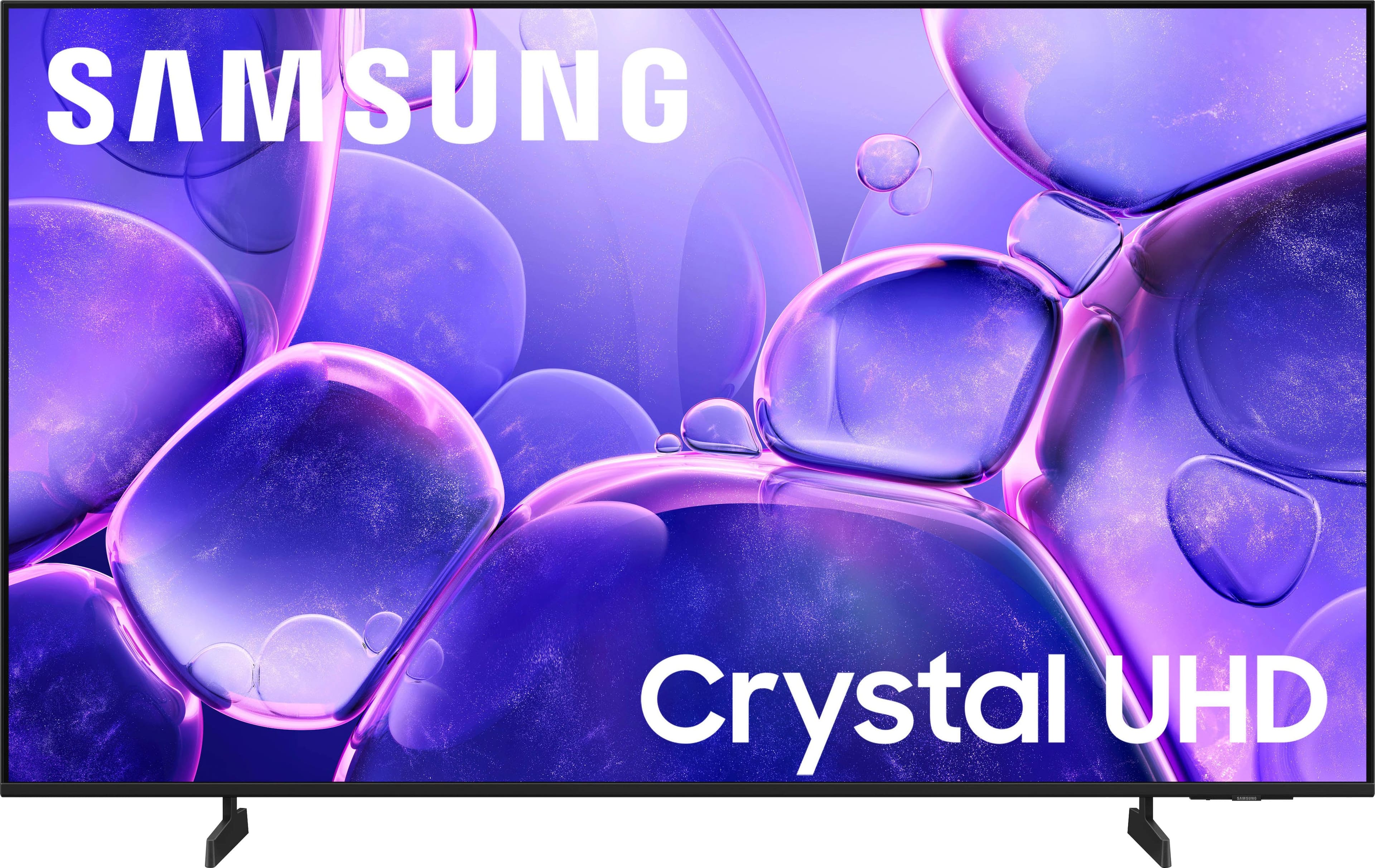
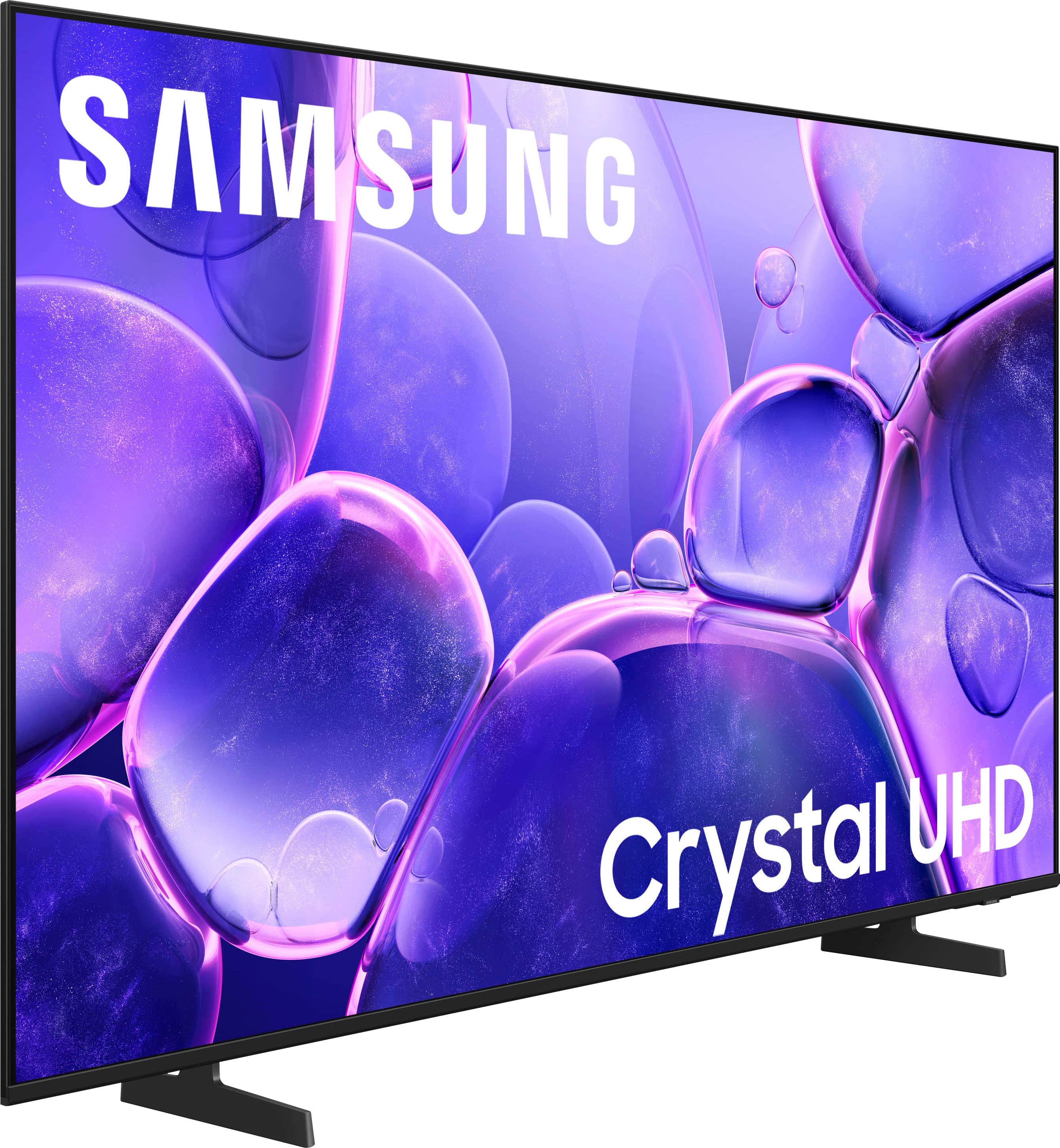
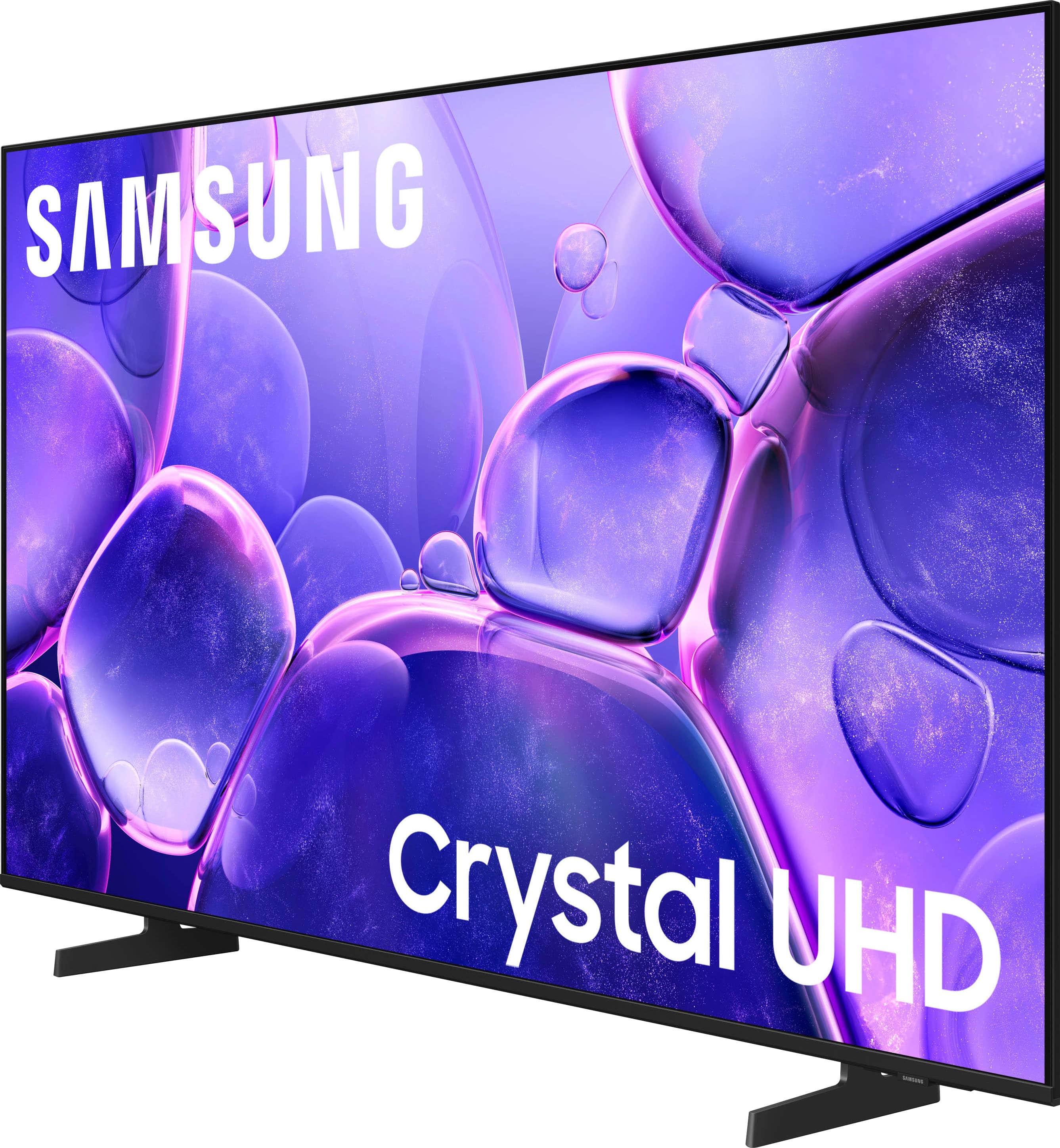


- Model:
- UN50U8000FFXZA
- SKU:
- 10187731
Rating by feature
- Picture Quality
Rating 4.7 out of 5 stars
- Sound Quality
Rating 4.5 out of 5 stars
- Brightness
Rating 4.7 out of 5 stars
I would get a different tv
||Posted . Owned for 1 month when reviewed.This reviewer received promo considerations or sweepstakes entry for writing a review.Is good, but for some reason the first tv had a glitch on some shows, then a line on the tv appeared out of nowhere and we had to return it. They gave us the same tv, and is also glitching on some shows, particularly netflix shows
No, I would not recommend this to a friendBrand response from Samsung
Posted .Hi MauricioS,
Thank you for your feedback. Please ensure your U8000 TV is running the latest firmware update 1132.0. To do so, go to Settings> Support> Software Update. If that version is not available you can download the update on a USB drive and manually update your TV:
1. On Samsung's website (upper right corner), go to: Support > Manual & Software > Find your TV model, and click on the Firmware – Upgrade File.
2. When the file has finished downloading, locate it and then unzip it. There is normally one folder inside but there may be multiple files.
3. Copy or move all of the files that were included in the zip file to a USB flash drive, but do not place them inside any other folders. If you place the software folders inside a folder on the USB flash drive, the TV or monitor will not find them.
4. Connect the USB drive containing the software upgrade into a USB port on your device.
5. Using your device's remote, navigate to and select Settings, then select All Settings, and then select Support. Select Software Update, select Update Now, and then select Yes if prompted.
Your device will search the USB drive for update files. Follow the on-screen instructions to install the updated software. Updates usually take a few minutes; please do not turn off the TV until the update is complete. When the update is finished, it will restart automatically.
~Samsung Advisor
NO TV YET-DIDN'T DELIVER AND NO ONCE CONTACTED ME
||Posted . Owned for 2 weeks when reviewed.This reviewer received promo considerations or sweepstakes entry for writing a review.For a $400 purchase, Best Buy is asking me to review an item I still haven’t even received (the review needs to be in by today) — but here we go. My TV was supposed to be delivered last Friday. It never arrived, and no one contacted me to explain the delay. I called customer service six times that day and was repeatedly told, “Don’t worry, it’s on the way.” It never showed up. I called again the following day, and no one could explain what happened to my delivery. On three separate occasions, I asked to speak with a supervisor. The first representative told me there was no one above them. The second said I would receive a callback within two hours — that never happened. The third promised a call within 30 minutes — that also never happened. In total, I have spent nearly two hours on hold just trying to get basic answers, only to be told what I think I want to hear, with zero follow-through. My delivery has now been rescheduled for tomorrow (8 days after the initial supposedly delivery date), but I still have not received any confirmation. At this point, I have very little confidence it will actually arrive. Meanwhile, Best Buy charged my card on day one, despite failing to deliver the product or provide reliable customer support. Whoever oversees phone customer service at Best Buy needs to seriously evaluate what’s happening. I would strongly suggest leadership make some test calls themselves to experience how inefficient and time-wasting this process is. This has been a frustrating and exhausting experience that falls far below expectations.
No, I would not recommend this to a friendBrand response from Samsung
Posted .Hi StevenInWeHo,
I'm very sorry to hear about your delivery experience and hope that your scheduled delivery date goes smoothly. If there's anything we can do to support you, or if you have any setup or product questions, please do not hesitate to reach out. Call 1-800-SAMSUNG from 8AM - 12AM EST, seven days a week, or connect with a LiveChat agent anytime by selecting ‘Support’ on our website.
~ Samsung Advisor
Samsung TV
||Posted .This reviewer received promo considerations or sweepstakes entry for writing a review.high quality, fast response, and easy to use. I purchased for living room and after reviewing several TVs and comparing, this Samsung TV was the one I chose. very glad I did.
I would recommend this to a friendGood TV for my needs
||Posted . Owned for 1 month when reviewed.This reviewer received promo considerations or sweepstakes entry for writing a review.This is a lovely TV that meets all my needs. I don't watch a lot of television, but it has a simple menu and I can use it to watch DVDs, VCRs, Roku, and my cable package.
I would recommend this to a friendTailgating at it’s finest.
||Posted . Owned for 1 week when reviewed.This reviewer received promo considerations or sweepstakes entry for writing a review.Big upgrade from older model. Bought this for our tailgating tent, and we are pleased with this purchase.
I would recommend this to a friendGreat TV
||Posted .This reviewer received promo considerations or sweepstakes entry for writing a review.Great TV! I have no complaints. It is exactly as advertised.
I would recommend this to a friendSamsung Purchase
||Posted . Owned for 2 weeks when reviewed.This reviewer received promo considerations or sweepstakes entry for writing a review.The associate explained many questions that helped us to make a good choice.
I would recommend this to a friendGreat TV, Horrible Remote
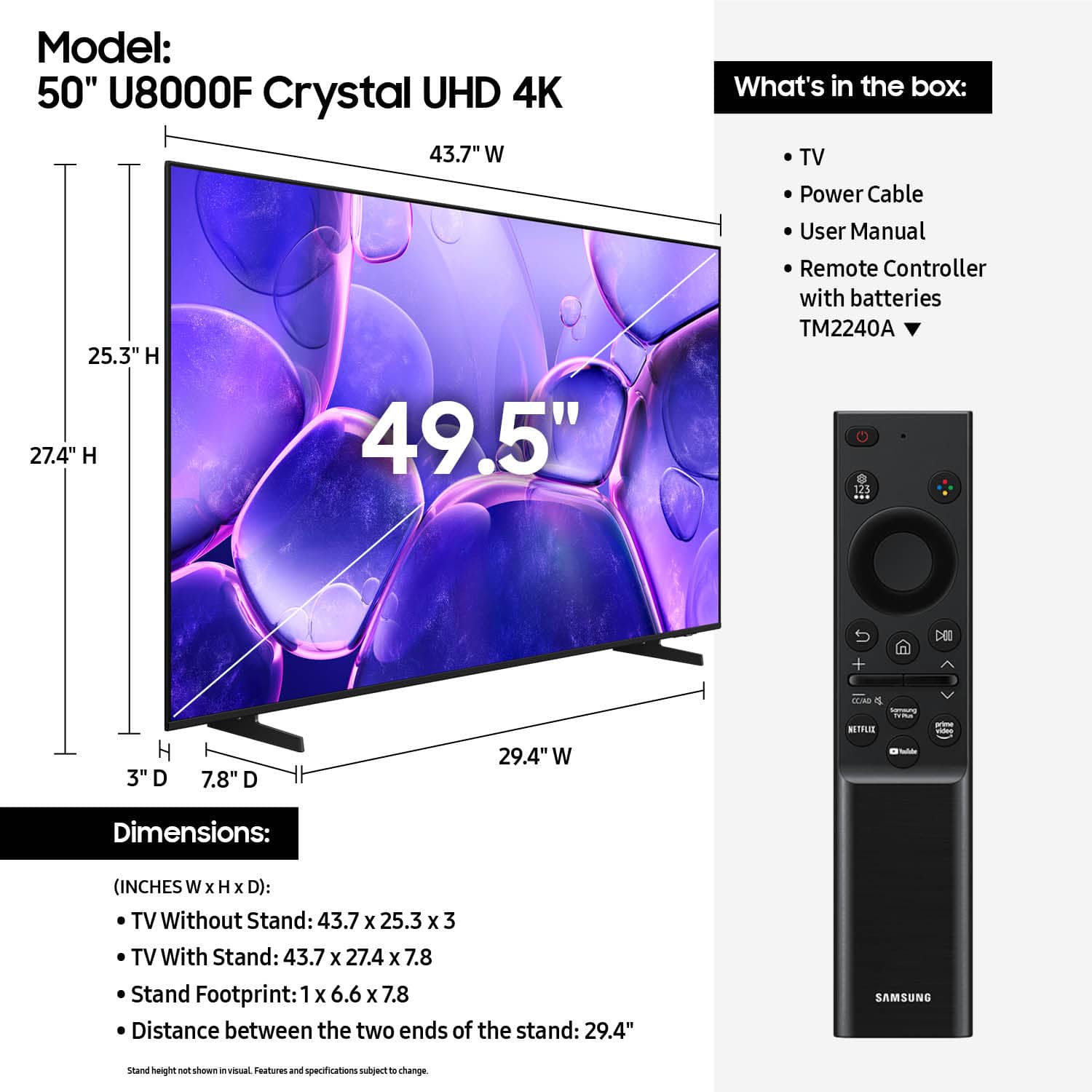
||Posted . Owned for 3 weeks when reviewed.This reviewer received promo considerations or sweepstakes entry for writing a review.This TV is really great, so disappointed in the remote that has really no functionality like all my other Samsung TV remotes. The poor remote is the only reason I would not recommend this TV.
No, I would not recommend this to a friendBrand response from Samsung
Posted .Hi JoeM,
Thank you for sharing your experience. Samsung remotes are designed to offer convenient control, but we understand if you’d prefer to use a universal remote. Many third-party remotes work well with Samsung TVs, though setup steps may vary by brand and model.
To get started, we recommend checking the manufacturer’s instructions for programming codes and pairing methods. If you run into any trouble or have compatibility questions, Samsung Support is happy to help. You can reach us at 1-800-SAMSUNG, 8AM – 12AM EST, 7 days a week. LiveChat agents are also available at the ‘Support’ link on our website.
~Samsung Advisor
Samsung 50" U8000F
||Posted . Owned for 1 month when reviewed.This reviewer received promo considerations or sweepstakes entry for writing a review.Great Price- Good product. for what I needed ( do not do gaming), the TV works.
No, I would not recommend this to a friendBest TV
||Posted .This reviewer received promo considerations or sweepstakes entry for writing a review.Great TV for a great price!! Best Buy staff the best! Very professional and helpful.
I would recommend this to a friend- Cons mentioned:Remote control
Okay TV
||Posted . Owned for 1 month when reviewed.This reviewer received promo considerations or sweepstakes entry for writing a review.The TV is okay, nothing spectacular. The remote is not user friendly and the instructions are vague.
No, I would not recommend this to a friendBrand response from Samsung
Posted .Hi NoTechHelp,
Thank you for sharing your experience with your U8000F TV. Samsung’s accessibility features Learn TV Remote and Learn Menu Screen are designed to help users get familiar with the remote and menu layout – without affecting normal TV operation.
• Learn TV Remote: Pressing any button (except Power) will announce the button name and function, helping users learn their location and purpose. Enable via: Settings > All Settings > General & Privacy > Accessibility > Learn TV Remote; Exit by pressing the Return key twice.
• Learn Menu Screen: As you navigate your TV menus, the TV will announce each menu item and its function - without applying any changes. Enable via: Settings > All Settings > General & Privacy > Accessibility > Learn Menu Screen; Exit by pressing the Return key twice.
If you have any questions or need help, we’re always here. Call 1-800-SAMSUNG from 8AM - 12AM EST, seven days a week, or connect with a LiveChat agent anytime by selecting ‘Support’ on our website.
~ Samsung Advisor
Samsung 50” TV
||Posted .This reviewer received promo considerations or sweepstakes entry for writing a review.Very clear, easily installed on the wall on my lanai.
I would recommend this to a friendGood TV for the price
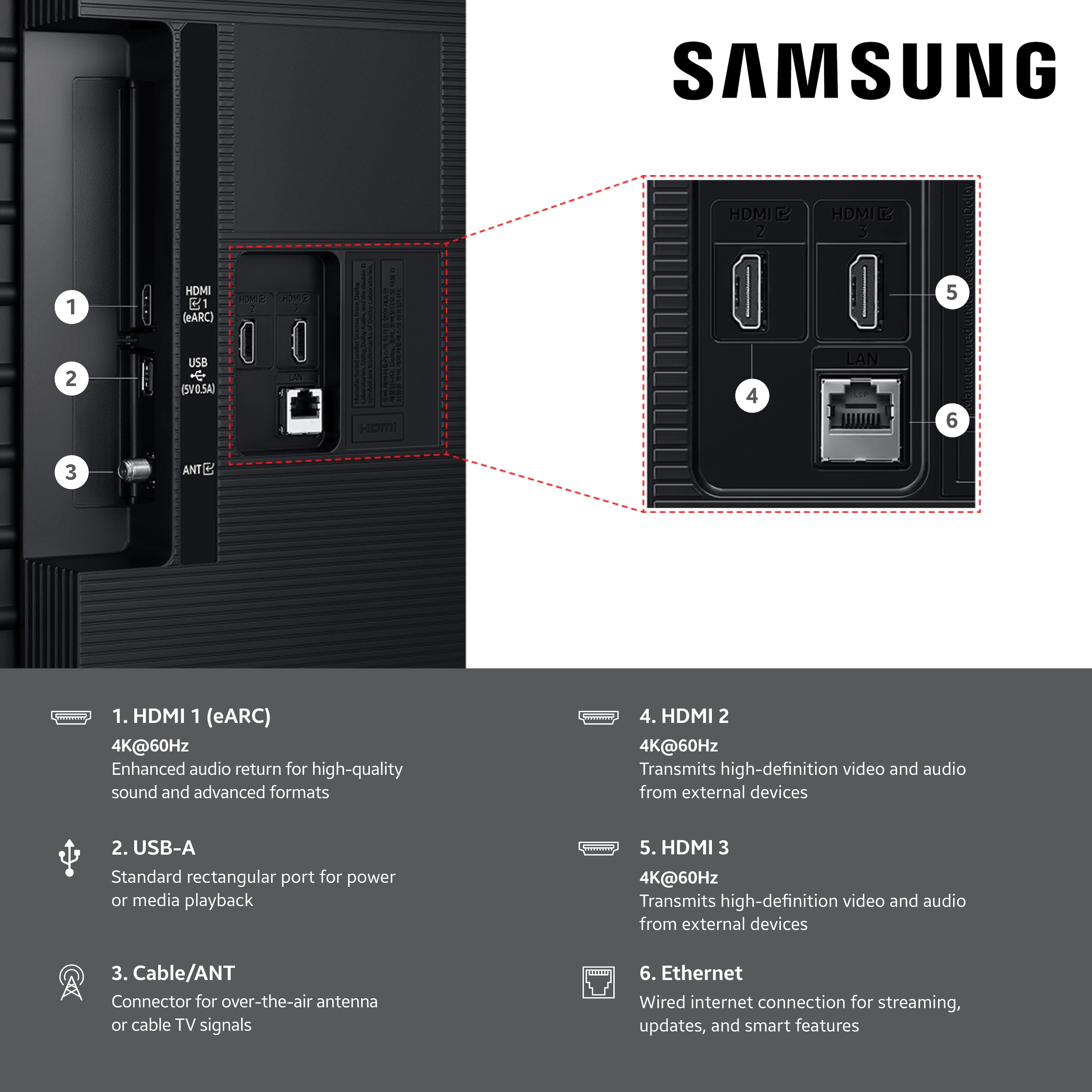
||Posted .This reviewer received promo considerations or sweepstakes entry for writing a review.Only problem I've had is there are no audio out ports. Having problem connecting to my hearing aid Bluetooth device.
I would recommend this to a friendGreat size TV
||Posted .This reviewer received promo considerations or sweepstakes entry for writing a review.I love my new TV. The graphics are awesome. Samsung makes the best TV.
I would recommend this to a friendOwner
||Posted . Owned for 3 months when reviewed.This reviewer received promo considerations or sweepstakes entry for writing a review.We bought this one for our grandson, he is really enjoying it.
I would recommend this to a friendExcellent HD TV
||Posted . Owned for 1 month when reviewed.This reviewer received promo considerations or sweepstakes entry for writing a review.This is a truly excellent tv with great image depth and amazing image clarity.
I would recommend this to a friendSamsung for the Win!!
||Posted . Owned for 2 weeks when reviewed.This reviewer received promo considerations or sweepstakes entry for writing a review.I bought tv for my son and he loves it. So far so good.
I would recommend this to a friendExcellent choice
||Posted . Owned for 3 weeks when reviewed.This reviewer received promo considerations or sweepstakes entry for writing a review.For the price it is a very good choice nice looking Brite and clear view of any program.
I would recommend this to a friendBad picture
||Posted . Owned for 1 month when reviewed.This reviewer received promo considerations or sweepstakes entry for writing a review.Got some picture bubbles after while need a new one now
No, I would not recommend this to a friendBrand response from Samsung
Posted .Hi Polo,
Thank you for your feedback regarding the screen abnormalities you're seeing on your TV. To help determine if the issue is related to the panel itself, we recommend starting with a Picture Test, which displays a high-definition image you can examine for flaws: Settings > Support > Device Care > Self Diagnosis > Picture Test
If the issue appears during the test and across all sources (built-in apps, HDMI devices, etc.), it may indicate a panel-related concern.
You can also try displaying solid-color test videos (red, green, blue, black, white) from a USB drive or YouTube. This can help you identify whether any pixels are stuck or not functioning properly.
In some cases, unplugging the TV for a few minutes and rebooting it can help resolve stuck pixels caused by temporary display behavior.
If the problem persists after these steps, the TV may require service. To set up a service appointment, please contact Samsung Support at 1-800-SAMSUNG, 8AM – 12AM EST, 7 days a week. LiveChat and additional support resources are also available through the Support link on our website.
~ Samsung Advisor
Joe’s review
||Posted . Owned for 1 month when reviewed.This reviewer received promo considerations or sweepstakes entry for writing a review.Friendly and knowledgeable associates. Geek squad were great as well
I would recommend this to a friend