Customer Ratings & Reviews
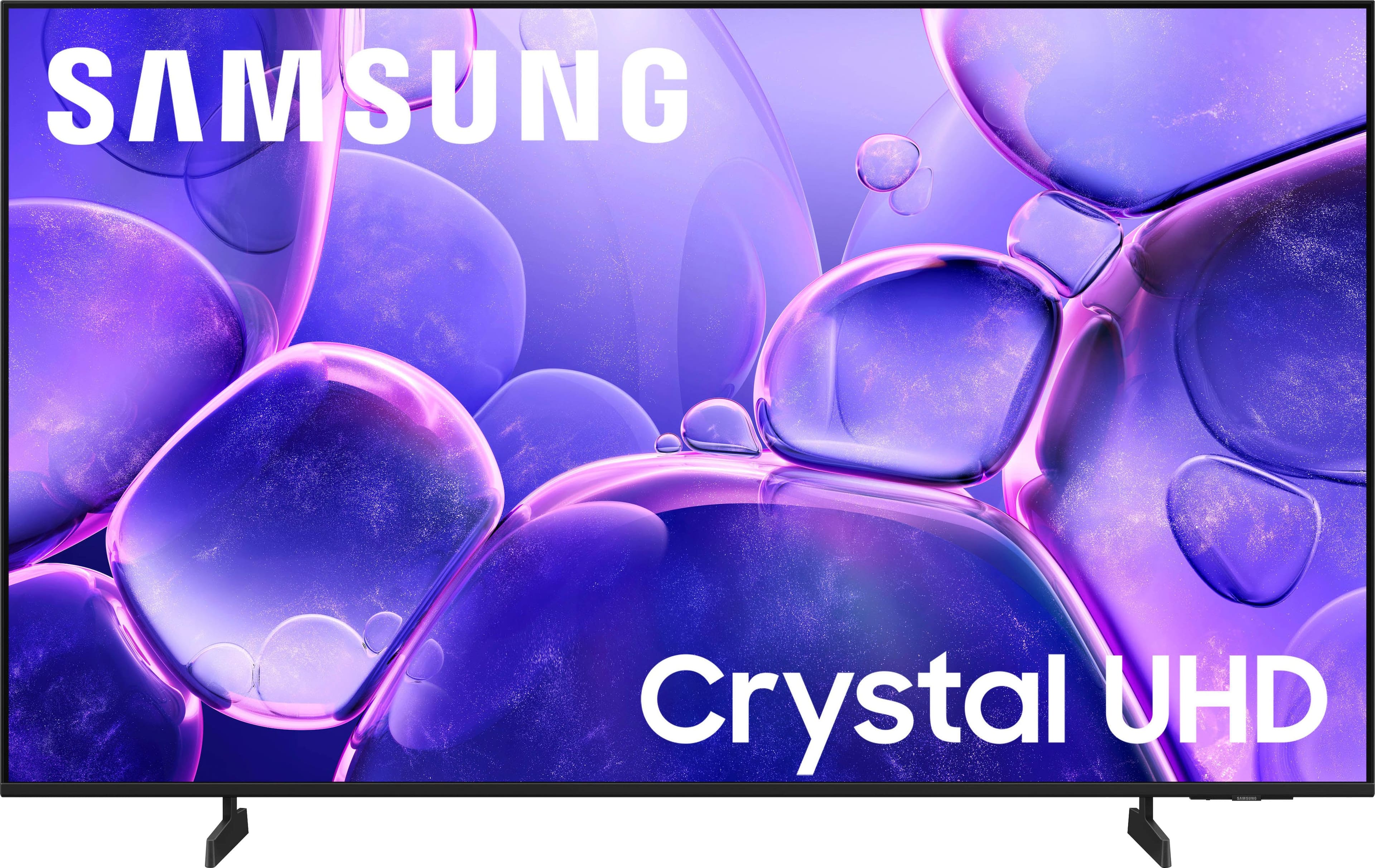
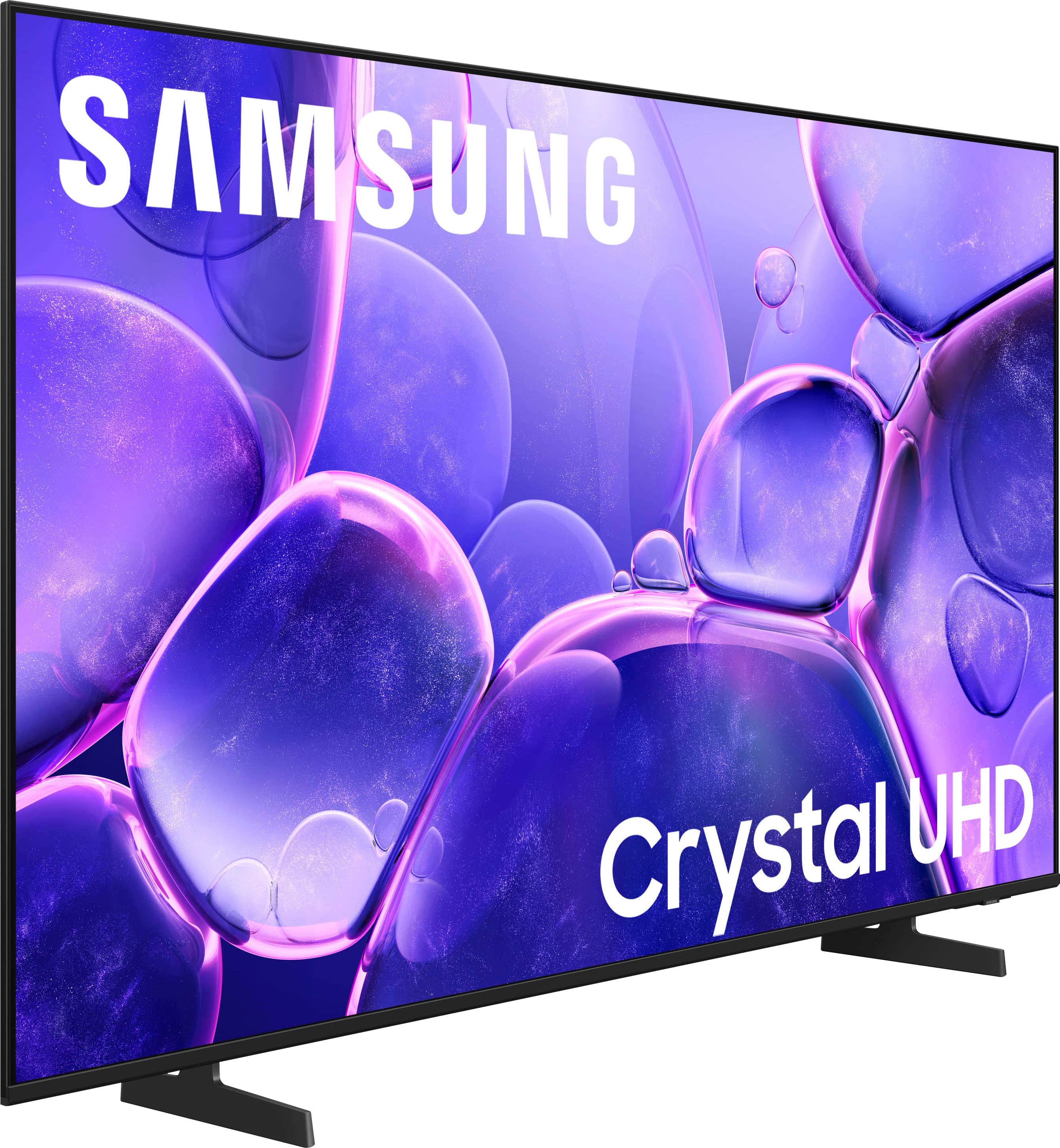
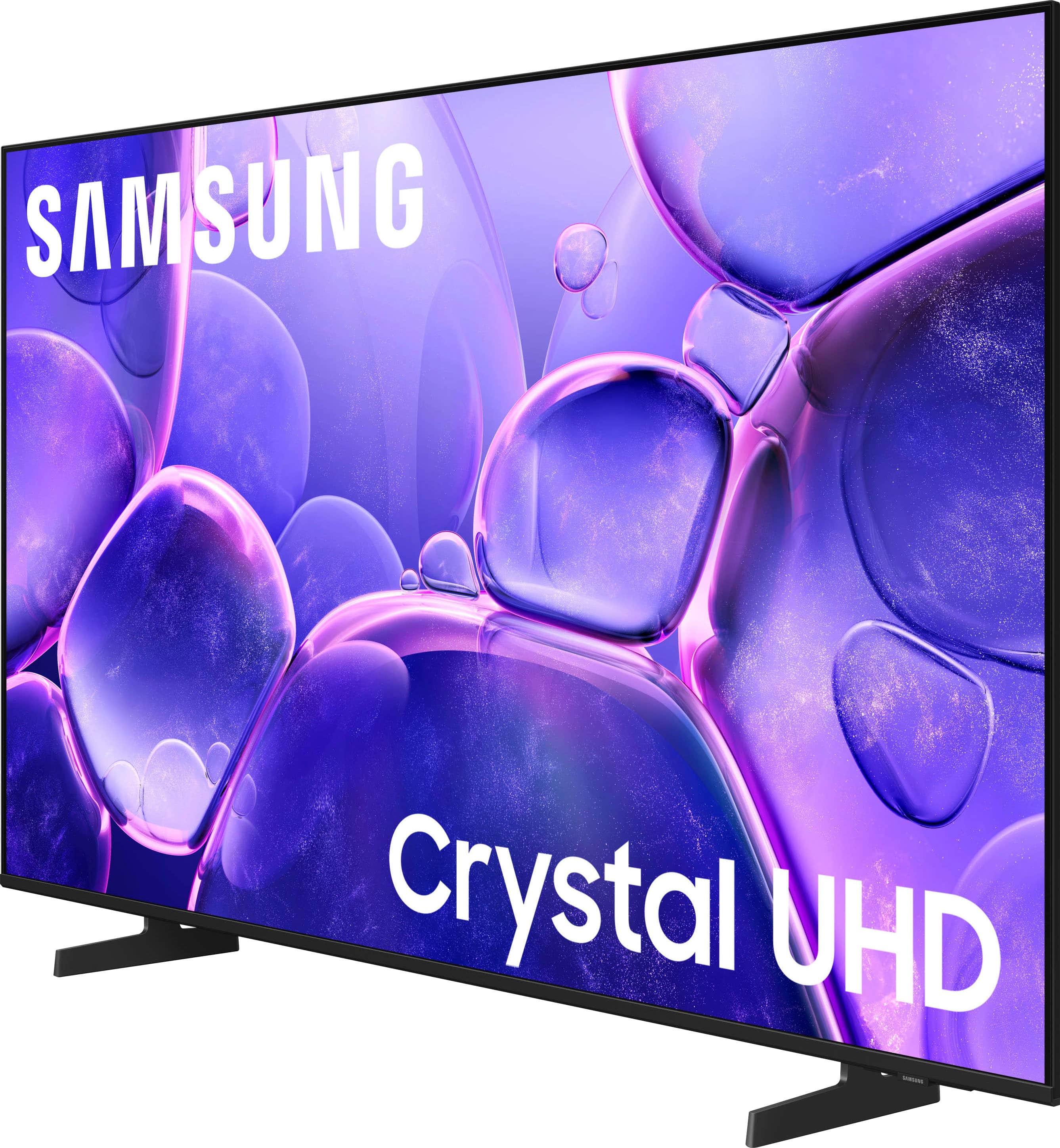
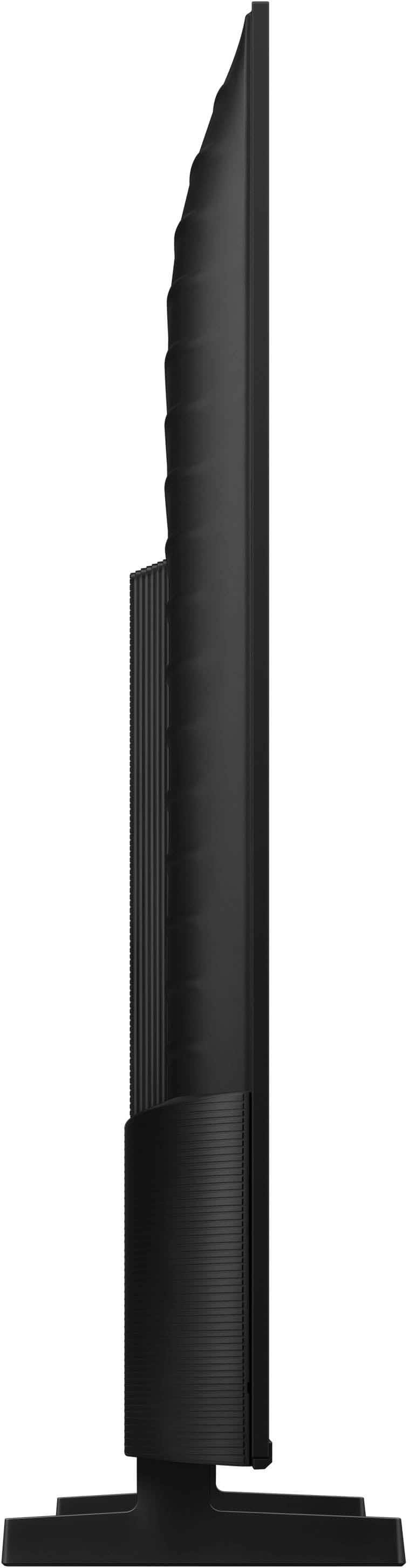
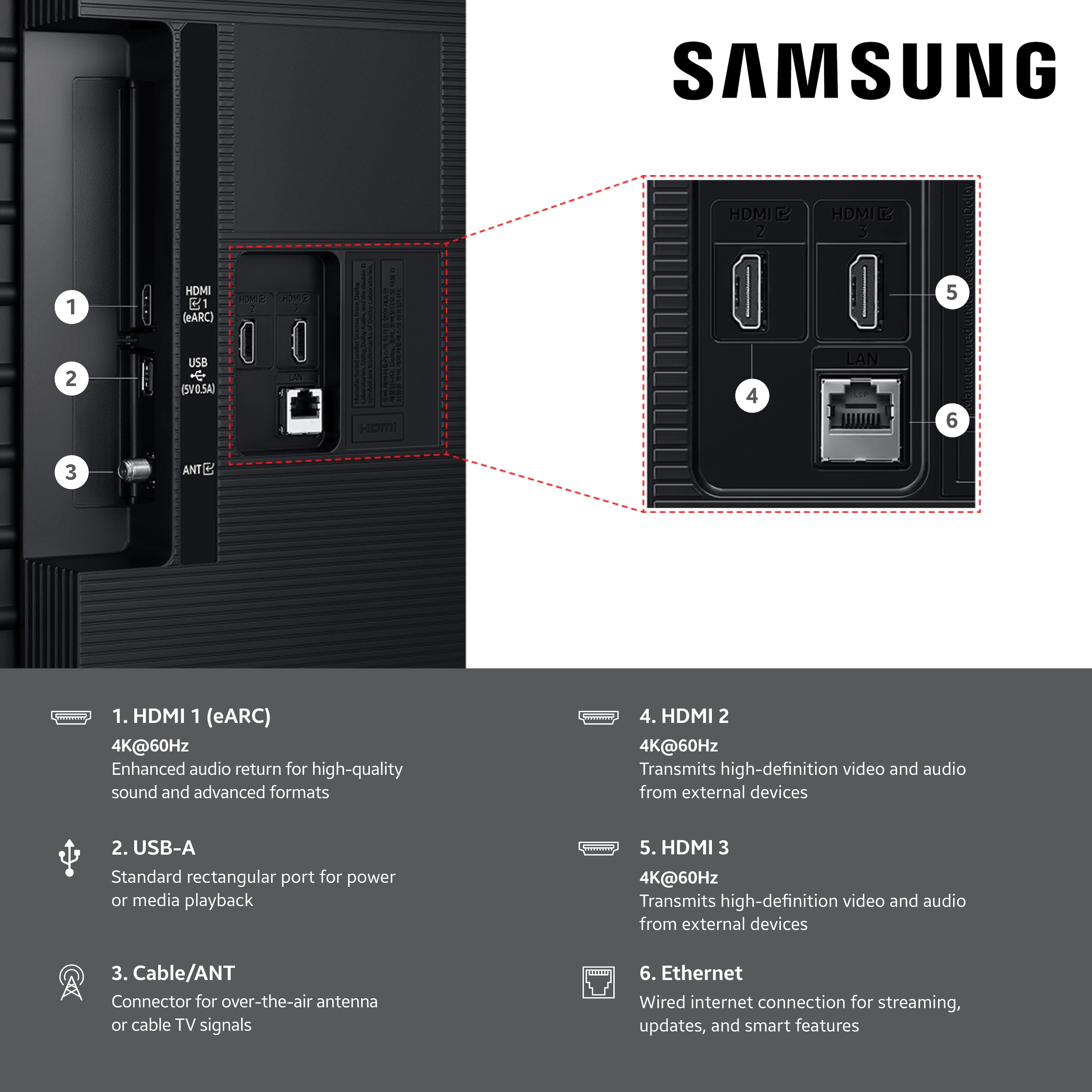
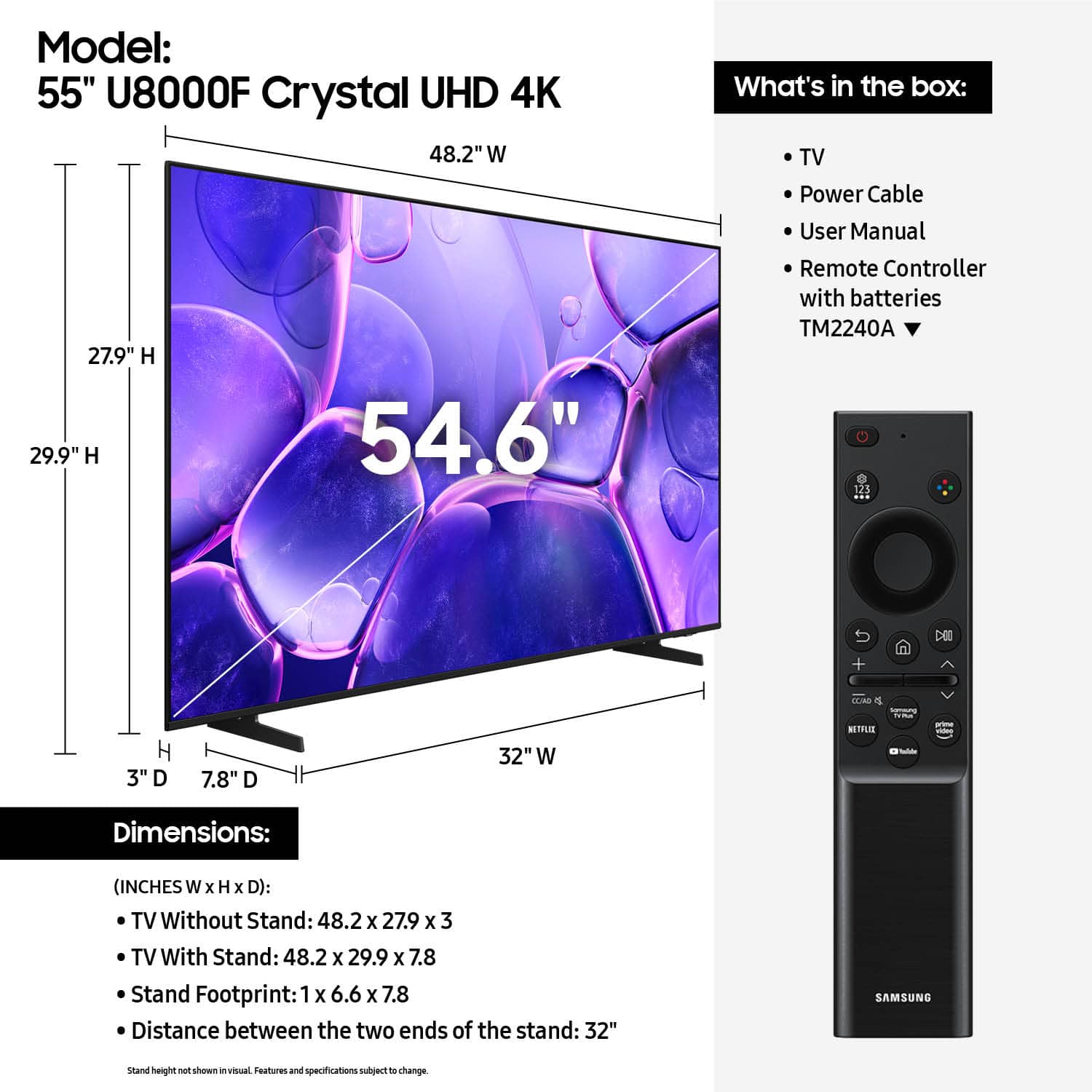


- Model:
- UN55U8000FFXZA
- SKU:
- 10187661
Rating by feature
- Picture Quality
Rating 4.8 out of 5 stars
- Sound Quality
Rating 4.6 out of 5 stars
- Brightness
Rating 4.7 out of 5 stars
55” Samsung
||Posted . Owned for 2 weeks when reviewed.This reviewer received promo considerations or sweepstakes entry for writing a review.Easy set up great display and on sale! Great buy!!
I would recommend this to a friendSamsung TV
||Posted . Owned for 3 weeks when reviewed.This reviewer received promo considerations or sweepstakes entry for writing a review.Love our new TV! It is the perfect size & the price was great too!
I would recommend this to a friendSo Far, So Good
||Posted . Owned for 2 weeks when reviewed.This reviewer received promo considerations or sweepstakes entry for writing a review.I have had this TV for less than a month, but it's been good so far. I still have to get used to the "Smart" TV stuff as I am used to my Roku equipment. The picture quality and sound are pretty good, but my other TV is old, and so anything looks and sounds better compared to that. All in all, I am happy with and enjoying this TV.
I would recommend this to a friendCrystal Clear Screen
||Posted . Owned for 2 weeks when reviewed.This reviewer received promo considerations or sweepstakes entry for writing a review.Crystal clear picture. Great price. I bought 3 of them
I would recommend this to a friendHappy customer!
||Posted .This reviewer received promo considerations or sweepstakes entry for writing a review.Very easy to set up! Meshed perfect with our streaming service. Happy customer!
I would recommend this to a friendReplaced my dumb tv with a really smart one!
||Posted . Owned for 1 month when reviewed.This reviewer received promo considerations or sweepstakes entry for writing a review.Clear pic and easy to program. What more could you ask for?
I would recommend this to a friendGreat value TV
||Posted . Owned for 2 weeks when reviewed.This reviewer received promo considerations or sweepstakes entry for writing a review.Good TV for the price it’s basic but it works well. The menu wing system is nice. I really enjoy the TV.
I would recommend this to a friendSmart TV
||Posted . Owned for 7 months when reviewed.This reviewer received promo considerations or sweepstakes entry for writing a review.Excellent television. Has great features and lots of free channels. Plus local news stations. You don’t need additional equipment for streaming. Easy to use .
I would recommend this to a friendSamsung great tv
||Posted .This reviewer received promo considerations or sweepstakes entry for writing a review.Easy set up and nice picture quality. Samsung is alway quality product
I would recommend this to a friendclear picture.
||Posted . Owned for 1 month when reviewed.This reviewer received promo considerations or sweepstakes entry for writing a review.very clear picture.need a samsung account. i tried too many times and got locked out. the samsung people were very helpful on getting my tv to work, and they reset my password. but i had to wait 24 hrs to go back in to account.
I would recommend this to a friendmy tv is awesome
||Posted . Owned for 2 months when reviewed.This reviewer received promo considerations or sweepstakes entry for writing a review.love this brand, all my tv's are samsung, nice size
I would recommend this to a friendSamsung is Great
||Posted .This reviewer received promo considerations or sweepstakes entry for writing a review.This TV is more than worth the cost. The picture is so realistic, almost feels like you are in the place you are watching. connects easily to cable and audio systems. Samsung is great.
I would recommend this to a friendGreat quality TV!
||Posted . Owned for 1 week when reviewed.This reviewer received promo considerations or sweepstakes entry for writing a review.Great quality TV! Easy setup, clear perfect picture, definitely would recommend
I would recommend this to a friend55 inch
||Posted . Owned for 2 weeks when reviewed.This reviewer received promo considerations or sweepstakes entry for writing a review.This is my second Samsung tv and so far, I’m happy with it. Zero complaints.
I would recommend this to a friendSamsung Crystal UHD
||Posted . Owned for 1 month when reviewed.This reviewer received promo considerations or sweepstakes entry for writing a review.Samsung has always delivered on quality. The image is great, but the sound is much better on this TV!
I would recommend this to a friendTv
||Posted .This reviewer received promo considerations or sweepstakes entry for writing a review.Excellent tv great picture quality. Light weight for the size
I would recommend this to a friendSamsung 55" UHD 4K customer evaluation
||Posted . Owned for 1 month when reviewed.This reviewer received promo considerations or sweepstakes entry for writing a review.The TV is ok but the screen brightness was darker than expected and the details seemed not as sharp as expected possibly due to the automatic adjustment incorporated in the TV when used in a darker location. It was somewhat difficult to set up for the first time and required discussion with a Best Buy sales person who suggested the picture be set to the dynamic mode which definitely helped. There is a delay in the volume response when using the sound bar with the HDMI connection which was also not expected and a bit annoying and there is occasionally a little static with the sound bar with either the fiber optic or the HDMI connections. It was not considered any better picture quality than the 50" Vizio model it replaced and since that TV wasn't purchased from Best Buy they would not facilitate its return for possible repair. In hindsight we should have requested Best Buy to replace the Samsung unit with a better model however we had already spent more than expected on this one.
No, I would not recommend this to a friendBrand response from Samsung
Posted .Hi DogGramma,
Thank you for sharing your experience with us. I have a few recommendations that may improve the picture and sound connection on your U8000F TV.
First, let's ensure you are running the latest Firmware. Go to Settings> Support> Software Update.
For the sound delay you mentioned please try the below:
1. Adjust Digital Audio Delay. You can manually increase the audio delay to better match the video: Settings > All Settings > Sound > Expert Settings > Digital Output Audio Delay
2. Enable Audio Pass-Through. Samsung TVs include an audio pass-through option, which sends the audio signal directly to your connected soundbar or receiver without additional processing by the TV. This can reduce delay when using external audio devices: Settings > All Settings > Sound > Expert Settings > Digital Audio Output Format > Pass-Through
To explore picture mode options, navigate to: Home > Left directional button > Settings > All Settings > Picture > Picture Mode. Options include:
• Standard – Ideal for general viewing
• Dynamic – Brighter and more vibrant for well-lit spaces
• Eco – Optimized for energy efficiency
• Movie – Best for viewing in low light
• Filmmaker Mode – Preserves the content creator’s intent and disables motion smoothing for supported content
You can further customize your image by going to: Settings > All Settings > Picture > Expert Settings, where you can adjust Brightness, Contrast, Color Tone, Sharpness, Contrast Enhancer and more.
If you’d like help finding the best picture settings for your preferences, please don’t hesitate to contact Samsung Support at 1-800-SAMSUNG, available 8AM – 12AM EST, 7 days a week. You can also LiveChat with an agent or explore additional resources on our website by clicking the ‘Support’ link.
~ Samsung Advisor
Beatiful picture
||Posted . Owned for 2 weeks when reviewed.This reviewer received promo considerations or sweepstakes entry for writing a review.The images are very sharp and the colors are very bright. Easy to use remote. Also good sound quality. Easy set up.
I would recommend this to a friendOur Television
||Posted . Owned for 1 month when reviewed.This reviewer received promo considerations or sweepstakes entry for writing a review.It’s been a great TV, the product the quality everything is good.
I would recommend this to a friendSamsung TV
||Posted . Owned for 3 weeks when reviewed.This reviewer received promo considerations or sweepstakes entry for writing a review.Very good picture. Easy setup. Nice television for the price.
I would recommend this to a friend