Customer Ratings & Reviews
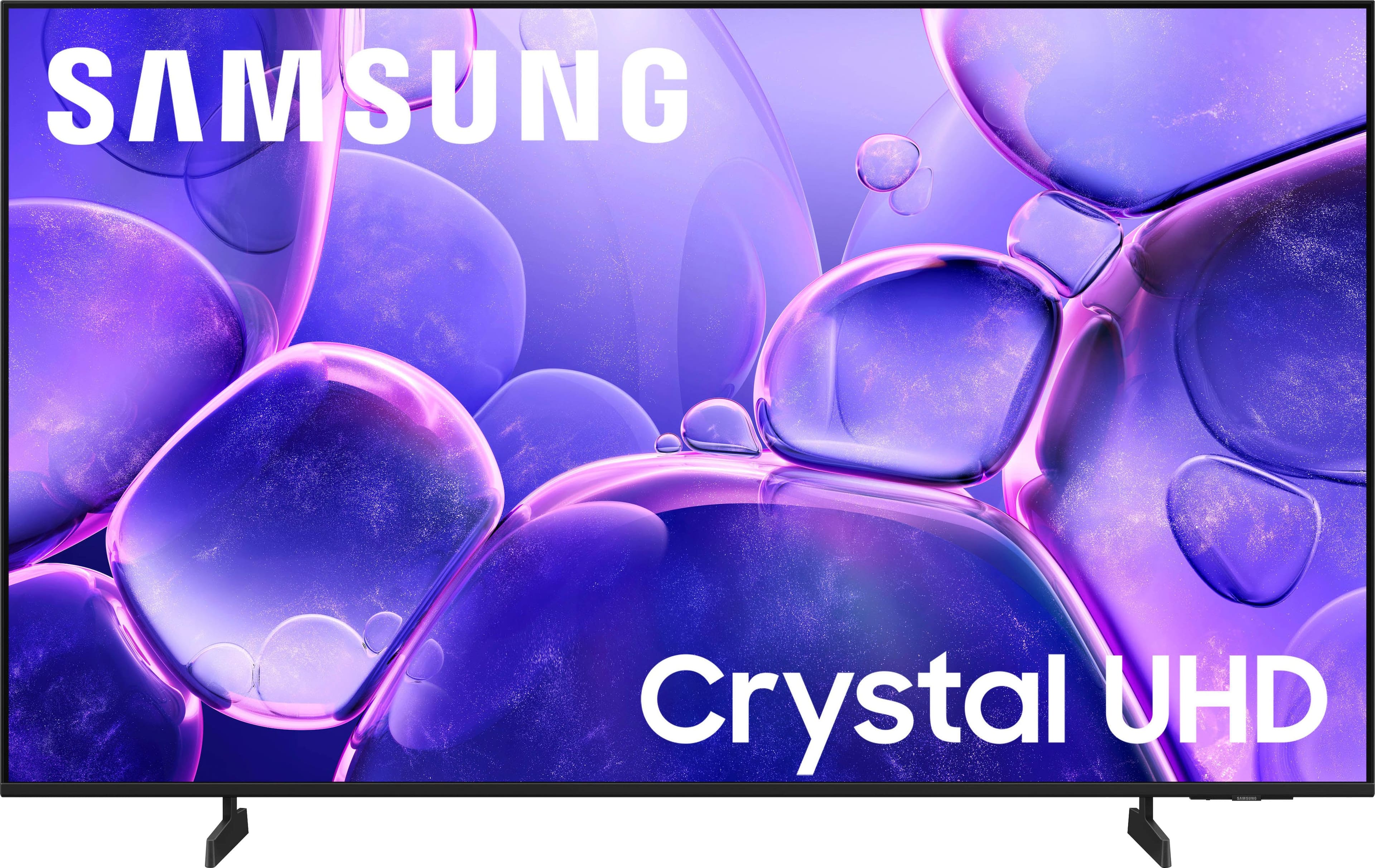
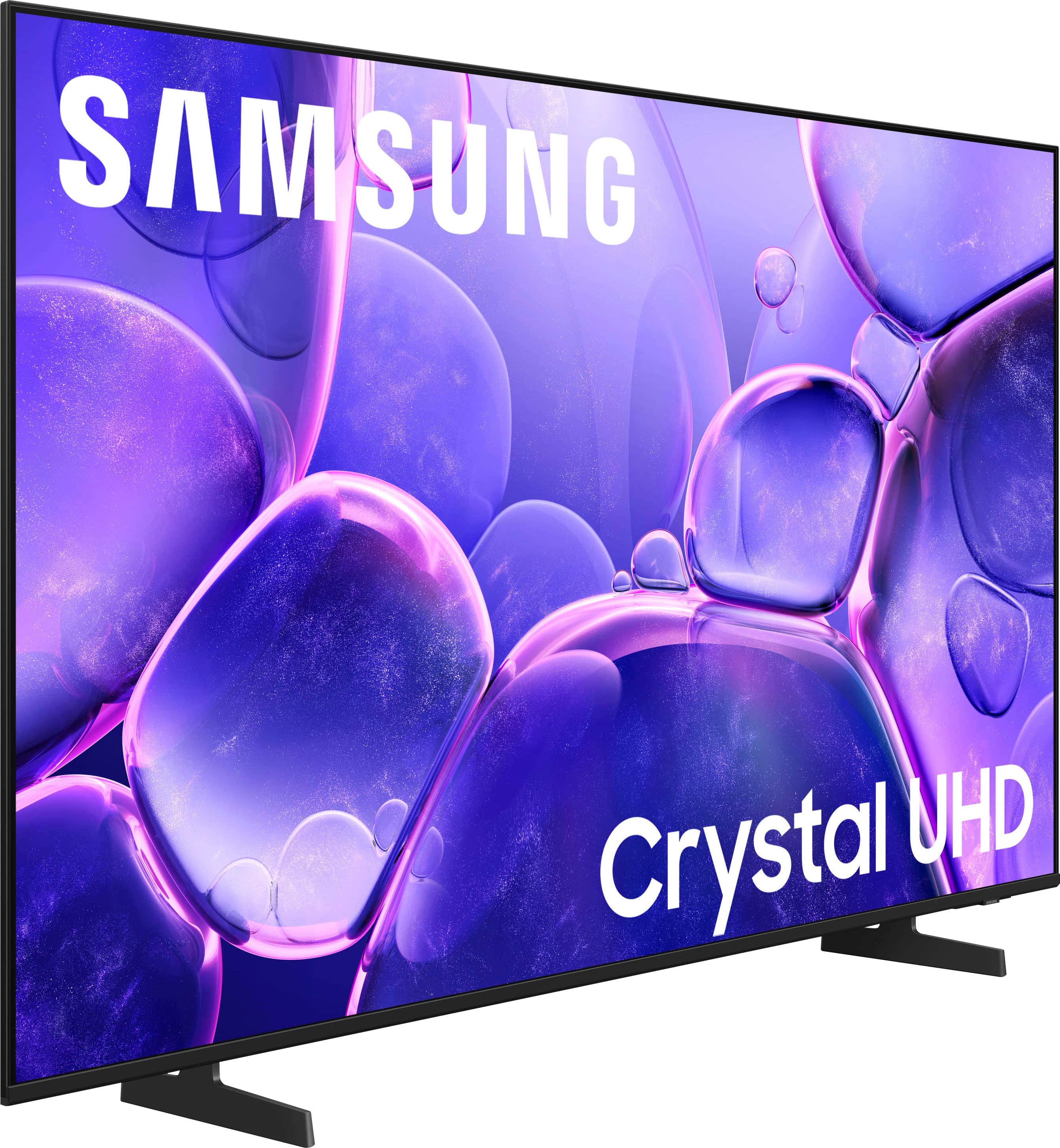


- Model:
- UN55U8000FFXZA
- SKU:
- 10367434
Rating by feature
- Picture Quality
Rating 4.8 out of 5 stars
- Sound Quality
Rating 4.6 out of 5 stars
- Brightness
Rating 4.7 out of 5 stars
Awesome TV
||Posted . Owned for 2 months when reviewed.This reviewer received promo considerations or sweepstakes entry for writing a review.Wow what a great purchase. Fast and seamless interface
I would recommend this to a friendGreat store
||Posted . Owned for 3 weeks when reviewed.This reviewer received promo considerations or sweepstakes entry for writing a review.Needed help finding a cheaper tv and got some help great price for the tv.
I would recommend this to a friend55 in Samsung 4k tv
||Posted . Owned for 1 month when reviewed.This reviewer received promo considerations or sweepstakes entry for writing a review.Really nice tv for streaming and antenna use. Did buy another remote to be able to use Bixby. Otherwise a good tv for the money.
I would recommend this to a friendTV 2025
||Posted . Owned for 1 month when reviewed.This reviewer received promo considerations or sweepstakes entry for writing a review.I like this tv new 2025 model. It takea aome getting used to all the features
I would recommend this to a friendTerrific Purchase
||Posted . Owned for 1 month when reviewed.This reviewer received promo considerations or sweepstakes entry for writing a review.Samsung 55" Crystal UHD TV is a terrific entertainment center piece for the price.
I would recommend this to a friendSamsung TV
||Posted . Owned for 1 month when reviewed.This reviewer received promo considerations or sweepstakes entry for writing a review.TV was as expected. Price was okay. There was a mixup on delivery time but it was resolved.
I would recommend this to a friendNo sound only option
||Posted .This reviewer received promo considerations or sweepstakes entry for writing a review.I love the T.V. but as far as I can tell it doesn't have an option to turn the screen off and just listen to the sound, which my previous Sont T.V. had.
I would recommend this to a friendBrand response from Samsung
Posted .Hi nstyhbts,
Thank you for reaching out. The feature you are looking for is called Auto Picture Off and can be found under Settings > General & Privacy > Accessibility > Auto Picture Off.
I hope this helps! If you ever have questions or need support, we’re here to help. Call us at 1-800-SAMSUNG, available from 8AM - 12AM EST, seven days a week. You can also connect with a LiveChat agent by clicking the ‘Support’ link on our website.
~Samsung Advisor
Great TV for the price point
||Posted . Owned for 3 weeks when reviewed.This reviewer received promo considerations or sweepstakes entry for writing a review.Great TV for the price point! Clear reception, all apps, and easy to navigate
I would recommend this to a friendSmart TV is smarter than I am.
||Posted .This reviewer received promo considerations or sweepstakes entry for writing a review.Great price on Samsung - 55" Class U8000F Series Crystal UHD 4K Smart Tizen TV. Delivery was fantastic, thanks.
I would recommend this to a friendnice
||Posted .This reviewer received promo considerations or sweepstakes entry for writing a review.first time owning a Samsung very impressed nice apps that come with
I would recommend this to a friendSamsung is terrible!
||Posted . Owned for 4 months when reviewed.This reviewer received promo considerations or sweepstakes entry for writing a review.I purchased this TV on June 25th. Today is 11/11 and the TV started disconnecting from the internet. I went online to Samsung and followed the process to try and resolve. Now the screen is blank and the speakers are putting out a high pitched screeching sound. I am unable to turn tv off as it keeps turning itself back on with the noise and no picture. Now Samsung is saying they want $80 to walk me through the same steps I have followed. DO NOT BUY THIS TV
No, I would not recommend this to a friendBrand response from Samsung
Posted .Hi TrevorJ,
We appreciate your patience while troubleshooting the issues you mentioned with your TV. If your TV is powering on by itself, there are a few settings and external triggers to review:
1. Power On with Mobile – Your TV may be connected to the SmartThings app or other networked devices. To stop wake signals, turn this feature off: Settings > All Settings > Connection > Network > Expert Settings > Power On with Mobile = Off
2. Check for Active Timers – Go to Settings > All Settings > General & Privacy > System Manager > Time > Timer Settings, then disable any On Timers or Sleep Timers
3. Anynet+ (HDMI-CEC) – If your TV is connected to external HDMI devices, one of them may be triggering power-on behavior. To disable this feature: Settings > All Settings > General & Privacy > External Device Manager > Anynet+ (HDMI-CEC) = Off
4. Software Update – Make sure your TV is up to date: Settings > Support > Software Update > Update Now
If you’ve ruled out all the above and your TV still powers on unexpectedly, try unplugging it for 30 seconds. Should the issue continue, please call Samsung Support at 1-800-SAMSUNG, 8AM – 12AM EST, 7 days a week. LiveChat agents are also available by clicking the ‘Support’ link on our website.
~ Samsung Advisor
Muted Sound
||Posted . Owned for 1 month when reviewed.This reviewer received promo considerations or sweepstakes entry for writing a review.the TV is GREAT I do have a problem with the sound. Every once in a while, when I turn the TV on the sound is muted so I have to unplug the TV and the problem goes away. I talked to Samsung, and they reset my settings, and the problem was resolved for a while and then I had the problem again I just unplugged the TV, and the TV is good now.
No, I would not recommend this to a friendBrand response from Samsung
Posted .Hi LindaB,
Thank you for your review and for sharing your experience with audio interruptions on your U8000F TV. If you're experiencing sound dropouts, the steps below are designed to help you troubleshoot across different connection types.
HDMI ARC / eARC Connection
1. Use a certified High-Speed HDMI cable with Ethernet and ensure it's firmly connected to the HDMI eARC ports on both the TV and soundbar/receiver.
2. Enable ARC/eARC settings on your TV:
o Settings > All Settings > Sound > Expert Settings > HDMI eARC Mode = Auto
o Settings > All Settings > General & Privacy > External Device Manager > Anynet+ (HDMI-CEC) = On
3. Adjust Digital Output Audio Format:
o Settings > All Settings > Sound > Expert Settings > Digital Output Audio Format
o Set this to Auto unless you're using a device that specifically requires Pass-Through.
4. Cold boot your TV by holding the power button on your remote for 5+ seconds.
Optical Audio Connection
1. Power on your soundbar or receiver first, then connect the optical cable to ensure proper handshaking.
2. Set the TV’s audio output to Optical: Settings > All Settings > Sound > Sound Output = Optical
3. Ensure cables are secure and not damaged. Try a different optical cable if sound continues to cut out.
Bluetooth Connection
1. Bluetooth connections can be sensitive to distance and interference. Keep the Bluetooth device close to the TV, and remove nearby sources of interference (e.g., wireless routers or other Bluetooth devices).
2. For improved stability, use a 5GHz Wi-Fi network if available.
3. If issues persist, we recommend switching to a wired connection (HDMI ARC or Optical) for a more reliable audio experience.
Wi-Fi / Wireless Speaker Connections
1. Make sure both your TV and audio device are on the same network band (5GHz is ideal for stability).
2. If you're using Samsung’s Wireless Audio features (e.g., Wi-Fi Speaker Surround Setup), ensure your speaker system is properly added in: Settings > All Settings > Sound > Sound Output > Wi-Fi Speaker Surround Setup
3. If signal issues continue, disconnect and reconnect the speaker from the network and re-add it to the TV.
Also Try:
• Update your TV's firmware: Settings > Support > Software Update > Update Now
• Run a Sound Test to verify internal sound functions: Settings > Support > Device Care > Self Diagnosis > Sound Test
If you’ve tried the steps above and are still experiencing issues, we’re here to help. You can call Samsung Support at 1-800-SAMSUNG, 8AM – 12AM EST, 7 days a week. Our LiveChat agents are also available by clicking the ‘Support’ link at Samsung.com.
~ Samsung Advisor
Some difficulty
||Posted .This reviewer received promo considerations or sweepstakes entry for writing a review.Programming can be difficult. Attempting to get cable channels is even more difficult.
I would recommend this to a friendTelevision
||Posted . Owned for 3 weeks when reviewed.This reviewer received promo considerations or sweepstakes entry for writing a review.Fit perfect in the spot it was intended. Picture not quite as clear however doable.
I would recommend this to a friendBrand response from Samsung
Posted .Hi JoannS,
We’re sorry to hear that the picture on your Samsung U8000F TV appears too dark. If this isn’t meeting your expectations, there are several settings you can adjust to improve the overall brightness and clarity of your screen.
First, try disabling certain energy-saving features that may be dimming the screen automatically. Go to: Settings > All Settings > General & Privacy > Power and Energy Saving, then turn off Brightness Optimization, Energy Saving Solution, Motion Lighting, and/or Contrast Enhancer.
Next, adjust the Picture Mode to better match your viewing environment: Settings > All Settings > Picture > Picture Mode and choose from the following:
• Dynamic – Brighter and clearer for well-lit rooms
• Standard – Balanced for most environments
• Movie – Ideal for watching in a dark room
• Eco – Designed for energy savings
• Filmmaker Mode – Preserves the creator’s original intent
You can also manually adjust brightness by going to: Settings > All Settings > Picture > Expert Settings > Brightness. Use the slider to set a level that suits your preferences (0–50).
Finally, we recommend making sure your TV has the latest software installed: Settings > Support > Software Update > Update Now
We hope these tips help improve your viewing experience. If you need further assistance with setup or adjustments, feel free to contact Samsung Customer Support at 1-800-SAMSUNG, available daily from 8AM - 12AM EST. You can also visit the Samsung website and click on ‘Support’ for:
• Live Chat
• Manuals, Software, & Warranty Info
~ Samsung Advisor
Samsung 55” TV Review
||Posted . Owned for 1 month when reviewed.This reviewer received promo considerations or sweepstakes entry for writing a review.Love the TV size and quality. The only problem with Samsung is the sound quality and volume.
I would recommend this to a friendBrand response from Samsung
Posted .Hi LucinaA,
Thank you for purchasing Samsung’s U8000F TV and for sharing your feedback regarding low volume. To start, we recommend making sure your TV is running the latest firmware, as updates can include improvements to sound performance: Home > left directional key > Settings > Support > Software Update.
If volume levels still seem too low, you can improve sound performance by adjusting a few key settings:
Sound Mode: Navigate to: Settings > All Settings > Sound > Sound Mode.
Auto Volume: This feature helps maintain consistent volume levels across content and input sources. Turn it on under: Settings > All Settings > Sound > Expert Settings > Auto Volume = On.
You can also explore Expert Settings to fine-tune sound output with adjustments for Balance, Equalizer, and more.
If you’re considering enhancing your setup, Samsung’s Q- and S-Series Soundbars (like the HW-Q600C) feature Q-Symphony, which syncs your TV and soundbar speakers for a fuller, more immersive sound experience.
For personalized support with these settings or selecting a soundbar to complement your setup, contact Samsung Support at 1-800-SAMSUNG (8AM – 12AM EST, 7 days a week) or use LiveChat via the ‘Support’ link on our website.
~ Samsung Advisor
- Pros mentioned:Picture quality
Samsung u8000f
||Posted . Owned for 2 weeks when reviewed.This reviewer received promo considerations or sweepstakes entry for writing a review.TV works great. Jordan Darwin, delivery driver is the only person that figured out why I couldn't get any new tv's to work. He deserves an applause for his effort.
I would recommend this to a friendBrand response from Samsung
Posted .Hi RayMartin,
Thank you for choosing Samsung and for sharing your experience with us. It's great to hear your delivery driver was able to assist you. If you have any questions or need help, we’re always here. Call 1-800-SAMSUNG from 8AM - 12AM EST, seven days a week, or connect with a LiveChat agent anytime by selecting ‘Support’ on our website.
~ Samsung Advisor
Delivered damaged from samsung..
Posted .This reviewer received promo considerations or sweepstakes entry for writing a review.Put it in my cart at best buy website. Checking out, i was taken to Samsung direct website. When delivered, box had been retaped shut, no cord in box, batteries are torn out of packaging and the screen is broken.. samsung says take it to bestbuy, bestbuy has no record of purchase.
No, I would not recommend this to a friendBrand response from Samsung
Posted .Hi PixieD,
I'm very sorry to hear about your purchase experience. To best assist you, please give us another chance to assist you. Please call us at 1-800-SAMSUNG, 8 AM - 12 AM EST, 7 days a week. Or visit us on the Samsung website and click on the ‘Support’ link for:
• LiveChat
• Manuals, Software, & Warranty Info
~ Samsung Advisor
Disappointed
||Posted .This reviewer received promo considerations or sweepstakes entry for writing a review.It went out 10 days after receiving it. Would not power on. We tried unplugging, putting in different outlet, etc. Finally, went to the store and they are sending a replacement. However, I have read that this series has had a lot of issues with it. If I had known beforehand, I wouldn't have bought it.
No, I would not recommend this to a friendBrand response from Samsung
Posted .Myview,
Thank you for your feedback and patience while awaiting a replacement TV. Please know we are available if you have any questions or need help. Call 1-800-SAMSUNG from 8AM - 12AM EST, seven days a week, or connect with a LiveChat agent anytime by selecting ‘Support’ on our website.
~ Samsung Advisor
there are better options for the price
||Posted . Owned for 1 month when reviewed.This reviewer received promo considerations or sweepstakes entry for writing a review.returned it because picture was disappointing, horrible black levels, and the interface was laggy
No, I would not recommend this to a friendBrand response from Samsung
Posted .Hi Benjamin,
Thanks for sharing your review of Samsung’s U8000F TV. We value your feedback regarding the picture quality and will share it with our teams.
Should you ever decide to give Samsung TVs another try and have questions or need help with settings, setup, or features, please know we’re here to help. Call us at 1-800-SAMSUNG, 8AM - 12AM EST, 7 days a week.
LiveChat with an agent as well as manuals, software, and warranty info can be found at the ‘Support’ link on our Samsung website.
We hope to regain you as a customer in the future.
~ Samsung Advisor
Not very good at all
||Posted . Owned for 1 month when reviewed.This reviewer received promo considerations or sweepstakes entry for writing a review.My 9 year old 1080p picture is clearer and better visually
No, I would not recommend this to a friendBrand response from Samsung
Posted .Hi Waltmagnum,
We appreciate your feedback on the picture quality of Samsung’s U8000F TV. If the image doesn’t quite match your preferences, there are several adjustments you can make to better suit your viewing environment and content type.
First, please ensure your TV is running the latest firmware, as updates may include important picture quality enhancements. Go to: Home > Left directional button > Settings > Support > Software Update > Update Now
To explore picture mode options, navigate to: Home > Left directional button > Settings > All Settings > Picture > Picture Mode. Options include:
• Standard – Ideal for general viewing
• Dynamic – Brighter and more vibrant for well-lit spaces
• Eco – Optimized for energy efficiency
• Movie – Best for viewing in low light
• Filmmaker Mode – Preserves the content creator’s intent and disables motion smoothing for supported content
You can further customize your image by going to: Settings > All Settings > Picture > Expert Settings, where you can adjust Brightness, Contrast, Color Tone, Sharpness, Contrast Enhancer and more.
If you’d like help finding the best picture settings for your preferences, please don’t hesitate to contact Samsung Support at 1-800-SAMSUNG, available 8AM – 12AM EST, 7 days a week. You can also LiveChat with an agent or explore additional resources on our website by clicking the ‘Support’ link.
~ Samsung Advisor