Customer Ratings & Reviews
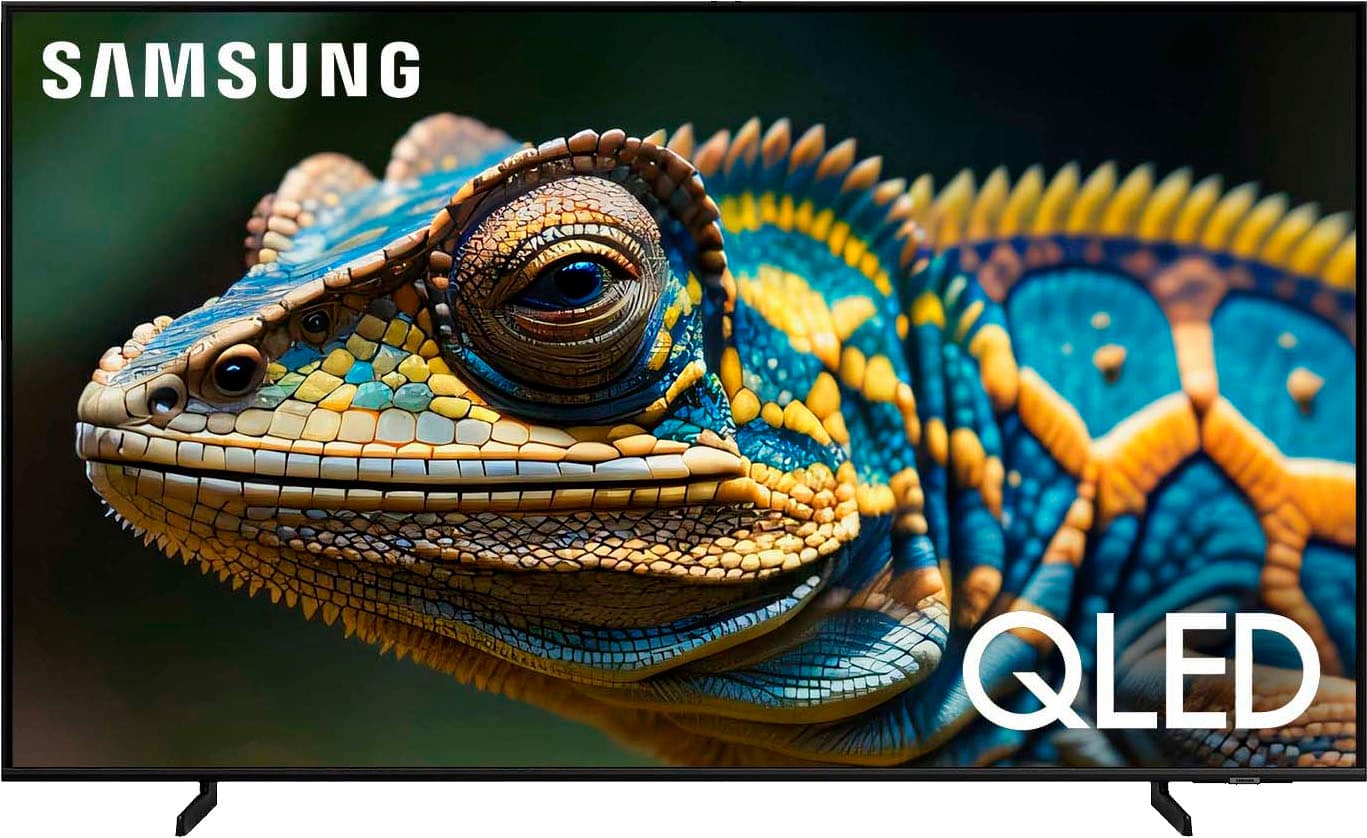
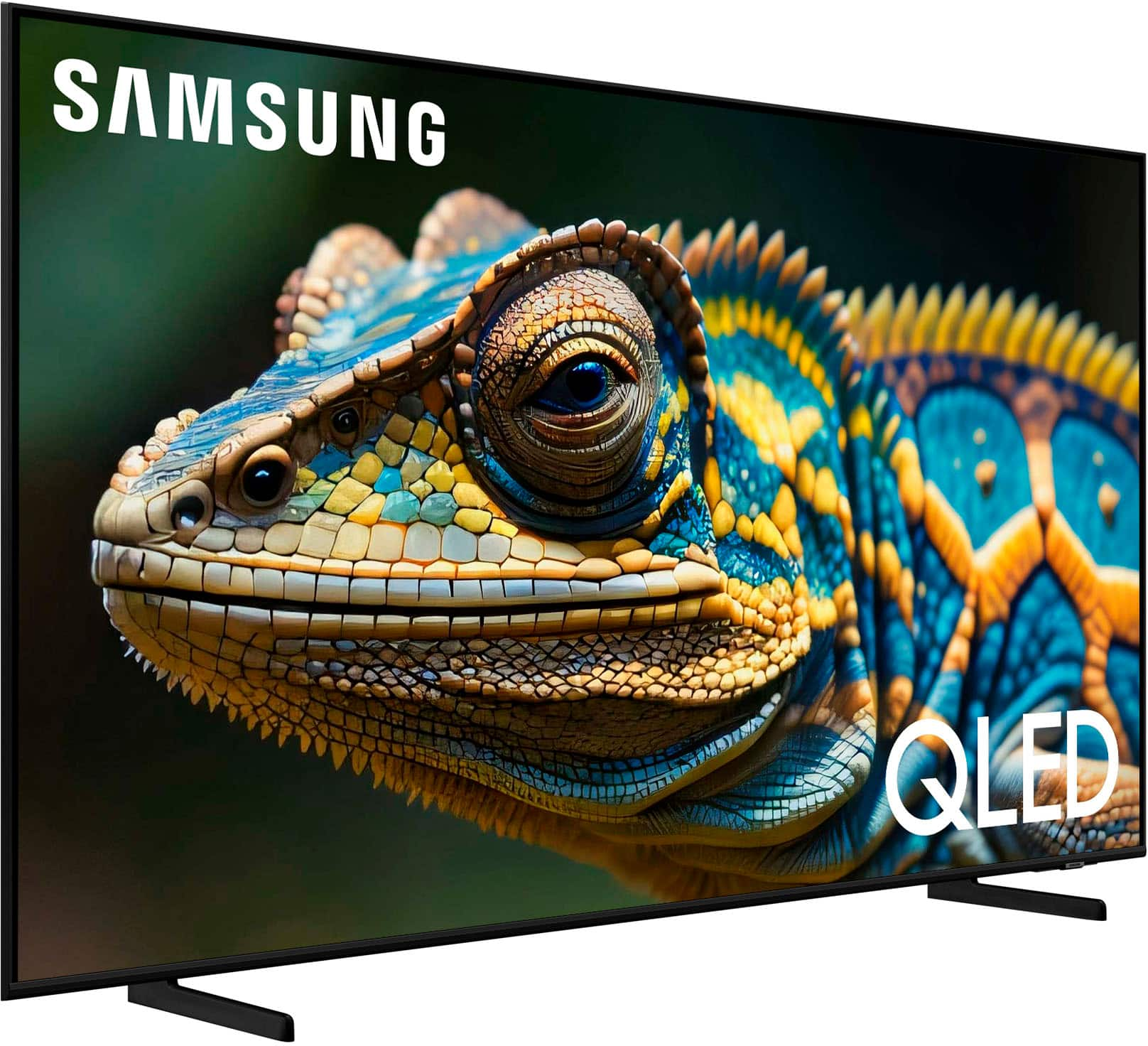
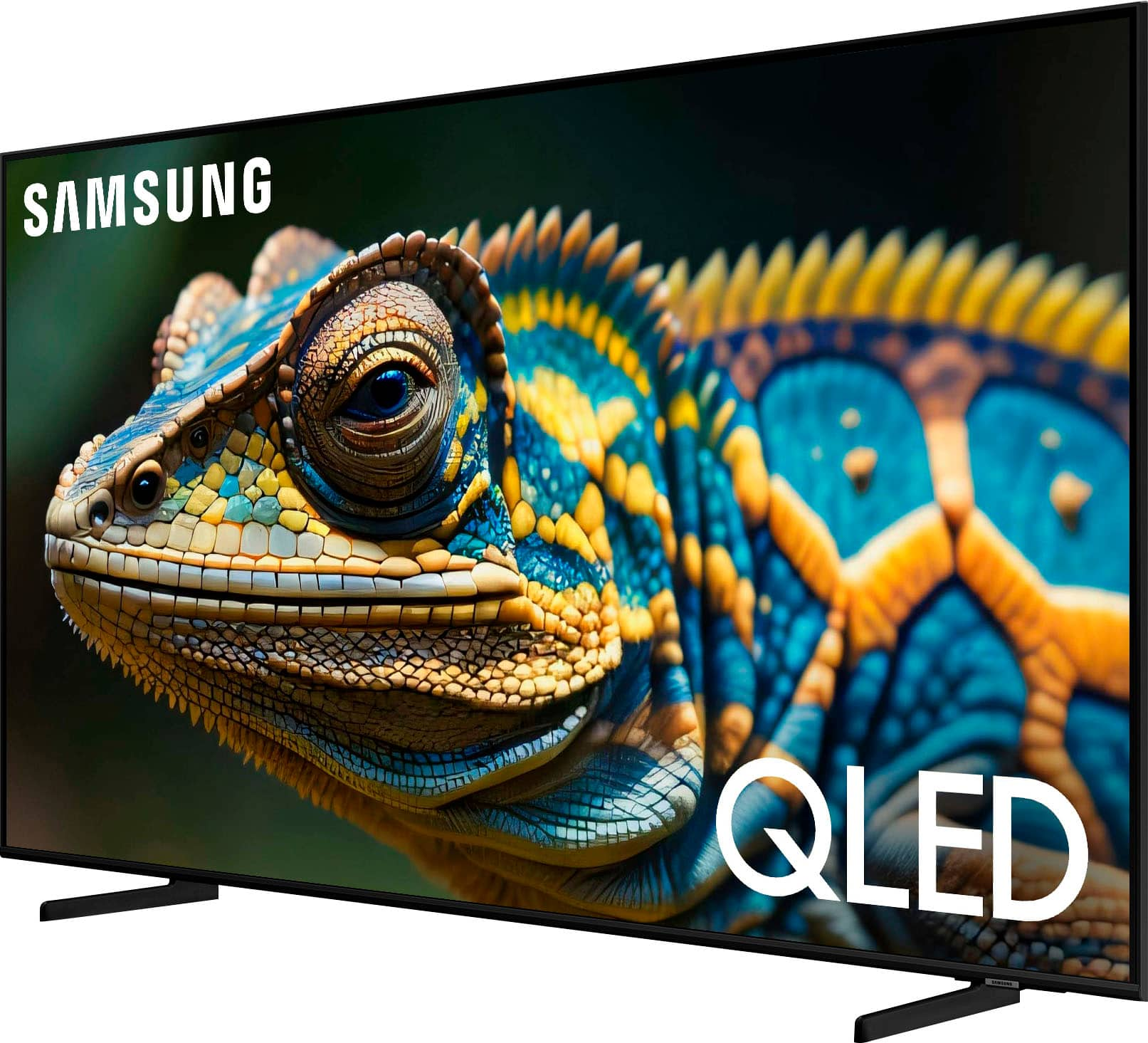
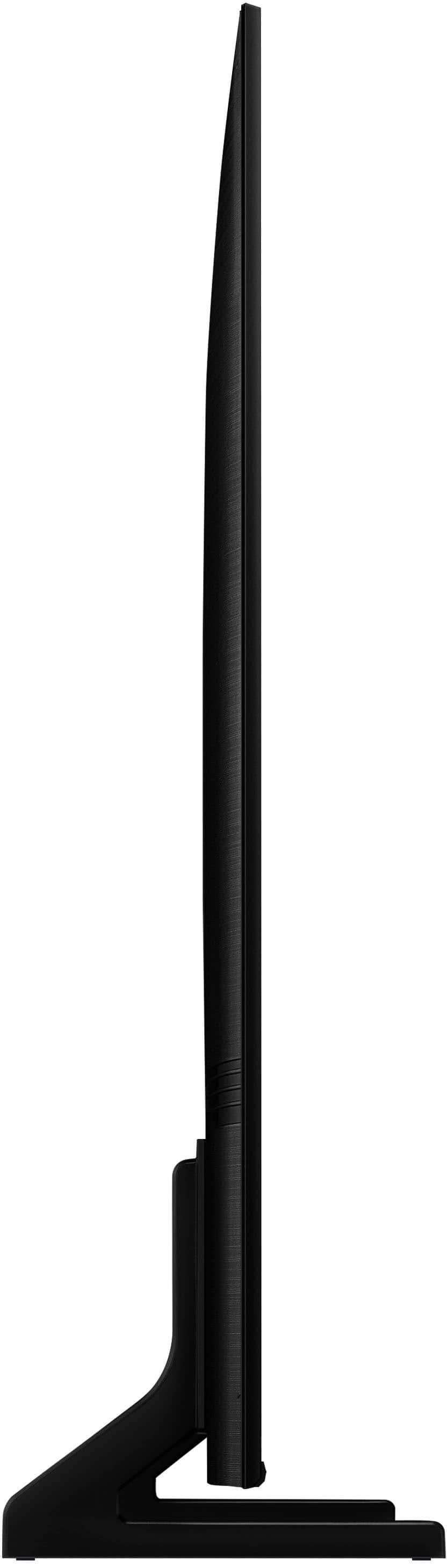




- Model:
- QN65Q60DAFXZA
- SKU:
- 10413036
Rating by feature
- Picture Quality
Rating 4.7 out of 5 stars
- Sound Quality
Rating 4.5 out of 5 stars
- Brightness
Rating 4.8 out of 5 stars
Excellent TV
||Posted . Owned for 2 months when reviewed.This reviewer received promo considerations or sweepstakes entry for writing a review.I liked the size and for the price it has it is of good quality the image. It has the whole Galaxy experience for the user, I really recommend it
I would recommend this to a friendVery good tv
||Posted . Owned for 5 months when reviewed.This reviewer received promo considerations or sweepstakes entry for writing a review.The Samsung 65in Q60 is very nice tv.The pictures are in good quality.I recommend it to everybody to buy it .
I would recommend this to a friendBeautiful Picture
||Posted . Owned for 1 month when reviewed.This reviewer received promo considerations or sweepstakes entry for writing a review.I wasn't happy with the 75"DU 7200 Samsung, so I traded them for a 65 inch Q LED and the picture was phenomenal.
I would recommend this to a friendGreat Tv
||Posted . Owned for 3 weeks when reviewed.This reviewer received promo considerations or sweepstakes entry for writing a review.Great Picture and sound quality. Got the 65 inch. Love it!
I would recommend this to a friendCustomer service
||Posted . Owned for 5 months when reviewed.This reviewer received promo considerations or sweepstakes entry for writing a review.Great customer service. Great prices I’ve bought prolly 10 of these great tvs
I would recommend this to a friendTv Samsung
||Posted . Owned for 9 months when reviewed.This reviewer received promo considerations or sweepstakes entry for writing a review.Excellent Tv I love it the images are so clear and nice
I would recommend this to a friendGreat tv
||Posted . Owned for 1 month when reviewed.This reviewer received promo considerations or sweepstakes entry for writing a review.It awesome tv love it the best tv on the market for the price
I would recommend this to a friendGood tv
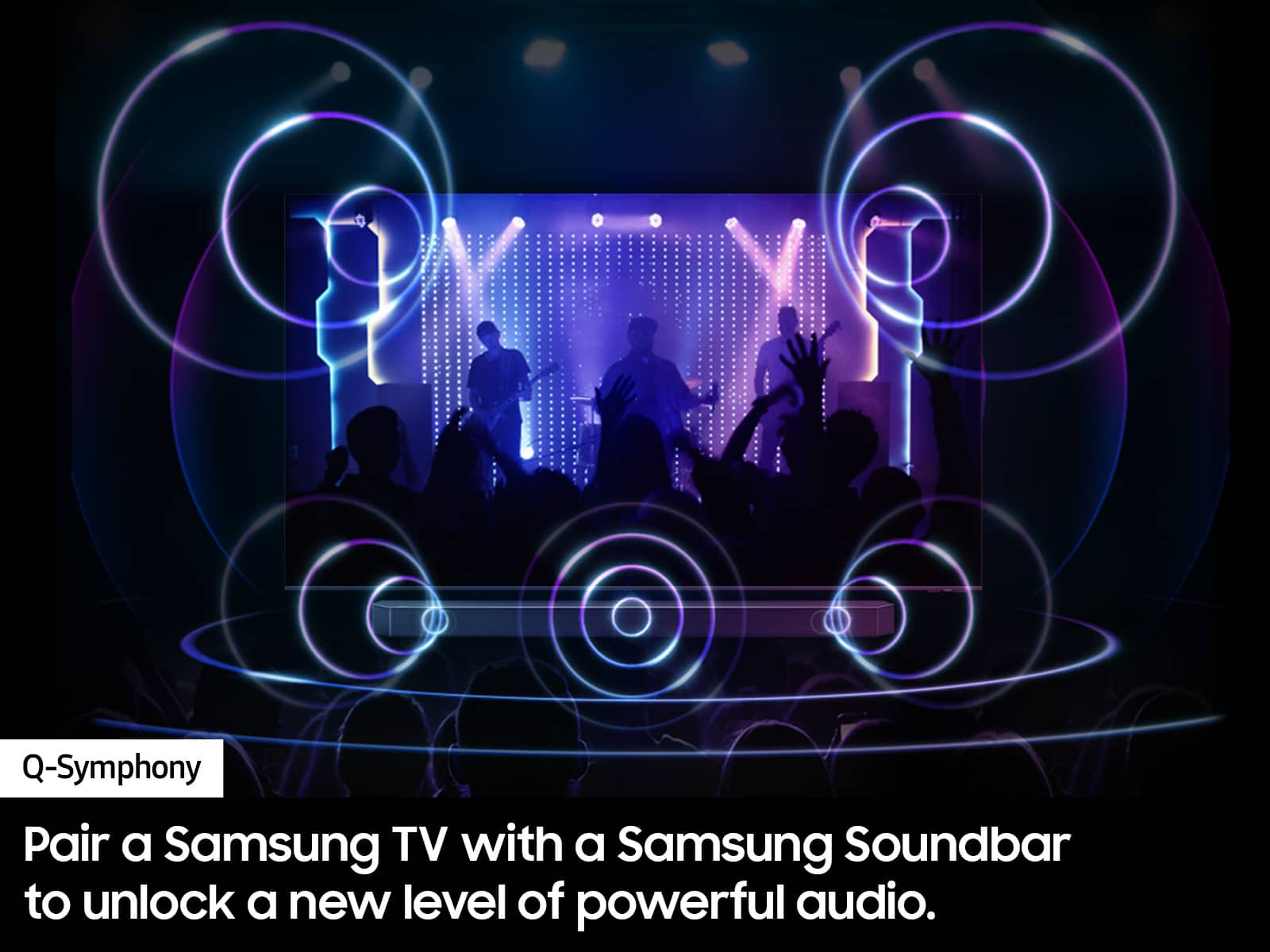
||Posted . Owned for 2 months when reviewed.This reviewer received promo considerations or sweepstakes entry for writing a review.Great qled tv nice picture, sound is ok but get a sound bar if you watch movies.
I would recommend this to a friendFits perfect
||Posted . Owned for 1 month when reviewed.This reviewer received promo considerations or sweepstakes entry for writing a review.Once I learned how to navigate I’ve enjoyed everything I watched
I would recommend this to a friendGlad i upgraded!
||Posted . Owned for 3 weeks when reviewed.This reviewer received promo considerations or sweepstakes entry for writing a review.Amazing picture definition! Perfect size for living room!
I would recommend this to a friendExcellent
||Posted . Owned for 3 weeks when reviewed.This reviewer received promo considerations or sweepstakes entry for writing a review.Excellent definition and image quality, I recommend it.
I would recommend this to a friendMy new start
||Posted . Owned for 2 months when reviewed.This reviewer received promo considerations or sweepstakes entry for writing a review.Best tv I have ever had really make my house a home
I would recommend this to a friendSatisfied buyer, great value option.
||Posted . Owned for 3 weeks when reviewed.This reviewer received promo considerations or sweepstakes entry for writing a review.Great TV for the money. Picture is sharp and bright. The refresh rate is smooth. Great bang for buck ratio in my opinion.
I would recommend this to a friendNew 65 inch tv.
||Posted . Owned for 2 weeks when reviewed.This reviewer received promo considerations or sweepstakes entry for writing a review.I am loving my new Samsung tv. Great picture quality.
I would recommend this to a friendDidn't last a year!
||Posted .This reviewer received promo considerations or sweepstakes entry for writing a review.This tv was priced right but even though we got the 5 year extended geek squad protection plan it failed at 11 months rendering the additional cost of extended protection futile. Samsung couldn't fix it and refunded the purchase price of the tv. We then upgraded to a Samsung OLED and purchased the 5 year extended protection in hopes that the new tv will last more than 11 months
No, I would not recommend this to a friendGreat service
||Posted . Owned for 1 month when reviewed.This reviewer received promo considerations or sweepstakes entry for writing a review.All the employees at Best Buy are great and the service is excellent. The order is delivered quickly. Thank you to everyone who works at the Best Buy store.
I would recommend this to a friendBest tv purchase
||Posted . Owned for 1 week when reviewed.This reviewer received promo considerations or sweepstakes entry for writing a review.The buying experience was easy the tv setup time was very fast compared to other tvs and all the prompts they make you go through definetly recommend for the price
I would recommend this to a friendBacklight Bleeding
||Posted . Owned for 1 month when reviewed.This reviewer received promo considerations or sweepstakes entry for writing a review.During daylight the picture looks great. DO NOT BUY if you watch movies at night, the tv has horrible backlight bleeding.
No, I would not recommend this to a friendBrand response from Samsung
Posted .SebastianV,
Thank you for sharing your thoughts on the picture quality of your Q60D TV. To ensure you’ve got the latest image quality updates, please confirm that your TV is up to date with the latest firmware version. You can check by going to: Home > Menu > Settings > Support > Software Update.
If the picture you’re seeing is still not to your liking after updating firmware, there are several picture settings you may want to try adjusting.
Go to Home > left direction button > Settings > All Settings > Picture > Picture Mode
...and select the mode that best fits your usage:
1. Standard: Is the default mode suitable for general viewing environments
2. Dynamic: Makes the picture brighter and clearer in bright viewing environments
3. Eco: Provided to save energy
4. Movie: Suitable for watching TV or movies in a dark room
5. Filmmaker Mode: Provides source content just as the creators intended. If the image is defined as Filmmaker Mode, it’ll automatically switch to Filmmaker Mode while watching.
You can also fine-tune your picture with expert settings such as brightness, contrast, sharpness and more (All Settings > Picture > Expert Settings).
For further assistance with settings adjustments, please contact Samsung Customer Support at 1-800-SAMSUNG, 8AM - 12AM EST, 7 days a week. Or visit us on the Samsung website and click on the ‘Support’ link for:
• LiveChat
• Manuals, Software, & Warranty Info
~ Samsung Specialist
New TV Good quality
||Posted . Owned for 1 month when reviewed.This reviewer received promo considerations or sweepstakes entry for writing a review.The new tv is ok but the picture is not as great as we would like. Overall it is good.
I would recommend this to a friendTV Smiles
||Posted . Owned for 3 weeks when reviewed.This reviewer received promo considerations or sweepstakes entry for writing a review.Bought a pre-owned, very pleased with the purchase.
I would recommend this to a friend