Customer Ratings & Reviews
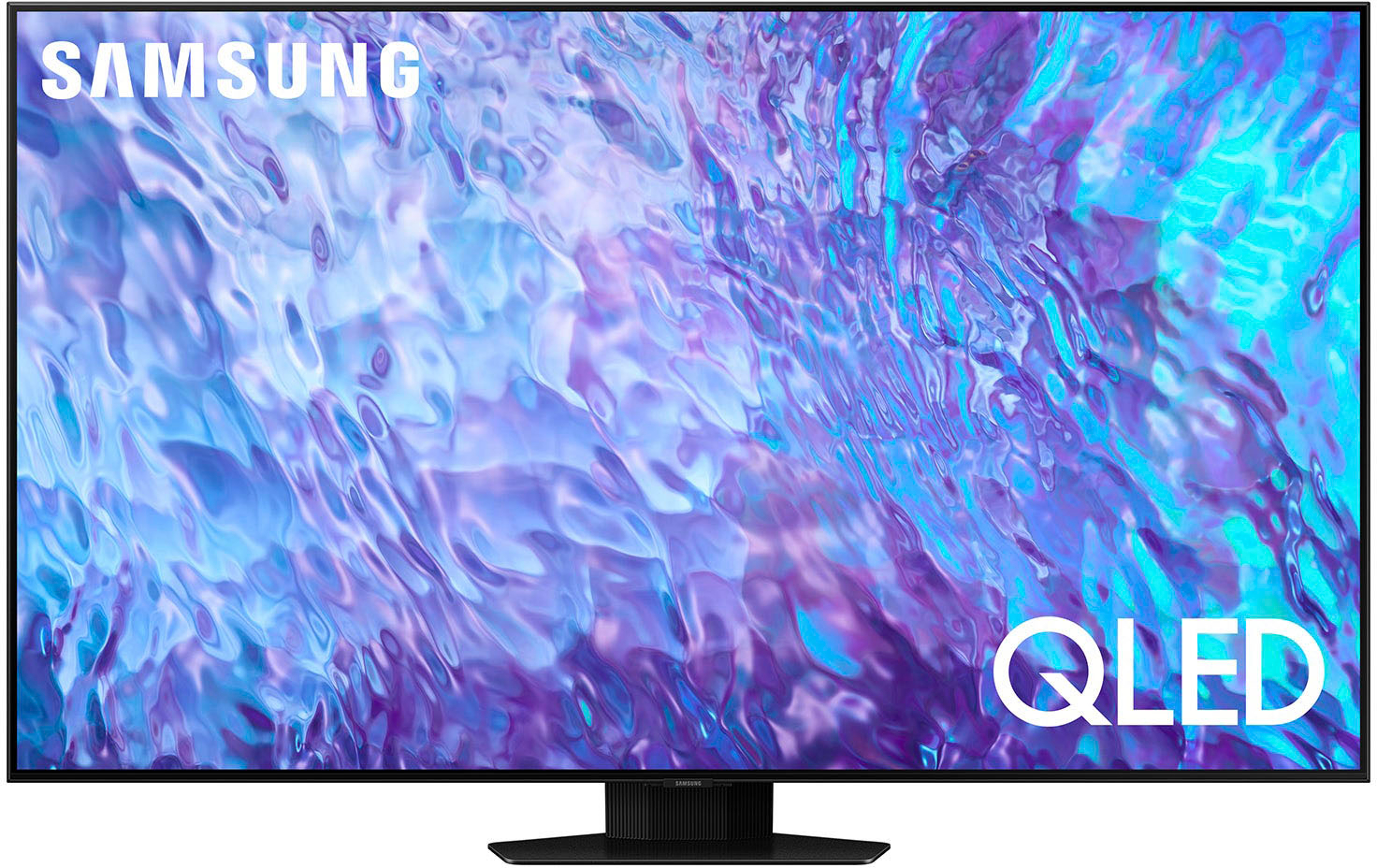
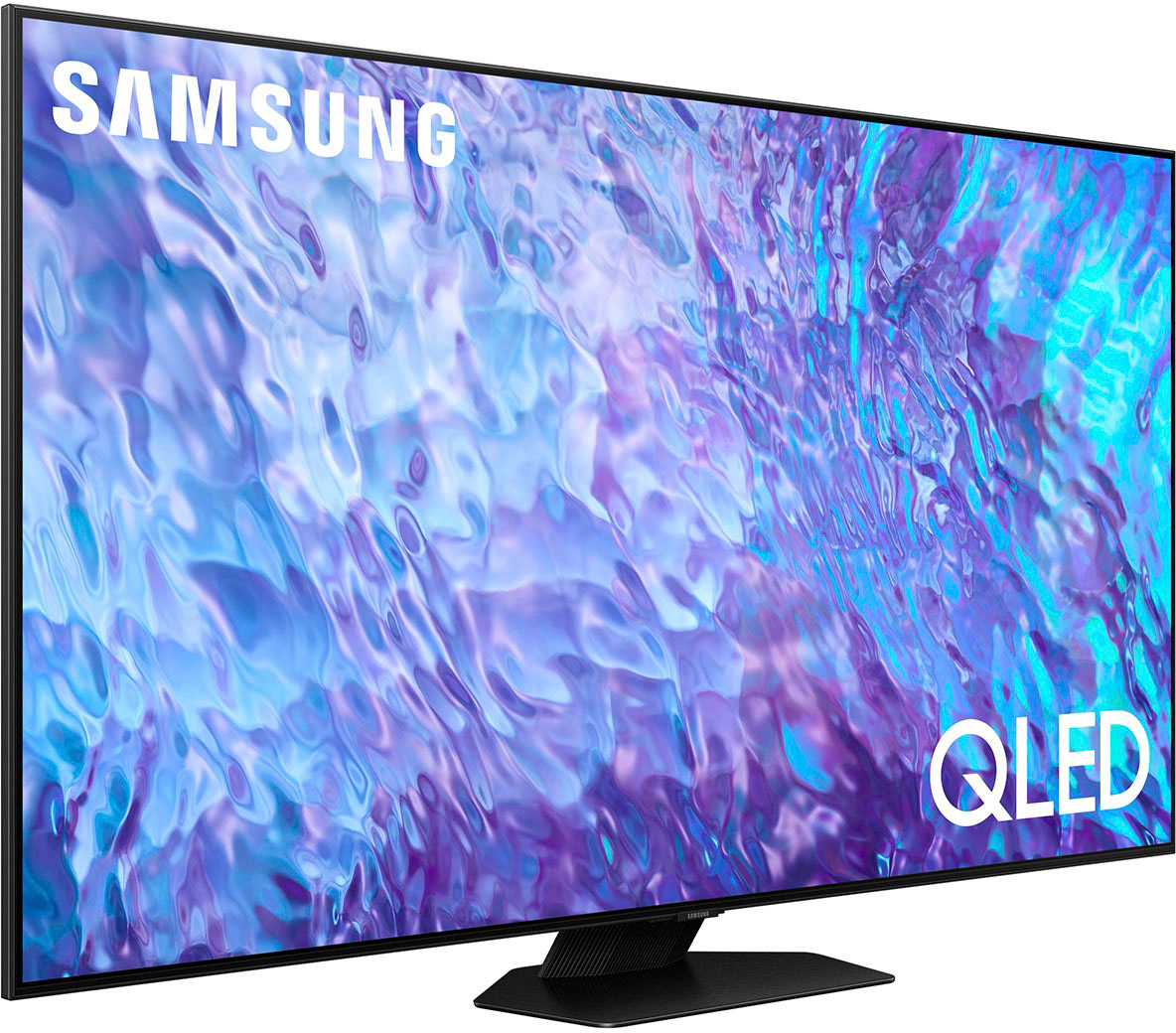
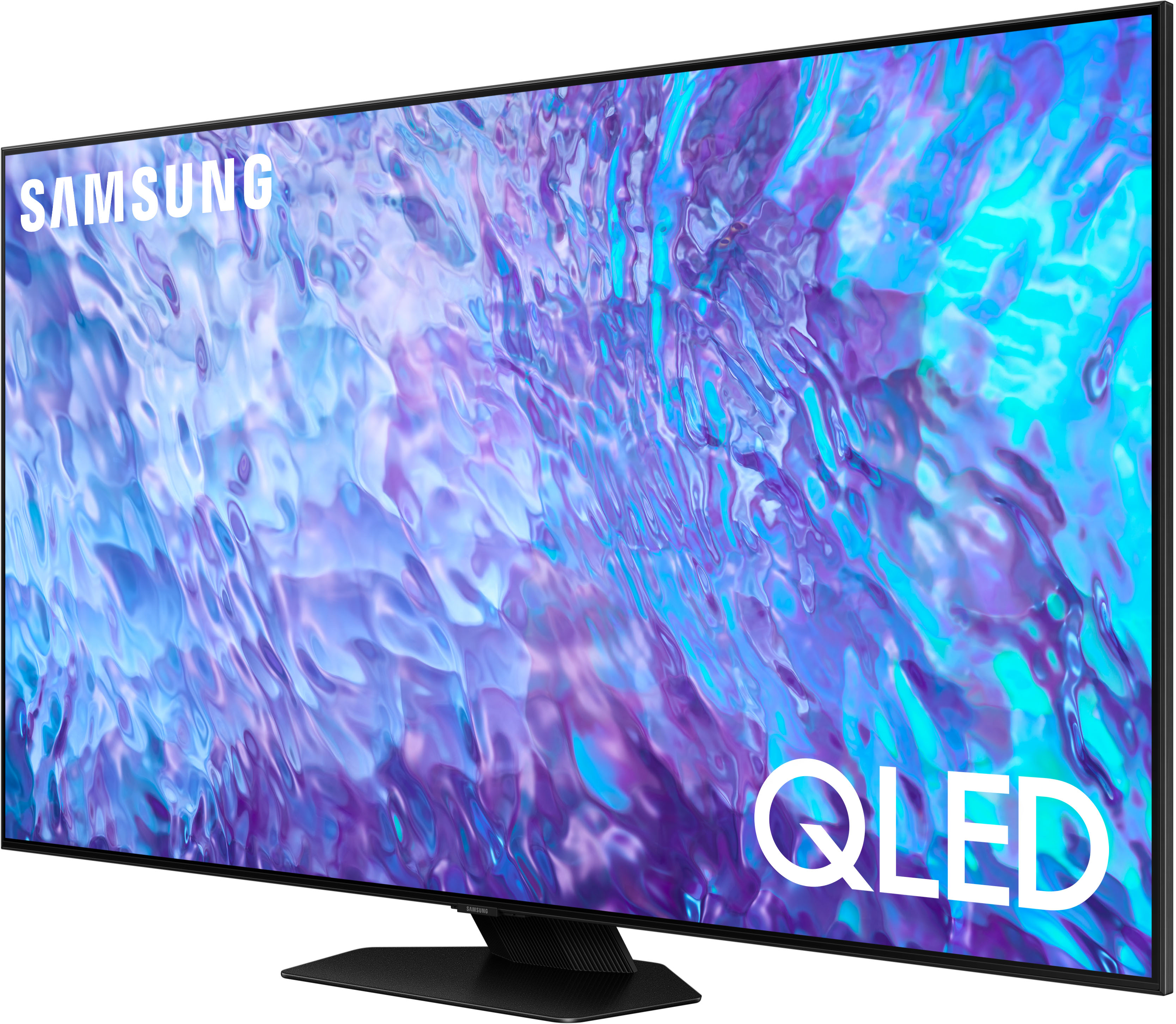
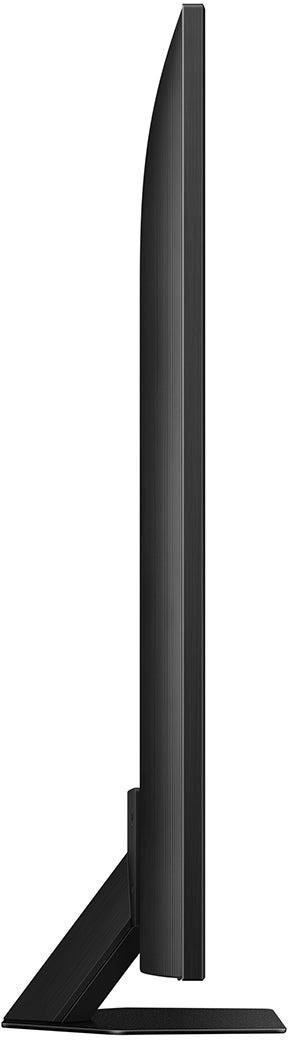
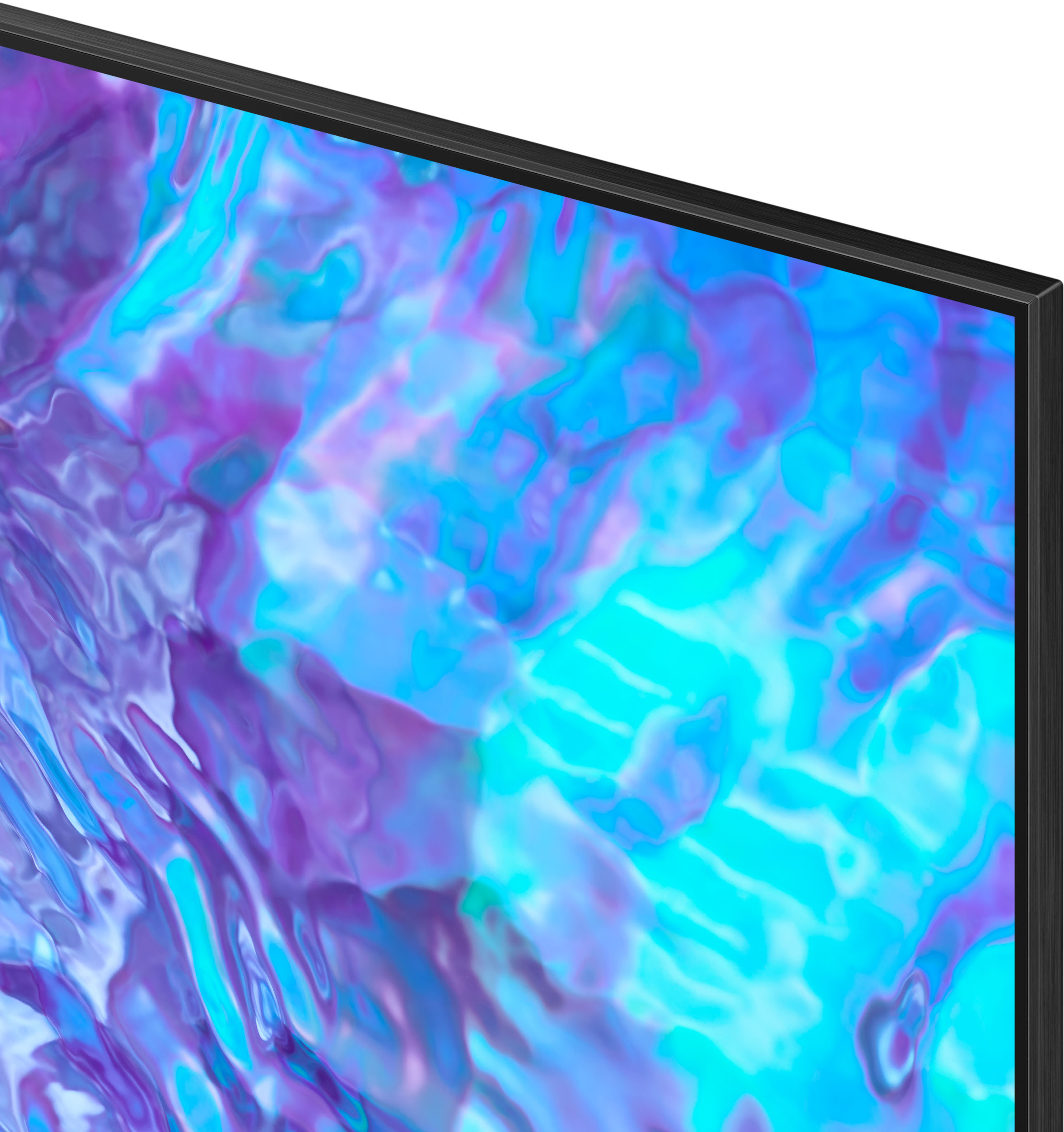
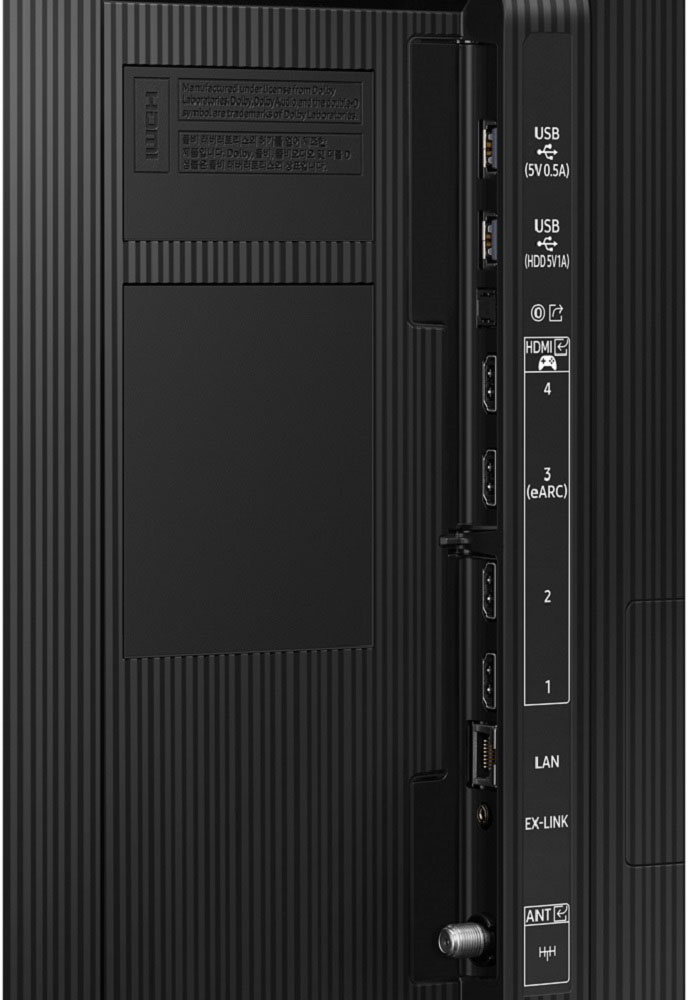


- Model:
- QN65Q80CAFXZA
- SKU:
- 6537330
Rating by feature
- Picture Quality
Rating 4.8 out of 5 stars
- Sound Quality
Rating 4.6 out of 5 stars
- Brightness
Rating 4.8 out of 5 stars
Customers are saying
Customers praise the 65” Class Q80C QLED 4K UHD Smart Tizen TV (2023) for its exceptional picture quality, ease of use, and vibrant colors. Many also appreciate the value for the price and the user-friendly remote control. While some users noted minor concerns about glare and the TV stand's stability, the overwhelmingly positive feedback points to a highly satisfying viewing experience. The TV's performance in gaming and its ease of setup were also frequently highlighted as positive aspects.
This summary was generated by AI based on customer reviews.
Tv is good but the missing apps was bad.
||Posted . Owned for 1 month when reviewed.This reviewer received promo considerations or sweepstakes entry for writing a review.We weren't happy that we had to call to get the usual apps. But the help was great.
I would recommend this to a friendFredawillz
||Posted . Owned for 3 weeks when reviewed.This reviewer received promo considerations or sweepstakes entry for writing a review.Nice customer service! Helper was nice! Helper was knowledgeable
I would recommend this to a friendI love my tv
||Posted . Owned for 3 weeks when reviewed.This reviewer received promo considerations or sweepstakes entry for writing a review.It was great tv i loved watching serial I feel I’m watching movies
I would recommend this to a friendUser friendly
||Posted . Owned for 1 month when reviewed.This reviewer received promo considerations or sweepstakes entry for writing a review.Sony's TV user interface is so much nicer than Samsung
I would recommend this to a friendMr.
||Posted . Owned for 1 month when reviewed.This reviewer received promo considerations or sweepstakes entry for writing a review.Clarity and color is marginal. Disappointed now but jury is still out.
I would recommend this to a friendDisappointed
||Posted . Owned for 1.5 years when reviewed.This reviewer received promo considerations or sweepstakes entry for writing a review.It broke within 1.5 years I’m so disappointed with our purchase
No, I would not recommend this to a friendCheaper parts?
||Posted . Owned for 3 weeks when reviewed.This reviewer received promo considerations or sweepstakes entry for writing a review.I bought two of these during Black Friday / Cyber Monday. One of them seems to be running very slow. Everything is updated, checked, etc. Is it true they use "cheaper" parts for tv's during these sale events? It appears that way...
No, I would not recommend this to a friendBrand response from Samsung
Posted .WisdomWordMan,
We appreciate your feedback on the response time, and for optimal performance, we ask that you please ensure you've got the latest firmware version installed on your Q80C TV. You can check this by going to: Home > Menu > Settings > Support > Software Update.
You may also want to further optimize performance with the self-diagnostic tool, which checks memory, frees up unused cached memory, and closes background apps. Go to: Home > Menu > Settings > Support > Device Care > Start Device Care
I hope these tips help you enjoy your new product.
You can always contact us for further help at 1-800-SAMSUNG, 8AM - 12AM EST, 7 days a week. Our LiveChat agents are also available by clicking on the ‘Support’ link on our website.
~ Samsung Specialist
Disappointed
||Posted . Owned for 9 months when reviewed.This reviewer received promo considerations or sweepstakes entry for writing a review.Bought Feb. 5, 2024 Worked great until mid Oct. 2024. Powers on for 30 seconds or so then power cycles off and on continuously until the tv is unplugged. Samsung is replacing the tv with a newer model though so I guess we'll see how long the newer one lasts. Big fan of Samsung products generally but this was definitely a let down.
No, I would not recommend this to a friend- Pros mentioned:Picture quality
Excellent viewing
||Posted . Owned for 1 week when reviewed.This reviewer received promo considerations or sweepstakes entry for writing a review.The picture quality is superior. Paired with a samsung sound bar-terrific
I would recommend this to a friend Horrible
||Posted .This reviewer received promo considerations or sweepstakes entry for writing a review.Horrible tv and customer service. Best buy sold me a used tv when it was supposed to be new. Had geek squad out half a dozen times to fix it because it was damaged. Never could fix it and would not replce it with a new one which is what i originally paid for. Screen goes blotchy and bright blue spots appear.
No, I would not recommend this to a friendPicture
||Posted . Owned for 1 month when reviewed.This reviewer received promo considerations or sweepstakes entry for writing a review.The picture quality is poor at times, and can not be adjusted
No, I would not recommend this to a friendPower Issues
||Posted . Owned for 1.5 years when reviewed.This reviewer received promo considerations or sweepstakes entry for writing a review.I purchased this TV in December of 2023 and it is now October 2025. It has a powering cycle issue and the repairs are going to cost as much as the cost for a new TV. Not sure if I will ever buy a Samsung product again.
No, I would not recommend this to a friendTotal junk
||Posted . Owned for 1.5 years when reviewed.This reviewer received promo considerations or sweepstakes entry for writing a review.Total junk. It only lasted 2 years. Samsung wanted $400.00 to fix it. So I bought a Sony. Better quality. I have a Sony in my bedroom that's 7 years only and still working great. I should've known better.
No, I would not recommend this to a friendajs
||Posted . Owned for 1 month when reviewed.This reviewer received promo considerations or sweepstakes entry for writing a review.not what I thought will know more after geek squad comes and gets it to work properly, or it will be returned.
No, I would not recommend this to a friendBrand response from Samsung
Posted .AlexisS,
We appreciate your review of Samsung’s Q80C TV. So we can better understand the issues you’re experiencing and provide you with troubleshooting assistance, please reach out to Samsung Customer Support at 1-800-SAMSUNG, 8AM - 12AM EST, 7 days a week.
LiveChat with an agent as well as manuals, software, and warranty info can be found at the ‘Support’ link on our Samsung website.
~ Samsung Specialist
Samsung
||Posted . Owned for 2 months when reviewed.This reviewer received promo considerations or sweepstakes entry for writing a review.We return the TV couldn’t get the picture color adjusted correctly I went with an LG
No, I would not recommend this to a friendBrand response from Samsung
Posted .Richard,
I’m sorry to hear the picture quality of Samsung’s Q80C TV did not meet your expectations. Your feedback is appreciated and will be shared with our internal teams.
Please know we’re always here to help, and we could have assisted in providing image adjustments to resolve any issues you were experiencing.
Should you ever decide to give Samsung TVs another try and have questions or need help with settings, setup, or features, please know we’re here to help. Call us at 1-800-SAMSUNG, 8AM - 12AM EST, 7 days a week.
LiveChat with an agent as well as manuals, software, and warranty info can be found at the ‘Support’ link on our Samsung website.
~ Samsung Specialist
Mr. Smith
||Posted . Owned for 3 weeks when reviewed.This reviewer received promo considerations or sweepstakes entry for writing a review.Picture quality is less than expected. Night scenes are to dark to distinguish what is happening in show.
No, I would not recommend this to a friendBrand response from Samsung
Posted .Sids,
Thank you for sharing your thoughts on the picture quality of your Q80C TV. To ensure you’ve got the latest image quality updates, please confirm that your TV is up to date with the latest firmware version. You can check by going to: Home > Menu > Settings > Support > Software Update.
If the picture you’re seeing is still not to your liking after updating firmware, there are several picture settings you may want to try adjusting.
Go to Home > Menu > Settings > All Settings > Picture > Picture Mode
...and select the mode that best fits your usage:
1. Standard: Is the default mode suitable for general viewing environments
2. Dynamic: Makes the picture brighter and clearer in bright viewing environments
3. Eco: Provided to save energy
4. Movie: Suitable for watching TV or movies in a dark room
5. Filmmaker Mode: Provides source content just as the creators intended. If the image is defined as Filmmaker Mode, it’ll automatically switch to Filmmaker Mode while watching.
Intelligent Mode enables the TV to recognize and analyze the surroundings, noise, content, and your usage patterns to provide the best viewing experience. You can enable Intelligent Mode by going to Menu > Settings > All Settings > General & Privacy > Intelligent Mode Settings > Intelligent Mode.
If adjusting image settings does not improve your picture, please contact Samsung Customer Support at 1-800-SAMSUNG, 8AM - 12AM EST, 7 days a week. Or visit us on the Samsung website and click on the ‘Support’ link for:
• LiveChat
• Manuals, Software, & Warranty Info
~ Samsung Specialist
Ronwhite
||Posted . Owned for 3 weeks when reviewed.This reviewer received promo considerations or sweepstakes entry for writing a review.The picture on real tv seems blurry. On Netflix and other streaming it’s good.
I would recommend this to a friendBrand response from Samsung
Posted .Ronwhite,
Thank you for sharing your thoughts on the picture quality of your Q80C TV. To ensure you’ve got the latest image quality updates, please confirm that your TV is up to date with the latest firmware version. You can check by going to: Home > Menu > Settings > Support > Software Update.
The TV will upscale as best as possible any content sent to it. The closer your content is to 4K, the better the image will look on the screen.
Here are some tips to help improve the picture clarity:
1) HDMI cables are recommended for optimal HD viewing.
2) If you have an analog cable box or satellite box, upgrade to a digital cable box or satellite box.
3) Change the output resolution of your devices, such as digital broadcast receiver, IPTV, and set-top box to UHD or HD.
4) You can further adjust your sharpness, brightness, contrast, color, and more by going to Menu > Settings > All Settings > Picture > Expert Settings
5) Choose a Picture Mode by going to Menu > Settings > All Settings > Picture > Picture Mode and choose from Dynamic, Movie, or Filmmaker Mode.
Should you ever have questions or need help with TV features, specs, or operation, we are here to help. You can reach us at 1-800-SAMSUNG, 8AM - 12AM EST, 7 days a week. Our LiveChat agents are also available by clicking on the ‘Support’ link on our website.
~ Samsung Specialist
tiny controller
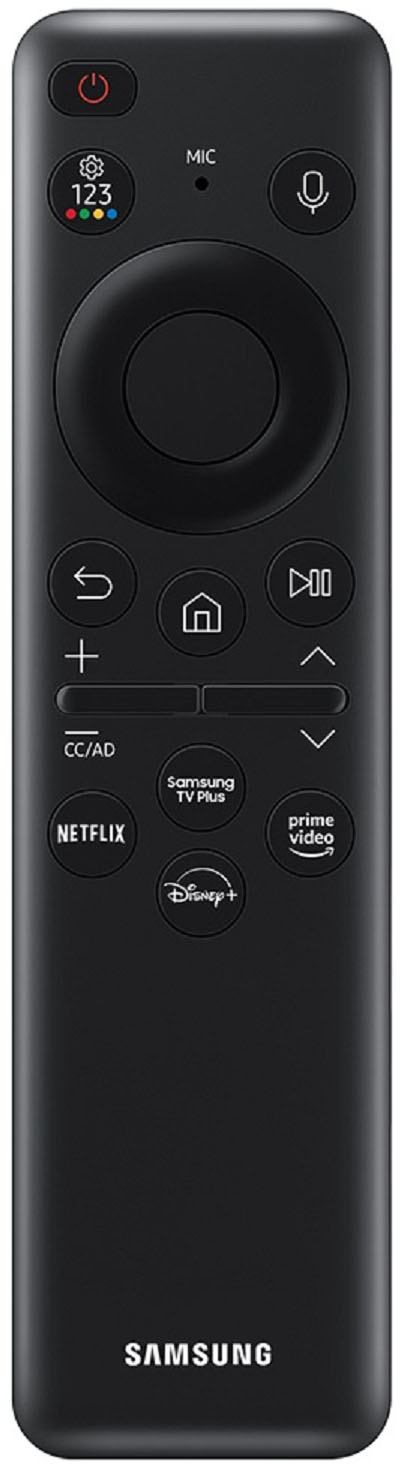
||Posted . Owned for 3 weeks when reviewed.This reviewer received promo considerations or sweepstakes entry for writing a review.tiny controller with no numeric keypad and poor labels.
No, I would not recommend this to a friendBrand response from Samsung
Posted .NancyB,
Thank you for sharing your thoughts on the SolarCell Remote - we'll be sure to pass your feedback along to our design team.
If there’s anything we can ever help with, please call us at 1-800-SAMSUNG, 8AM - 12AM EST, 7 days a week. Or visit us on the Samsung website and click on the ‘Support’ link for:
• LiveChat
• Manuals, Software, & Warranty Info
~ Samsung Specialist
- Pros mentioned:Remote control
Disappointment
||Posted . Owned for 2 weeks when reviewed.This reviewer received promo considerations or sweepstakes entry for writing a review.Big disappointment. I had great hopes but overall, I was not happy with the picture quality. Hard to set up and poor picture quality with sports. Great design and excellent remote.
No, I would not recommend this to a friendBrand response from Samsung
Posted .Guillaume,
Thank you for sharing your thoughts on the picture quality of your Q80C TV. To ensure you’ve got the latest image quality updates, please confirm that your TV is up to date with the latest firmware version. You can check by going to: Home > Menu > Settings > Support > Software Update.
If the picture you’re seeing is still not to your liking after updating firmware, there are several picture settings you may want to try adjusting.
Go to Home > Menu > Settings > All Settings > Picture > Picture Mode
...and select the mode that best fits your usage:
1. Standard: Is the default mode suitable for general viewing environments
2. Dynamic: Makes the picture brighter and clearer in bright viewing environments
3. Eco: Provided to save energy
4. Movie: Suitable for watching TV or movies in a dark room
5. Filmmaker Mode: Provides source content just as the creators intended. If the image is defined as Filmmaker Mode, it’ll automatically switch to Filmmaker Mode while watching.
Intelligent Mode enables the TV to recognize and analyze the surroundings, noise, content, and your usage patterns to provide the best viewing experience. You can enable Intelligent Mode by going to Menu > Settings > All Settings > General & Privacy > Intelligent Mode Settings > Intelligent Mode.
I hope these tips help you enjoy your new product.
You can always contact us for further help at 1-800-SAMSUNG, 8AM - 12AM EST, 7 days a week. Our LiveChat agents are also available by clicking on the ‘Support’ link on our website.
~ Samsung Specialist
Garbage
||Posted . Owned for 2 months when reviewed.This reviewer received promo considerations or sweepstakes entry for writing a review.I’ve had this TV since Black Friday, my son lost the remote and we couldn’t get ANY universal remote to connect. Best Buy would not help at all, Samsung said they would not have a new remote until May of 2024. We found the remote and the tv would still not work, it kept saying “could not connect to the internet “. The remote would not connect and we have a $1200.00 paper wait. I loved Samsung products until this, need to do better Samsung and Best Buy should exchange the tv out since they are selling tv’s like this, I’m not impressed at all.
No, I would not recommend this to a friendBrand response from Samsung
Posted .EthanD,
I’m sorry to hear your Q80C TV’s remote is not working as expected. Please try these steps which may help resolve this:
1. Press and hold Return and Microphone buttons (diagonally up and to the right of Return). This will reset the remote.
2. Stand within 1 foot of the TV and press and hold Return and Play/Pause simultaneously for at least 5 seconds or until a message appears on your TV indicating that the remote is now connected
If you’re still experiencing issues with the remote, please also try the following:
- Unplug the TV for 30 seconds, and plug it back in.
- Try moving closer to the TV and re-pairing.
- Check to see if your remote is charged: Settings > All Settings > General & Privacy > Power and Energy Saving > Available Remote Battery
- Check for available firmware updates on your TV: Settings > Support > Software Update > Update Now
You might also want to go through these steps to improve your network connection:
1) Minimize interference by not using or turning off wireless devices. Also, verify that there are no obstacles between the TV and the modem or access point. (Wi-Fi strength can be decreased by appliances, cordless phones, stone walls/fireplaces, etc.)
2) If the wireless connection fails, connect the TV to the access point via a LAN cable. If the TV can connect to the Internet normally via the wired connection, there might be a problem with the access point. In this case, try using a different access point.
3) Perform a network test to check if there is a network problem. Press the Home button on your remote. Navigate to Settings > Support > Device Care > Self Diagnosis> Smart Hub Connection Test
4) Try a cold reboot of your TV by pressing and holding the power button for 5+ seconds until the TV turns off and on again.
I hope the above helps. Should the issue persist, please contact Samsung Support at 1-800-SAMSUNG, 8AM - 12AM EST, 7 days a week. Or visit us on the Samsung website and click on the ‘Support’ link for:
• LiveChat
• Manuals, Software, & Warranty Info
~ Samsung Specialist