Customer Ratings & Reviews



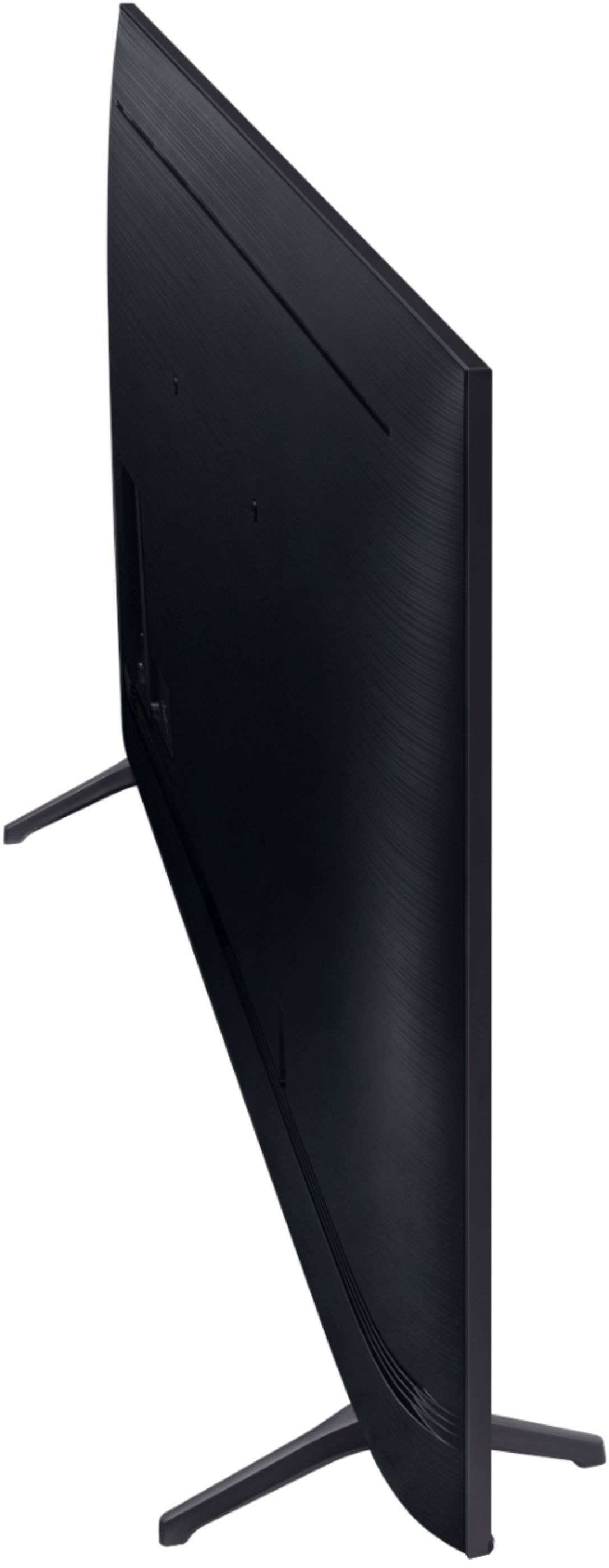
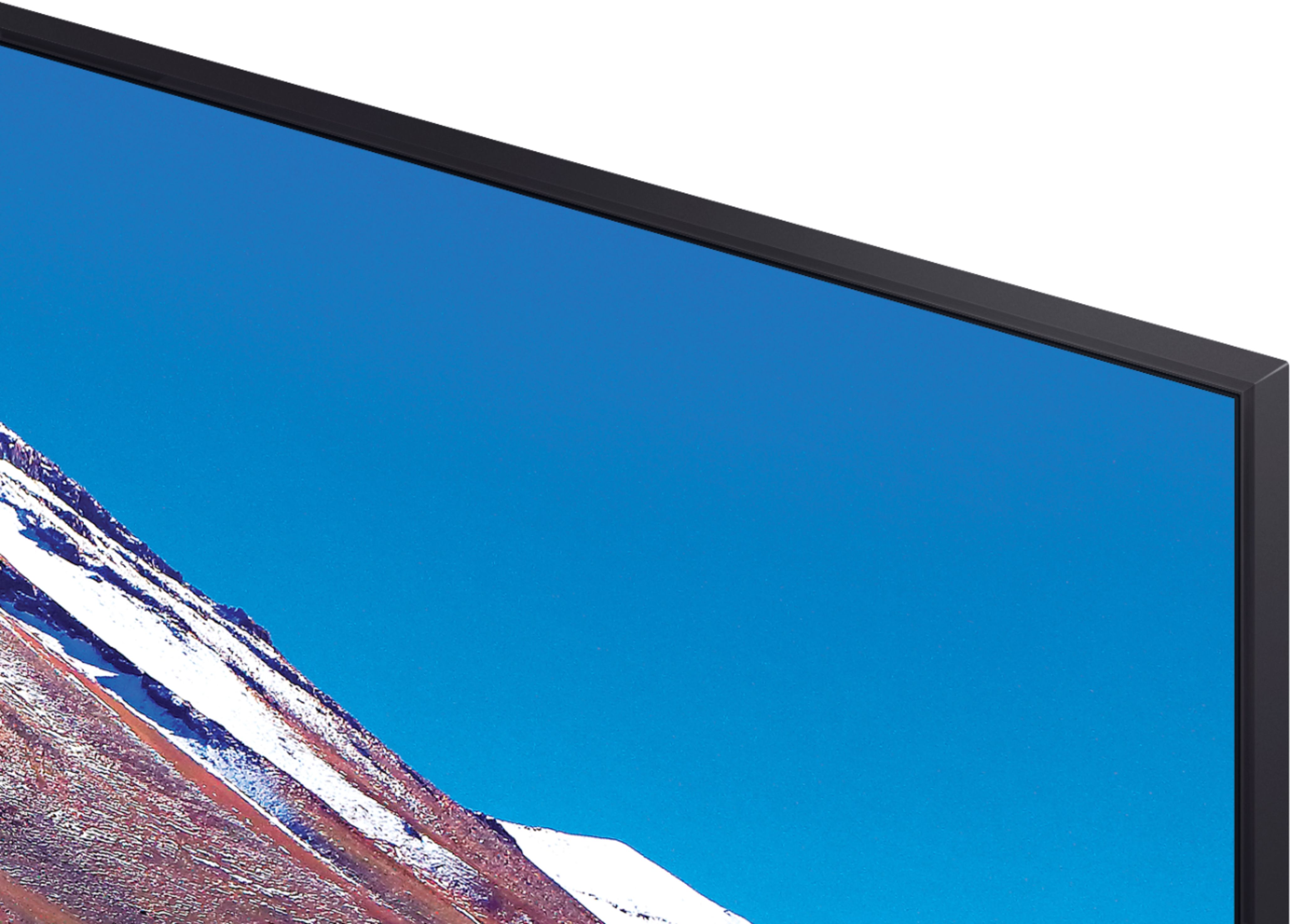
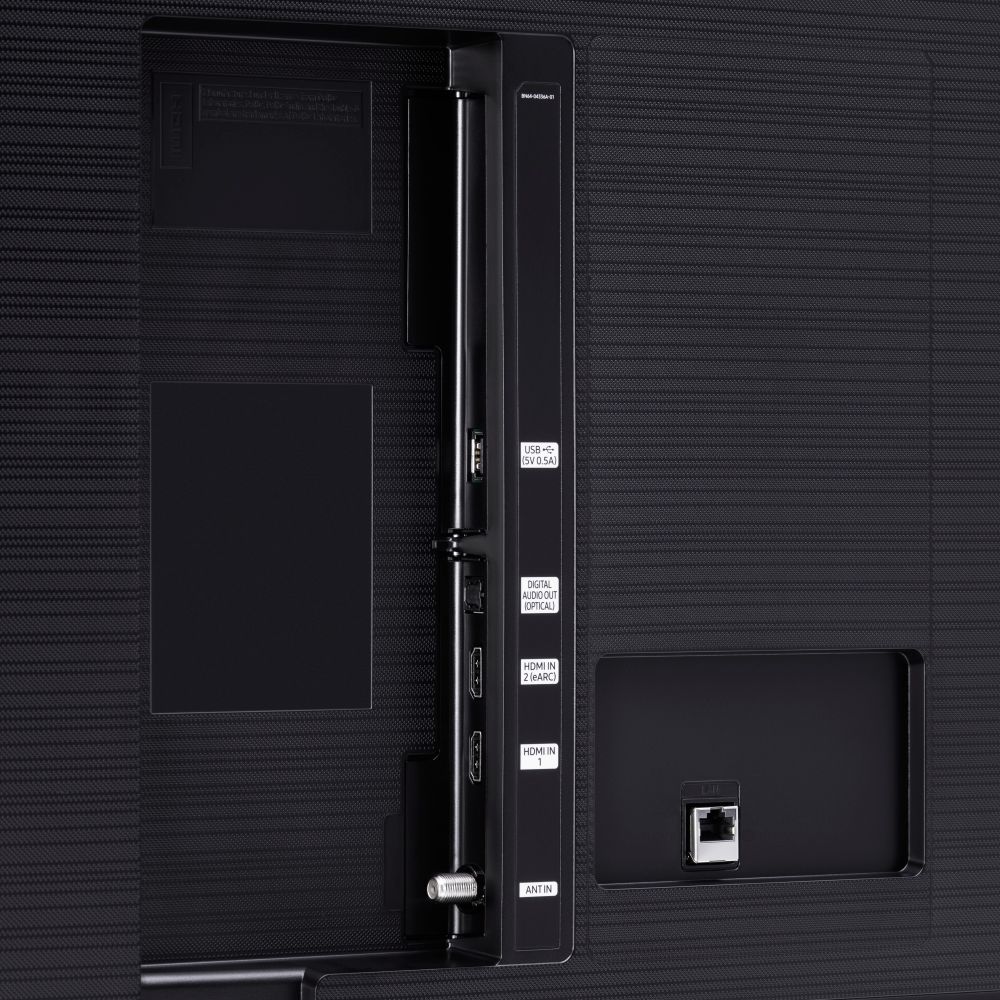




- Model:
- UN70TU6980FXZA
- SKU:
- 6428508
Rating by feature
- Picture Quality
Rating 4.5 out of 5 stars
- Sound Quality
Rating 4.4 out of 5 stars
- Brightness
Rating 4.5 out of 5 stars
Customers are saying
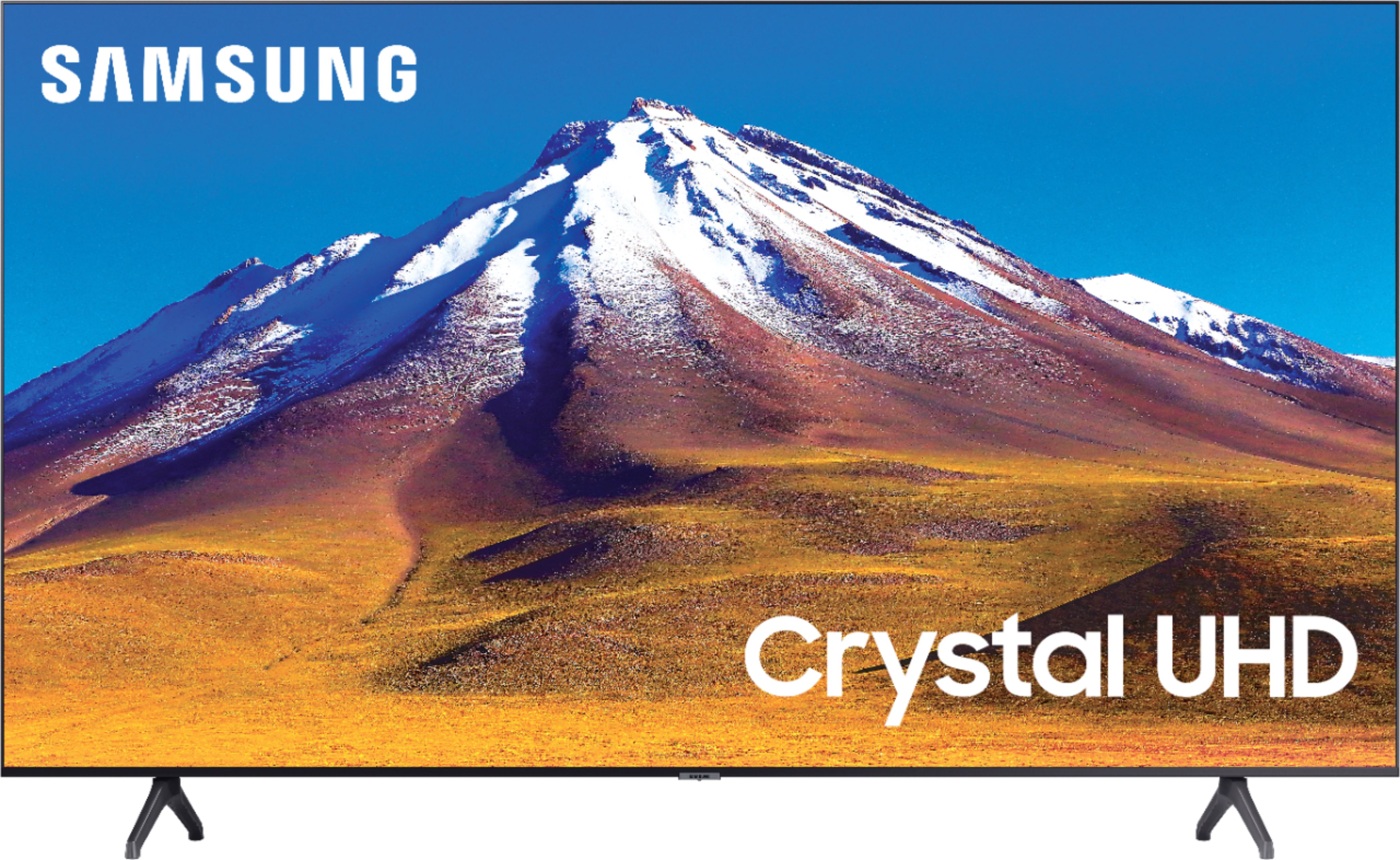
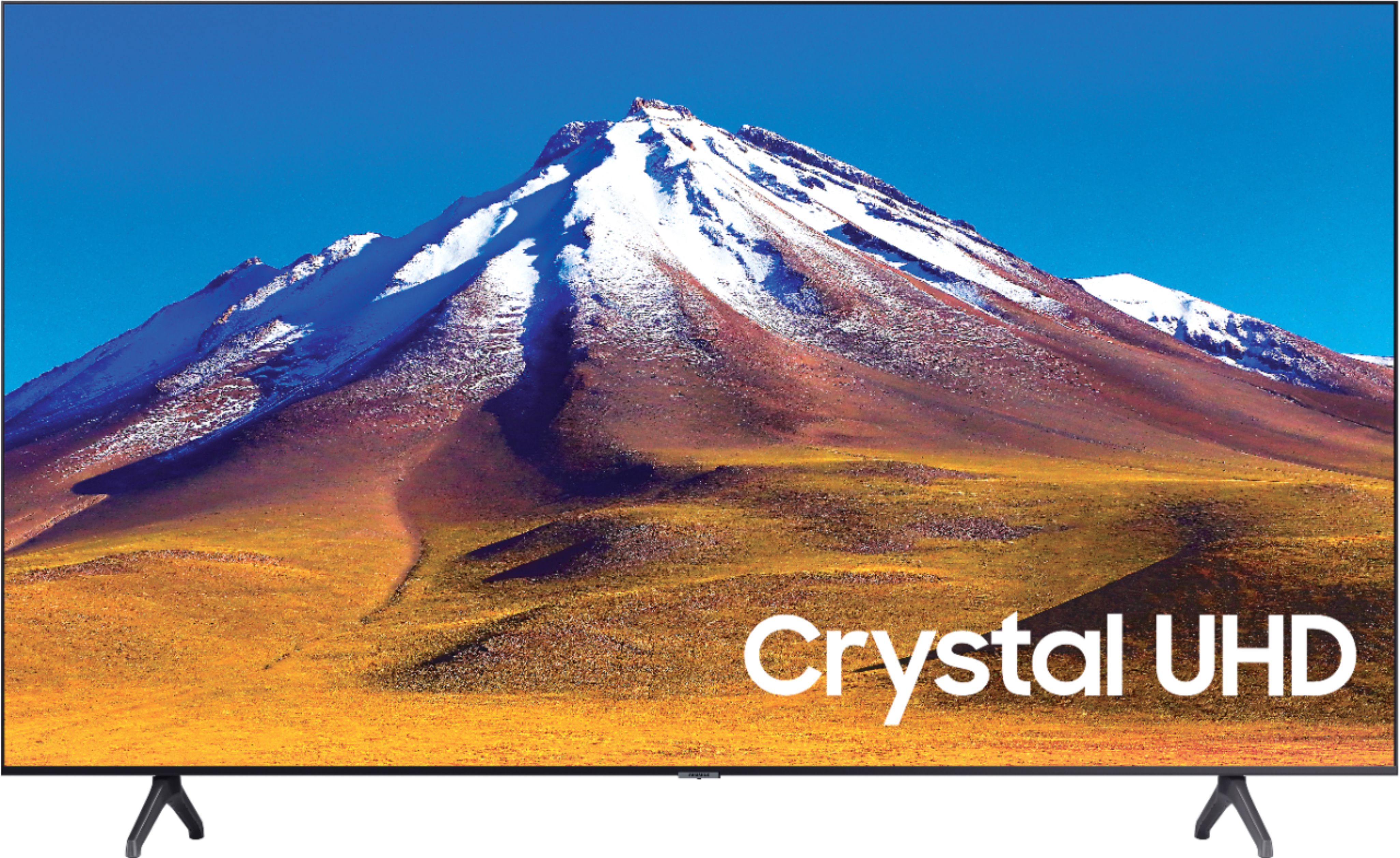
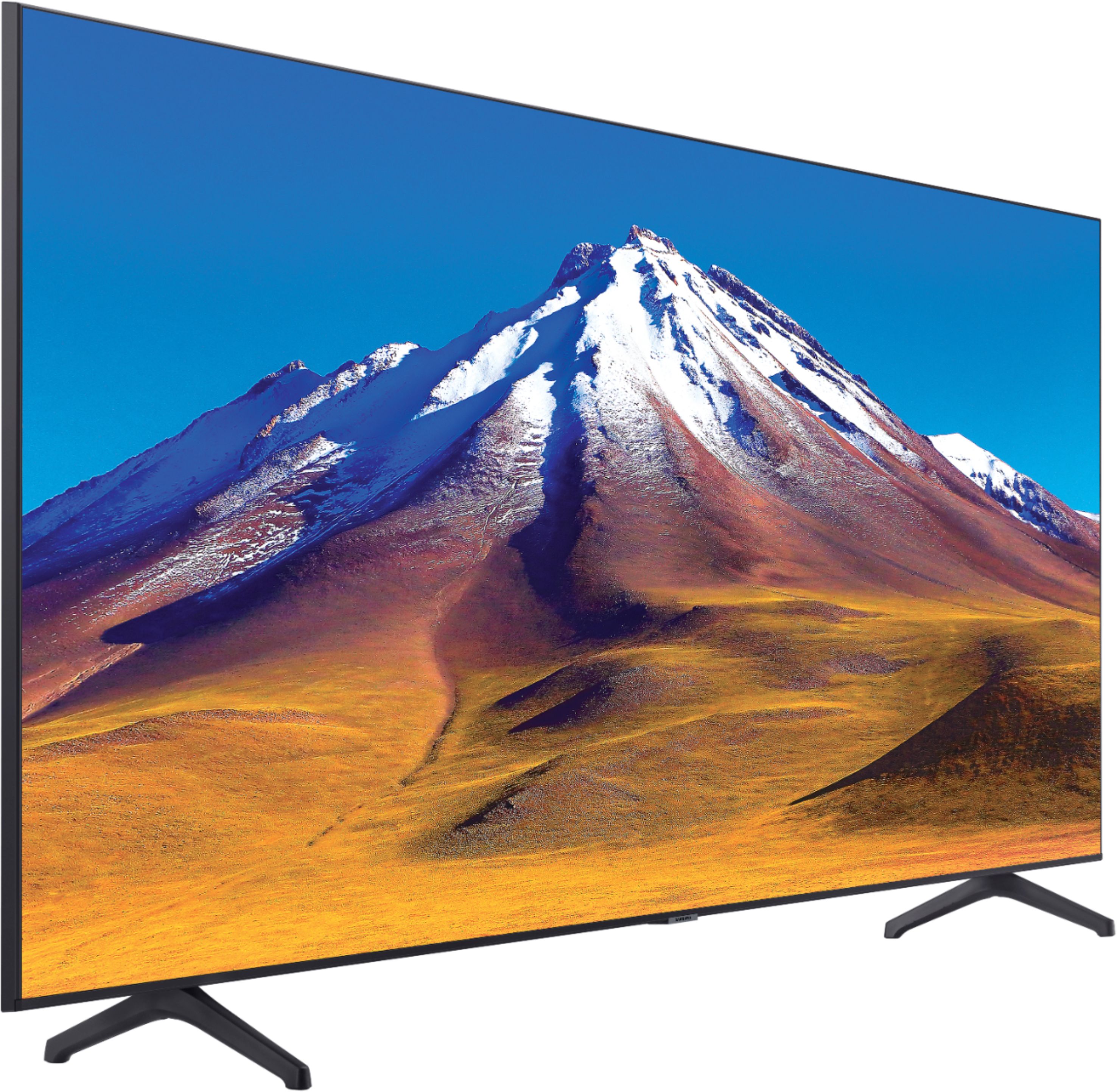
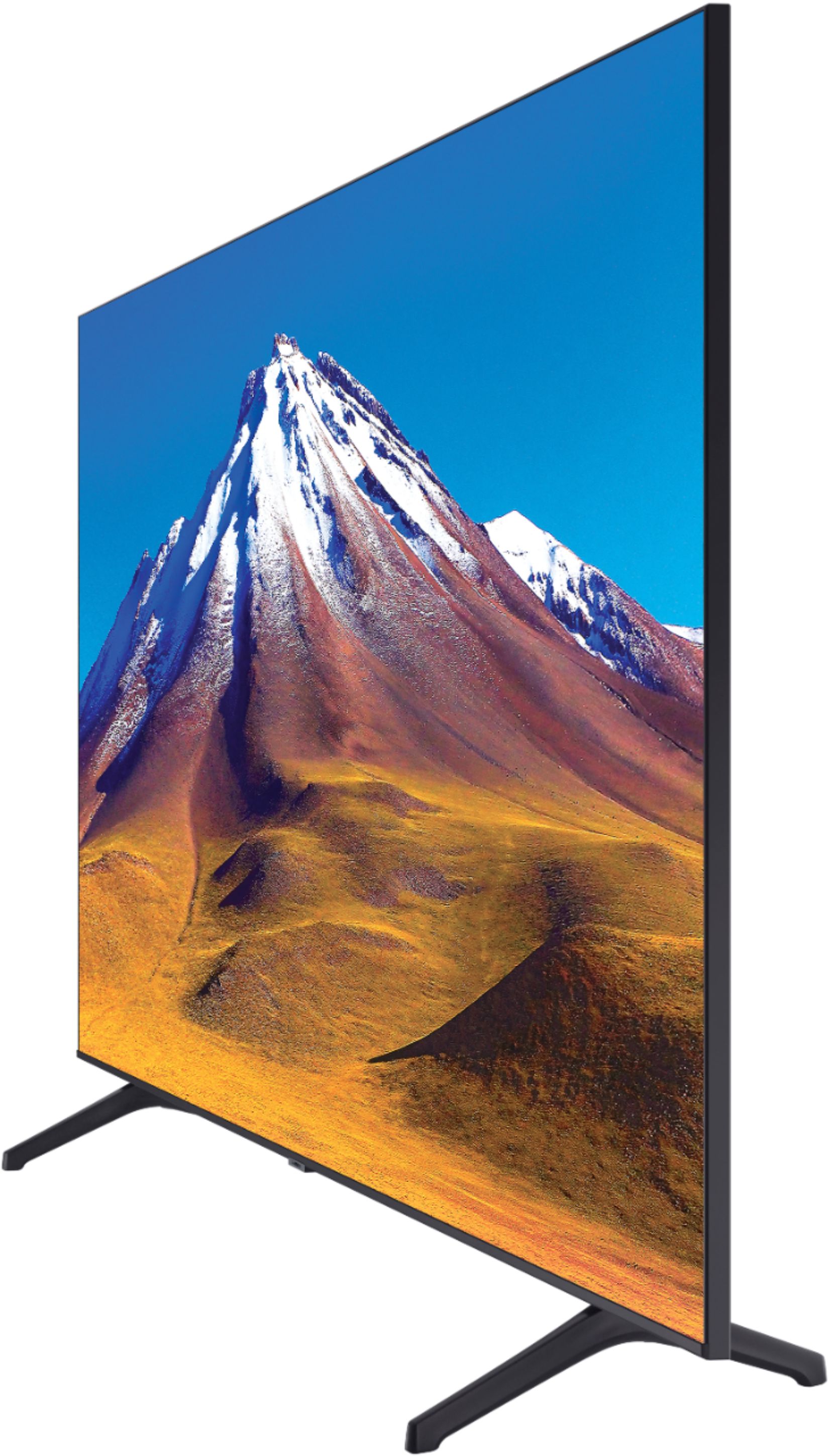
Customers regard the 70" Class 6 Series LED 4K UHD Smart Tizen TV's picture quality as great, with vibrant colors and deep contrasts. They also appreciate its large screen and affordable price. However, some customers have concerns about its limited HDMI ports, connectivity issues, and slow smart features.
This summary was generated by AI based on customer reviews.
Disappointing results
Posted .This reviewer received promo considerations or sweepstakes entry for writing a review.Received product 12/4/2020 - unboxed 12/5/2020 Disappointing results The 2 HDMI Ports doesn’t support PlayStation 4. No signal and black screen. Product advertised as a enhanced gaming experience but when I tried to synchronize with my PS4 it did not work. First time buying a Samsung tv, I have regrets purchasing this product, other than that Cable tv no problem. But hooking up a PlayStation gaming console. It does not work.
No, I would not recommend this to a friendBrand response from Samsung
Posted .PlayStationHawaiiPS4PS5:
Thank you for purchasing the TU6980 TV and for your review. I am sorry you are having trouble connecting your PS4 to your TV.
First, connect your PlayStation 4 Pro to your Samsung QLED TV.
1) Using the HDMI cable that is included with your PS4 Pro, plug one end into the HDMI Out port on your PS4 Pro.
2) Plug the other end of the same HDMI cable into HDMI 1 (or the next available) on your TV.
3) Turn on your QLED TV. It should start to recognize the PS4 Pro and automatically switch to the source. If it doesn't, press the Home button on your TV's remote to open the Home screen menu.
4) Use the Samsung TV remote to select Source, and select your PS4 Pro. You can use these steps to also switch between sources if you have more than one device connected.
Next, turn on Input Signal Plus (HDMI UHD Color) on your Samsung QLED TV.
Important: The PS4 Pro will say the QLED TV does not support HDR unless Input Signal Plus is turned on.
Your QLED TV already has stunning picture quality, but there is actually a way to make it even better. The trick is to turn on Input Signal Plus. You'll be able to see the graphics (and in-game enemies) much clearer, so it feels like you're really in the game.
1) Navigate to and select Settings on your TV.
2) Select General, and then select External Device Manager.
3) Scroll to and select Input Signal Plus.
Select the HDMI port that your PS4 Pro is connected to.
Finally, turn on the HDR settings on your PlayStation 4 Pro. On top of what your QLED already offers, the PlayStation 4 Pro itself supports HDR video for an even more enhanced gaming and streaming experience.
1) On your PS4, navigate to Settings.
2) Select Sound and Screen, and then select Video Output Settings.
3) Set the HDR and Deep Colour Output settings to Automatic.
4) Select Adjust HDR, and follow the on-screen prompts to change the HDR settings on the PS4.
Should you need further assistance with features or other product usage, please reach out to Samsung Support via any of the below options:
1) Phone: 1-800-SAMSUNG (ask for TVs), available 8AM – 12AM EST 7 days a week
2) LiveChat: https://www.samsung.com/us/support/#contact_us_for_support
3) Facebook Messenger: https://www.facebook.com/samsungsupport
4) Twitter: https://twitter.com/SamsungSupport
5) The Samsung Members Community is also a great resource for getting help from Samsung moderators and customers: https://us.community.samsung.com
If you have not already done so, we invite you to register your new Samsung product at: https://www.samsung.com/us/account/signin/?redirect=https%3A%2F%2Fwww.samsung.com%2Fus%2Fsupport%2Fregister%2F
Registering your product gives you access to easy warranty support, convenient opt-in to special promos and offers, faster troubleshooting and service, and quick notification of system updates.
~ Samsung Solutions
Poor handling curbside pickup
Posted .This reviewer received promo considerations or sweepstakes entry for writing a review.Well the guys dropped it flat when loading into my truck so, fingers crossed mine works..
No, I would not recommend this to a friendBrand response from Samsung
Posted .BobbyR:
Thank you for your review of the TU6980 TV. I am sorry you had a poor experience with pickup. Should you have any physical issues with your unit as a result of this, we recommend you contact Best Buy directly for assistance in correcting this situation.
Should you have questions or concerns regarding the usage or setup of your TV, please contact Samsung Customer Support.
1) Phone: 1-800-SAMSUNG (ask for TVs), available 8AM – 12AM EST 7 days a week
2) LiveChat: https://www.samsung.com/us/support/#contact_us_for_support
3) Facebook Messenger: https://www.facebook.com/samsungsupport
4) Twitter: https://twitter.com/SamsungSupport
5) The Samsung Members Community is also a great resource for getting help from Samsung moderators and customers: https://us.community.samsung.com
If you have not already done so, we invite you to register your new Samsung product at: https://www.samsung.com/us/account/signin/?redirect=https%3A%2F%2Fwww.samsung.com%2Fus%2Fsupport%2Fregister%2F
Registering your product gives you access to easy warranty support, convenient opt-in to special promos and offers, faster troubleshooting and service, and quick notification of system updates.
~ Samsung Solutions
Samsung 70inch
Posted .This reviewer received promo considerations or sweepstakes entry for writing a review.Do not buy this tv i just bought this last Feb 2020 and it just went out no picture just audio call Samsung they said that the warranty has expired the only they can do is send a tech out
No, I would not recommend this to a friendDon't buy it!
Posted .This reviewer received promo considerations or sweepstakes entry for writing a review.It worked well but after a year and 2 months it doesn't work anymore the screen is totally black.
No, I would not recommend this to a friend