Chromebook Compatible Printers
-
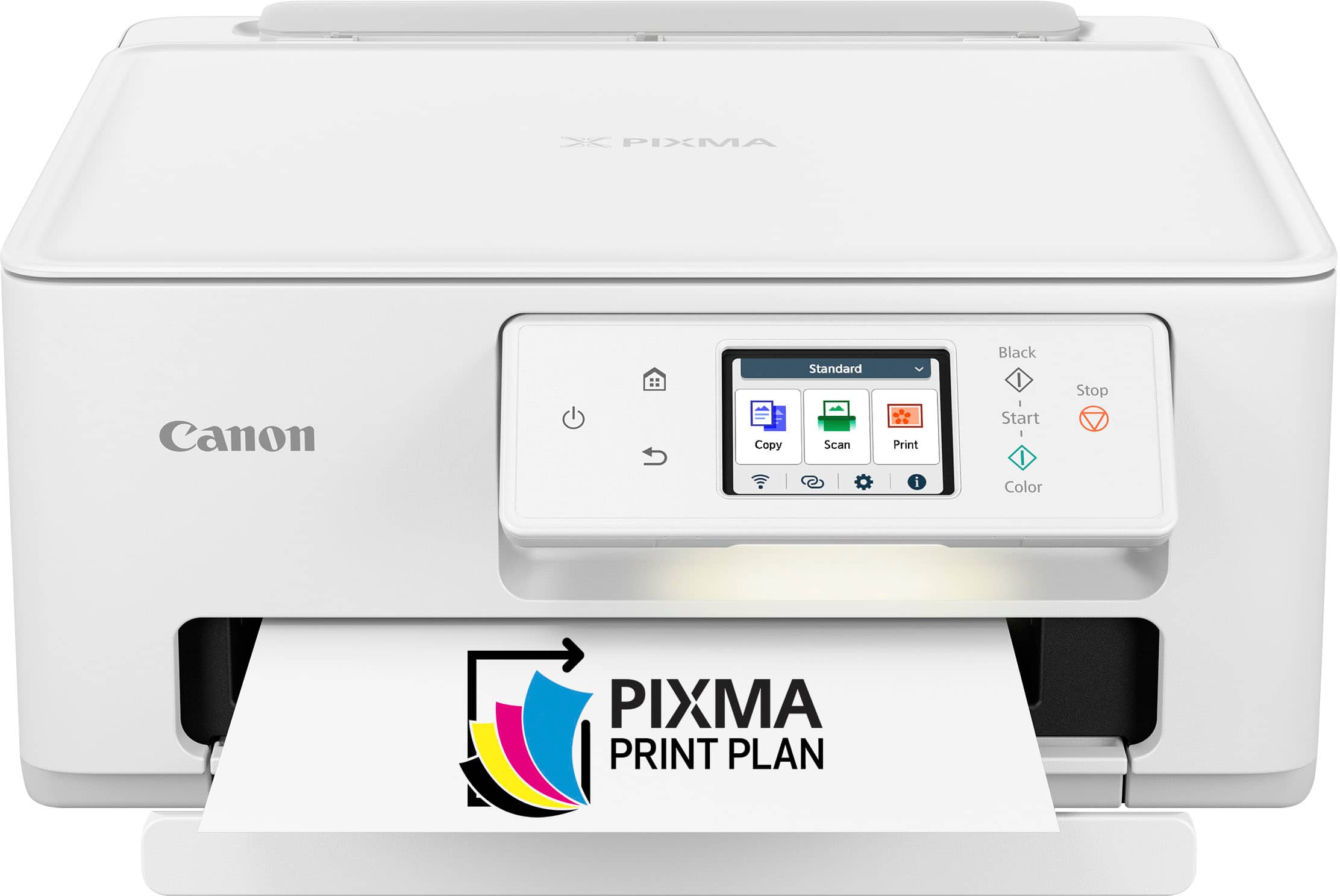
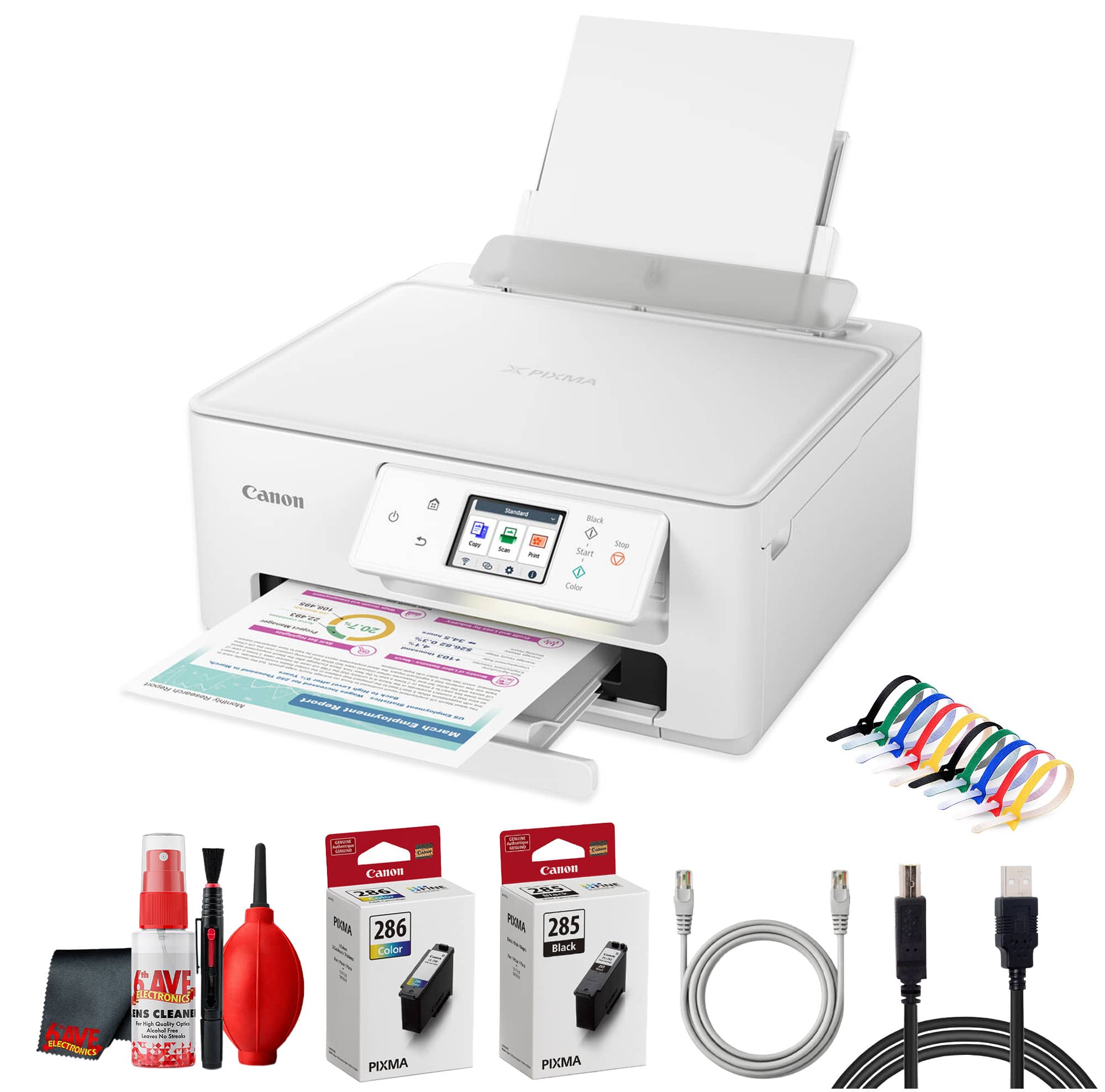
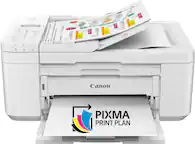
Canon - PIXMA TS7720 Wireless All-In-One Inkjet Printer - White
SKU: J7C86SQ7V2Great printer...Love this printer Canon is always the best I always get there products...I love my new printer...I love my new toy were very good is the best sprinter
See all Inkjet PrintersProduct Description
A versatile white all-in-one inkjet printer offering wireless connectivity, touchscreen controls, and high-quality photo printing.Your price for this item is $149.99Save $11The previous price was $161.00 -
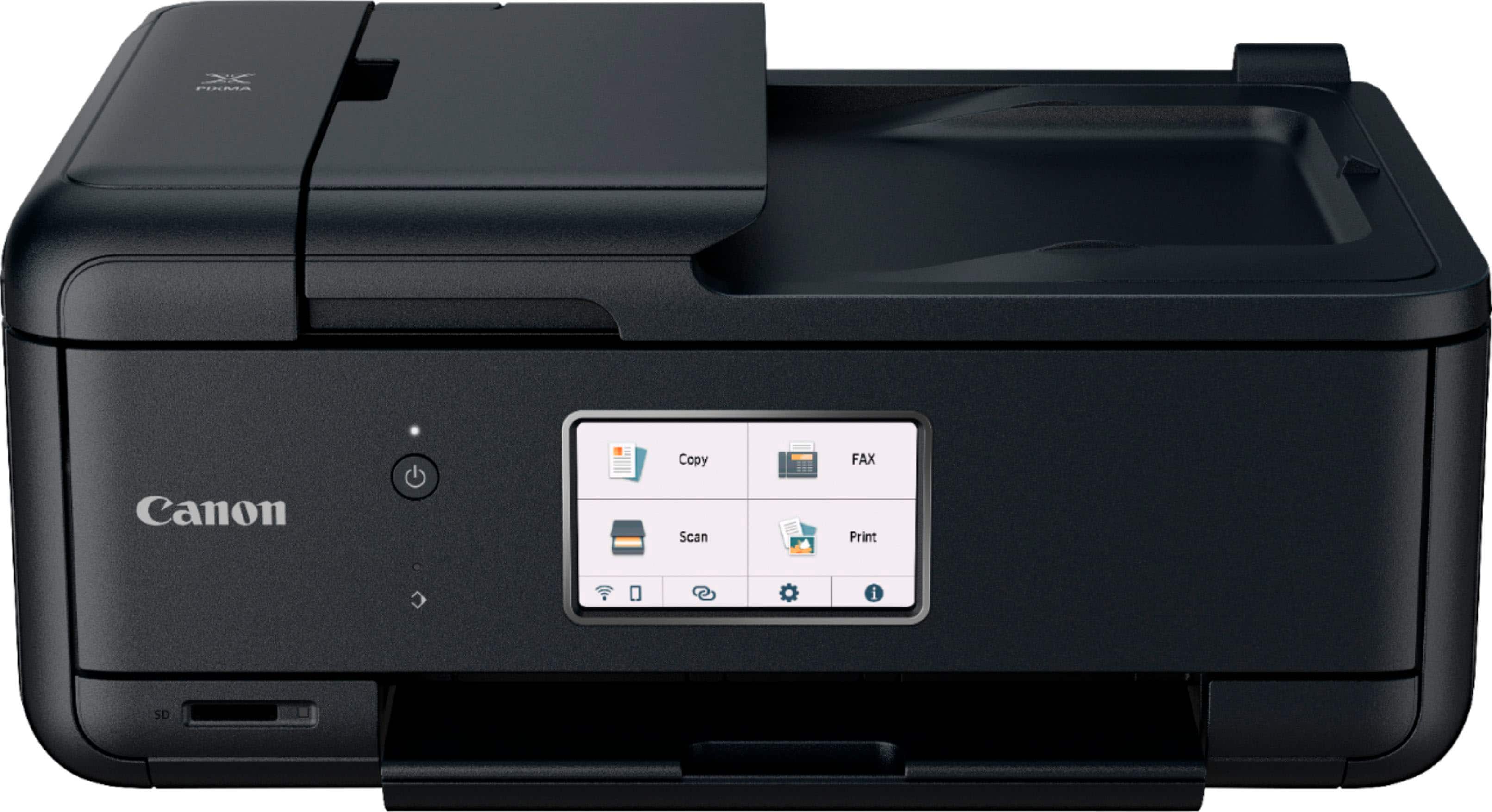
Canon - PIXMA TR8620a Wireless All-In-One Inkjet Printer with Fax - Black
SKU: J7C86SRGGFBest Printer Ever...Love Best Buy .... Printer is Great... I made the right choice for this product....Its amazing tgank u Best buy love pur printer/pictures
See all Inkjet PrintersProduct Description
A versatile black wireless all-in-one inkjet printer featuring fax, touchscreen, auto document feeder, and smart connectivity.Your price for this item is $199.99Save $15The previous price was $215.00 -
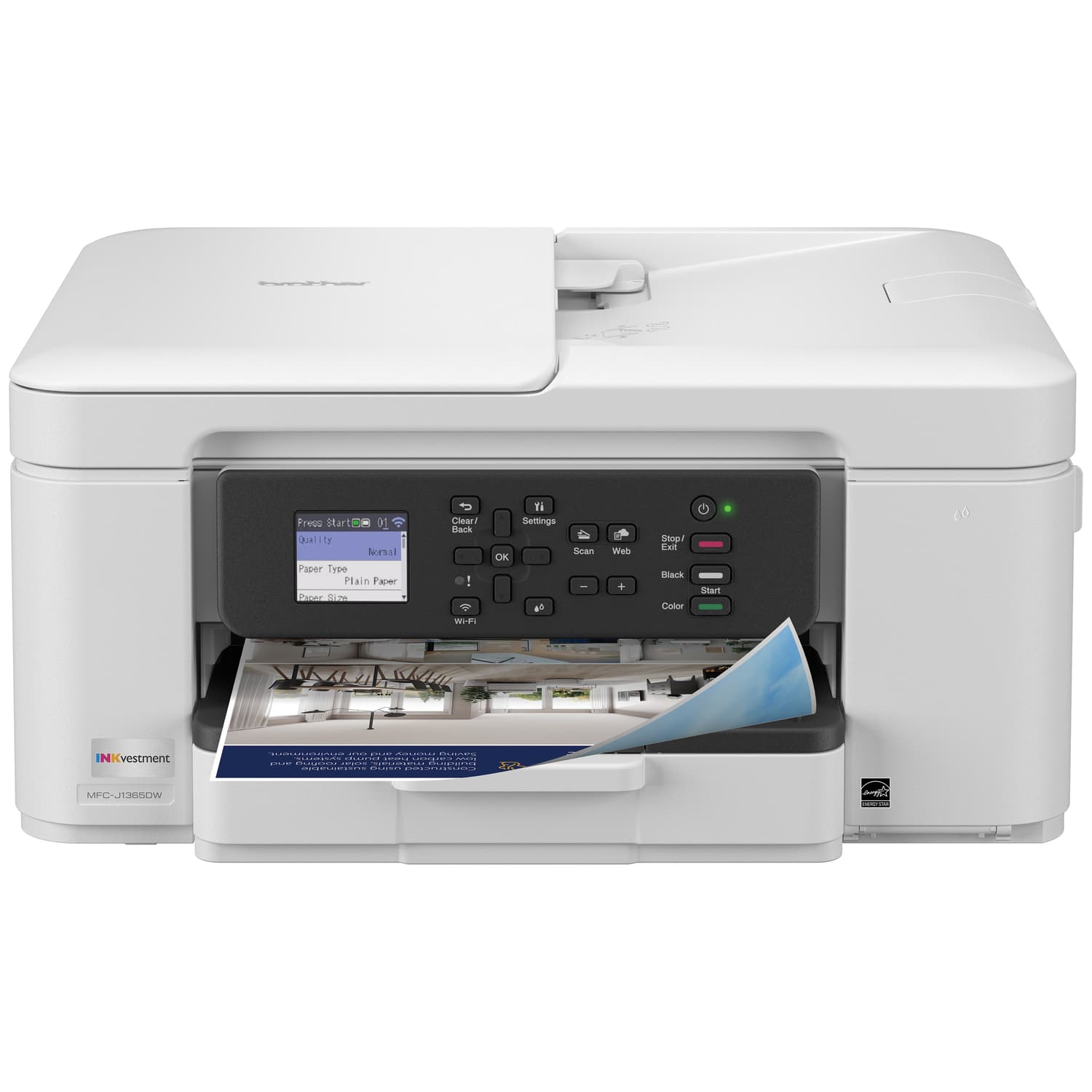
Brother - INKvestment 1365 Wireless Color All-in-One Inkjet Printer with Auto Duplex Print (MFC-J1365DW), Great for Home Offices - White
SKU: J7CJ3849RZGreat printer easy to set up....Best Portable Printer
See all Inkjet PrintersProduct Description
A white wireless all-in-one inkjet printer featuring auto duplex printing, document feeder, and vibrant color output.Your price for this item is $129.99Save $30The previous price was $159.99 -
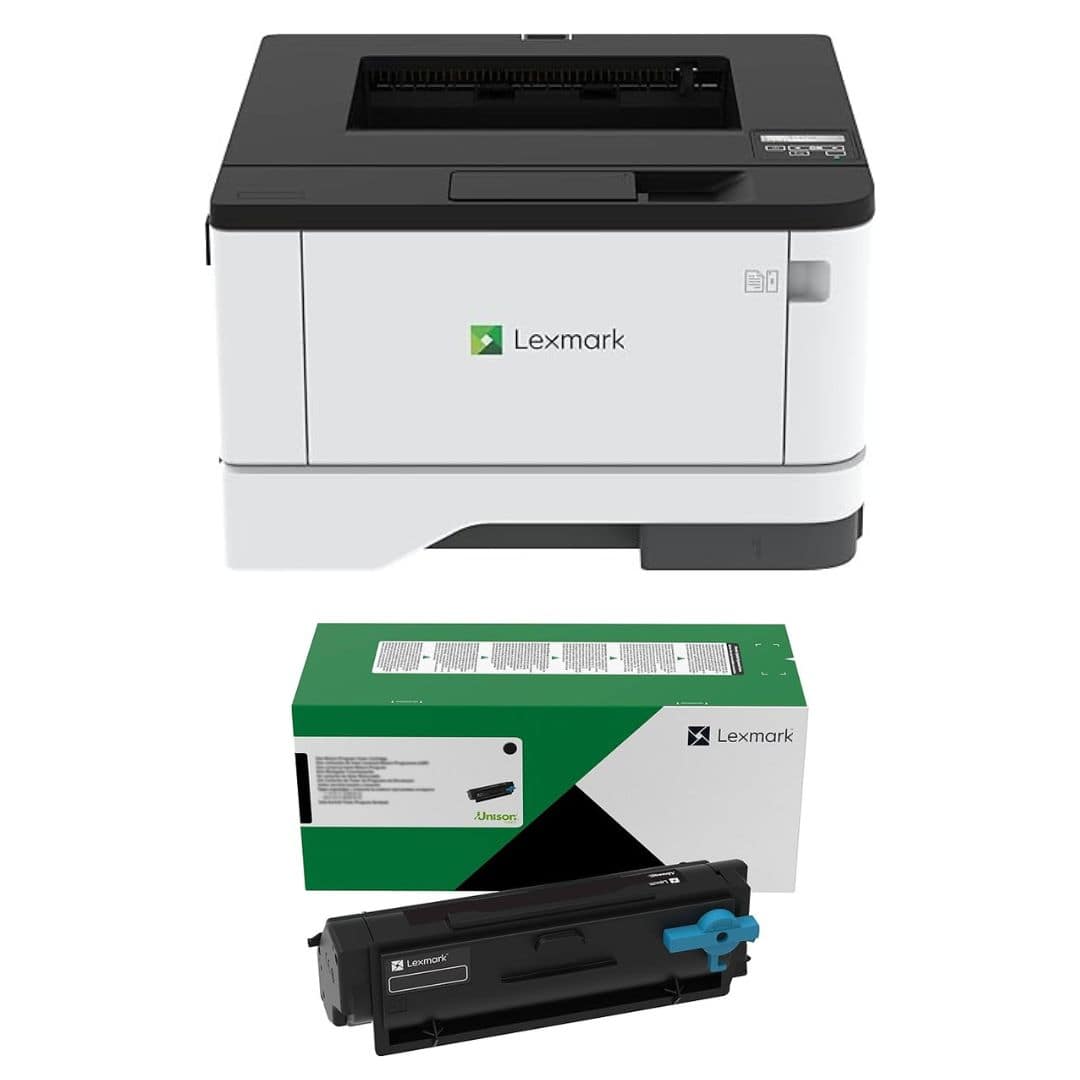
Lexmark - MS331dn Monochrome Laser Printer + Black Toner Bundle, Office Printer Automatic Two-Sided Printing - Monochrome
SKU: JJGH8TJCY3See all Black & White Laser PrintersProduct Description
A black monochrome laser printer with automatic two-sided printing and an additional 3,000-page toner cartridge.Your price for this item is $404.99 -
Canon - PIXMA TS7720 Wireless All in One Inkjet Printer, Duplex Printing + More
SKU: JJGYT4XC8RSee all Inkjet PrintersProduct Description
An all-in-one wireless inkjet printer offering duplex printing, borderless photos, touchscreen, and mobile device compatibility.Your price for this item is $161.00 -
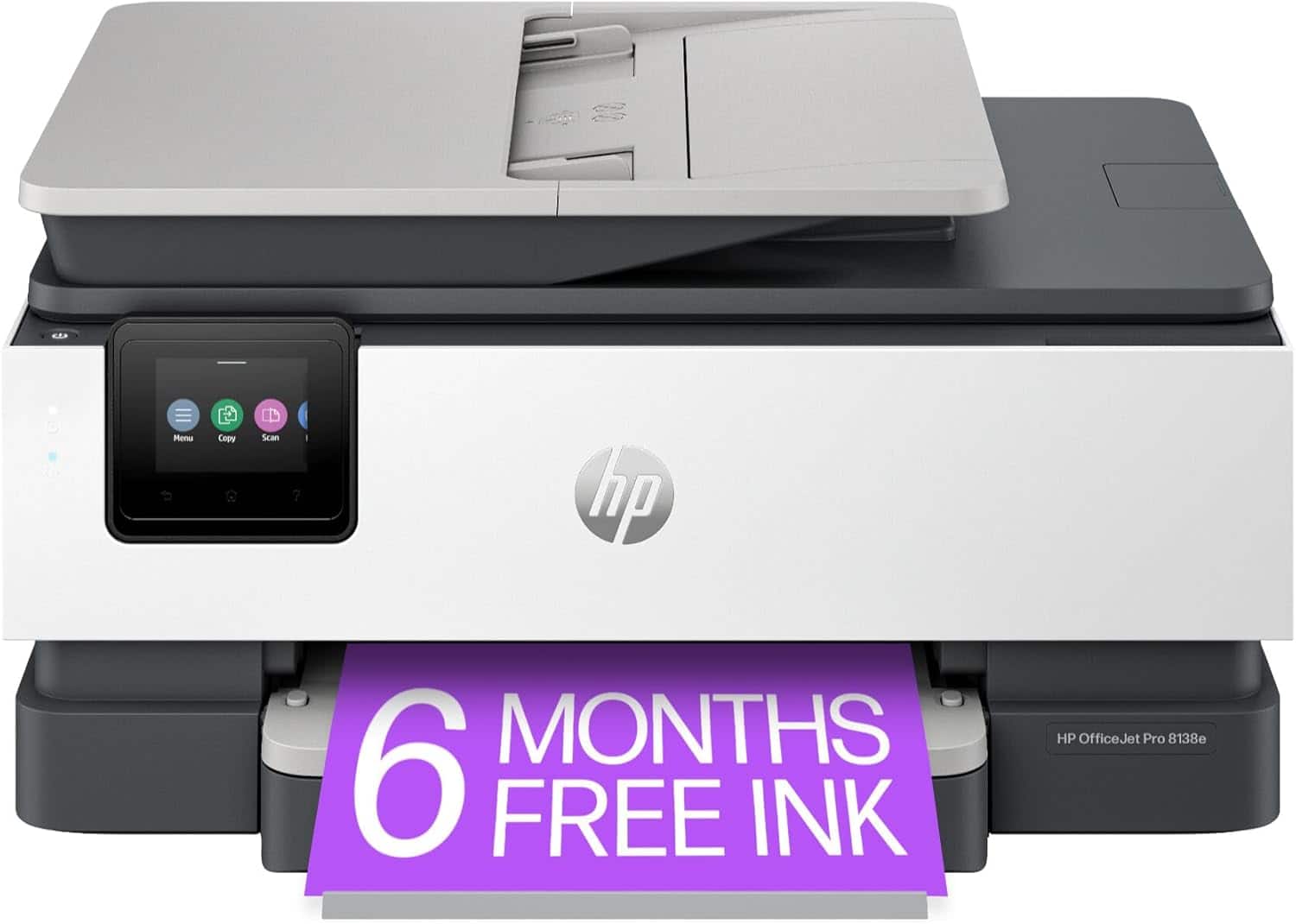
HP - OfficeJet Pro 8138e Wireless All-in-One Color Inkjet Printer Scan Copy Fax - Black/White
SKU: JJGG7K9CWHGreat Printer...Printer works great, love having a all in one printer that works!...Love it.
See all Inkjet PrintersProduct Description
A wireless black and white all-in-one inkjet printer with fast print, scan, copy, and fax capabilities.Your price for this item is $99.99Save $100The previous price was $199.99 -
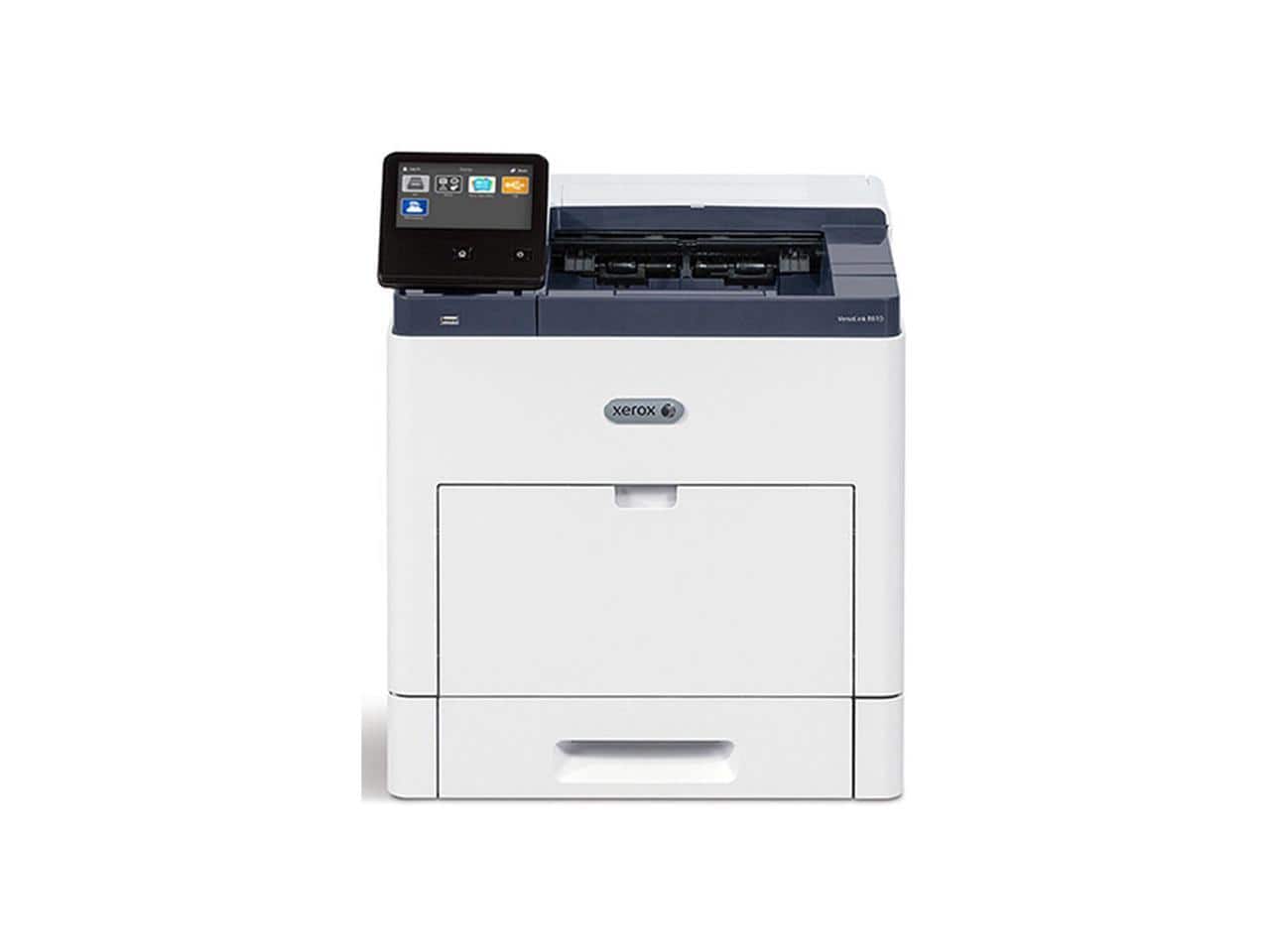
Xerox - VersaLink C625 Multifunction Duplex Color Laser Printer #C625/DN - Color
SKU: J7QRFV5Q8HWe have two MFP's the C625 is best...I have had this printer for 2 years and it works great.
See all Color Laser PrintersProduct Description
A multifunction duplex color laser printer with a display screen, ideal for remote work and student life.Your price for this item is $3,199.00Save $109The previous price was $3,308.84 -
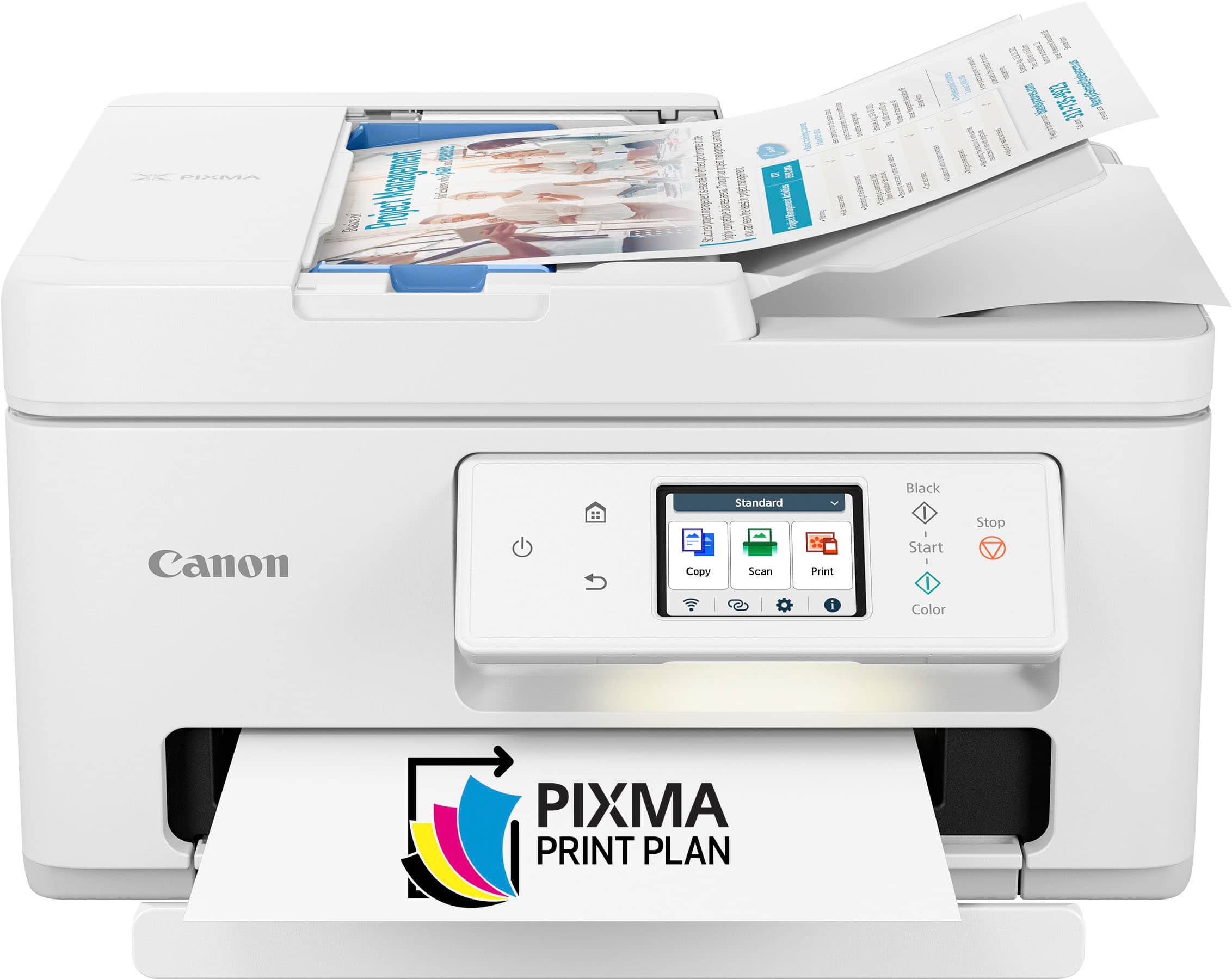
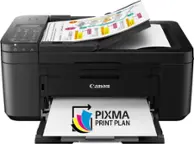
Canon - PIXMA TR7820 Wireless All-In-One Inkjet Printer - White
SKU: J7C86SQ7VPGood Printer - Not Great. I bought this to replace an old HP all in one printer....It is smaller than the one I had which is great and it also can handle legal size paper.
See all Inkjet PrintersProduct Description
A white wireless all-in-one inkjet printer offering fast, high-quality printing, scanning, and copying with smart connectivity.Your price for this item is $173.49Save $37The previous price was $211.10 -
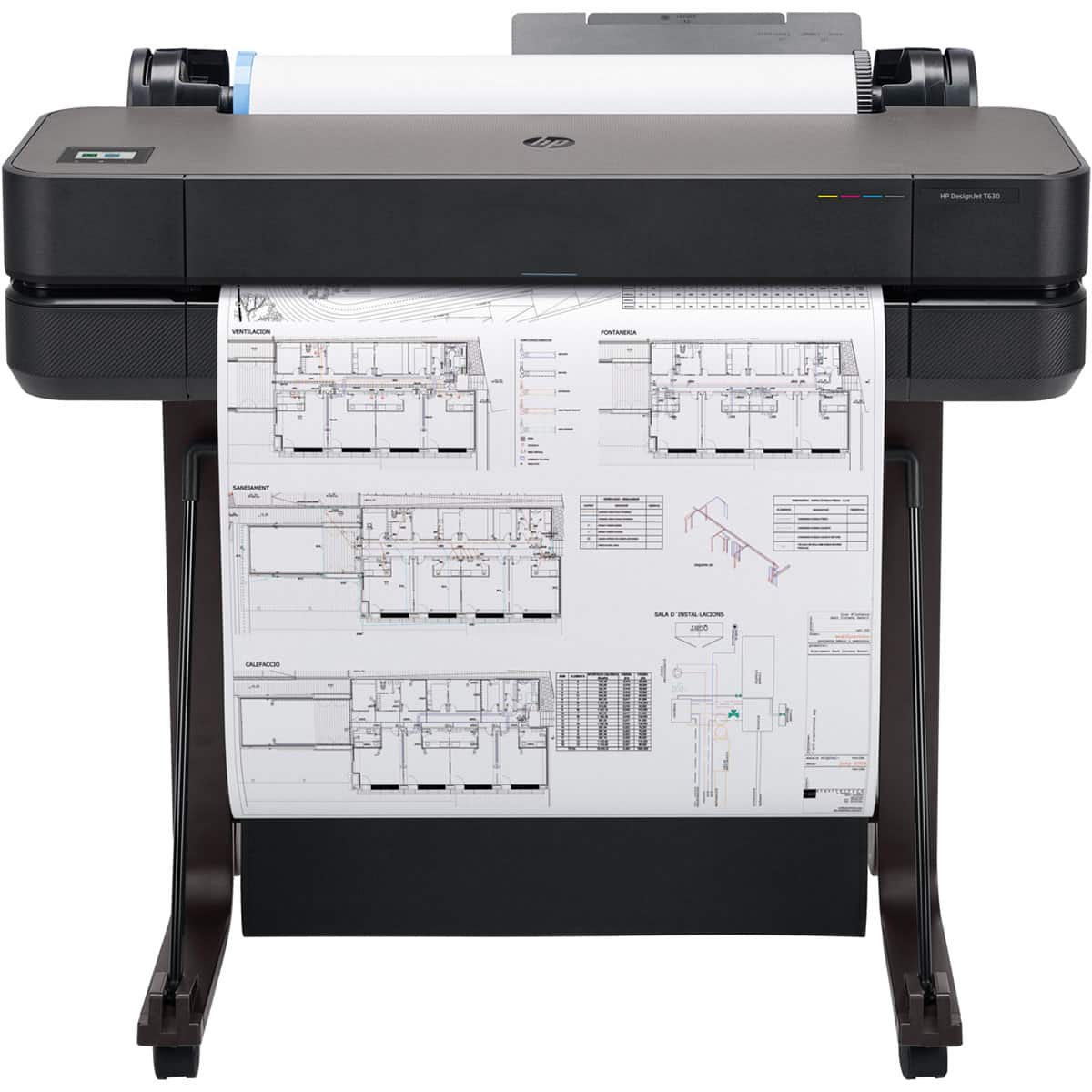
HP - DesignJet T630 24" Large Format Printer w/Sheet Feeder,Media Bin Stand
SKU: JJG64VQT5QEasy to connect and works great remotely
See all Inkjet PrintersProduct Description
A wireless large-format color plotter with auto sheet feeder, media bin, and 2400x1200 dpi resolution.Your price for this item is $1,439.00 -
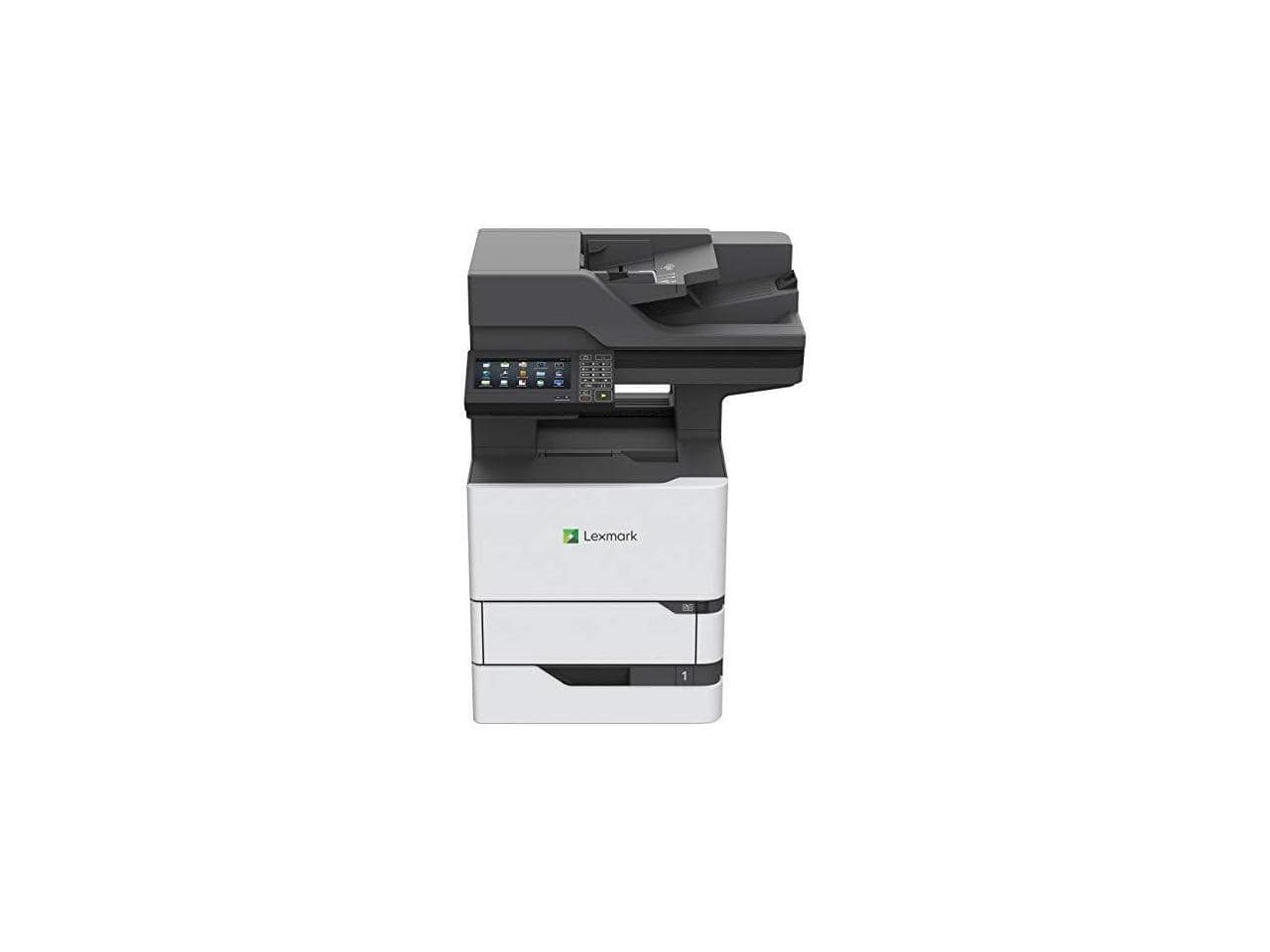
25B0002 - Lexmark MX720 MX722ade Laser Multifunction Printer - Monochrome - Copier/Fax/Printer/Scanner - 70 - Monochrome
SKU: JXZYCZLXFZSee all Laser PrintersProduct Description
A monochrome all-in-one laser device offering printing, copying, scanning, faxing, and a display screen.Your price for this item is $4,122.74
Best Sellers


Related Pages




FAQ
When choosing a printer for your Chromebook, look for models that support Wi-Fi or cloud printing, such as Google Cloud Print or built-in Chromebook compatibility. Many modern printers offer seamless wireless connectivity, making it easy to print directly from your Chromebook without additional drivers.
To connect your Chromebook to a compatible printer, ensure both devices are on the same Wi-Fi network. Then, open your Chromebook’s settings, navigate to 'Printers,' and select 'Add Printer.' Your Chromebook will automatically detect compatible printers on the network, allowing you to add and use them with ease.
Yes, many Chromebook-compatible printers support USB connections. Simply connect your printer to your Chromebook with a USB cable, and your device should automatically recognize the printer. Follow the on-screen prompts to complete the setup and start printing.
Popular printer brands like HP, Canon, Epson, and Brother offer a wide range of models that are compatible with Chromebooks. These brands often provide easy wireless setup and reliable performance when used with Chrome OS devices.
Most Chromebook-compatible printers do not require additional software or drivers. Chrome OS is designed to work seamlessly with many modern printers, allowing you to print documents and photos directly from your Chromebook once the printer is connected.