How to Reset Email Password

Purpose: This article provides you with the step-by-step process to reset your email password.

NOTE: If you are unable to reset your password, then you will need to contact your email provider as Best Buy does not have access to your accounts.

By clicking any of the links below, you are entering a site hosted and operated by third parties. Please review their Privacy Policy. Any personal information you provide is subject to that Privacy Policy. Different terms and conditions may apply.

AOL (Verizon)

NOTE:  Both AOL and Verizon use the same portal for their password reset.
  1. Enter your email address on the Sign-In page, then click on "Next".
  2. On the password screen, click "Forgot Password?" (See Figure 1).


    Figure 1

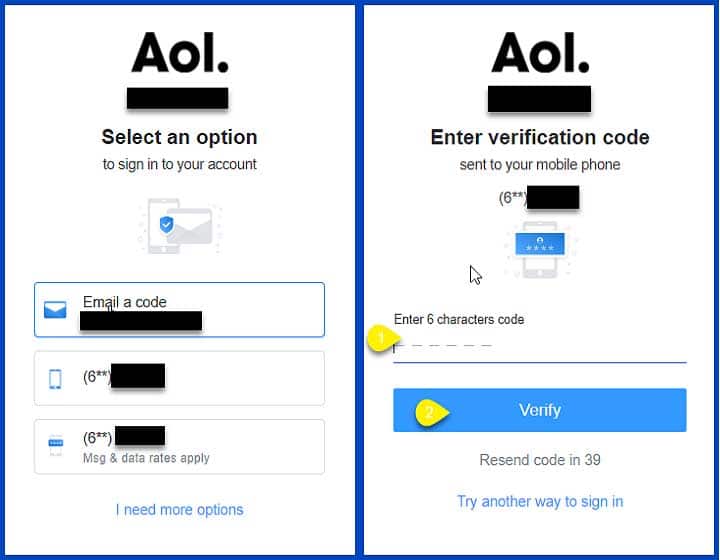
  3. Select one of the options to send a verification code (email, text, etc.), then on the next screen, enter the code that was sent, and click "Verify" (See Figure 2).


    Figure 2

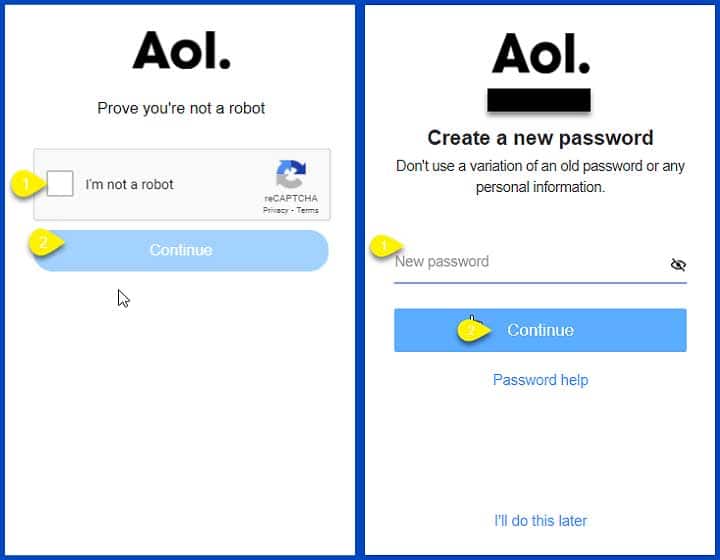
  1. Tick the checkbox next to "I'm not a robot", then click "Continue".
  2. Type a new password that you will remember, and click "Continue" (See Figure 3).


    Figure 3

  3. These steps can also be followed by visiting this website: AOL Password Reset (https://login.aol.com/forgot).

AT&T

NOTE:  This is separate from Yahoo’s Password Reset.
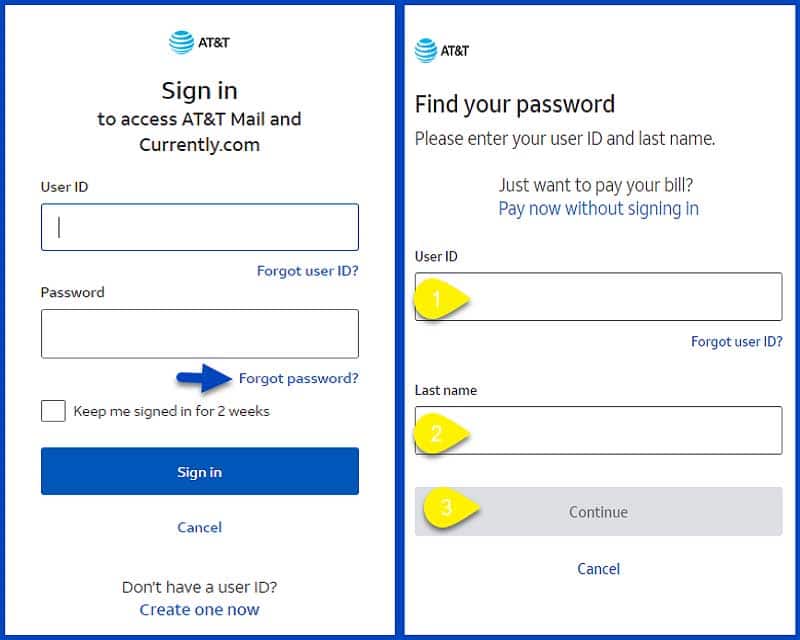
  1. Click on "Forgot Password?", then enter your User ID (their AT&T email address or AT&T mobile number) and last name, then click "Continue" (See Figure 4).


    Figure 4

  2. Follow the rest of the process to reset the password. If you are unable to do this, you will need to contact AT&T.
  3. These steps can also be followed by visiting this website: AT&T Password Reset (https://www.att.com/acctmgmt/fpwd/lander).
Comcast (Xfinity)

NOTE:  Both Comcast and Xfinity use the same portal for their password reset.
  1. Go to xfinity.com/password.
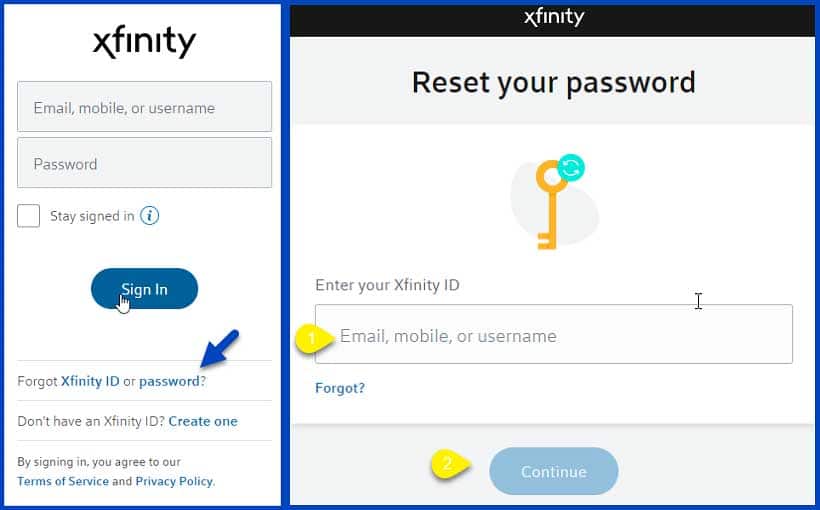
  2. Enter your Xfinity username (ID) and click "Continue" (See Figure 5).


    Figure 5

  3. If you are not sure what your Username/ID is, then navigate to xfinity.com/username.
  4. Follow the rest of the process to reset the password. If you are unable to do this, you will need to contact Comcast.

Gmail

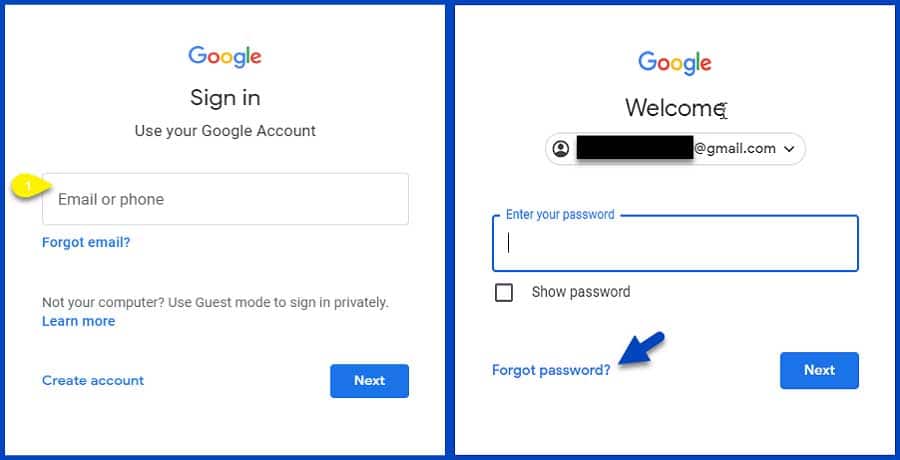
  1. Enter your email address on the Sign-In page, then click on "Next".
  2. On the password screen, click "Forgot password?" (See Figure 6).


    Figure 6

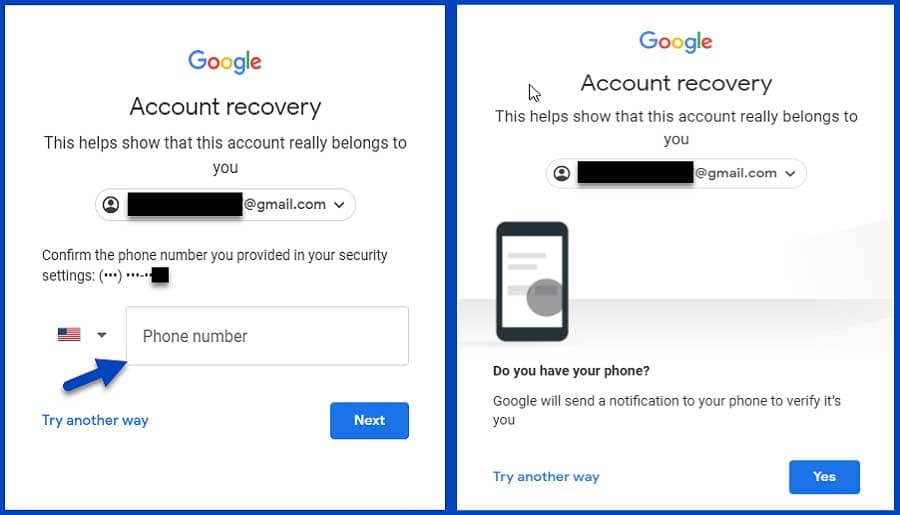
  3. Enter the mobile phone number associated with the Gmail account, then click "Next". Have your mobile phone with you, then click "Yes". If you do not have your phone with you, or don't have the number linked to your account, then click "Try another way" (See Figure 7).


    Figure 7

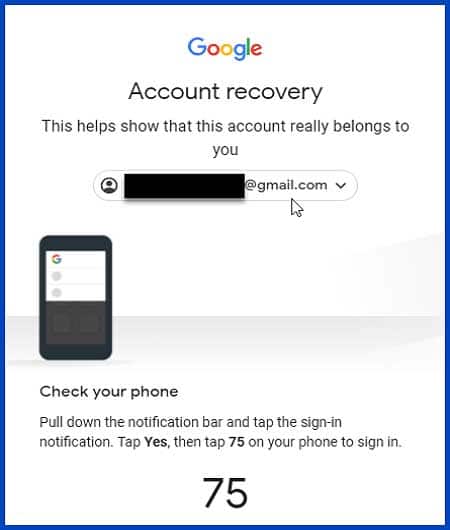
  4. On your mobile phone, open the notifications pane, tap the sign-in notification for Gmail, then tap the number in the notification that corresponds with the number displayed on the account recovery page (See Figure 8).
    NOTE:  The number "75" here is just an example.


    Figure 8

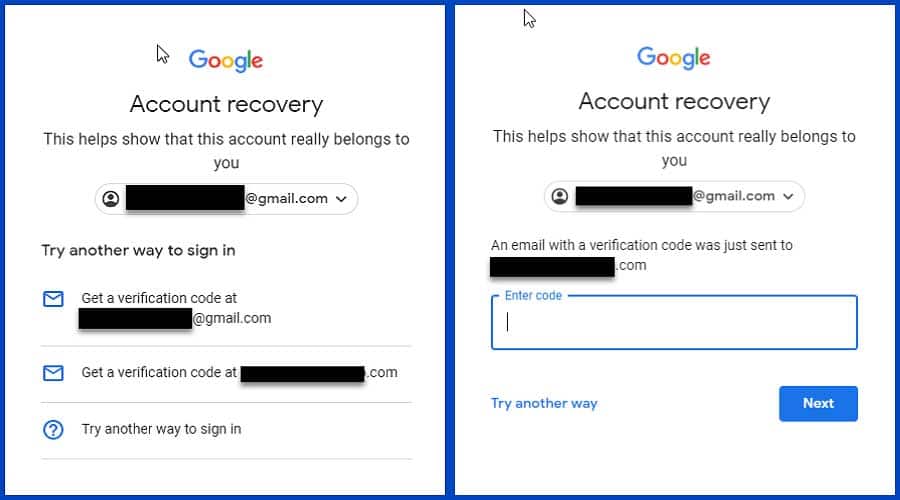
  5. When the recovery page detects the proper number has been selected, it will move to the next screen. Choose an option from the list for a verification code to be sent, check the selected email account, text message, etc. for the verification code, and then enter that code in the account recovery page, then click "Next" (See Figure 9).


    Figure 9

  6. Enter the new password for the account, then enter it a second time to confirm, and click "Next" to complete the process.
  7. These steps can also be followed by visiting this website: Gmail Password Reset (https://myaccount.google.com/intro/signinoptions/password).

Microsoft (Hotmail/Live/Outlook)

NOTE:  All 3 email domains use the same site for account management.
  1. Enter your email address on the Sign-In page, then click on "Next".
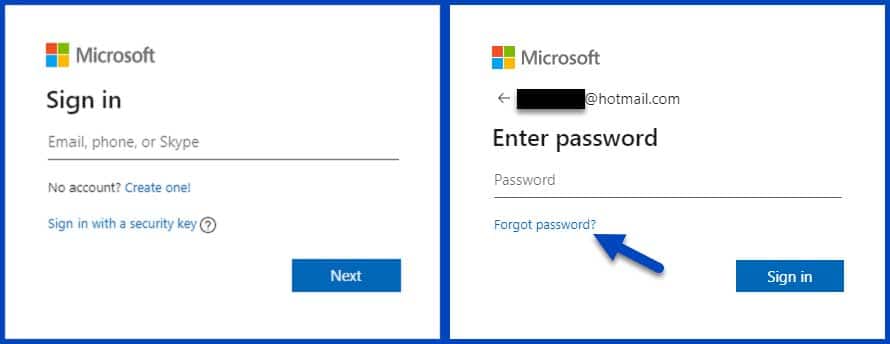
  2. On the password screen, click "Forgot my password" (See Figure 10).


    Figure 10

  3. Follow the rest of the process to reset the password. If you are unable to do this, you will need to contact Microsoft.
  4. These steps can also be followed by visiting this website: Microsoft Password Reset (https://account.live.com/ResetPassword.aspx).

Spectrum (Road Runner/Charter/Time Warner)

NOTE:  All three companies use the same portal to manage their email accounts.
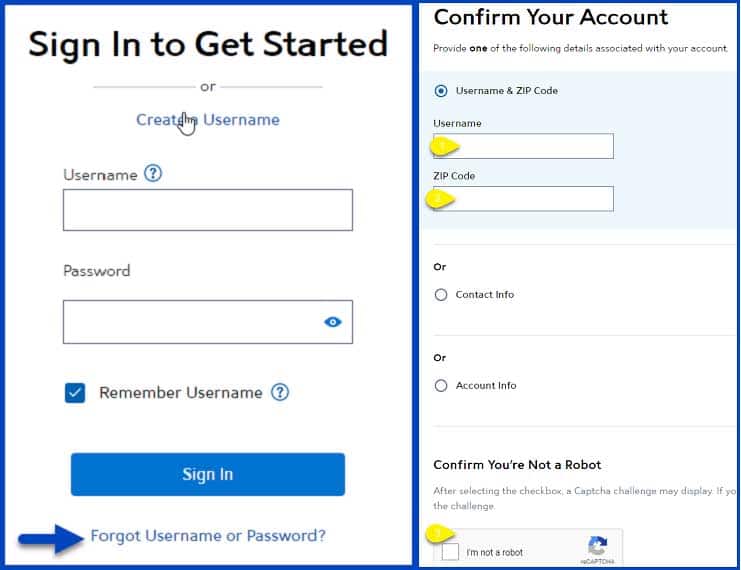
  1. Click on "Forgot Username or Password", then choose one of the three account confirmation options, enter the requested information, then tick the check box next to "I'm not a robot" to start the reset process (See Figure 11).


    Figure 11

  2. Follow the rest of the process to reset the password. If you are unable to do this, you will need to contact Spectrum.
  3. These steps can also be followed by visiting this website: Password Reset (https://pt.rr.com/password-reset).

Yahoo

  1. Enter your email address on the Sign-In page, then click on "Next".
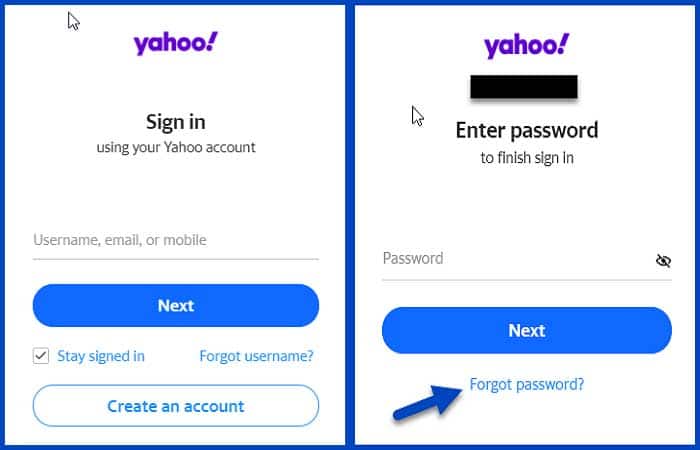
  2. On the password screen, click "Forgot password" (See Figure 12).


    Figure 12

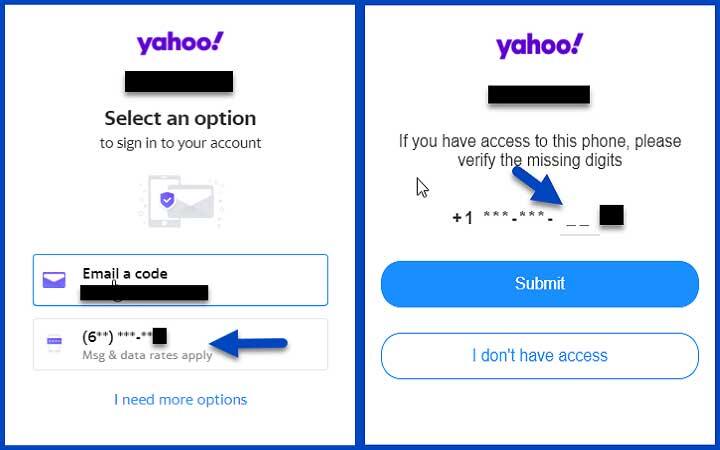
  3. Select an option to reset the password (text, email, etc.). If a mobile number is selected, enter the missing digits of your mobile number, then click "Submit" (See Figure 13).


    Figure 13

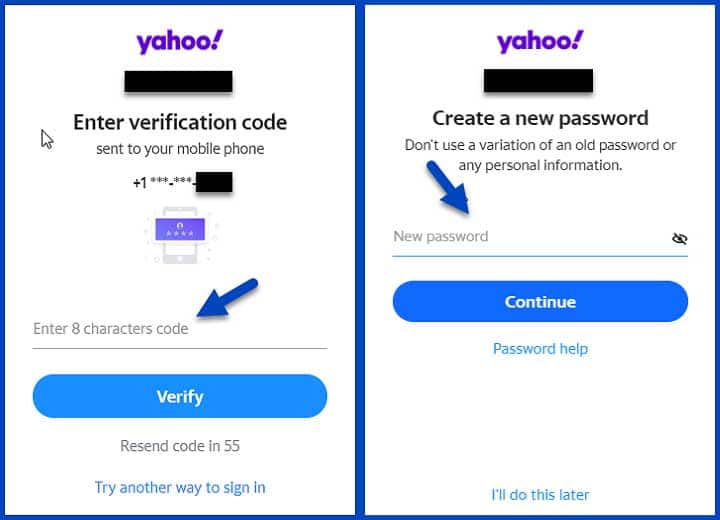
  4. Retrieve and enter the verification code sent to the email address or mobile number selected, then click "Verify".
  5. Enter a new password for the account, then click "Continue" (See Figure 14).


    Figure 14

  6. These steps can also be followed by visiting this website: Yahoo Password Reset (https://login.yahoo.com/forgot).

Keywords: Email, password, reset, gmail, yahoo, outlook, AOL, Verizon