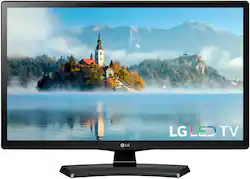
LG - 24" Class LED HD TV (2017)
- Key Specs
- Display Type: LED
- Resolution: HD (720p) (Refers to the number of pixels, both horizontally and vertically, used to capture video/images. The higher the resolution the finer the detail that can be seen.)
- Screen Size Class: 24 inches (The group size measurement of a screen. This differs from a screen size measured diagonally from corner to corner.)
- High Dynamic Range (HDR): false (An HDR-compatible 4K TV or other HDR-compatible product displays HDR video content when it's available from sources like 4K Ultra HD Blu-ray Discs and 4K streaming services.)
- LED Panel Type: Standard LED
- Backlight Type: Edge Lit (Edge-lit: lights are on the edges of the display with ~10 zones of vertical LEDs. Direct-lit: lights are on the edges and behind the screen for more light uniformity than Edge-lit. Full array: direct-lit with local dimming for greater contrast with up to 100 zones of LEDs.)
- Refresh Rate: 60Hz (The number of frames per second the device can produce natively without enhancement. Higher rates help produce smooth, seamless pictures.)
- Motion Enhancement Technology: None (Proprietary technologies produced in addition to the Refresh Rate that smooth out faster moving pictures to reduce blur and pixelation.)
- Specific Manufacturer Technologies: None (This is technology that's specific to a TV brand (sometimes called proprietary technology). Here you'll see terms related to picture quality, brightness, processors and more.)
- Number of HDMI Inputs (Total): 1
- TV Tuner Type: ATSC, NTSC
- General
- Brand: LG
- Model Number: 24LJ4540
- Product Name: 24" Class LED HD TV (2017)
- Model Year: 2017
- Dimensions
- Product Height With Stand: 15.2 inches
- Product Width: 21.9 inches (The out of box width of the item. Width is measured as the horizontal distance from one side of the item to the other as it would be primarily used or placed.)
- Product Depth With Stand: 5.8 inches
- Product Height Without Stand: 13.6 inches
- Product Depth Without Stand: 2.1 inches
- Product Weight With Stand: 7.5 pounds
- Product Weight Without Stand: 7.1 pounds
- Stand Width: 22.2 inches (The horizontal measurement of the stand/base, or the distance from the outside of one leg to the outside of the opposite leg, as it is attached to the product.)
- Stand Depth: 5.8 inches
- Adjustable Stand Width: false (Whether the stand can adjust to have more than one measurement either between the legs or the base itself.)
- Display
- Display Type: LED
- Resolution: HD (720p) (Refers to the number of pixels, both horizontally and vertically, used to capture video/images. The higher the resolution the finer the detail that can be seen.)
- Screen Size: 23.6 inches (Size of the screen, measured diagonally from corner to corner.)
- Screen Size Class: 24 inches (The group size measurement of a screen. This differs from a screen size measured diagonally from corner to corner.)
- High Dynamic Range (HDR): false (An HDR-compatible 4K TV or other HDR-compatible product displays HDR video content when it's available from sources like 4K Ultra HD Blu-ray Discs and 4K streaming services.)
- LED Panel Type: Standard LED
- Backlight Type: Edge Lit (Edge-lit: lights are on the edges of the display with ~10 zones of vertical LEDs. Direct-lit: lights are on the edges and behind the screen for more light uniformity than Edge-lit. Full array: direct-lit with local dimming for greater contrast with up to 100 zones of LEDs.)
- Curved Screen: false
- Refresh Rate: 60Hz (The number of frames per second the device can produce natively without enhancement. Higher rates help produce smooth, seamless pictures.)
- Motion Enhancement Technology: None (Proprietary technologies produced in addition to the Refresh Rate that smooth out faster moving pictures to reduce blur and pixelation.)
- Brightness: 180 nits (A measure of the total light output.)
- Maximum Contrast Ratio (Native): 1000:1 (The difference between the brightest and the dimmest a screen panel can be. A higher contrast produces more in-depth images.)
- Synchronization Technology: Not Applicable (Generally, these technologies allow syncing between a computer/console game's frame rate and the device's refresh rate for a smoother display without tearing.)
- Closed Captioning: true (The text version of spoken audio displayed on the screen. Devices that can display closed captioning typically have the option to toggle the feature on or off.)
- Language(s) Displayed: English, Spanish, French (The available language options for displayed text or captions.)
- Features
- Remote Control Type: Standard
- Specific Manufacturer Technologies: None (This is technology that's specific to a TV brand (sometimes called proprietary technology). Here you'll see terms related to picture quality, brightness, processors and more.)
- Smart Capable: false (Smart, or smart-capable devices are able to connect directly to your home network in order to stream content from the Internet, run Internet-based apps, or connect to other smart devices.)
- Screen Mirroring: false (Casts the screen of one device onto another wirelessly, using a common protocol (typically Bluetooth).)
- Indoor Or Outdoor Use: Indoor (Indicates the appropriate environment product was designed to be used in.)
- Text-To-Speech: true (A system that converts language text into speech.)
- Video Description: true (Indicates whether the device features descriptive video service (DVS). This service provides narration of key elements in the program, such as actions, costumes, and scene changes, to help engage visually-impaired audiences.)
- V-Chip: false (Feature that blocks television programming if it has a content rating outside of the acceptable rating(s) configured by the user.)
- TV Tuner: Digital (The ATSC TV Tuner is a component built into conventional TV sets or other devices for receiving over-the-air broadcast TV without a cable/satellite box. Digital tuners may be purchased separately and connected to a device if it does not have one built in.)
- Connectivity
- Number of HDMI Inputs (Total): 1
- Display Connector(s): 1 x HDMI (The number and type of connectors used to connect to an external display.)
- HDBaseT Receiver: false (An input that receives uncompressed HDMI signals over a category cable point-to-point, up to 100 meters, from a transmitter.)
- TV Tuner Type: ATSC, NTSC
- RF Antenna Input: true (This input is used to connect devices such as antennas or cable boxes to a TV via a coaxial cable.)
- Number Of USB Port(s) (Total): 0 (The total number of USB ports including all generations and versions.)
- Headphone Jack: false (The device features an interface that allows for the connection of headphones.)
- Compatibility
- VESA Wall Mount Standard: 75mm x 75mm (VESA wall mount standards refer to the spacing of screw holes built into a TV in order to fit with standard TV wall mounts. These standards are implemented into most TVs and monitors.)
- Audio
- Built-In Speakers: true
- Built-in Speaker Type: Downward firing (Backward, downward, and front-firing speakers direct sound into the room from those respective directions. A soundbar is typically long and rectangular, and designed to act as an all-in-one speaker with greater sound production than that of a TV alone. An acoustic surface is the result of small sound actuators embedded directly behind the screen, turning the entire screen's surface into a speaker.)
- Surround Sound Supported: Not Applicable (Surround sound systems use multiple audio channels and speakers to create an immersive sound experience for the listener. There are also various proprietary technologies that imitate this kind of sound via a device's built-in speakers or soundbar.)
- Power
- ENERGY STAR Certified: false (Devices carrying the ENERGY STAR service mark, such as computer products and peripherals, kitchen appliances, and other products, generally use 20% to 30% less energy than required by federal standards.)
- EPEAT Qualified: false (The Electronic Product Environmental Assessment Tool (EPEAT) was designed to provide an environmental assessment tool for purchasers. In order to qualify for EPEAT, a product must meet all 23 required criteria.)
- Estimated Annual Operating Cost: 4 United States dollars (Predicted cost of operating the product under average conditions for one year.)
- Estimated Annual Electricity Use: 37 kilowatt hours (Predicted amount of electricity needed to operate the product under average conditions for one year.)
- Rechargeable Battery (Remote Control): false
- Included
- Wall Mount Included: false
- Stand Included: true
- Warranty
- Warranty - Parts: 1 Year - Limited
- Warranty - Labor: 1 Year - Limited
- Box Dimension
- Height: 15.8 inches
- Width: 27.6 inches
- Depth: 5 inches
- CubicDimension: 2180 inches
- Other
- UPC: 719192608986
Smaller spaces deserve serious picture quality, too. The compact 24-inch class (23.6” diagonal) LG TV delivers a crisp, high-definition picture. With built-in speakers, HDMI connectivity and an included remote control this TV is perfect for desk or countertop where space is a limited.
- Triple XD Engine: Triple XD Engine processes images with even greater precision to enable more natural color expression, deeper contrast and for a more lifelike picture.
- HDMI: HDMI offers incredible audio/video quality and single-cable convenience. This monitor includes an HDMI input, so you can connect a true high-definition source, such as a high-end computer, Blu-ray player or next-generation videogame console.
- LED Backlighting: LG’s LED backlighting delivers exceptional brightness and amazing image clarity. You'll see richer colors and deeper blacks too.
Whats Included
- 24" Class LED HD TV
- Remote Controller
Documents
- Energy_Guide_PDF
Q: Hello, I need to know if I can watch Netflix or youtube with this 24 inches tv?
A: The LG HD 720p LED TV - 24" Class (23.6" Diag), Model # 24LJ4540-WU is not a 'smart TV' so it does not have internet access nor does it have built-in apps. IF you want to watch Netflix or any other streaming apps on this TV, you can connect a media streaming device like a Roku, Apple TV or Firestick to the HDMI port on the TV...^Ivan
Q: Can I connect this to a 2017 MacBook Pro?
A: Yes, you can connect the LG HD 720p LED TV - 24" Class (23.6" Diag), model 24LJ4540 monitor to a 2017 MacBook Pro. The monitor has an HDMI input, which is compatible with the HDMI ports available on the MacBook Pro. Here's how you can connect them: - Check your MacBook Pro's ports: The 2017 MacBook Pro has Thunderbolt 3 (USB-C) ports that support video output. If your MacBook Pro has an HDMI port, you can connect it directly to the monitor using an HDMI cable. If your MacBook Pro doesn't have an HDMI port, you'll need to use an adapter to connect the two devices. - Connect the monitor to your MacBook Pro: If your MacBook Pro has an HDMI port, use an HDMI cable to connect the monitor's HDMI input to your MacBook Pro's HDMI port. If your MacBook Pro has Thunderbolt 3 (USB-C) ports, you'll need to use an adapter. You can use the Apple USB-C Digital AV Multiport Adapter, which has an HDMI port, a USB-C port, and a USB-A port. Connect the adapter to your MacBook Pro's Thunderbolt 3 port, then connect the HDMI cable from the monitor to the adapter's HDMI port. - Power on the monitor: Connect the monitor to a power source using the provided power cable and turn it on. - Configure the display settings: Your MacBook Pro should automatically detect the external monitor and mirror or extend the display. If it doesn't, you can go to System Preferences > Displays and adjust the settings accordingly. By following these steps, you should be able to connect the LG 24LJ4540 monitor to your 2017 MacBook Pro and use it as a second display. ^Danee
Q: Can this TV be used with an antenna?
A: Thank you for your interest in the LG HD 720p LED TV - 24" Class (23.6" Diag) (24LJ4540) model. Yes, the LG 24LJ4540 24" Class HD 720p LED TV can be used with an antenna to receive over-the-air broadcast channels. You can download its owner's manual through this link for more information: https://www.lg.com/us/support/product/lg-24LJ4540.AUS. ^Cris
Q: How many hdmi ports does the TV have?
A: This TV has 1 HDMI port.
Q: Can this tv be connected to my cable tv service? Is there a coax input on it?
A: Yes and yes...as I have done, exactly that...
Q: Does the LG 24" tv have a built in electronic grid-type program guide?
A: Thank you for your interest in the LG HD 720p LED TV - 24" Class (23.6" Diag) (24LJ4540) model. No, The LG 24LJ4540 TV is a basic LED TV that features a 720p HD resolution, a 60Hz refresh rate, and an HDMI input. You can download its owner's manual through this link for more information: https://www.lg.com/us/support/product/lg-24LJ4540.AUS. ^Cris
Q: Is this capable of having cable and DVD plugged in?
A: Yes, to a HDMI port. The reason we got this tv is because it was compatible with cable. It's NOT a smart tv. I'm very happy with it.
A: Yes. No bells or whistles
People also viewed
 $1,999.99The price was $3,499.99



Today's top picks
- $1,999.99The price was $3,499.99
 $1,399.99The price was $1,999.99
 $899.99The price was $1,299.99