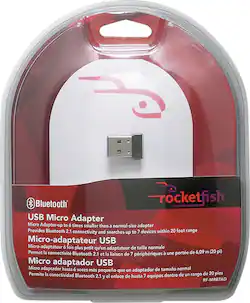
- General
- Brand: Rocketfish™
- Model Number: RF-MRBTAD
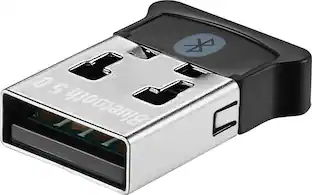
- Product Name: Micro Bluetooth USB Adapter
- Color: Multi
- Warranty
- Warranty - Parts: 1 year limited
- Warranty - Labor: 1 year limited
- Other
- Product Width: 0.6 inches (The out of box width of the item. Width is measured as the horizontal distance from one side of the item to the other as it would be primarily used or placed.)
- Product Height: 0.2 inches (The out of box height of the item. Height is measured as the vertical distance from the bottom of the item to the top as it would be primarily used or placed.)
- Product Length: 0.8 inches (The out of box length of the item. Length is measured as the longest dimension of the item.)
- Product Weight: 0.0063 pounds (The out of box weight of the item.)
- UPC: 600603117404
Add Bluetooth compatibility to your laptop with this convenient and compact micro USB adapter.
Whats Included
- Micro Bluetooth USB Adapter
Q: is there any unit compatible with a Macintosh computer?
A: Actually, this adapter works just fine with a Mac...I grabbed one to help my Dad connect a Creative D200 Bluetooth Speaker he bought without even looking at the package for OS compatibility. Once we got it to his place, I was dismayed to find it didn't list Mac as an OS. However, I popped it in anyway and it came right up and installed itself and paired with his speaker just fine. This was on a 24 inch iMac with OSX.
Q: what version of bluetooth is the micro adapter?
A: Packaging States Bluetooth 2.1 EDR Adapter
Q: Will the drivers still work when I upgrade from Windows 7 to Windows 8?
A: No it will not and I will be returning the one I bought after Geek Squat told me it shouldn't be a problem when I upgrade to Windows 8.
Q: I have not be able to pair a plantronics explorer 395 bluetooth headset
A: I think your problem is in your RocketFish Micro Bluetooth Adaptor. I returned mine. It see's devices but can't connect to any of them. After I returned mine I bought two Azio Micro Bluetooth Adaptors plus shipping for $21.43. Both work perfectly with all my bluetooth devices. Just like they should.
Q: attach device to non-blutooth radio
A: No, that still would not work. Your DeWalt radio would still have to be a Bluetooth-enabled device for the audio to come from your iTouch and through your DeWalt radio.
Q: Rocketfish Bluetooth Micro Adapter RF-MRBTAD not working with Windows 8
A: I experienced this same issue, but I found a solution! WINDOWS 8: 1. Plug the adapter into your USB port 2. Go to http://www.broadcom.com/support/bluetooth/update.php 3. Click the "Download Now" button 4. Follow the instructions to download the driver updates 5, Go to the "search" function on your right-hand-side Windows 8 Menu, choose the settings tab to search your settings, type in "Add Bluetooth Device" and click on the matching search result 6. Any compatible Bluetooth device on 'Pairing Mode' will now be discoverable 7. Enjoy
Q: Bluetooth sees Logitech device but does not connect
A: If the computer has a built in bluetooth adapter you shouldn't need the Rocketfish. If you still need the Rocketfish adapter you will need to disable and uninstall any existing software. Try uninstalling the RF-MRBTAD adapter and drivers. After rebooting the computer and reinsert the adapter letting the computer to pick drivers to install for it. The you will need to save the Broadcom software (http://www.broadcom.com/support/bluetooth/update.php) to your computer and install it which will give additional functionality over the built-in software.
Q: lost connection periodically
A: After doing some research, this is a either a Windows issue or an issue with your particular computer. There seem to be a variety of reasons that this happens. You may be unable to use Bluetooth devices to resume operation from certain power management states (such as "suspend" or "hibernate"). In some low-power states, the wireless receiver may be unable to receive information from the Bluetooth devices. To resolve this issue , follow these steps: Open the Keyboard control panel item. Click the Hardware tab, and then click Properties. Click the Change Settings button Note This step requires Administrator access Click the Power Management tab, and then verify that the Allow this device to wake the computer is enabled. Click OK, and then click OK again. Note If your computer does not support Advanced Configuration and Power Interface (ACPI), the earlier steps may not be available. In this case, you have press the power button to wake the computer. If you cannot resume computer operation by using any of these methods, you may have experienced a system problem.
People also viewed
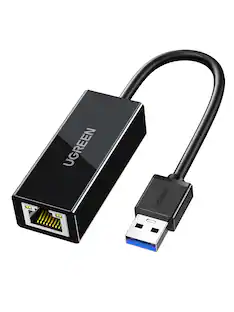 $12.99The price was $14.99
Today's top picks
 $449.99The price was $829.99
 $2,449.99The price was $3,199.99
 $999.98The price was $1,639.98
 $199.99The price was $249.99
 $549.99The price was $749.99