Sonos - Move 2 Portable Durable Smart Speaker (Each) - Black
Customers are saying
Customers are satisfied with the exceptional sound quality and impressive bass performance of this speaker. Users also frequently highlight its convenient portability, reliable battery life, and seamless connectivity as standout features. While some individuals noted that the device is slightly heavier and larger than expected, the overall design remains highly versatile for various home decors. Despite being positioned at a higher price point, the product is widely praised for its ease of use and high-quality audio output.
Color
BlackPowerful stereo sound
The acoustic architecture replaces Move's single tweeter with two, unlocking a higher-fidelity stereo soundstage with crisp vocals and detailed instruments. With deep, dynamic bass powered by the precision-tuned woofer, you'll feel the emotional charge of a live performance.
Tuned to its environment
With automatic Trueplay tuning, Move 2 continually optimizes the sound for its surroundings. So, no matter where you are or what you play, you get an elevated listening experience.
More than double the battery life
Listen twice as long as with the previous generation. All the acoustic updates work in concert for increased efficiency, giving you up to 24 hours of playback on a single charge.
Ultra durable and water resistant
Shock absorbent materials protect against accidental drops, and the IP56 rating ensures spills, splashes, rain, dirt, and dust don't dampen your listening experience.
One speaker, infinite listening possibilities
Whether you want to put on a podcast in the kitchen, listen to radio by the pool, or play music at the park or beach, Move 2 does it all. Plus, enjoy easy multi room audio with more Sonos speakers around your home.
Easier to take it with you
Use the built-in handle to bring your music from one place to the next. When the battery needs a boost, set Move 2 on the included Wireless Charging Base, upgraded with a detachable power cable and more compact adapter. Charge on the go with any USB-PD power supply.
Your favorite sounds are just a tap or ask away
Stream using WiFi and Bluetooth. Control the sound with the Sonos app, your voice, and the intuitive touch controls.You can also connect a turntable or other device with an auxiliary cable and the Sonos Line-In Adapter.
Toned down impact
Move 2 reduces its idle energy consumption by more than 30% compared to its predecessor, incorporates recycled plastics, and features a removable and replaceable battery, so you can enjoy it even longer.
- Speaker PairingYesWirelessYesRechargeableYesUSB Device ChargingYes
Reviews
Rating 4.7 out of 5 stars with 574 reviews
- Sound Quality (605)
- Portability (214)
- Battery Life (126)
- Connectivity (46)
- Bass (28)
- Price (8)
- Size (4)
- Weight (4)
Customer Images
The vast majority of our reviews come from verified purchases. Reviews from customers may include My Best Buy members, employees, and Tech Insider Network members (as tagged). Select reviewers may receive discounted products, promotional considerations or entries into drawings for honest, helpful reviews.



Compare similar products

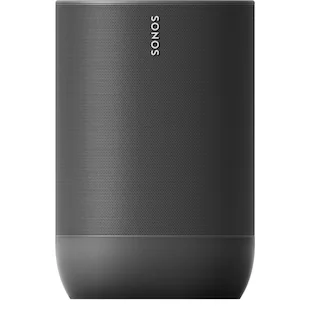
Unleash your listening experience with Move 2. Upgraded inside and out, this portable powerhouse puts heart-pumping stereo sound wherever you want it. Enjoy up to 24 hours of non-stop playback. Rated IP56, this speaker is both dust and water resistant, making it perfect for outdoor use.
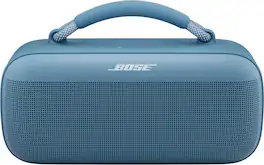
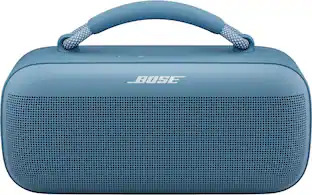
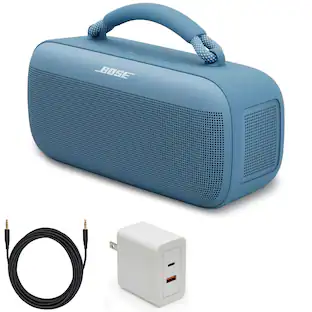
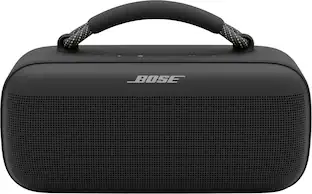
Whether you’re the go-to DJ in your crew or a curator with the best playlists, the Bose SoundLink Max Speaker is the ultimate party starter. The stereo sound and deep bass turn good times to the max, letting you feel the music from your head to your toes. And with a trendy removable handle, you can take the party anywhere. Water and dust-proof features mean it’s perfect for a poolside, beach, or rooftop hang. And when someone spills a drink or you run into unexpected showers, it never knocks the vibe. Amp up the party even more when you link two SoundLink Max Speakers. Choose Stereo Mode for left and right channels, or go for Party Mode for the biggest, boldest sound. Thanks to the epic battery life, you can keep bumping the playlist for up to 20 hours*, so the party can start in the day and carry on through the late night. Phone battery is running low? The USB-C port has got you covered. Power up from the speaker’s built-in battery. Get yours in Black or Blue Dusk.
Powerful, portable, and ready for anything, Sonos Play delivers big stereo sound and bass in a go-anywhere design. Stream over WiFi or Bluetooth, and connect seamlessly to your Sonos system. With up to 24 hours of battery life, easy wireless charging, and IP67 waterproof durability, this smart speaker amplifies every moment, everywhere.
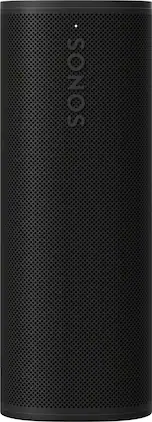
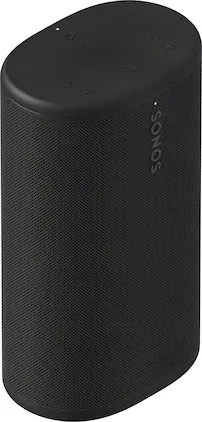
Astonishingly lightweight, durable, and powerful, Roam 2 makes it easy to enjoy Sonos sound everywhere life takes you. Just pair, play, and go. Enjoy up to 10 hours of size-defying clarity and bass. Fully IP67 waterproof and dustproof, Roam 2 is ready for the outdoors. Plus, it doubles as a smart speaker at home.
| Pros for Sonos - Move 2 Portable Durable Smart Speaker (Each) - Black | |||
|---|---|---|---|
| Sound Quality, Portability, Battery Life, Connectivity, Bass | Sound Quality, Portability, Battery Life, Bass, Size | Sound Quality, Portability, Battery Life, Connectivity, Design | Sound Quality, Portability, Battery Life, Connectivity, Size |
| Cons for Sonos - Move 2 Portable Durable Smart Speaker (Each) - Black | |||
| Price, Weight, Size | Weight, Price, Power Button | There were no cons for this product— | Volume, App Usability |
Specs
Can this new model Move 2 be paired with a the Sonos OG Move for stereo sound or is it only with another Move 2 that it can be paired properly?
Answered by Sonos Customer CareSince Move 2 has two tweeters and Move 1 has one you cannot pair two together to create a stereo pair. However, you can group multiple Moves of either generation together to create a larger sound. Each player would be playing both the left and right channel sound. Thanks, for your inquiry.

Does this speaker support high resolution audio?
Yes, this speaker supports high resolution audio.
This question and answer was generated by AI based on customer and product data.Can I use an auxiliary cable with this speaker?
Yes, you can use an auxiliary input with this speaker.
This question and answer was generated by AI based on customer and product data.Is this speaker water resistant?
Yes, this speaker is water resistant with an IP56 rating.
This question and answer was generated by AI based on customer and product data.Does this speaker have wireless charging capability?
Yes, this speaker has wireless charging capability.
This question and answer was generated by AI based on customer and product data.
Customers often buy these together
 $167.00The price was $179.00


Customers ultimately bought
 $319.99The price was $399.00
- $167.00The price was $179.00
 $379.00The price was $389.00
 $417.99The price was $499.99
 $119.99The price was $159.00

Your sound, your style Sponsored
 $199.99The price was $269.00
 $319.99The price was $399.00

Discover related products
 $169.99The price was $199.99
 $299.99The price was $499.99
Keep exploring
 $1,099.95The price was $1,209.90
 $1,499.95The price was $2,009.90