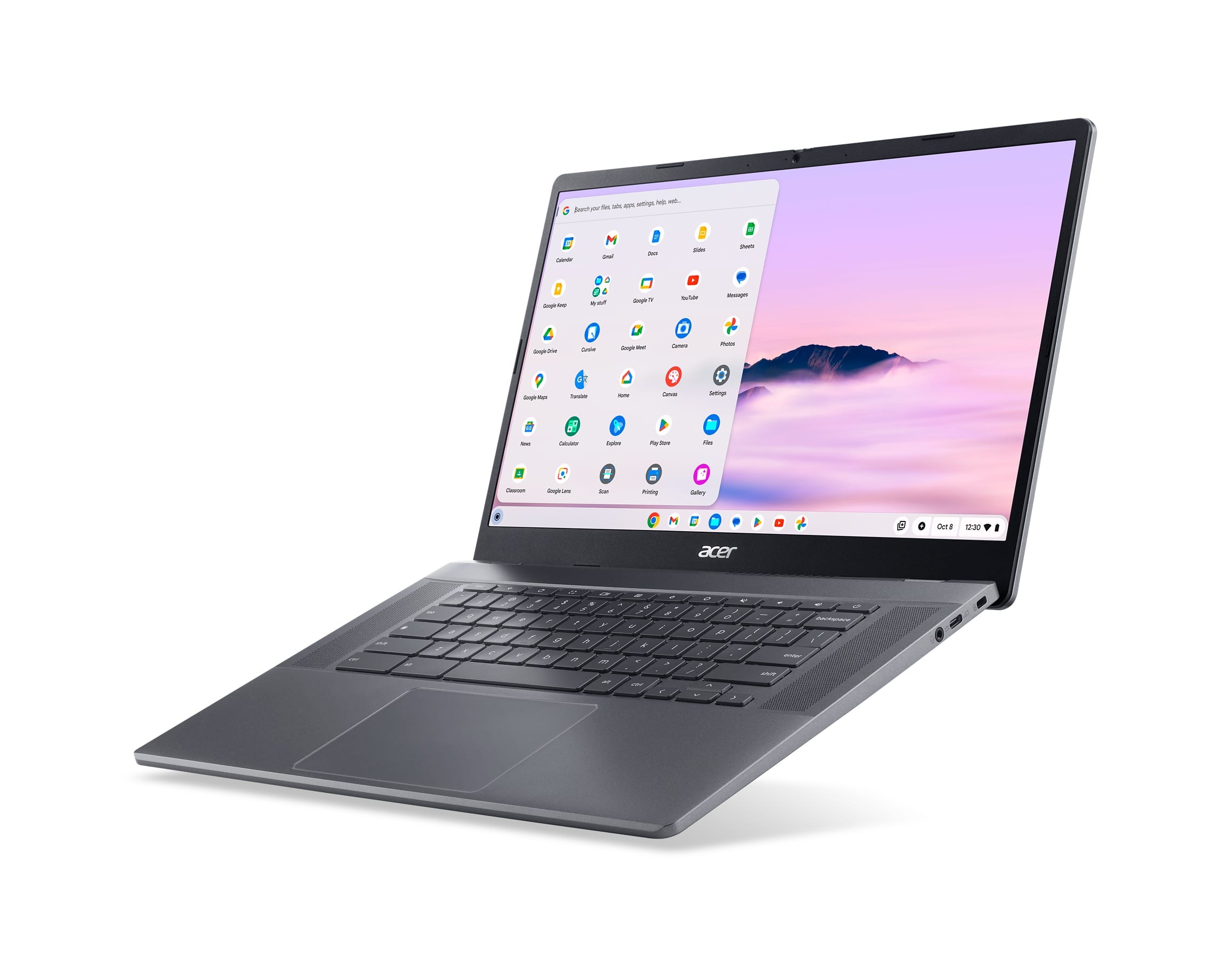
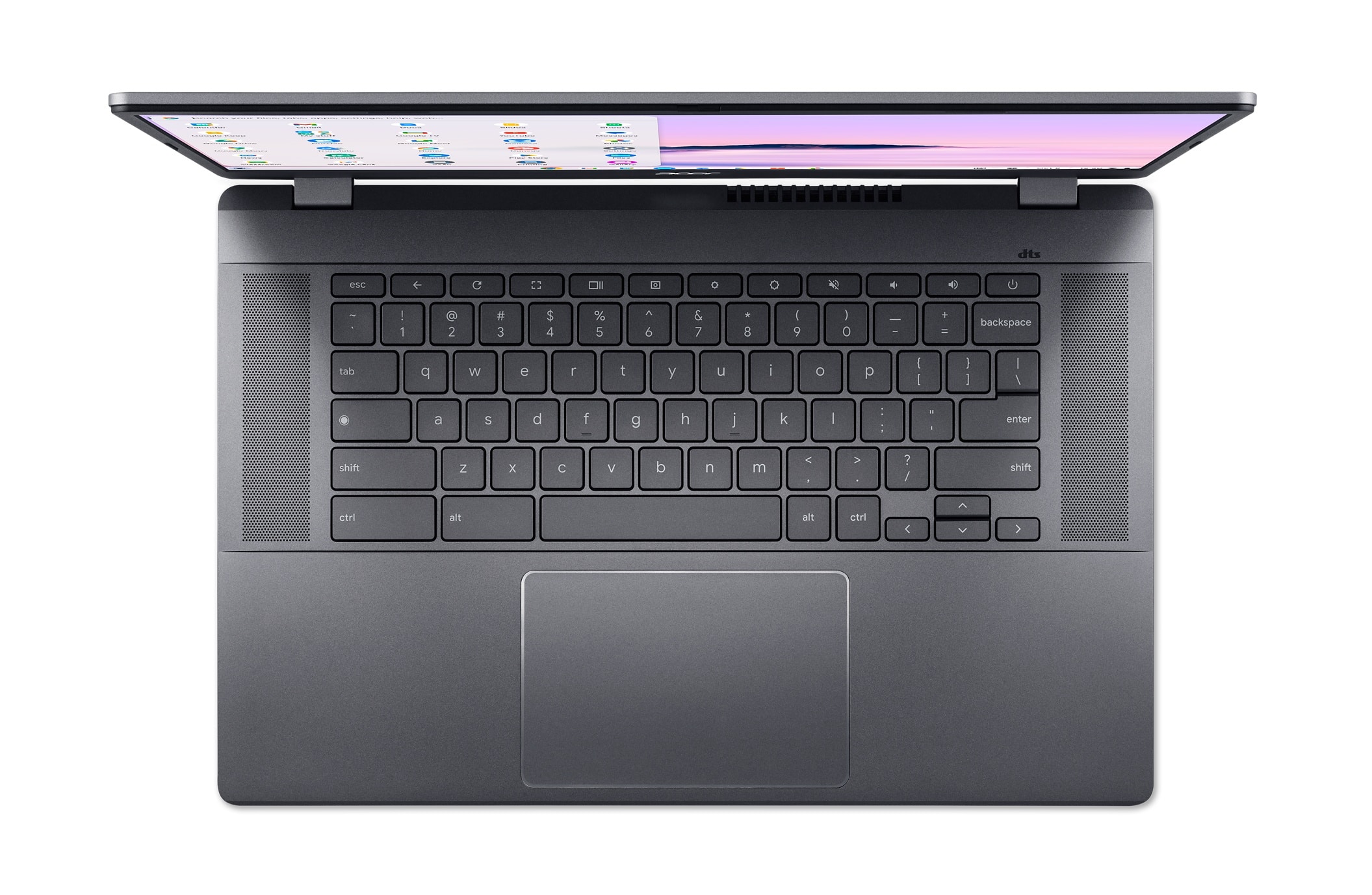
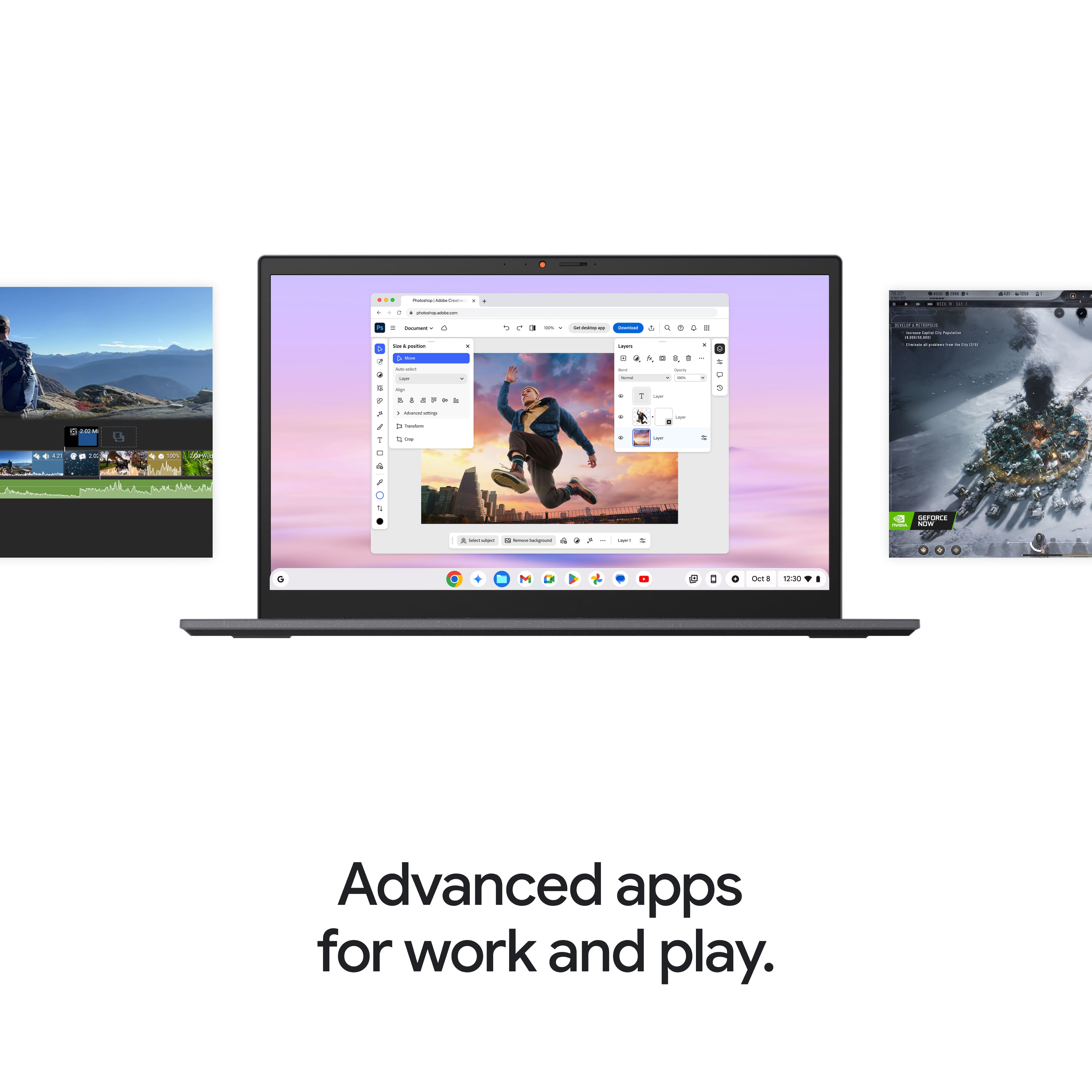
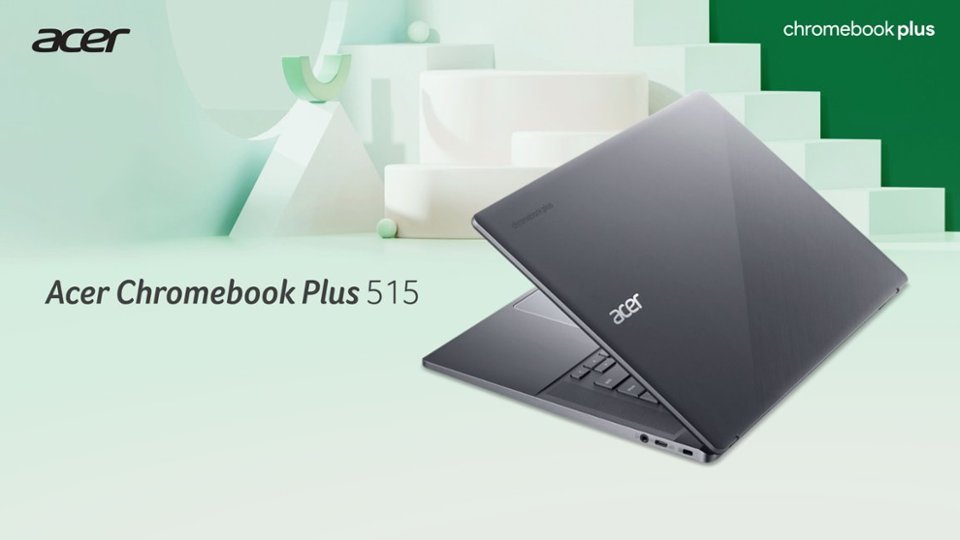
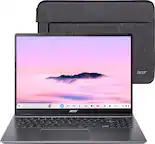
A:AnswerWhile this Chromebook is not a gaming Chromebook, you should be able to play games that are available on Google Play Store or Chrome Web store.
A:AnswerShort answer: Maybe someday, but with warranty voiding effort.
Longer answer: If the this model become supported by a 3rd party BIOS/UEFI firmware (such as MrChromeBox - do an internet search) then maybe Windows or Linux can be installed. You would have to disable the "write protect" on the Chromebook (sometimes removing a screw) and overwrite the factory firmware enabling other operating systems to be installed. It is not difficult. HOWEVER/Warning, it is unknown if Windows or Linux will support ALL of the specific hardware of this Chromebook. For example the sound or wifi chips. I suspect they will, but no guarantees.
Note, the prior model (CB515-1W) is supported by MrChromeBox so it is possible this one will be in the future.
A:AnswerTo turn on the camera on your Chromebook, follow these steps:
1.Select the Clock in the lower right corner of your screen.
2.Select the gear icon to open the Settings application.
3.On the left side of the Settings window, select Privacy and security.
4.On the right side, select Privacy controls.
5.Select Camera access.
6.Toggle the switch at the top to enable camera access for all applications.
7.Locate a specific application and toggle the switch to enable camera access for that application.
If you need further help please feel free to contact Acer support at 866-695-2237. They are available 24/7 for in-warranty products.
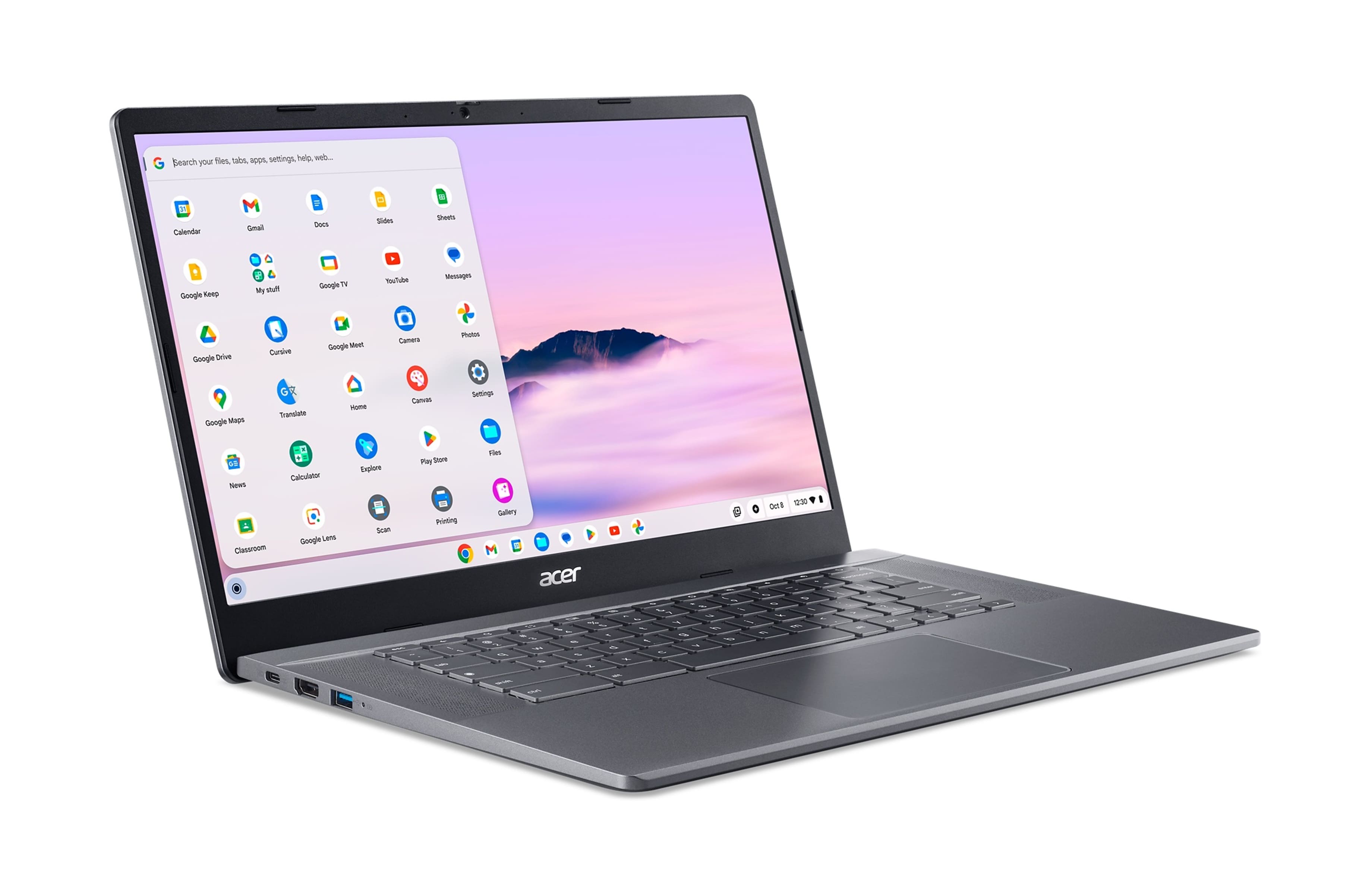
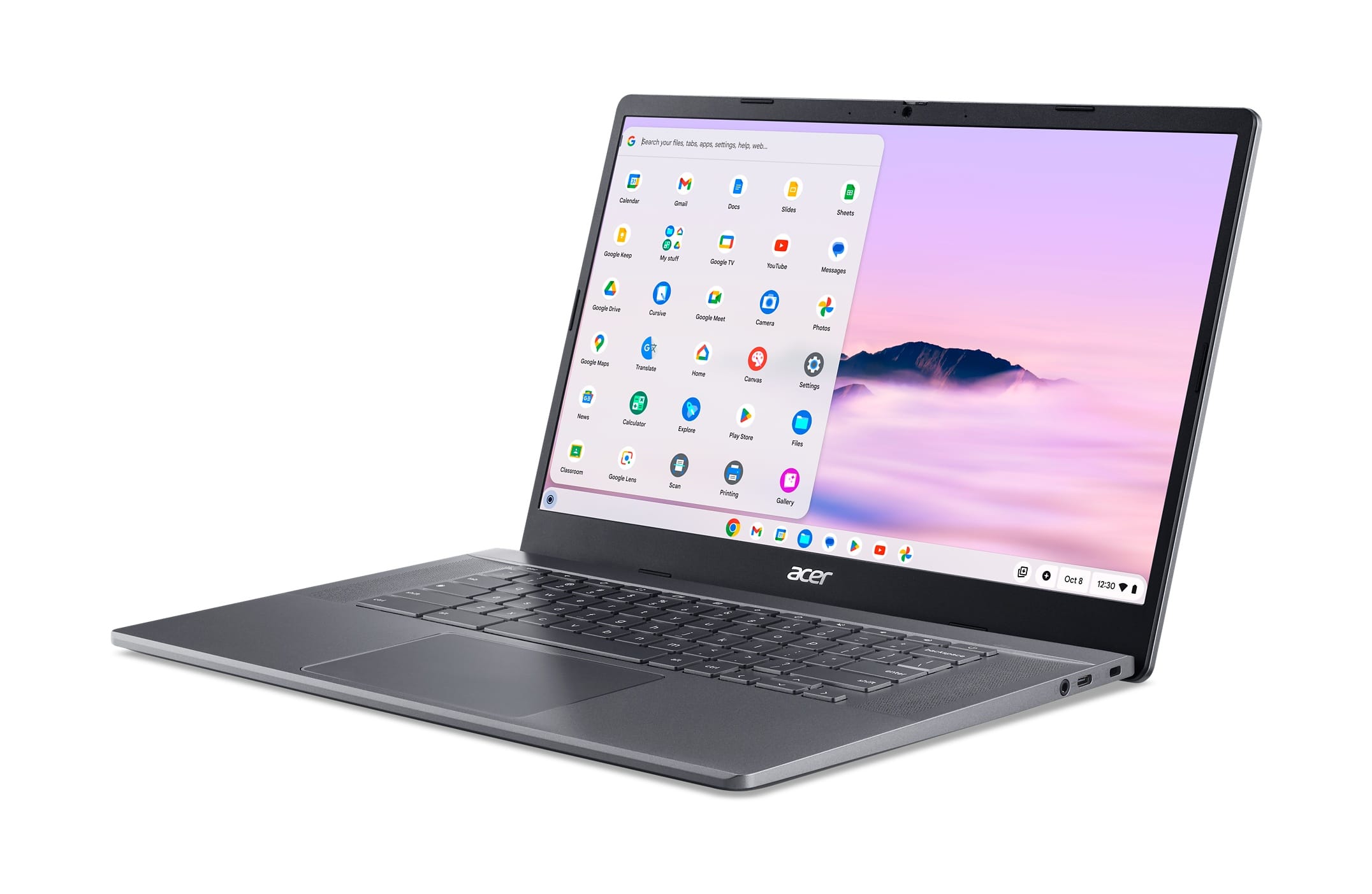
A:AnswerA Chromebook Plus, like other Chromebooks, comes pre-installed with core Google apps for productivity and general use. These include: Google Docs, Sheets, Slides, Gmail, Calendar, and Drive.
A:AnswerChromebooks can be a good option for a year of online college, especially for students needing a budget-friendly and portable device, but they may not be suitable for everyone. While they excel at web-based tasks and offer features like long battery life and quick boot-up, some college courses might require software or tools that aren't compatible with Chrome OS.
A:AnswerTo turn off Google Assistant on a Chromebook, you can go to Settings, then System preferences, then Google Assistant. From there, you can turn off Google Assistant. If you need help with this please contact our support team at 866-695-2237; they are available to assist 24/7 for in-warranty products.