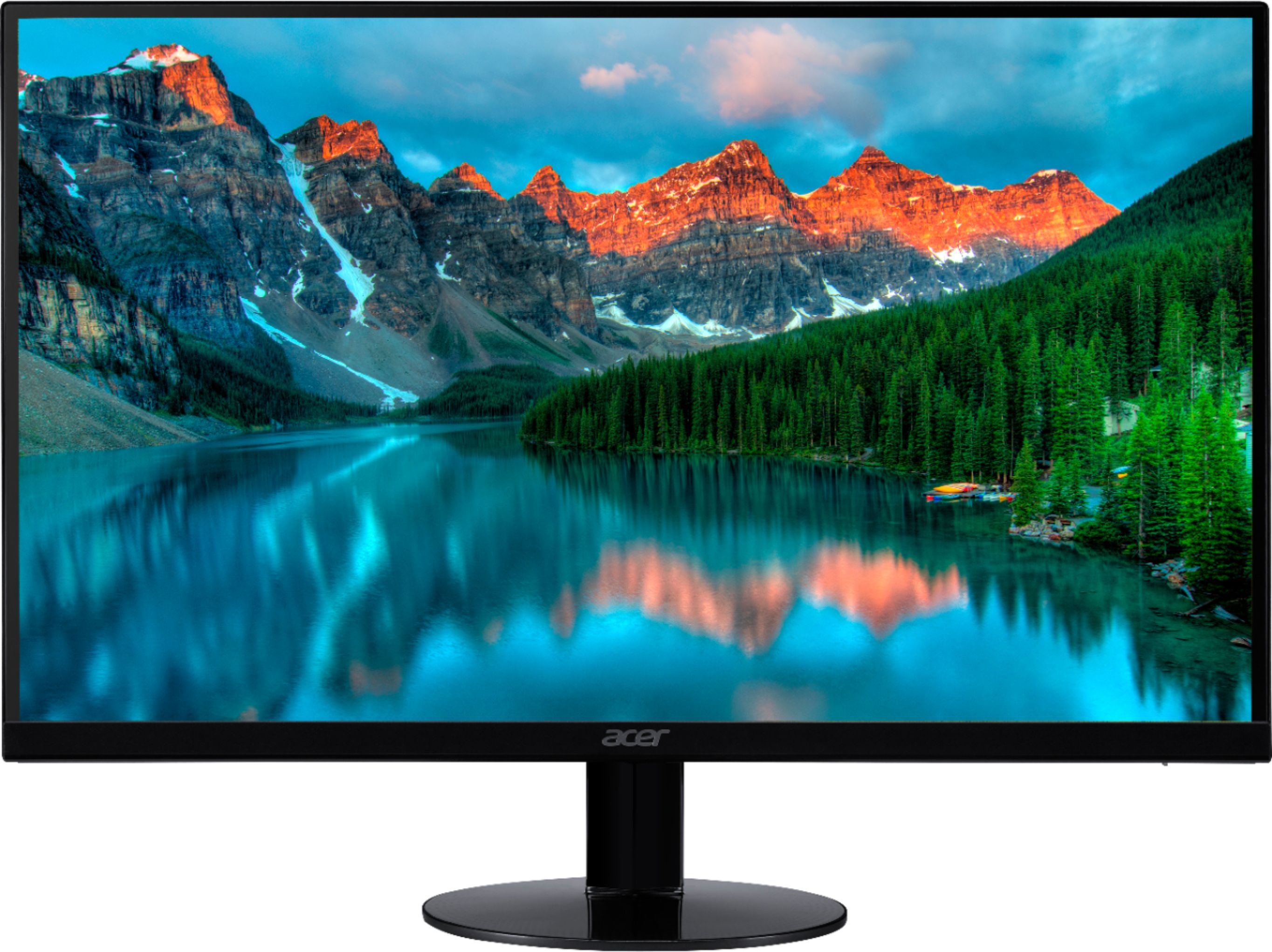
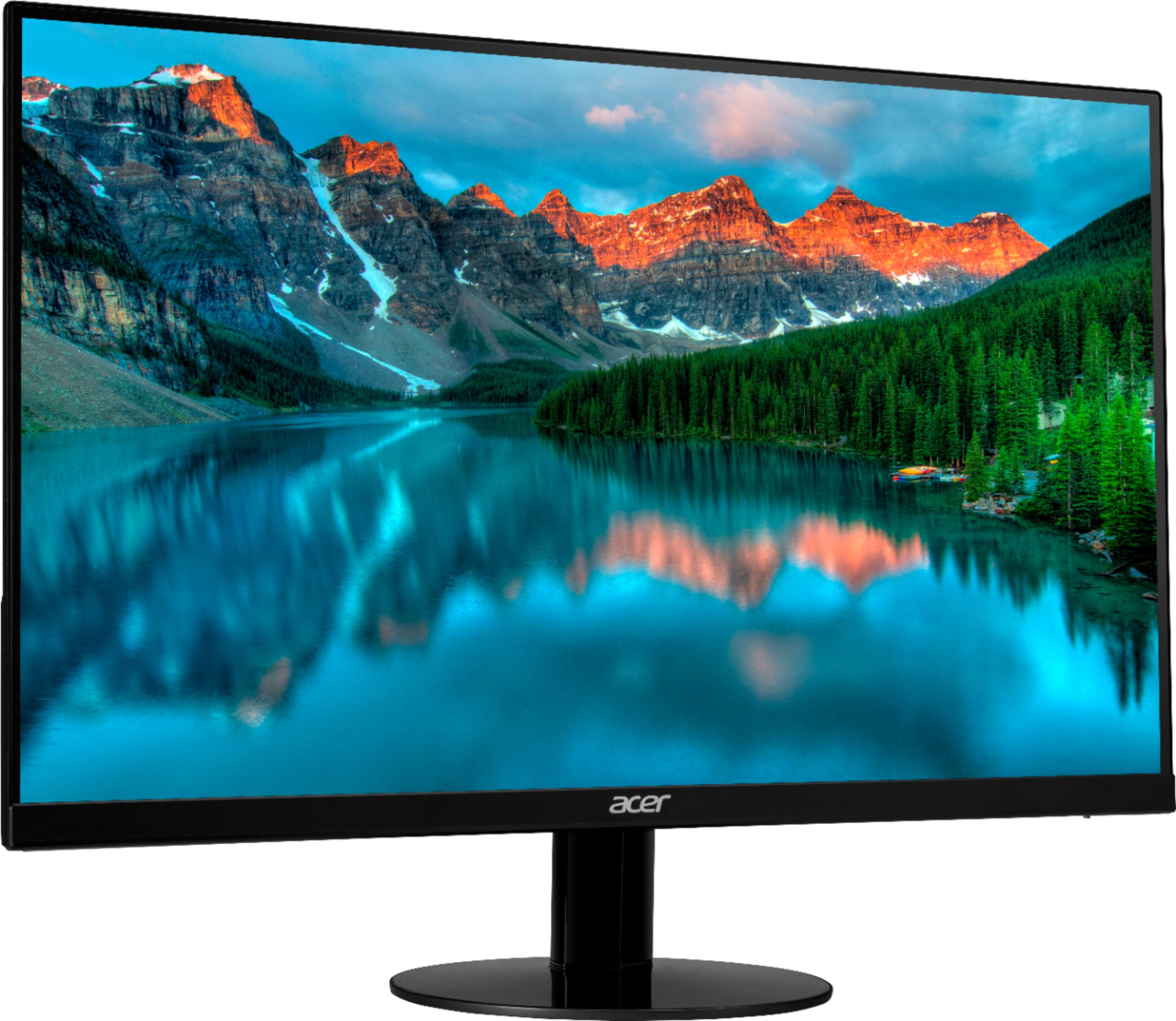
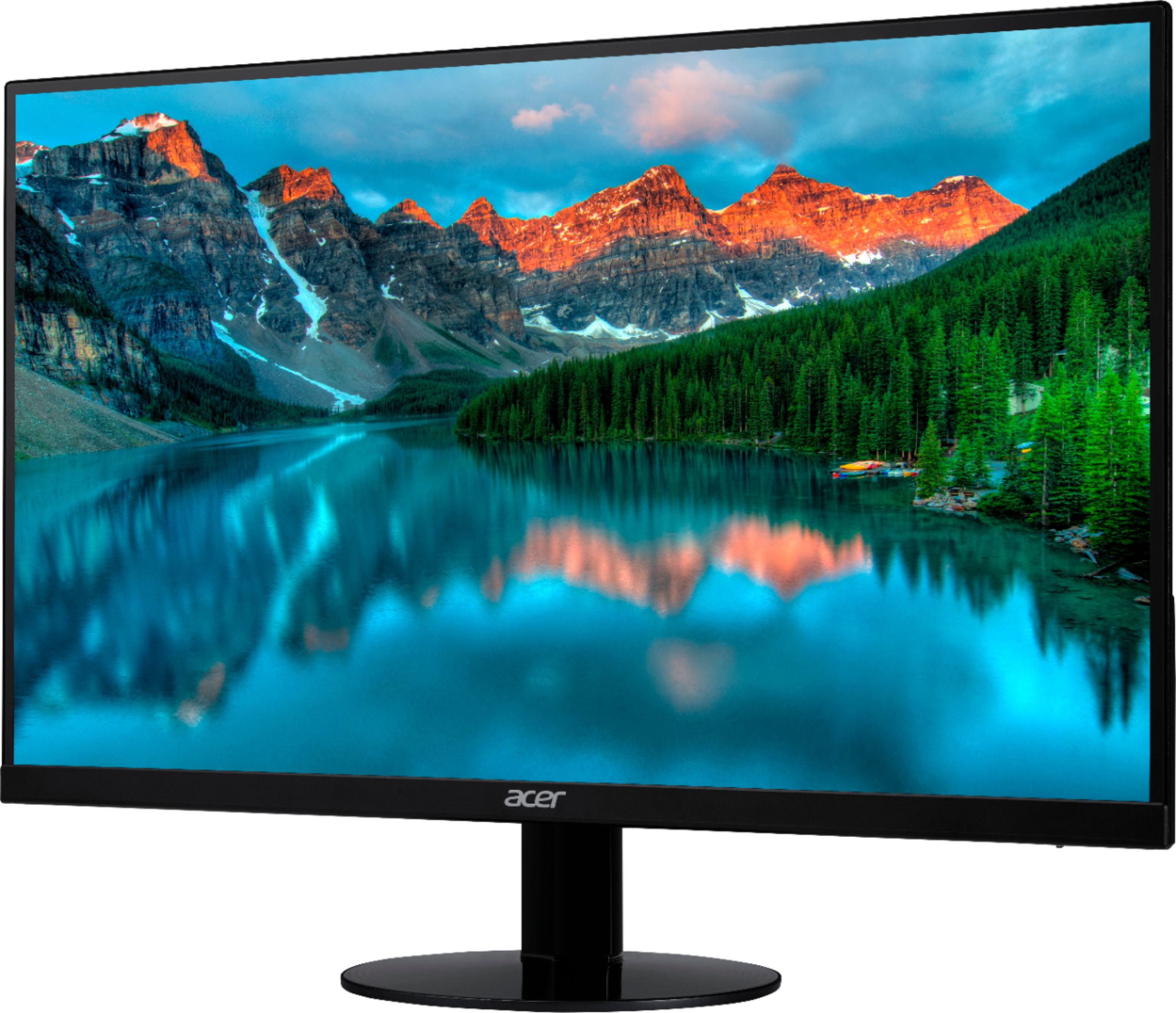
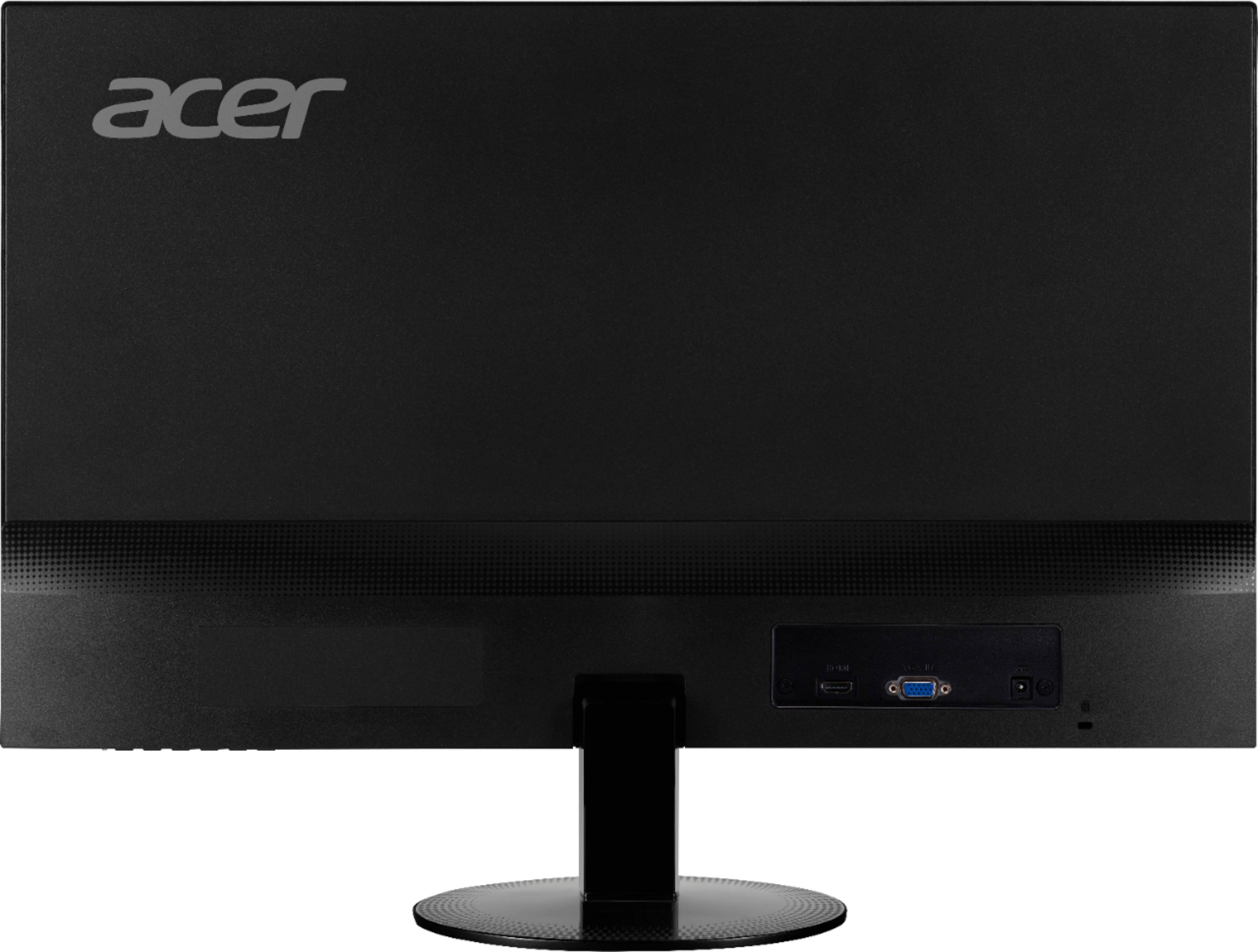
A:AnswerThere are buttons on the bottom right-hand corner of monitor. Click the 3rd one from the left twice, click down arrow twice, click symbol that looks like a door twice and then adjust wide mode. Hopefully that will help.
A:AnswerYes. If you're using Windows 10 - click the start button - go to settings - display - and night light settings. The monitor also comes with a setting to adjust the amount of blue light.