“Could someone give me details on how to add an SSD to this system, in addition to what SSDs are recommended? 250-500GB Thanks”
Answer This Question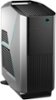
1-3 of 3 Answers
There are two empty SSD tool-less bays in the bottom of the PC. Squeeze the blue tabs to slide the bracket out, install SSD in bracket (no screws required), insert new SSD. Purchase a SATA ribbon cable 1.5ft to 2ft long. This computer will accommodate cables that are straight or that have a 90 degree bend, but I like the bend. Plug them into the motherboard in SATA slots 2+3. Note: Slot 0 will already be populated with a hard drive running your OS (operating system) and that may be paired to a 16GB Optane module. Slot 1 will be your slim DVD writer. Don't mess with SATA 0 or 1 it unless you are willing to research the process of disabling Optane with Intel RST, cloning your image to the SSD using software, possibly re-enabling Optane if prerequisites are met, and formatting the original drives for data (or you can remove it and set it aside as an OS backup and install a larger 3.5" HD in its place - I did a 3.5" 4TB data drive). The BIOS will want to default boot to slot 0, so if you leave the original and cloned drives both installed with Windows 10 and you want to use the new SSD as an OS drive without formatting the original windows partition, move the SSD cable on the motherboard to slot 0. After installing the drive and booting to WIndows, in Windows Search type "disk management" (do not type the quotes) - create and format disk partitions - press enter - find the new unallocated disk -probably disk 2 or 3, right click in the unallocated space and create a new simple volume. Assign a drive letter and voila - you have a drive that can be used. The size of the drive you pick should probably match the size of the partition you are cloning from for simplicity. You get a tit-for-tat partition cloning that way. You can go go smaller with the SSD but if you do, try utilizing a 3.5" Hard Drive drive for photos, videos, and music as to not clutter your 250GB SSD which will already be swimming with a rather large OS and applications. Remember, SSDs don't like to be utilized much past 80% capacity (leaving 20% of the drive unallocated ensures you maintain a healthier drive). SSDs will work when full, but they have garbage collecting algorithms that move blocks of data around in the free space. Spinning platter drives should be utilized even less because the cylinder velocity varies about 50% between the outside (beginning) of the drive to the inside (end) of the drive. Personally for this R7, I raided two 500GB SSD's to run my OS and Games, I have a 3.5" data drive for storage and OS backups, and an external USB 3.0 backup drive basically mirroring what is on the data drive. You should try to maintain backup integrity where the OS/application drive and data drive are separate entities, and each entity is backed up. As a result of my choice, I cannot use the m.2 slot for Optane module because it only accelerates an OS drive, and Optane does not support raid configuration, but my payoff with raid 0 SSDs is over 1000GB/sec read/write throughput vs the stock throughput in the 150MB/sec range with a hard disk or 550MB/sec with a single SSD. I avoid the raid-0 naysaying issues by having multiple OS backups, and not placing critical documents or pictures on the raided drives - if I do, say in order to edit a large video as quickly as possible, I wait to wipe the original source media from the cameras SD card until the files make it into my data and backup drive. Hope this helps.
Sorry, there was a problem. Please try again later.Hey. Adding an SSD should be easy. Open the side panel and at the bottom you should see two small light blue bays. These can both fit a 2.5” drive, which most SSDs are. Slot these in, and then connect a SATA cable, most SSDs do not come with one, but they cost like $5. When it is is in and connected, put the other end of the SATA cable into the port at the bottom right, if you look at the current HDD SATA cable, you should see where it is. After that is done, connect an unused power cable that reached (these are the multi-colored cables) and you should be good to go.
Sorry, there was a problem. Please try again later.sorry i personally can't give instruction on installing a SSD but you can always look up tutorials on youtube or even ask some at best buy in store.but this pc has an optane memory. i am guessing the only reason for an ssd is for speed. but the optane memory compensate for it. of course adding an ssd will make it go even faster but is not necessary but if you already bought one go on youtube to see some tutorials
Sorry, there was a problem. Please try again later.
