A:AnswerYes, if you have an OTG USB adapter you can plug in a flash drive and use it for storage.
The external will not allow you to install apps to it but you can use it for photos, music, and videos.
Some Flash drives or hard drives that are too large in size, depending on their format will not be seen
on the tablet. I suggest downloading ES File Explorer to navigate smoothly when use the external.
There are also apps in the store (USB Viewer) that will allow you to stream content directly from the
external in the some cases when the drive is not recognized.
There is also a MicroSD slot on the unit to to expand storage
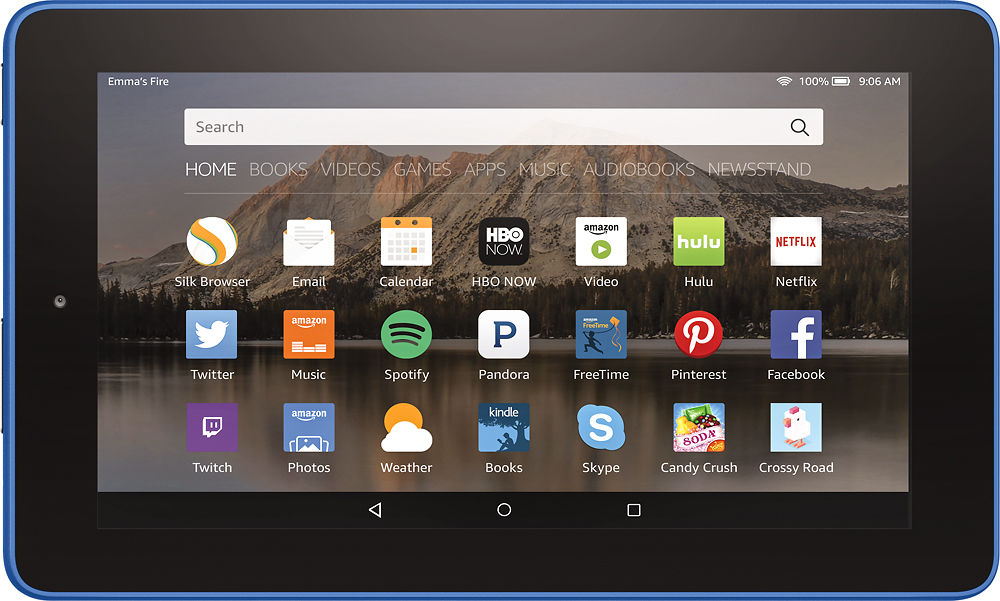
A:AnswerI was able to use an SD that i had laying around. I formatted the SD within the 7, then used my PC to load movies on the SD. Works for me as i switch movies and music enough were its not a hassle.
A:AnswerYes you can. you have to dig for the information on the internet but it is out there and you don't have to be a genius or root your new Fire either. If you go into the fire setting under security you will see a toggle to turn off third party application access. flip the toggle the other way and you are golden.
A:AnswerIf you wish to connect your Kindle Fire HD to a TV, all you need is a standard Micro HDMI to Standard HDMI cable. Just connect the cable between your device and an available HDMI port on your TV, and you're ready to enjoy watching any content on your Kindle Fire HD on your TV. The connection will even provide audio.
A:AnswerYes, it does. As long as the app allows installing to the SD card, once you tell it in setting to install apps to SD, it's completely seamless.
A:AnswerYes but it requires the free MS Word App. that uses The Cloud to access the Word program. Your work is also stored in your Cloud account. You can download your work from the Cloud to your computer easily. Your Cloud account is free for the first few Gigabites of storage.