A:AnswerNope. Nothing that is Google owned works with this thing. No youtube, no Google, no play store, no Google Earth, no Gboard voice typing, Google drive, photos etc
A:AnswerHello! Yes, you can print from a Fire Tablet. First, you will need to pair your compatible wireless printer to your device. Here are the steps to do that: 1. Download an office app or a PDF viewer from the Amazon App store 2. Select the menu icon (three vertical dots) or select File for the item you wish to print then select Print. 3. Select Save as PDF then select All printers.... 4. Locate the IP address for your printer (refer to your printer's product's user guide). 5. Select the Add Printer icon (plus sign) to add a printer manually using the IP address of the printer. After you have done this, you should have access to print from that printer. Be sure to follow these steps to make sure you have the correct printer: 1. Make sure that your printer is turned on and connected to Wi-Fi. 2. Select the menu icon (three vertical dots) for the item or web page that you want to print, and then select Print. 3. Select your printer from the list or select All Printers for nearby printers. 4. Select the number of copies or tap More options to choose the paper's size, color, and orientation. 5. Tap Print. Have a great day!
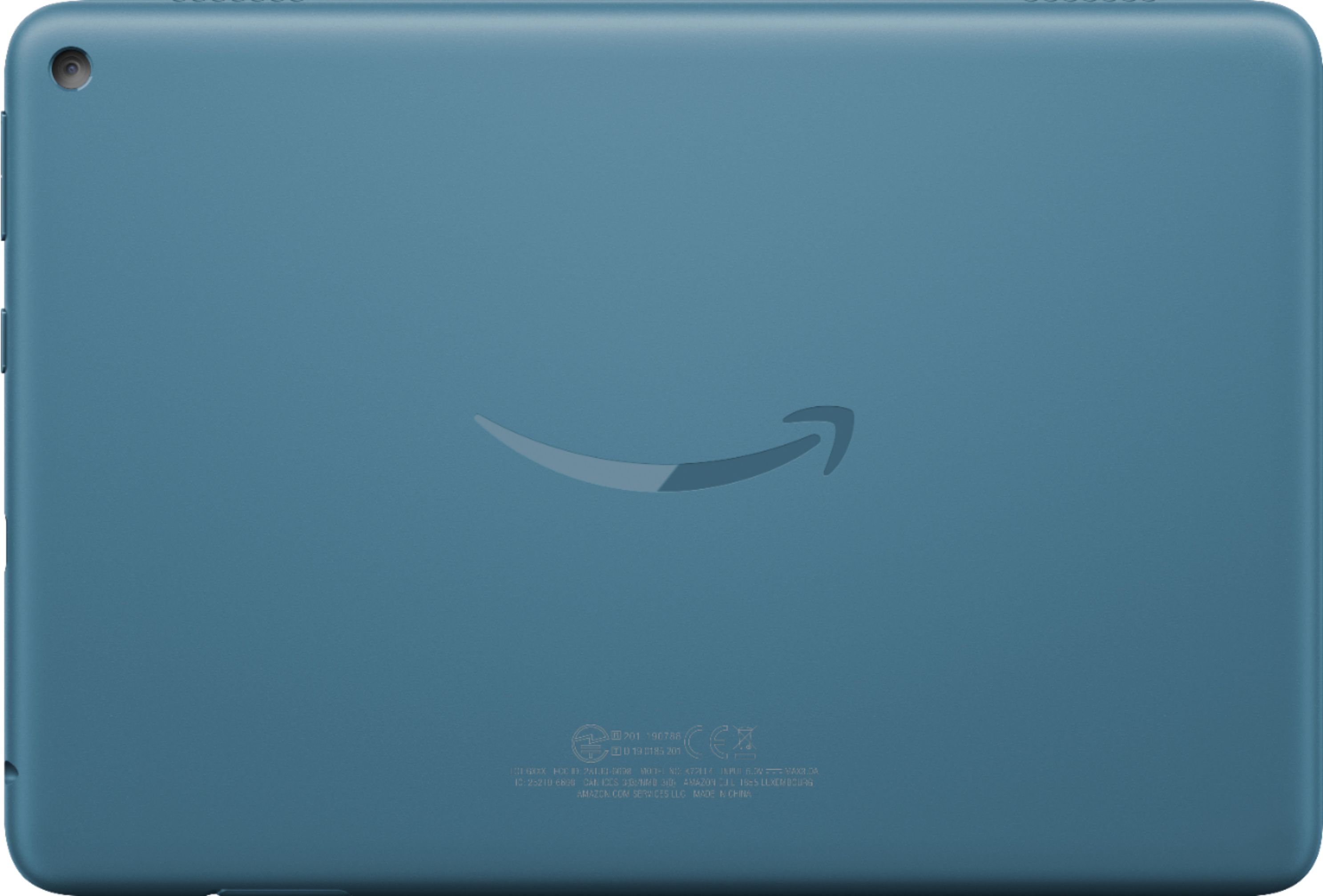
A:AnswerHi Barb! This is the 10th gen (2020) release of the HD8. There is an 11th gen HD8 Tablet that was just released this year which is newer. Thanks for your question, have a great day!
A:AnswerHello! The Fire Tablet Kids is for kids ages 3-7. The tablet comes with a kids proof case that helps to protect the tablet. But don't worry if it breaks! The Kids Tablet comes with a 2-year worry-free guarantee: if it breaks, return it and we'll replace it for free. The Kids Tablets also come with 1 year of Amazon Kids+ (FreeTime Unlimited) gives your kids access to over 20,000 apps, games, books, videos, audiobooks, and educational content from PBS Kids, Nickelodeon, Disney, and more. Your subscription will then automatically renew every month starting at just $2.99 per month plus applicable tax. You may cancel at any time by visiting the Amazon Parent Dashboard or contacting Customer Service. I hope that helps! Have a great day!
A:AnswerHi Infiniti!
The Amazon Fire HD8 10th Generation Tablet comes with a browser pre downloaded. This browser called Silk and you can search for whatever you need!
Hope that helps!
A:AnswerHello!
Yes, the apps can be downloaded to your Fire Tablet. You can download games and apps and use them on the go by following these steps:
1. Select Games & Apps or open the Apps or Games app.
2. Select an app from your Library to download it or search for a new app in the Store.
Have a great day!
A:AnswerHi rbm14! Unfortunately it looks like the Nanit app has not been made available on the Amazon App Store at this time. Hope that helps, have a great day!
A:AnswerHello! Yes, the SciPlay Jackpot Party v 5035.00 app can be downloaded to your Fire Tablet. You can download games and apps and use them on the go by following these steps: 1. Select Games & Apps or open the Apps or Games app. 2. Select an app from your Library to download it or search for a new app in the Store. Have a great day!
A:AnswerI have no idea. I bought it because my previous Kindle was deemed out of date. It was working perfectly but somebody decided that they needed to sell more Kindles and so they slowed the book section to one at atime and they're choosing.
A:AnswerHi Collegestudent,
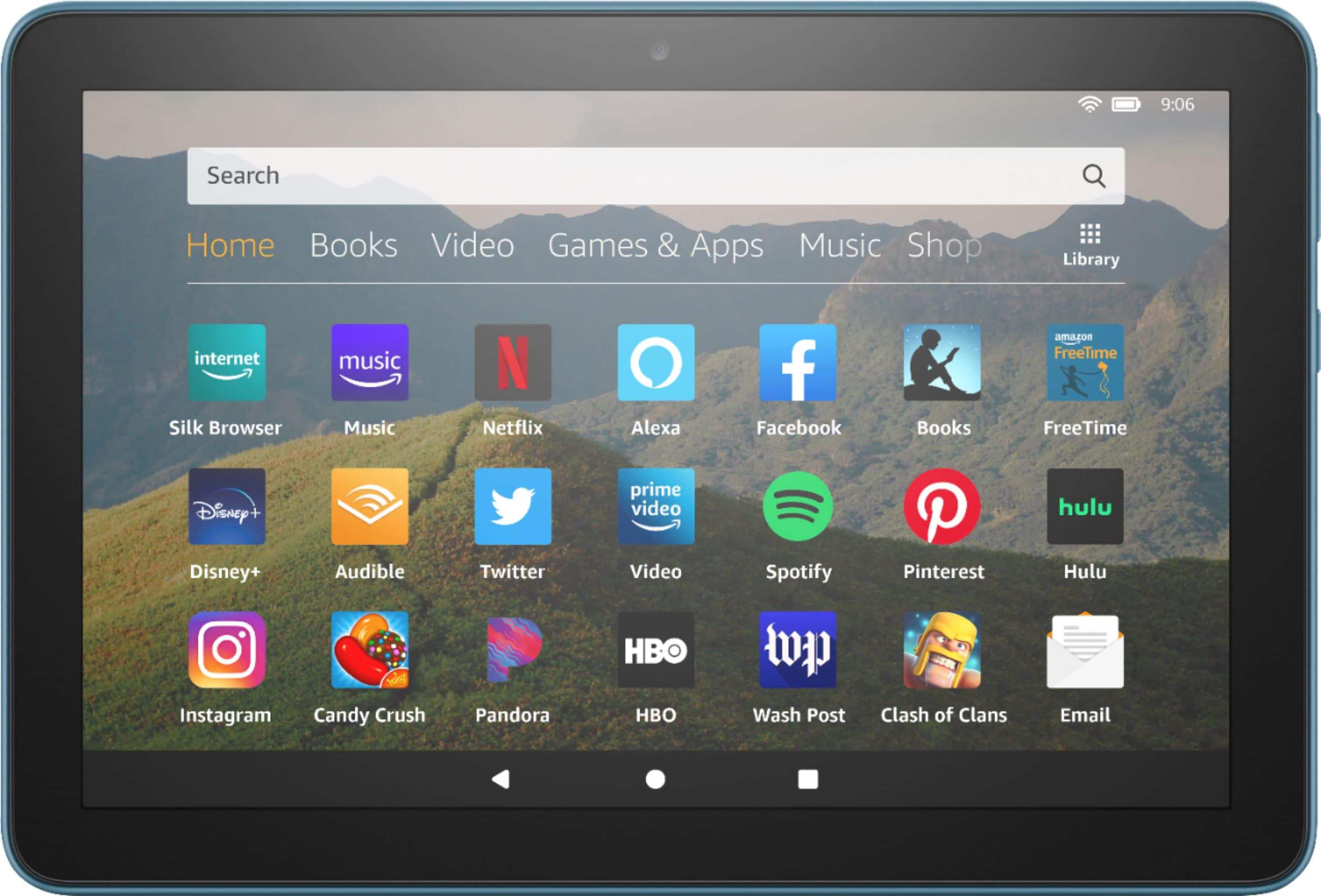
Yes! The Fire HD8 10th tablet is great for all of the above! It is 30% faster thanks to the new 2.0 GHz quad-core processor. You can use your favorite apps like Netflix, Facebook, Hulu, Instagram, TikTok, and more through Amazon’s Appstore (Google Play not supported).
Along with that, check email, make video calls, update shopping lists, and set reminders. Zoom, Outlook, and OneNote are also available and you can go hands-free with Alexa, including on/off toggle.
Hope that helps!
A:AnswerHello! Yes, the Kindle app can be downloaded to your Fire Tablet and it will sync with the books you have on your Kindle app on your Android tablet.. You can download games and apps and use them on the go by following these steps: 1. Select Games & Apps or open the Apps or Games app. 2. Select an app from your Library to download it or search for a new app in the Store. Have a great day!
A:AnswerHello Maha, you want to know if you are able use WhatsApp on the Amazon Fire HD 8 10th Generation 8" Tablet. At this time WhatsApp is not available on in the Amazon Appstore within the Amazon Fire HD 8 10th Generation 8" Tablet, but you are able to access WhatsApp via their webapp using your Silk Browser in you Amazon Fire HD 8 10th Generation 8" Tablet. Hope this has answered your question. Have an amazing day!
A:AnswerHello Pru! Yes, this device does support both dictation (speech to text) and VoiceView. Dictation can be done in anything that you use that brings up the keyboard by tapping the microphone icon either on the bottom right of the keyboard or sometimes in the text field itself. VoiceView can be enabled through the Accessibility features on the device. In there you will find features for Typing Style, Speech, Braille, and a tutorial for how to use VoiceView. You can also have your books read to you in the Kindle app by using Audible Narration. I hope this helps answer your question and that you have a fantastic day!