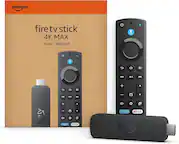
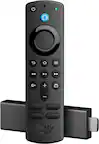
A:AnswerHello Moira and thank you for your question! Yes, as long as you have a free HDMI port, the Amazon FireTV Stick 4K streaming device will work on your Samsung TV. Hope this helps! Have a great day!
A:AnswerHello! Thanks for reaching out about using an Insignia Fire TV remote with Fire TV Stick 4K. You will need to pair this remote to the Fire Stick. To do this, follow these steps: Go to Settings on your Fire TV;
Select Controllers & Bluetooth Devices;
Select Amazon Fire TV Remotes;
Select Add New Remote;
Select the remote you want to pair;
Hold down the Home button on the new remote for ten seconds;
The remote's light should start blinking, indicating it's in pairing mode;
Wait for an on-screen confirmation that the remote has been paired. Hopefully this is helpful. Happy Holidays!
A:AnswerHello wifiv7,
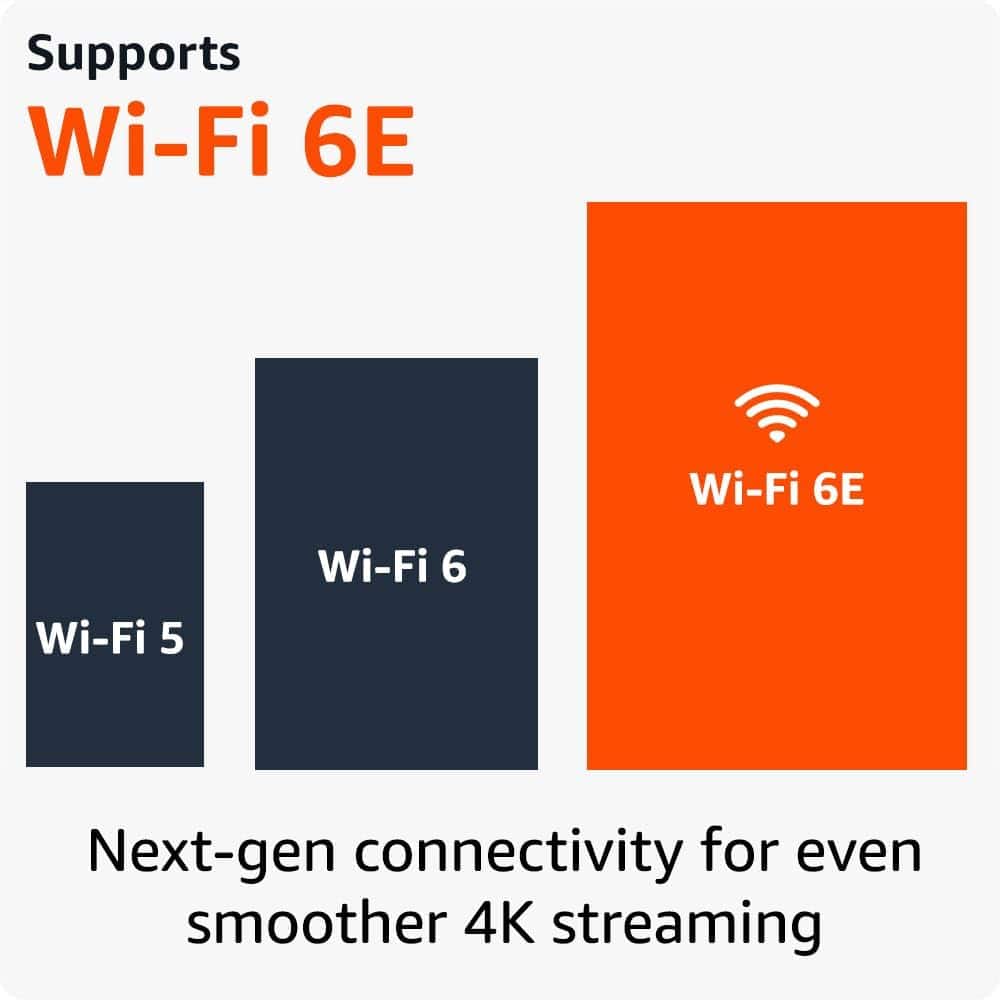
Yes, the Fire TV Stick 4k will still work on a Wifi 7 router. Wifi 7 is backwards compatible to devices running Wifi 6 or older. Being that the Fire TV Stick 4k is only rated for Wifi 6, it may not be able to take full advantage of the speeds your Fiber Wifi 7 is capable of producing however the device will have no issues connecting to the network.
I hope this helps!
A:AnswerHi lama! A free Amazon account is required to sign in to your Fire TV Stick 4K while setting it up, after connecting to WiFi. Amazon accounts are free to create, and this will enable you to back up any downloaded apps to the cloud for easy restoration in the future. I hope that helps, have a great rest of your day!
A:AnswerHello,
It sounds as if your Fire Stick may have too much information stored in what's called it's "Cached Memory". This may be apps that were left open, or even applications that may not be used which are taking up space needed for other system updates. In order to check this, you can go to "Settings > Applications > Manage Installed Applications > [APP] > Clear Data" on the home screen of your fire stick. Your Fire Stick may give you an onscreen prompt asking if you would like to clear any Cached Data which you will say yes to. You can also look at the storage space available on your Fire Stick from the home screen by selecting "Settings>My Fire Stick>About from there you will be able to navigate to the Fire Sticks available storage.
I hope this helps!
A:AnswerHello Lew54,
Thank you for your question. Here are a few things to try and fix the issue you are having with your Fire TV Stick remote:
-Check the batteries
Dead batteries are the most common reason for a Fire Stick remote to malfunction. Replace the batteries with new ones, preferably alkaline batteries for best performance.
-Restart your Fire Stick
Unplug the Fire Stick from the power source and plug it back in after 30 seconds.
-Reset the remote
Remove the batteries, press and hold the Home button for 10 seconds, put the batteries back in, and try pairing the remote again. To reset most Fire TV remotes, you can also press and hold the Left, Menu, and Back buttons simultaneously for 12 seconds, release the buttons, and wait 5 seconds.
If none of these steps work, your remote may be damaged and need to be replaced. Hope this helps, have a nice day!
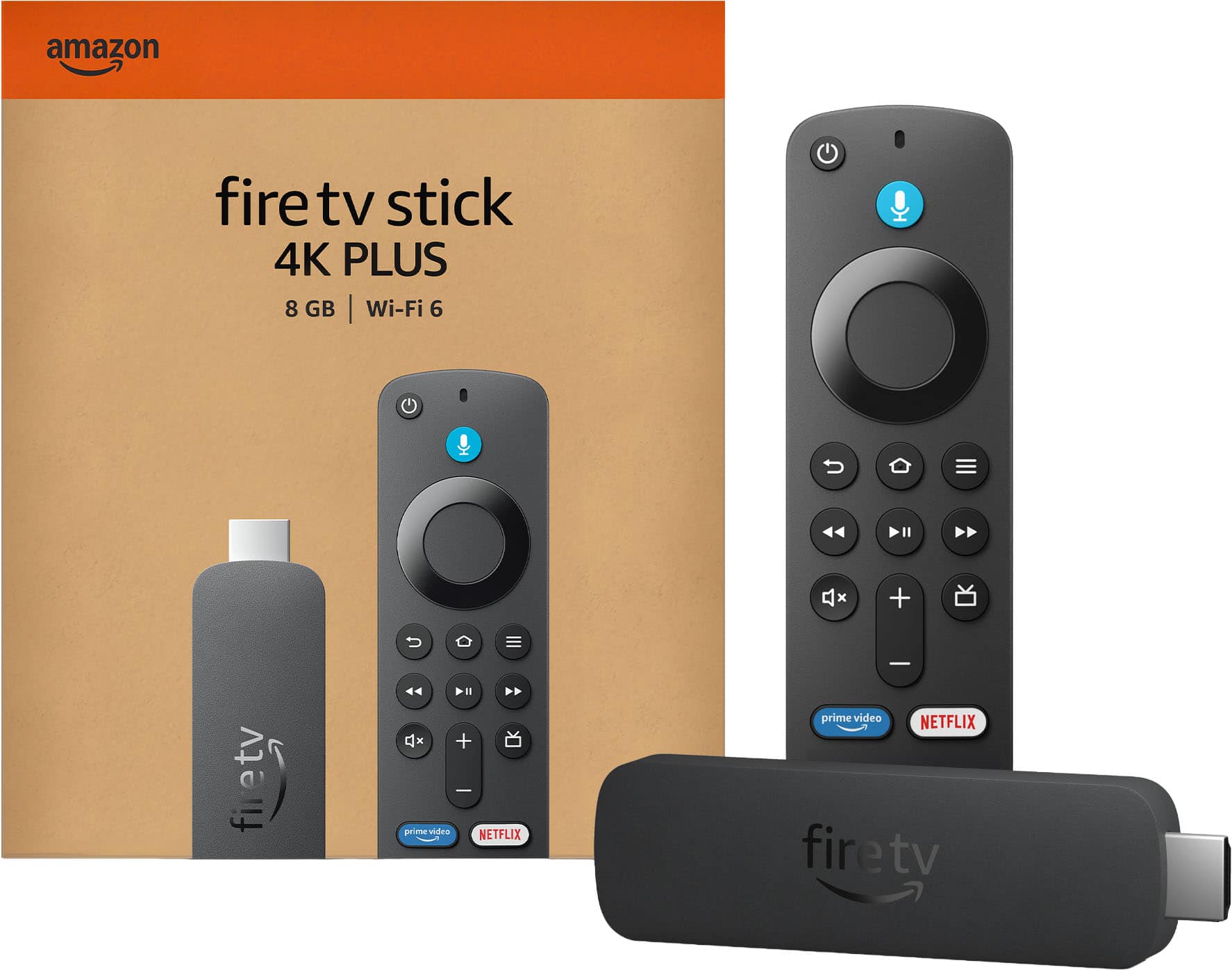
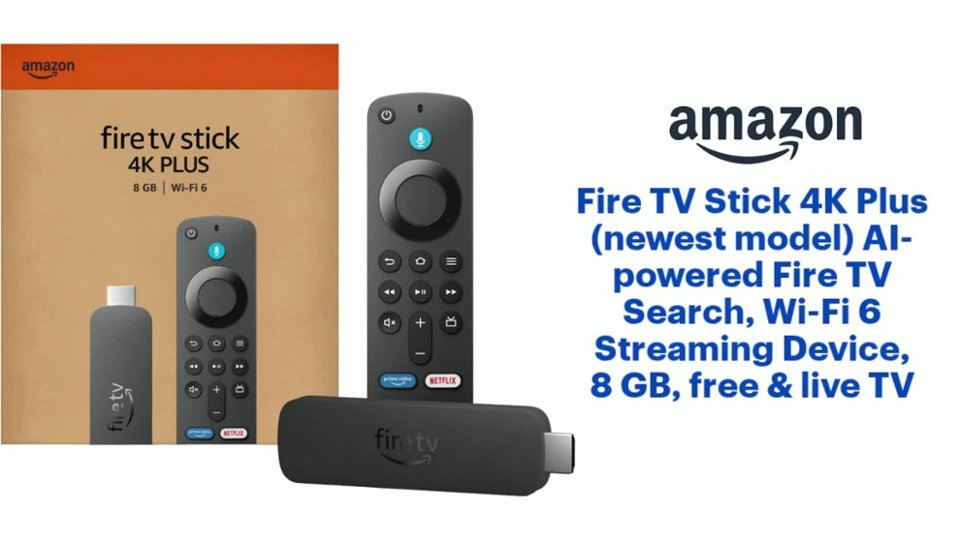
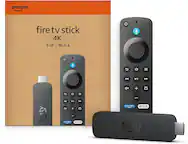
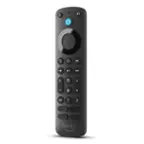
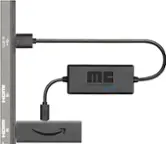
A:AnswerHello! The Fire TV Stick 4K comes with an Alexa Voice Remote, power cable and power adapter, HDMI extender cable for Fire TV Stick 4K, and 2 AAA batteries, which is all you need to connect it to your TV. I hope this information is helpful. Have a great day!
A:AnswerHello Mee,
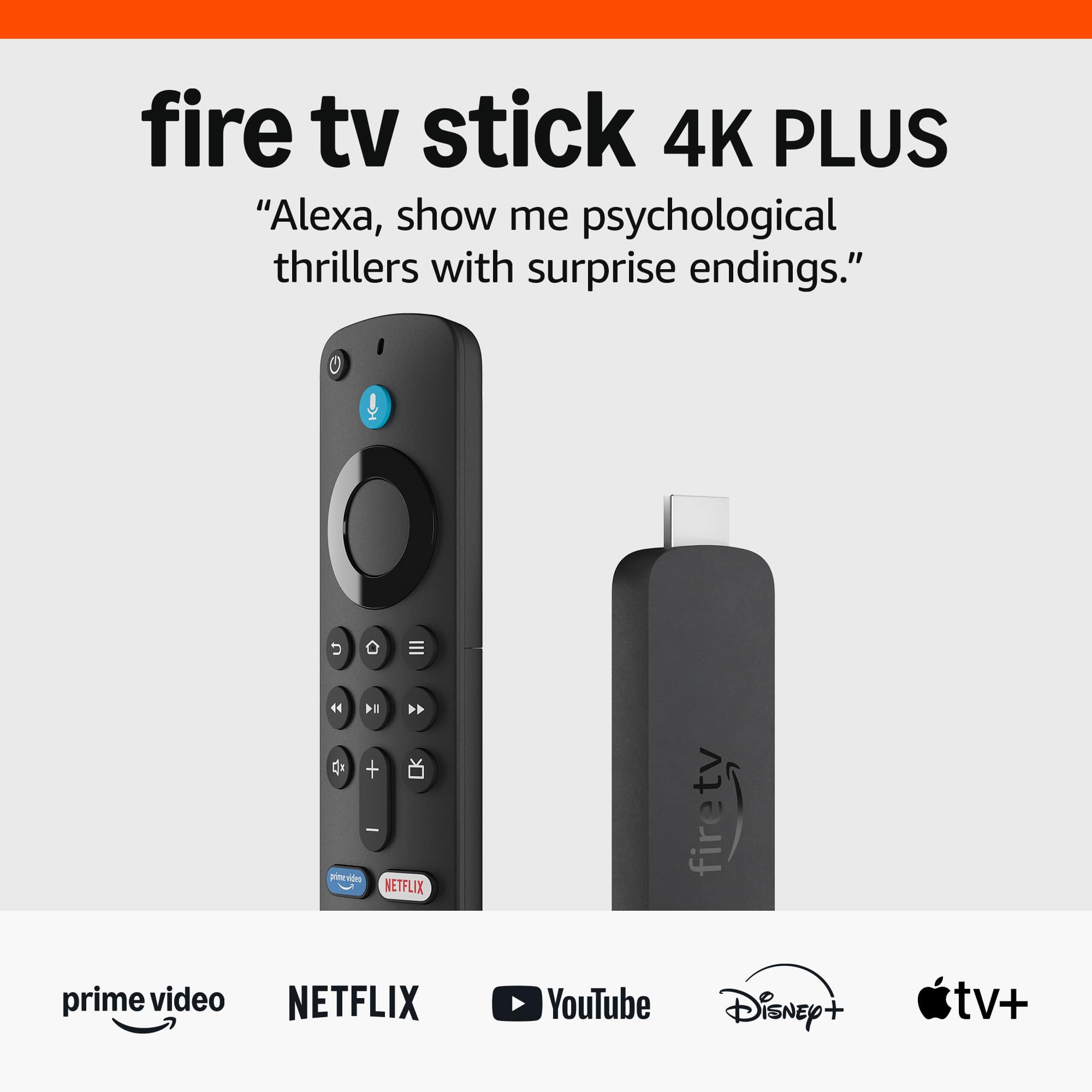
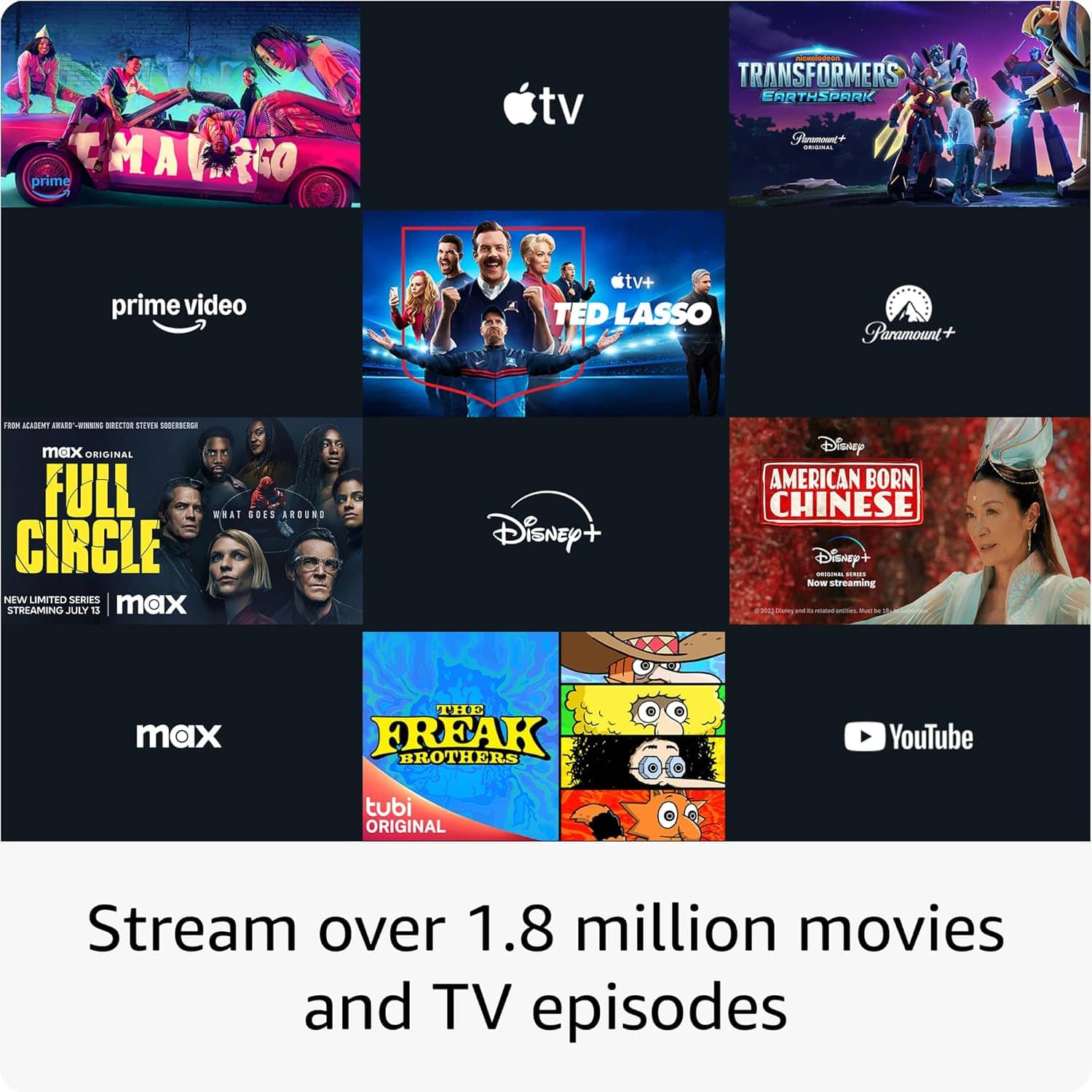
Thank you for your question. You can stream 500,000+ movies and TV episodes by downloading your favorite services. Tens of thousands of channels, Alexa skills, and apps - Including Netflix, YouTube, Prime Video, Disney+, Apple TV, and HBO Max. Subscription fees may apply depending on what you wish to stream. You can also watch your favorite live TV, news, and sports with subscriptions to SLING TV, YouTube TV, and others. Use the Guide button to see what's available and when. Hope this helps, have a nice day!
A:AnswerThere is no monthly fee unless you sign up for one of the apps that is a paid subscription. There are plenty of apps that are free and have great quality and content
A:AnswerHello dennys. Thank you for your question. It will really depends on the power supplied to the USB port from your TV. If it is not sufficient, the Fire TV Stick will give you a message to connect the supplied USB power adaptor. Have a great day!
A:AnswerHi there! If none of your streaming apps are working on the other two Fire TV Sticks, I would check that they are connected to the correct WiFi network (the same as the working one). Turn on the TVs and make sure they are set to the correct HDMI input, check with the manufacturers instructions if you're unsure how to do that. Next, check the network status on your Fire TV device: Go to Settings (gear icon).
Select Network.
Find your network name.
Press Play/Pause on your remote to see your network status and follow the recommended steps.
Tip: On compatible devices you can also select Run Speed Test or Advanced to see detailed information about your connection. To learn more, go to What is the Fire TV Network Status Tool?
If you still can't connect, or don't see your network name, scroll down to Wi-Fi. Then, turn Wi-Fi off and on.
Forget your Wi-Fi network and then try connecting again. Have your Wi-Fi password and network name ready. If you can't find your password, go to Locate Your Wi-Fi Password for more help. To forget your network:
Go to Settings on your Fire TV.
Select Network .
Find your network name.
Press the Menu button and then the Select button on your remote to forget the network.
Restart your modem and router. If possible, move your Fire TV device and router closer to each other. To restart your home network devices:
Unplug your modem and router and then wait 1 minute.
Plug in your modem first and wait for the lights to turn on and for it to connect to the internet (about 1 minute).
Plug in your router and wait for the lights to turn on and for it to connect to the internet (about 1 minute). If you are still having issues at this point, I would reach out to Amazon's customer service directly. I hope that helps, have a great rest of your day!