A:AnswerWireless WIFI but no battery , requires plug in. NO remote..
I don't recommend this product.
I've had four of them and the Canary company is shifty and changing their
offerings. Buyer beware!!
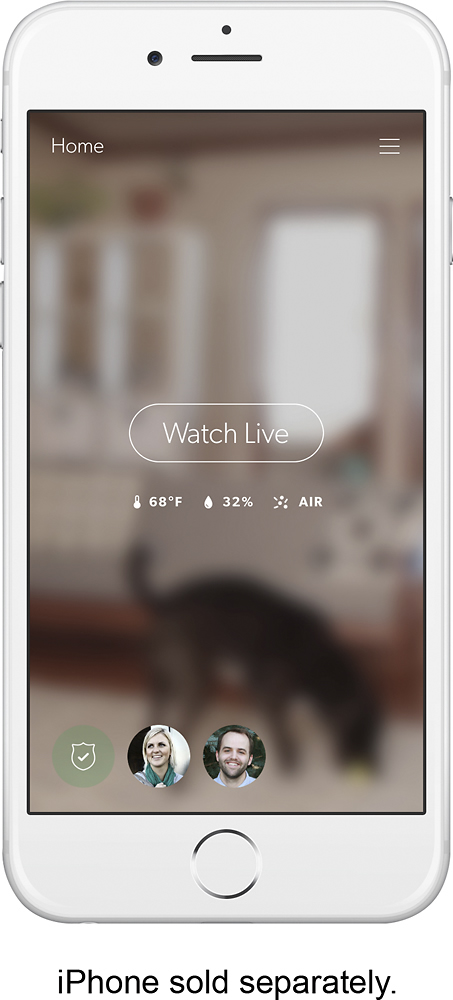
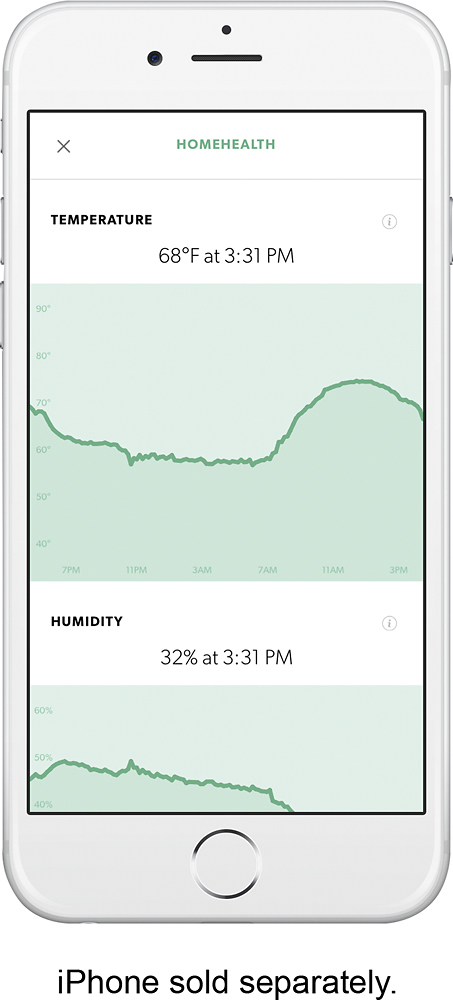
A:AnswerHi, I hope this helps. On mine, when your at the home page of the app. You can see the icons for, air, humidity, and temp. If you touch the icon for air quality, a graph should pop up, then at the top right corner there should be a system tool icon. Touch that and you can adjust your preferences or turn off air,temp,humidity, alerts from there.
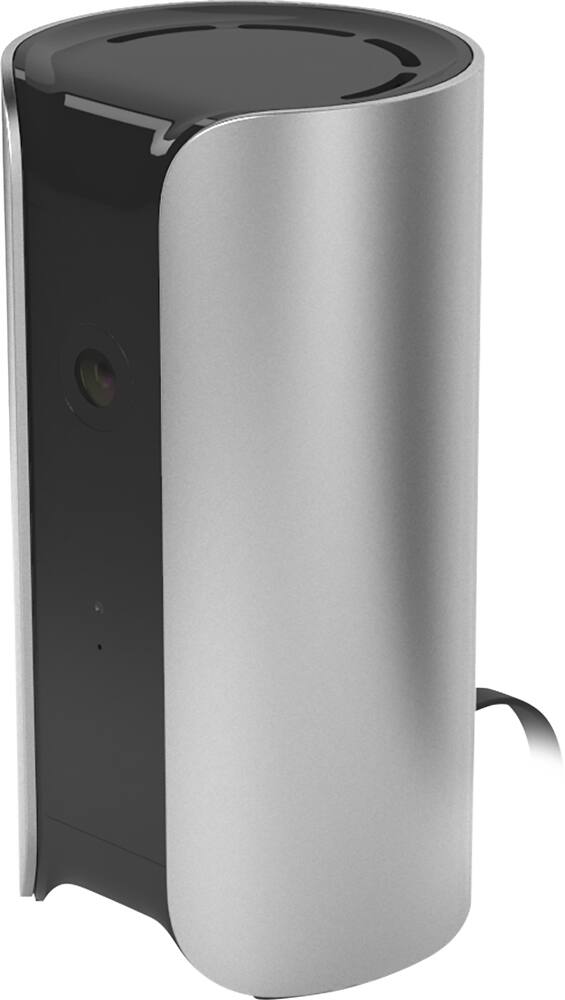
A:AnswerYes, you can set notifications to alert you based on: a) motion, b) temperature, c) air quality level, and d) humidity level. The app has sliders so you can set the sensitivity for motion, temperature or humidity range, and air quality level range to your preferences.
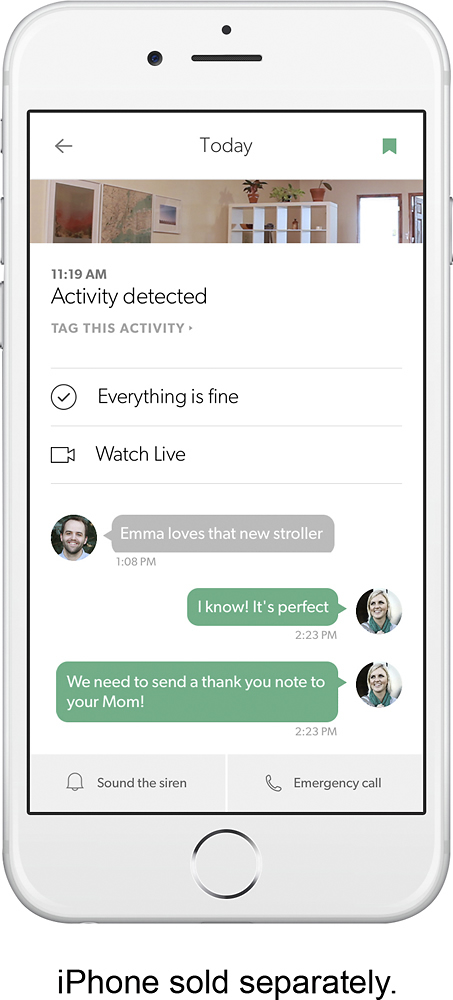
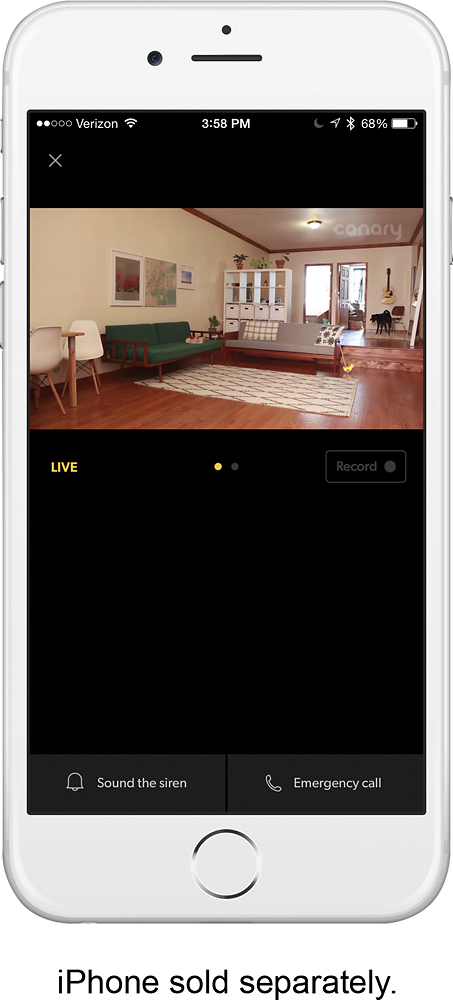
A:AnswerThe Canary siren has to be manually turned on by you or another registered user (household member) via your mobile device. The siren will never automatically go on. They changed the app a while back so that if you click the button to sound the siren, it asks you to verify that you want to turn on the siren, so it's very unlikely that the siren would go on accidentally (that is, unless you let your 3 year old play with your phone which may or may not have happened to me).
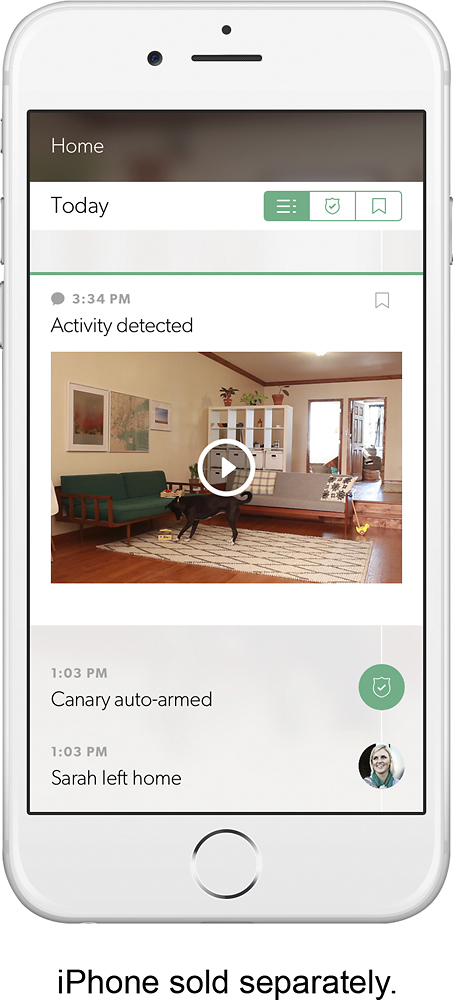
A:AnswerIf you only have 1 Canary, the motion detector will set off anywhere within its "field of view." It does not have zones. The field of view is fairly wide angle and any motion within that view will initiate a recording. Not sure how it works if you own multiple Canaries. My guess is that if any of them detect motion only the camera that detected the motion will record. I can't think of a situation where you would want your Canary not to detect motion when you're not home, however, you can manually set your Canary to privacy mode which effectively turns off all recording (whether motion is detected or not). You can also have it automatically go to privacy mode by default when you are home (when your phone is detected in the house). This makes sense for anyone that is worried about recording their day to day activities when home and in the field of view of the Canary.
A:AnswerIt's super quick and easy. The device comes with a cable that you use to hook up your smartphone directly to the Canary so that the setup info transfer between phone and Canary is secure. You download the app, and follow the onscreen instructions (e.g., set up an account with Canary, etc.). It took me less than 10 minutes.
A:AnswerYes. You can place this camera on a window ledge. Although I haven’t tried it I don’t see why it wouldn’t see out a window. It doesn’t have a focus so it should see right through the screen like an eye would
A:AnswerYes it does. It tracks the temperature the entire time the camera is turned on and connected. It will also allow you to set a special minimum and maximum temperature at which point it will alert you
A:AnswerIf you prefer to have your home monitored and be able to contact emergency assistance immediately there is an annual fee of $100.00. Personally, I don't see much point in having the Canary without the monitoring/notification capabilities.
A:AnswerYou can view live continuously via a phone app or a web browser. But you need to buy a subscription to view it via a web browser. It is designed more as a security system than a camera. If you just need a camera, you might try Amcrest.