A:AnswerIce,
Thank you for choosing a CLX SET!
You do not need to install anything from the discs, as the system comes already loaded and ready to run. Those discs came with some of the components, and we simply included them in the accessories pack.
Thank you again, and if you have any additional questions, please do not hesitate to contact our Friendly Customer Service Team at 855.490.2569!
A:AnswerIce,
Thank you for your question. There is no short answer, as the number of displays that will work with this system is vast.
If your current display will not currently connect, it is still possible that a simple adapter or change of cable may allow it to do so.
So that we may better address your issue, please contact our Friendly Customer Service Team, toll-free, at 855.490.2569.
Thank you again, and we look forward to helping you!
A:AnswerIce,
Thank you for choosing a CLX SET!
While we did not provide the monitor, we are happy to assist you in getting your computer up and started.
So we may help you, please contact our Friendly Customer Service Team at 855.490.2569.
Thank you, and we look forward to hearing from, and helping you!
A:AnswerIce, Thank you for your inquiry - we are happy to help! So that we may do so, please contact our Friendly Customer Service Team at 855.490.2569. Thank you!
A:AnswerI just used hdmi to hook up the monitor. I recommend getting a USB splitter. The USB ports are close together. It has a keyboard and mouse included.
A:AnswerIce,
Thank you for your inquiry - we are happy to help!
So that we may do so, please contact our Friendly Customer Service Team at 855.490.2569.
Thank you, and please rest assured, we will assist in remedying the issue!
A:AnswerIce,
Thank you for your question - we're happy to help!
If the information below does not resolve the issue, please contact our Friendly Customer Service Team at 855.490.2569, and they will assist in remedying it for you!
Thank you again!
1) Symptom: The system appears to get power, but there is no signal to the attached display.
Possible Cause: The display is connected to a video port that is not active.
Explanation: The system ships with two sets of video ports, one of which is active. One set is on the motherboard, while the other is on the video card itself. The ports on the motherboard are normally disabled prior to shipping, leaving those on the video card as the only active video ports.
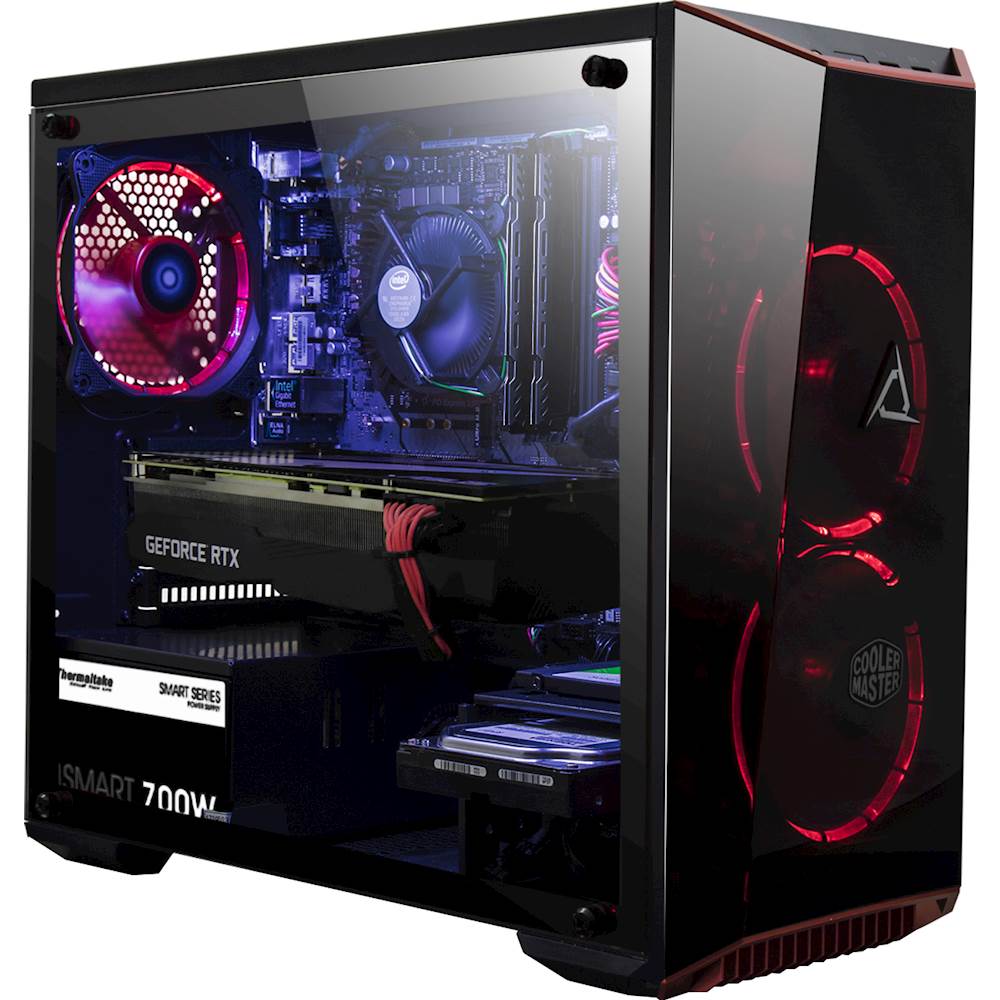
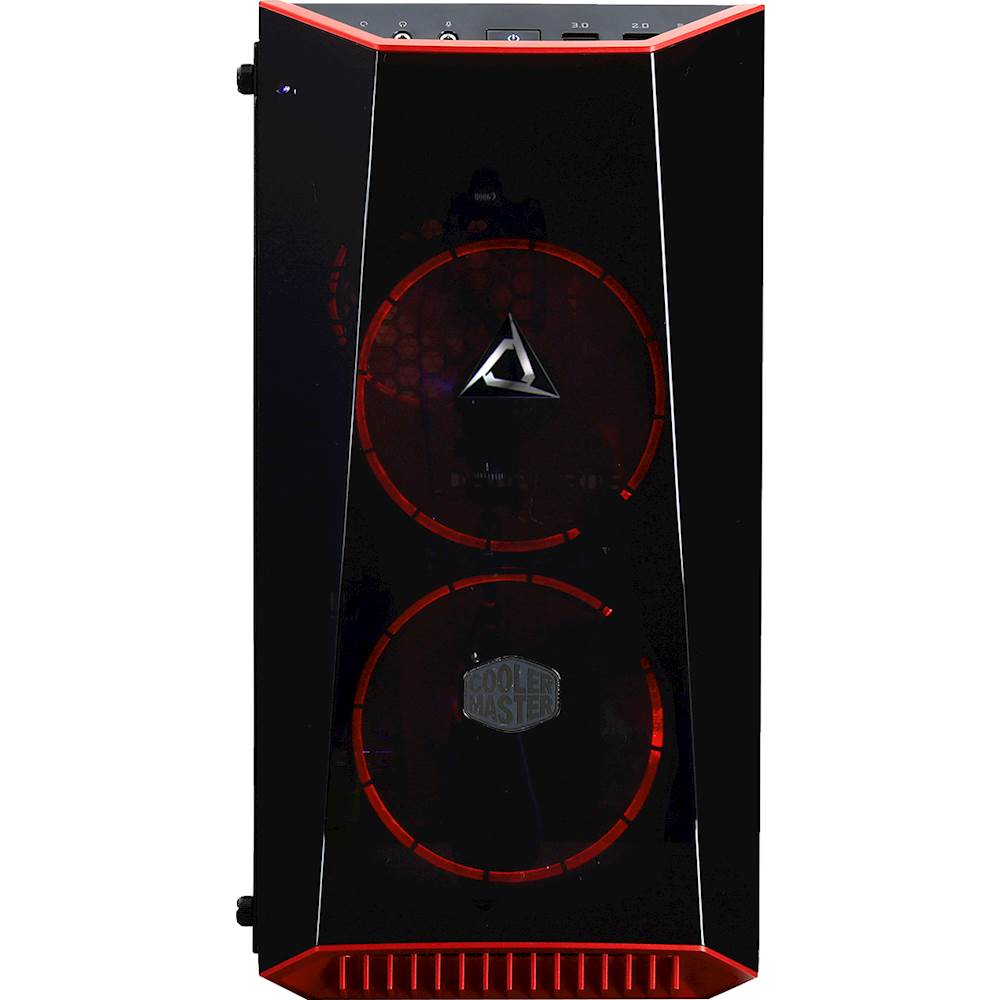
Resolution: Check that the display is connected to one of the ports on the video card, instead of the motherboard. The motherboard video ports will be near the top of the system, among the various USB, audio, network and other ports. The ports on the video card will be more towards the middle of the system, in a horizontal row. Once connected to one of these ports, a video signal should be delivered to the display.
2) Symptom: The system appears to be getting power, but there is no signal to the attached display even though it is attached to an active video port.
Possible Cause: The display is not auto-sensing the signal from the computer.
Explanation: Many displays have the ability to show signals from a variety of sources. While most displays will automatically detect the signal source, some do not.
Resolution: With the system powered on and display connected, manually select the signal source on the display, based on the video port type used to connect the display to the computer. Often, the button to do this will be marked, "Input", "Source" and/or have an image of a box with an arrow pointing into it. Once the correct source is selected and set, a video signal should be delivered to the display.