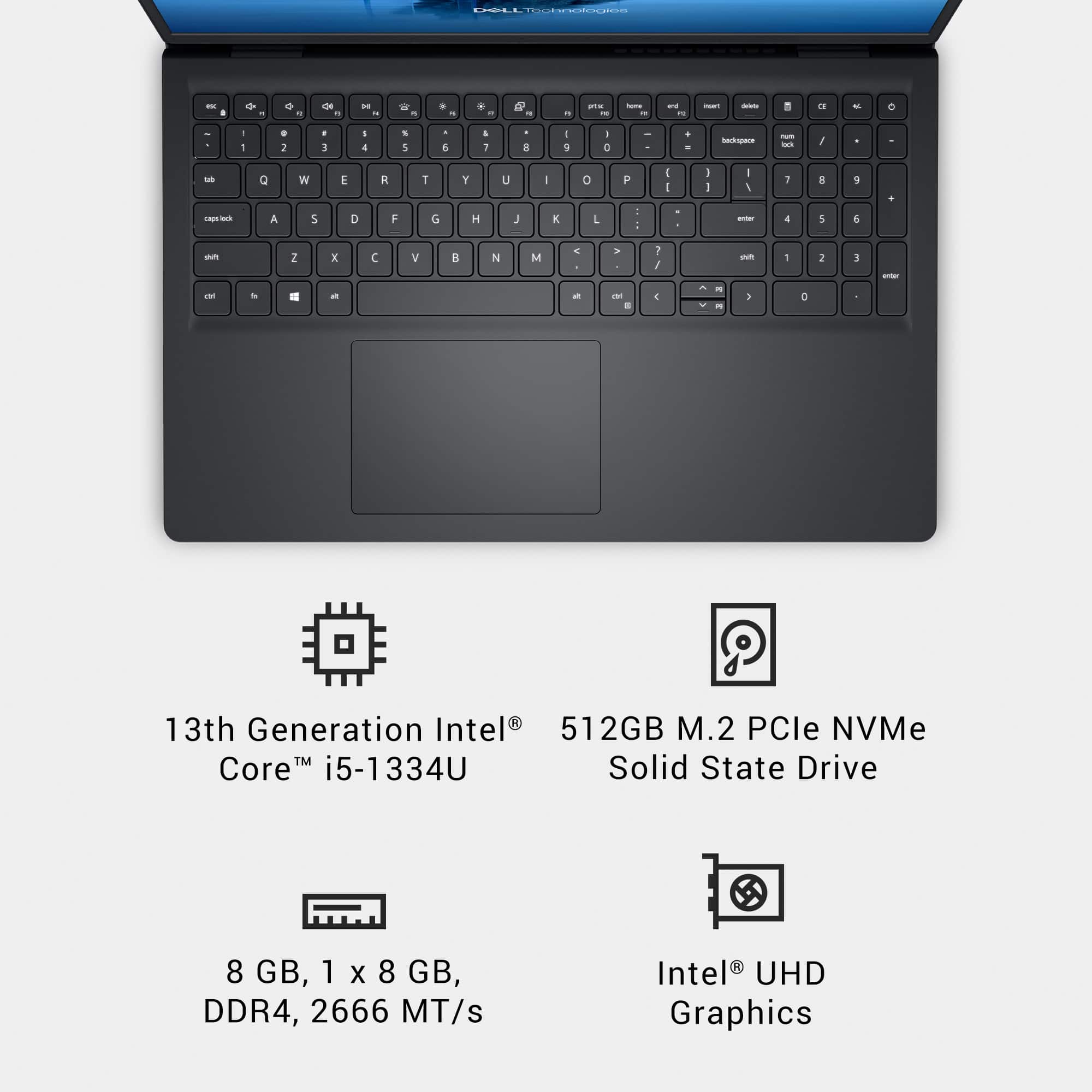
A:AnswerYes, RAM can be upgraded. Add another 8 GB DDR4 2666 MHz SO-DIMM module in the second slot to reach the maximum 16 GB.
Or replace the existing 8 GB module with a 16 GB one, though the system only supports up to 16 GB
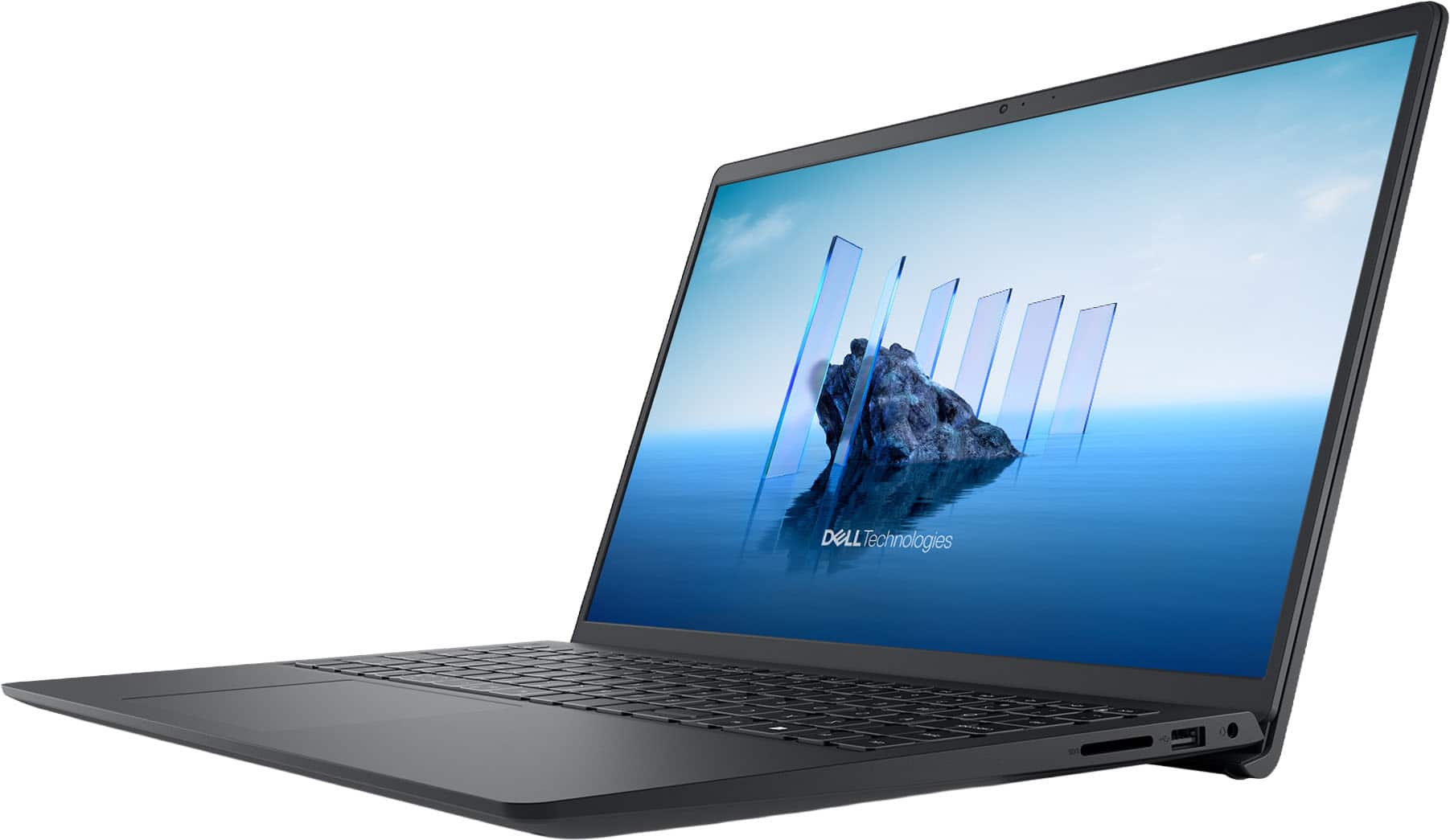
A:AnswerHere are the steps to disable the touchscreen using Device Manager:
Open Device Manager:
Press Windows + X and select Device Manager from the menu.
Locate the Touchscreen Device.
Expand Human Interface Devices.
Look for HID-compliant touch screen in the list.
Disable the Device:
Right-click on HID-compliant touch screen.
Select Disable device.
Confirm the action when prompted.
Restart (Optional):
Some systems may require a restart for the change to take effect.
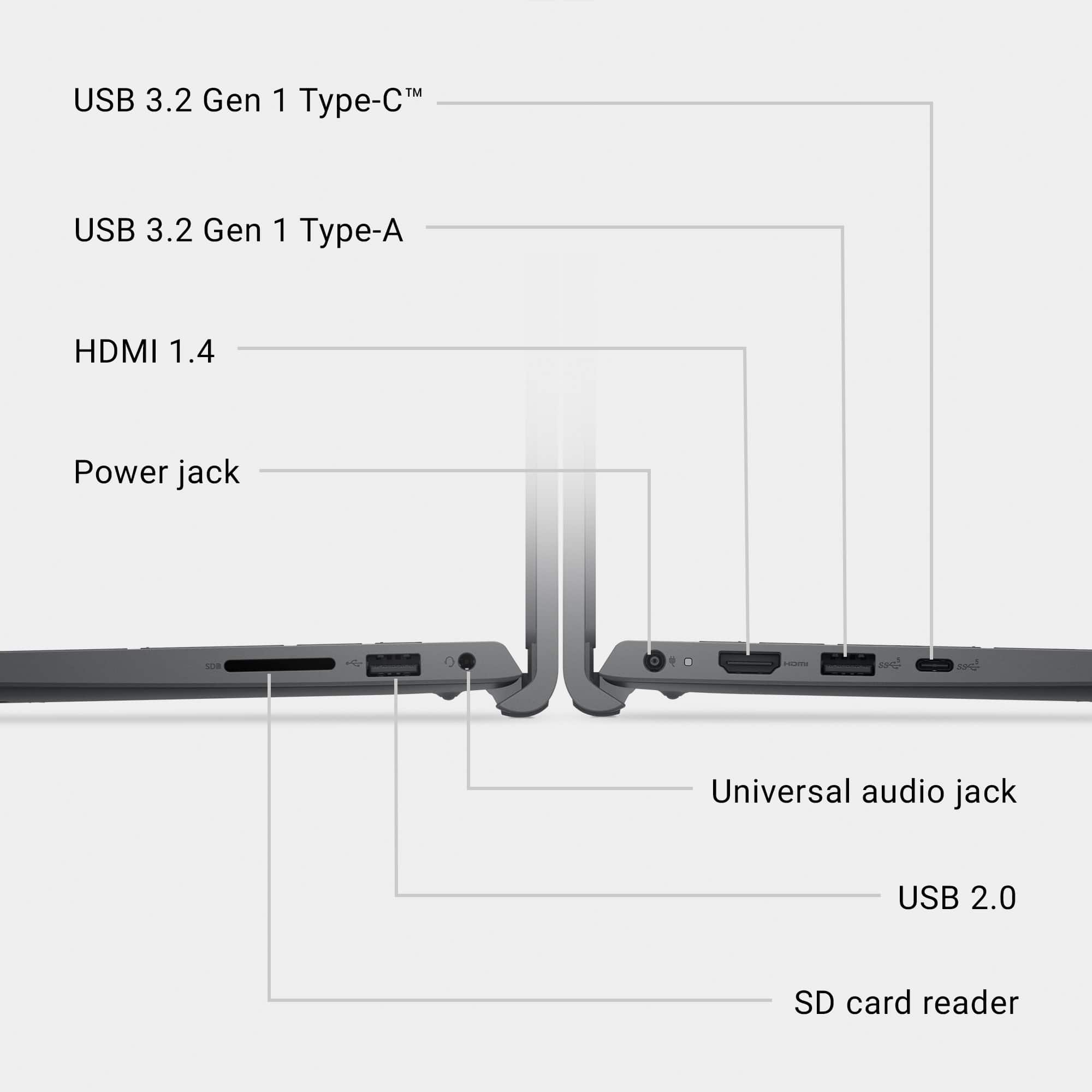
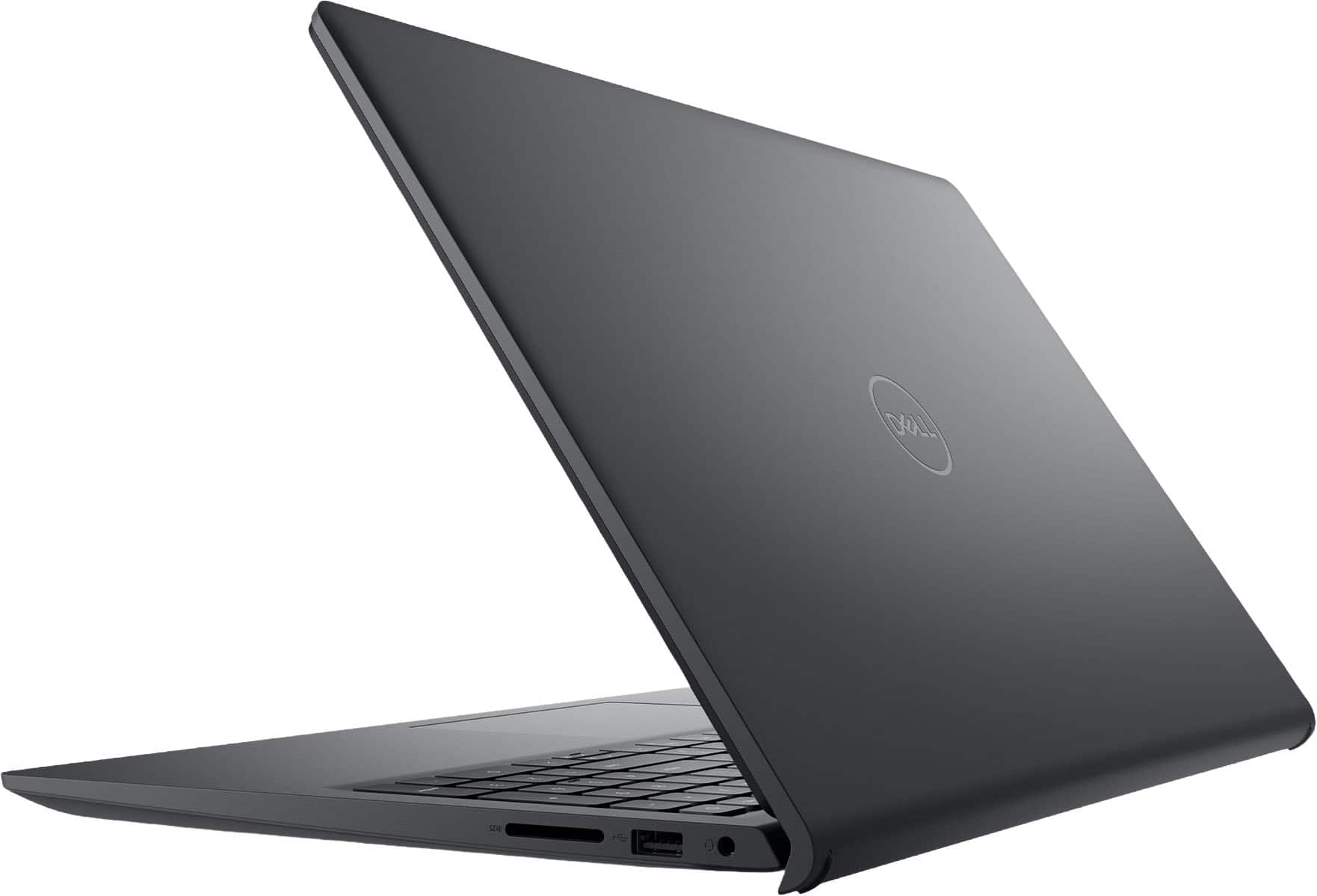
A:AnswerWe apologize for any confusion with the specification and the inconvenience caused. The laptop does have a USB-C 3.2 Gen 1 port, but it is data-only. Meaning it does not support DisplayPort Alt Mode for video output and does not support Power Delivery (PD) for charging.
A:AnswerThe following Dell Docking stations are compatible. Dell Pro Dock WD25 (USB‑C, supports multiple displays, up to 100W PD),
Dell WD19S / WD19 (USB‑C) — compatible with most Dell USB‑C laptops,
Dell UD22 Universal Dock (USB‑C Multi‑Monitor).
A:AnswerThe following Dell Docking stations are compatible. Dell Pro Dock WD25 (USB‑C, supports multiple displays, up to 100W PD), Dell WD19S / WD19 (USB‑C) — compatible with most Dell USB‑C laptops, Dell UD22 Universal Dock (USB‑C Multi‑Monitor).
A:AnswerMS's response to Chrome OS, limiting software you can use to that which is available in the MS Store (and sometimes not even that). Besides providing this enhanced security (apps are prescreened) It also tends to extend battery life and speed up your computer response time a bit.