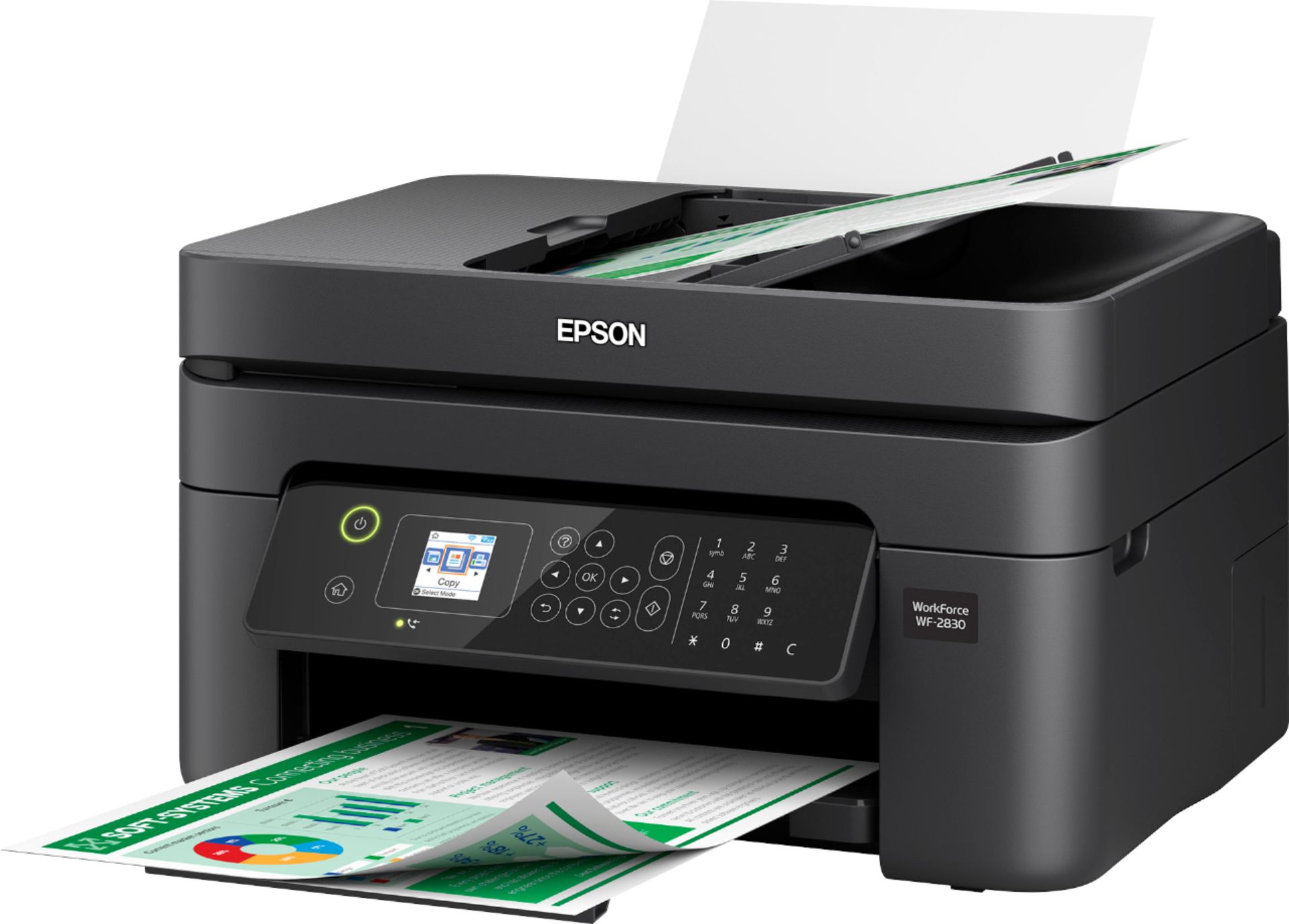
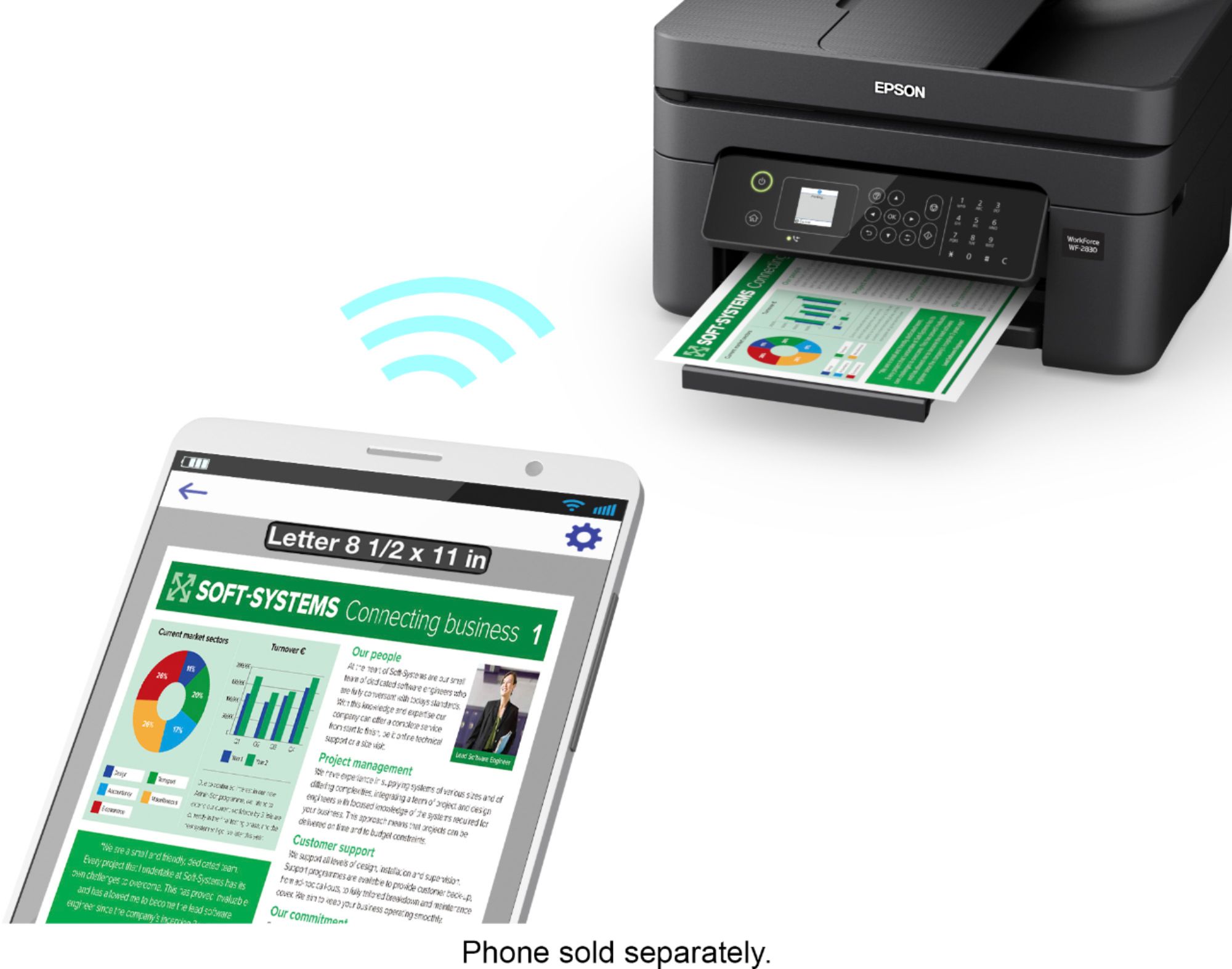
A:AnswerHello dan. When the WF-2830 alerts you to replace an expended ink cartridge, go into the maintenance menu and select "ink cartridge replacement." Once you have chosen the option, follow the on-screen instructions for replacing the cartridge. Also, inspect the open areas to ensure no obstructions are visible in the printer. If you are still encountering issues, please get in touch with our Technical Support team for assistance. Regards, Kevin - The Epson Team.
A:AnswerHello Fran. Please contact our Support team for additional assistance. You can reach our team either by email or phone on our official Epson Support page. Regards, Kevin - The Epson Team.
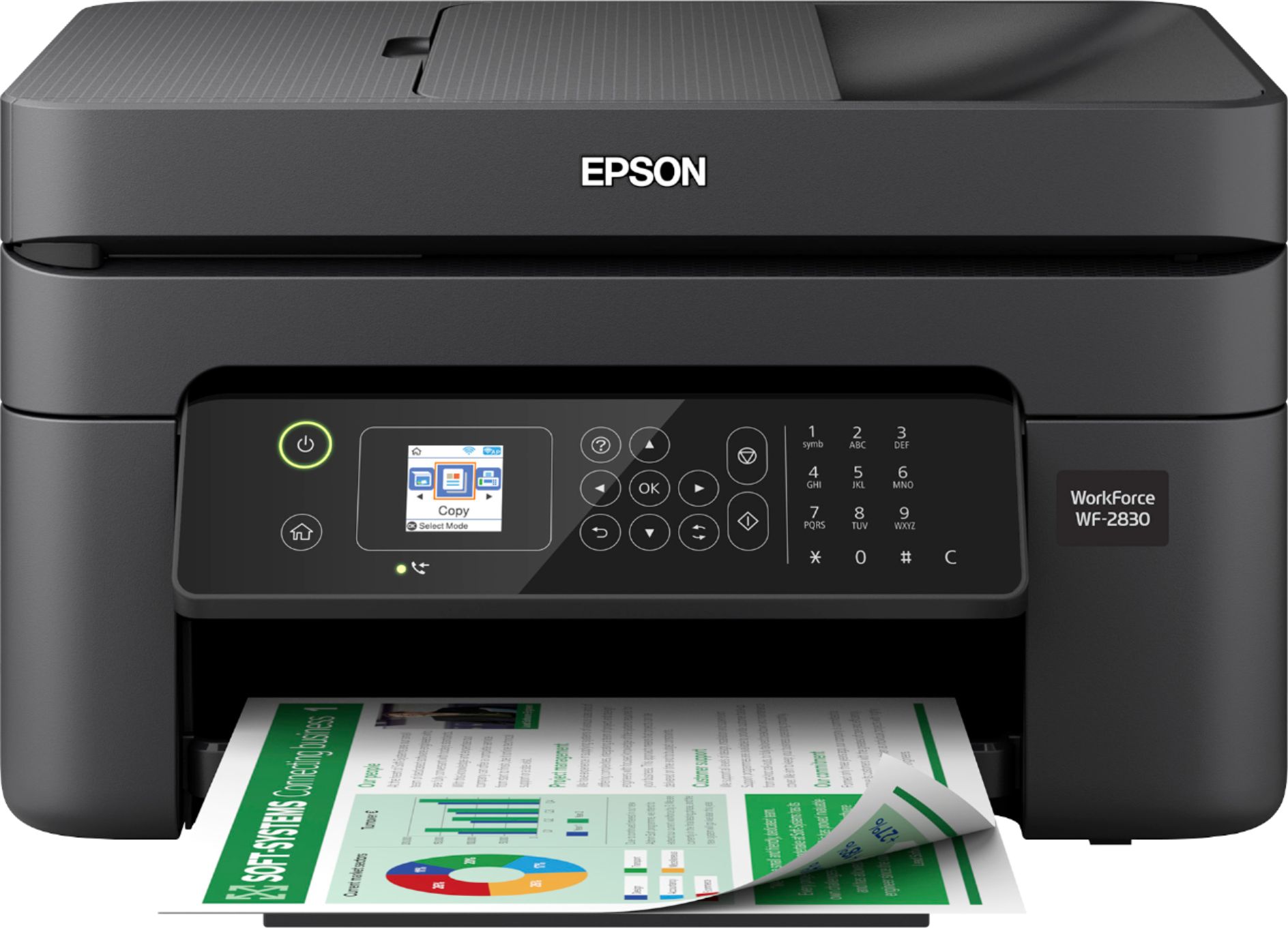
A:AnswerHello 6480A. Yes, the WF-2830 will allow you to temporarily print in black ink only mode when the color cartridges are expended. For more information, please review the documentation on the official Epson Support page. Regards, Kevin - The Epson Team.
A:AnswerHi LGraham. You can find more information on installing the ink cartridges on the official Epson Support website for the WorkForce WF-2830. Please refer to Step 3 of the "Start Here - Installation Guide" PDF document. Regards, Bobby - The Epson Team.

A:AnswerHi Roxanne, Epson provides useful information on the official Epson Support website for the WorkForce WF-2830 to help address issues with the WSD scanning. Regards, Bobby - The Epson Team.
A:AnswerHi Madu, When a color ink cartridge in the WF-2830 is expended, you can temporarily continue printing using black ink. Replace the expended color cartridge as soon as possible for future printing. Regards, Mark - The Epson Team.