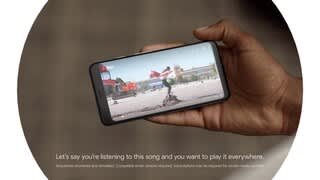
A:AnswerThere should not be any problem casting from a smartphone or Chromebook. Just follow the setup instructions carefully. Don't assume you know how it works. I recently set up HBO Max on an iPhone to cast to an older Samsung TV. It worked without any problem.
A:AnswerPeacock is not currently supported on Chromecast. Take a look at the following link to see different Chromecast enabled apps: https://store.google.com/product/chromecast_2015_apps
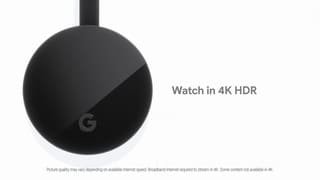
Keep in mind, you need to get a 4K compatible HDTV to watch movies and TV shows in Ultra High-Definition (HD) and High Dynamic Range (HDR) content using Chromecast Ultra. You can find out the complete list of requirements here: https://support.google.com/chromecast/answer/7151529
A:AnswerGoogle Home to control basic features like Volume, individual app to control content. For example if you want to change the show you are watching on Netflix, open the Netflix app, and change the show. If using Youtube, open Youtube. Basically your entire phone becomes the remote for Chromecast.
A:AnswerWe're happy to help! Chromecast is designed to work optimally with a TV with HDMI input. It may work with your projector however, there may be some connectivity and quality issues such as low audio quality.
A:AnswerYes! You can set up Chromecast with your iPhone and use the Chromecast-enabled apps to cast content from your phone to to your TV. Just make sure that your iPhone is running on iOS 12.0 or later. You can check out the following support link for setup details: https://support.google.com/chromecast/answer/2998456
A:AnswerYes, you can connect Chromecast to your secured network using the wireless network password. When setting up Chromecast, make sure your phone/tablet is connected to the Wi-Fi network you're connecting Chromecast to. Keep in mind Chromecast 1st Gen can only connect to 2.4 GHz. Make sure to utilize this bandwidth during the setup.
You can check the following support link to see the complete setup requirements and setup process: https://support.google.com/chromecast/answer/2998456
A:AnswerAbsolutely, Chromecast is available on all platforms, including Chrome OS, Windows, Mac OS X, and Linux. Yes, you'll need to install Google Chrome (version 72 or higher).
A:AnswerChromecast should work with any TV that has an HDMI port. It will allow you to cast content from a Chrome browser tab on your computer to the TV with Chromecast. However, your computer must be connected to the same Wi-Fi network as Chromecast to work and you need to have the latest version of Chrome browser. Keep in mind that you still need a phone/tablet to set up Chromecast.
A:AnswerUnfortunately, no. If you want to play on your TV, Google Stadia works with the Chromecast Ultra model. You can check the requirements here: https://support.google.com/stadia/answer/9338852?hl=en
A:AnswerAs long as you have an HDMI port in the back of the TV, it should be fine. Make sure you make note of what HDMI port you use since you will need to set the input source to that port when you use Roku.