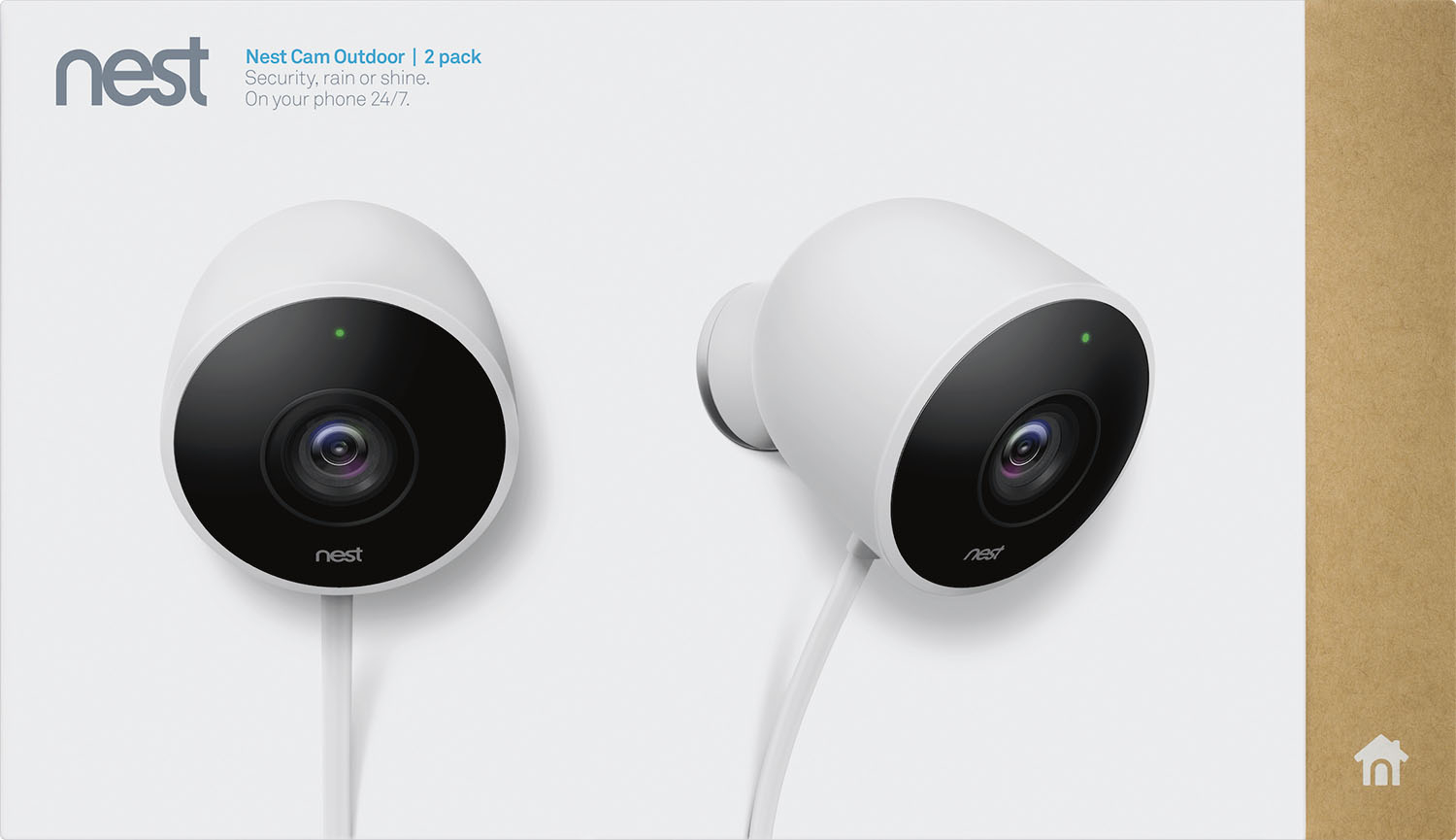
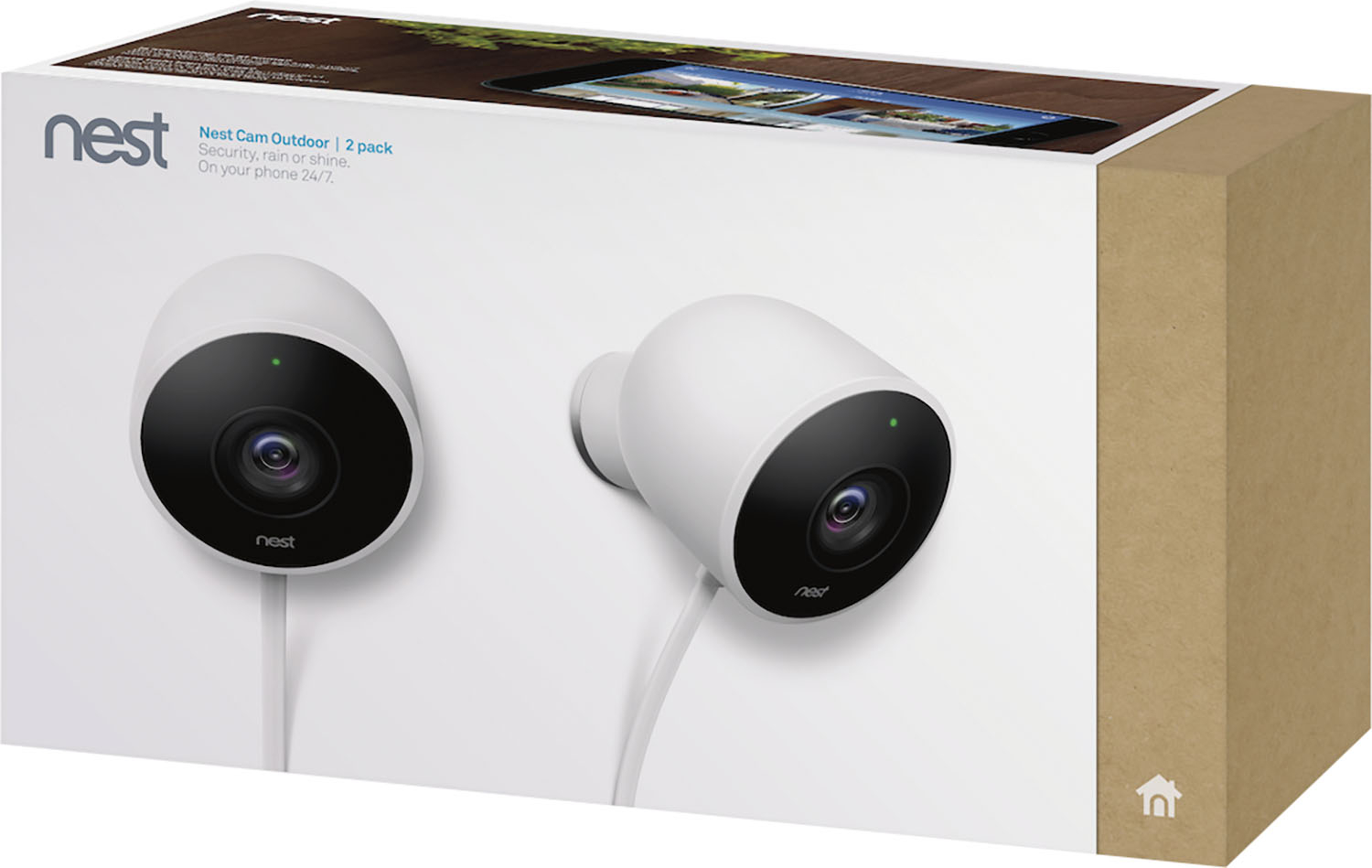
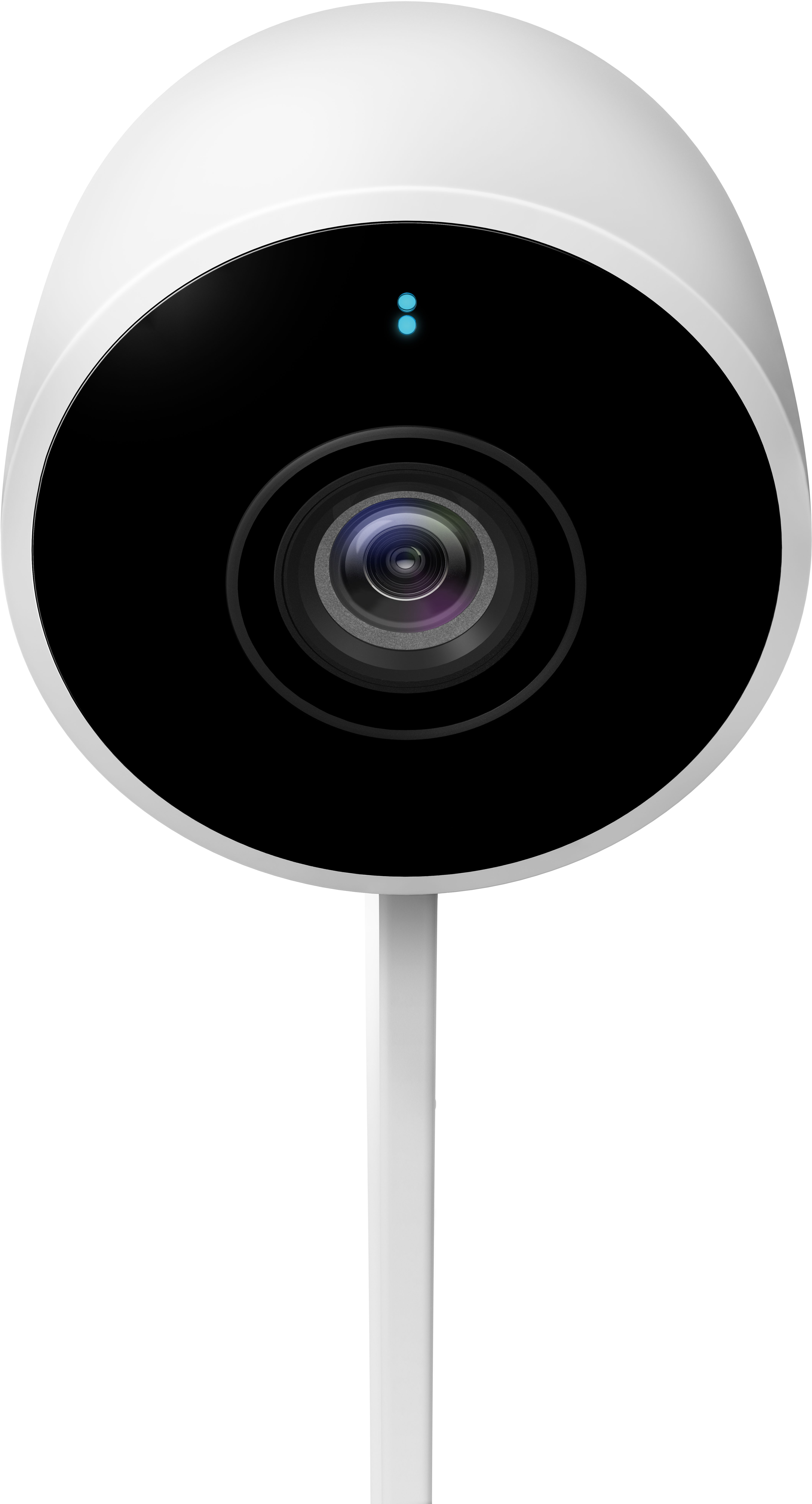
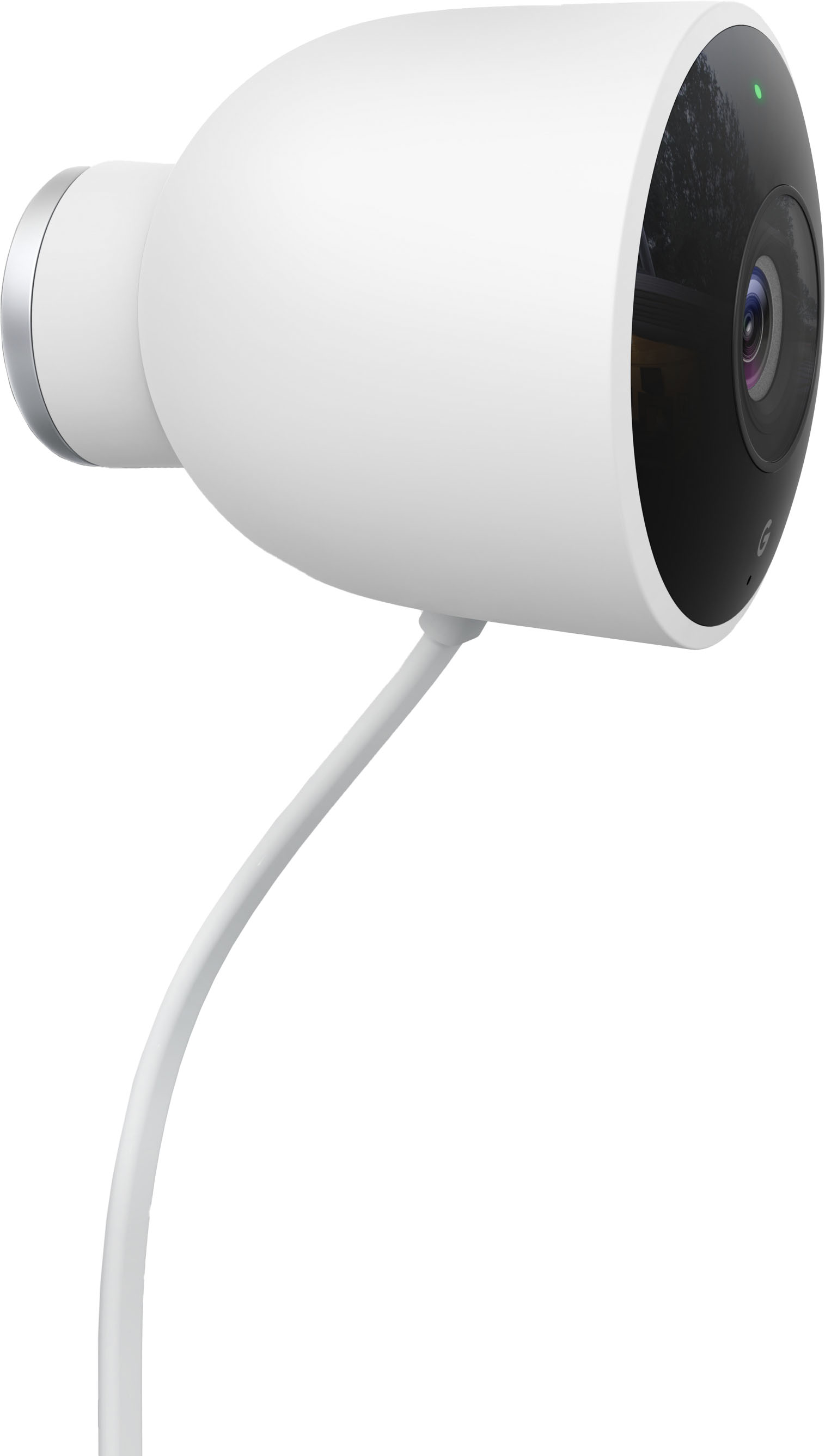
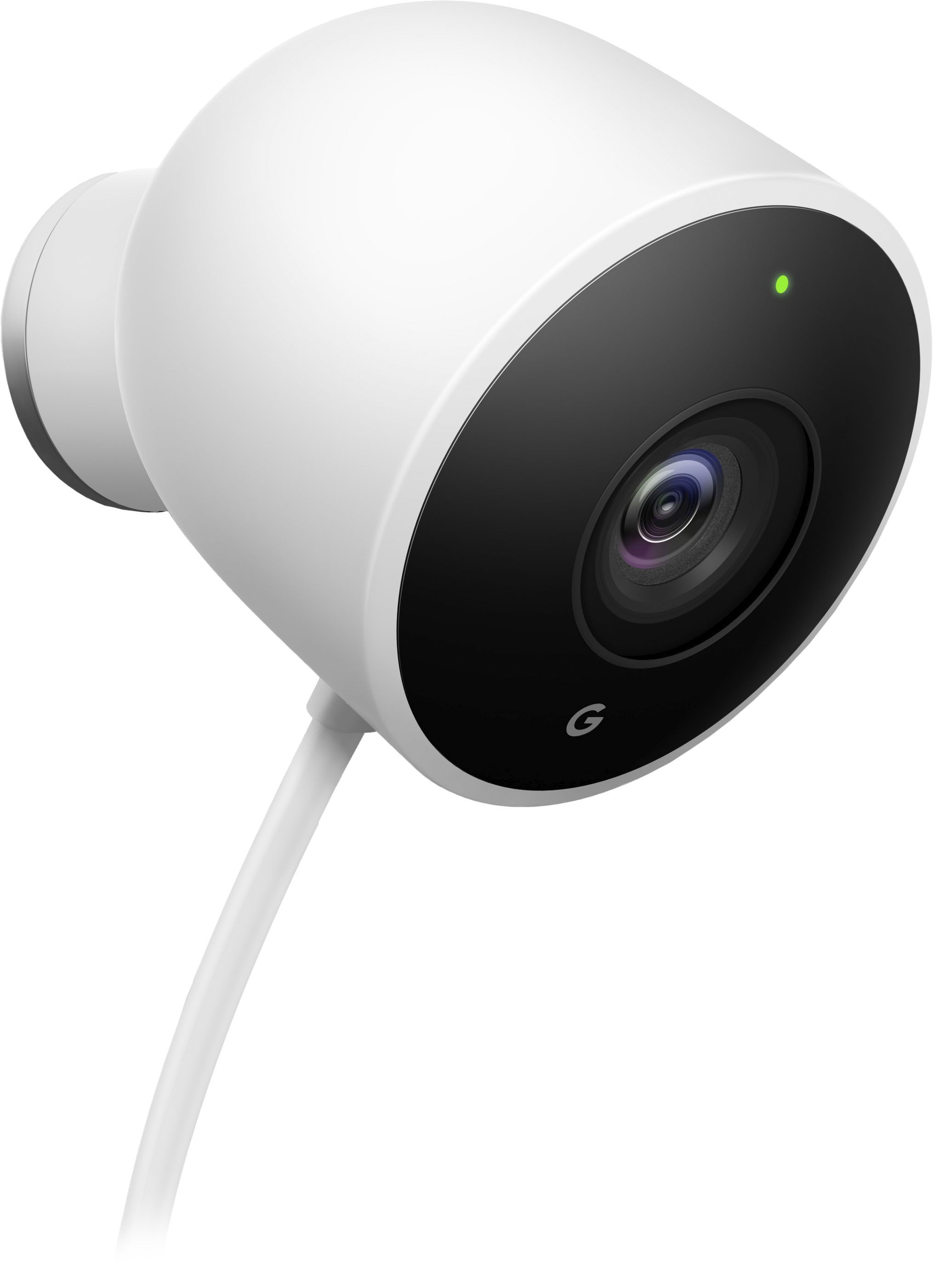
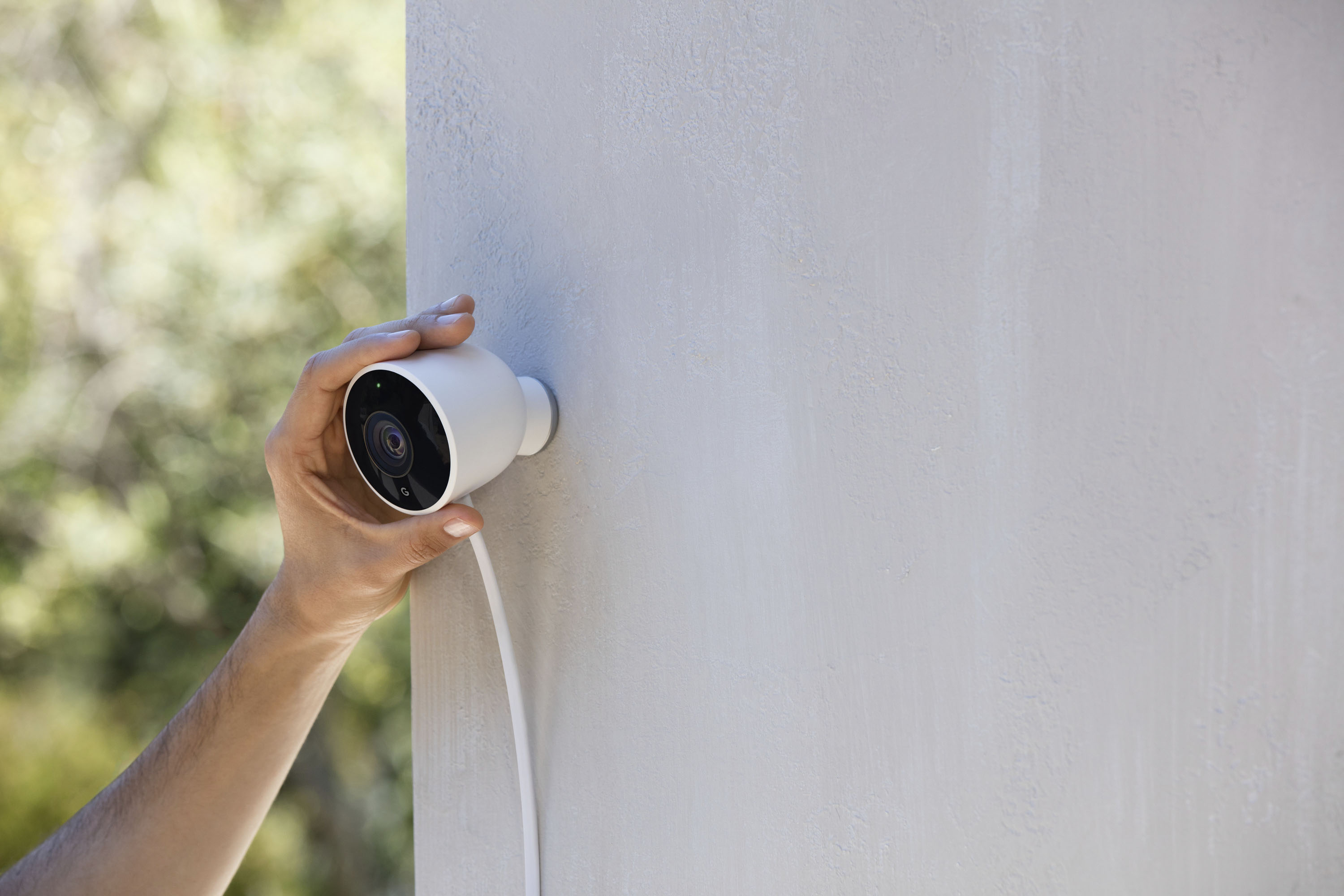
A:AnswerThe -4 degree rating for the Nest Cam Outdoor is for the operating temperature of the Nest Cam and not the ambient temperature outside. Since the Nest Cam Outdoor is designed to be on and streaming 24/7 and has a built in heat sync. The operating temperature is expected to remain above the outdoor temperature in the winter.
A:AnswerThe outdoor one is a lot larger mount wise. If you know that they will mount outside then go for it. If it will be inside, then use the regular one as it's mount can be much better used to place the camera on things. There also may be a problem with blinding the camera out as the outdoor one seems to have more ir lights at night. I use 4 inside ones on top of the outdoor one and they have worked very well.
A:AnswerNest Cam Outdoor comes with a 10 ft (3 m) captive cable that plugs into an outdoor power adapter with a 15 ft (4.5 m) power cord with a total cable length of 25 ft (7.5 m).
For the internet connection, Nest cameras can only be connected wirelessly. You can check this link for the technical specs: https://support.google.com/googlenest/answer/9259110
A:AnswerNo. Nest cameras requires to be connected to a Wi-Fi network to work and access all features. Take a look at this link for the setup requirements, installation guide on how to setup Nest Cam Outdoor: https://support.google.com/googlenest/answer/9228553
A:AnswerNest cameras can pick up audio from all directions — even sounds happening off-camera. We recommend checking this link for more information on how to change your Nest camera’s microphone, speaker, and audio settings: https://support.google.com/googlenest/answer/9218407
A:AnswerThe video quality and bandwidth setting lets you choose how much of your internet connection gets used by your camera to stream video. Higher quality settings use more bandwidth. No matter which option you pick, both your camera and the Nest app will automatically adjust their resolution to work with available bandwidth. That’s because the Nest app automatically detects the speed of your connection and adapts accordingly. You may check this link to learn more: https://support.google.com/googlenest/answer/9218596
The Nest app has a digital zoom-and-pan feature, which lets you crop out what you don’t want to see, and focus on what’s important. You can use the Nest app to digitally zoom up to 8 times. You can also tell your camera to stay zoomed-in on a particular spot all the time. With Enhance, you can change the scene that your camera’s looking at. Enhance keeps your camera zoomed in all the time, even when you’re not watching video. Because your camera focuses its entire sensor on the area you’ve zoomed in on, Enhance can show more detail. This might help: https://support.google.com/googlenest/answer/9251364