A:AnswerHi, Stephan!
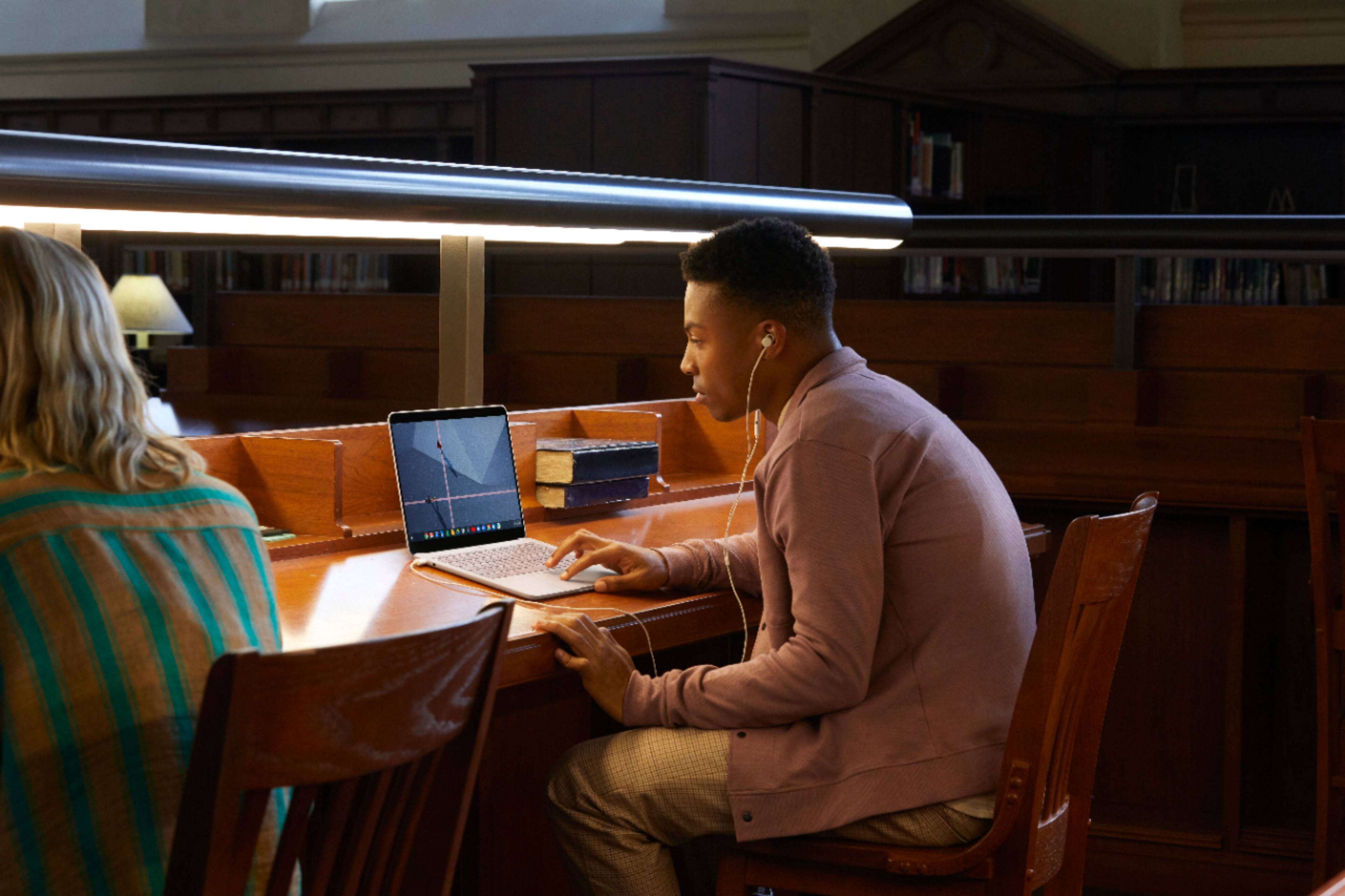
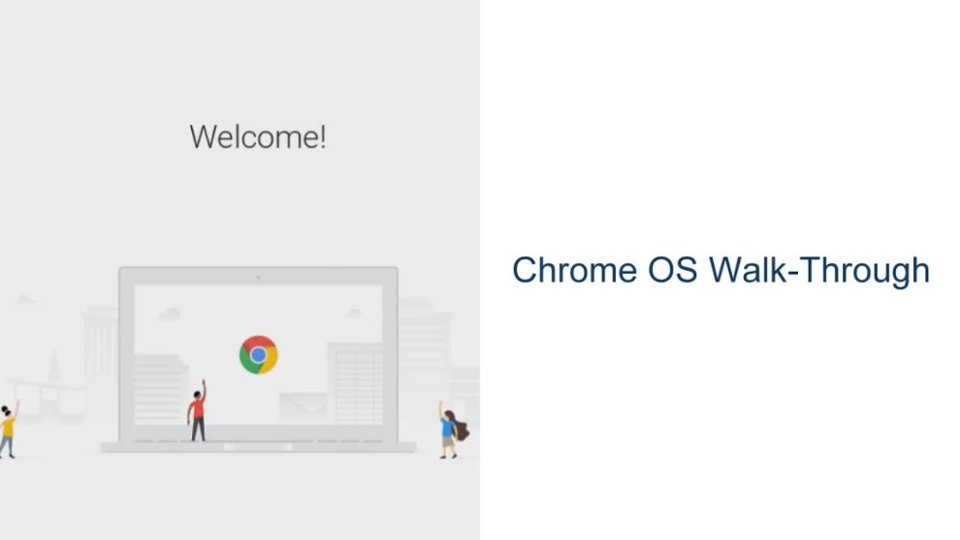
No, this is a Chromebook. You can't install programs on it, and its operating system is Chrome OS. Basically a web brower, however these days Chromebooks can run Linux and Android apps, so they are a lot more useful than they use to be. I prefer a Chromebook to a Windows computer, but I understand the hesitation. I still use a Windows computer at work and it is nice to load programs, but I've found that for about 95 percent of what I do, I can use a Chromebook.
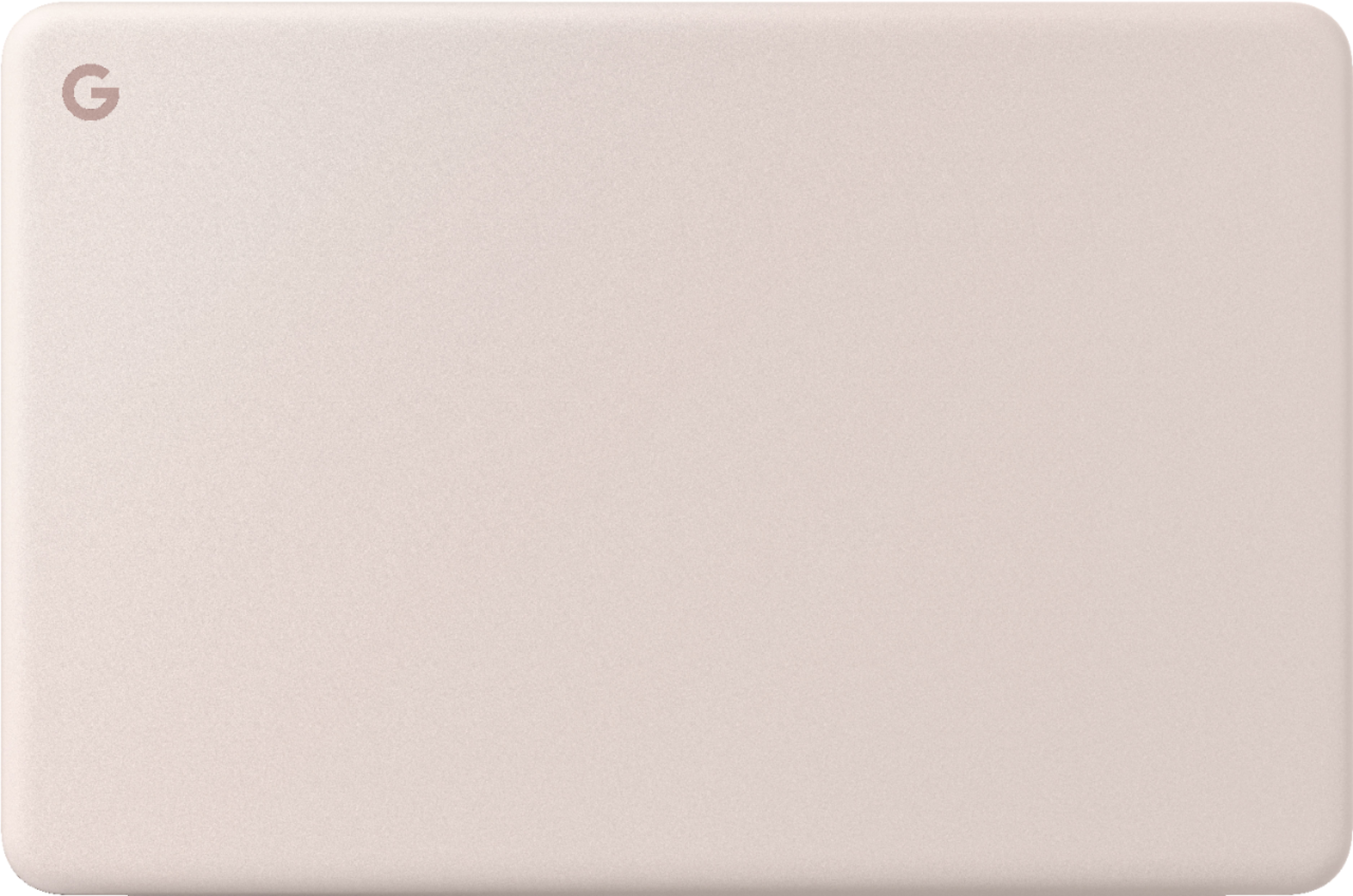
A:AnswerNo. The Pixelbook Go's cover or screen needs to be open to be able to access it. The screen automatically locks or goes to sleep mode when you close the cover.
A:AnswerYes, Pixelbook Go can be used for school. She can install different apps on Pixelbook Go from the Google Play Store including Google Classroom. However, if she signs in to a school account, she might need to ask her organization’s admin to turn on several settings for her group in the Admin console to download Android apps. Take a look at the following link to learn more about it: https://support.google.com/pixelbook/answer/7568104
The best Pixelbook Go to get would depend on the user's needs. You need to consider the internal storage capacity, device's memory (RAM) and processor. We recommend checking the complete technical specifications of Pixelbook Go here: https://support.google.com/pixelbook/answer/9481398
A:AnswerThere are a lot of benefits in using Pixelbook Go. To name a few, it's powered by Chrome OS, so it'll automatically update itself and you'll always have the latest virus protection built-in. It's browser-based simplicity, optimized for Google apps. In addition to web apps like Facebook, Instagram, and HBO, you can also download and install Android apps from the Google Play Store.
A:AnswerYes, you can connect a second monitor. You may connect your Pixelbook Go to a monitor or TV with an HDMI, DisplayPort, DVI, or VGA port using an appropriate USB-C cable converter. Here's a help article on our support page for you: https://support.google.com/pixelbook/answer/9134069
A:AnswerPixelbook Go is a dedicated laptop and does not convert into a tablet like an iPad. External devices like CD/DVD players may or may not work with it; we recommend reaching out to the manufacturer of the external device to check its compatibility with Chrome OS.
A:AnswerAbsolutely. Pixelbook Go is powered by Chrome OS, so it'll automatically update itself and you'll always have the latest virus protection built-in. To learn more about Pixelbook Go, check out this link: https://support.google.com/pixelbook/answer/9481824
A:AnswerYes, you can connect your Pixelbook Go to an external monitor or TV with an HDMI, DisplayPort, DVI, or VGA port using an appropriate USB-C cable converter. Find out more details here: https://support.google.com/pixelbook/answer/9134069
A:AnswerYes, setting up Pixelbook Go is easy. You can check this support article to guide you through the setup process: https://support.google.com/pixelbook/answer/9501142
A:AnswerUnfortunately, we won’t be able to help provide you with a way to bypass the password for your Chromebook if you’ve forgotten it. You may need to perform a factory data reset on your Chromebook to be able to access it. If your Chromebook is manufactured by another brand, you may need to check their support on how to reset your device. However, if you’re Chromebook is a Pixebook device, you may follow the step by step guide on how to reset it here: https://support.google.com/pixelbook/answer/9134769