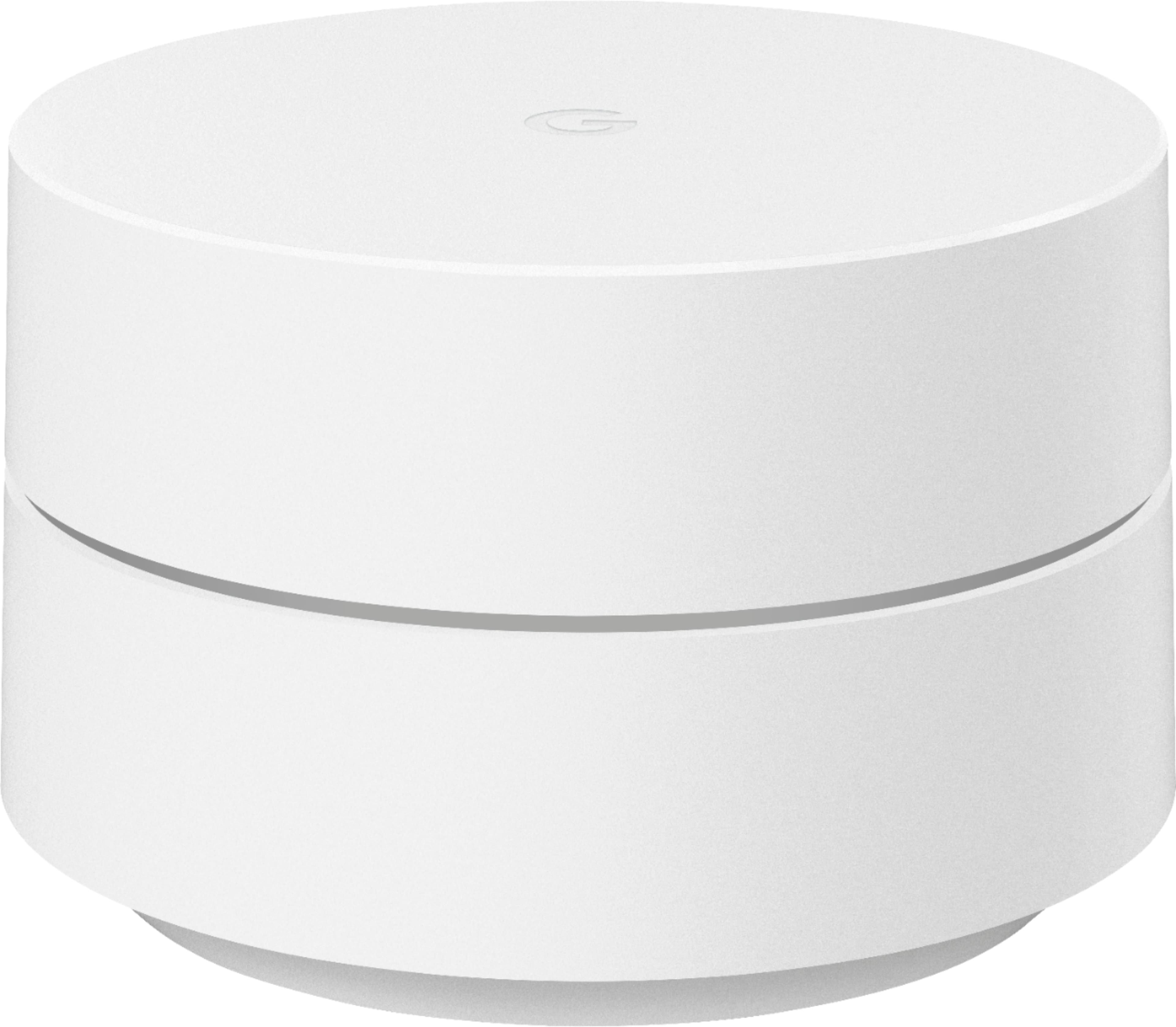
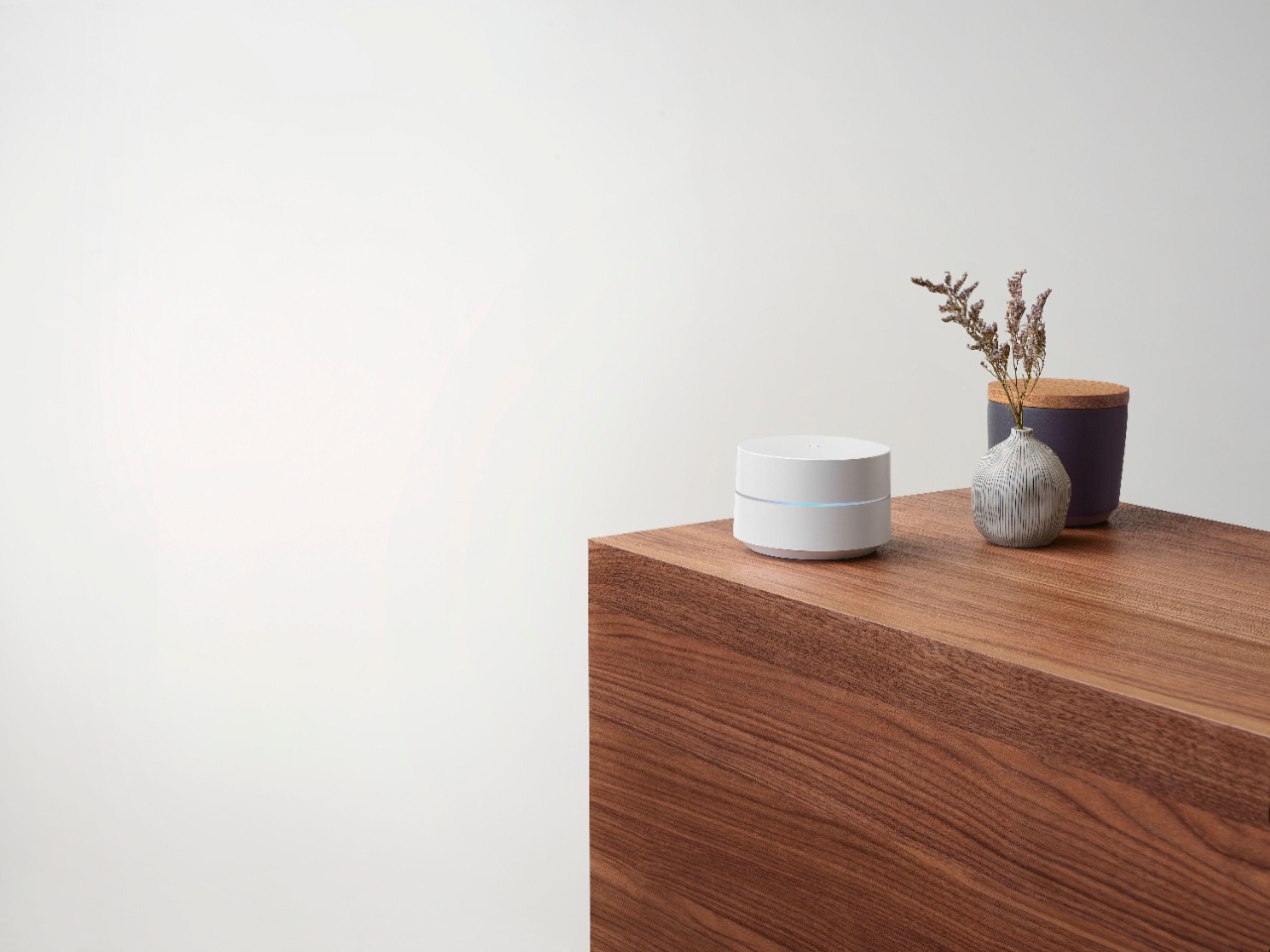
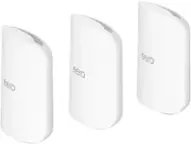
A:AnswerYes. Google Wifi replaces your traditional router to provide seamless, reliable Wi-Fi coverage throughout your home. Internet speed and reception depend on the modem and internet service provided by ISP. Google Wifi can help distribute the full speed it receives from your modem. Learn more about Google Wifi here: https://support.google.com/wifi/answer/7168315
A:AnswerI use this with a my whole house and it works. Get the 3 pack and it will cover the equivalent of 4500 square feet. With this setup I get signal out of my driveway and about 50 feet down the road. I even get good signal in my backyard to run Sirius XM from my phone.
A:AnswerI can’t speak specifically about Verizon router. I have used this system in 2 different houses with 2 different routers (MediaCom and Spectrum). If the Verizon router is land based, there should be no issue. It’s an easy set up and gives terrific coverage throughout the house.
A:AnswerNo. Google Wifi isn't compatible with 3rd party routers like your Comporium WiFi router to form a Wi-Fi mesh network. You can only combine Google Wifi and Nest Wifi to create a Wi-Fi mesh. If you're using a modem/router combo, a good workaround is to set up your combo in bridge mode and disable its Wi-Fi functionality. You can then connect the primary Google Wifi Point to your combo using an Ethernet cable and connect your secondary Google Wifi Points to it. Here's our help article on bridge mode for your reference: https://support.google.com/wifi/answer/6240987
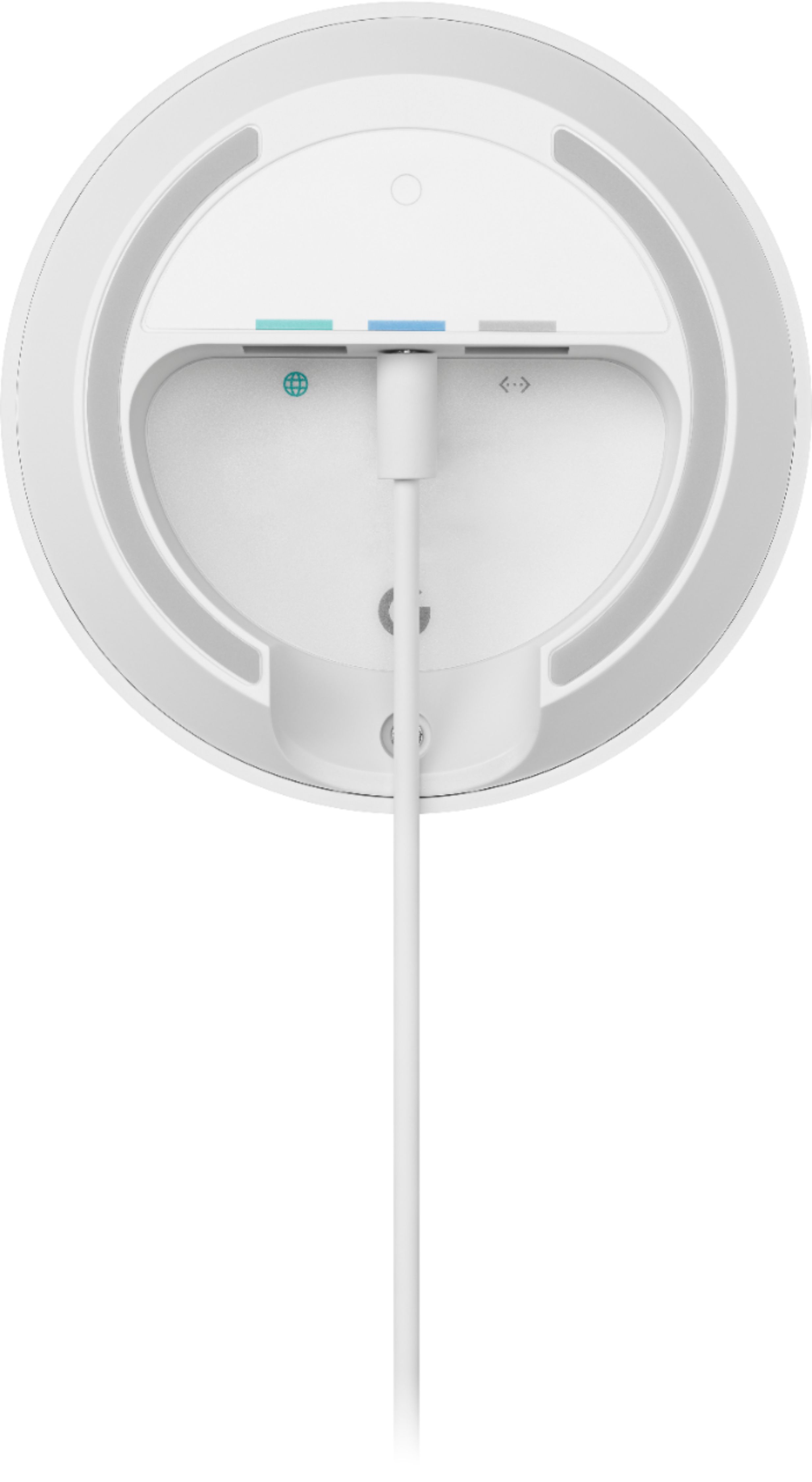
A:AnswerYes. You still need to have an Internet Service Provider (ISP) and a modem to connect your Google Wifi to an internet connection. Google Wifi replaces your current router as the primary point, and connects directly to your modem with an Ethernet cable.
A:AnswerI would think, but I haven't had a need for that setup. I would recommend that you try it, and if it doesn't work out, then I would return the unit, but it is great in my normal setup.
A:AnswerThey do. It’s what I have mine on. You should; however, turn on bridge mode on your Panoramic router. This allows you to use these for your wifi with less interference.
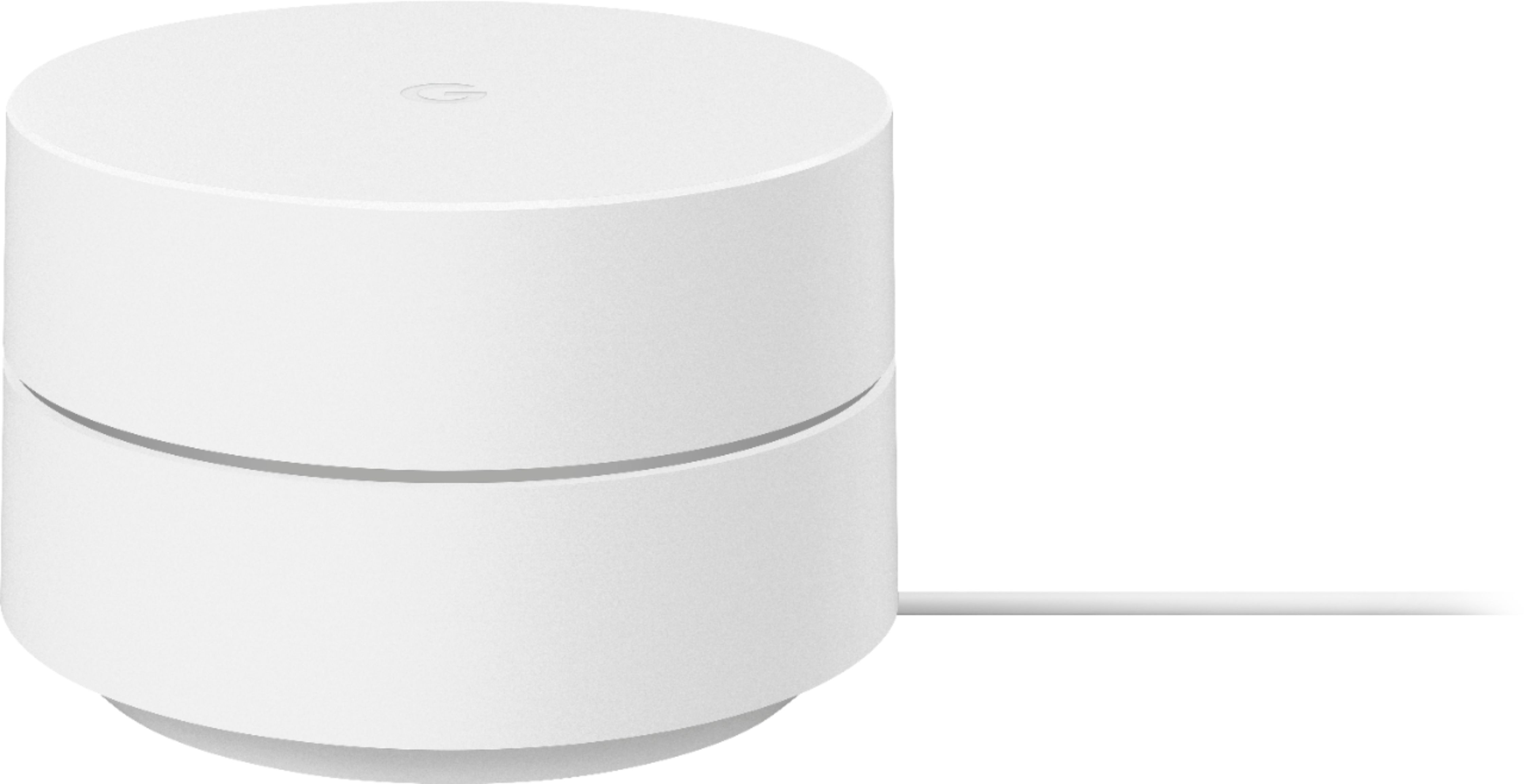
A:AnswerThe Google Wifi 2020 model has the same capabilities with the 2016 model, but with some minor design changes and improvement. Here are the details:
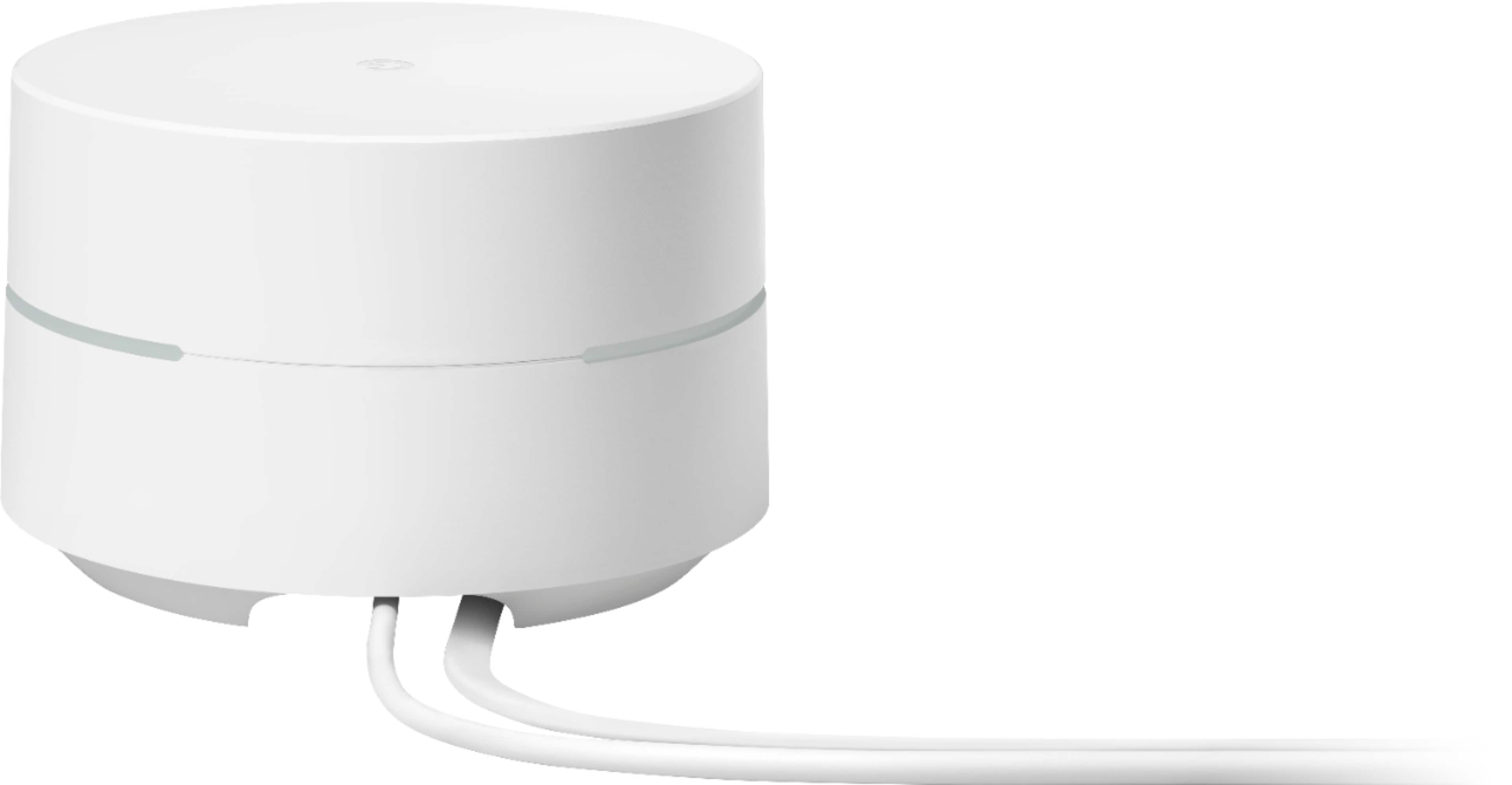
- Google Wifi 2016 has a USB-C power jack while Google Wifi 2020 has a Barrel jack.
- The Google "G" logo on Google Wifi 2020 point is engraved, not printed.
- The Google Wifi 2020 is sustainably designed with 49% of device plastic part weight is made with recycled material.
A:AnswerYou can use them with any router. With that being said, I wouldn’t suggest using both for wifi. You will create interference and degrade your connection quality. I would suggest putting your current router in bridge mode and simply using it to send the signal to the Google Wifi.
A:AnswerHaving a new modem means having a new source of IP address for your internet connection. Since there's a change in source, you will need to factory reset the Google Wifi and re-setup. Here's a guide on how to factory reset: https://support.google.com/wifi/answer/6246619
Also, if your modem is a modem/router combo, we recommend putting it in Bridge mode or disable the Wi-Fi functionality to avoid double NAT related issues. You can learn more about Bridge Mode here: https://support.google.com/googlenest/answer/6240987
A:AnswerHaving 2 routers that creates 2 separate networks is what we called double NAT which causes issue with your connection. We recommend putting your AT&T router in Bridge mode or disable the Wi-Fi functionality to avoid double NAT related issues. You can learn more about Bridge Mode here: https://support.google.com/googlenest/answer/6240987