A:AnswerYes. Google Wifi will work with your modem/router combo. However, we recommend putting it in Bridge mode so you can set up Google Wifi as your primary router and to avoid Double NAT as it may cause connectivity issues. You can read more on Bridge mode and Double NAT here: https://support.google.com/wifi/answer/6240987
A:AnswerYes. Google Wifi needs to be connected to a modem provided by your ISP. Here's a link for the setup requirements and guide on how to setup: https://support.google.com/wifi/answer/7183148
A:AnswerYes. You’ll still need an Internet Service Provider (ISP) and a modem to connect to the internet. Google Wifi replaces your traditional router to provide seamless, reliable Wi-Fi coverage throughout your home. Internet speed and reception depend on the modem and internet service provided by ISP. Google Wifi can help distribute the full speed it receives from your modem. Learn more about Google Wifi here: https://support.google.com/wifi/answer/7168315
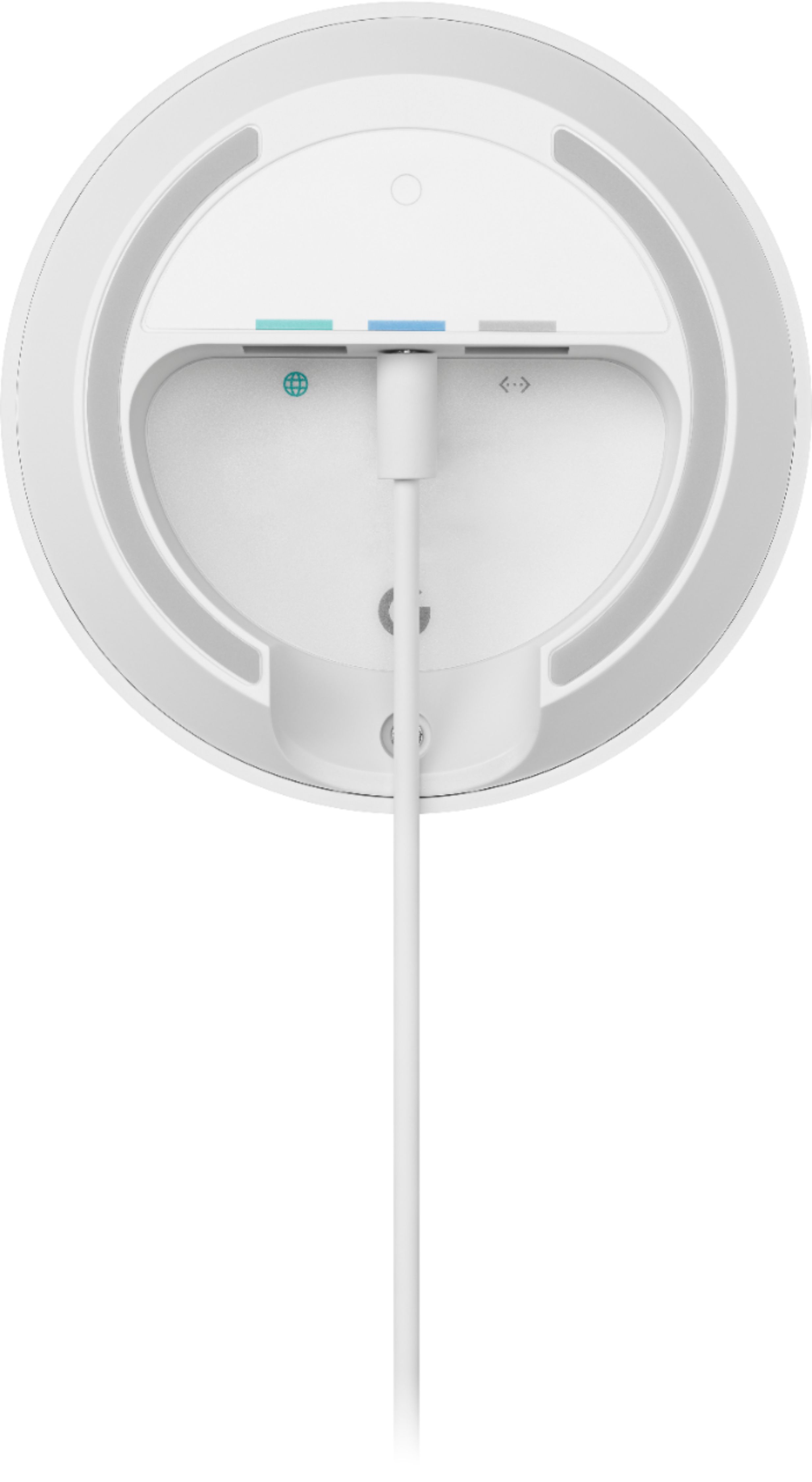
A:AnswerDefinitely! You can use an Ethernet cable with Google Wifi. It has Dual Gigabit Ethernet ports (LAN and WAN). You can learn more about Google Wifi specifications here: https://support.google.com/wifi/answer/6280668
A:AnswerWe recommend contacting your internet service provider to help identify your modem. You may also refer to this help article on what a modem is here: https://support.google.com/googlenest/answer/6274112
A:AnswerGoogle Wifi is compatible with most broadband internet services including Spectrum. We recommend setting up Google Wifi as your primary router directly wired into the WAN port of modem with an Ethernet cable. If your modem is a modem router combo, we recommend disabling the Wi-Fi functionality by putting it in Bridge mode to avoid any Double NAT as this may cause connectivity issues. You can find more info regarding Bridge mode and Double NAT here: https://support.google.com/googlenest/answer/6240987
A:AnswerGoogle Wifi has 2 Ethernet ports (LAN and WAN). You can connect Google Wifi directly to your modem's WAN port with the Ethernet cable to set it up and broadcast your Wi-Fi network. Then, you can wire your desktop computer or a switch to the LAN port of the Google Wifi.
A:AnswerThe limited Wi-Fi Internet speed you have could be related to a double NAT issue which happens when you have 2 routers broadcasting the same Wi-Fi SSID and password. To fix this, we recommend disabling the Wi-Fi functionality for your modem/router combo or put it in bridge mode, then set up Nest Wifi Router as your main router. You can then connect your other Nest Wifi Points and Google Wifi Points to the Nest Wifi Router. To learn more about combining Nest Wifi and Google Wifi here: https://support.google.com/googlenest/answer/7182840
A:AnswerYou can add more Google pucks to this system. If I remember correctly, the limit was 9 pucks??? I almost bought two of the 3-packs but one 3-pack works great for me.
Google Wifi is compatible with the Nest Wifi router, but neither of those are compatible with the Nest Wifi Pro
A:AnswerHi mike, your Google Wifi uses Automatic Wi-Fi optimization which directs devices to channels with the best performance automatically. It also uses Network Assist which automatically helps avoid Wi-Fi congestion, and transitions devices to the closest Wi-Fi point for the best signal. If you have additional questions or need further assistance, please don't hesitate to contact us on our Google Help page here: https://support.google.com/googlenest/gethelp
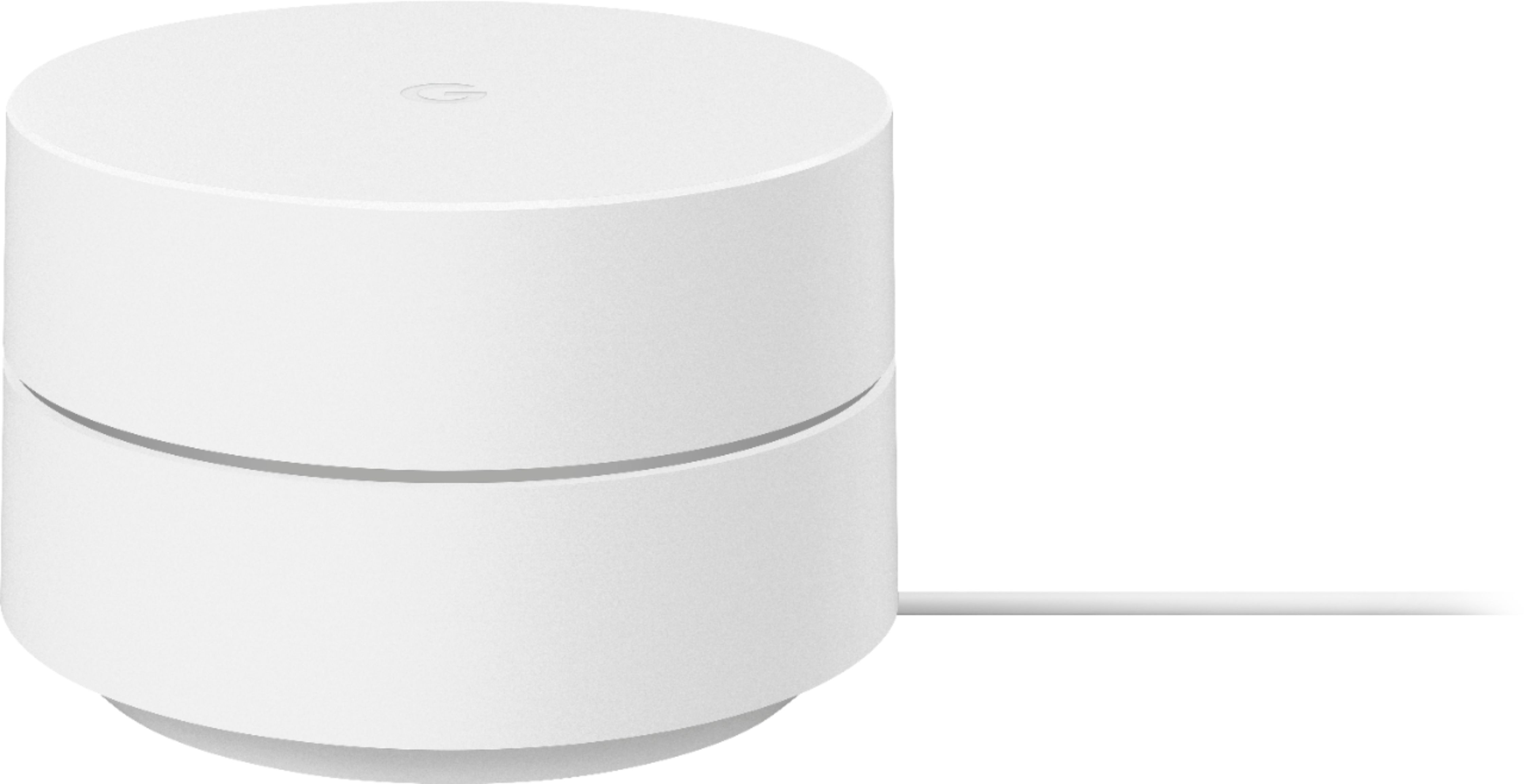
A:AnswerGoogle Wifi replaces your traditional Wi-Fi router. It connects to a modem with broadband internet connection by an internet service provider. Take a look at the following link to learn more about Google Wifi: https://support.google.com/wifi/answer/7168315